Copy of Stream Tech Integration — Linnworks to Stream: End-User Guide
Connect Linnworks to Stream so orders, tracking numbers, labels and delivery updates move between the two systems automatically.
New User Guide
Check the documentation guide for new users
Overview
Stream Tech Integration connects Linnworks, your order management system, with Stream, a logistics and delivery management platform. It keeps orders, tracking numbers, labels and delivery updates in step between the two systems, so your team does not need to enter anything twice.
Once it is set up, the integration looks after the whole shipment. It picks up open orders in Linnworks, creates the delivery or collection in Stream, writes the tracking number back to Linnworks, and then receives delivery updates from Stream as they happen. It runs in the background, so most days it needs no manual action once your shipping services and Stream details are in place.
Stream Tech Integration helps you send orders to Stream faster, print labels straight from Linnworks and see delivery progress on every order.
Orders sent automatically
Open orders in Linnworks are picked up every five minutes and sent to Stream as deliveries or collections.
Runs automatically
The integration works in the background, with no daily action needed from your team.
Simple to set up
Add your Stream details and set up your shipping services in a few steps.
Video Walkthrough
Configure the Integration
Once the integration is installed, please connect it to your Stream account and choose your settings. You can change these settings at any time to suit the way you work.
Steps to Configure
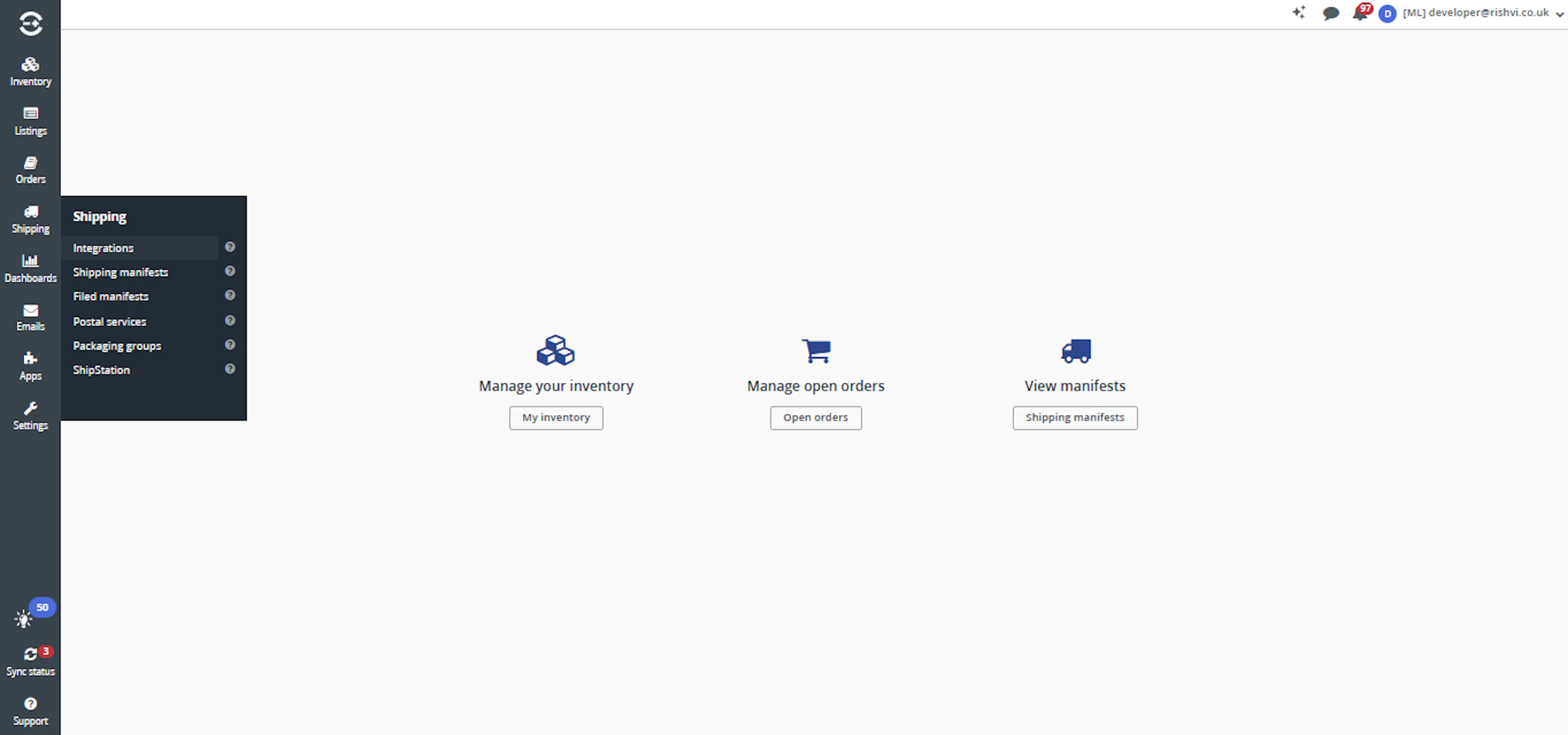
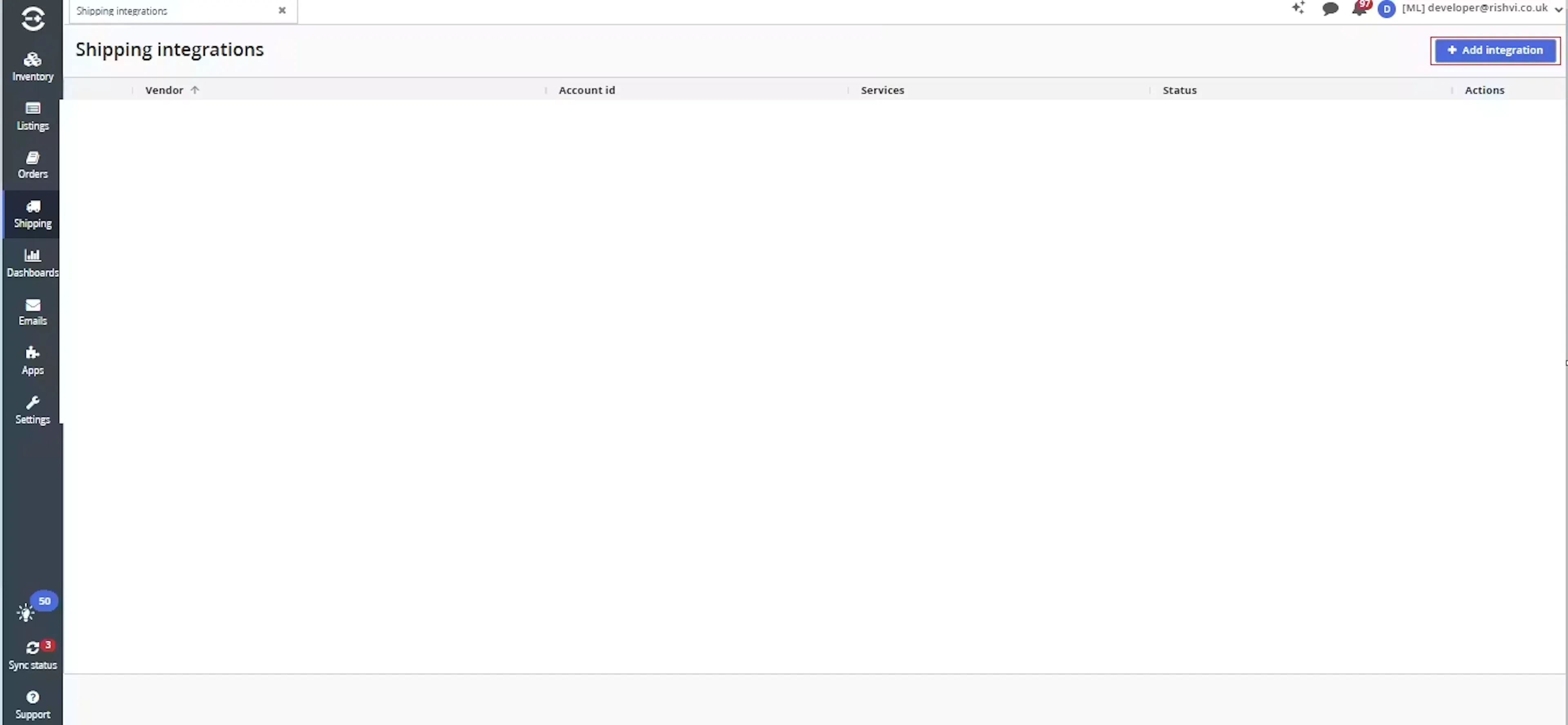
Go to Shipping > Integration and click Add Integration.
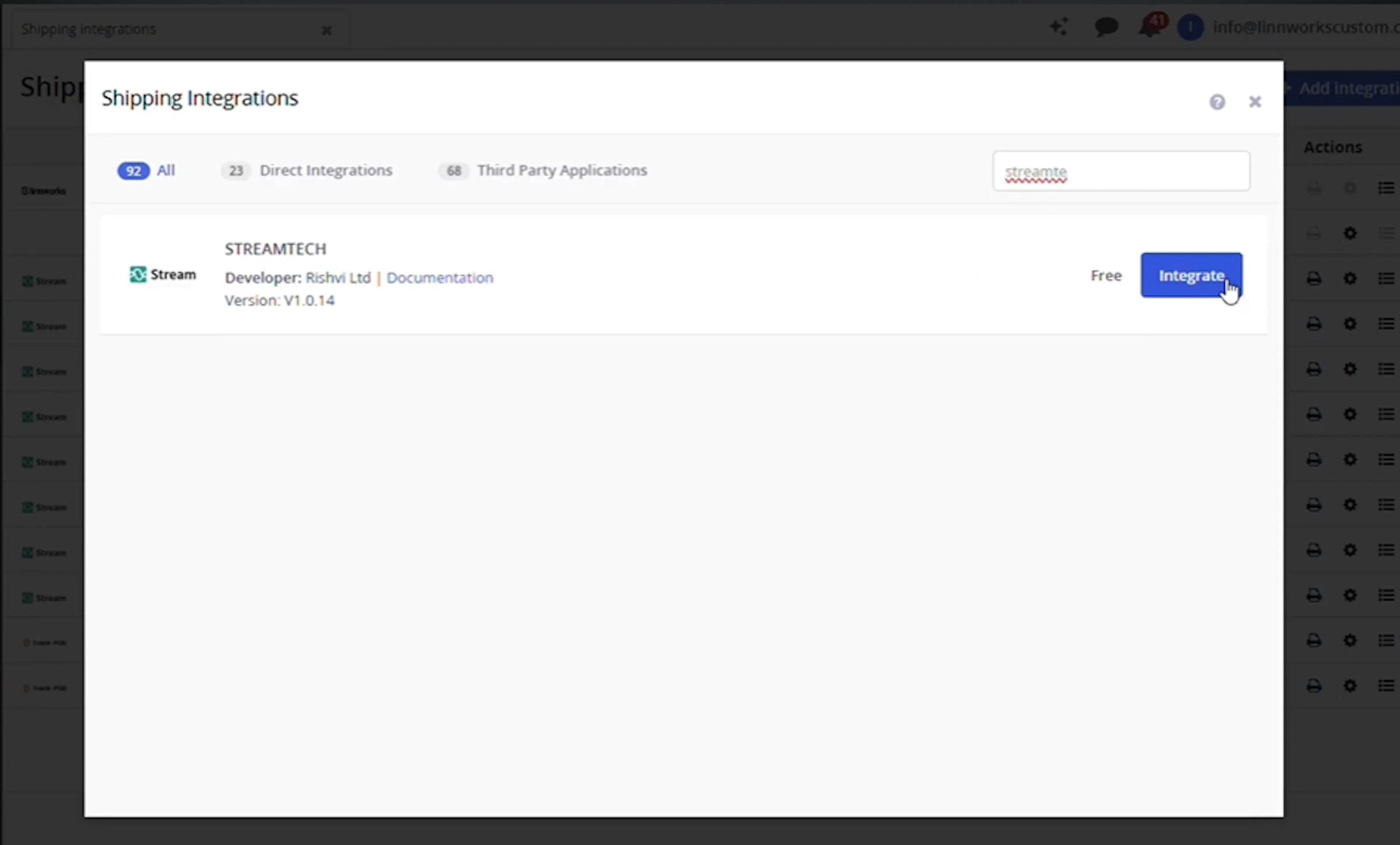
Search for the integration and add your account name.
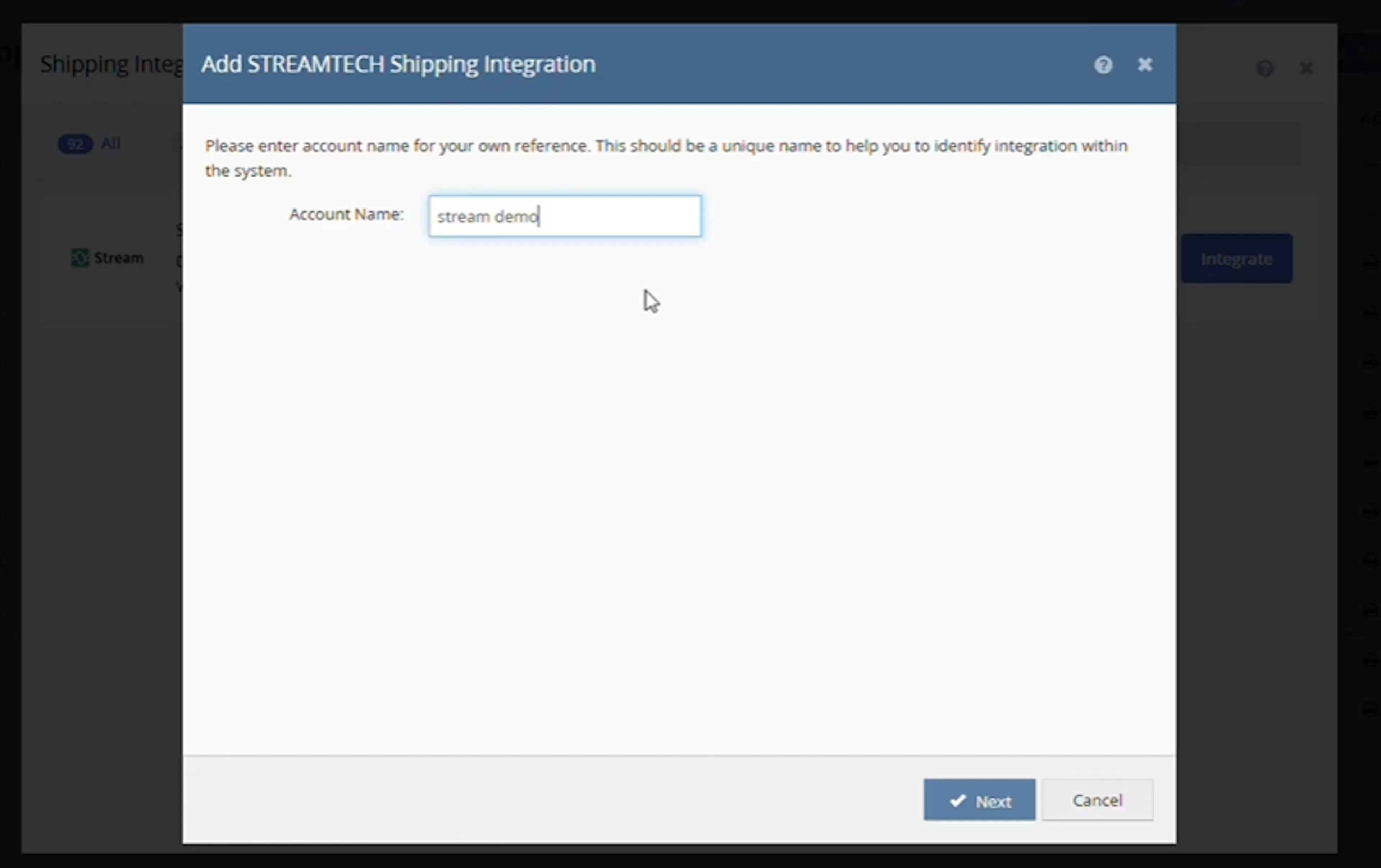
Select your Integration Profile and complete the common configuration steps, clicking Next to move on.
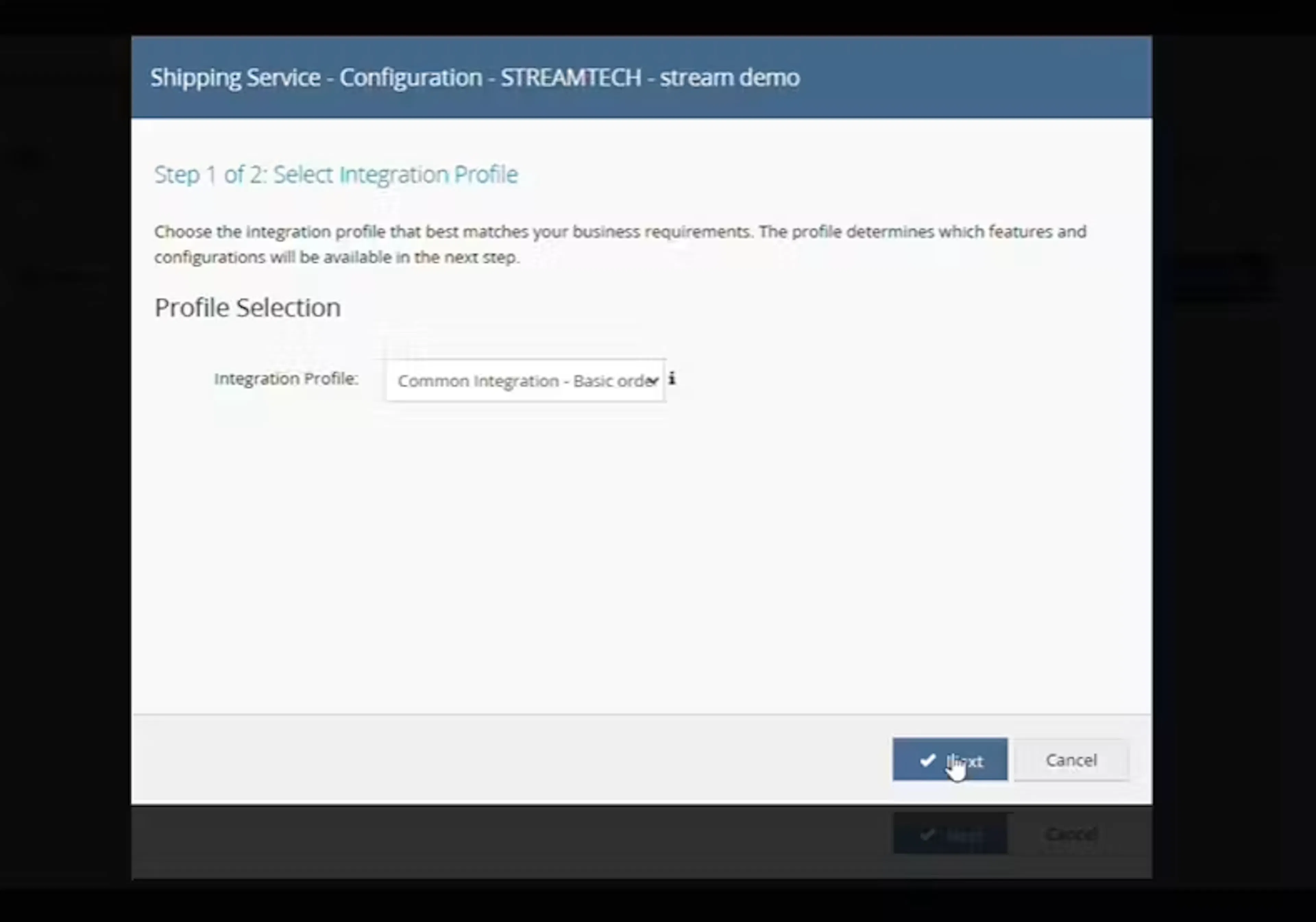
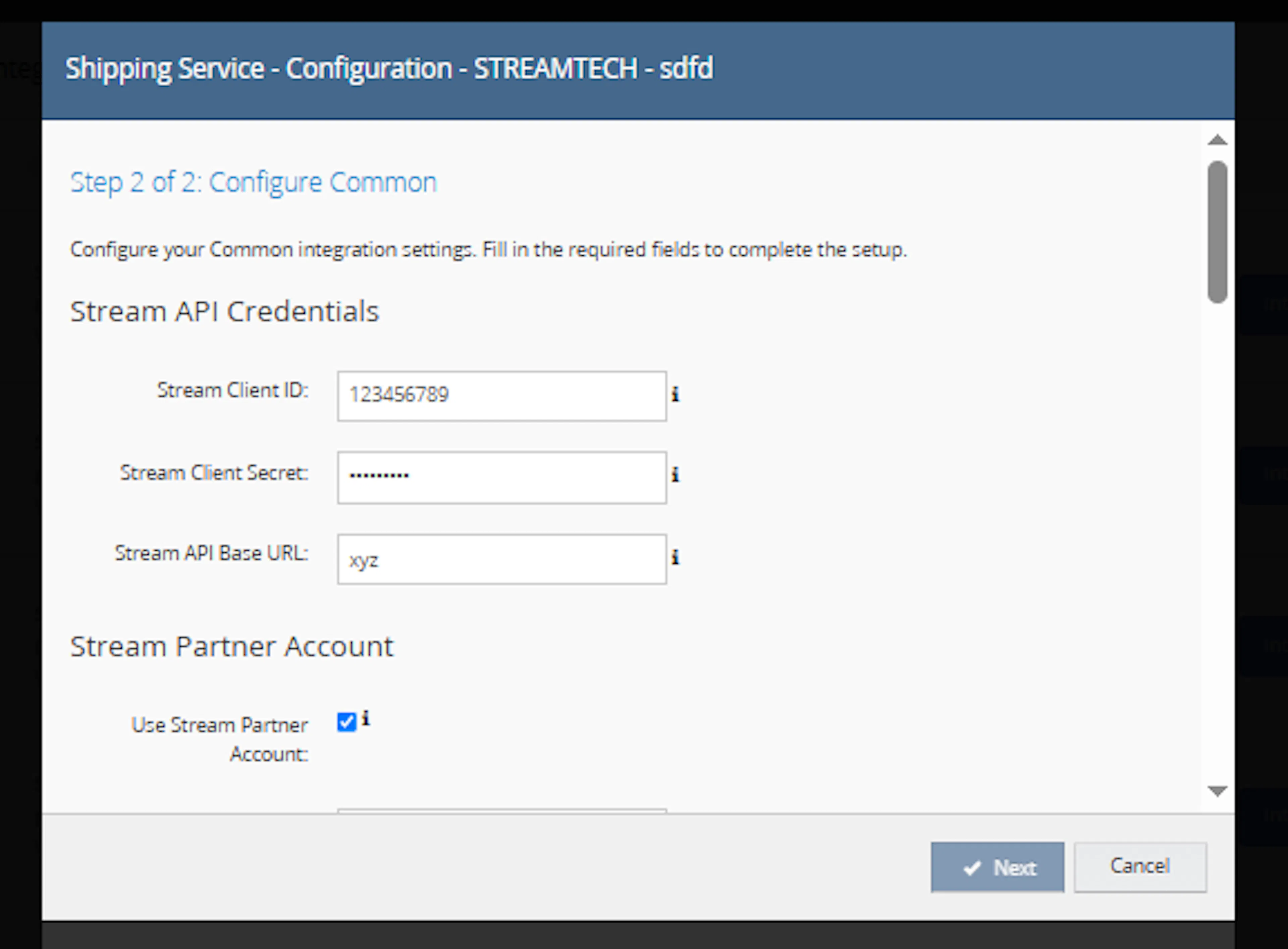
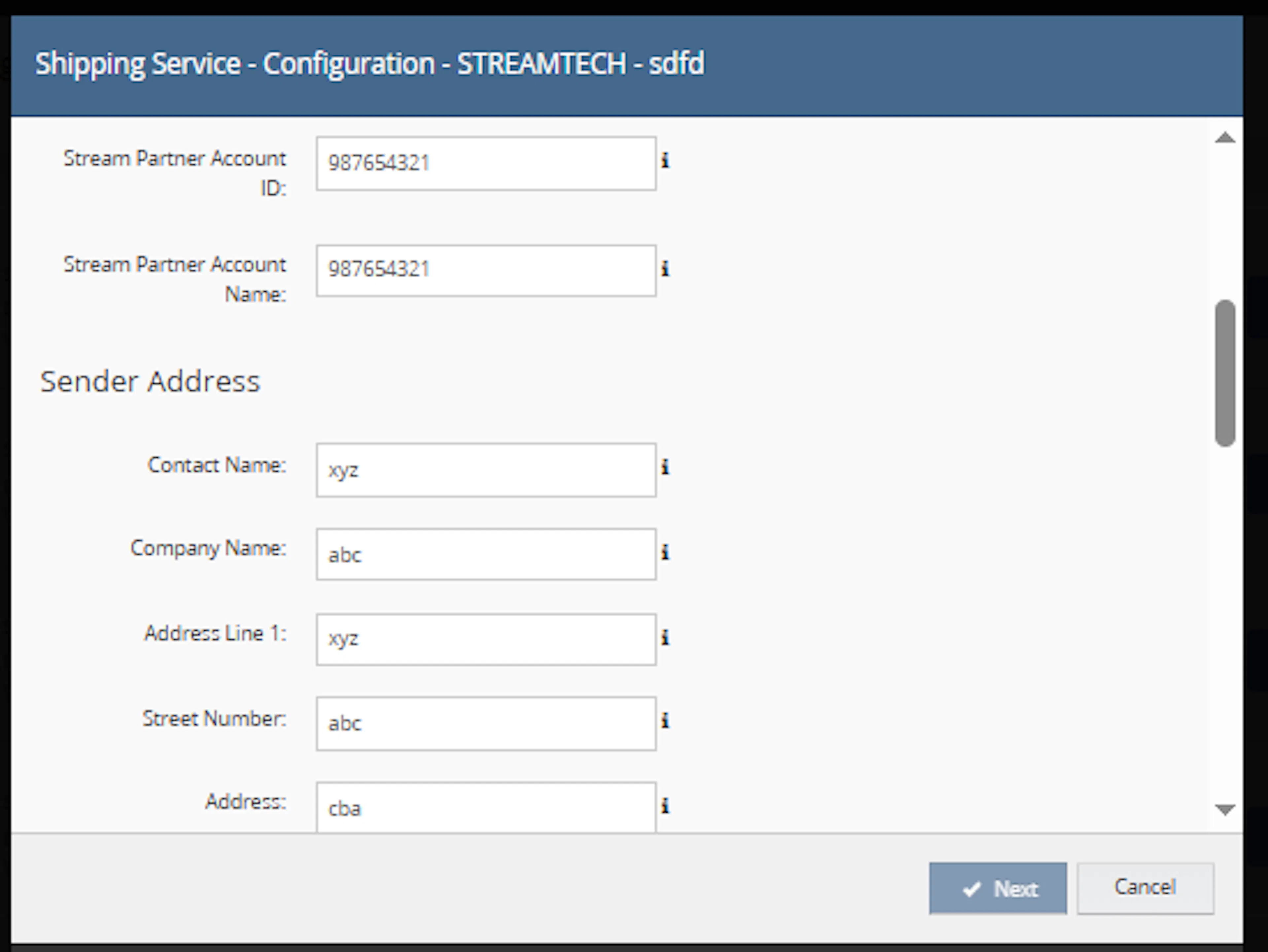
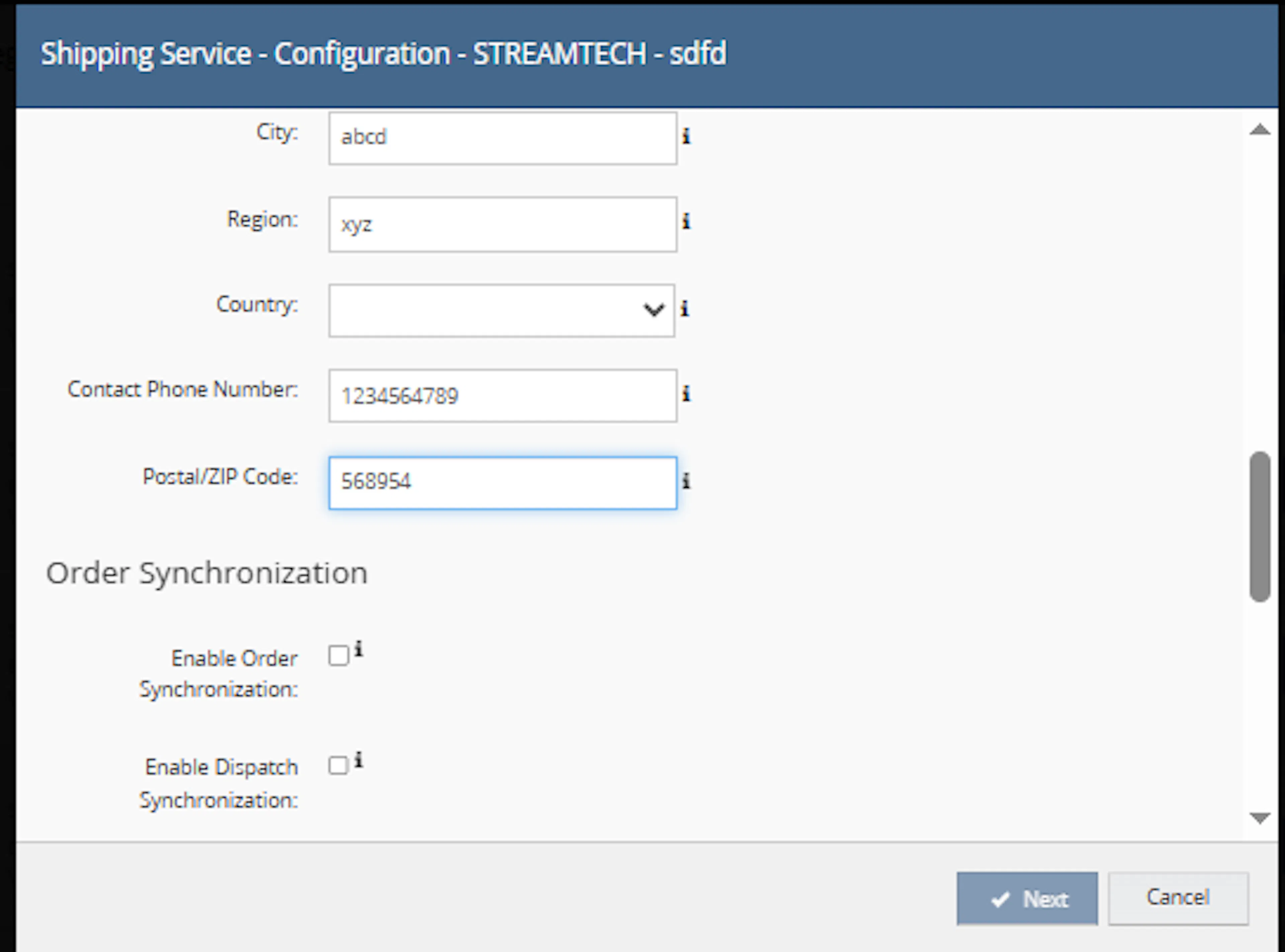
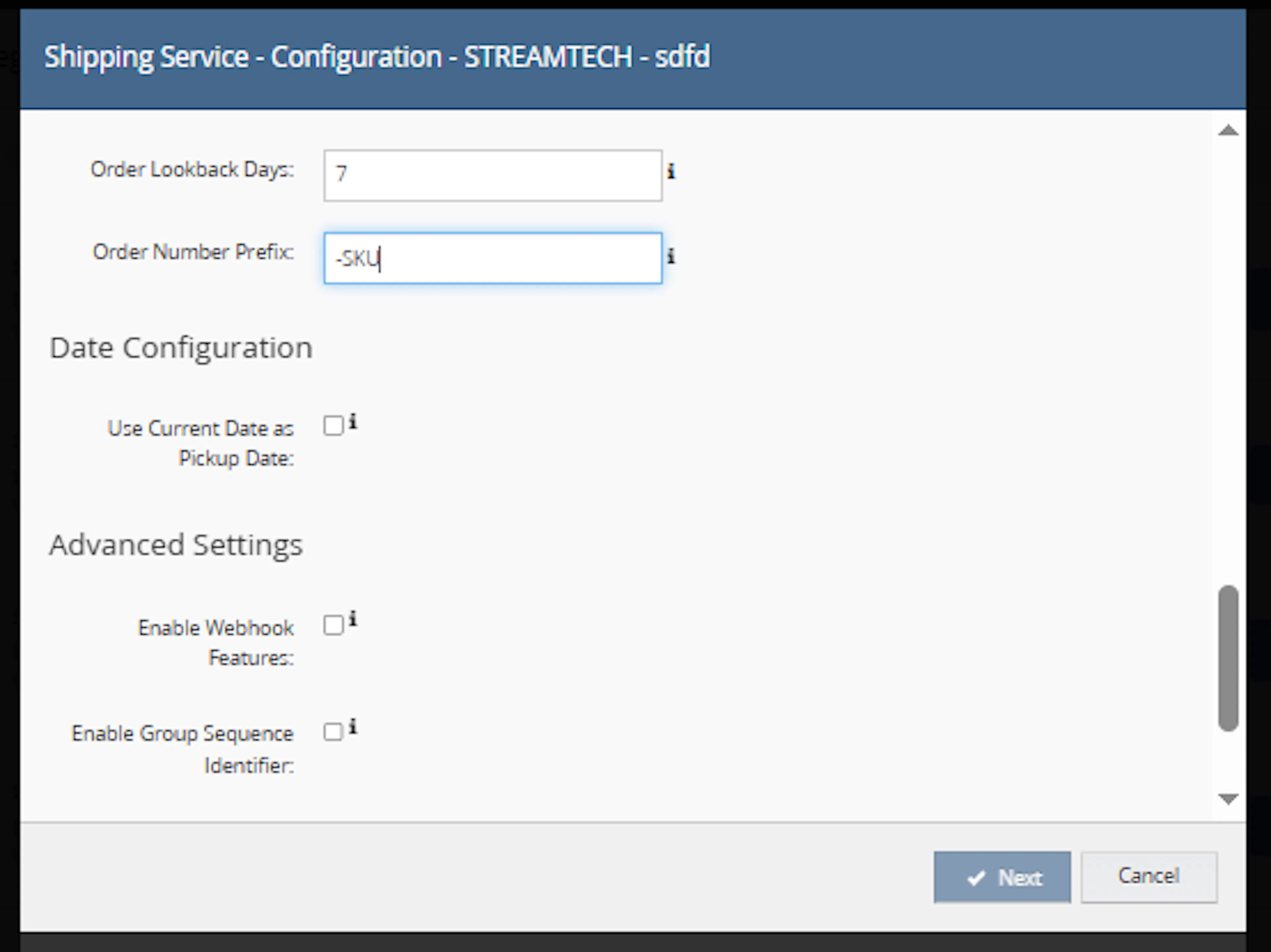
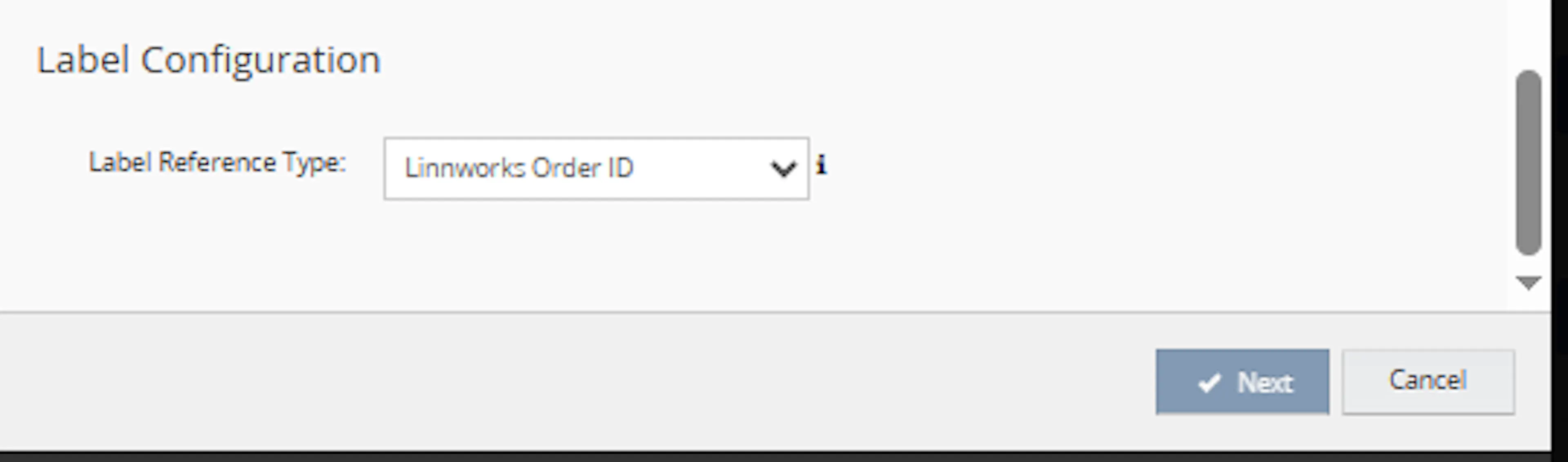
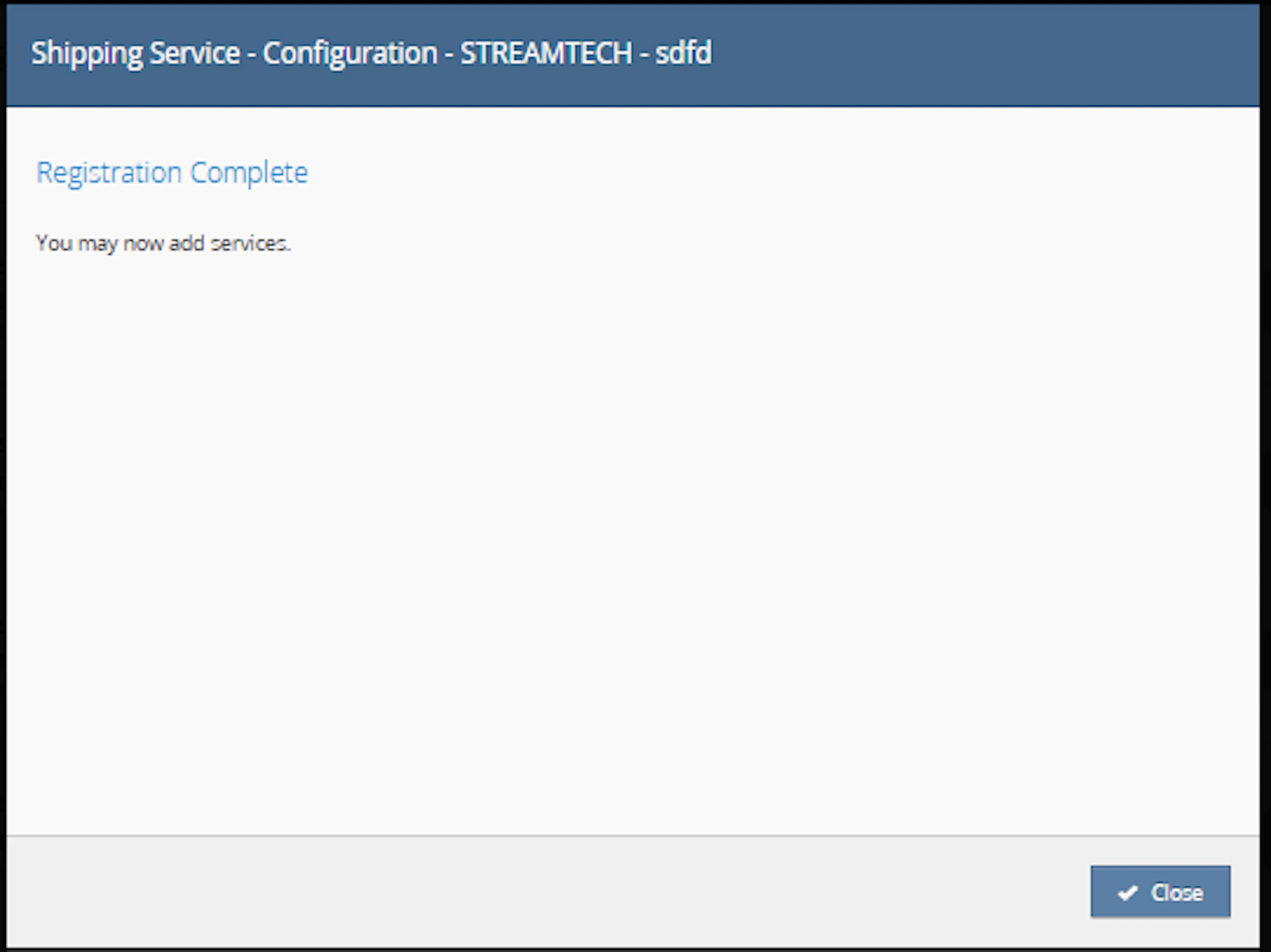
This integration has the following settings. Each integration represents one Linnworks account connected to one Stream account.
| Parameter | Required | Description |
|---|---|---|
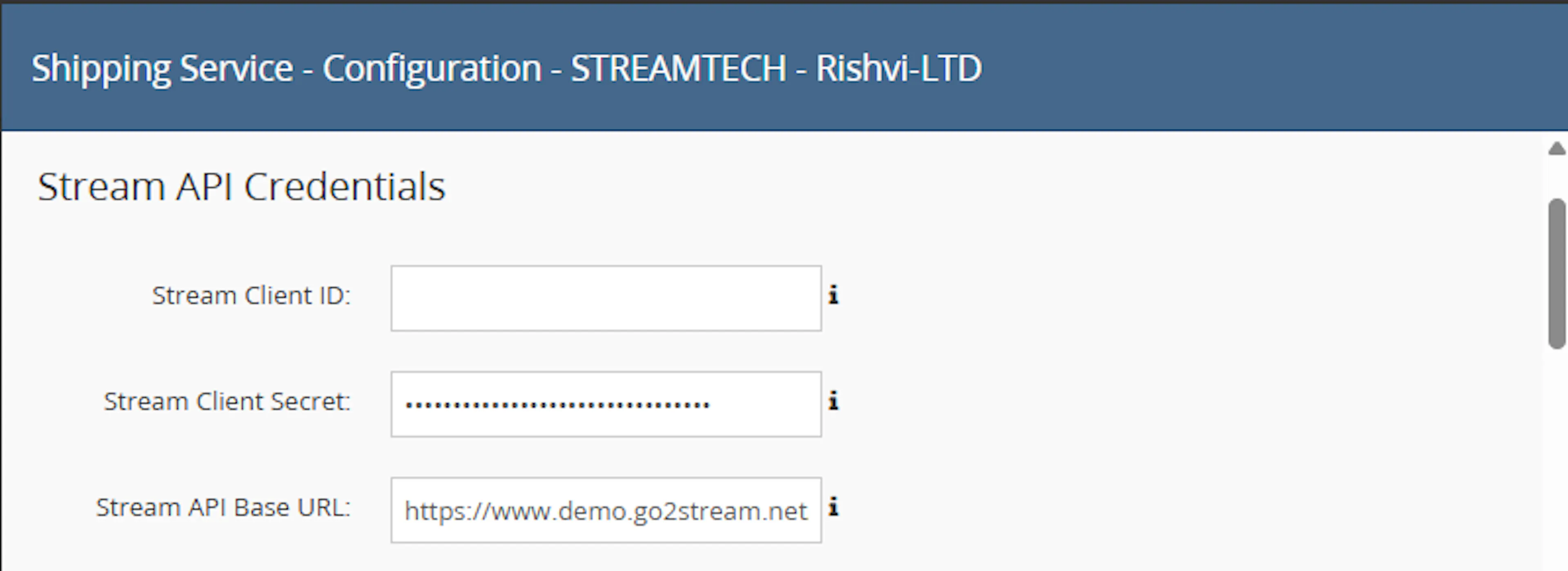
| Stream Client ID | Yes | The client ID for your Stream account. Stream provides this to you. |
| Stream Client Secret | Yes | The secret that goes with your client ID. Please keep it private. |
| Stream Client URL | Yes | The web address of your Stream account. |
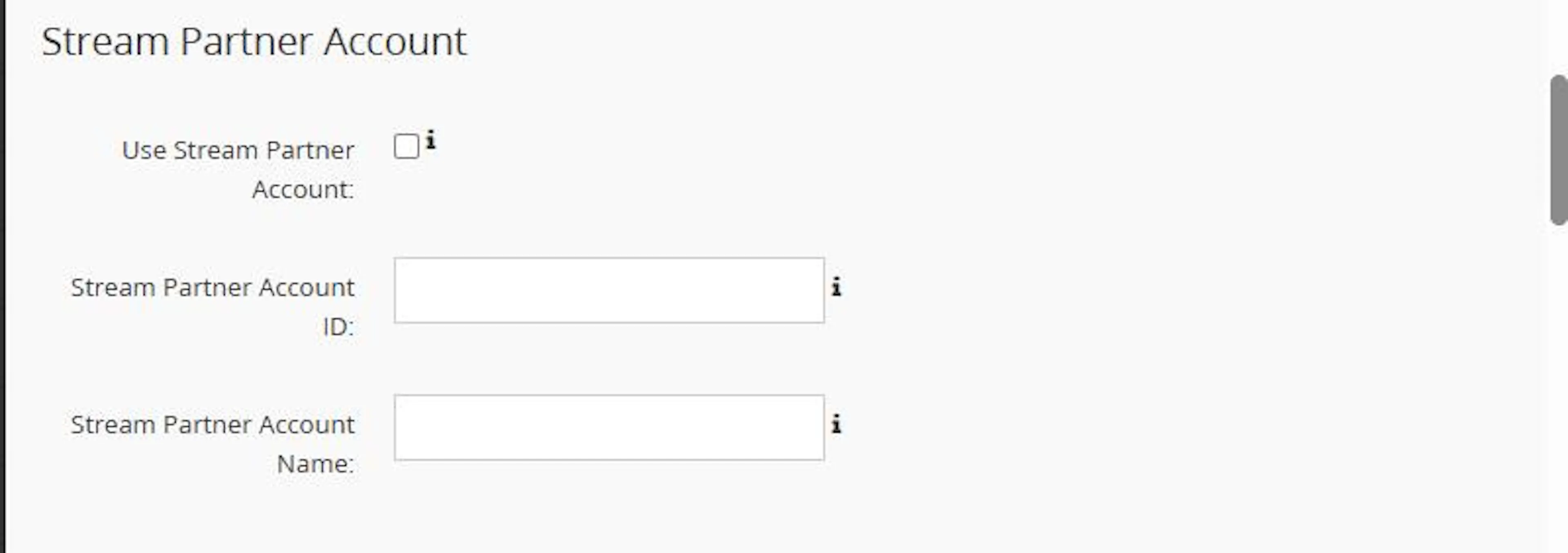
| Using Stream Partner Account | No | Switch this on if you ship through a partner's Stream account. See Stream Partner Account. |
| Stream Partner Account ID | Only with a partner account | Your partner's identifier in Stream. |
| Stream Partner Account Name | Only with a partner account | Your partner's account name. |
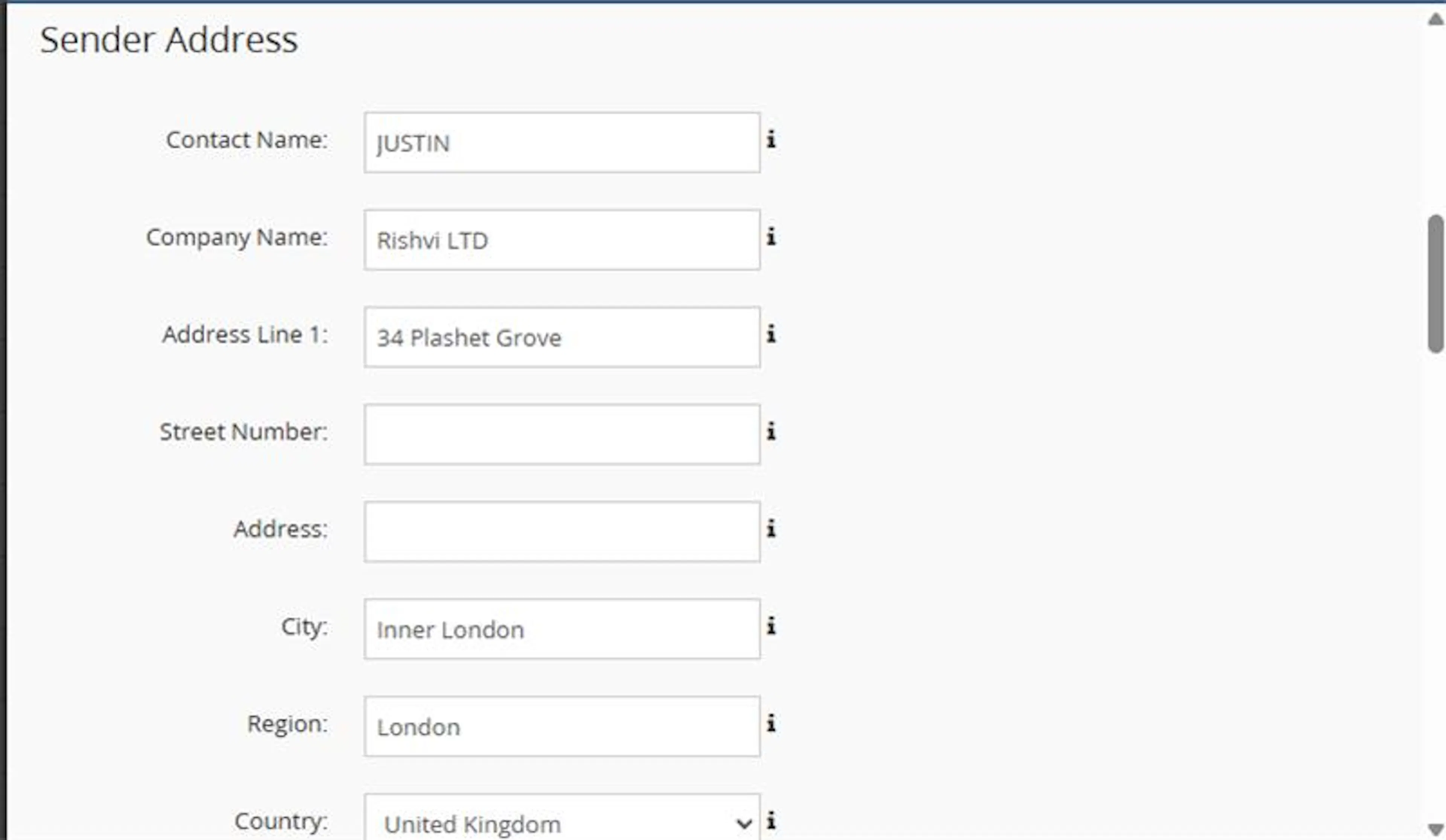
| Contact Name | Yes | The sender's contact name, included on every order sent to Stream. |
| Company Name | Yes | The sender's company name. |
| Address Line 1 to 3 | Yes | The sender's address lines. |
| City | Yes | The sender's city. |
| County | No | The sender's county. |
| Country Code | Yes | The two-letter country code for the sender's address, for example GB. |
| Postcode | Yes | The sender's postcode. |
| Contact Phone Number | Yes | The sender's contact phone number. |
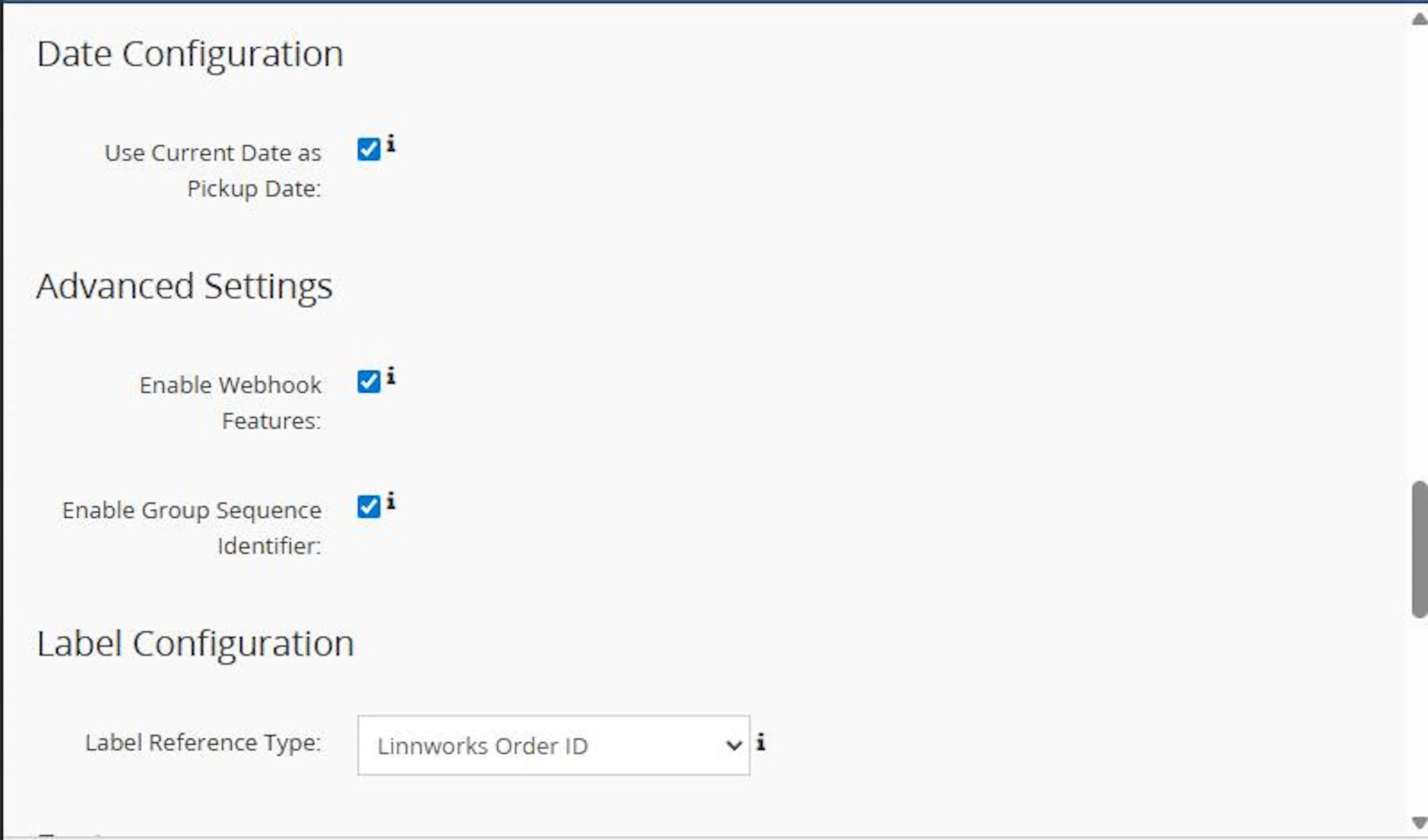
| Label Reference | No | The order detail printed as the reference on your labels. |
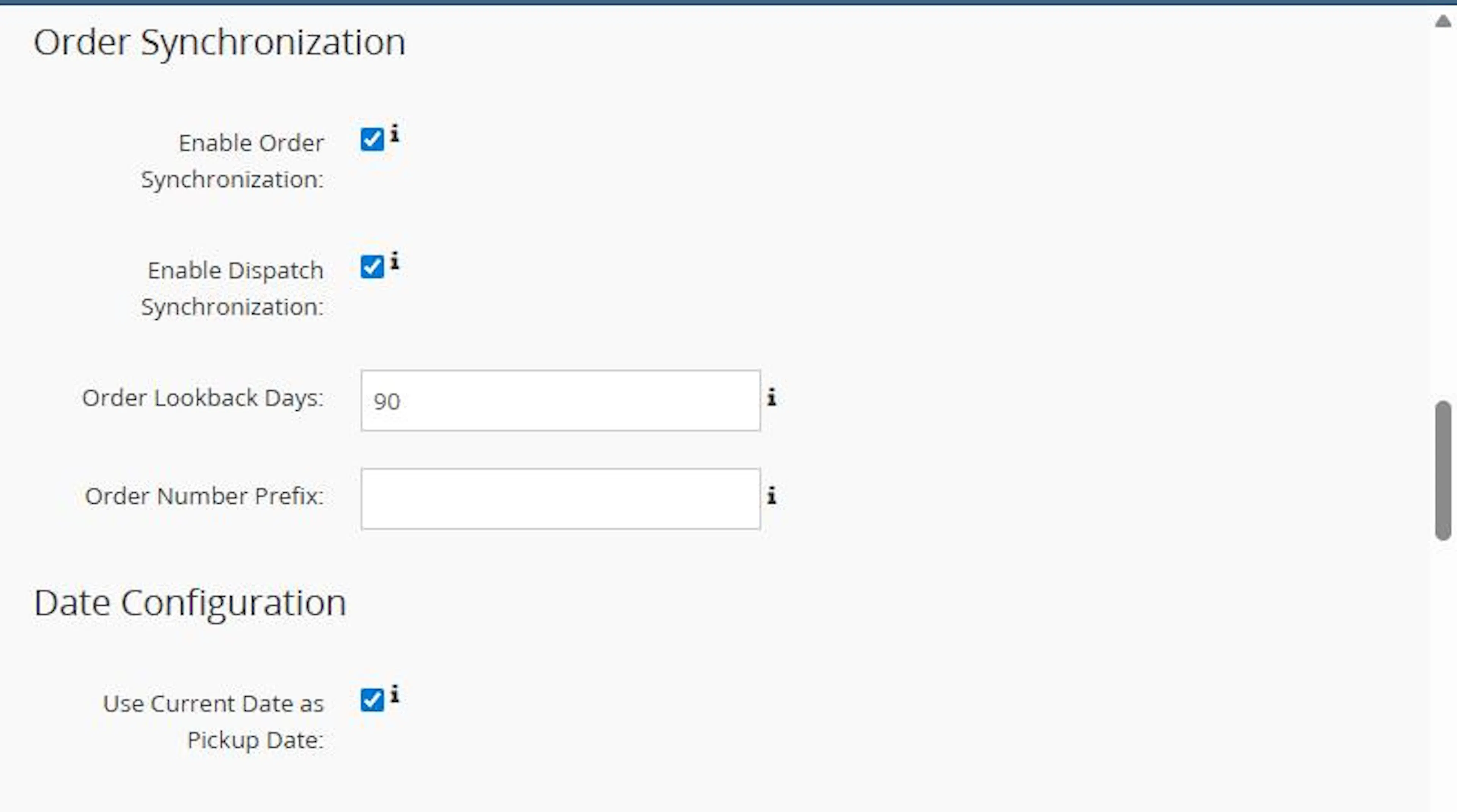
| Order Number Prefix | No | Text added to the start of order numbers sent to Stream. |
| Order Sync Enabled | Yes | Switches automatic sending of orders on or off for this integration. |
| Order Dispatch Sync Enabled | No | Switches on despatch status updates. |
| Order Lookback Days | Yes | How many days back, from today, the integration looks for open orders in Linnworks. |
| Use Current Date as Hands-On Date | No | If switched on, today's date is sent to Stream as the hands-on date. |
| Webhook Features Enabled | No | Switches on instant notifications (called webhooks) from Stream, so delivery updates reach Linnworks as they happen. |
| Group Sequence Identifier Enabled | No | Switches on the SEQ-01 to SEQ-20 sequence identifiers on your orders. |
Example configuration screen:
If you are unsure which profile to choose, select Common.
Go to Shipping Generation, then Services.
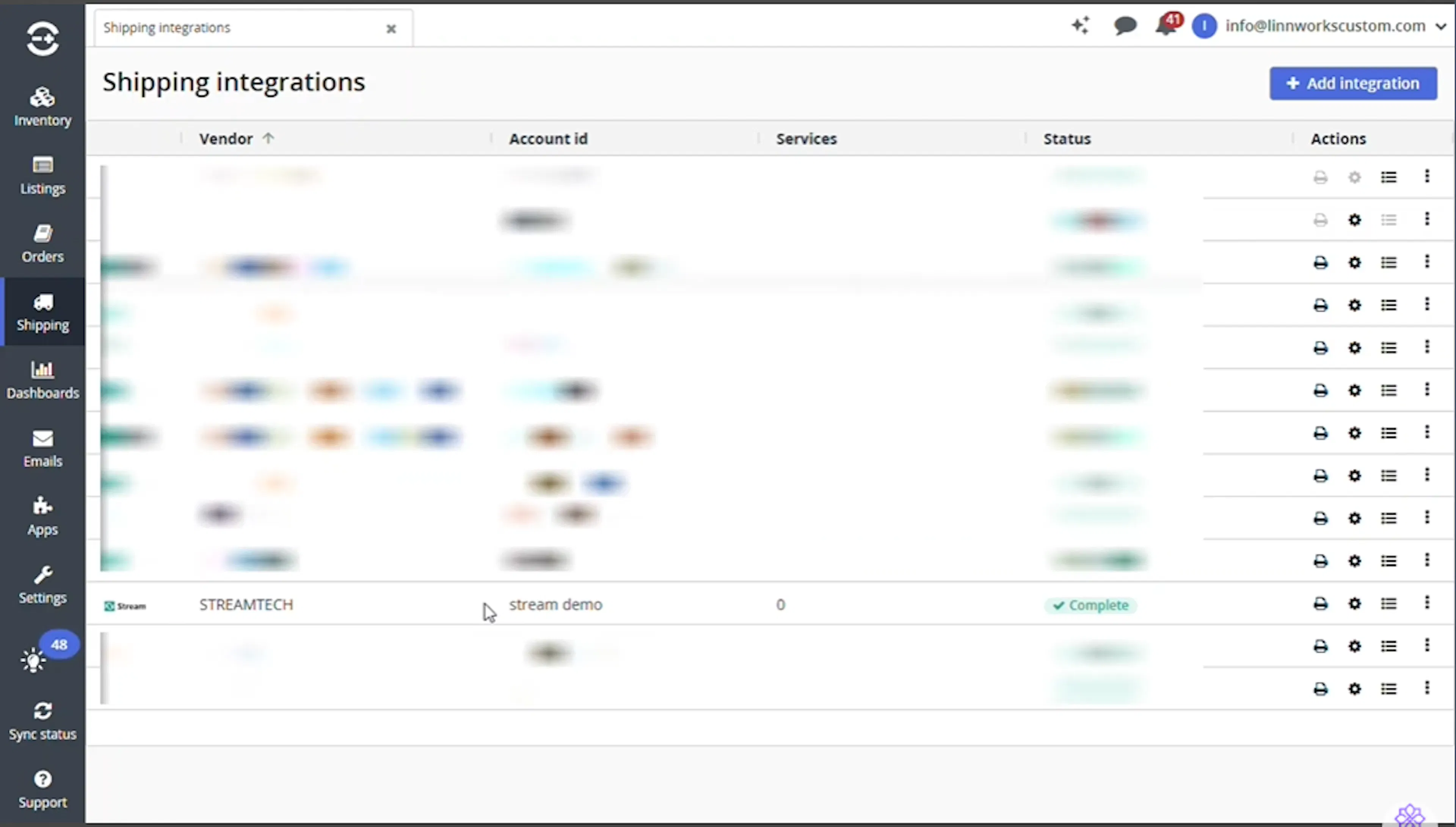
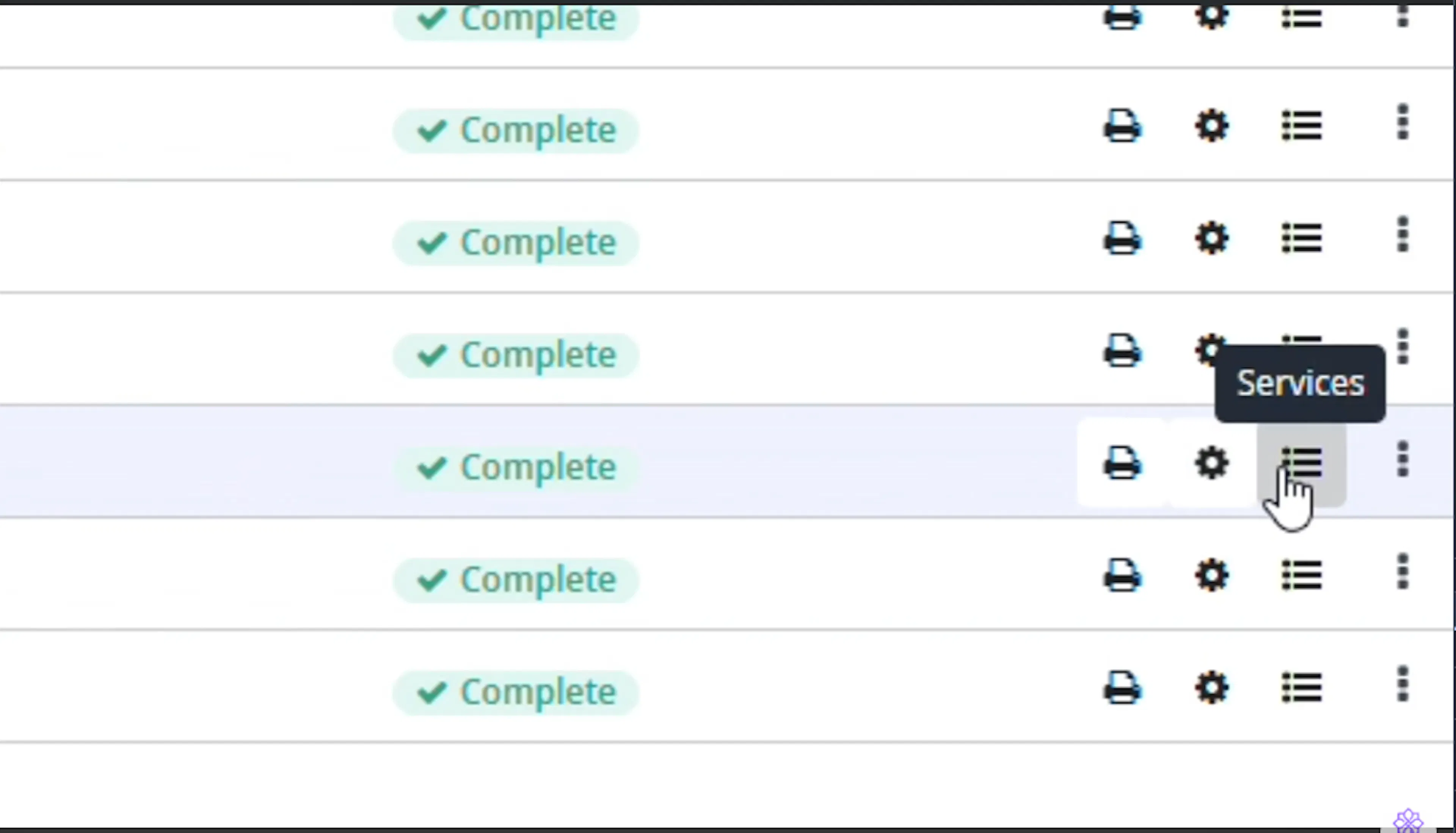
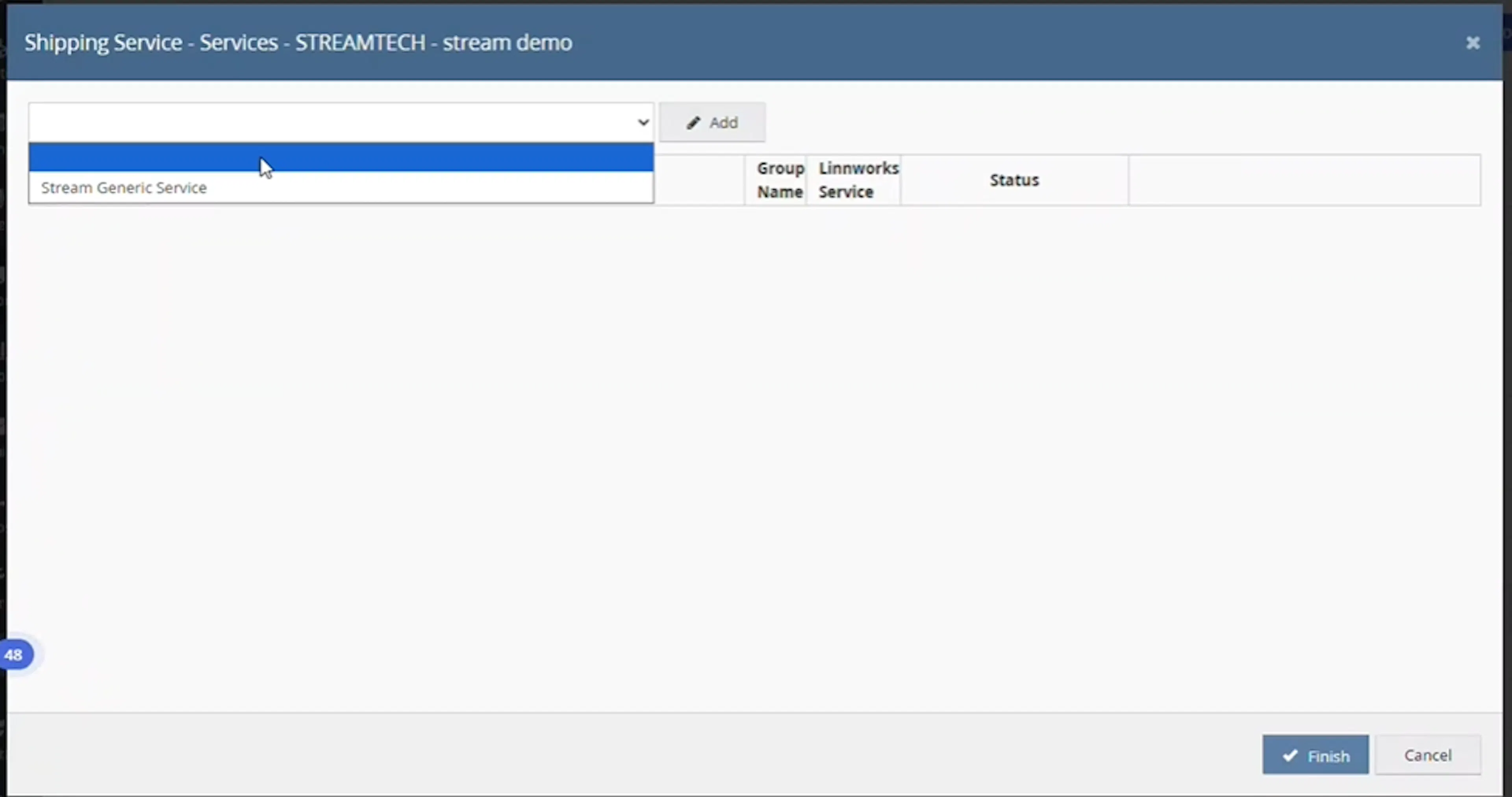
Select Stream Generic Service, click Add and then click Edit.
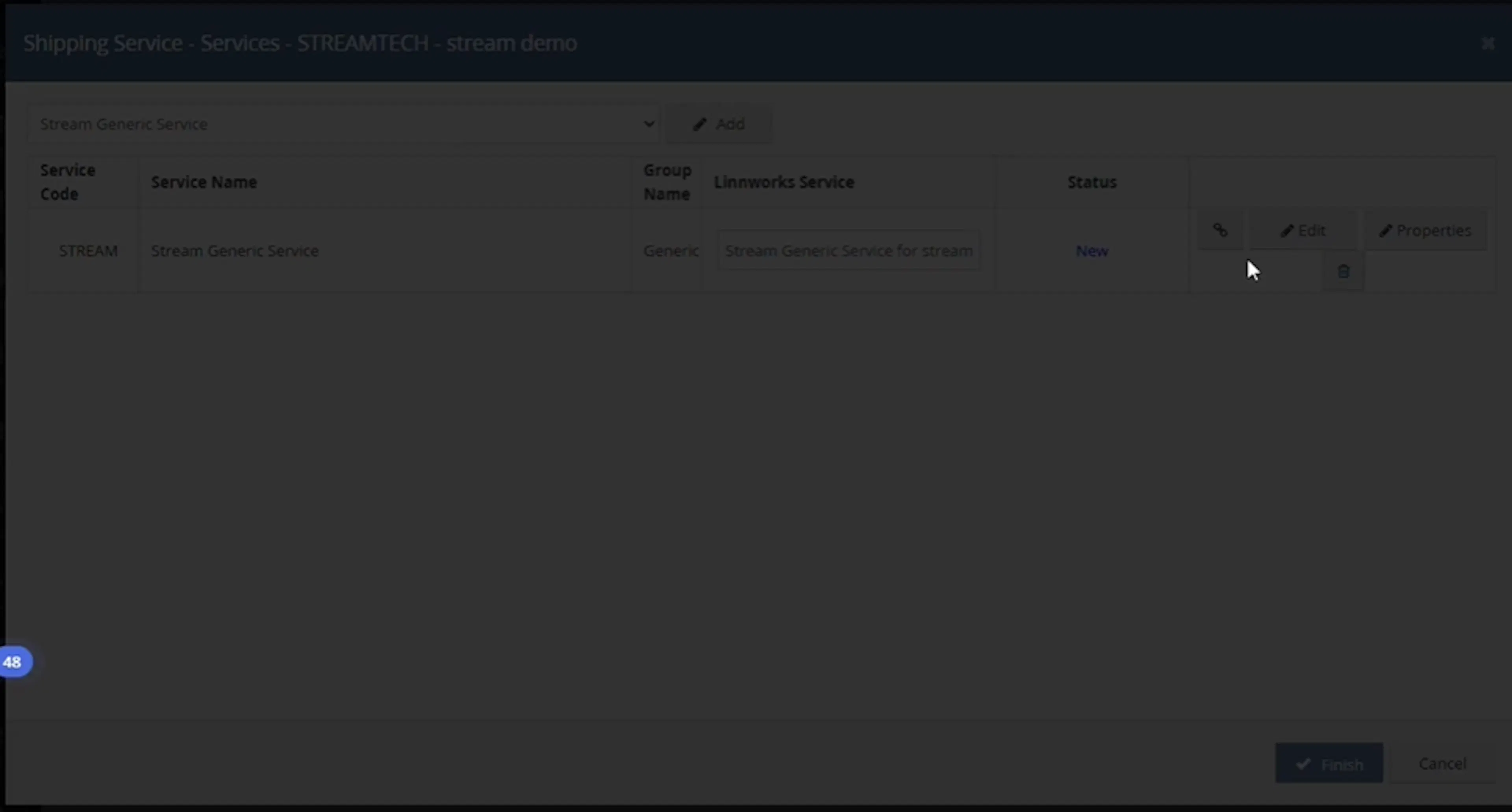
Select the label format and the number of labels.
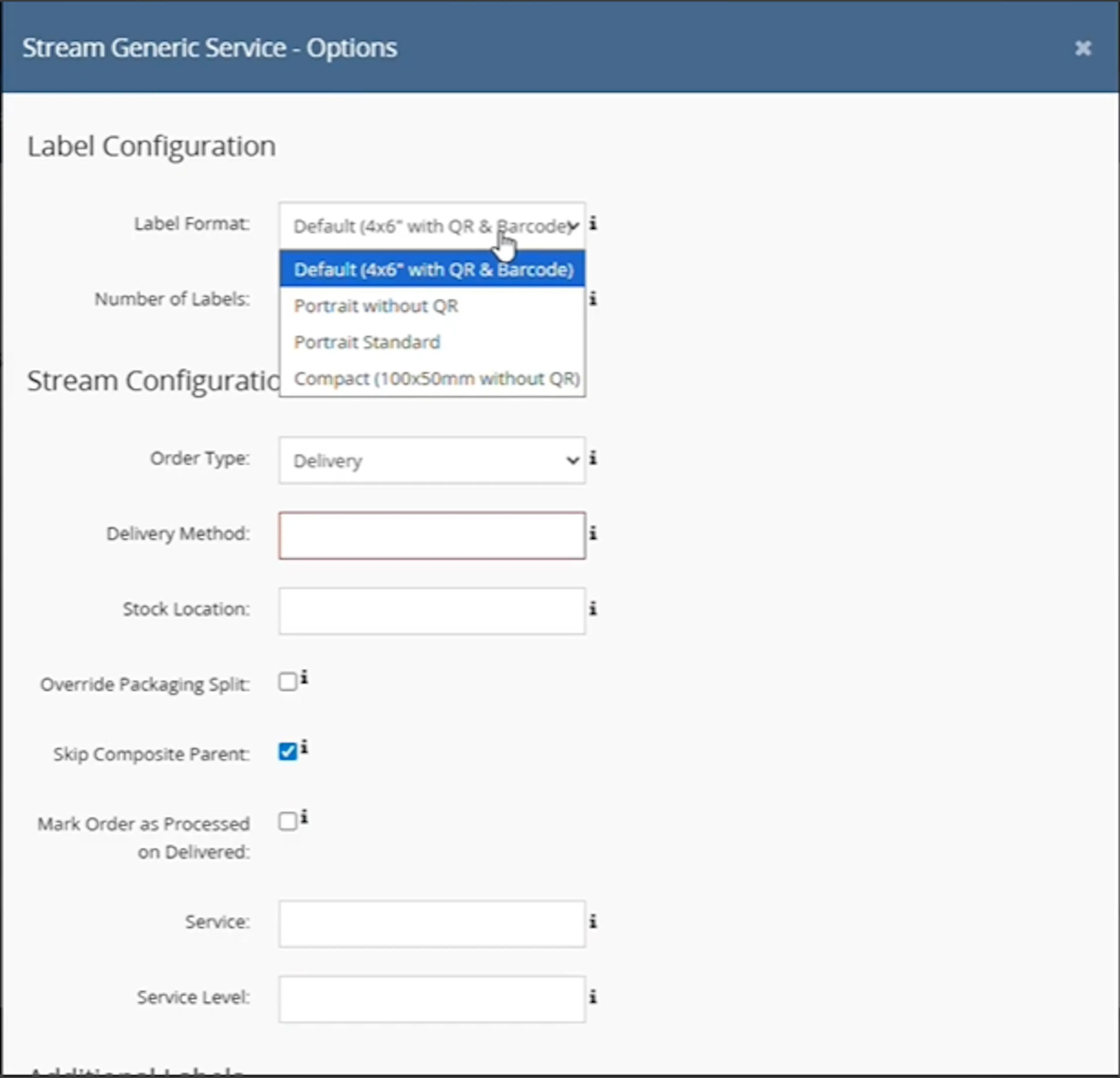
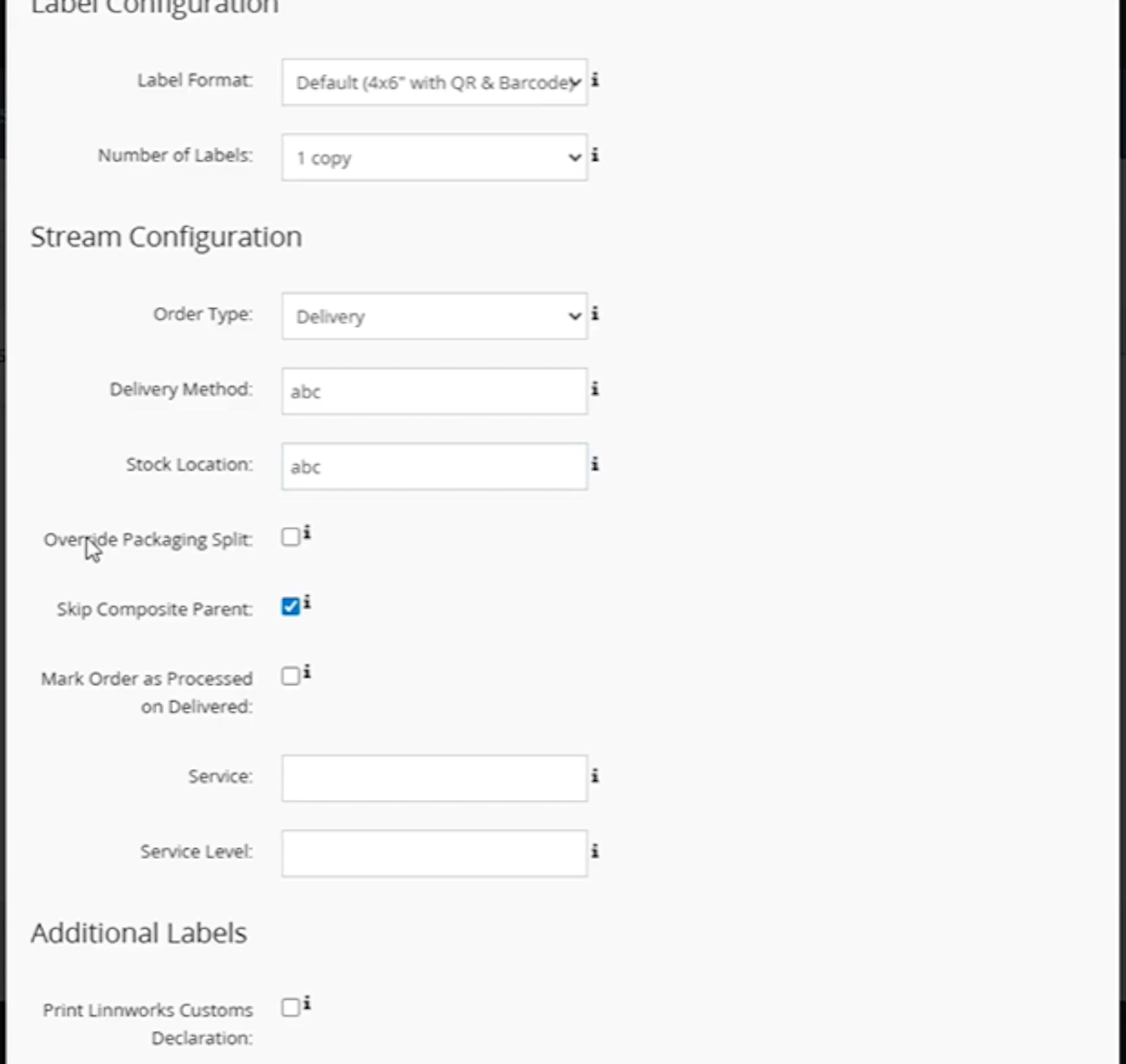
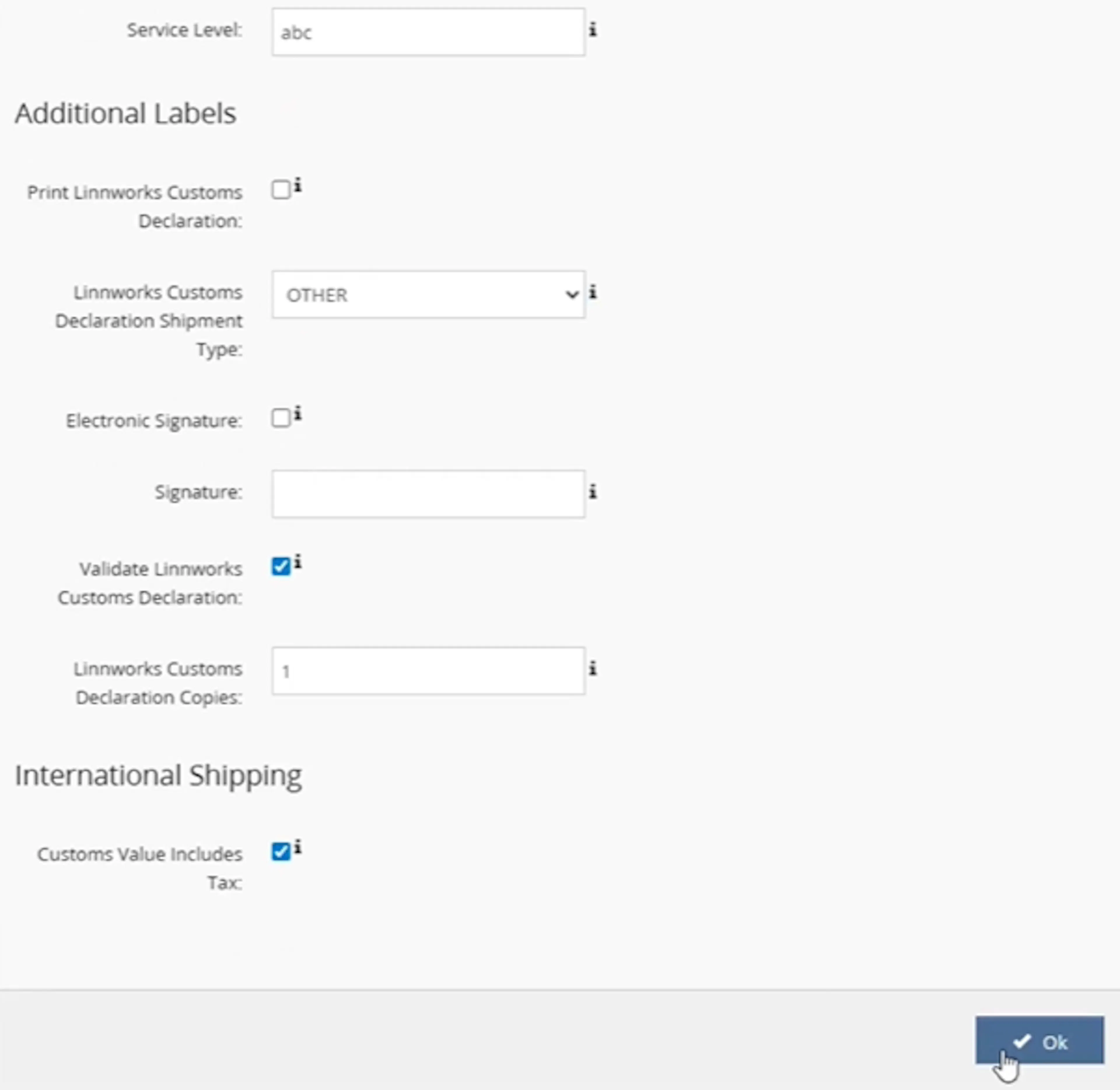
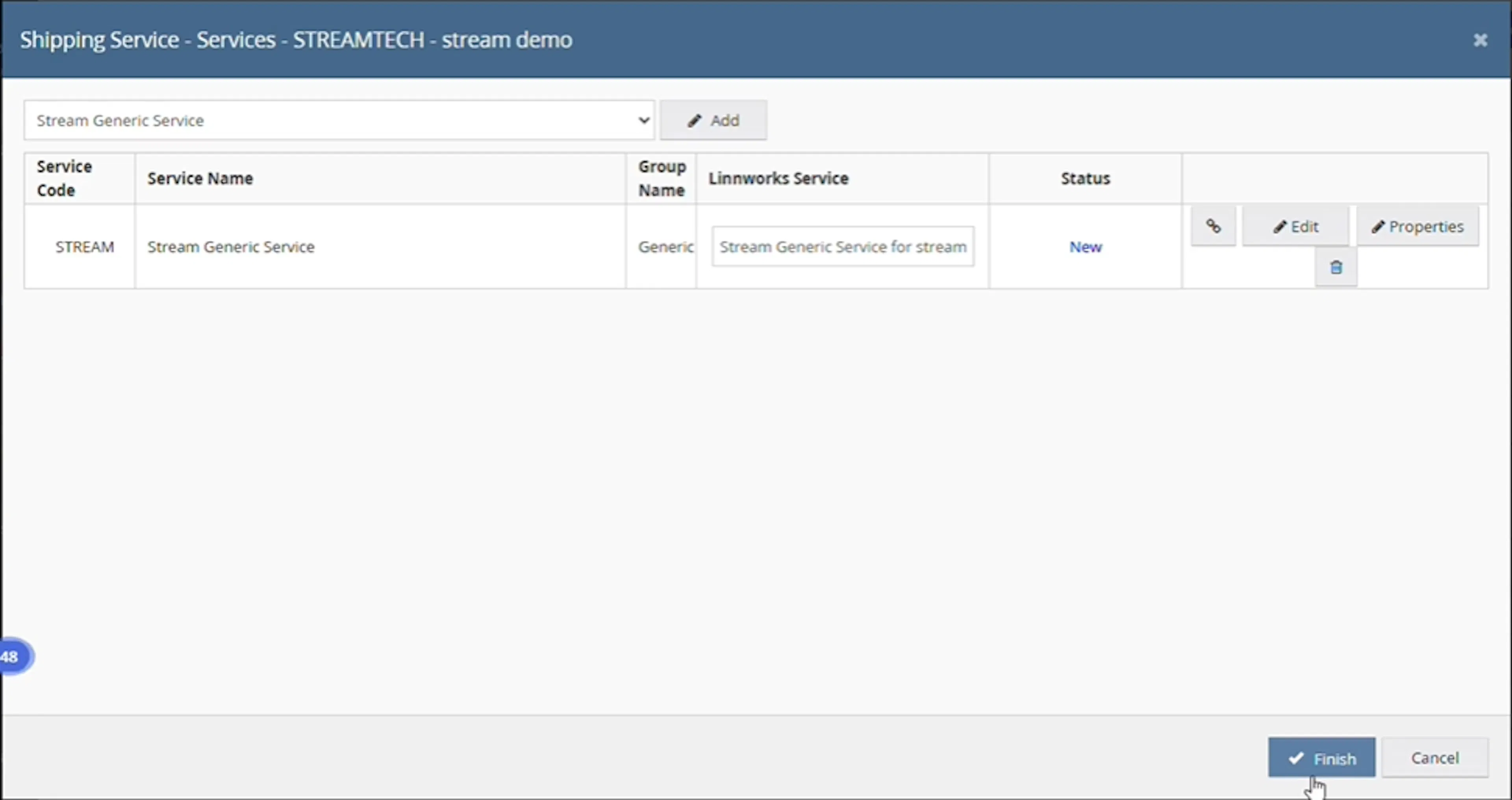
Finish.
Who Should Use Stream Tech Integration
Warehouse Teams
Teams responsible for picking and packing use the order identifiers in Linnworks, particularly "Sent to Stream" and the run and sequence numbers, to see which orders Stream has accepted and which delivery run they belong to. Label printing is also handled through this integration.
Logistics and Dispatch Teams
Dispatch teams use run identifiers (RUN 01 to RUN 20), sequence identifiers (SEQ-01 to SEQ-20) and day identifiers (SUNDAY to SATURDAY) to organise vehicle loading and routes. These are added to Linnworks orders automatically as Stream plans and assigns delivery runs.
Linnworks Administrators
Administrators set up the integration in Linnworks, including your Stream details, sender address, sync settings and shipping service set-up. They also check the identifiers on Linnworks orders to see that orders are being sent.
Support Teams
Support staff use the identifiers and notes on Linnworks orders to find out why an order was not sent, why a tracking number is missing, or why a delivery status has not updated. The "Error from Stream" identifier on a Linnworks order is the main sign that an order needs attention.
Key Features
Automatic order sending
Open Linnworks orders inside your lookback window are fetched every five minutes and queued for sending to Stream.
Delivery and collection orders
Each order is sent to Stream as either a delivery order or a collection order, depending on how the shipping service is set up.
Shipping label generation
Labels are generated directly from Linnworks in four formats, with one to five copies per package.
Tracking numbers in Linnworks
Consignment numbers, tracking numbers and tracking links are written to Linnworks as soon as Stream accepts the order.
Delivery updates as they happen
Notifications from Stream add an order note in Linnworks when an order is delivered, partly delivered, collected or partly collected.
Planning updates
When route planning is opened, locked or closed in Stream, the order group information in Linnworks is updated.
Run, day and sequence identifiers
Identifiers are added to Linnworks orders automatically to show the delivery run, day and sequence from Stream.
Daily updates from Stream
Stream depots, delivery methods and identifiers are brought into Linnworks every day, so your shipping services and identifier lists stay current.
Packaging and composite items
Settings on each shipping service control whether Stream receives packages, split item lines or a simple item list, and whether the parent of a composite item is included.
Adjustable batch sizes
Batch sizes and retry limits can be adjusted to match your order volume and the limits Stream sets.
Order deletion with Stream clean-up
Use the Delete To Stream Order button in Linnworks to delete completed orders from Stream and clear them in Linnworks in a single step. See Sending and Deleting Orders by Hand.
How Stream Tech Integration Works
The table below shows what moves between Linnworks and Stream, and how often.
| Information | Direction | How often |
|---|---|---|
| Open orders | Linnworks → Stream | Fetched every 5 minutes, then sent to Stream about 2 minutes later |
| Tracking number, tracking link and consignment number | Stream → Linnworks | Straight after Stream accepts the order |
| Labels | Stream tracking details → Linnworks | When you print a label |
| Delivery and planning updates | Stream → Linnworks | As they happen, processed every 2 minutes |
| Depots and delivery methods (shipping services) | Stream → Linnworks | Every day at 04:00 UTC |
| Run, sequence, day and status identifiers | Stream → Linnworks | Every day at 03:00 |
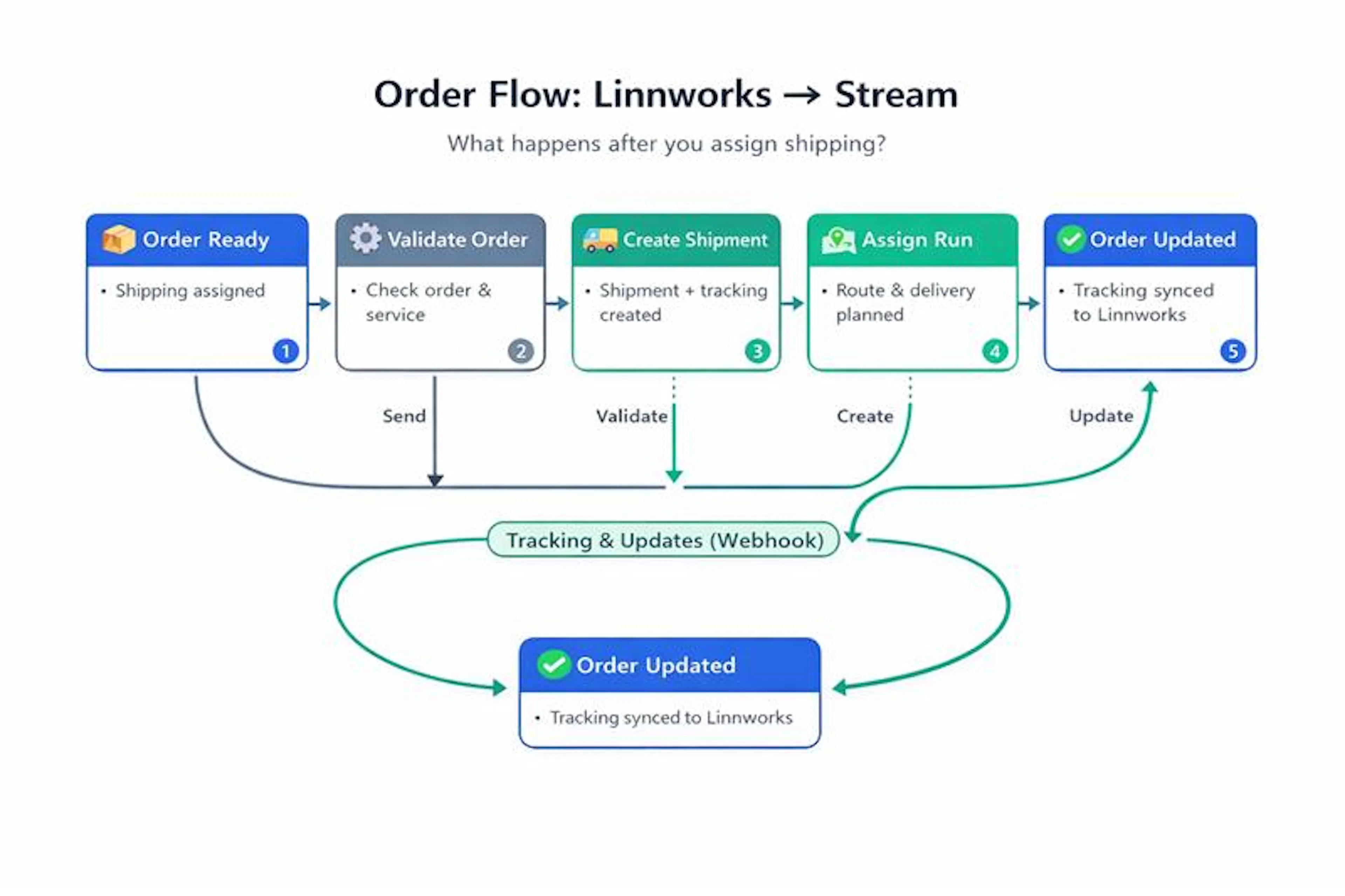
Step 1: Open orders are fetched
Open orders in Linnworks are fetched and stored by the integration automatically, every five minutes.
Step 2: Orders are sent to Stream
Each queued order is submitted to Stream to create a delivery or collection.
Step 3: Tracking comes back to Linnworks
Stream returns a consignment number, tracking number and tracking link, which are written back to the Linnworks order straight away.
Step 4: Labels are printed on demand
Shipping labels are generated directly from Linnworks using the Stream tracking details.
Step 5: Stream sends delivery updates
Notifications from Stream update Linnworks orders when deliveries are planned, despatched or completed.
Step 6: Identifiers show the status
Order identifiers in Linnworks, such as "Sent to Stream", run numbers and sequence numbers, give your warehouse and dispatch teams a clear status at a glance.
Order Lifecycle
Every order that passes through the integration moves through a set of statuses. These statuses are used inside the integration. Your Linnworks orders show the result through identifiers such as Sent to Stream and Error from Stream.
| Status | Description |
|---|---|
| Pending | The order has been fetched from Linnworks and is waiting to be sent to Stream. |
| In Progress | The order is being sent to Stream. It is locked so that it cannot be sent twice. |
| Completed | The order has been created in Stream, and its tracking details are filled in. |
| Failed | Stream returned an error when the order was sent. The order is retried automatically. |
| Validation Failed | The order is missing required details or set-up. It cannot be sent until the problem is fixed manually. |
| Ready for Retry | An order that failed earlier has been queued to be sent again. |
| Deleted | The order has been removed from Stream, and its tracking details have been cleared in Linnworks. |
How an order moves through these statuses:
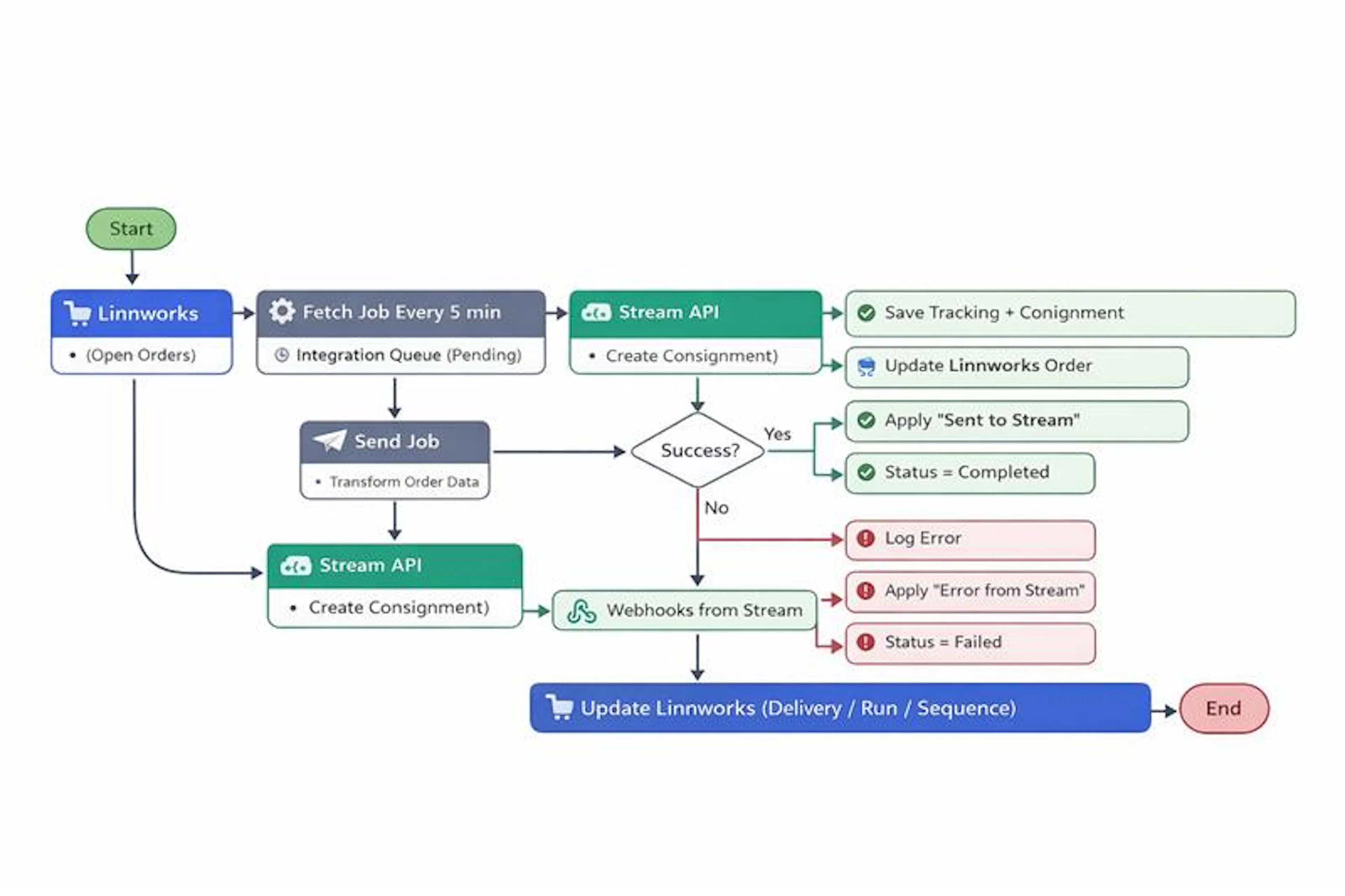
An order starts as Pending once it has been fetched. When the send job picks it up, it moves to In Progress. If Stream accepts it, it becomes Completed. If Stream rejects it, it becomes Failed, and the integration adds the "Error from Stream" identifier to the Linnworks order.
On the next cycle, failed orders move to Ready for Retry and are sent again, up to the maximum number of retry attempts (3 by default). If every retry fails, the order stays Failed until the problem is corrected. Orders with missing set-up move to Validation Failed and need to be fixed before they can go any further. Once an order is Completed, it can later be moved to Deleted with a manual delete.
How Orders Are Sent to Stream
Eligibility
Before an order is sent to Stream, the integration checks the following:
- The installation is active.
- Order Sync Enabled is switched on for the integration. Orders you send manually do not need this setting.
- The order has a shipping service in Linnworks that is fully linked to a Stream depot and delivery method.
- The order is not already In Progress. This stops the same order being sent twice at the same moment.
If any of these is not met, the order is not sent and is not picked up by the integration until the problem is corrected.
Fetch Process
Every five minutes, the integration runs a fetch job for each active installation. It does the following:
- Looks in Linnworks for open orders inside your lookback window (Order Lookback Days, set for each integration).
- Adds any new orders to the integration with the status Pending.
- Fetches again any orders that were Validation Failed, once you have corrected them and removed their Error from Stream identifier, to pick up your corrections from Linnworks.
Orders are retrieved from Linnworks in pages. The default page size is 50 orders.
Send Process
A send job also runs every five minutes, two minutes after the fetch job, for each installation. The gap makes sure orders have been fetched before the sending starts. The send job does the following:
- Reads up to 10 Pending orders (by default) for each installation.
- Locks each order as In Progress. If another job has already taken an order, it is skipped.
- Works out whether the order is a delivery or a collection, based on the Stream Order Type of the shipping service.
- Turns the Linnworks order into a Stream delivery or collection request (see Shipment Creation and Label Generation).
- Sends the request to Stream.
Up to 2 installations (by default) are processed at the same time in each cycle.
On Success
When Stream accepts an order:
- The Stream order ID, consignment number, tracking number and tracking link are saved by the integration.
- The tracking number is written to the shipping information on the Linnworks order.
- The "Sent to Stream" identifier is added to the Linnworks order.
- The order status is set to Completed.
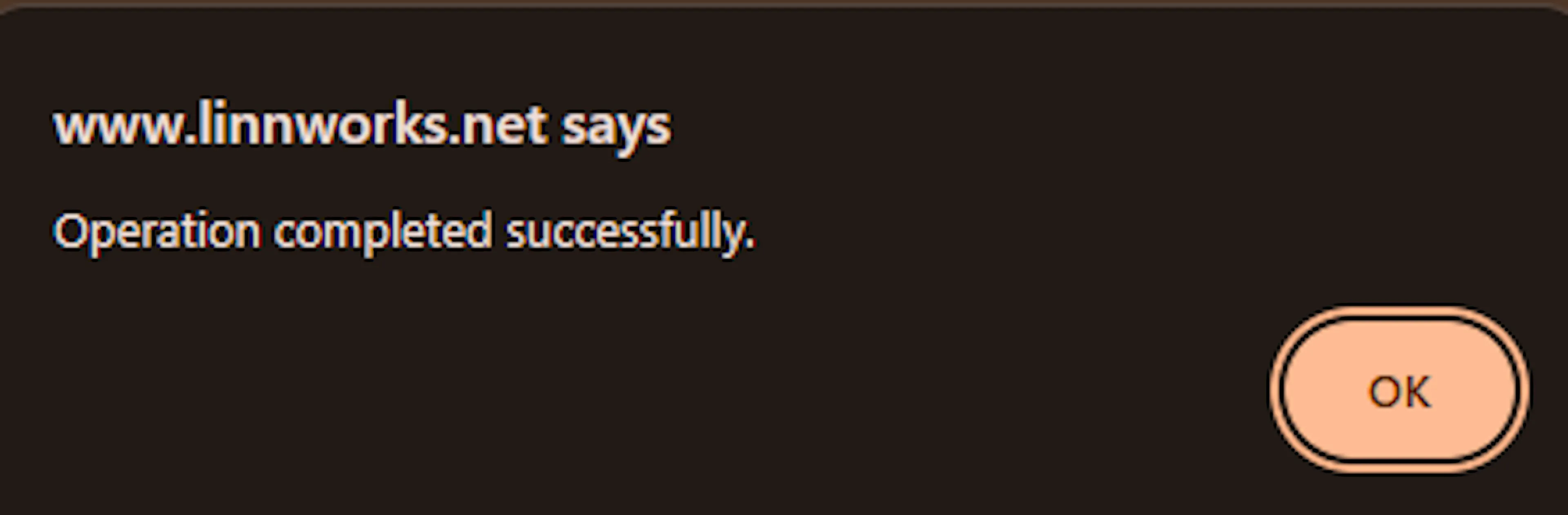
When an order has been sent to Stream successfully, Linnworks shows a confirmation message.
On Failure
When Stream rejects an order:
- The error code and details from Stream are recorded by the integration. If Stream reports validation errors, a note is also added to the Linnworks order.
- The "Error from Stream" identifier is added to the Linnworks order.
- The order status is set to Failed.
- On the next cycle, the order moves to Ready for Retry and is sent again, up to 3 times by default.
Scheduled Jobs at a Glance
The integration runs the following jobs automatically in the background.
| Job | When it runs | What it does |
|---|---|---|
| Fetch orders | Every 5 minutes | Retrieves open orders from Linnworks and adds them to the integration. |
| Send orders | Every 5 minutes, 2 minutes after the fetch | Sends Pending orders to Stream. |
| Process Stream notifications | Every 2 minutes | Processes the delivery, planning and tracking notifications received from Stream. |
| Order sync organiser | Every hour | Keeps the fetch and send jobs for each account scheduled and up to date. |
| Identifier update | Every day at 03:00 | Adds the RUN, SEQ, day and status identifiers to Linnworks. |
| Shipping service update | Every day at 04:00 UTC | Creates and updates the Stream shipping services in Linnworks. |
| Notification subscription check | Every week, Sunday at 02:00 UTC | Checks that your Stream notification subscription is still active for every active account. |
Key Benefits
Sending orders to a delivery platform by hand takes time, and mistakes can creep in. Stream Tech Integration replaces that manual work with a regular, visible process.
Stream Tech Integration helps you save time, print labels with confidence and see the status of every shipment in Linnworks.
Less manual work
Orders, tracking numbers and delivery updates move between Linnworks and Stream without anyone typing them in.
Labels when you need them
If an order has not reached Stream yet, the integration sends it first and then prints the label.
Status at a glance
Identifiers on each Linnworks order show whether it has been sent, has an error, and which run, day and sequence it is on.
Delivery confirmed in Linnworks
Delivery notes are added to orders automatically, and orders can be marked as processed when they are delivered.
Settings that fit your business
Batch sizes, retry limits and lookback windows can be adjusted to match your order volume.
Usage of App
Execution
Runs automatically every five minutes
Once the integration is set up and Order Sync Enabled is switched on, orders are fetched every five minutes and sent to Stream about two minutes later. You can also send selected orders by hand with the Order To Stream button on the Open Orders screen in Linnworks. Please see the Steps to Configure for how to switch it on.
Outcome
The order is picked up
The order is fetched from Linnworks and is held by the integration as Pending.
The order is sent and tracked
After the send job runs, the order becomes Completed, the "Sent to Stream" identifier appears on the Linnworks order, and the tracking number is filled in.
You print the label
Print the shipping label from Linnworks in the usual way. The integration creates it from the Stream tracking details.
Run, day and sequence identifiers appear
As Stream plans your delivery routes, RUN, day and SEQ identifiers are added to your orders automatically.
Delivery is confirmed
When Stream delivers the order, a delivery note is added to the Linnworks order. If Mark as Processed on Delivered is switched on for the service, the order is also marked as processed.
Input Parameters
You enter this integration's settings in Step 3 of Steps to Configure. The sender details, Order Sync Enabled and Order Lookback Days are required. The other settings are optional and can be left blank or switched off. The settings for each shipping service are explained in Configuration Settings.
Shipping Service Setup
How Services Are Mapped
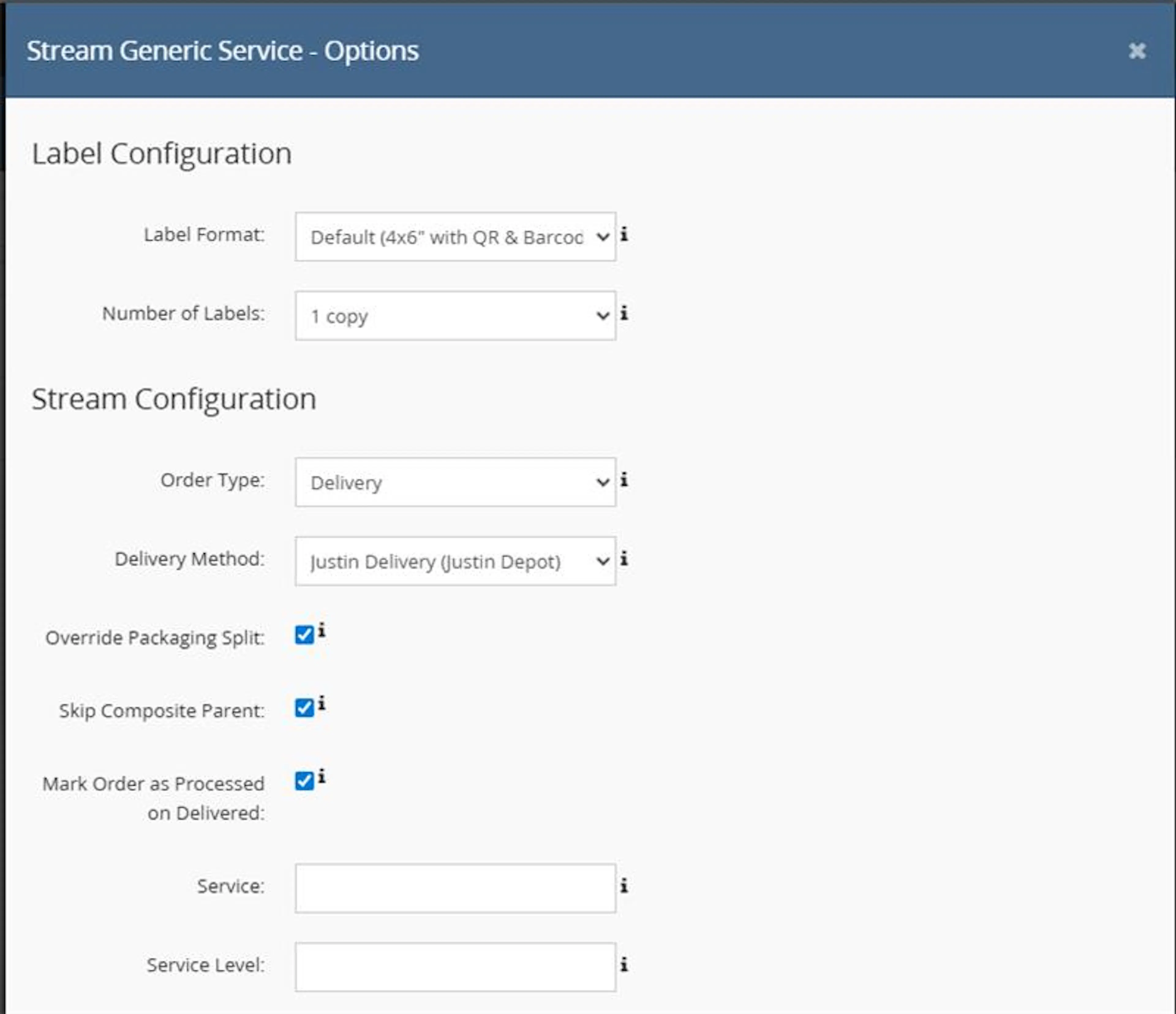
Each shipping service in Linnworks that stands for a Stream delivery option needs to be linked to the matching Stream depot and delivery method. The link is stored for each shipping service and contains the following:
| Field | Description |
|---|---|
| Stream Depot | The Stream depot that will handle this shipment. |
| Stream Delivery Method | The delivery method available at the selected depot. |
| Stream Order Type | Whether this service creates a Delivery or Collection order in Stream. The default is Delivery. |
| Stream Service | An optional service code sent to Stream. |
| Stream Service Level | An optional service level code sent to Stream. |
| Stream Stock Location | An optional stock location linked to the service. |
| Label Type | The label format used when printing labels for orders on this service. |
| Label Copies | The number of label copies to create for each package. The default is 1 and the maximum is 5. |
| Override Packaging Split | Sends the order items to Stream as a simple list and ignores the Linnworks packages. Off by default. |
| Flatten Packaging Split Items | Sends the split item lines from each Linnworks package without the package parent lines. Off by default. See Packaging and Composite Item Settings. |
| Skip Composite Parent | Leaves the parent of a composite item out of the Stream request. On by default. |
| Mark as Processed on Delivered | If switched on, the Linnworks order is marked as processed automatically when Stream reports delivery. |
Below is an example of a configured Stream service in Linnworks:

How Services Are Created
Every day at 04:00 UTC, the integration brings your shipping services up to date. This update does the following:
- Fetches the available depots and delivery methods from Stream.
- Creates or updates the matching shipping services in Linnworks under the STREAM TECH vendor name (or STREAMTECH in test environments).
- Keeps the list of available services current as Stream's depot network changes.
Once a service appears in Linnworks, an administrator needs to finish its set-up by choosing the depot, delivery method, label type and other settings before orders can use it.
Important: Shipping service settings are refreshed daily at 04:00 UTC. A change you make today applies to orders from tomorrow morning. If you need a change applied the same day, contact support and we will refresh it for you.
Service Assignment
In Linnworks, please assign the correct shipping service to each order before the next fetch and send cycle runs. Orders without a valid, fully set up service fail validation and are not sent to Stream.
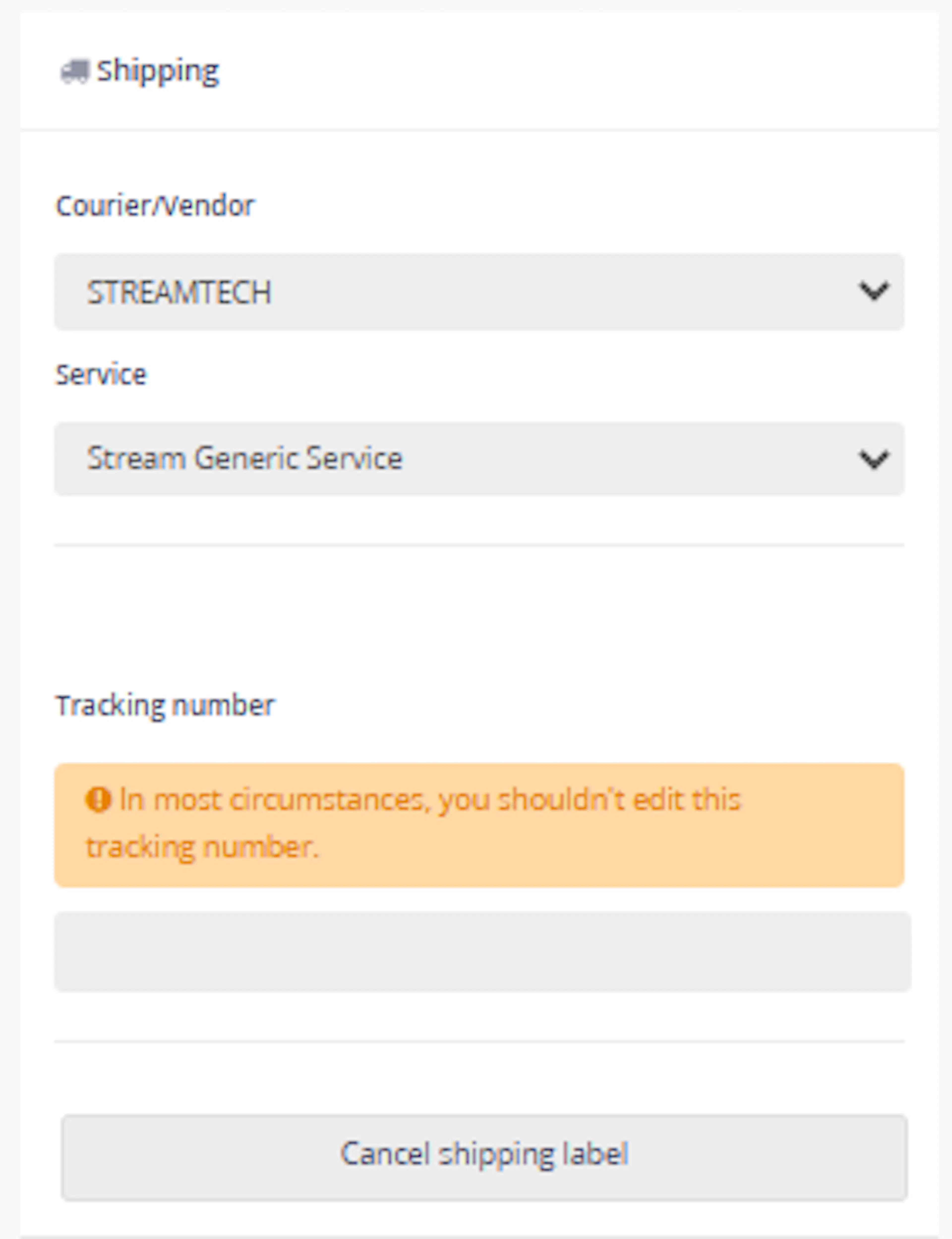
On the order, open the Shipping & packaging tab and choose the Stream vendor and the Stream service.
Packaging and Composite Item Settings
These three settings on each shipping service control how the items on an order are shown to Stream. They change the item structure that Stream receives. They do not change how the original order is packed in Linnworks. All three are found under Stream Configuration when you edit the Stream service in Linnworks.
At a Glance
| Setting | Default | Effect when switched on |
|---|---|---|
| Override Packaging Split | Off | Sends the order items without the Linnworks package groups. |
| Flatten Packaging Split Items | Off | Removes the package parent lines but keeps the separate split item lines. |
| Skip Composite Parent | On | Leaves out the composite parent and sends only its component items. |
Order of priority: If Override Packaging Split is on, it takes priority and Flatten Packaging Split Items has no effect. Flatten Packaging Split Items only applies when Override Packaging Split is off.
Override Packaging Split: Off or On
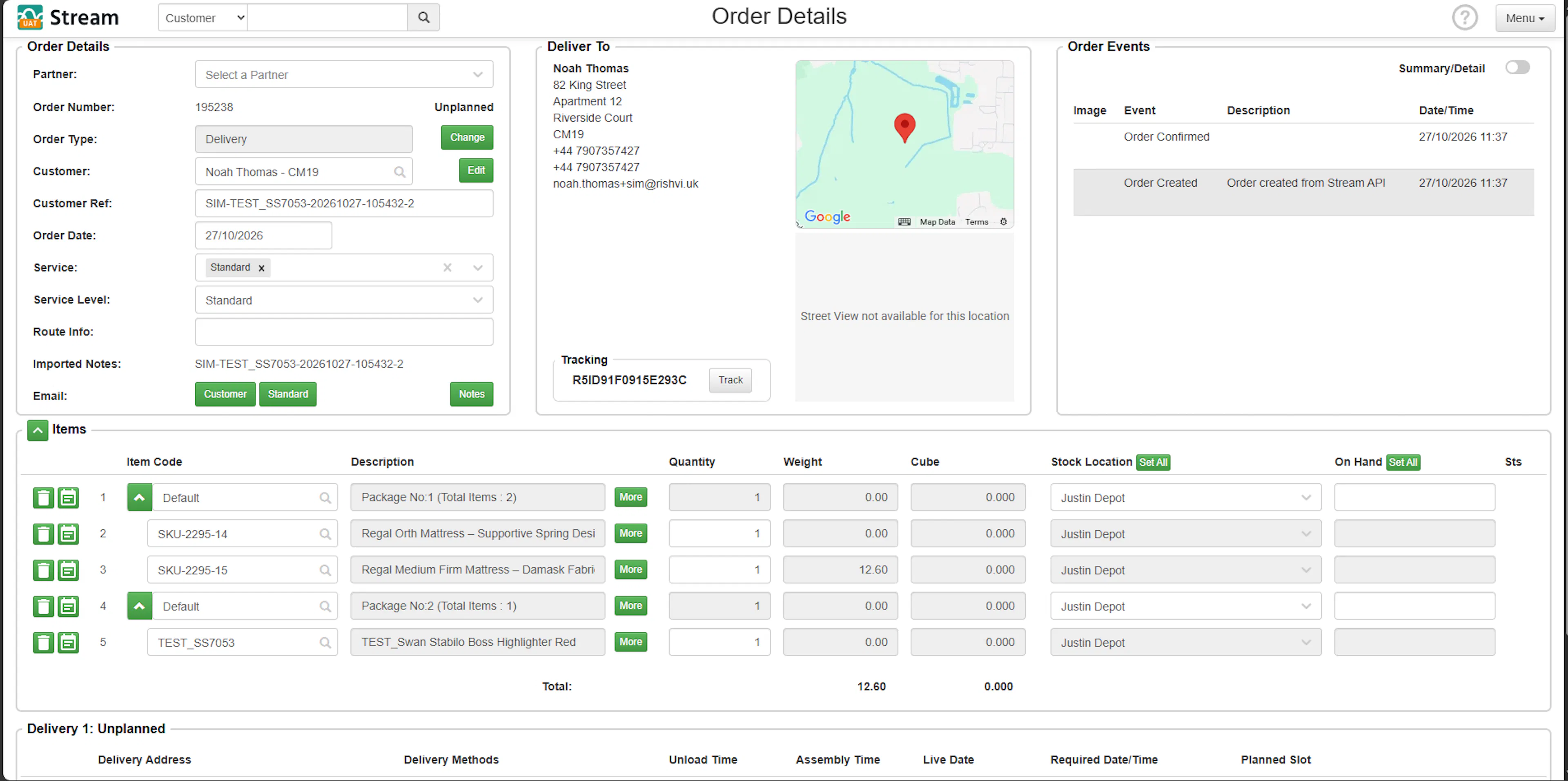
Default: Off. With this setting off, Stream receives the package structure from Linnworks, including a parent line for each package and the item lines inside it. Switch it on to ignore the package structure and send the order items as a simple list.
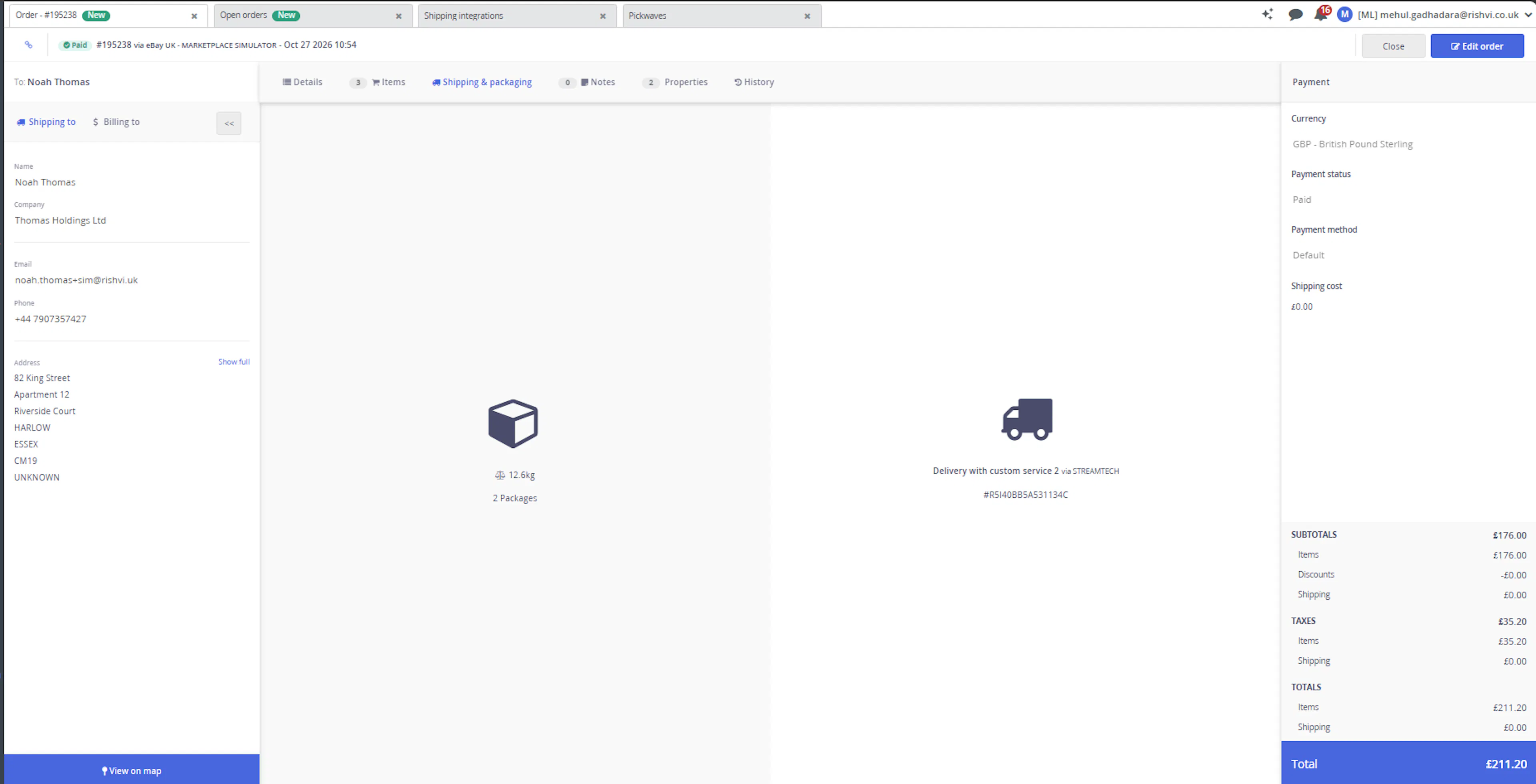
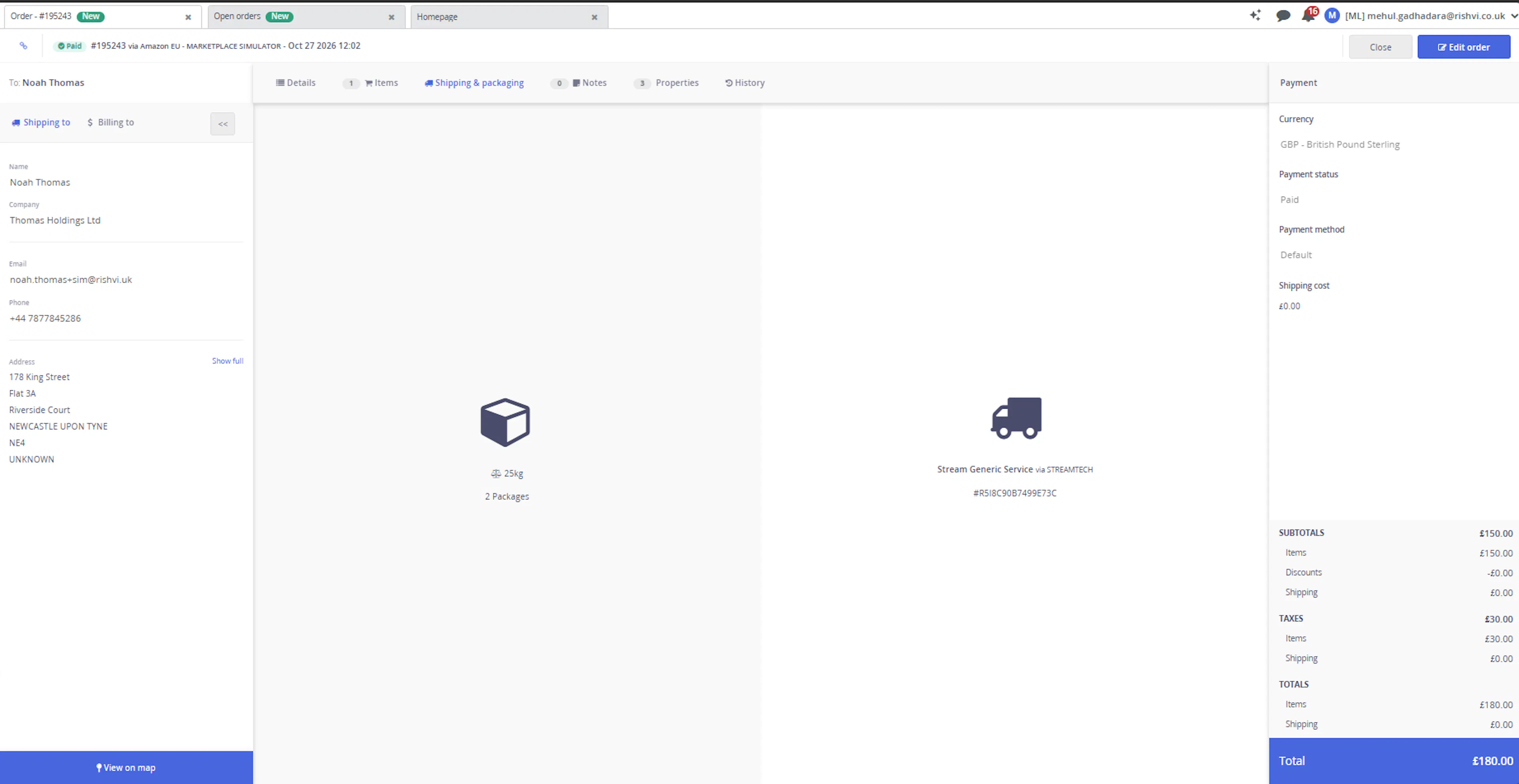
Linnworks: Order #195238 has 2 packages, 12.6 kg.
Result in Stream: Package No:1 and Package No:2 appear as parent lines, with their items listed underneath each package.
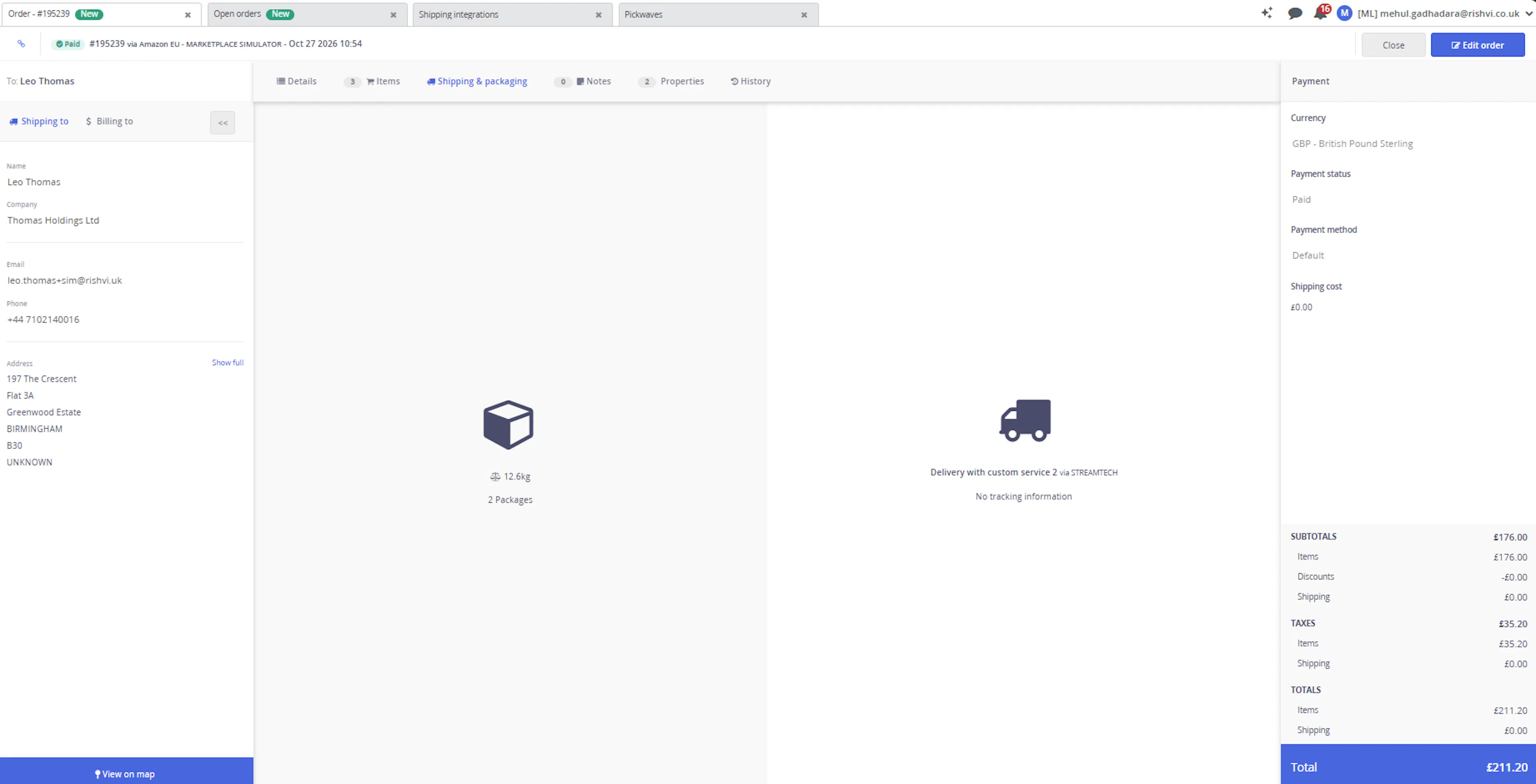
Linnworks: Order #195239 has 2 packages, 12.6 kg.
Result in Stream: The three item lines appear directly, with no package parent lines.
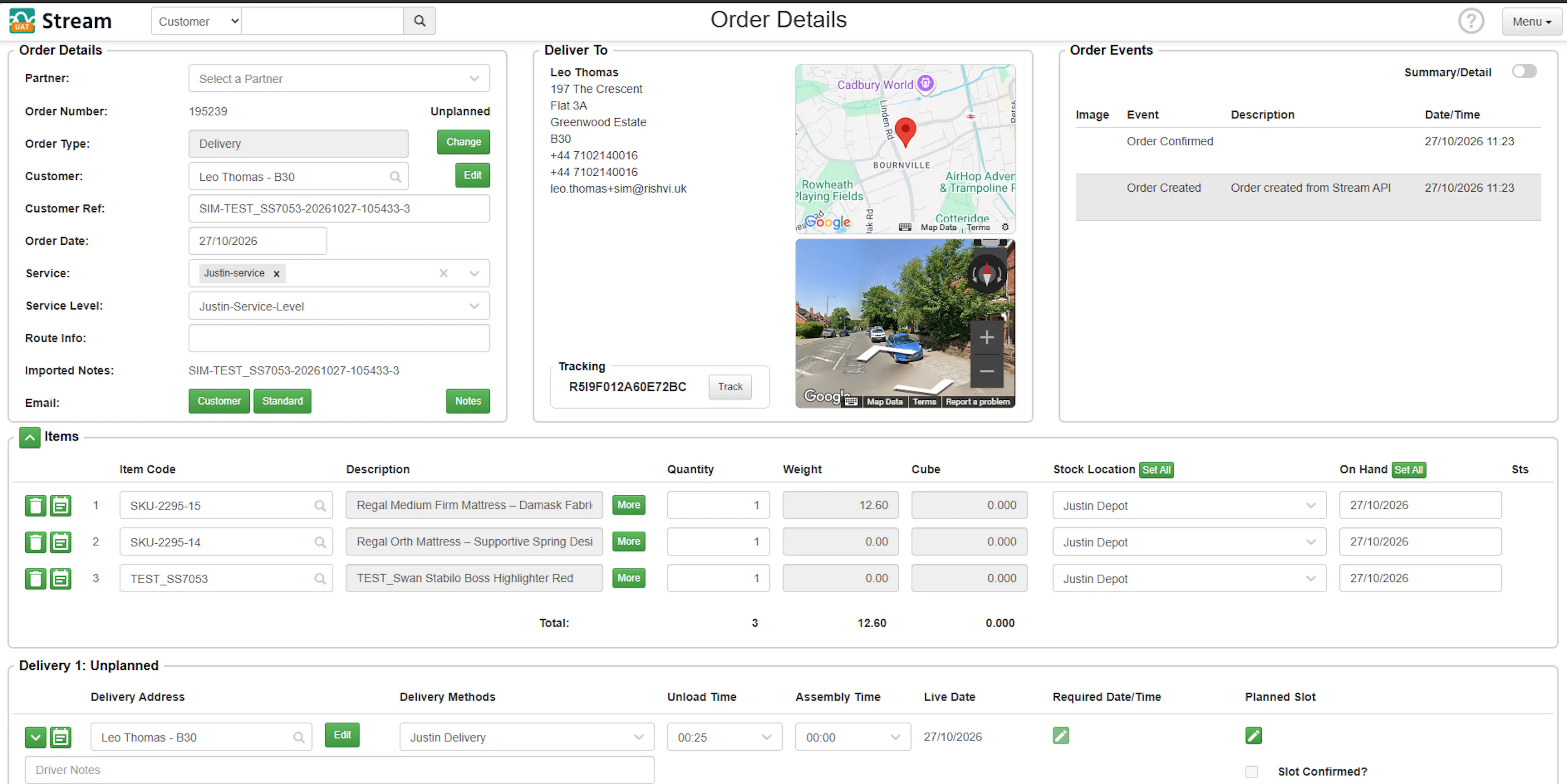
Use this option when Stream only needs the products to deliver, and not which Linnworks box each one is in.
Flatten Packaging Split Items: On
Default: Off. This option is for orders where items are divided between packages and those separate item lines still matter. When it is switched on, Stream receives the split item lines from each package without the package parent lines. The per-package item descriptions from Linnworks are kept, for example B1 and B2 when the same SKU is split across packages. This is different from Override Packaging Split, which removes the packaging structure altogether.
Example: Flatten Packaging Split Items switched on
| Where | What you see |
|---|---|
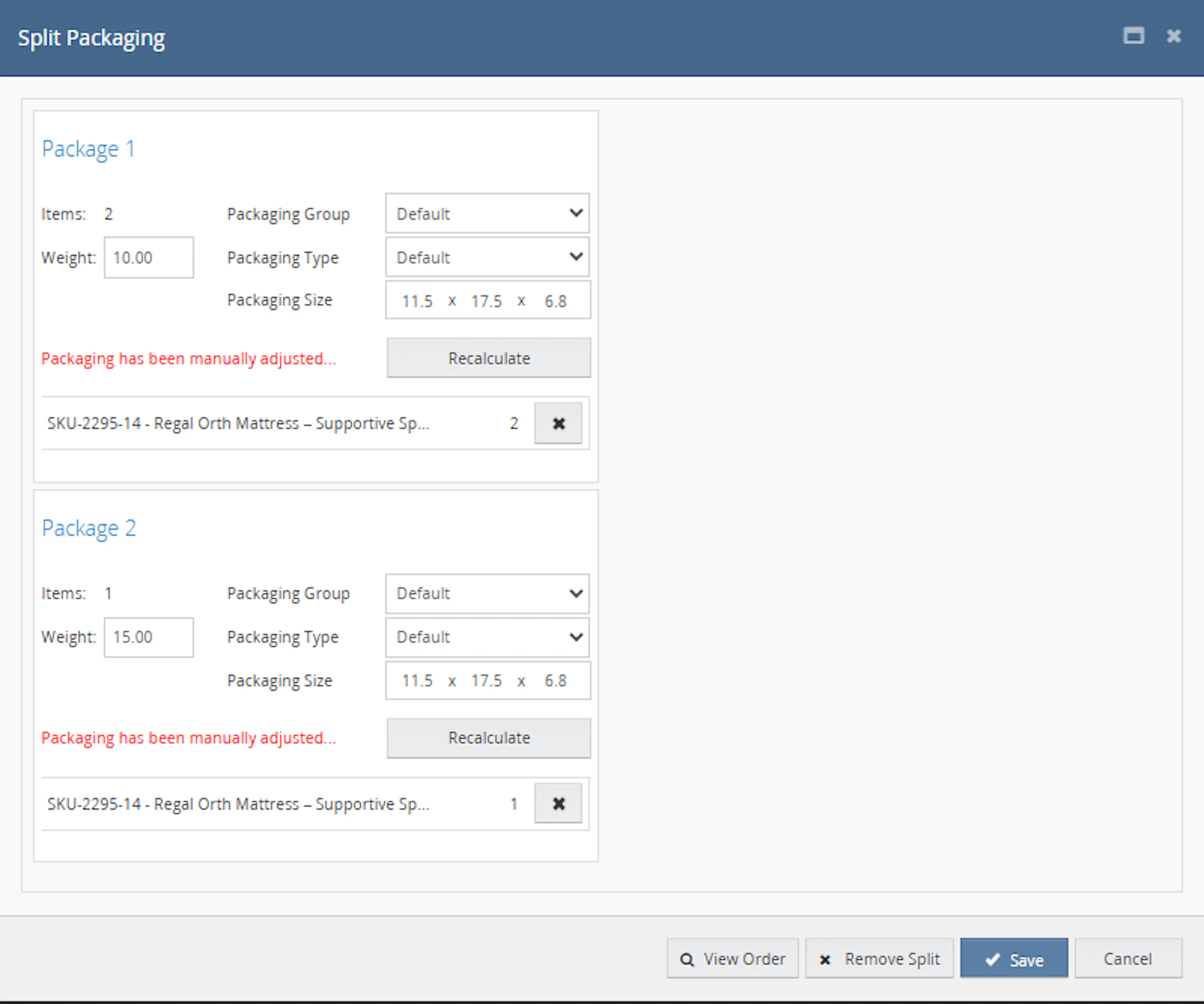
| Linnworks | The same SKU (SKU-2295-14) is split between Package 1 (quantity 2, 10 kg) and Package 2 (quantity 1, 15 kg). |
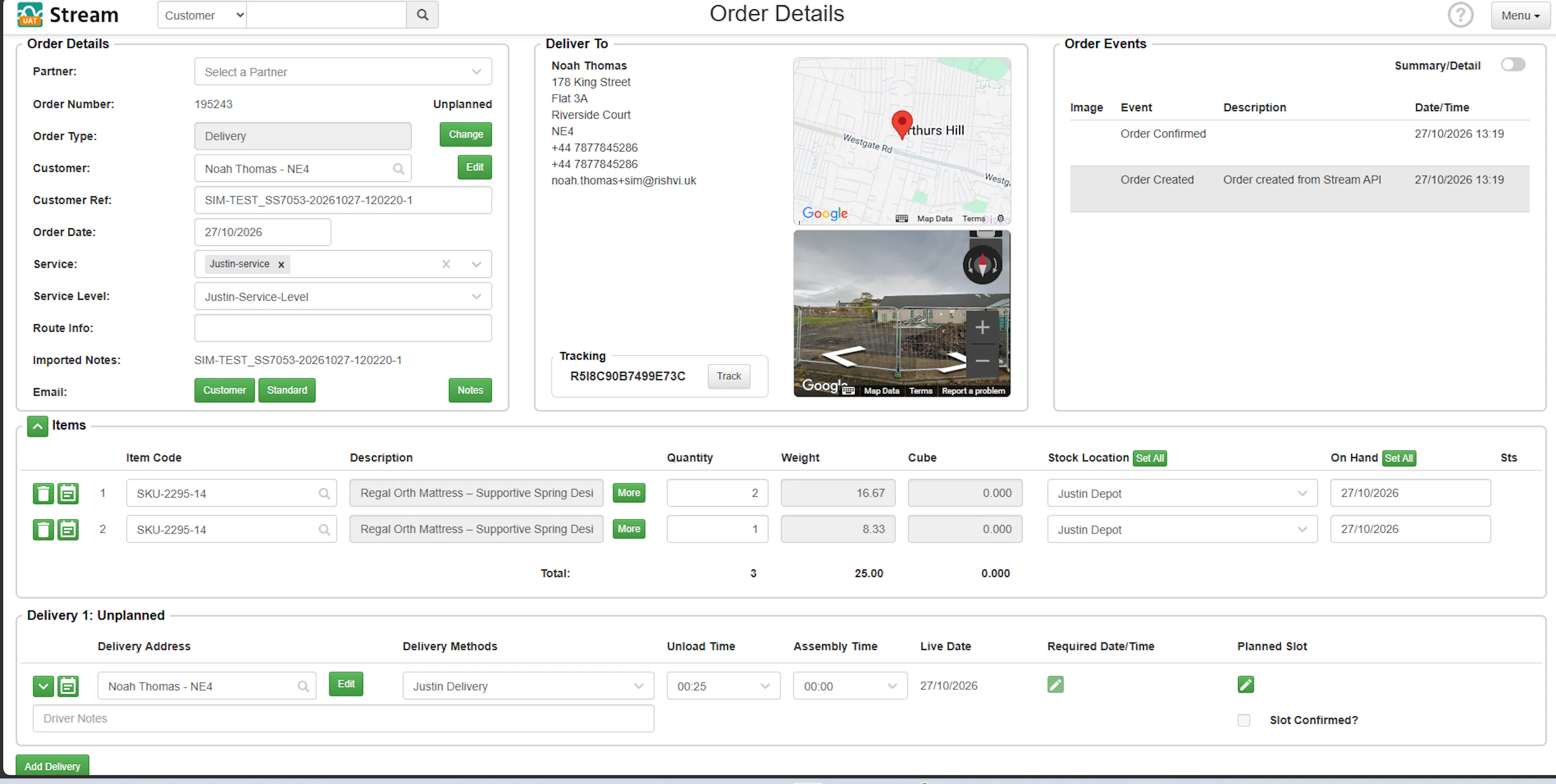
| Stream | Two separate lines for SKU-2295-14 (quantities 2 and 1), with no package parent lines. |
Linnworks, packaging split:
Linnworks, order:
Result in Stream:
Use this option when Stream needs the separately split item lines without showing a package hierarchy.
Note: In the example above the order totals 3 units and 25 kg. The weight per line shown in Stream (16.67 kg and 8.33 kg) can differ from the Linnworks package weights (10 kg and 15 kg), so please do not rely on the exact weight of each package being kept. If no packaging split is found for the order in Linnworks, the integration sends the order items as a simple list instead.
Skip Composite Parent: On or Off
Default: On. A composite product in Linnworks can have a parent SKU and one or more component SKUs. This option controls whether Stream receives the parent line as well as the components.
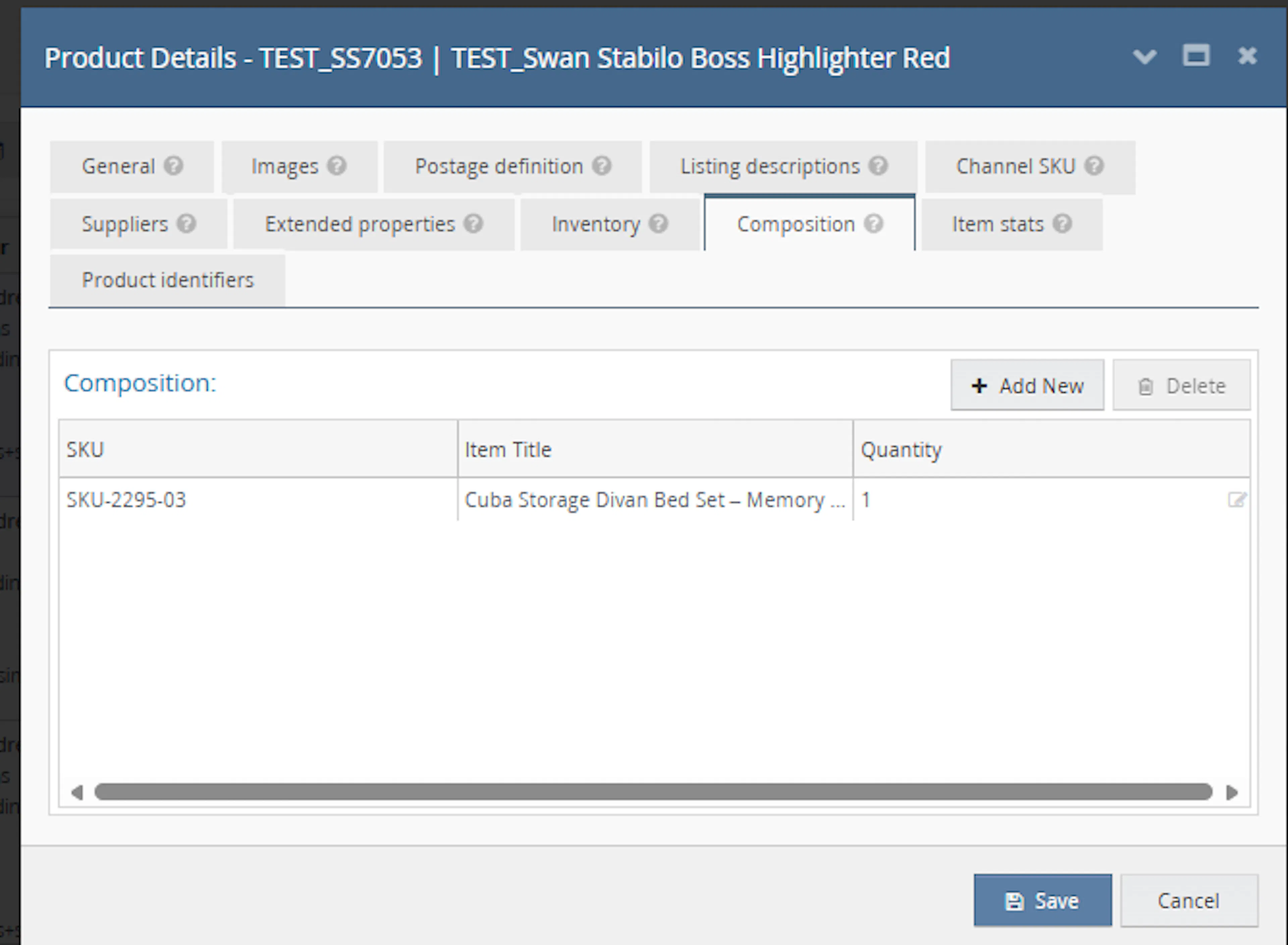
Example product composition: composite SKU TEST_SS7053 contains component SKU-2295-03 (Cuba Storage Divan Bed Set), quantity 1.
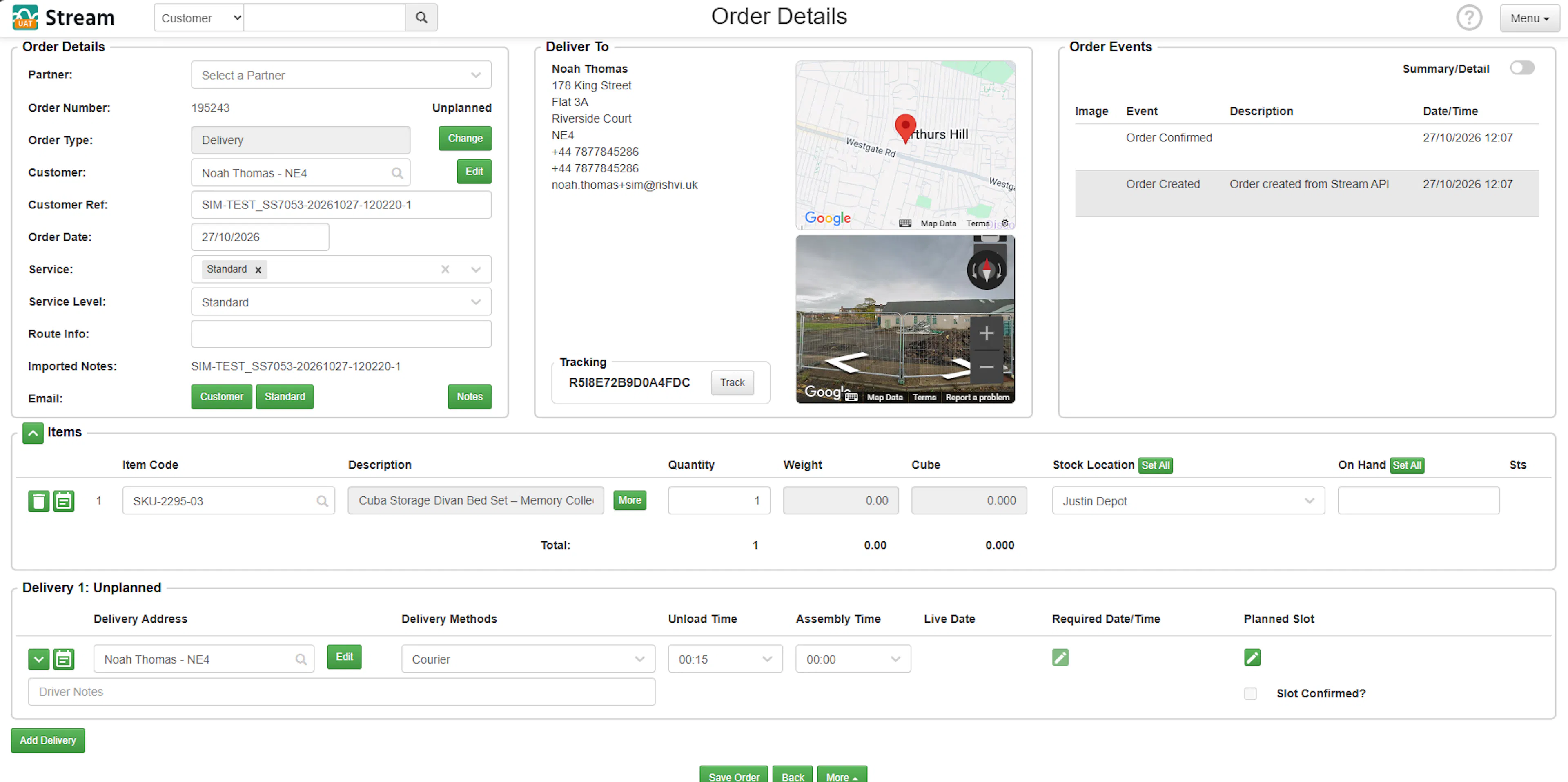
Result in Stream: Only SKU-2295-03 appears. The composite parent is left out.
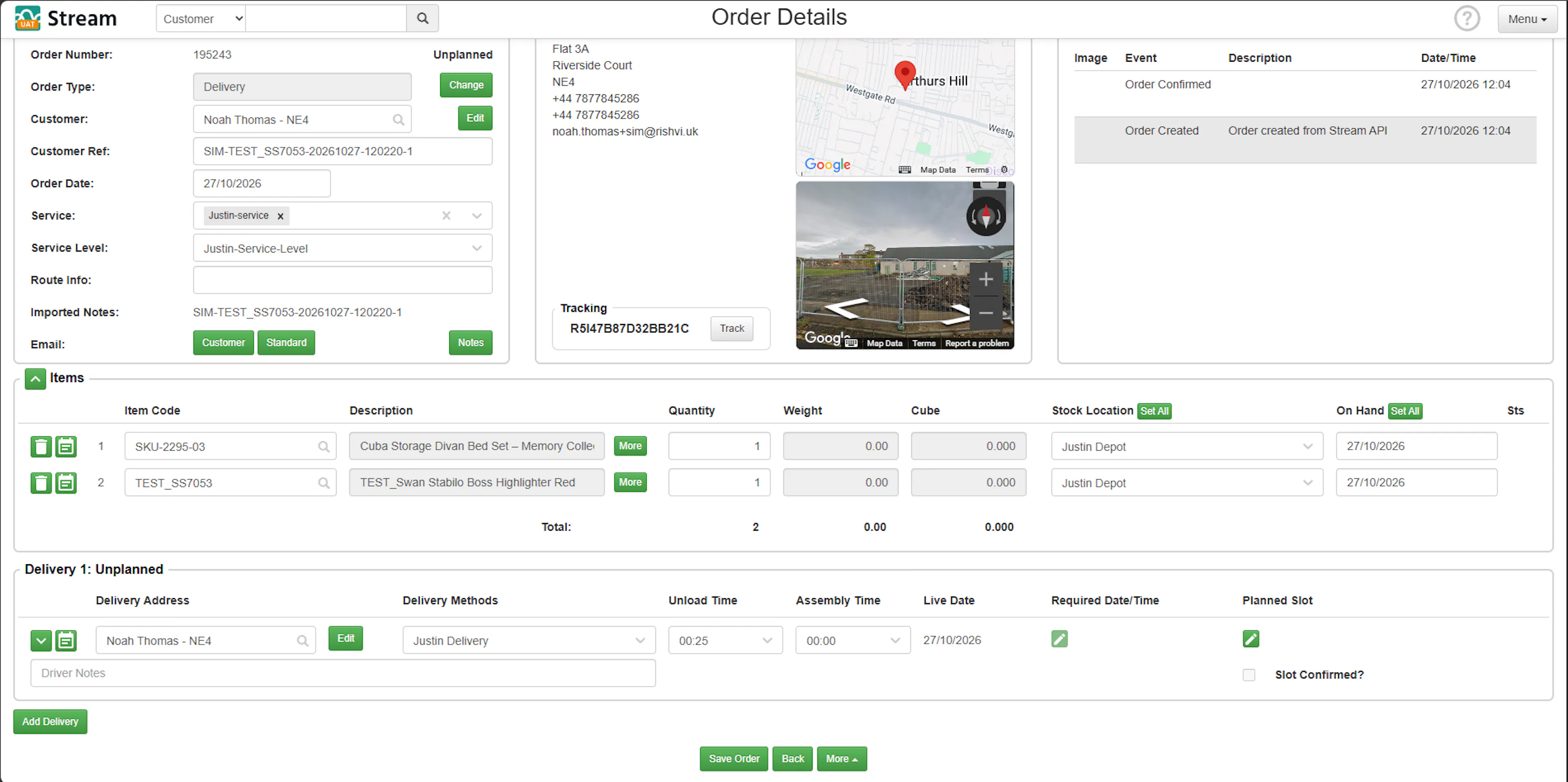
Result in Stream: Both TEST_SS7053 and SKU-2295-03 are shown as item lines.
Keep this setting on when Stream should plan delivery using the individual component items, rather than also receiving the composite parent as a separate order line.
Shipment Creation and Label Generation
Shipment Creation
When the send job processes a Pending order, it builds a Stream shipment request from the following Linnworks details:
- Order header: the order reference, order date, customer details and delivery address.
- Items: each order line, with descriptions shortened to a maximum of 140 characters. Weights are sent in kilograms and volume in cubic metres.
- Packaging: by default, items are grouped under their Linnworks packages. You can change this for each service with Override Packaging Split (simple item list) or Flatten Packaging Split Items (split item lines without package parent lines). See Packaging and Composite Item Settings.
- Composite items: by default, the parent of a composite item is left out and only the child items are sent. You can change this for each service with Skip Composite Parent.
- Delivery group: the recipient's delivery address, any contact details needed, and the chosen delivery method.
The request is sent as either a Delivery Order or a Collection Order, based on the Stream Order Type set on the shipping service.
Label Generation
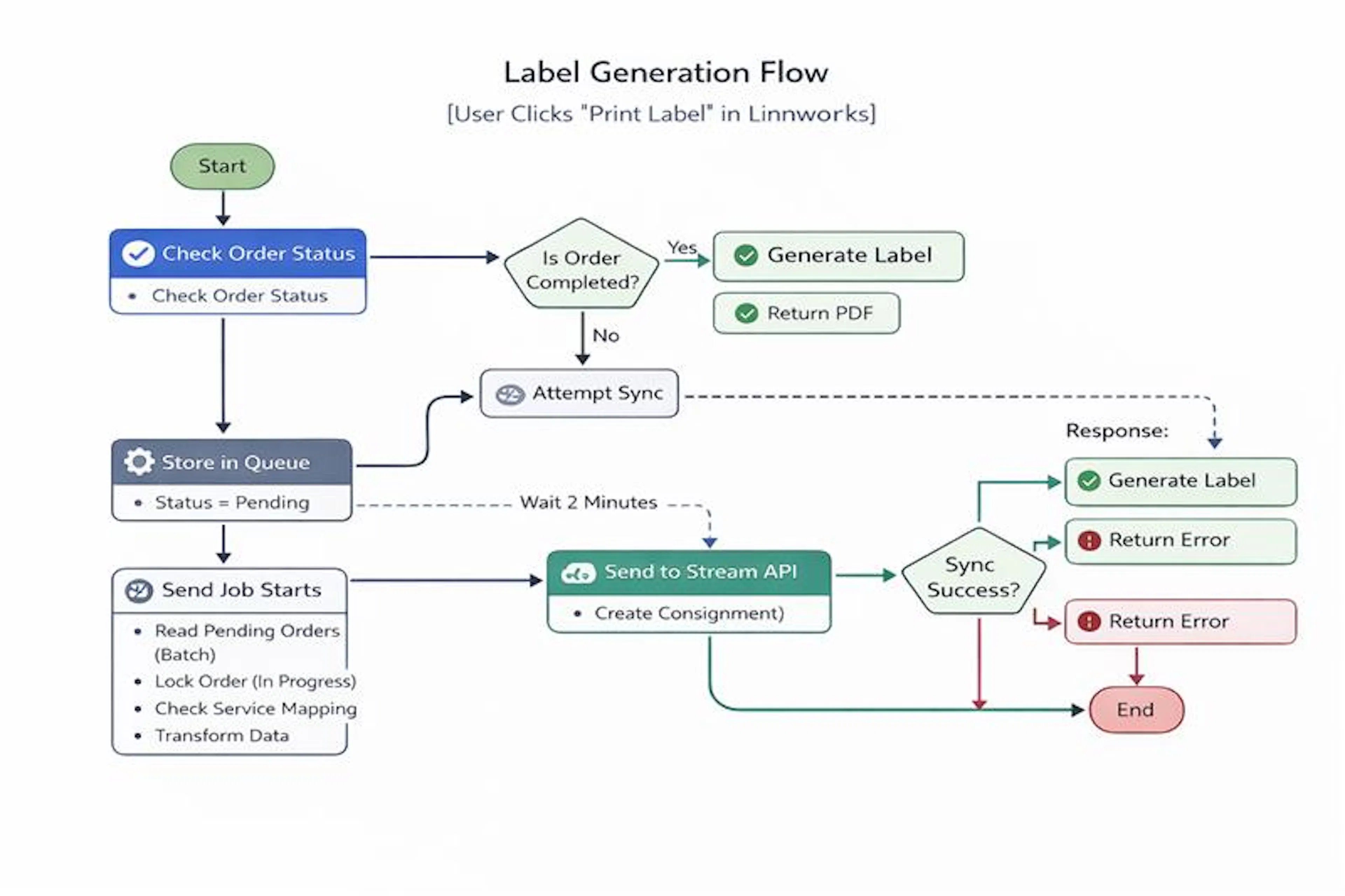
Labels are generated from within Linnworks using the standard shipping label printing workflow. When Linnworks asks for a label, the integration does the following:
- Checks whether the order has been sent to Stream and is Completed, with a valid tracking number and consignment number.
- If the order has not been sent yet, fetches it from Linnworks and sends it to Stream first, then generates the label.
- If the order is In Progress (being sent by another job), waits for up to about six seconds, checking every three seconds, before giving up.
- If sending fails, cancels the label and returns an error to Linnworks.
- Once the order is Completed, generates a label for each package.
Available label types:
| Label Type | Description |
|---|---|
| Default | 4×6 inch label with a large postcode, a QR code and a barcode. |
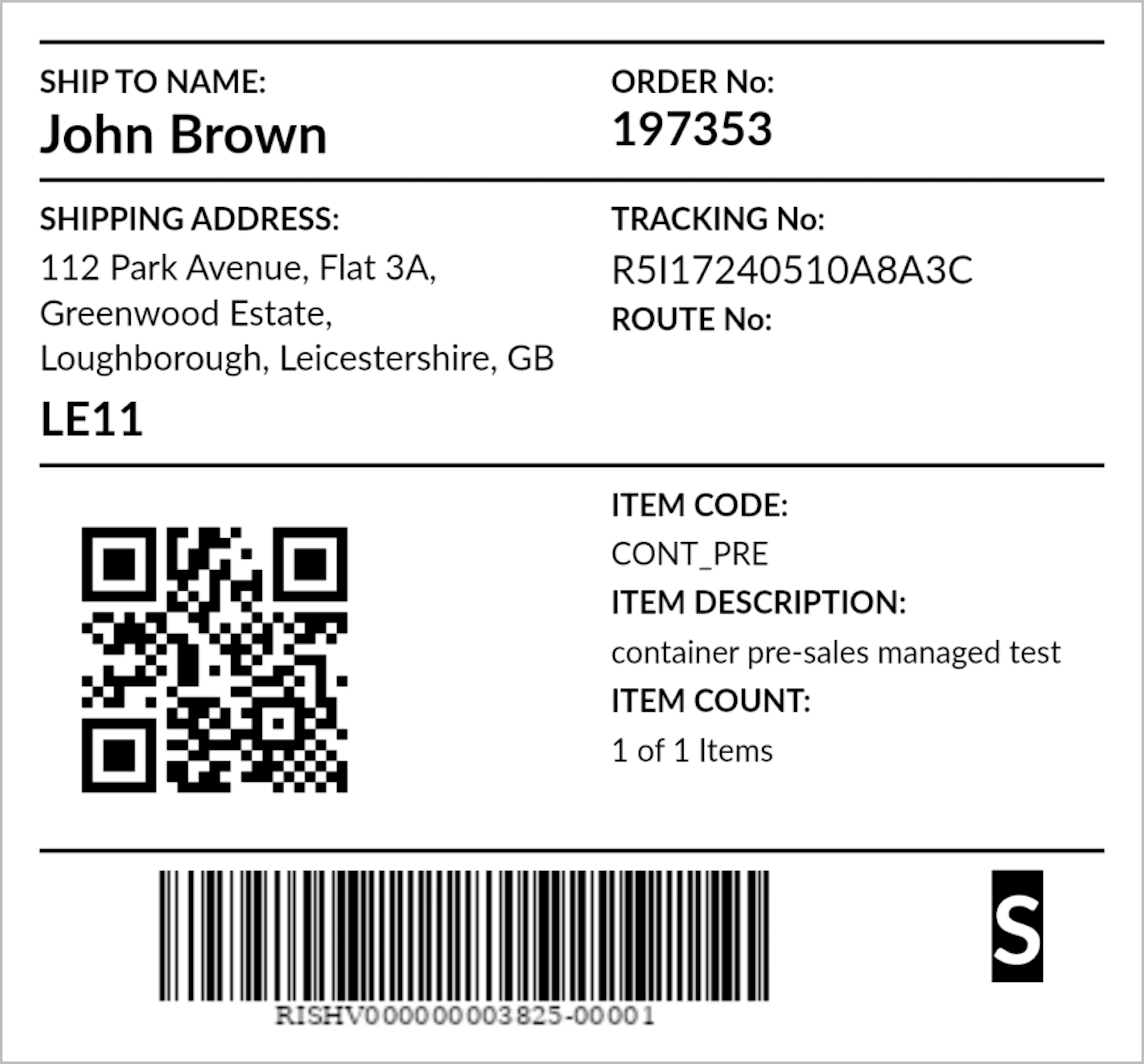
| Portrait without QR | Portrait-shaped label with the details listed as plain text. It has no QR code and no barcode. |
| Portrait Standard | 4×6 inch portrait-shaped label with the recipient, order and tracking details, a QR code and a barcode. |
| Compact (100×50mm without QR) | Small 100×50mm label with the address, tracking number and order number, and a barcode but no QR code. |
What each label looks like:
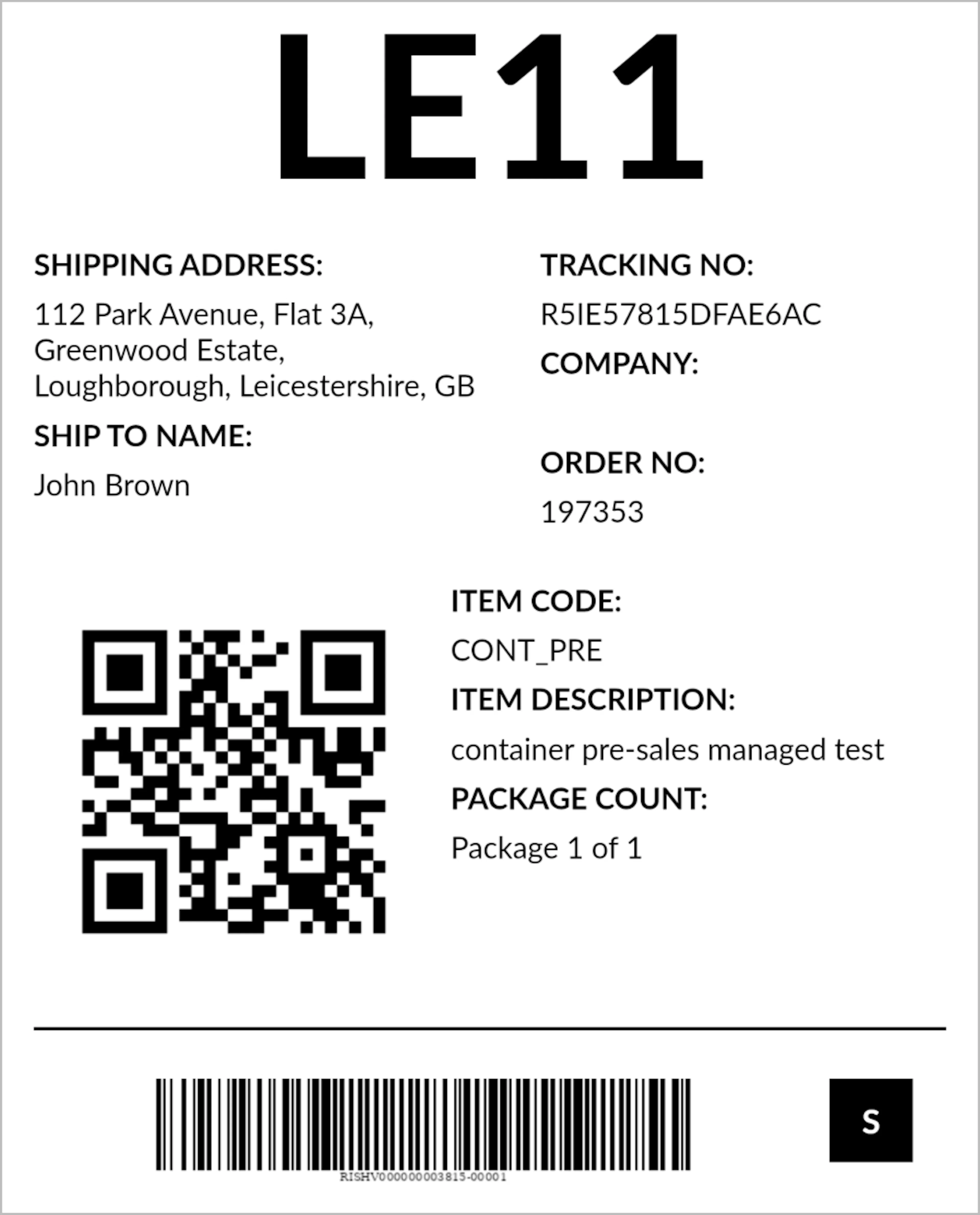
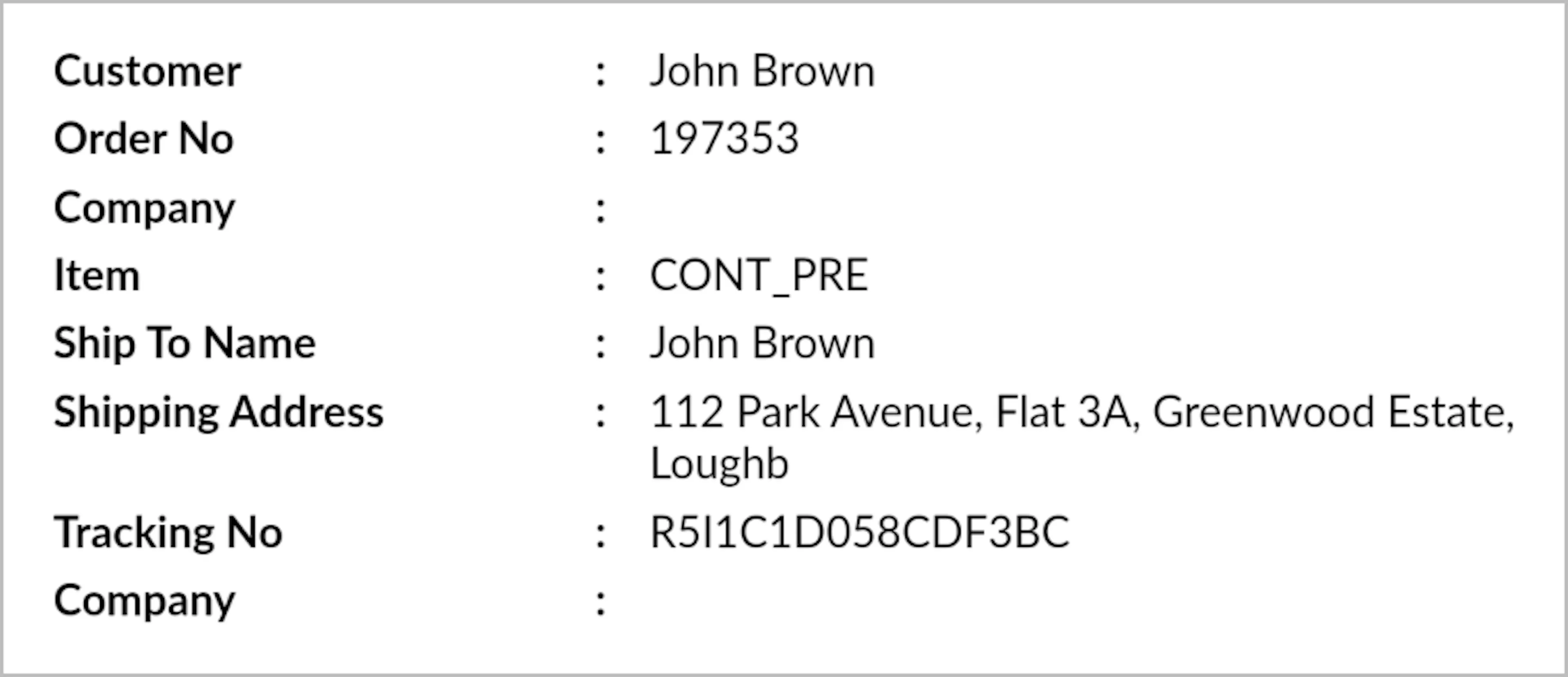
Long details on this label, such as a long address, are shortened to fit.
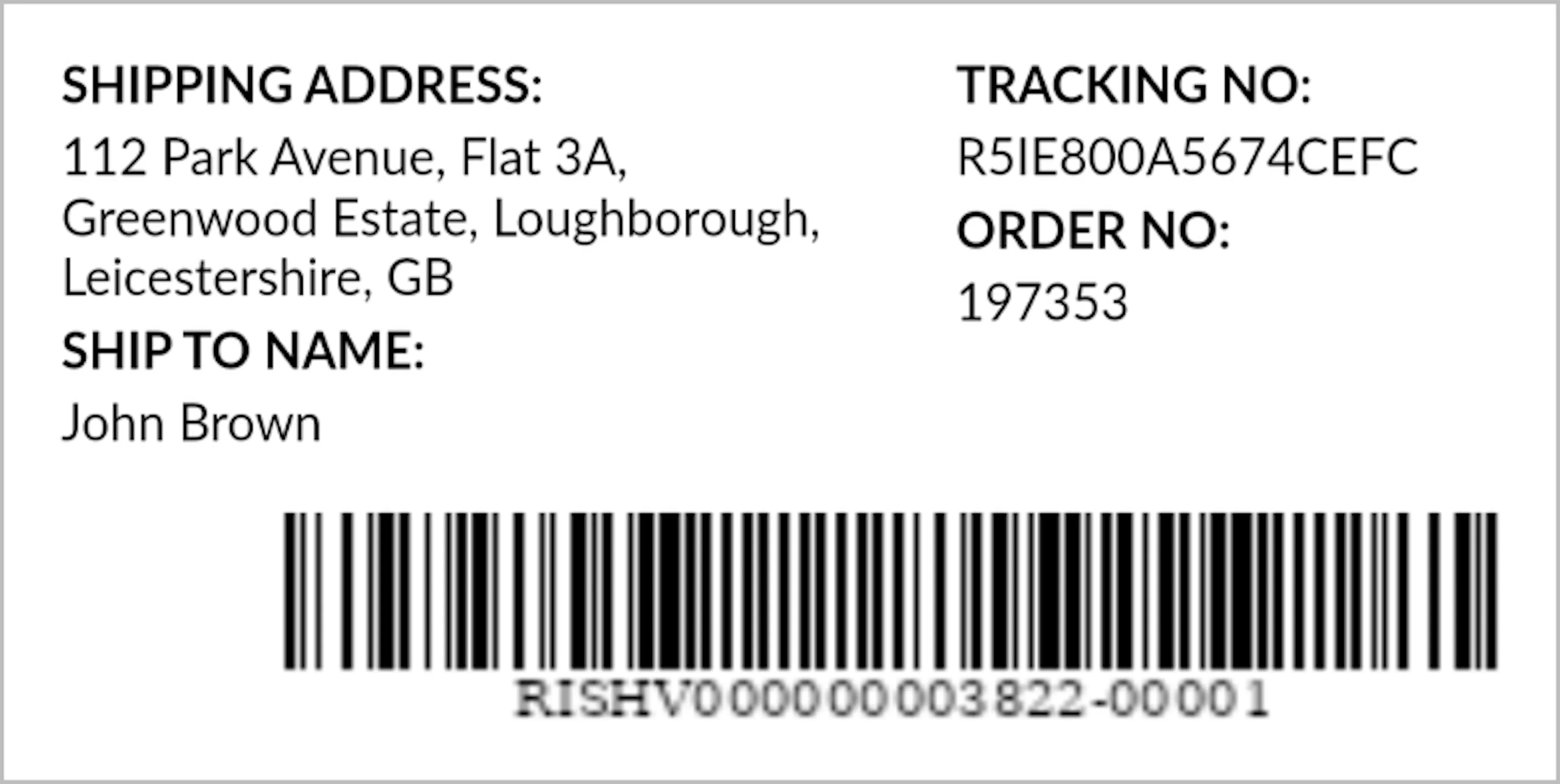
Please print this label on a 100×50mm label size. On a larger page it looks stretched.
The label type is chosen for each shipping service. Each label is supplied as both an image (PNG) and a PDF. The number of copies for each package is also set for each service (1 to 5 copies).
Cancelling a label: When Linnworks asks to cancel a label, the integration always replies that it has worked, but nothing is changed in Stream. Linnworks requires the integration to behave this way.
Tracking Number and Shipment Updates
Tracking Written to Linnworks
As soon as Stream accepts the order, the following are written to the Linnworks order:
- Tracking number: updated in the order's shipping information.
- Tracking link: stored beside the tracking number for reference.
- Consignment number: stored by the integration and used to match incoming Stream notifications to the right order.
You can see the tracking number on the order's Shipping & packaging tab.
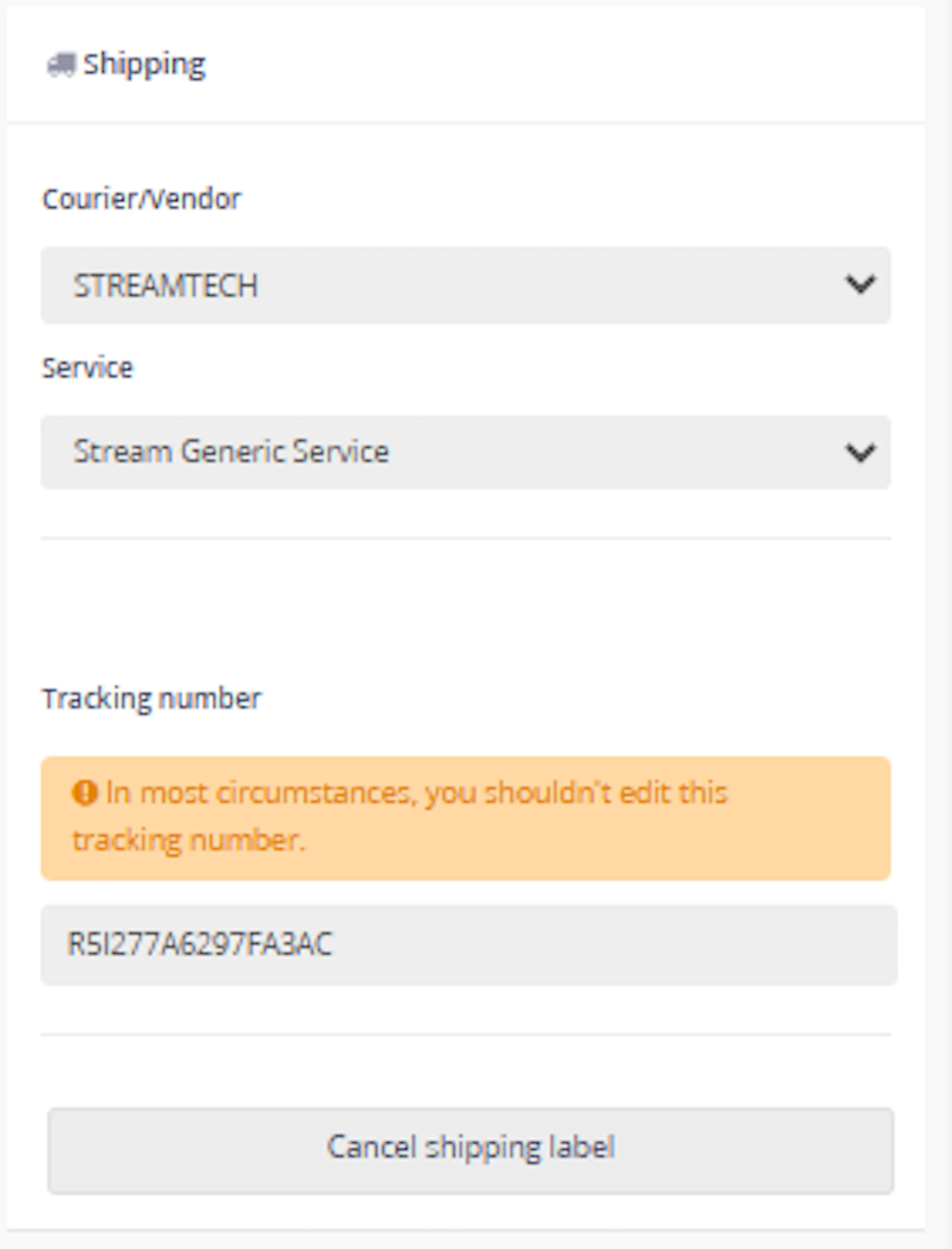
Please do not change the tracking number by hand. Linnworks warns that in most cases you should not edit it.
Delivery Status Updates
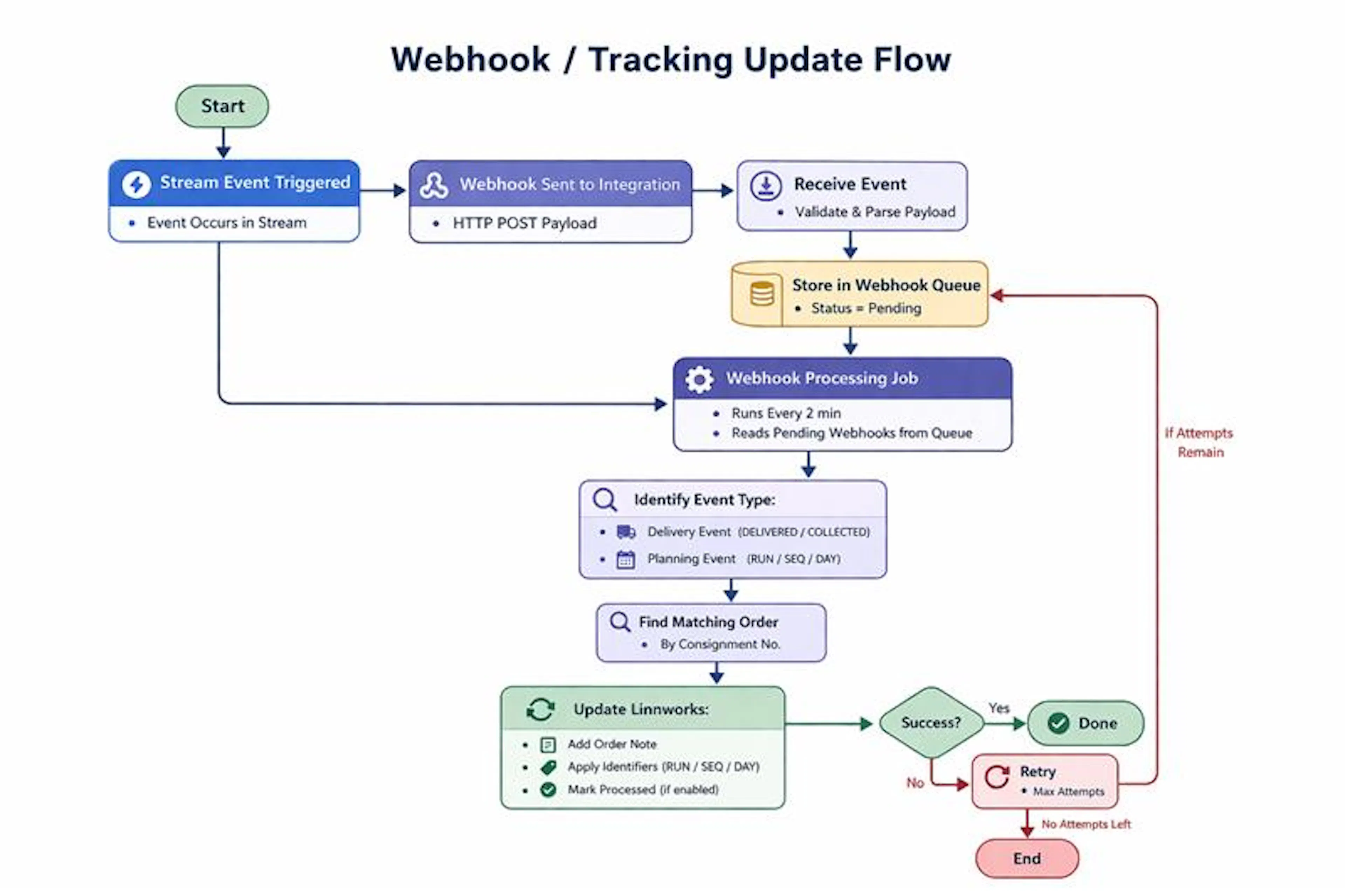
If Webhook Features Enabled is switched on for the integration, the integration subscribes to Stream's instant notifications (called webhooks). These are received, stored and processed every two minutes.
A weekly check (Sundays at 02:00 UTC) confirms that your notification subscription is still active. If you think notifications have stopped arriving, please contact support and we will re-check the subscription for you.
These delivery updates from Stream trigger changes in Linnworks:
| What Stream reports | Meaning |
|---|---|
| Delivered | The consignment has been fully delivered. |
| Partly delivered | The consignment has been partly delivered. |
| Collected | The consignment has been fully collected. |
| Partly collected | The consignment has been partly collected. |
When one of these arrives, the integration adds an order note to the matching Linnworks order with the delivery details.
These planning updates from Stream change the order group information in Linnworks:
| What Stream reports | Meaning |
|---|---|
| Planning opened | Delivery route planning has been opened in Stream. |
| Planning locked | Delivery route planning has been locked. |
| Planning closed | Delivery route planning has been closed and finalised. |
Mark as Processed on Delivered
When Mark as Processed on Delivered is switched on for a shipping service, Linnworks orders on that service are marked as processed automatically when Stream reports Delivered or Collected. Your warehouse team no longer needs to mark these orders as despatched by hand.
Run, Day, Sequence and Status Identifiers
Overview
The integration adds identifiers to Linnworks orders to show Stream's delivery route planning. They appear directly on the order in Linnworks, and they are the main way your warehouse and dispatch teams know which run, day and sequence position an order belongs to.
All identifiers are added to Linnworks by the daily identifier update at 03:00, so the full set is available before the working day begins.
Run Identifiers
| Format | Range | Count |
|---|---|---|
| RUN 01, RUN 02, … RUN 20 | RUN 01 to RUN 20 | 20 identifiers |
A run identifier is added to a Linnworks order when Stream assigns it to a delivery run during route planning. It shows the run number, so warehouse staff can sort and group orders before despatch.
Sequence Identifiers
| Format | Range | Count |
|---|---|---|
| SEQ-01, SEQ-02, … SEQ-20 | SEQ-01 to SEQ-20 | 20 identifiers |
A sequence identifier shows the order's position within a run. It is added alongside the run identifier. To use sequence identifiers, please switch on Group Sequence Identifier Enabled in the integration settings. If it is off, sequence identifiers are not added, even when Stream provides sequence information.

Day Identifiers
| Identifier |
|---|
| SUNDAY |
| MONDAY |
| TUESDAY |
| WEDNESDAY |
| THURSDAY |
| FRIDAY |
| SATURDAY |
Day identifiers show the delivery day planned by Stream. They are added to Linnworks orders by Stream's notifications when route planning assigns a delivery date.

Sent to Stream
| Format | Count |
|---|---|
| Sent to Stream | 1 identifier |
The Sent to Stream identifier is added to a Linnworks order as soon as it has been sent to Stream and a consignment number and tracking number have come back. It confirms the order is active in Stream and that labels can be printed. It stays on the order until the order is deleted from Stream, and then the integration removes it automatically.
Error from Stream
| Format | Count |
|---|---|
| Error from Stream | 1 identifier |
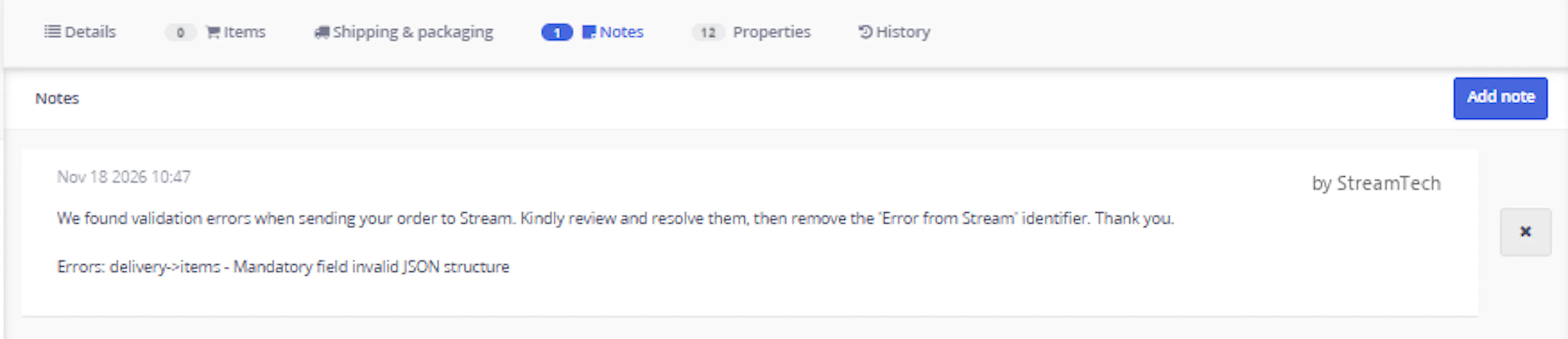
The Error from Stream identifier is added to a Linnworks order when Stream rejects it or when something goes wrong while it is being processed. It means the order needs attention before it can be despatched. To find out why, open the order in Linnworks and read its Notes tab. If Stream reports validation errors, the integration adds an internal note to the order that explains what was wrong. If there is no note, please contact support and we will check the error for you. Once you have fixed the problem, please remove the Error from Stream identifier yourself (see below). The integration then fetches the order again at its next cycle and sends it. Other failures, such as Stream being briefly unavailable, are retried automatically.
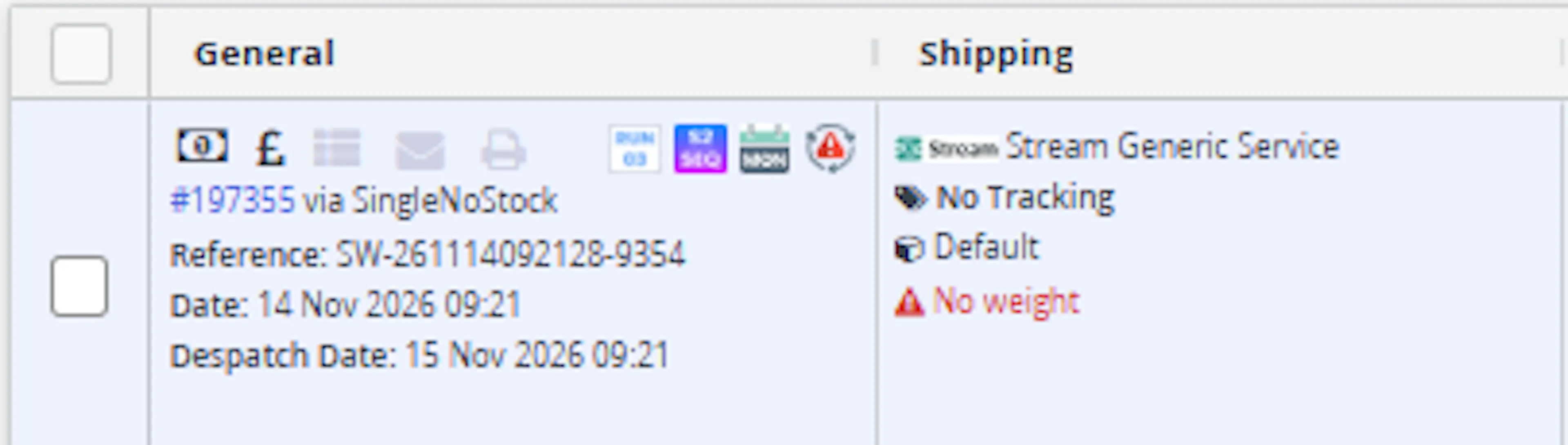
What an order with an error looks like
In Open Orders, the order shows the error icon beside its other identifiers.
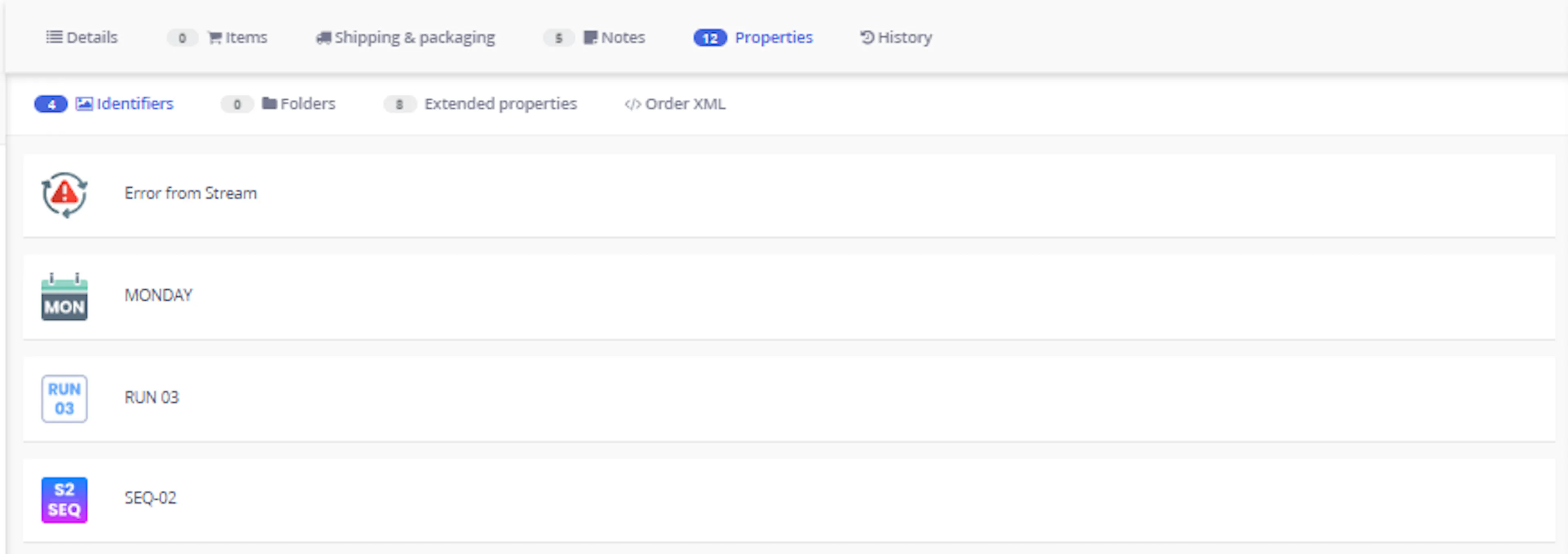
On the order's Properties > Identifiers tab, Error from Stream is listed with the other identifiers.
Open the Notes tab to read the note the integration added. It says what Stream rejected.
To try again after fixing the problem:
- Correct the detail named in the note.
- Open the order and click Edit order.
- Go to Properties > Identifiers and click the x beside Error from Stream.
- Click Save. The integration fetches the order again and sends it at its next cycle.
How Identifiers Are Applied
The integration adds and removes identifiers automatically, in response to notifications from Stream. We do not recommend changing these identifiers by hand in Linnworks, because the integration may overwrite them or clash with them.
The maximum number of identifiers is 20 run identifiers and 20 sequence identifiers.
Order Status Identifiers
The following identifiers appear on Linnworks orders and are managed by the integration. Each one is an at-a-glance status indicator.
In Open Orders, the identifiers show as small icons beside the order number.
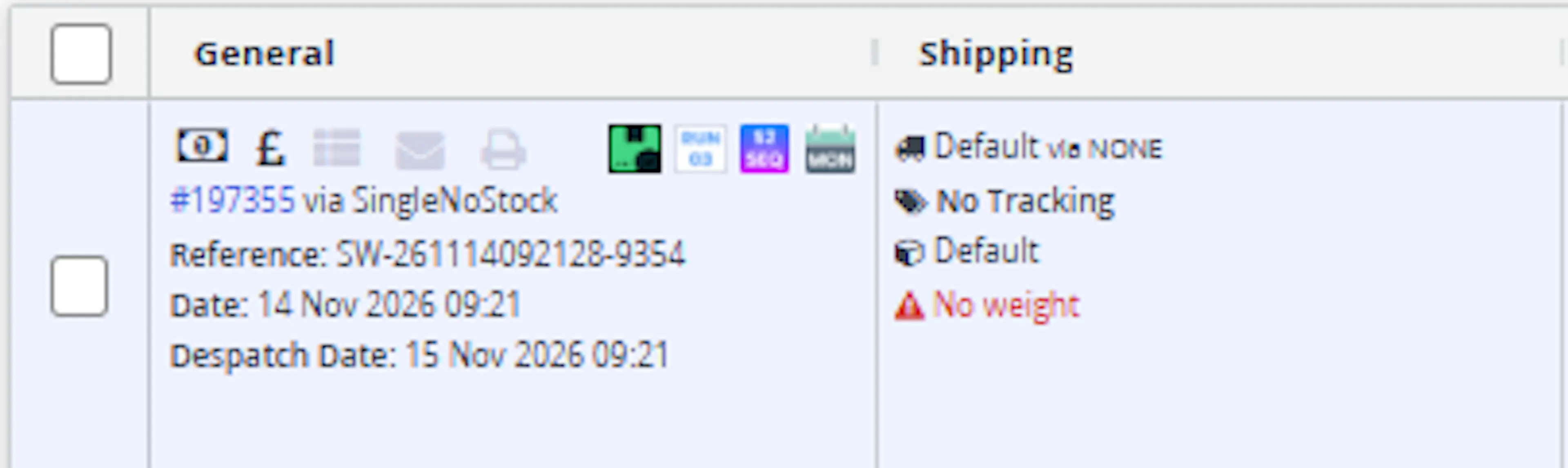
Open the order and go to Properties > Identifiers to see the full list with their names.
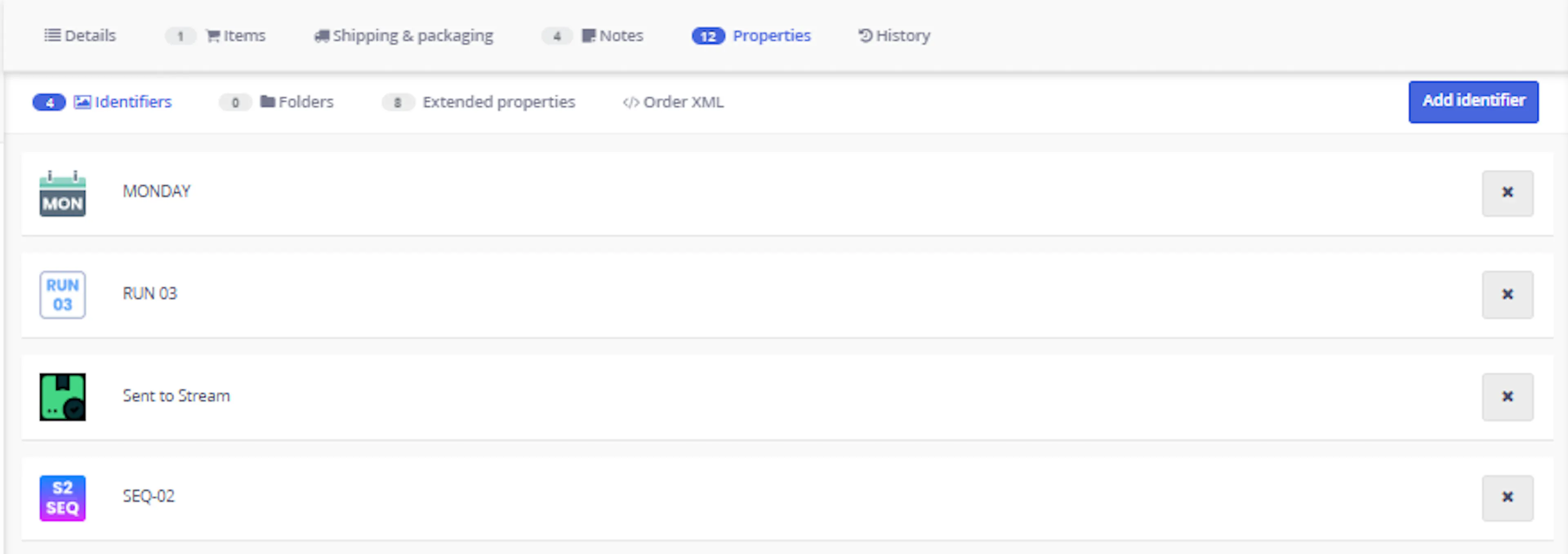
| Identifier | What it means |
|---|---|
| Sent to Stream | The order has been sent to Stream. A tracking number and consignment number are available. |
| Error from Stream | The order was rejected by Stream or failed while being sent. Open the order's Notes tab for the error message. |
| RUN 01 – RUN 20 | Stream has assigned this order to the delivery run shown, during route planning. |
| SEQ-01 – SEQ-20 | This order is at the sequence position shown within its run. This needs to be switched on in the integration settings. |
| MONDAY – SUNDAY | Stream has given this order a delivery day. The identifier shows the day of the planned delivery. |
Configuration Settings
Per-Service Settings
These settings are chosen for each shipping service within the integration. They apply to every order despatched with that service.
| Setting | Required | Default | Description |
|---|---|---|---|
| Label Type | Yes | Default | The label format used when printing labels for orders on this service. |
| Label Copies | No | 1 | The number of label copies for each package (1 to 5). |
| Stream Order Type | Yes | Delivery | Whether orders on this service create a Stream delivery order or a collection order. |
| Stream Delivery Method | Yes | None | The Stream delivery method for this service. |
| Override Packaging Split | No | Off | Ignores the Linnworks package structure and sends the order items to Stream as a simple list. This takes priority over Flatten Packaging Split Items. |
| Flatten Packaging Split Items | No | Off | When Override Packaging Split is off, sends the split item lines from each Linnworks package without package parent lines, keeping the per-package item descriptions (for example B1 and B2). |
| Skip Composite Parent | No | On | Leaves composite parent items out of the item list sent to Stream. Only the child items are sent. |
| Mark as Processed on Delivered | No | Off | Marks the Linnworks order as processed automatically when Stream reports a delivery. |
| Stream Service | No | None | An optional service code sent to Stream in the order header. |
| Stream Service Level | No | None | An optional service level code sent to Stream in the order header. |
For worked examples of the three packaging and composite settings, see Packaging and Composite Item Settings.
Extended Properties
The integration reads two Linnworks extended properties and passes them to Stream:
| Extended property | Level | Purpose |
|---|---|---|
SafePlace1 (Safe Place note) | Order | A safe-place note for delivery, for example "Leave behind the green gate". |
ExtendedCover (Extended Cover flag) | Item | Set to 1 when the item needs Extended Cover. |
If you want to use these, please add the matching extended properties in Linnworks and fill in the values on your orders or items.
Default Collection Location
For Collection orders, the integration needs a collection method. It uses the first value available from this list:
- The delivery method set on the shipping service.
- The Default Location set on the integration (when Use Default Location is switched on).
- A built-in fallback,
NORTH.
System-Level Settings
These settings are set by our team at the system level and apply across all installations. Please contact support if you need one changed.
| Setting | Default | Range | Description |
|---|---|---|---|
| Max Batch Size Per Installation | 10 | 1 to 50 | The most orders sent for each installation in a single send cycle. |
| Max Installations Per Batch | 2 | 1 to 50 | The most installations processed at the same time in one cycle. |
| Max User-Selected Orders | 10 | 1 to 100 | The most orders a user can select by hand for a bulk action. |
| Max User-Selected Orders for Delete | 10 | 1 to 50 | The most orders a user can select for bulk deletion. |
| Max Retry Attempts | 3 | 1 to 20 | The most automatic retries for a failed order before it is left as Failed. |
| Webhook Batch Size | 10 | 1 to 50 | The most Stream notifications processed in one processing cycle. |
| Webhook Max Retry Attempts | 3 | 1 to 10 | The most retries for a Stream notification that could not be processed. |
| Stream API Timeout | 30 seconds | 1 to 300 | How long the integration waits for Stream to reply to a single request. |
| Stream API Max Retry Attempts | 3 | 0 to 5 | How many times a request is retried automatically if Stream is briefly unavailable or busy. |
| Linnworks Order Sync Page Size | 50 | 1 to 500 | The number of orders retrieved at a time when fetching from Linnworks. |
Stream Partner Account
What is this?
When your orders are sent to Stream (the delivery and logistics platform), they normally belong to your own Stream account. Some businesses do not have their own Stream account. They ship through a partner: a company that holds the Stream account and handles delivery on their behalf.
The Stream Partner Account setting tells the integration: "Send my orders to Stream under my partner's account, not under a direct account."
Why does it exist?
Stream treats the two kinds of account differently:
| Direct account | Partner account | |
|---|---|---|
| Who owns the Stream account | You | Your partner |
| Order is labelled with a partner ID and name | No | Yes |
| Delivery methods and stock locations | Loaded automatically from Stream into a dropdown | Typed in by you |
For a partner account, Stream does not let us read the list of delivery methods and stock locations. We cannot build the dropdown, so you type those values in yourself.
How to set it up
Step 1: Turn it on
In the integration settings, open the Stream Partner Account group:
- Switch Use Stream Partner Account to On.
- Enter the Stream Partner Account ID. This is the identifier your partner gives you.
- Enter the Stream Partner Account Name. This is your partner's account name.
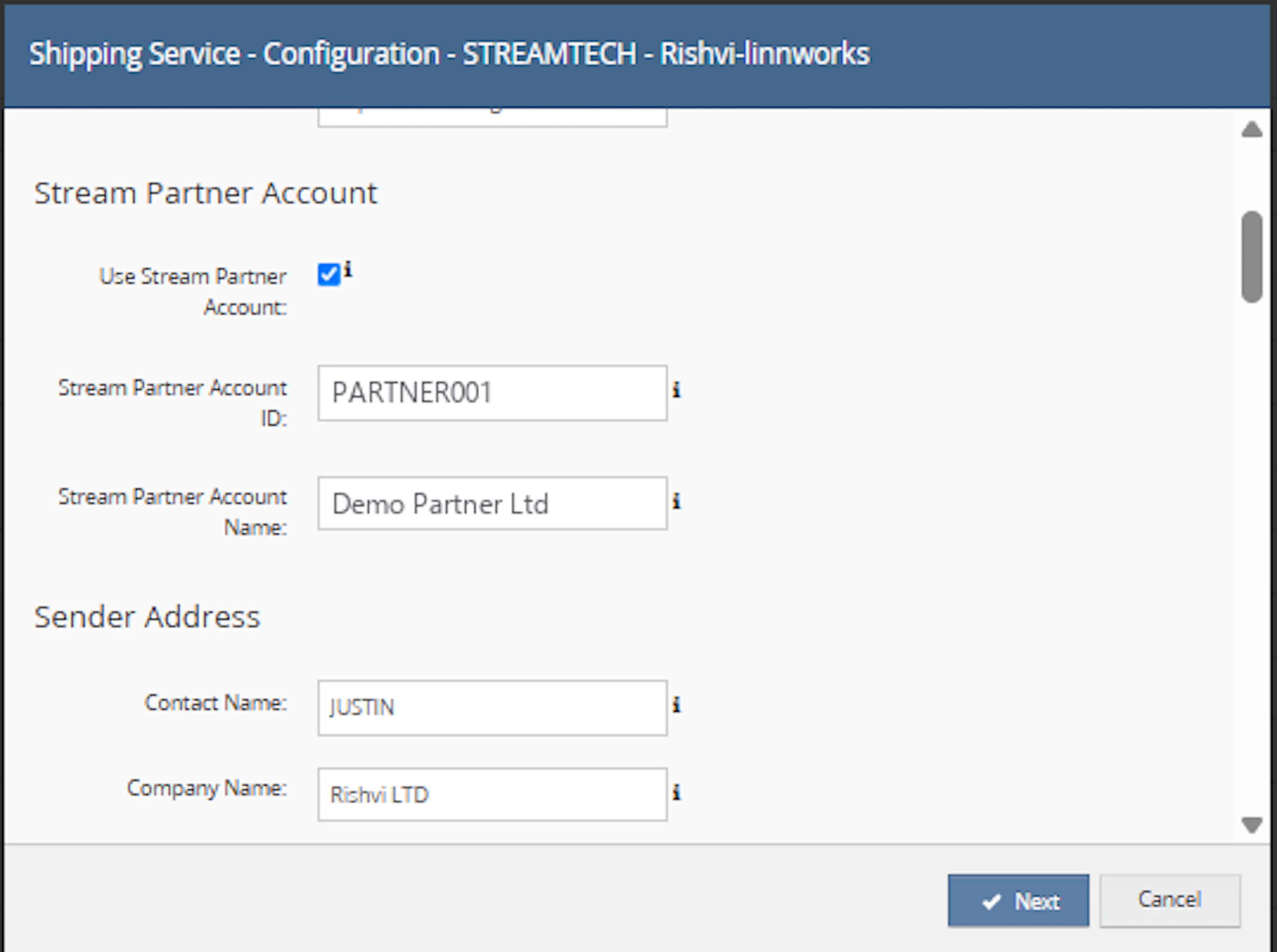
If you are not sure what the switch does, click the information icon (i) beside Use Stream Partner Account. It reminds you to enable this if you are using a Stream partner account.
Please ask your partner for the exact ID and name. A typing mistake means Stream cannot match the order to the partner and may reject it.
Both fields are mandatory when the switch is on. The system will not save without them.
Step 2: Set the delivery method and stock location for each shipping service
To open the settings for a shipping service:
- Go to Shipping > Integration and find your Stream integration.
- Click the services icon (the list icon) at the end of the integration's row.

- In the list of services, click Edit beside the Stream service.
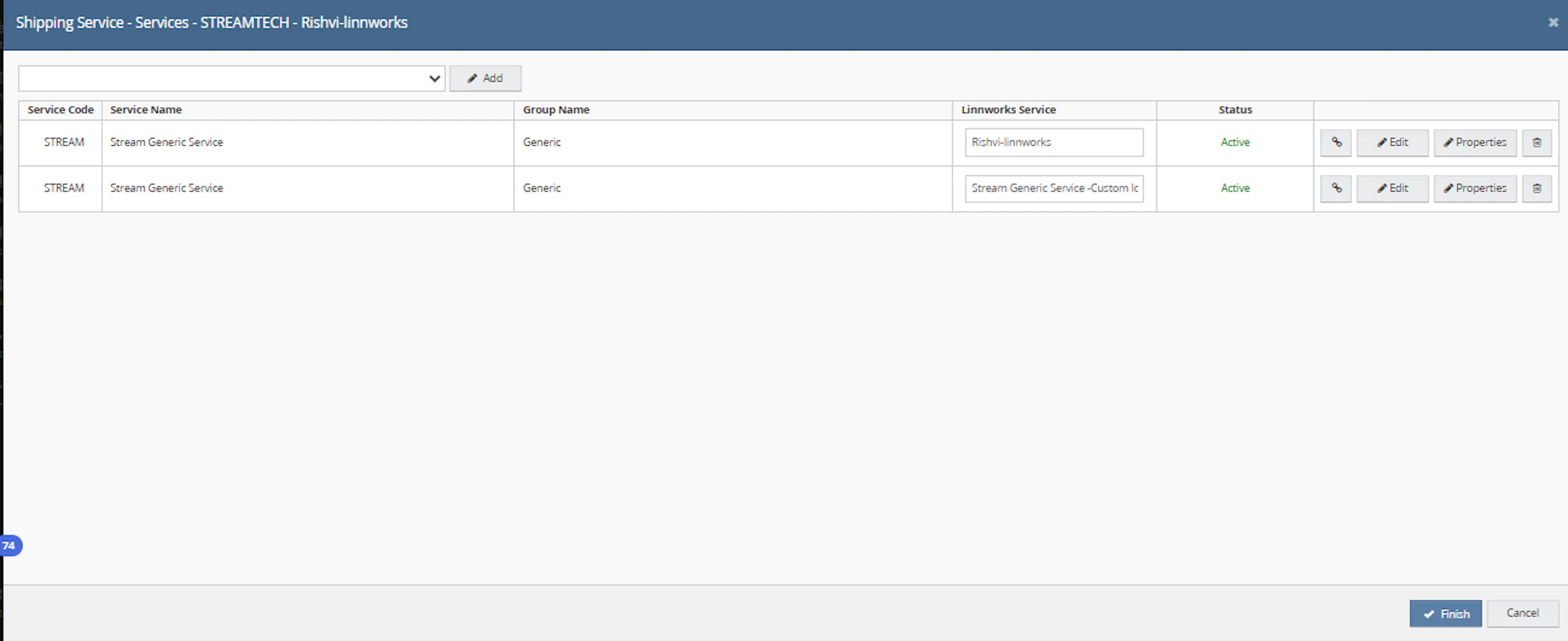
- Under Stream Configuration, find the Delivery Method setting.
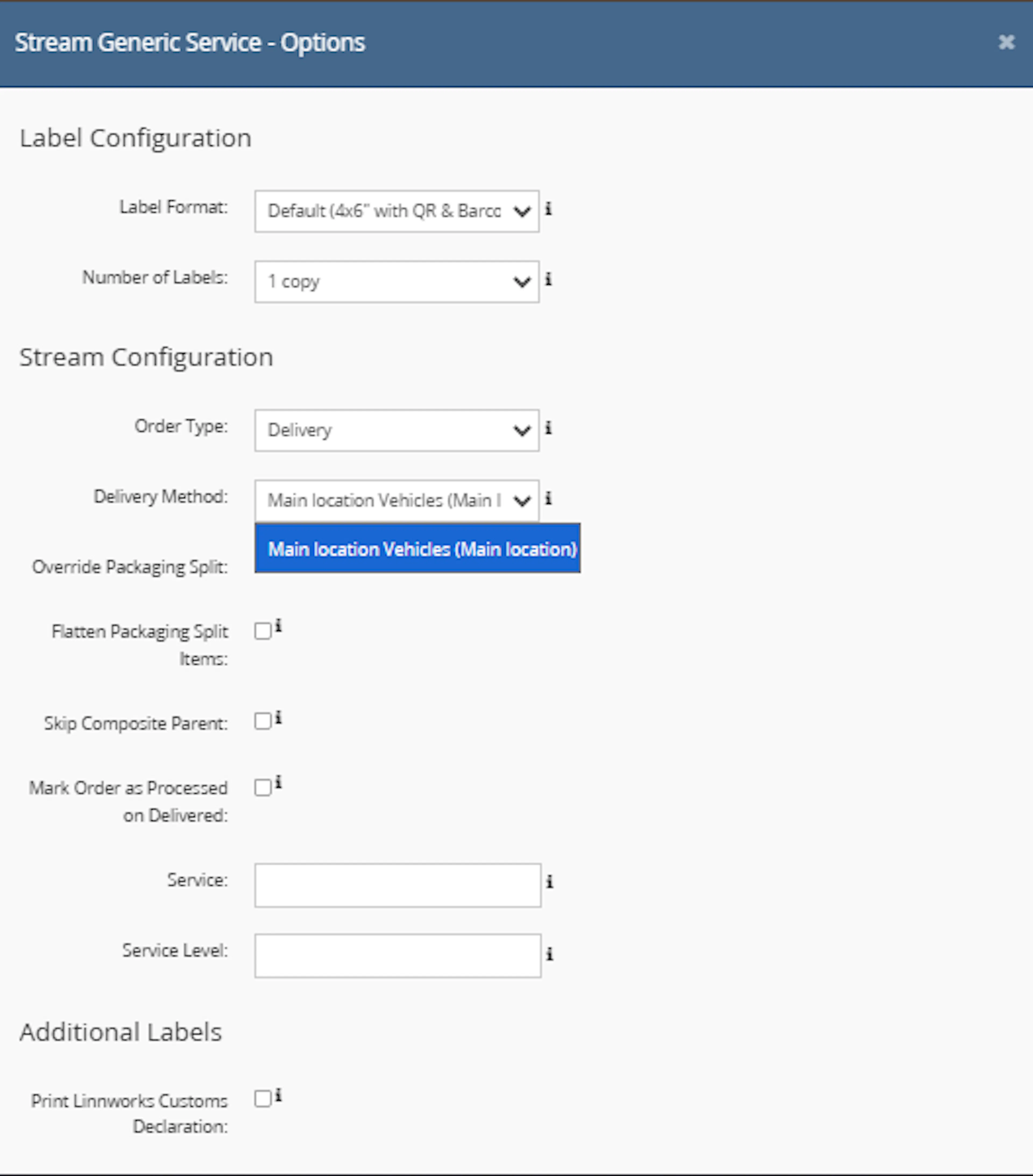
Each Linnworks shipping service has its own Stream settings:
- Direct account: you pick from a dropdown loaded from Stream.
- Partner account: you see two text boxes:
- Delivery method (name or ID)
- Stock location (name or ID)
Please type the values exactly as your partner gave them to you. Do this for every shipping service you use.
Step 3: Save
Click Ok to close the service settings, then click Finish on the list of services.
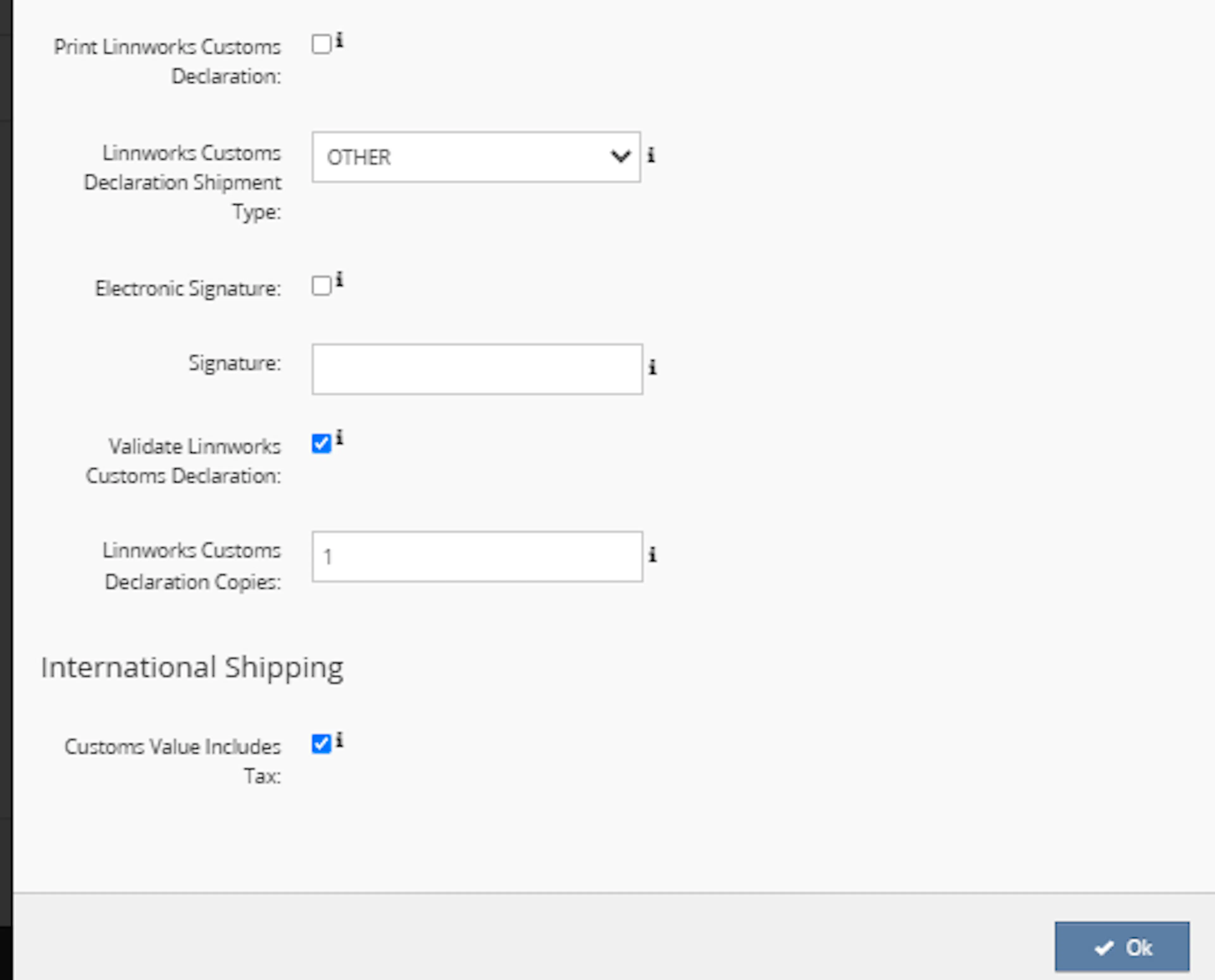
Save the integration. The next order sync uses the new settings.
Important: Shipping service settings are refreshed daily at 04:00 UTC. A change you make today applies to orders from tomorrow morning. If you need a change applied the same day, contact support and we will refresh it for you.
What happens to an order, step by step
An order arrives
The order is created in Linnworks.
The integration prepares it for Stream
It builds the order number, the customer's address, the items and the service level.
The partner details are added
If the partner account is on, the order also carries your partner's ID and name. If the partner account is off, no partner information is added.
The delivery method and stock location are chosen
If you typed them in, those typed values are used. If you picked them from the dropdown, those values are used.
The order is sent to Stream
Stream creates the consignment under your partner's account.
Stream sends back status updates
Updates such as tracking and delivery are applied to the original order.
Quick reference
| Setting | What it means | Required? |
|---|---|---|
| Use Stream Partner Account | You ship through a partner's Stream account | Not applicable |
| Stream Partner Account ID | The partner's identifier in Stream | Yes, when partner is on |
| Stream Partner Account Name | The partner's account name | Yes, when partner is on |
| Delivery method (text) | Delivery method as given by your partner | Yes, for each shipping service |
| Stock location (text) | Stock location as given by your partner | Yes, for each shipping service |
Partner account troubleshooting
| Problem | Likely cause | What to do |
|---|---|---|
| Orders are rejected with "Partner not found" | The partner ID or name is wrong or missing | Check them with your partner and correct them |
| No delivery method dropdown appears | This is normal for a partner account | Type the values into the text boxes |
| Orders fail on one shipping service only | The delivery method or stock location for that service is empty or misspelled | Enter the values for that service again |
| Orders still go to the wrong account | The Use Stream Partner Account switch is off | Turn it on and save |
| You moved from a partner account to your own | The old typed values are still set | Turn the partner switch off and choose from the dropdowns |
Good to know
- The partner setting applies to the whole integration, not to single orders.
- Turning it off removes the partner details from all new orders. Orders already in Stream are not changed.
- If you are unsure whether you use a partner account, please ask your Stream contact before turning it on.
Sending and Deleting Orders by Hand
Orders are normally sent automatically, but you can also send or delete orders yourself from the Open Orders screen in Linnworks. The toolbar there has two buttons for this: Order To Stream and Delete To Stream Order.

Send orders to Stream now
Open Open Orders
In Linnworks, open the Open Orders screen.
Select the orders
Tick the box beside each order you want to send. By default you can select up to 10 orders at a time.
Click Order To Stream
Click Order To Stream in the toolbar. The orders are sent to Stream straight away instead of waiting for the next automatic cycle.
Check the result
Open the order's Properties tab. The Sent to Stream identifier means it worked. If you see Error from Stream, read the order's Notes tab, correct the problem and remove the identifier, as described in Error from Stream.
Delete orders from Stream
Check the order is Completed
Only orders that have been sent to Stream successfully (Completed) can be deleted. Pending, Failed and In Progress orders cannot.
Select the orders
In Open Orders, tick the box beside each order you want to delete. By default you can select up to 10 orders at a time.
Click Delete To Stream Order
Click Delete To Stream Order in the toolbar. The order is removed from Stream and its tracking details are cleared in Linnworks. The Sent to Stream identifier is removed automatically.
If you cannot see these buttons in the toolbar, please contact support and we will check that they are switched on for your account.
Daily Operational Workflow
This is the usual day-to-day routine for teams using the integration.
Assign the correct shipping service to orders in Linnworks
Before the sync cycle runs, each order needs a valid Stream shipping service. Orders without a service, or with a service that is not fully set up, are not sent to Stream.
Wait for the scheduled fetch
Every five minutes, the integration collects open orders from Linnworks inside your lookback window. No manual action is needed. The integration picks them up as Pending.
Wait for the scheduled send
About two minutes after each fetch, the send job sends Pending orders to Stream. Orders that go through move to Completed.
Confirm orders with the Sent to Stream identifier
Once an order is sent, the "Sent to Stream" identifier appears on the Linnworks order. This confirms Stream has accepted it and it has a tracking number.
Print shipping labels from Linnworks
Print labels with the standard Linnworks shipping label workflow. The integration creates the label from the Stream tracking details. If the order has not been sent yet, the integration sends it first and then creates the label.
Check for Error from Stream identifiers
Look for orders tagged with "Error from Stream", as these need attention. Read the note on the order and correct the problem in Linnworks (for example a missing address or a service that is not fully set up). Then remove the Error from Stream identifier and wait for the next automatic cycle.
Watch for run, day and sequence identifiers
As Stream plans delivery routes, run identifiers (RUN 01 to RUN 20), day identifiers (MONDAY to SUNDAY) and sequence identifiers (SEQ-01 to SEQ-20) are added to orders automatically. Use them to organise picking and loading by run and sequence.
Receive delivery confirmations in Linnworks
When Stream delivers an order, a delivery note is added to the Linnworks order automatically. If Mark as Processed on Delivered is switched on for the service, the order is also marked as processed.
Validation Errors and Common Causes
These problems can stop an order being sent to Stream. When one happens, the order moves to Validation Failed. It will not be sent again until you have fixed the problem and removed the Error from Stream identifier.
| Validation error | Cause |
|---|---|
| Installation not found or inactive | The Linnworks account linked to the order is not active in the integration. Please contact your administrator. |
| Linnworks connection missing or expired | The saved Linnworks connection for the installation is no longer valid, or has been removed. Please connect the installation again. |
| No active installations available | No active Linnworks installations are set up. At least one is needed. |
| Order not found in Linnworks | The integration has the order but it could not be found in Linnworks. |
| Order not found in the integration | The order was expected in the integration but is missing. Fetch the orders again. |
| Shipping service not assigned | The order has no shipping service in Linnworks. Please assign a valid Stream service. |
| Shipping service not fully set up | The assigned shipping service is missing a Stream depot or delivery method. Please finish the service set-up. |
| Order sync disabled | Order Sync Enabled is switched off for the integration. Switch it on, or send the order manually. |
| Order already in progress | Another action is already sending this order. Please wait for it to finish. |
| Missing delivery address fields | The order's delivery address is incomplete. Address Line 1, Town, Postcode and Country are needed. |
| Too many orders selected | You have selected more orders for a bulk action than the maximum allows. Please select fewer. |
Troubleshooting Guide
Best Practices
Taking a little time to set things up fully means orders flow through Stream without manual re-processing.
Set up shipping services fully first
Each service needs a Stream depot and delivery method. Orders assigned to an incomplete service fail and need to be re-processed by hand.
Choose one packaging setting per service
Use Override Packaging Split when Stream only needs the products, or Flatten Packaging Split Items when split item lines need to stay separate. Switching on both has the same effect as Override Packaging Split alone.
Keep Order Sync Enabled on
Switching on Order Sync Enabled makes sure orders are sent automatically. If it is off, orders have to be sent by hand.
Use a steady order number prefix
The Order Number Prefix added to your Stream order numbers should be unique and should not change. Changing it part-way through can cause references in Stream to stop matching.
Leave identifiers to the integration
Identifiers such as "Sent to Stream", "RUN 01" and "SEQ-01" are managed by the integration. Changes made by hand may be overwritten on the next cycle.
Check Error from Stream every day
This identifier is the main sign that an order needs attention. Please make a daily check of orders carrying it.
Choose a suitable lookback window
Order Lookback Days controls how far back the fetch job looks for orders. If it is too short, orders from a previous day may be missed. If it is too long, each cycle takes longer than it needs to.
Switch on Webhook Features for live delivery tracking
Switching on Webhook Features Enabled brings delivery updates into Linnworks as they happen. Without it, delivery changes in Stream do not appear in Linnworks.
Use sequence identifiers for run-based dispatch
If your warehouse and dispatch teams rely on the order within a run for loading, switch on Group Sequence Identifier Enabled to add SEQ-01 to SEQ-20 beside the run numbers.
Keep batch sizes modest
The default of 5 orders per installation in each cycle is a cautious choice. Raising it speeds things up, but Stream only allows a certain number of requests per minute, so it can increase failures. Please raise it gradually and watch the failure rate.
Check the daily updates each morning
The identifier update runs at 03:00 and the shipping service update at 04:00 UTC. If either fails, identifiers may be missing or services may be out of date. If you notice missing identifiers or out-of-date services, please contact support.
FAQ
How often are orders automatically sent?
The fetch job runs every five minutes and collects open orders from Linnworks. The send job also runs every five minutes, two minutes after the fetch, so orders are usually sent to Stream within about seven minutes of being fetched.
What happens if Stream is temporarily unavailable?
If Stream is unavailable, orders fail to send and are marked as Failed. The integration retries failed orders on each later cycle, up to 3 times by default. If Stream stays unavailable beyond that limit, orders stay Failed until Stream is back and a manual or scheduled retry is made.
Can I send orders manually?
Orders are normally sent automatically every five minutes. If you need an order sent straight away, select it in Open Orders in Linnworks and click Order To Stream. You can select several orders at once. See Sending and Deleting Orders by Hand.
How do I fix an order with the "Error from Stream" identifier?
Open the order in Linnworks and read its Notes tab, which explains the error returned by Stream. Correct the problem, for example a missing address field, an invalid delivery method or a sign-in problem, and then remove the Error from Stream identifier on the order's Properties tab. The integration fetches the order again and sends it at its next cycle.
What is the difference between a delivery order and a collection order?
A delivery order asks Stream to deliver goods to the recipient's address. A collection order asks Stream to collect goods from an address. The type depends on the Stream Order Type set on the shipping service assigned to the Linnworks order. The default is Delivery.
How many orders can be sent at once?
The automatic job sends up to 10 orders (by default) for each installation in each cycle. When you send orders by hand with Order To Stream, up to 10 orders (by default) can be selected at a time.
What label types are available?
Four label types are supported:
- Default: 4×6 inch label with a QR code and barcode.
- Portrait without QR: portrait-shaped label with plain text details. It has no QR code and no barcode.
- Portrait Standard: portrait-shaped label with a QR code and a barcode.
- Compact (100×50mm without QR): compact 100×50mm label with a barcode but no QR code.
The label type is chosen for each shipping service in the integration set-up.
Can I print multiple copies of a label?
Yes. Label Copies on each shipping service controls how many copies are printed for each package. You can choose from 1 to 5 copies.
What is the difference between Override Packaging Split and Flatten Packaging Split Items?
Override Packaging Split removes the Linnworks packaging structure altogether and sends the order items as a simple list. Flatten Packaging Split Items keeps the separate item lines from each package (for example, the same SKU split between Package 1 and Package 2 is sent as two lines) but removes the package parent lines. If both are on, Override Packaging Split takes priority. See Packaging and Composite Item Settings.
What does Skip Composite Parent do?
When it is on (the default), only the component SKUs of a composite product are sent to Stream. When it is off, Stream receives both the composite parent SKU and its component SKUs as separate item lines.
What does "Mark as Processed on Delivered" do?
When this is switched on for a shipping service, Linnworks orders on that service are marked as processed automatically when Stream confirms delivery or collection. Your warehouse staff no longer need to mark the order by hand after dispatch is confirmed.
How do I turn on run and sequence identifiers?
Run identifiers (RUN 01 to RUN 20) are added automatically when Webhook Features Enabled is switched on and Stream sends planning updates for assigned orders. Sequence identifiers (SEQ-01 to SEQ-20) also need Group Sequence Identifier Enabled to be switched on in the integration settings. Both sets of identifiers are added to Linnworks by the daily identifier update at 03:00.
What happens if I try to delete a Pending or Failed order?
Only Completed orders can be deleted. If you try to delete a Pending, Failed or In Progress order, you will see an error. Please resolve the order's status first, by waiting for a successful send or correcting any errors, and then delete it.
Are Stream notifications retried if they fail to process?
Yes. If a notification cannot be processed, the retry count goes up and it moves to Ready for Retry, then it is processed again in the next cycle (every two minutes). Notifications are retried up to 3 times by default. If every retry fails, the notification is marked as Failed and is not retried again automatically.
Does the integration support End of Day manifests?
No. If Linnworks asks for a manifest, the integration returns a manifest reference so the request completes, but printing an End of Day manifest is not supported, and Linnworks shows the message "This integration doesn't support End Of Day manifest documentation." This does not affect order sending, labels or tracking.
When does a change to a shipping service take effect?
Shipping service settings are refreshed daily at 04:00 UTC. A change you make today applies to orders from tomorrow morning. If you need a change applied the same day, contact support and we will refresh it for you.
Getting Help
If you need help with this integration, please email support@rishvi.co.uk. To help us look into it quickly, please include:
- Your Linnworks account name.
- The order number or numbers affected.
- A screenshot of the order's Properties and Notes tabs, if the order shows Error from Stream.
- What you expected to happen and what happened instead.
Legal Information
- Privacy Policy: https://rishvi.co.uk/privacy-policy/
- Terms and Conditions: https://rishvi.co.uk/terms-conditions/
Please review these pages to understand how data is handled and the terms that apply to this integration.
Summary
Stream Tech Integration hands orders over from Linnworks to Stream for you. Once it has your Stream details, your sender address and properly linked shipping services, it runs in the background all day.
Orders and tracking
Orders are fetched from Linnworks every five minutes and sent to Stream within a further two minutes. Tracking numbers and consignment IDs return to Linnworks straight away.
Labels and packaging
Labels are created on demand, and the integration sends the order first if that has not happened yet. Packaging and composite settings on each service decide which item lines Stream receives.
Delivery updates
Notifications from Stream add run, day and sequence identifiers to Linnworks orders as they happen. Delivery confirmations can mark orders as processed.
Daily updates
Daily updates at 03:00 and 04:00 UTC keep identifiers and shipping services current.
The integration fetches, sends and tracks every order automatically, and the identifiers on each Linnworks order show where it has got to. Our team can adjust batch sizes and retry limits, and you can change your lookback window in the integration settings, to suit your order volume.
If an order cannot be resolved automatically, the "Error from Stream" identifier in Linnworks and the note on the order give you what you need to find and fix the problem. If something does not appear as expected, please check that your Stream details are correct, that Order Sync Enabled is switched on and that the settings have been saved.