Address Field Character Replacement
Automatically replace unsupported or accented characters in selected Linnworks order address fields, record the changes in order notes, and update zero-cost items for international orders.
Overview
Address Field Character Replacement is an automated order-cleaning solution for Linnworks. It checks selected shipping and billing address fields and replaces configured unsupported, accented, or special characters with courier-friendly alternatives.
The macro processes order IDs supplied through the Linnworks Rules Engine. It reviews supported address fields, updates customer information when a replacement is required, and records the original and updated values in an order note.
For international orders, the macro also checks for order items with a cost of 0.0 and updates those items using the cost logic implemented within the macro.
Address Field Character Replacement helps reduce courier validation issues, improve dispatch readiness, and create a traceable record of every address change.
Who Should Use Address Field Character Replacement
Warehouse & Fulfilment Teams
Teams responsible for picking, packing, label generation, and dispatch use the macro to reduce manual address checks before fulfilment.
Logistics Managers
Logistics managers use the macro to improve address compatibility with courier systems and reduce avoidable label-generation errors.
Integration Administrators
Administrators configure the macro, enable it for the Rules Engine, define suitable order conditions, and monitor execution logs.
Operations & Customer Service Teams
Operations and customer service teams use the generated order notes to review the original and updated address values.
Key Features
Automatic Character Replacement
Replaces configured accented, unsupported, and special characters with defined courier-friendly alternatives.
Shipping Address Cleaning
Checks supported shipping fields including Address1, Address2, Town, and Full Name.
Billing Address Cleaning
Checks supported billing fields including Address1 and PostCode.
Address Change Notes
Adds an order note showing which fields changed and the original and updated values.
International Item Cost Handling
Checks non-UK orders for items with a cost of 0.0 and updates those item costs.
Conditional Linnworks Updates
Updates customer information only when at least one supported address field has changed.
How Address Field Character Replacement Works
Address Field Character Replacement runs through a defined sequence every time it processes one or more orders. The macro is triggered through the Linnworks Rules Engine and receives the relevant order IDs automatically.
Step 1: Order retrieval
The macro reads each order ID supplied through the OrderIds parameter and retrieves the corresponding order details from Linnworks.
Step 2: Address field analysis
The supported shipping and billing address fields are checked for characters included in the replacement dictionary.
Step 3: Character replacement
Matching characters are replaced with their configured alternatives. Empty fields and characters not included in the dictionary are left unchanged.
Step 4: Customer information update
When at least one address field changes, the updated customer information is written back to the Linnworks order.
Step 5: Order note creation
The macro adds an order note containing the original and updated values for each changed field.
Step 6: International item cost check
If the shipping country is not United Kingdom, the macro checks for order items where Cost is 0.0 and updates those items.
Configure the Macro
Once the app is installed, you need to create a macro configuration so the system knows which macro to run and allows it to be selected in the Rule Engine.
This setup can be adjusted anytime based on your operational requirements.
Steps to Configure
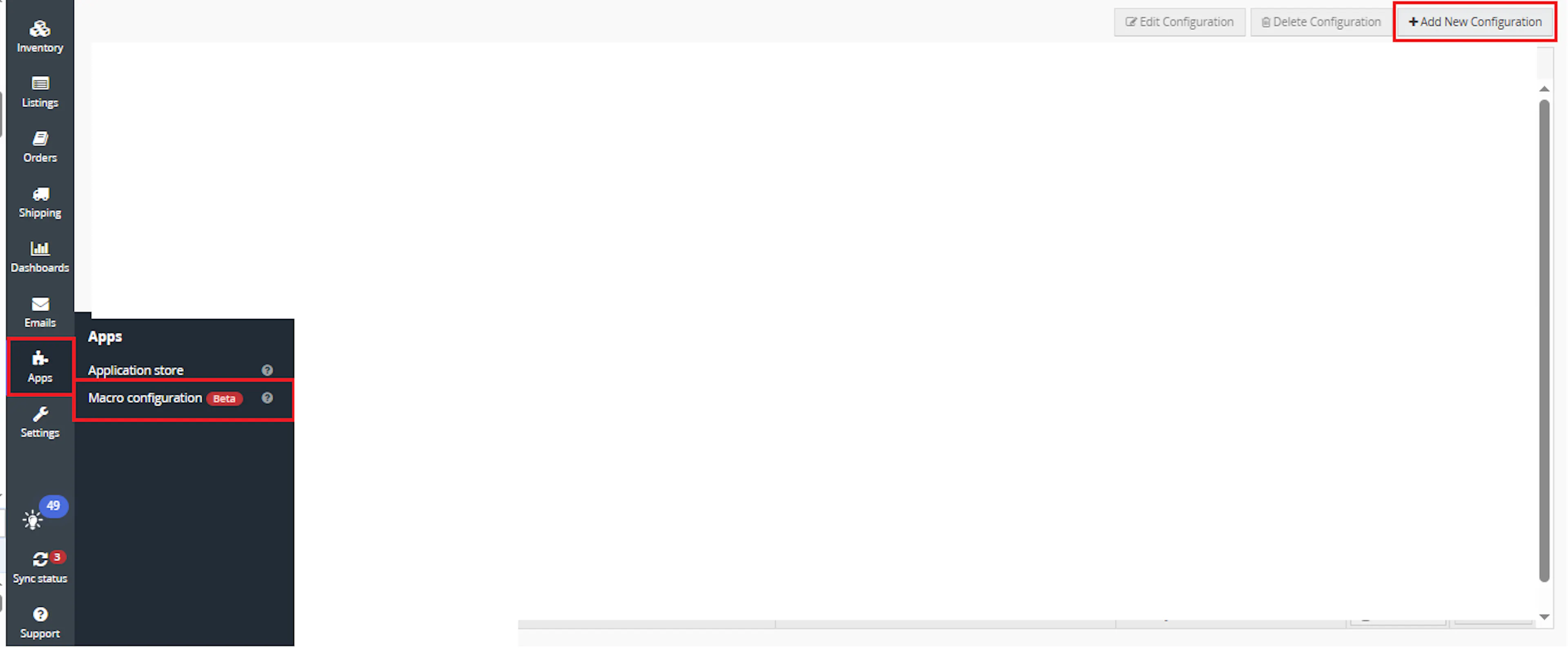
Go to Apps > Macro Configuration and click + Add new configuration.
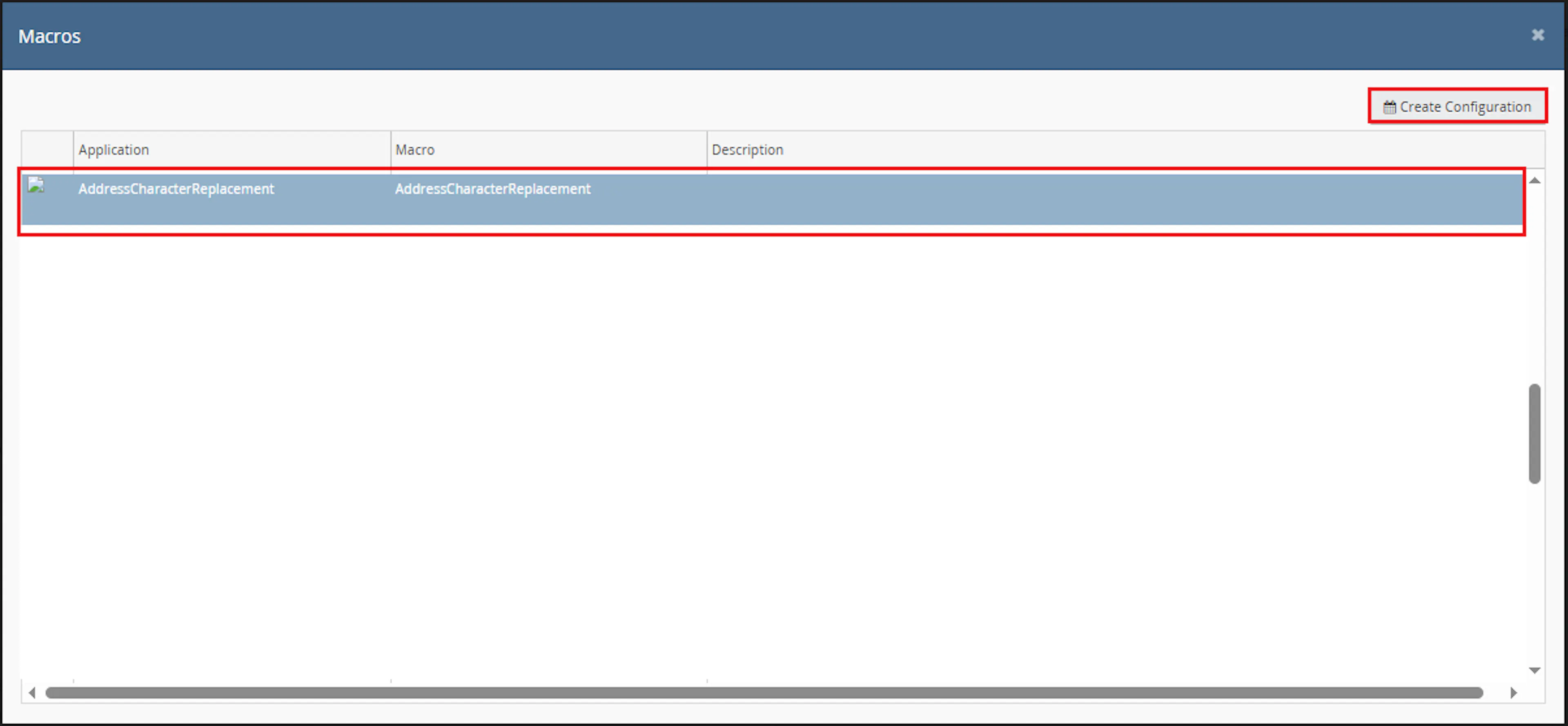
Select the AddressCharacterReplacement macro and click Create Configuration.
In the Macro Configuration screen, add the configuration name.
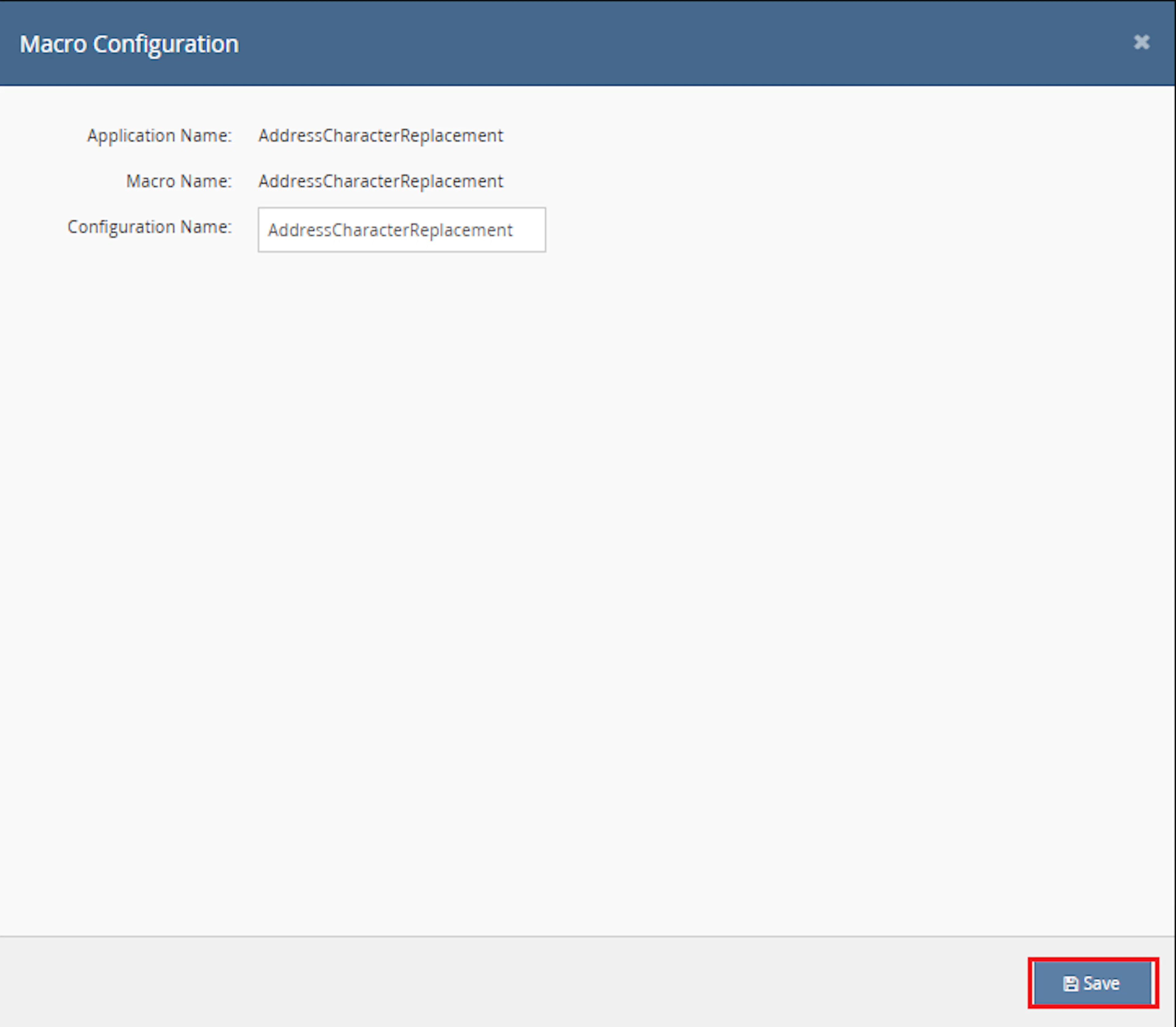
This macro uses the selected order IDs provided by the Rule Engine. No additional custom parameter values are required.
Make sure to enable the macro to continue with the Rule Engine configuration.

Note: If the macro is not enabled, it will not appear in the Action value list when setting up the rule.
Go to Orders > Rules engine and click + Add new rule.
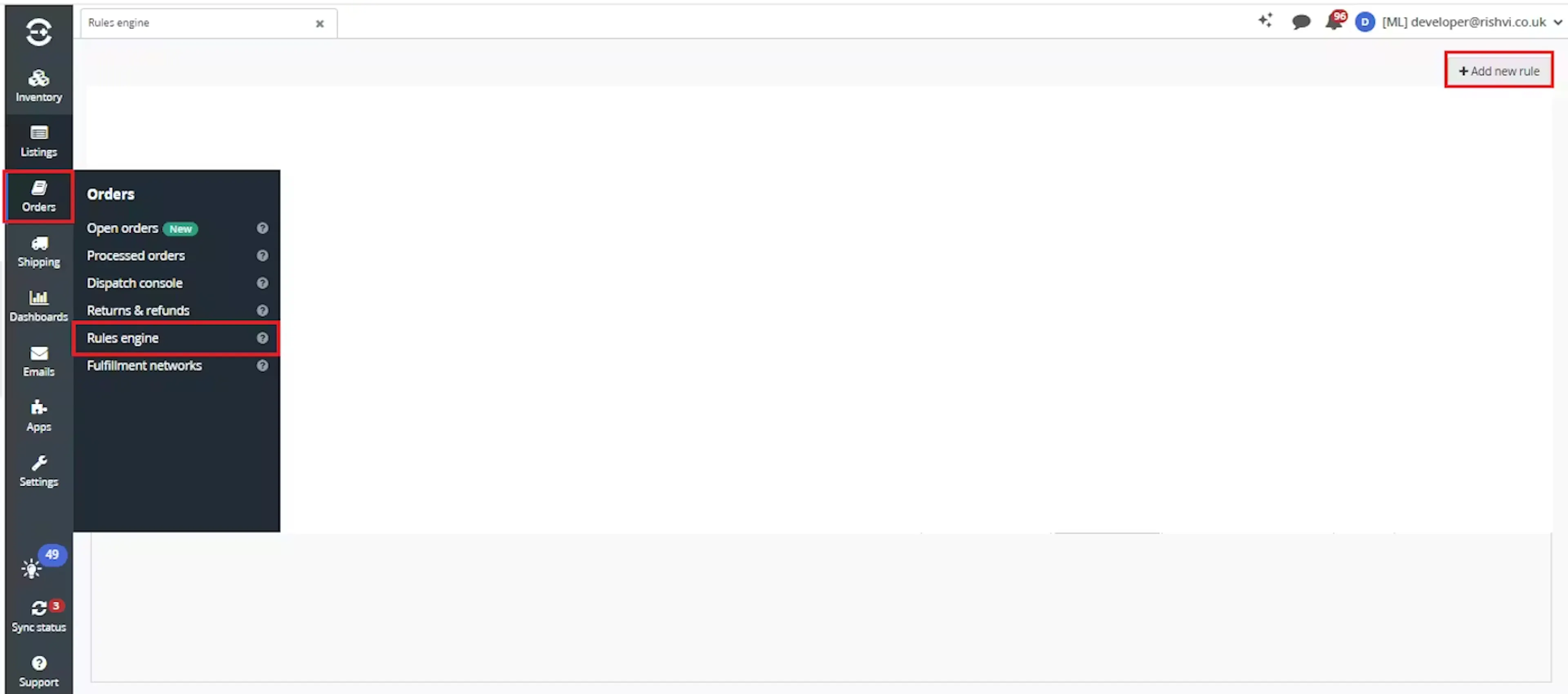
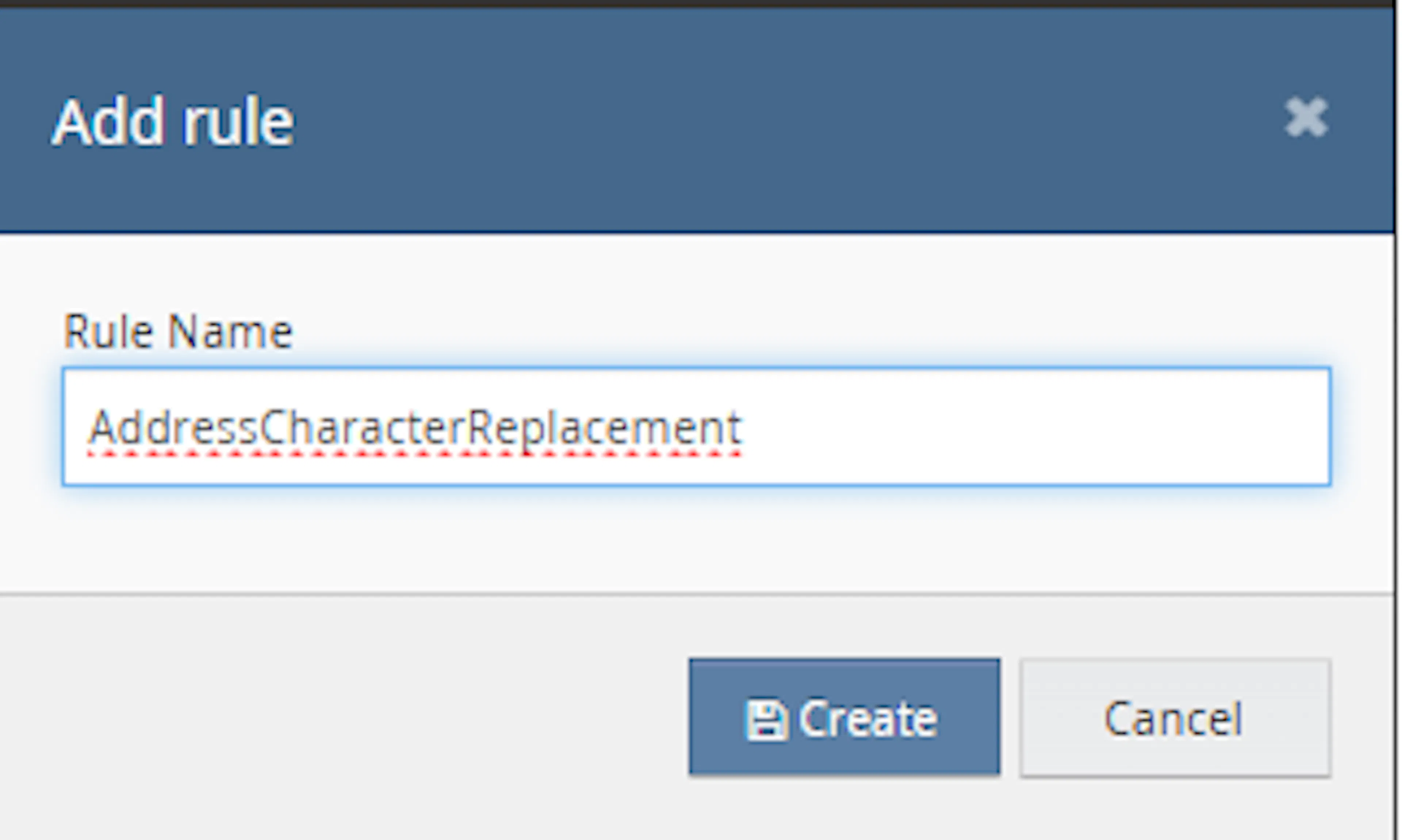
Enter the rule name and click Create.
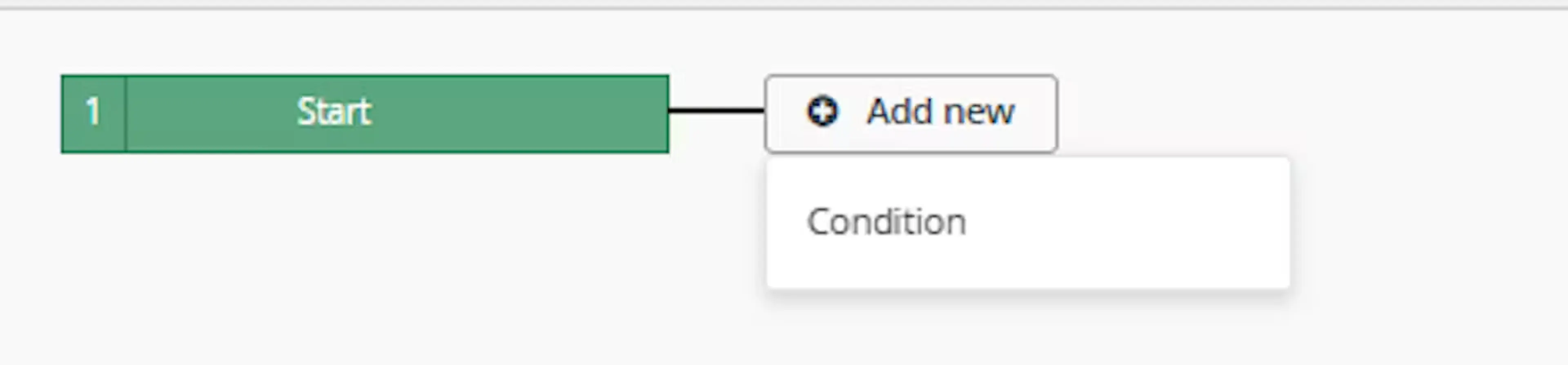
Click Add new, select Condition, set the condition as required, and save it.
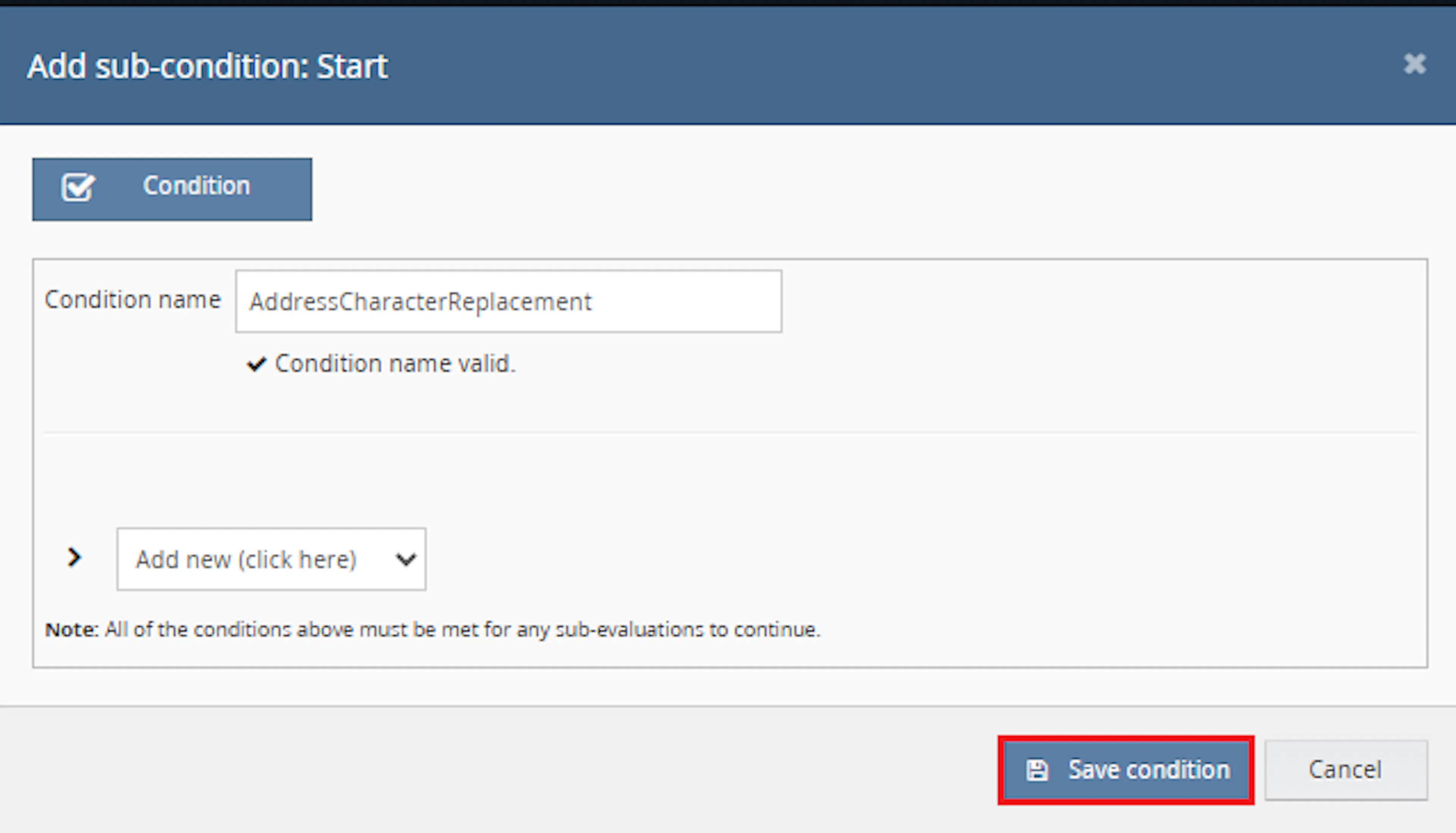
Use conditions that target orders where address cleanup is required, such as international orders, marketplace orders, or orders ready for dispatch.
Add the macro action and click Save.

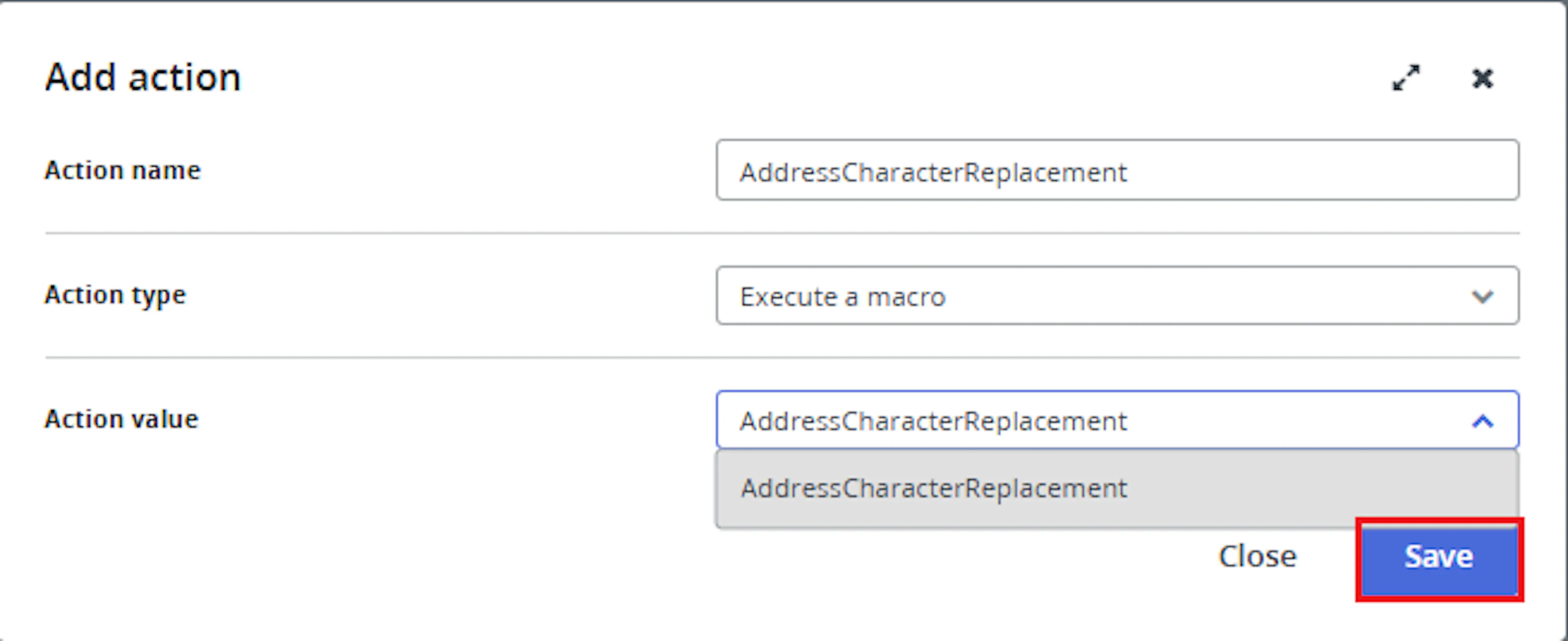
In the Add action window, enter the Action name, for example:
AddressCharacterReplacement
-
Set Action type to:
Execute a macro -
In Action value, select:
AddressCharacterReplacement -
Click Save
Note: If the macro is not enabled, it will not appear in the Action value list when setting up the rule.
Review the saved rule setup.
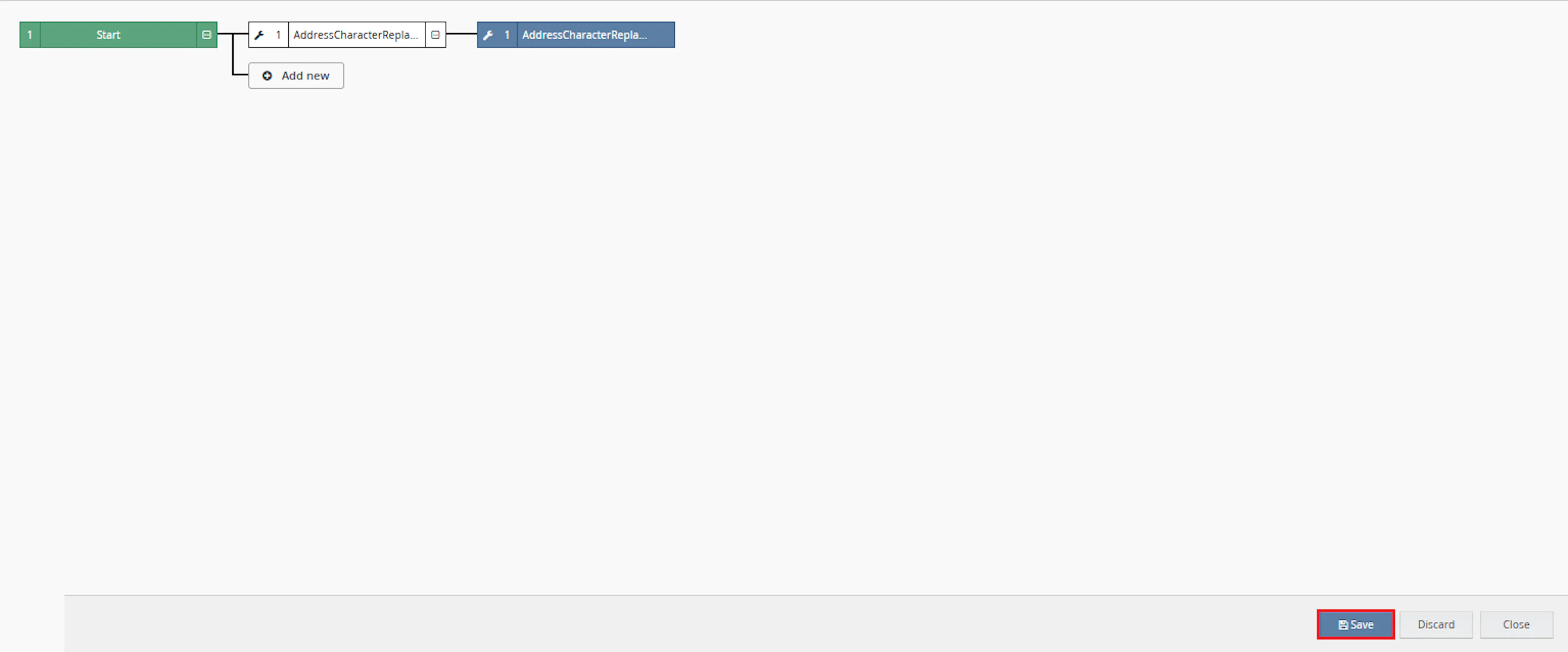
- Verify the condition and action are connected correctly
- Click Save in the bottom-right corner to save the rule
Key Benefits
Manually reviewing customer addresses across high order volumes can slow down fulfilment and introduce inconsistent corrections. Address Field Character Replacement applies the same configured cleaning rules to every selected order.
Reduce manual address corrections, improve courier compatibility, and maintain a clear record of every change made to an order.
Reduce Manual Address Checks
Automatically checks supported address fields for configured accented or unsupported characters.
Improve Dispatch Readiness
Cleans address information before courier validation, shipping-label generation, packing, or dispatch.
Improve Courier Compatibility
Replaces configured characters with simpler alternatives that are less likely to cause courier validation issues.
Record Address Changes
Adds an order note containing the original and updated value for every changed field.
Avoid Unnecessary Updates
Customer information is updated only when at least one supported address field has changed.
Support International Orders
Checks non-UK orders for items with a cost of 0.0 and updates those items automatically.
Usage of App
Address Field Character Replacement is triggered through the Linnworks Rules Engine to automatically clean supported address fields on selected orders.
Execution
Trigger via Rules Engine
Call the AddressCharacterReplacement macro through the Rules Engine with the required OrderIds. No additional manual input is required once the rule is active.
Outcome
When the macro runs against an order, it:
Reads order data
Retrieves the order, customer information, supported shipping and billing address fields, and order items from Linnworks.
Checks configured characters
Compares the supported address fields against the built-in character replacement dictionary.
Updates changed address fields
Replaces matching characters and writes the updated customer information back to Linnworks.
Creates an order note
Records the field name, original value, and updated value for each address change.
Updates international zero-cost items
For orders where the shipping country is not United Kingdom, checks for items with Cost equal to 0.0 and updates them.
Input Parameters
Address Field Character Replacement requires the following input before it can process orders:
| Parameter | Required | Description |
|---|---|---|
| OrderIds | Yes | The Linnworks order IDs to process. Passed through the Rules Engine trigger. |
The macro does not require additional custom values in the Macro Configuration screen.
The following behaviour is defined within the macro code:
| Setting | Description |
|---|---|
| Replacement Dictionary | Defines the characters that can be replaced and their replacement values. |
| Supported Address Fields | Defines which shipping and billing fields are checked. |
| International Order Check | Treats orders outside United Kingdom as international. |
| Zero-Cost Item Handling | Updates international order items where Cost is 0.0. |
Character Replacement Rules
The macro uses the following configured replacement values:
| Original Character | Replacement |
|---|---|
| á | a |
| à | a |
| â | a |
| ä | a |
| ã | a |
| å | a |
| ā | a |
| ç | c |
| é | e |
| í | i |
| ñ | n |
| ó | o |
| ú | u |
| ý | y |
| ž | z |
| ß | ss |
| œ | oe |
| æ | ae |
| , | space |
Important: Character replacement is case-sensitive. Only the exact characters defined in the macro are replaced.
Best Practices
Consistent Rules Engine configuration and regular monitoring are key to getting the best results from Address Field Character Replacement.
Run before label generation
Trigger the macro before courier allocation or shipping-label generation so addresses are cleaned before validation.
Use targeted rule conditions
Configure the Rules Engine to process only the orders that require address cleaning.
Review order notes
Use the generated notes to confirm which fields were changed and review the original values.
Test before enabling at scale
Run the macro against a small sample of orders containing known supported characters before enabling it across a larger order volume.
Monitor Rules Engine execution
Review Rules Engine and macro logs regularly to confirm that orders are being processed without errors.
Extend replacements carefully
Test any additions to the replacement dictionary before publishing an updated macro to a live workflow.
FAQ
How is Address Field Character Replacement triggered?
The macro is triggered through the Linnworks Rules Engine. When an order matches a configured rule, the macro receives the relevant OrderIds automatically.
What address fields does the macro check?
The documented fields are shipping Address1, shipping Address2, shipping Town, shipping Full Name, billing Address1, and billing PostCode.
Does the macro require additional configuration parameters?
No. The macro uses the order IDs supplied through the Rules Engine. No additional custom parameter values are required in the Macro Configuration screen.
Does the macro update every order it receives?
The macro checks every supplied order, but customer information is updated only when at least one supported address field contains a configured character.
Is an order note always created?
No. An order note is created only when one or more address fields have changed.
What information is included in the order note?
The note records the changed field, its original value, and its updated value.
Are the character replacements case-sensitive?
Yes. Only the exact characters defined in the replacement dictionary are replaced.
What happens when an address contains a character that is not configured?
Characters that are not included in the replacement dictionary remain unchanged.
How does the macro identify an international order?
An order is treated as international when its shipping country is not United Kingdom.
Does the macro update UK order item costs?
No. The international zero-cost item step is skipped for orders where the shipping country is United Kingdom.
Which international order items are updated?
The macro checks international order items where Cost is 0.0.
Can additional characters be added to the replacement dictionary?
Yes. The macro code must be updated and tested before the new replacement rules are used in a live workflow.
Legal Information
- Privacy Policy: https://rishvi.co.uk/privacy-policy/
- Terms and Conditions: https://rishvi.co.uk/terms-conditions/
Please review these pages to understand how data is handled and the terms governing the use of this application.
Summary
Address Field Character Replacement automates the cleaning of supported shipping and billing address fields on selected Linnworks orders.
Once configured through the Rules Engine, the macro checks each supplied order, replaces configured characters, updates customer information when required, and records every address change in an order note.
For international orders, the macro also checks for order items with a cost of 0.0 and updates those items using the logic implemented within the macro.
Automated address cleaning
Supported shipping and billing fields are checked automatically against the replacement dictionary.
Traceable address updates
Original and updated field values are recorded in an order note whenever a change is made.
Rules Engine automation
Matching orders are supplied to the macro automatically through the configured Linnworks rule.
International item handling
Non-UK orders are checked separately for items where the cost is 0.0.
For orders that do not produce the expected result, review the Rules Engine logs, confirm that the macro configuration is enabled, and verify that the address contains an exact character from the replacement dictionary.