Receipts
Configure and customize POS receipts in Odoo, including layout, automatic printing, and delivery options.
Receipt content
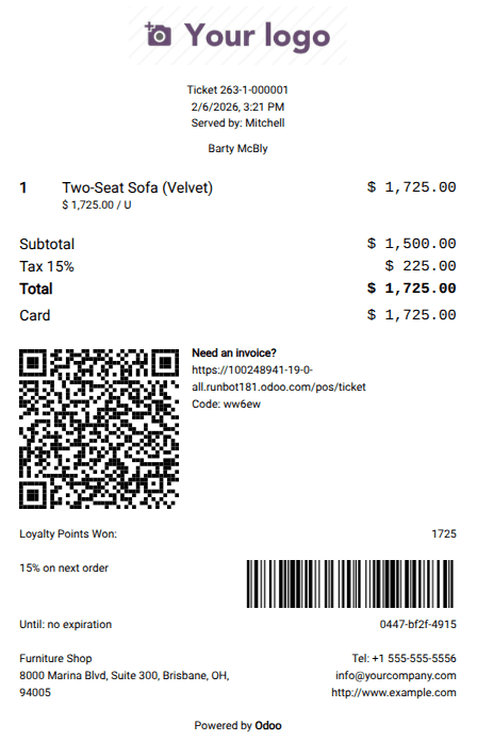
POS receipts typically include the following information:
-
Company logo
-
Receipt and order reference numbers
-
Custom header and footer text
-
Cashier and customer name (if a customer is assigned to the order)
-
Full order details, including products, discounts, prices, and payment methods
-
Optional QR code or link for generating invoices
Configure POS receipts
To configure receipt settings:
-
Go to POS Settings
-
Scroll to the Bills & Receipts section
Available options
-
Header & Footer
Enable this option to customize the text displayed at the top and bottom of receipts -
Automatic Receipt Printing
Automatically print receipts after payment is completed -
Basic Receipt
Print simplified receipts without product prices -
Send via Email / SMS / WhatsApp
Receipts can be sent digitally to customersNote
The WhatsApp Enabled option requires the WhatsApp Messaging module to be installed
Related features
Reprint a receipt
To print a receipt again:
-
Open the POS interface
-
Click Orders
-
Use the filter dropdown and select Paid instead of All active orders
-
Choose the desired order
-
Click Print Receipt
Tip
Use the search bar to quickly locate orders by:
-
Receipt number
-
Date
-
Customer