Shop features
Use POS features to manage quotations, shipping, and barcodes directly from the register for faster and more flexible retail operations.
Quotations and sales orders
In retail scenarios, you may need to access quotations or sales orders created in the Sales app directly from the POS to complete a transaction.
Select a quotation or order
-
Open the POS register
-
Click the menu icon (⋮)
-
Select Quotation/Order
A list of available quotations and sales orders appears. Once selected, the order reference is displayed in the cart alongside the product list.
Settle or partially pay an order
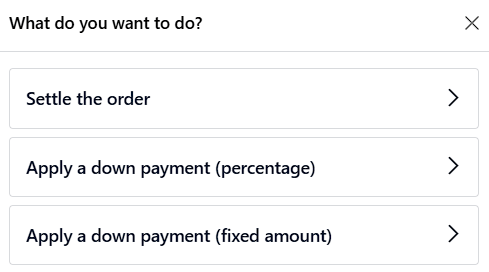
After selecting an order, choose how the customer wants to pay:
-
Full payment
- Click Settle the order to pay the total amount
-
Partial payment (down payment)
-
Choose:
-
Percentage down payment
-
Fixed amount down payment
-
-
Enter the amount or percentage
-
Click Apply
-
Note
Any down payment made is automatically deducted from the remaining balance.
Ship later
The Ship Later feature allows you to complete a sale in POS and deliver the products at a later time. This is useful for:
-
Out-of-stock items
-
Large or bulky products
-
Customer-requested delayed delivery
Configuration
-
Go to POS Settings
-
Scroll to the Inventory section
-
Enable Allow Ship Later
Then configure:
-
Warehouse: source location for delivery
-
Route: optional (leave empty for default)
-
Shipping Policy:
-
As soon as possible
-
When all products are ready
-
Use Ship Later
- Open the POS register
-
Add products to the order
-
On the payment screen:
-
Select a customer
-
Click Ship Later
-
-
Choose a delivery date and confirm
A delivery order is automatically created.
Note
The customer must have a valid delivery address configured.
Barcodes
Using a barcode scanner speeds up POS operations.
You can use barcodes to:
-
Add products to the cart
-
Apply discounts
-
Log employees into POS
Assign barcodes to products
To enable barcode usage:
-
Assign barcodes to products following the default barcode rules
-
Optionally use the barcode lookup feature
Note
Employees can log into POS by scanning a badge. Configure this in the Employees app by setting a PIN or Badge ID.
Discount tags
Discount tags are special barcodes used to apply percentage discounts.
They follow a predefined pattern, allowing the POS to interpret them as discounts rather than products.
Example
If a product is nearing expiration:
-
Scan its barcode
-
Then scan a discount barcode (e.g., starting with
2250)
The system applies a 50% discount automatically.
Barcode nomenclature
Barcode rules define how scanned codes are interpreted.
-
Each barcode matches a pattern
-
Patterns use placeholders like
{NN}for numeric values
To configure:
-
Go to POS Settings
-
Scroll to Inventory
-
Open Barcode Nomenclature
For discount barcodes:
-
Default pattern:
22{NN} -
Example:
2250→ 50% discount

Tip
To allow discounts like 100%, modify the pattern to:
22{NNN}
Using discount tags
-
Add or scan a product
-
Scan the discount barcode
The discount is applied to the last added product automatically.