Unattended leads are leads with scheduled activities that are due or overdue. Tracking these helps sales teams stay proactive and ensures no opportunity is missed.
Unattended leads refer to leads or opportunities that have at least one scheduled activity that is either due today or already overdue. Whenever an activity is assigned, the system monitors its due date and notifies the responsible user with reminders.
An unattended leads report provides a consolidated view of all such records in the pipeline. This allows sales managers to quickly identify which leads require follow-up and immediate action.
Reviewing this report regularly helps teams stay on track, avoid missed follow-ups, and maintain consistent engagement with prospects.
Example
A sales manager begins the day by reviewing the unattended leads report. After switching to list view, they see the following:
List view of a sample Unattended Leads report with the activities emphasized.
In this view, a team member named Mitchell has two opportunities in the Proposition stage with pending activities.
The yellow 📞 (phone) icon shows that the Modern Open Space lead has a call scheduled for today.
The red ✉️ (envelope) icon indicates that the 5 VP Chairs lead has an email activity that is overdue.
When the manager opens the 5 VP Chairs record, they can review the chatter and notice that the email was scheduled two days ago but has not been completed.
Example of overdue activities notification in the chatter of a lead.
Important
For this report to be accurate and useful, your sales team must consistently use the Activities feature within the CRM pipeline.
If activities are not being logged or updated, the unattended leads report will not reflect the true status of follow-ups.
Create an unattended leads report
To generate this report, go to:
CRM app ‣ Reporting ‣ Pipeline
This opens the Pipeline Analysis dashboard.
Click into the Search… bar and remove any default filters to start with a clean view.
Note
You may keep the Created on filter if you want to limit results by a specific timeframe.
Next, click the dropdown icon next to the search bar to access filtering options, then select Add Custom Filter.
Add custom filters
To build an accurate unattended leads report, apply the following filtering conditions:
Activities due or overdue: includes only leads with scheduled activities that are due or past due
Assigned salesperson: excludes unassigned leads
Sales team (optional): limits results to specific teams
Filter for due or overdue activities
In the custom filter window:
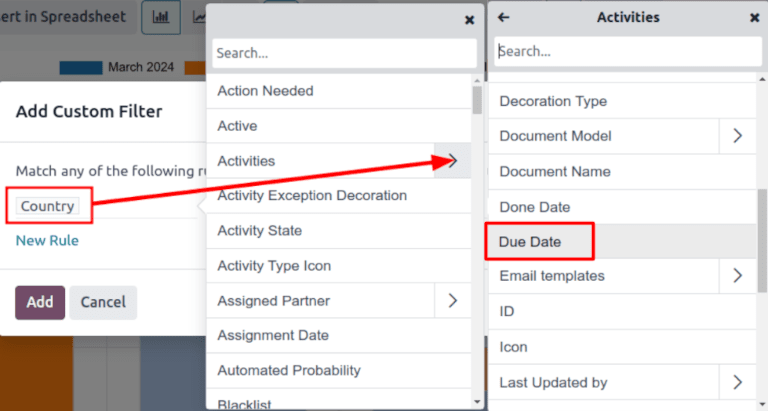
Select Activities
Click the > (arrow) to access related fields
Choose Due Date
Custom filter pop-up with emphasis on the options for activities and due date.
Then:
Set the operator to <=
Keep or adjust the date (typically today)
This ensures all activities due up to today are included.
Exclude unassigned leads
Add another rule:
Select Salesperson
Set the operator to is set
This removes any leads that are not assigned to a team member.
Filter by sales team (optional)
Note
Skip this step if you want results across the entire organization.
To filter by team:
Add a new rule
Select Sales Team
Set the operator to is in
Choose one or more teams
An example of the Custom Filter pop-up window with all of the rules configured.
View results
At the top of the filter window, ensure the condition is set to match all rules.
Example of overdue activities notification in the chatter of a lead.
Click Add to apply the filters.
The report will display all leads with activities that are due or overdue. By default, results are shown as a bar chart grouped by stage.
Adjust grouping
To organize the data differently:
Open the filter dropdown
Under Group By, select Salesperson
You can also group by Sales Team if needed.
Switch to list view
Click the ≣ (list) icon in the top-right corner to display the report in a detailed list format.
Tip
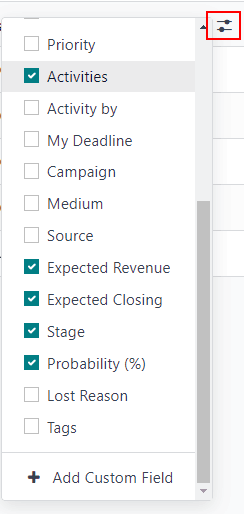
Use the column toggle option to customize the report view.
Helpful fields include:
Activities: shows the latest scheduled activity
Expected Closing: estimated closing date
Probability: likelihood of winning the deal
Custom filter pop-up with emphasis on the options for activities and due date.