Import products
The Odoo Sales app allows users to import products, including categories and variants, using a spreadsheet template compatible with Microsoft Excel, OpenOffice, Google Sheets, and similar software. Once correctly filled, this template can be uploaded to Odoo, making all products and their variants available in the product catalog within minutes.
Download template
To start importing products:
- Navigate to Sales app ‣ Products ‣ Products.
- Click the (Action) icon in the upper-left corner of the page.
- Select Import records from the drop-down menu.

- On the next page, download the Import Template for Products link.

Open the spreadsheet to customize it.
Customize product import template
When editing the template:
- Keep the Internal Reference column. While optional, unique identifiers (e.g.,
FURN_001) simplify updates and prevent duplicates. - Do not rename existing column headers; Odoo requires them for automatic mapping.
- New columns may be added if the corresponding fields exist in Odoo. During import, columns that cannot be automatically matched can be manually mapped.

Upload and test spreadsheet
- Return to Import records in the Products page.
- Click Upload File and select the completed spreadsheet.
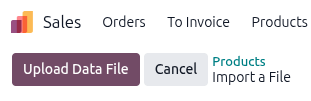
- Review all columns, map manually if needed, and click Test.
- If correctly mapped, Odoo shows a blue banner: Everything seems valid.
- If errors exist, a red banner displays instructions to fix them.
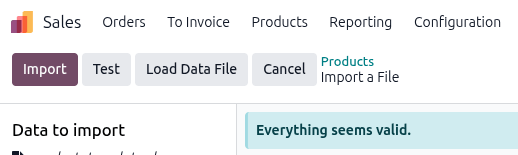

- Once valid, click Import. The products are added, and a success pop-up confirms the number of products imported.

Import relation fields, attributes, and variants
Relation fields
Products are linked to categories, vendors, and other objects. Relation fields can only be imported if the related record exists in Odoo.
- Add the field name as a column header.
- Enter the desired relation for each product row.
- Upload the spreadsheet via Sales app ‣ Products ‣ Products ‣ Import records.
Attributes and values
Attributes define variations like size or color. Upload attributes and values before applying them to products. Spreadsheet columns:
- Attribute – e.g.,
Size - Display Type –
Radio,Selection, orColor - Variant Creation Mode –
Instantly,Dynamically, orNever - Values / Value – possible attribute values (one per line for multiple values)
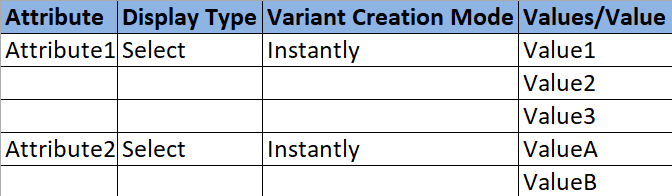
Import via Sales app ‣ Configuration ‣ Attributes ‣ Import records.
Product variants
Once attributes and values exist:
- Use columns Name, Product Attributes / Attribute, and Product Attributes / Values in the import spreadsheet.
- Multiple values in a cell should be comma-separated without spaces (e.g.,
furniture,couch,home).

After import, variants are visible and editable under Attributes & Variants in the product form.
Example
- Customizable Desk – Color: White, Black; Legs: Wood, Steel
- Stool – Color: Green, Navy; Seat: Leather, Wood
