Product variants
Product variants are used to give single products a variety of different characteristics and options for customers to choose from, such as size, style, or color.
Product variants allow a single product to have multiple characteristics or options for customers, such as size, style, or color. Variants can be managed through the product template, or via the Product Variants or Attributes pages in the Sales app.
Example
An apparel company sells a t-shirt with these variants:
-
Unisex Classic Tee
-
Color: Blue, Red, White, Black
-
Size: S, M, L, XL, XXL
-
Here, the product template is T-shirt, and a specific variant is T-shirt: Blue, S.
Attributes are categories like Color or Size, and Values are specific options like Blue or S.
This combination creates 4 × 5 = 20 product variants, each with its own inventory, sales totals, and other records.
Enable Variants
-
Navigate to Sales ‣ Configuration ‣ Settings.
-
Enable Variants under the Product Catalog section.
-
Click Save.
Attributes
Attributes must exist before creating variants. Manage attributes at Sales app ‣ Configuration ‣ Attributes.
Note: Attribute order affects how they appear on the Product Configurator, POS dashboard, and eCommerce pages.
Creating a New Attribute
-
Click New on the Attributes page.
-
Enter Attribute Name (e.g., Color, Size).
-
Select Display Type to define how customers see the attribute:
-
Pills: Options appear as selectable buttons.
-
Radio: Options appear as radio buttons.
-
Select: Options appear in a dropdown.
-
Image: Options display images.
-
Multi-checkbox: Options allow multiple selections.

- Set Variant Creation:
-
Instantly – all variants created immediately.
-
Dynamically – variants created when added to a sales order.
-
Never – variant creation prevented; values act as informational.
Important: Multi-checkbox attributes must have Variant Creation set to Never.
Warning: Variant Creation cannot be edited after the attribute is used.
-
Set eCommerce Filter Visibility: Visible or Hidden.
-
Optionally, select eCommerce Category to group related attributes.
-
Click the right arrow to edit the category details, including Related Attributes and their sequence.
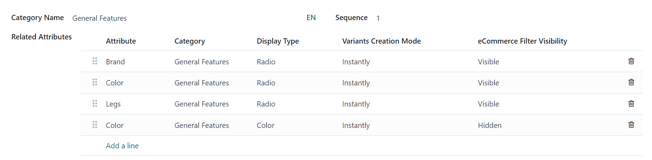
Attribute Values
-
Switch to the Attribute Values tab.
-
Click Add a line, enter the Value, and optionally check Is custom value.
Color Values
-
Choose Color as Display Type.
-
Click the blank circle in the Color column to open the HTML color selector.
-
Select a color using the slider or dropper icon, or upload a pattern image.

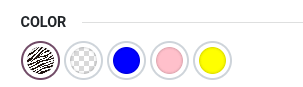
Tip: Attributes can also be created directly from the product form.
Product Variants
-
Go to Sales app ‣ Products ‣ Products.
-
Open an existing product or create a new one.
-
Click the Attributes & Variants tab.
-
Click Add a line, select an Attribute, and choose the Values.
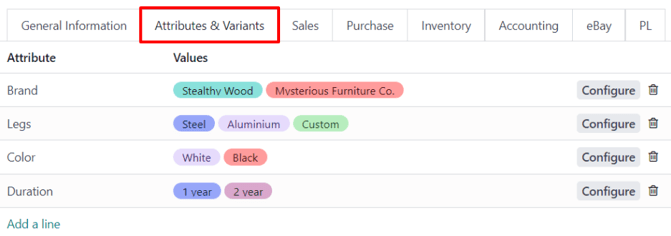
Tip: Attributes can be created on-the-fly via the Create or Create and edit… options in the dropdown.
Configure Variants
Click Configure to view Product Variant Values, including:
-
Value
-
HTML Color Index (if applicable)
-
Value Price Extra – additional price for this value

Use Exclude for to restrict specific variants from certain products.
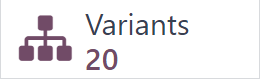
Variants Smart Button
When variants exist, a Variants smart button appears at the top of the product form. Clicking it displays all configured variant combinations.

Impact of Variants
-
Barcode: Each variant can have its own barcode/SKU.
-
Price: Variant price = product template price + Value Price Extra.
-
Inventory: Tracked per variant; product template shows total of all variants.
-
Manufacturing: Single BoM can apply to multiple variants.
-
Picture: Each variant can have its own image.
Note: Changes to the product template apply to all variants.
Adding/Removing Attributes
-
Adding or removing attributes updates variants.
-
Variants used in orders are archived, while unused variants are deleted and recreated.
-
Archived variants can be found via Sales app ‣ Products ‣ Product Variants ‣ Archived filter.
Example:
Removing the “Material” attribute from motorcycle jackets archives sold variants, deletes unsold ones, and creates new variants with remaining attributes.