Create quotations
Learn how to create and manage quotations in Odoo Sales, from initial setup to sending and confirming orders for seamless sales processing.
In Odoo Sales, quotations are used to present pricing and product details to customers. Once a quotation is approved, it is automatically converted into a sales order, which can then be invoiced and processed for payment.
Quotation settings
To configure quotation-related options, go to:
Sales app ‣ Configuration ‣ Settings, then scroll to the Quotations & Orders section.
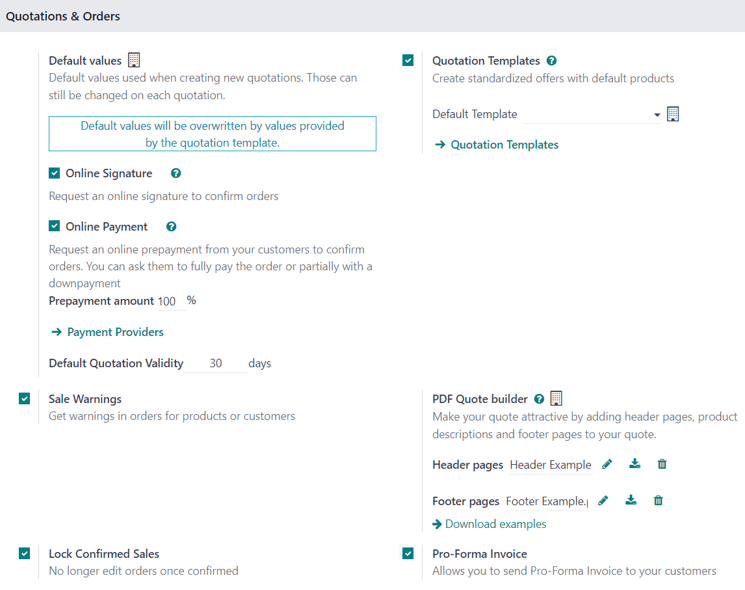
Available options include:
-
Quotation Templates: Create reusable templates with predefined products and terms. Enabling this adds a Default Template option and access to template management.
-
Online Signature: Allow customers to confirm quotations with a digital signature.
-
Online Payment: Enable customers to make advance payments (full or partial). A Prepayment (%) field becomes available when activated.
-
Default Quotation Validity: Define how long quotations remain valid (in days).
-
Default Recurrence: Set a default billing cycle for recurring products.
-
Sale Warnings: Display alerts when certain customers or products are used.
-
PDF Quote Builder: Customize the design of quotation documents.
-
Lock Confirmed Sales: Prevent edits after a quotation is confirmed.
-
Pro-Forma Invoice: Allow sending pro-forma invoices to customers.
Enable the required options and click Save to apply changes.
Quotations dashboard
When opening the Sales app, the Quotations dashboard is displayed by default.
It initially shows records filtered by My Quotations, meaning only quotations assigned to the current user are visible.

Note
To view all quotations, remove the My Quotations filter from the search bar.
You can switch between multiple views such as:
-
List
-
Kanban
-
Calendar
-
Pivot
-
Graph
-
Activity
Click any quotation to open and edit its details.
Create quotation
To create a new quotation:
-
Open the Sales app
-
Click New (available in list or Kanban view)
This opens a blank quotation form.
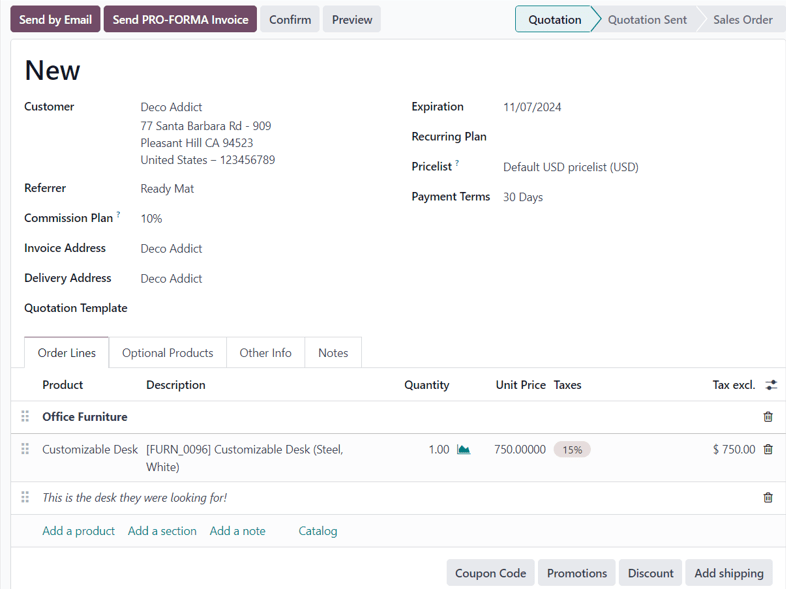
Start by filling in the required details:
-
Customer (mandatory)
-
Invoice Address and Delivery Address (auto filled if customer exists)
If applicable:
-
Add a Referrer, which enables a Commission Plan field
-
Select a Quotation Template
-
Choose a Recurring Plan (for subscriptions)
-
Apply a Pricelist
-
Set Payment Terms
The Expiration Date is automatically calculated based on system settings or the selected template.
Order Lines tab
Use this tab to add products to the quotation.
You can:
-
Click Add a product and select items manually
-
Use Catalog to browse products visually

Additional options:
-
Add a section to group products
-
Add a note for specific product lines
-
Apply Discounts, Coupons, Promotions, or Shipping
Optional Products tab
This tab allows you to suggest additional products that complement the main purchase, helping increase order value.
Example: Offering accessories alongside a primary product.
Other Info tab
This tab contains advanced configuration options grouped into four sections.
Sales section

-
Salesperson: Assigned automatically but can be changed
-
Sales Team: Linked to the selected salesperson
-
Company: Visible in multi-company environments
-
Online Signature / Payment: Available if enabled in settings
-
Customer Reference: Custom identifier
-
Tags: Useful for organization and filtering
Delivery section

-
Shipping Weight: Calculated automatically
-
Incoterm and Location: Used for international trade
-
Shipping Policy:
-
As soon as possible
-
When all products are ready
-
-
Delivery Date: Manually selectable if needed
Invoicing section

-
Fiscal Position: Adjust taxes based on customer location
-
Analytic Account: Track financial data for reporting
Tracking section

-
Source Document: Reference origin
-
Opportunity: Link to CRM record
-
Campaign / Medium / Source: Marketing tracking fields
Notes tab
Use this section to add internal comments or important details related to the quotation or customer.
Sending and confirming quotations
Once the quotation is ready, use the action buttons at the top:
-
Send by Email: Opens a pre-filled email with the quotation attached as a PDF
-
Send PRO-FORMA Invoice: Available if enabled; sends a pro-forma version
-
Confirm: Converts the quotation into a Sales Order
-
Preview: Displays the customer-facing version
-
Cancel: Cancels the quotation
Note
If Lock Confirmed Sales is enabled, confirmed orders cannot be edited.
After confirmation, the quotation becomes a sales order and is ready for invoicing and payment processing.