Lazada Connector configuration
This guide walks through the process of setting up the Lazada Connector in Odoo, connecting your Lazada seller account(s), and preparing your system for smooth order and inventory synchronization.
Prerequisites
Before starting the configuration, make sure you have:
-
A Lazada Seller account (Personal Self-Developed or Enterprise Self-Developed)
-
A valid email address and phone number for verification
-
A business license (required for Enterprise Self-Developed accounts)
-
A short description of your integration purpose (e.g., “Connecting Odoo ERP with Lazada for order and inventory sync”)
Note
The Lazada Open Platform account (used for API access) is separate from your Lazada Seller account.
Create a Lazada Open Platform account
-
Go to Lazada Open Platform and click Sign Up
-
Complete your profile under Basic Information
For Partner Type, select:
-
Personal Self-Developed (individual users)
-
Enterprise Self-Developed (registered businesses)
-
Important
Avoid selecting other partner types, as they are not suitable for Odoo integration.
- Fill in your Personal Information:
-
Provide contact details (phone, email, address)
-
Complete verification steps (e.g., OTP)
-
Upload your business license (if required)
-
Add a short description of your integration use case
-
Click Submit and wait for approval (typically a few hours to a couple of days)
-
If rejected, review the feedback and resubmit your application
Tip
Ensure all details are accurate to avoid delays—common issues include incorrect partner type or missing documents.
Create an app on Lazada Open Platform
To integrate with Odoo, you need an App Key and App Secret:
-
Log in to the Lazada Open Platform Console
-
Go to App Console → App Management → Create App

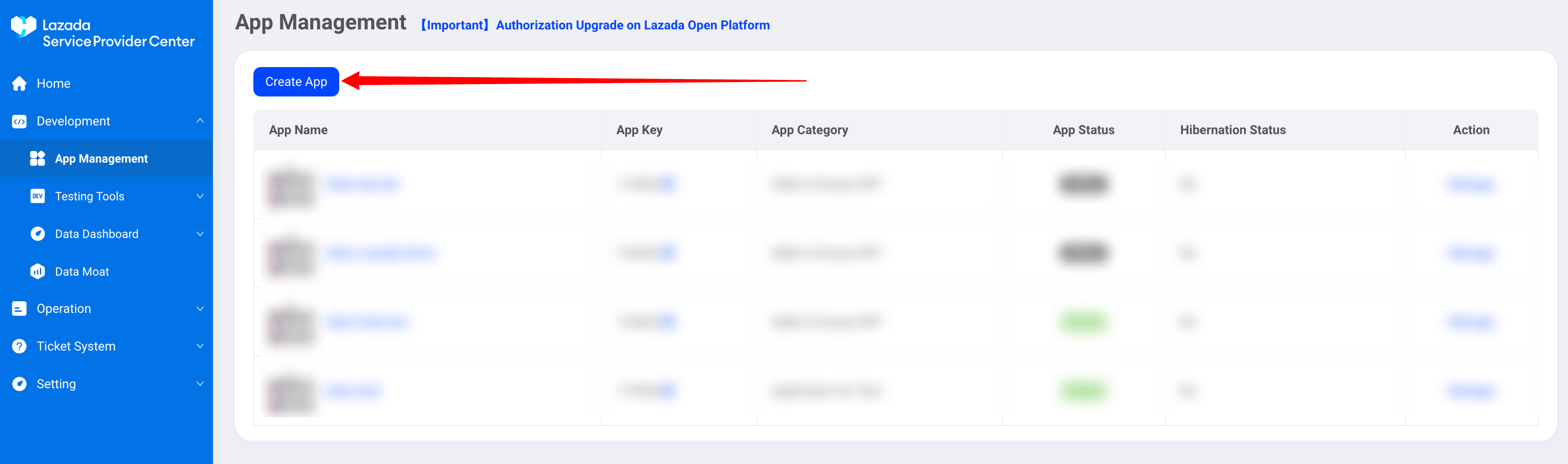
-
Set App Category to Seller In-house APP
-
Complete the application form:
-
Provide your Odoo database URL
-
Add tester credentials (username and password)
-
For IP settings, select IP address(es) unavailable and mention that the app is cloud-hosted
- Submit the application and wait for approval (usually within 24 hours)
Once approved, note your App Key and App Secret
Connect Lazada Seller account to Odoo
- Install the Lazada Connector from the Apps menu in Odoo

-
Enable Lazada Sync from:
Sales app ‣ Configuration

Add a new shop
-
Go to Sales ‣ Configuration ‣ Lazada ‣ Shops
-
Click Create New Shop
-
Enter:
-
Shop name (e.g.,
Lazada Malaysia) -
App Key and App Secret
-
Marketplace (e.g., Lazada.com.my)

Authorize the account
-
Click Create Shop & Authorize
-
You will be redirected to Lazada
-
Log in and grant access to Odoo

After authorization, your shops will appear in Odoo:

Manage marketplaces
-
Marketplaces are automatically added after connection
-
You can remove any marketplace to stop synchronization
-
Avoid linking the same shop multiple times
Important
To prevent duplicate data, ensure each shop is connected only once. If issues occur, try syncing orders manually before reconnecting.
Configure the shop before go-live
Warehouse setup
-
Go to Sales app ‣ Configuration ‣ Settings ‣ Lazada Shops
-
Select your shop and define the FBM Warehouse
By default, all shops share the same stock location. To separate inventory by marketplace:
-
Create a duplicate shop configuration
-
Assign a different warehouse/location
Tip
To reinitialize catalog sync, clear the Last Catalog Synchronization field before clicking Sync Catalog
Product catalog synchronization
The catalog is automatically matched during the first sync, but manual synchronization is recommended in certain cases:
-
Use Sync Catalog to fetch active products regularly
-
For new databases:
-
Export products from Lazada (with SKUs)
-
Import them into Odoo via Inventory ‣ Products ‣ Import
-
Map SKUs to Internal Reference
-
-
For existing products:
-
Export both Lazada and Odoo product lists
-
Match SKUs with Internal References in a spreadsheet
-
Import updated data into Odoo
-
Tip
Start with a small dataset to verify mappings before syncing the entire catalog.