Pricelists
Pricelists in Odoo allow flexible and dynamic pricing by applying specific rules that override standard product prices based on customers, quantities, time periods, and more.
A pricelist in Odoo is a flexible pricing tool that lets you override default product prices using predefined rules. These rules can apply globally or be tailored for specific customers, customer segments, quantities, or time frames—making them ideal for implementing strategic pricing and improving margins.
Odoo Sales provides a powerful pricelist system that supports a wide range of pricing scenarios. While pricelists automatically suggest prices, users still have the option to manually adjust them on quotations or sales orders if needed.
Configuration
To activate pricelists:
-
Go to Sales app ‣ Configuration ‣ Settings.
-
In the Pricing section, enable Pricelists.
-
Click Save to apply the changes.

Once enabled, you can access pricelists either by clicking the Pricelists link on the settings page or navigating to Sales app ‣ Products ‣ Pricelists.

Important
If no pricelist is specified on a quotation, Odoo automatically applies a default one. This is typically the first pricelist in the list without a defined Country Group, based on its order in the list.
Note
-
The Selectable option is mainly used for Odoo eCommerce, allowing website users to choose a pricelist.
-
In newer Odoo versions (v17+), a quotation can still be confirmed even if no pricelist is explicitly selected.
Each pricelist also includes a chatter section, where internal notes and communication can be logged.
Create or edit pricelists
To manage pricelists:
-
Select an existing pricelist to edit, or
-
Click New to create one
This opens the pricelist form:

When creating a pricelist:
-
Enter a Name
-
Choose the Currency
-
Assign a Company (optional; leave blank to apply across all companies)
-
Select Country Groups if the pricing is location-specific
Price Rules tab
The Price Rules tab defines how pricing is calculated. Each line represents a pricing rule applied when the pricelist is used.
Click Add a line to create a rule, then choose whether it applies to a Product or Category.
Key options include:
-
Product / Category: Select what the rule applies to
-
Price Type: Choose how pricing is calculated
Discount
Apply a percentage discount (or markup using negative values).
Important
Discount-based rules are visible to customers on quotations.


Formula
Use advanced calculations to define pricing:
-
Discount: Apply a percentage change (negative values increase price)
-
Round off to: Round the result to a specific multiple
-
Extra Fee: Add or subtract a fixed amount after calculation
Important
Formula-based discounts are not shown to customers.
- Fixed Price: Set a direct price regardless of the original value
Additional fields:
-
Min Qty: Minimum quantity required for the rule to apply
-
Validity Period: Define start and end dates
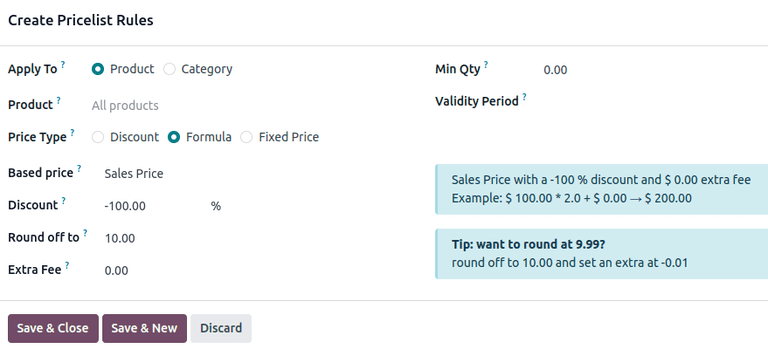
Example
To double the price with a minimum margin, set Discount to -100 and base it on the sales price.
Example
To apply a 20% discount and round prices to end in .99, configure rounding and extra fee accordingly.
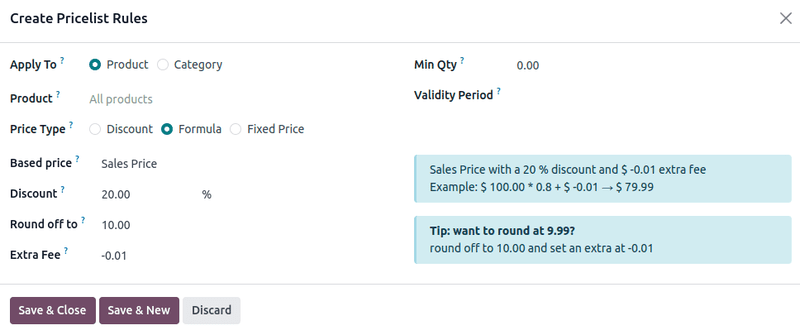
Tip
For prices ending in .99, use rounding of 10 and an extra fee of -0.01.
Recurring Prices tab
This tab is used for subscription-based products.
It works similarly to Price Rules, but includes:
-
Product Variants
-
Recurring Plan (e.g., monthly, yearly)

You can also create new recurrence plans directly from this section and configure their billing cycles.

Finally, define the Recurring Price for the rule.
Rental rules tab
Pricing for rental products can be defined in this tab using a similar approach.
-
Select a product
-
Define the rental Period (e.g., hourly, daily)
-
Set the corresponding Price

Assign pricelists to customers
By default, customers are assigned the Public Pricelist, but you can override this for specific customers.
To do so:
- Open the customer form via Sales app ‣ Orders ‣ Customers or directly from a quotation.

- In the Sales & Purchase tab, choose a pricelist from the Pricelist field.

Note
-
Every customer must have a pricelist; if none is selected, the default is automatically assigned.
-
Even if removed from a quotation, the order can still be confirmed successfully.
Advanced conditions
At the bottom of the pricelist rule form, you can define conditions:
-
All Products
-
Product Category
-
Product
-
Product Variant
Depending on the selection, specify the relevant product or category.
Then configure:
-
Minimum Quantity
-
Validity Dates
Click Save & Close to finalize or Save & New to add more rules.
Note
If multiple rules apply (e.g., one for a product and another for its category), Odoo prioritizes the rule defined at the product level.