Electronic shelf labels
Electronic shelf labels (ESL) allow product information such as prices and barcodes to be displayed digitally on store shelves and updated remotely from Odoo.
Electronic shelf labels eliminate the need for manual price updates by syncing product data directly from Odoo to in-store displays.
Configuration
Pricer setup
-
Contact Pricer to create and configure your account
-
Set up your stores
- One Pricer store corresponds to one physical location
-
Link transceivers to each store as required
-
Define the following variables in Pricer to map product data:
-
itemId: unique product identifier -
itemName: product name -
price: product selling price (including taxes) -
presentation: label template name -
currency: company currency (e.g., USD, EUR) -
barcode: product barcode
-
Important
Variable names must match exactly between Odoo and Pricer.
-
Create a template named
NORMALto define how product data appears on labels -
Ensure your Pricer account has permission to send API requests
Odoo setup
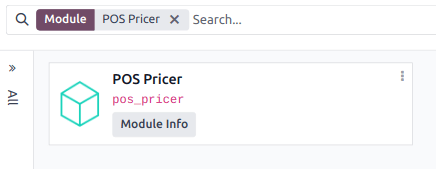
Before configuring, install the POS Pricer module (pos_pricer).
Configure Pricer stores
-
Go to Point of Sale ‣ Configuration ‣ Pricer Stores
-
Click New and enter:
-
Store Name: internal reference name
-
Pricer Tenant Name: provided by Pricer (often includes country code)
-
Pricer Login: account username
-
Pricer Password: account password
-
Pricer Store ID: store identifier from Pricer

Note
-
The Pricer Tags field updates automatically when labels are assigned
-
Last Update and Status fields reflect synchronization activity
Assign Pricer tags to products
To link a product with an electronic label:
-
Go to Point of Sale ‣ Products ‣ Products
-
Open or create a product
-
In the Sales tab, under Pricer:
- Select the Pricer Store
-
Enter the Pricer Tag IDs
- Scan the label barcode or manually input the ID

Note
Pricer tag IDs consist of a letter followed by 16 digits.
Tip
-
Use a barcode scanner for faster setup
-
Start by configuring a single product to validate your setup before scaling
Synchronization
Odoo automatically updates Pricer labels every 12 hours when changes occur in:
-
Product name, price, barcode, or taxes
-
Currency
-
Assigned Pricer store or tags
Force update
To manually update labels:
-
Enable developer mode
-
Go to Point of Sale ‣ Configuration ‣ Pricer Stores
-
Select the store
-
Click:
-
Update tags (only changed products)
-
Update all tags (force full synchronization)

If successful, the status shows Update successfully sent to Pricer. Otherwise, an error message is displayed.
Warning
If synchronization fails, Odoo may still mark the product as updated. In this case, manually trigger a full update.
Discount labels
To display discounted prices on labels, assign a pricelist to the product variant:
-
Go to Point of Sale ‣ Products ‣ Product Variants
-
Select the product
-
In General Information:
- Set a Pricer Sales Pricelist
An On Sale Price field will appear, showing the discounted value.

After synchronization, the label displays a PROMO tag with:
-
Original (crossed-out) price
-
Discounted price
Note
-
Pricelists based on quantity discounts or other pricelists are not supported
-
Discounts shown on labels do not automatically apply during POS checkout