Multi-employee management
Enable multiple employees to access the POS register with controlled permissions, allowing secure operations and better tracking of user activity.
Odoo Point of Sale allows multiple employees to log into the same POS register using the Log in with Employees feature. This helps control access, assign roles, and track employee activity for each transaction.
Key capabilities
When enabled, this feature allows you to:
-
Define which employees can access the POS
-
Assign different permission levels (minimal, basic, advanced)
-
Track which employee handled each order for reporting and analytics
Configuration
To enable multi-employee access:
-
Go to POS Settings
-
Scroll to the PoS Interface section
-
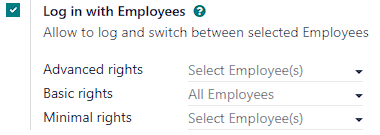
Enable Log in with Employees
Then assign employees based on their access level:
-
Minimal rights → limited POS access
-
Basic rights → standard POS usage
-
Advanced rights → extended features and permissions
Note
-
Leaving Minimal and Basic fields empty allows all employees to log in
-
Leaving Advanced rights empty grants advanced access only to Odoo users
Tip
You can also access these settings directly from the POS dashboard by clicking the (⋮) menu on a POS card and selecting Edit.
Permission levels
Minimal rights
Employees with minimal access can:
-
Lock or unlock the POS register
-
Reload POS data
-
Process standard sales
-
Assign customers to orders
-
Add notes to orders
-
Enter promotional codes
Basic rights
Employees can perform standard POS operations, including sales and general order handling.
Advanced rights
Employees have extended capabilities, including advanced operations and administrative actions within POS.
Usage
Logging in
Once enabled, employees must log in before accessing the POS:
-
Scan their badge
-
Select their name from the user list
-
Enter their PIN code

To switch users:
-
Click the current user’s name in the top-right corner
-
Select another employee
Tip
If no barcode scanner is available, use the camera option to scan barcodes.
Login with badges
To allow employees to log in using badges:
-
Go to the Employees module
-
Open an employee record
-
Navigate to the Settings tab
Then:
-
Enter a Badge ID manually
or -
Click Generate to create one automatically
You can also click Print Badge to generate a barcode for scanning.
To switch users using badges:
-
Lock the POS register (click the lock icon)
-
Return to the login screen
-
Scan the new employee’s badge
PIN code login
For additional security, assign a PIN code:
-
Open the employee form in the Employees module
-
Go to the Settings tab
-
Enter a numeric value in the PIN Code field
Note
The PIN must contain digits only (no letters or special characters).