Optional products
Optional products help increase sales by suggesting relevant add-ons or complementary items alongside a main product during quotations and online purchases.
Optional products are a powerful cross-selling feature that allows businesses to recommend related or complementary items alongside a primary product. For example, when a customer selects a laptop, they can also be offered accessories like a mouse, keyboard, or extended warranty.
These suggestions appear automatically during quotation creation and on eCommerce pages, helping improve customer experience while increasing the total order value.
Note
Optional products differ from accessory and alternative products. Optional products are shown during quotation or checkout, while accessories and alternatives are displayed earlier in the shopping journey.
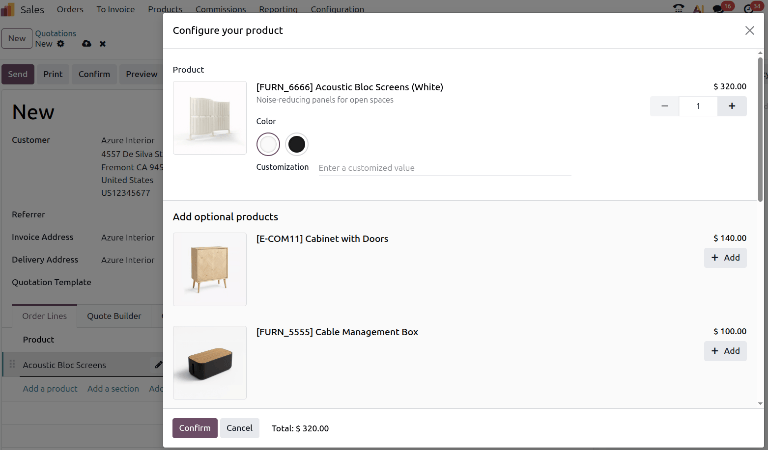
Optional products displayed during the quotation process.
Configuring optional products
Optional products can be configured directly from the product form.
-
Navigate to Sales ‣ Products ‣ Products
-
Open a product
-
Ensure the Sales option is enabled
-
Go to the Sales tab
Under Upsell & Cross-sell, use the Optional Products field to assign related items.

You can search for products by typing their name, or click Search more… to select multiple products from the full list.

Tip
Choose optional products that naturally complement the main product. For example, offer accessories, upgrades, or service add-ons instead of unrelated items to improve conversion rates.
Setting optional product sections in quotations
Optional products can also be added dynamically within quotations by creating optional sections.
-
Click Add a section
-
Enter a name for the section
-
Use the dropdown and select Set Optional
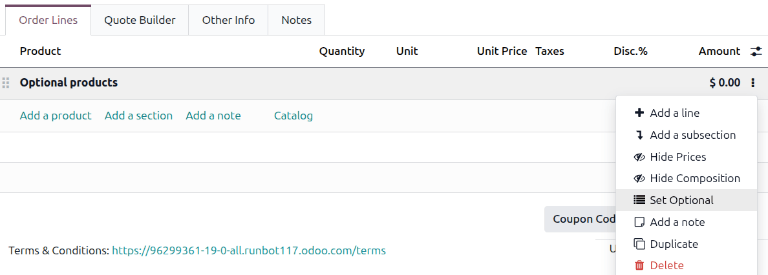
Once a section is marked as optional:
-
All products inside default to quantity
0 -
They are excluded from the total by default
-
Users can update quantities as needed

Info
Optional sections give flexibility to sales teams by allowing them to suggest additional items without affecting the base quotation value unless the customer selects them.
Example use case
A typical quotation may include:
-
Main product: Laptop
-
Optional section: Accessories
-
Mouse (qty 0)
-
Keyboard (qty 0)
-
Laptop bag (qty 0)
-
The customer can choose which items to include before confirming the order.
Tip
Keep optional sections clean and focused. Too many choices can overwhelm customers and reduce decision clarity.
Customer interaction with optional products
When a quotation is shared through the customer portal:
-
Customers can review suggested products
-
They can adjust quantities before confirming
-
The total updates automatically based on their selections
Info
Optional products enhance the buying experience by giving customers control, while also increasing average order value (AOV) in a non-intrusive way.