Product variants on quotations and sales orders
Learn how to use product variants on quotations and sales orders in Odoo using the product configurator and order grid entry for efficient variant selection.
Before getting into detail about how to use product variants on quotations and sales orders, it’s recommended to learn about Product variants.
Once familiar with the basics, this guide explains how product variants can be added to quotations and sales orders using the product configurator or order grid entry.
Info
The setting is labeled differently depending on where it appears:
Variant Grid Entry → in Sales settings
Order Grid Entry → in product forms
Settings
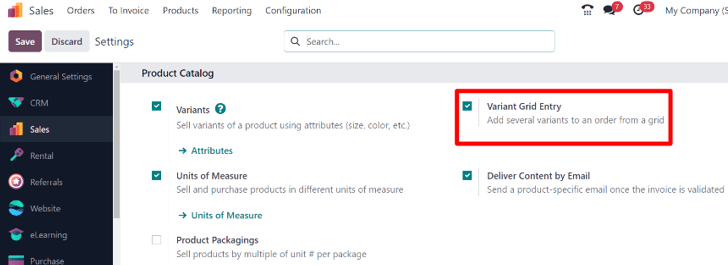
Odoo uses the product configurator by default for handling variants. To enable the grid-based selection, you must activate the Variant Grid Entry feature.
Navigate to:
Sales app ‣ Configuration ‣ Settings
Then scroll to Product Catalog and enable:
- Variant Grid Entry
Info
The Variants feature must also be enabled; otherwise, product variants cannot be used in quotations or sales orders.
Tip
Use Variant Grid Entry when dealing with bulk orders or multiple variant combinations (e.g., sizes, colors). It significantly speeds up order creation.
Product configuration
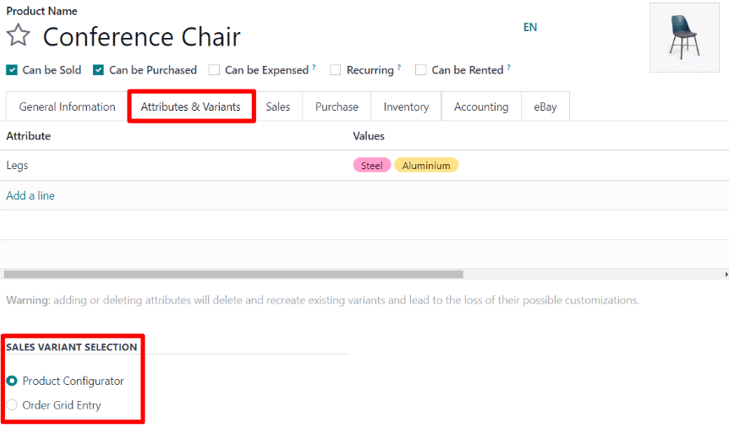
Once enabled, both options (Product Configurator and Order Grid Entry) become available on product forms.
To configure:
-
Go to Sales app ‣ Products ‣ Products
-
Open an existing product or click New
-
Navigate to the Attributes & Variants tab
At the bottom, under Sales Variant Selection, choose:
-
Product Configurator
-
Order Grid Entry
Info
These options appear only when at least two variant values exist (e.g., Size: S, M, L).
Example
A T-shirt product with:
Sizes: S, M, L
Colors: Red, Blue
will enable both configurator and grid options since multiple combinations exist.
Product configurator
The Product Configurator appears as a Configure pop-up when adding a product with variants to a quotation or sales order.

This option allows selecting one variant at a time, using a user-friendly interface similar to online shopping.
Info
This is the default behavior if Order Grid Entry is not enabled.
Tip
Use the configurator for:
Custom or made-to-order products
When users need guided selection
Low-volume or complex configurations
Order grid entry
The Order Grid Entry appears as a Choose Product Variants pop-up when adding a product with variants.

This interface displays variants in a grid/table format, allowing users to:
-
Enter quantities for multiple variants at once
-
Add all selected variants in a single action
After selecting quantities, click Confirm to add them to the quotation.

Tip
Order Grid Entry is ideal for:
Wholesale or bulk orders
Fashion/apparel businesses (sizes, colors)
Reducing manual entry time
Example
Instead of adding:
Red (S) → qty 5
Red (M) → qty 3
Blue (L) → qty 2
individually, the grid allows entering all quantities in one screen and adding them instantly.
Info
This method improves efficiency and reduces errors when working with large variant combinations.