Sales quotationsPDF quote builder

PDF quote builder

The PDF Quote Builder in Odoo Sales enables businesses to design fully customized quotation PDFs with dynamic content, branding, and structured layouts for a more professional customer experience.

The PDF Quote Builder feature in the Sales app allows you to generate visually rich and fully customized quotation PDFs. Instead of sending plain pricing details, you can present a polished document that highlights your brand, products, and key information.

With this feature, you can combine headers, product sections, pricing details, and footers into a single structured document. It also supports dynamic fields, enabling automatic insertion of customer-specific or order-specific data.

A well-designed quote not only improves clarity but also enhances the overall customer experience and strengthens your company’s professional image.

Note

For best results, edit PDF templates using Adobe tools. Properly defined form fields are required for Odoo to recognize and populate dynamic values.

Configuration

Before using custom PDFs in quotations, the PDF Quote Builder feature must be enabled.

To activate it:

  • Go to Sales app ‣ Configuration ‣ Settings

  • Scroll to the Quotations & Orders section

  • Enable PDF Quote builder

  • Click Save

Once enabled, a Headers/Footers option becomes available for managing PDF templates.

Add PDF as Header/Footer

Important

Avoid using spaces in PDF form field names. Only use letters, numbers, hyphens (-), or underscores (_).

You can upload custom PDFs to serve as headers or footers in your quotation documents. Multiple templates can be selected and combined when generating a quote.

To add a PDF:

  1. Navigate to Sales app ‣ Configuration

  2. Open Headers/Footers

  3. Click New or Upload

  • Upload: Quickly add a PDF from your system

  • New: Create and configure a document manually

After uploading, you can edit the document via the card or the (⋮) menu.

Document setup

  • The Name field is auto-filled after upload and can be edited

  • Use Document Type to choose:

    • Header

    • Footer

  • Optionally limit the document to specific Quotation Templates
Note

You can also attach PDFs directly within:

Sales app ‣ Configuration ‣ Quotation Templates → Quote Builder tab

Next to the file upload, you’ll find the Configure dynamic fields option.

Dynamic text in PDFs

Dynamic fields allow Odoo to automatically populate values (like customer name, totals, or dates) directly into your PDF.

These fields are created as form inputs inside the PDF template and mapped to Odoo data.

Common dynamic fields

Header/Footer fields:

  • name: Quotation reference

  • partner_id__name: Customer name

  • user_id__name: Salesperson

  • amount_untaxed: Untaxed total

  • amount_total: Final total

  • delivery_date: Delivery date

  • validity_date: Expiry date

  • client_order_ref: Customer reference

Product-related fields:

  • description: Product description

  • quantity: Quantity

  • uom: Unit of measure

  • price_unit: Unit price

  • discount: Discount applied

  • product_sale_price: List price

  • taxes: Applied taxes

  • tax_excl_price: Price before tax

  • tax_incl_price: Price including tax

After uploading a PDF, use Configure dynamic fields to map each form field to the correct data source.

  • Header/footer templates use the sale_order model

  • Product documents use the sale_order_line model

If no path is defined, the field can be used for manual input when preparing the quote.

Example

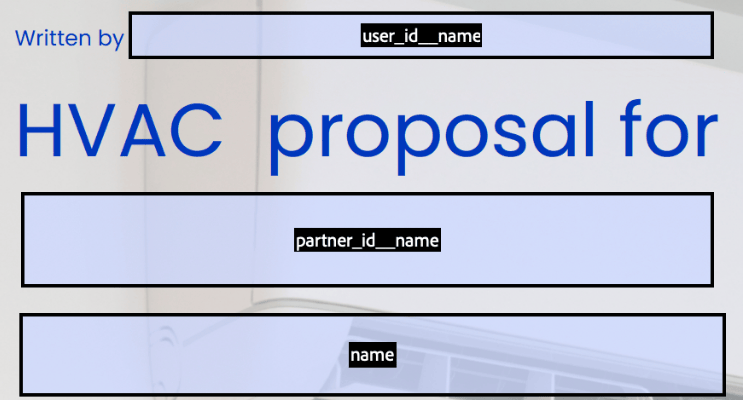
Using common placeholders like name and partner_id__name ensures automatic population of key details such as quotation number and customer name.

PDF quote being built using common dynamic placeholders.

Once your PDF is ready:

  • Save it locally

  • Upload it via Headers/Footers

  • It will appear as a selectable template

Note

Templates can be reordered using drag-and-drop in Kanban view.

Advanced example

If your PDF includes a field like invoice_partner_country, you can map it as follows:

  • For headers/footers:
    partner_invoice_id.country_id.name

  • For product documents:
    order_id.partner_invoice_id.country_id.name

Tip

If a field like custom_note is left without a mapping, it becomes editable during quote creation, allowing personalized content.

Add PDF to product

You can also attach PDFs directly to products. These documents will automatically be included when the product is added to a quotation.

To do this:

  • Go to Sales app ‣ Products ‣ Products

  • Open a product

  • Click the Documents smart button

The Documents smart button on a product form in Odoo Sales.

Upload product documents

From the Documents page:

  • Click Upload to add a file

  • Or click New to create a document entry

Uploaded files can be edited from the document card or menu.

PDF configuration options

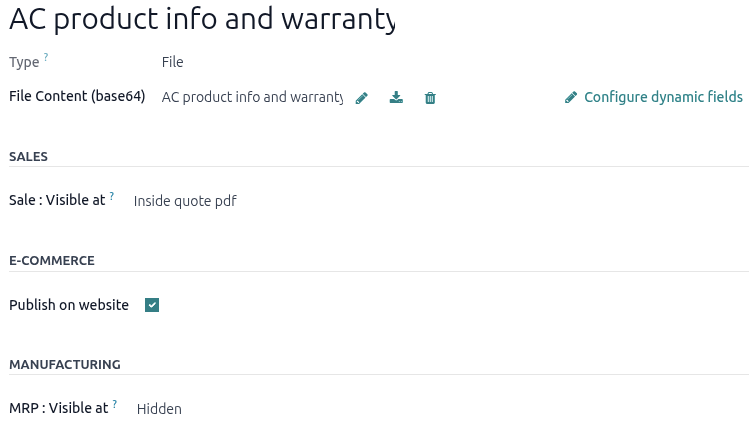
A standard document form with an uploaded PDF in Odoo Sales.
  • Type: File or URL (auto-set to File for PDFs)

  • Visible at:

    • On quotation

    • On confirmed order

    • Inside quote

Visibility options explained

  • On quotation: Available to the customer anytime

  • On confirmed order: Shared after order confirmation

  • Inside quote: Embedded directly into the generated PDF

Example

When Inside quote is selected, the uploaded PDF appears within the final quotation document.

Sample of an uploaded pdf with the on quote option chosen in Odoo Sales.

Dynamic field configuration is also available here. Remember, product PDFs use the sale_order_line model.

Publish on website

Enable Publish on Website to display the document on the product page in your online store.

Example

When enabled, the document appears under a Documents section on the product page.

Showing a link to an uploaded document on a product page using Odoo Sales.

Generate PDF quote

Within a quotation:

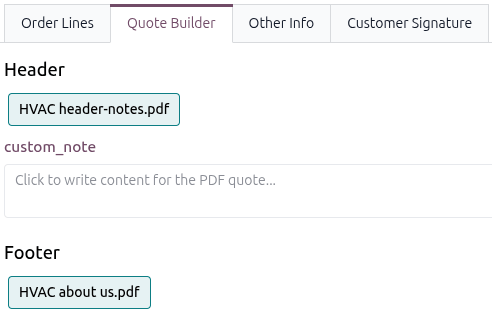
  • Go to the Quote Builder tab

  • Select headers, footers, and additional documents

  • Fill in any dynamic or manual fields

Selectable quotation headers and footers under the Quote Builder section in a quotation.

Once the quotation is confirmed:

  1. Click Actions

  2. Select Print → PDF Quote

Print PDF quote option on drop-down menu located on confirmed sales order in Odoo Sales.

The PDF is generated instantly and downloaded. It includes all configured elements such as headers, product documents, and pricing sections.

Note

You can download sample templates like PDF quote builder examples or a sample quotation to explore formatting and layout possibilities.