Quotation templates
Create reusable quotation templates in Odoo Sales to speed up the quoting process and maintain consistency across customer proposals.
Quotation templates in Odoo Sales allow you to reuse predefined product and service configurations when creating quotations.
By using templates, sales teams can generate consistent and professional quotations quickly, without rebuilding them from scratch each time.
Configuration
To enable quotation templates:
-
Go to Sales app ‣ Configuration ‣ Settings
-
Scroll to the Quotations & Orders section
-
Enable the Quotation Templates option
This reveals an additional Default Template field, where you can choose a template to apply automatically to new quotations.

Once enabled, a Quotation Templates link becomes available, allowing you to manage templates directly.
Remember to click Save to apply your changes.
Create quotation templates
To create a template:
-
Click the Quotation Templates link from settings, or
-
Navigate to Sales app ‣ Configuration ‣ Quotation Templates

Click New to open a blank template form.
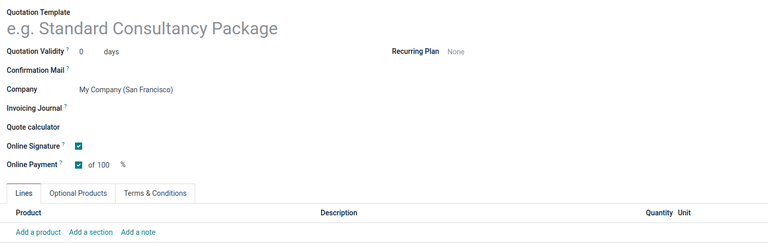
Start by configuring the main fields:
-
Quotation Template: Name of the template
-
Quotation Validity: Number of days the quotation remains valid (set
0for no limit) -
Confirmation Mail: Email template sent after order confirmation
Tip
You can create a new email template directly from the Confirmation Mail field by typing a name and selecting:
-
Create (quick creation)
-
Create and edit… (opens full configuration window)

Additional configuration options:
-
Company: Assign the template to a specific company (multi-company setups)
-
Invoicing Journal: Define the journal used for invoices generated from this template
-
Online Signature: Require customer signature (if enabled in settings)
-
Online Payment: Request payment confirmation (optionally set percentage)
Both signature and payment can be required together.
Lines tab
Use the Lines tab to define the core content of the quotation.
You can:
-
Add a product: Select items from your product catalog
-
Add a section: Organize items under headings
-
Add a note: Include additional information or explanations
Products default to a quantity of 1, but this can be adjusted.
Drag and drop items using the handle icon to reorder them.
Tip
Event-related products (like registrations or booths) can also be added by searching for relevant product names.
To remove any item (product, section, or note), click the delete icon on the right side of the line.
Optional Products tab
Optional products are used to suggest complementary items, helping increase the overall order value.
For example, offering accessories alongside a main product.

To configure:
-
Click Add a line
-
Select a product from the list
These products appear as suggestions on quotations and in the customer portal.
Note
Optional products are not required when creating templates.
Terms & Conditions tab
Use this tab to define legal or commercial terms that will appear on the quotation.
Enter your content directly into the editor.
Note
Adding terms and conditions is optional but recommended for clarity.
Use quotation templates
When creating a new quotation (Sales app ‣ New), select a template from the Quotation Template field.
The selected template automatically fills in products, structure, and other predefined details.
To preview how the quotation will appear to the customer, click Preview.

Use the Back to edit mode option in the preview banner to return to editing.
Click Save once all changes are complete.
Mass cancel quotations or sales orders
To cancel multiple quotations:
-
Go to Sales app ‣ Orders ‣ Quotations
-
Switch to list view
-
Select records using checkboxes
Tip
Use the header checkbox to select all records at once.
Then:
-
Click Actions
-
Select Cancel quotations

Confirm the action in the pop-up window to complete the process.
Note
-
Quotations can be canceled at any stage, even after confirmation
-
An error may occur if attempting to cancel a subscription that already has an associated invoice