Deliveries and invoices to different addresses
People and businesses often use separate addresses for billing (invoicing) and shipping (delivery) purposes. With the Odoo Sales app, contacts can have different specified addresses for delivery and invoicing.
People and businesses often use separate addresses for billing (invoicing) and shipping (delivery) purposes. With the Odoo Sales app, contacts can have different specified addresses for delivery and invoicing.
Settings
To properly utilize multiple addresses in Odoo, go to:
Accounting app ‣ Configuration ‣ Settings
Then scroll down to the Customer Invoices section and enable:
- Customer Addresses

Info
Enabling Customer Addresses ensures that Odoo can distinguish between different address types (invoice, delivery, and others). Without this setting, all transactions default to a single address, which may lead to operational or invoicing errors.
Contact form configuration
To add multiple addresses to a contact:
-
Navigate to Sales app ‣ Orders ‣ Customers
-
Remove any default filters
-
Open the desired customer record
Tip
You can also access and manage contacts from the Contacts app, which is more efficient when handling large datasets or bulk updates.
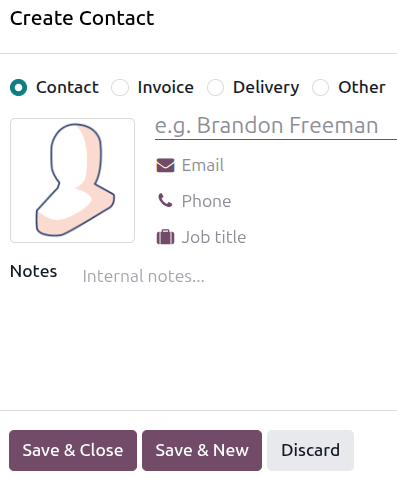
Click the Add Contact button under the Contacts tab to open the address form.

Address types
From the Create Contact pop-up, select the appropriate type:
-
Contact: Adds a person (e.g., employee)
-
Invoice: Default billing address
-
Delivery: Default shipping address
-
Other Address: Additional locations (branch, warehouse, etc.)
Info
Each address type serves a distinct operational role:
Invoice Address → Billing and accounting
Delivery Address → Logistics and shipping
Other Address → Secondary or support locations
Example
A typical business setup:
Head Office → Invoice Address
Warehouse → Delivery Address
Regional Branch → Other Address
This ensures accurate invoicing while delivering goods to the correct location.
After entering the details:
-
Click Save & Close to finish
-
Click Save & New to add more addresses
Quotations and autopopulated addresses
When a customer with multiple addresses is selected in a quotation:
- Invoice Address and Delivery Address are automatically filled

Tip
Always verify auto-filled addresses before sending quotations, especially for customers with multiple locations. This helps avoid delivery issues and billing errors.
You can manually edit these addresses directly from the quotation by clicking the internal link icon.
Info
Editing an address on a quotation does not update the main customer record. This allows flexibility for one-time deliveries or special billing scenarios.
Example
Common real-world scenarios:
Delivering goods to a temporary event location
Billing a parent company while delivering to a subsidiary
Shipping to a third-party logistics partner
These can be handled without modifying the primary customer data.