BED BATH & BEYOND Supplier Oasis to Linnworks Integration
Install, configure, and operate the API and XML-based integration that automates orders, inventory, acknowledgements, shipment updates, short-ship, and backorder messaging between Supplier Oasis and Linnworks.
Overview
The BED BATH & BEYOND Supplier Oasis to Linnworks Integration connects Supplier Oasis with Linnworks through a controlled API and XML-based middleware service.
The integration automates:
- Sales-order retrieval from Supplier Oasis
- XML and XSD validation
- Order creation in Linnworks
- Inventory synchronisation from Linnworks
- Order acknowledgements
- Shipment confirmations
- Full and partial shipment updates
- Short-ship and backorder messages
- Duplicate-prevention controls
- Logging, retries, and operational monitoring
Linnworks acts as the operational source of truth for inventory availability and fulfilment status.
Supplier Oasis provides eligible sales orders and receives inventory, acknowledgement, shipment, short-ship, and backorder messages in the configured XML formats.
Architecture at a glance
Supplier Oasis
Provides eligible sales orders and receives inventory, acknowledgement, shipment, short-ship, and backorder messages.
Integration Middleware
Manages authenticated communication, XML validation, transformation, transaction processing, duplicate prevention, retries, and logging.
Linnworks
Receives sales orders and provides inventory availability, fulfilment status, shipped quantities, carrier information, and tracking details.
Once configured, the integration reduces manual order administration, improves inventory accuracy, and provides traceable fulfilment communication between both systems.
Integration Scope
The integration covers four primary operational areas.
Order Integration
Retrieves eligible Supplier Oasis orders, validates the source XML, maps the order information, and creates the corresponding Linnworks order.
Inventory Synchronisation
Retrieves configured Linnworks quantities and sends validated inventory messages to Supplier Oasis through scheduled or on-demand processing.
Shipment and Fulfilment Updates
Sends shipment confirmations containing shipped quantities, carrier information, tracking references, and partial-shipment data.
Acknowledgements and Exceptions
Generates order acknowledgements, short-ship messages, backorder messages, and configured exception responses.
Installation Guide
The installation has two parts:
- Authorise and install the Bed Bath & Beyond application in Linnworks.
- Add and configure the Bed Bath & Beyond channel from Channel Integrations.
Before You Begin
Confirm that you have:
- The Bed Bath & Beyond installation URL
- Access to the Linnworks master account
- Permission to install Linnworks applications
- The channel account name
- The integration profile details
- The username and password required for the channel configuration
Security: Never include real Linnworks passwords, channel passwords, account identifiers, API tokens, or customer information in public documentation or screenshots.
Installation Steps
Navigate to Channel Integration
- Sign in to Linnworks.
- From the left-hand navigation menu, click Settings.
- Under Settings, locate Channel integration.
- Click Channel integration.
The Channel Integrations page opens.
Start adding the channel
The Channel Integrations page displays the channels currently connected to Linnworks.
- Review the existing channel list.
- Click Add New in the top-right corner.
The Add Channel window opens.
Search for the Bed Bath & Beyond application
- Open the Third Party Applications tab if it is not already selected.
- Enter
BED BATH & BEYONDin the search field. - Locate the required Bed Bath & Beyond application.
- Confirm that the expected application provider is displayed.
- Review the application name and developer.
- Click Install Application.
Add a channel account name
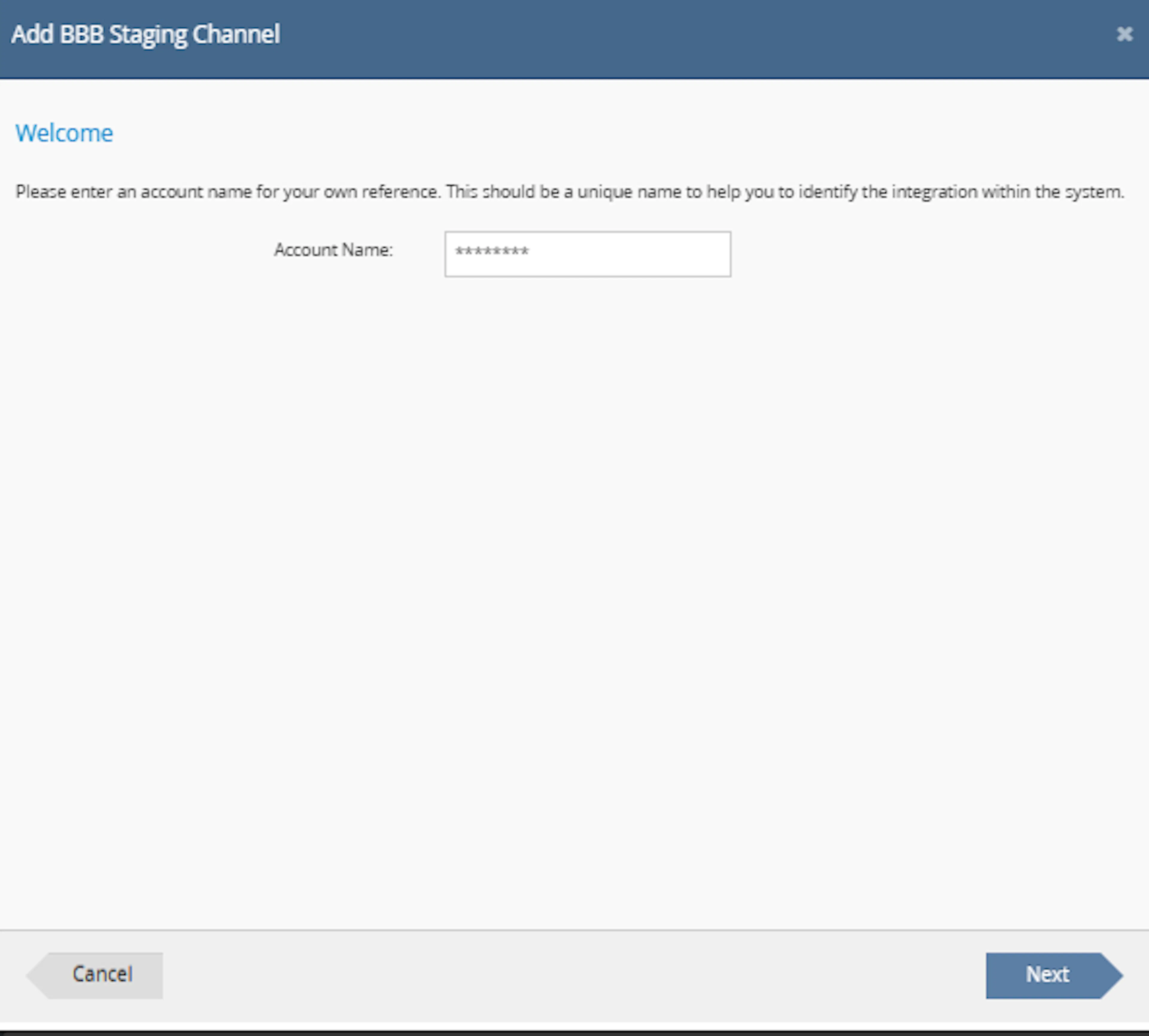
Enter an account name that helps identify this integration in Linnworks.
The account name should be:
- Unique
- Easy for operational users to recognise
- Suitable for the selected environment
- Different from existing channel account names
Example account-name formats:
BED BATH & BEYOND ProductionBED BATH & BEYOND StagingBed Bath and Beyond US
After entering the account name, click Next.
Review and accept the disclaimer
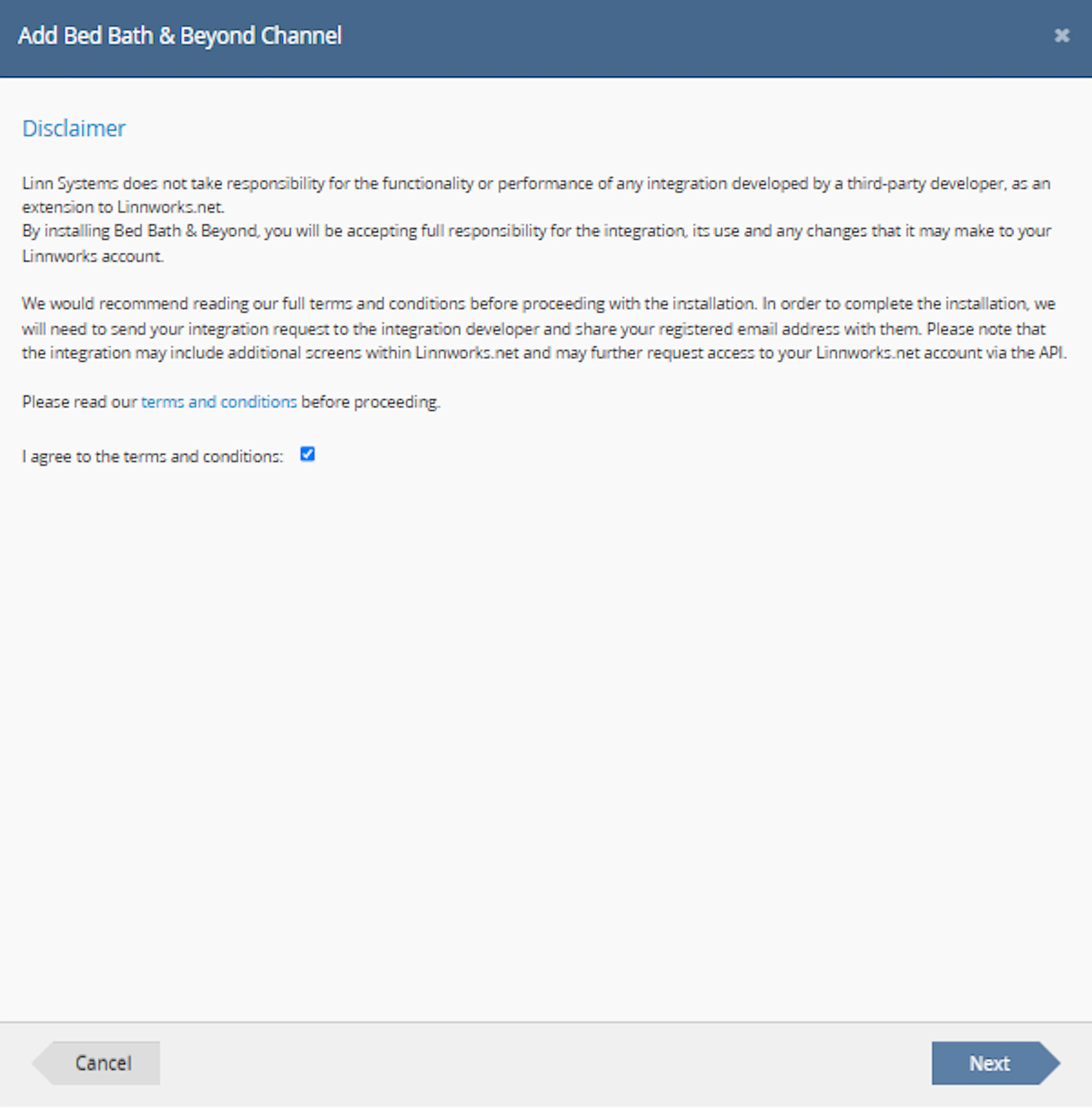
- Read the disclaimer displayed in the setup wizard.
- Open the linked terms and conditions when required.
- Tick I agree to the terms and conditions.
- Click Next.
Installing a third-party application grants it access to the Linnworks account through the permissions required by the integration. Review the displayed terms before continuing.
Select the required integration profile
Select the integration profile assigned to the Bed Bath & Beyond account.
The profile controls the configuration used for the channel and can depend on the selected environment.
- Open the integration-profile selector.
- Select the profile provided by the integration administrator.
- Confirm that the profile matches the required test or production environment.
- Click Next.
Enter the common integration settings
On the Configure Common page:
- Enter the integration Username.
- Enter the integration Password.
- Confirm that the values are for the correct environment.
- Click Next.
Complete the channel configuration
When configuration is complete, the wizard displays:
Finished
- Review the completion message.
- Click Finish.
- Wait for the configuration window to close.
- Return to the Channel Integrations page.
Enable channel and inventory processing
Locate the newly added Bed Bath & Beyond channel in the Channel Integrations list.
- Confirm that the expected source and subsource are displayed.
- Change the Enabled toggle to the enabled position.
- Enable Inventory Sync when inventory synchronisation is required.
- Confirm that both settings remain enabled after the page refreshes.
- Review the available channel actions and configuration icons.
Verify the Installation
After enabling the channel, confirm that:
Channel Is Visible
The Bed Bath & Beyond source and configured subsource appear in Channel Integrations.
Channel Is Enabled
The channel Enabled toggle is active.
Inventory Sync Is Enabled
Inventory Sync is active when inventory messages are required.
Configuration Is Correct
The account name, integration profile, credentials, warehouse, and mappings are correct.
Installation Troubleshooting
Login is not accepted
Symptom: The installation login page rejects the account details.
Likely cause: The account is not the Linnworks master account, the password is incorrect, or the account lacks the required permission.
Resolution: Confirm the authorised Linnworks account and try again.
Install button is unavailable
Symptom: The application cannot be installed.
Likely cause: The terms have not been accepted or the account lacks application-installation permissions.
Resolution: Review the terms checkbox and verify the account permissions.
Application is not visible after installation
Symptom: The application does not appear in Linnworks.
Likely cause: Linnworks has not refreshed or installation did not complete.
Resolution: Refresh Linnworks, sign out and back in, and verify that the Application Installed confirmation was displayed.
BED BATH & BEYOND application is not found
Symptom: Searching for BED BATH & BEYOND returns no matching application.
Likely cause: The wrong application category is selected or the application is not available for the current environment.
Resolution: Open Third Party Applications, clear the search, and
search again using Bed Bath & Beyond.
Account name is rejected
Symptom: The setup cannot continue after entering an account name.
Likely cause: The account name is already used by another channel.
Resolution: Enter a unique and descriptive account name.
Common configuration fails
Symptom: The username or password is not accepted.
Likely cause: The credentials are incorrect or belong to another environment.
Resolution: Confirm the credentials with the authorised integration administrator.
Channel remains disabled
Symptom: The channel cannot be enabled after installation.
Likely cause: A required configuration value or profile is incomplete.
Resolution: Review the channel configuration, credentials, integration profile, and required mappings before enabling it again.
Privacy and Terms
- Privacy Policy: https://rishvi.co.uk/privacy-policy/
- Terms and Conditions: https://rishvi.co.uk/terms-conditions/
The Linnworks installation and disclaimer pages can also display links to the applicable third-party application terms. Review all displayed terms before authorising or enabling the channel.
Integration Dashboard
The integration dashboard provides visibility into connection and processing activity.
The dashboard can display:
Connection Status
Displays whether Supplier Oasis and Linnworks connections are active.
Order Activity
Displays successful, pending, rejected, retrying, and failed order transactions.
Inventory Activity
Displays recent inventory transmissions and processed SKU totals.
Shipment Activity
Displays shipment, partial-shipment, and tracking update activity.
Failed Transactions
Displays transactions that require correction or manual review.
Scheduled Jobs
Displays enabled jobs and their next expected execution time.
Business Objectives
Automate Order Creation
Valid Supplier Oasis orders are created once in Linnworks with the required customer, address, item, quantity, and reference information.
Improve Inventory Accuracy
Supplier Oasis receives stock quantities calculated using the configured Linnworks inventory rules.
Provide Fulfilment Visibility
Supplier Oasis receives shipment, carrier, tracking, and shipped-quantity updates for full and partial fulfilment.
Maintain Operational Control
Failed transactions are recorded, classified, and eligible for controlled retry.
Prevent Duplicate Processing
Idempotency controls prevent duplicate Linnworks orders and repeated outbound messages.
Maintain XML Compliance
Inbound and outbound documents are validated against the configured XML schemas.
High-Level Data Flows
| Flow | Source | Destination | Primary Content | Trigger |
|---|---|---|---|---|
| Sales orders | Supplier Oasis | Linnworks | Order header, customer, delivery address, items, quantities, and references | Scheduled retrieval |
| Inventory | Linnworks | Supplier Oasis | SKU, available quantity, and stock status | Scheduled or on-demand |
| Shipment confirmation | Linnworks | Supplier Oasis | Order reference, shipment lines, quantities, carrier, and tracking | Fulfilment processing |
| Order acknowledgement | Linnworks / Integration | Supplier Oasis | Accepted quantities, order status, and exceptions | After order processing |
| Short ship / backorder | Linnworks / Integration | Supplier Oasis | Affected items, quantities, and exception status | Stock or fulfilment exception |
Core Integration Components
Connector Layer
Manages authenticated communication with Supplier Oasis and Linnworks.
XML Validation
Validates inbound and outbound XML against the configured XSD files.
Mapping and Transformation
Maps orders, products, customers, addresses, quantities, carriers, and statuses.
Transaction Processor
Applies business rules, message sequencing, partial fulfilment, and exception handling.
Duplicate Prevention
Stores source references and transaction states to prevent duplicate processing.
Scheduler and Retry Service
Runs scheduled jobs and retries temporary communication failures.
Logging and Monitoring
Records requests, responses, validation results, errors, and correlation identifiers.
Secure Configuration
Stores endpoint references, schedules, mappings, and credential references outside source code.
How Orders Are Processed
When an eligible Supplier Oasis order becomes available, the integration follows a controlled processing sequence.
Step 1 - Retrieve eligible orders
The integration retrieves the next eligible Supplier Oasis order or order batch.
Step 2 - Validate the XML
The incoming XML document is validated against the configured order XSD.
Step 3 - Check for duplicates
The Supplier Oasis order reference is checked against previously processed transactions.
Step 4 - Map order information
Customer, address, order-line, quantity, product, and reference information is transformed.
Step 5 - Validate business fields
Required values, SKU mappings, quantities, and configured business rules are checked.
Step 6 - Create the Linnworks order
The corresponding order is created through the Linnworks API.
Step 7 - Store the linkage
The Supplier Oasis reference and returned Linnworks order identifier are stored.
Step 8 - Generate the response
The applicable acknowledgement or exception response is generated.
Step 9 - Record the outcome
The transaction is marked as completed, rejected, retry-pending, or failed.
Order Data Mapping
Order identity mapping can include:
- Supplier Oasis order number
- Supplier Oasis external reference
- Linnworks order identifier
- Linnworks source
- Linnworks subsource
- Channel reference
Customer and delivery-address mapping can include:
- Customer name
- Company name
- Address lines
- City or town
- Region or state
- Postal code
- Country
- Telephone number
- Email address
Product and quantity mapping can include:
- Supplier Oasis SKU
- Linnworks SKU
- Ordered quantity
- Accepted quantity
- Backordered quantity
- Short-shipped quantity
- Shipped quantity
Carrier and tracking mapping can include:
- Linnworks shipping provider
- Linnworks postal service
- Supplier Oasis carrier code
- Tracking number
- Shipment reference
XML transformation can include:
- Namespaces
- Elements
- Attributes
- Enumerated values
- Date and time formats
- Decimal formats
- Required fields
- Optional fields
Configuration: Available fields and required mappings depend on the configuration for the connected Supplier Oasis and Linnworks accounts.
Duplicate Prevention
Source Reference Check
The Supplier Oasis order reference is checked before a Linnworks order is created.
Transaction State
Each transaction stores its current processing state and destination identifier.
Payload Identification
A payload key or equivalent identifier can be stored to detect repeated messages.
Outbound Message State
Inventory, acknowledgement, shipment, and exception messages are tracked individually.
Order Acknowledgements
After an order has been validated and processed, the integration generates the applicable acknowledgement.
The acknowledgement can contain:
- Supplier Oasis order reference
- Linnworks order identifier
- Accepted quantities
- Current processing status
- Validation result
- Exception information
Acknowledgement Processing
The acknowledgement is generated after the inbound order has been validated and its Linnworks processing result is available.
Short-Ship and Backorder Processing
A short-ship message can be generated when the shipped quantity is lower than the ordered or accepted quantity.
It can include:
- Supplier Oasis order reference
- Affected SKU
- Ordered quantity
- Shipped quantity
- Short-shipped quantity
- Exception status
A backorder message can be generated when an item cannot be fulfilled immediately but remains available for later fulfilment.
It can include:
- Supplier Oasis order reference
- Affected SKU
- Ordered quantity
- Accepted quantity
- Backordered quantity
- Backorder status
The configured rules determine whether:
- A later shipment message is permitted
- A previous exception can be updated
- Remaining quantities stay open
- A final completion message is required
Inventory Synchronisation
Inventory synchronisation sends configured Linnworks stock quantities to Supplier Oasis.
Inventory Processing Sequence
Step 1 - Select locations and SKUs
The integration selects the configured Linnworks locations and SKU population.
Step 2 - Retrieve stock data
Current Linnworks stock information is retrieved.
Step 3 - Calculate availability
The configured availability formula is applied.
Step 4 - Build the inventory XML
A Supplier Oasis-compatible inventory message is generated.
Step 5 - Validate the XML
The outbound XML is validated against the configured inventory XSD.
Step 6 - Send the update
The message is transmitted to Supplier Oasis.
Step 7 - Record the response
The response, processed SKU count, and transaction result are stored.
Step 8 - Retry temporary failures
Retryable failures are processed again without duplicating accepted messages.
Inventory Availability Rules
The inventory quantity can be calculated using:
- Selected Linnworks locations
- Physical stock
- Available stock
- Allocated stock
- Safety stock
- Out-of-stock rules
- Negative-stock rules
- Zero-stock representation
- Location aggregation
- Full or delta updates
- SKU exclusions
Note: Supplier Oasis quantities depend on the configured Linnworks locations, allocation settings, and safety-stock rules.
Inventory Execution Options
Inventory updates are sent according to the configured schedule.
The schedule can account for:
- API rate limits
- Expected SKU volume
- Full or delta update mode
- Peak processing periods
On-demand synchronisation sends an immediate inventory update.
It can be used after:
- Stock corrections
- Warehouse receipts
- Inventory adjustments
- Failed scheduled runs
- Mapping corrections
Failed messages can be resubmitted through a controlled process.
Resubmission:
- Uses the existing transaction context
- Prevents duplicate accepted messages
- Records the retry result
- Retains the correlation identifier
Shipment and Fulfilment Updates
Shipment Processing Sequence
Step 1 - Identify eligible orders
The integration identifies dispatched or fulfilled Linnworks orders.
Step 2 - Retrieve shipment information
Shipment lines, shipped quantities, carrier details, and tracking information are retrieved.
Step 3 - Map carrier information
Linnworks shipping values are mapped to Supplier Oasis carrier codes.
Step 4 - Build the shipment XML
A Supplier Oasis-compatible shipment message is generated.
Step 5 - Validate the XML
The message is validated against the configured shipment XSD.
Step 6 - Send the message
The shipment confirmation is transmitted to Supplier Oasis.
Step 7 - Store the result
The transaction is recorded as completed, rejected, retry-pending, or failed.
Shipment Message Content
| Field | Description |
|---|---|
| Supplier Oasis order reference | Identifies the source sales order |
| Linnworks order identifier | Identifies the related Linnworks order |
| Shipment lines | Identifies the fulfilled order lines |
| Shipped quantities | Records the quantity shipped for each line |
| Carrier | Contains the mapped Supplier Oasis carrier code |
| Tracking number | Contains the tracking reference |
| Shipment status | Identifies the fulfilment state |
| Message timestamp | Identifies when the message was generated |
Full and Partial Shipments
A full shipment message is generated when all configured quantities are fulfilled.
A partial shipment contains only the quantities included in the current fulfilment event.
The order remains available for later valid shipment updates.
Each transmitted shipment is recorded using a transaction key.
Previous shipment states are checked before another message is sent.
Production-Readiness Features
Rate-Limit Controls
Scheduled processing can respect configured Supplier Oasis and Linnworks API limits.
Retry Handling
Temporary communication failures can be retried without duplicate destination processing.
Configuration Validation
Required connections and mappings are checked before transactions are processed.
Structured Logging
Operations are recorded with transaction types, timestamps, statuses, and outcomes.
Correlation IDs
Each transaction can be traced across validation, processing, and transmission.
Secure Configuration
Credentials and endpoint values are stored outside application source code.
Operational Monitoring
Operational monitoring provides visibility into integration processing.
View Transaction Status
Review completed, pending, retrying, rejected, and failed transactions.
Review Validation Errors
Review schema, mapping, quantity, address, and configuration errors.
Inspect Correlation IDs
Trace an order, inventory update, acknowledgement, or shipment message.
Review Retry Activity
Review retry counts, next-attempt times, and final outcomes.
Run On-Demand Processing
Start an authorised inventory or transaction process when immediate execution is required.
Review Audit History
Review transaction timestamps, destination references, statuses, and responses.
Error Handling and Monitoring
XML validation errors can include:
- Missing required elements
- Invalid data types
- Incorrect namespaces
- Unsupported enumerations
- Invalid date or decimal formats
Business-rule errors can include:
- Missing SKU mappings
- Invalid quantities
- Missing carrier mappings
- Incomplete addresses
- Duplicate source references
Connectivity errors can include:
- Timeouts
- Authentication failures
- Unavailable services
- Endpoint communication errors
Temporary failures can be retried automatically.
Invalid data should be corrected before the transaction is submitted again.
Logging Information
Transaction logs can contain:
- Correlation identifier
- Source reference
- Transaction type
- Processing timestamp
- Current status
- Validation result
- Destination identifier
- Endpoint response
- Retry count
- Final outcome
- Actionable error details
Security: Credentials, passwords, tokens, secret keys, and unnecessary personal information must not be written to standard logs.
Retry Handling
Classify the failure
The integration determines whether the failure is temporary or requires a data correction.
Store the retry state
The retry count, next attempt time, and transaction status are recorded.
Retry temporary failures
Timeouts and temporary service errors are retried according to configuration.
Prevent duplicate processing
Duplicate checks are applied before another destination action is performed.
Stop after the maximum attempts
Transactions that exceed the configured limit are marked as failed for review.
Security and Data Handling
Encrypted Transport
External connections use encrypted communication.
Secret Management
Credentials are stored using secure configuration rather than source code.
Least-Privilege Access
Connected accounts should receive only the permissions required by the integration.
Sensitive-Data Protection
Logs and screenshots should exclude unnecessary customer and credential information.
Retention Controls
Transaction records are retained according to the configured retention settings.
Access Control
Portal access should be limited to authorised operational and support users.
Privacy and Data Protection
The integration processes order, customer, address, product, inventory, and fulfilment information required to complete the configured workflows.
To protect this information:
- Collect only the data required for order and fulfilment processing
- Restrict portal access to authorised users
- Use encrypted connections
- Store credentials in secure configuration
- Avoid exposing customer data in screenshots
- Mask sensitive information in logs where appropriate
- Remove personal data from public support messages
- Follow the configured data-retention policy
- Review access when users change roles or leave the organisation
Public Documentation: Redact customer names, email addresses, telephone numbers, delivery addresses, account identifiers, order numbers, tokens, and secret values from screenshots before publishing.
Transaction Lifecycle
| Status | Description |
|---|---|
| Pending | The transaction is waiting to be processed |
| Validating | XML, mappings, configuration, and required values are being checked |
| Processing | Transformation and destination processing are in progress |
| Submitted | The outbound request or message was transmitted |
| Acknowledged | The destination accepted or acknowledged the transaction |
| Retry Pending | A temporary failure occurred and another attempt is scheduled |
| Rejected | Invalid data or a non-retryable response prevented processing |
| Failed | Processing stopped after the configured failure rules |
| Completed | The transaction completed successfully |
Lifecycle Flow
Pending
An eligible order, inventory update, shipment, acknowledgement, or exception is identified.
Validating
XML, mappings, configuration, duplicate state, and required values are checked.
Processing
Transformation and business rules are applied.
Submitted
The transaction is sent to the destination system.
Acknowledged or Retry Pending
A successful response continues the transaction. A temporary failure schedules another attempt.
Completed, Rejected, or Failed
The final outcome and supporting diagnostic information are stored.
Validation Errors and Common Causes
| Validation Error | Common Cause |
|---|---|
| XML schema validation failed | The document does not comply with the configured XSD |
| Missing required element | A required XML element or business value is absent |
| Unsupported value | A status, carrier, country, or transaction code is not configured |
| Duplicate order reference | The Supplier Oasis order was already processed |
| SKU not found | The Supplier Oasis SKU cannot be mapped to an active Linnworks item |
| Delivery address incomplete | One or more required address fields are missing |
| Carrier mapping missing | The Linnworks service has no Supplier Oasis carrier mapping |
| Invalid quantity | A quantity is missing, malformed, negative, or inconsistent |
| Authentication failed | The configured endpoint credentials are invalid or expired |
| Endpoint unavailable | Supplier Oasis or Linnworks is temporarily unavailable |
| Duplicate shipment | The shipment transaction was already transmitted |
| Invalid inventory message | The stock value or XML does not comply with the configured rules |
Troubleshooting Guide
Application is not visible in Linnworks
Symptom: The installed application does not appear under My Applications.
Likely cause: The page has not refreshed or installation did not complete.
Resolution: Refresh Linnworks, sign out and back in, and confirm that the installation completed successfully.
Supplier Oasis connection failed
Symptom: Supplier Oasis requests cannot be sent or received.
Likely cause: The endpoint, authentication, environment, or account configuration is incorrect.
Resolution: Review the secure connection configuration and run the connection test again.
Linnworks connection failed
Symptom: Orders cannot be created or Linnworks data cannot be retrieved.
Likely cause: Linnworks authorisation is invalid, expired, or missing a required permission.
Resolution: Reauthorise the Linnworks connection and verify the requested permissions.
Order was not created in Linnworks
Symptom: The Supplier Oasis order remains pending or failed.
Likely cause: XML validation failed, a required field is missing, the SKU is unmapped, or Linnworks rejected the request.
Resolution: Review the validation error, mappings, correlation ID, and Linnworks response.
Duplicate order was blocked
Symptom: The transaction reports that the reference has already been processed.
Likely cause: The order was previously created in Linnworks.
Resolution: Review the stored Linnworks order identifier before attempting another submission.
Inventory message was rejected
Symptom: Supplier Oasis does not accept the inventory message.
Likely cause: XML validation failed, the SKU is invalid, or the calculated quantity is unsupported.
Resolution: Review the XSD error, SKU mapping, and inventory calculation.
Stock quantities do not match
Symptom: Supplier Oasis stock differs from the expected Linnworks quantity.
Likely cause: Location selection, allocation, safety stock, or update mode is incorrect.
Resolution: Review the inventory configuration and run an on-demand synchronisation.
Shipment confirmation was not sent
Symptom: A fulfilled Linnworks order has no successful shipment message.
Likely cause: The order is not eligible, a mapping is missing, tracking is invalid, or XML validation failed.
Resolution: Review the fulfilment state, carrier mapping, XML validation result, and correlation ID.
Partial shipment quantities are incorrect
Symptom: The transmitted quantities do not match the fulfilled quantities.
Likely cause: The order-line mapping or subsequent-update rule is incorrect.
Resolution: Compare Linnworks fulfilment quantities with the outbound shipment message.
Acknowledgement was not generated
Symptom: The order was processed but no acknowledgement is available.
Likely cause: The response mapping failed or the transaction type is not configured.
Resolution: Review the order result and acknowledgement configuration.
Short-ship or backorder message is missing
Symptom: A fulfilment exception occurred but no exception message was sent.
Likely cause: The exception rule or transaction mapping is incomplete.
Resolution: Review the configured short-ship and backorder rules.
Temporary failure is not retrying
Symptom: A retryable transaction remains failed.
Likely cause: Retry processing is disabled, the maximum attempts were reached, or the error is non-retryable.
Resolution: Review the retry count, next attempt time, and failure classification.
Transaction cannot be traced
Symptom: The full order or message history cannot be found.
Resolution: Search using both the source reference and correlation ID.
Best Practices
Keep XML Schemas Current
Confirm that the configured XML and XSD versions match the current message requirements.
Use Stable References
Use consistent order and transaction identifiers so duplicate controls remain reliable.
Validate Mappings
Test order, inventory, acknowledgement, shipment, and exception mappings using representative data.
Keep SKUs Consistent
Ensure Supplier Oasis product codes match active Linnworks items.
Maintain Carrier Mappings
Map every required Linnworks postal service to the correct Supplier Oasis carrier code.
Monitor Failed Transactions
Review rejected, retry-pending, and failed transactions regularly.
Use Correlation IDs
Use correlation IDs when investigating orders, inventory messages, and shipment updates.
Protect Credentials
Store authentication values only in approved secure configuration.
FAQ
Which system provides the sales orders?
Supplier Oasis provides eligible sales orders. The integration validates and creates them in Linnworks.
Which system is the inventory source of truth?
Linnworks is the source of truth for inventory availability and fulfilment status.
How are inbound orders validated?
Incoming order XML is validated against the configured Supplier Oasis XSD before Linnworks processing begins.
What prevents an order from being created twice?
The integration stores the Supplier Oasis order reference and checks its transaction state before creating another Linnworks order.
How is inventory sent to Supplier Oasis?
The integration reads Linnworks stock, applies the configured availability rules, generates XML, validates it, and transmits it to Supplier Oasis.
Can inventory be synchronised manually?
Yes. On-demand inventory synchronisation can be used when it is enabled for the connected account.
Are partial shipments supported?
Yes. A shipment message can include only the quantities fulfilled in the current shipment while keeping the remaining quantity available for later updates.
Are short-ship and backorder messages supported?
Yes. These messages are generated according to the configured transaction rules.
What happens when Supplier Oasis or Linnworks is temporarily unavailable?
The integration records the failure and applies the configured retry policy.
What happens when XML is invalid?
The transaction is rejected before destination processing and an actionable validation error is recorded.
How are transactions traced?
Each transaction receives a correlation ID that can be used with the source reference to find its processing history.
Where are credentials stored?
Credentials and sensitive configuration values are stored outside the application source using secure configuration.
What should I do when a mapping is missing?
Add or correct the mapping, save the configuration, and retry the affected transaction.
How should screenshots be prepared for public documentation?
Remove or obscure names, email addresses, telephone numbers, delivery addresses, order references, account identifiers, API tokens, and any other sensitive information.
Legal Information
- Privacy Policy: https://rishvi.co.uk/privacy-policy/
- Terms and Conditions: https://rishvi.co.uk/terms-conditions/
Review these pages for information about data handling, privacy, and the terms governing use of the integration.
Summary
The BED BATH & BEYOND Supplier Oasis to Linnworks Integration provides controlled API and XML-based automation for orders, inventory, acknowledgements, shipments, short ships, and backorders.
Automated Order Integration
Eligible Supplier Oasis orders are validated, mapped, and created once in Linnworks.
Reliable Inventory Synchronisation
Configured Linnworks quantities are converted into validated Supplier Oasis inventory messages.
Fulfilment Updates
Full and partial shipment messages contain shipped quantities, carrier details, and tracking references.
Acknowledgements and Exceptions
Acknowledgement, short-ship, and backorder messages are generated according to configuration.
Duplicate Prevention
Persistent transaction states protect order and message processing from duplicates.
Operational Traceability
Validation, logging, correlation IDs, retries, and transaction history provide operational visibility.
The primary order flow is:
Retrieve Supplier Oasis order → Validate XML → Check duplicates → Map order → Create Linnworks order → Send acknowledgement
The primary inventory flow is:
Read Linnworks stock → Apply availability rules → Generate XML → Validate XSD → Send inventory update
The primary shipment flow is:
Detect Linnworks fulfilment → Map shipment information → Generate XML → Validate XSD → Send shipment confirmation