Assign Payment Method by Subsource
Automatically assign payment methods to selected Linnworks orders based on matching order source and subsource values.
Manually updating payment methods across orders can be time-consuming, especially when different sales channels or marketplace subsources require specific payment method values. The Assign Payment Method by Subsource macro helps automate this process by checking selected orders against configured source and subsource rules, then assigning the correct payment method where a match is found.
This macro processes the selected orders, compares each order’s source and subsource with the configured values, identifies the matching payment method, and updates the order totals information automatically.
With this automated approach, your team can reduce manual order edits, improve payment data consistency, and ensure orders are assigned the correct payment method based on their sales channel details.
Automatically assign the correct payment method to selected orders based on source and subsource matching rules.
Configure the Macro
Once the app is installed, you need to set up the macro configuration so the system knows which orders to process, which sources and subsources to check, and which payment methods should be applied.
This configuration can be updated anytime if your channel mapping or payment method rules change.
Steps to Configure
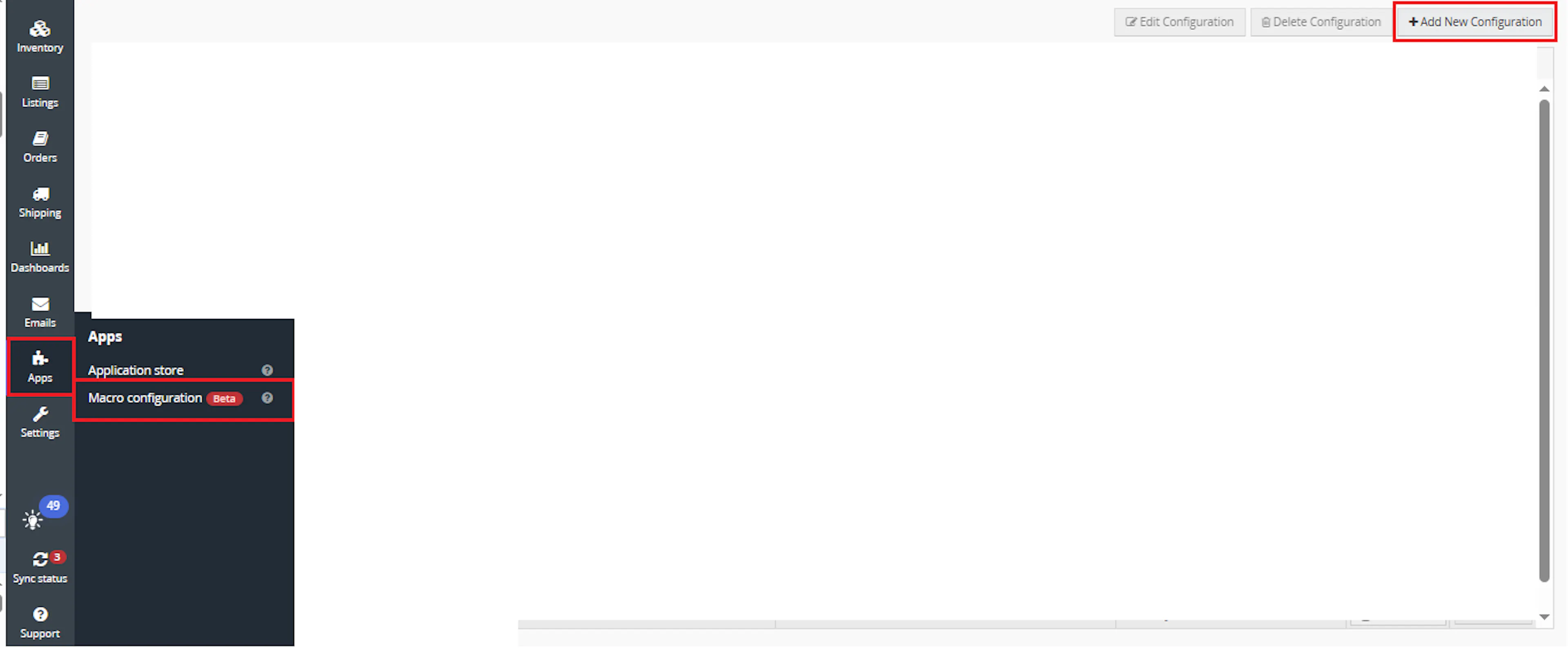
Go to Apps > Macro Configuration and click + Add new configuration.
Select the Assign Payment Method macro and click Create Configuration.
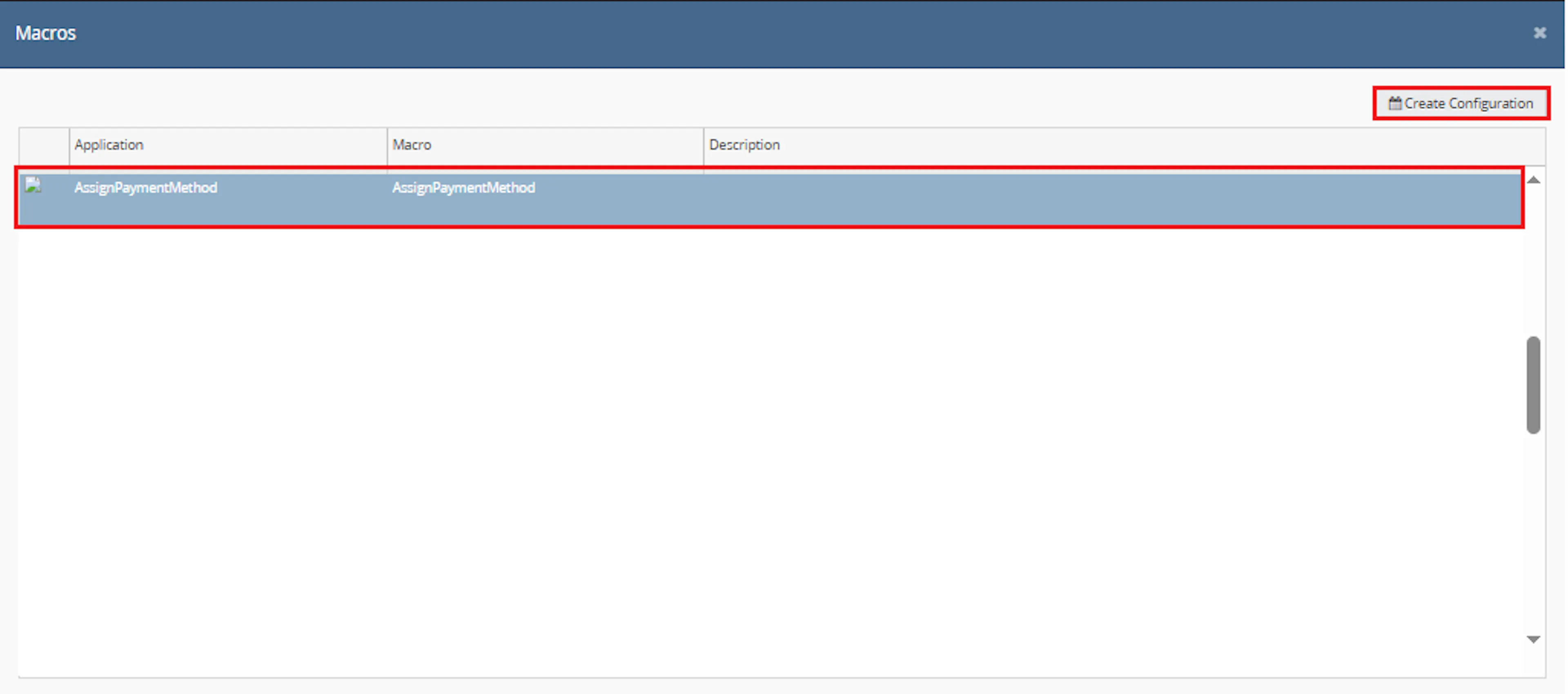
This creates a new configuration where you can define the required parameters and schedule settings.
In the Macro Configuration screen, add the configuration name and parameter values.
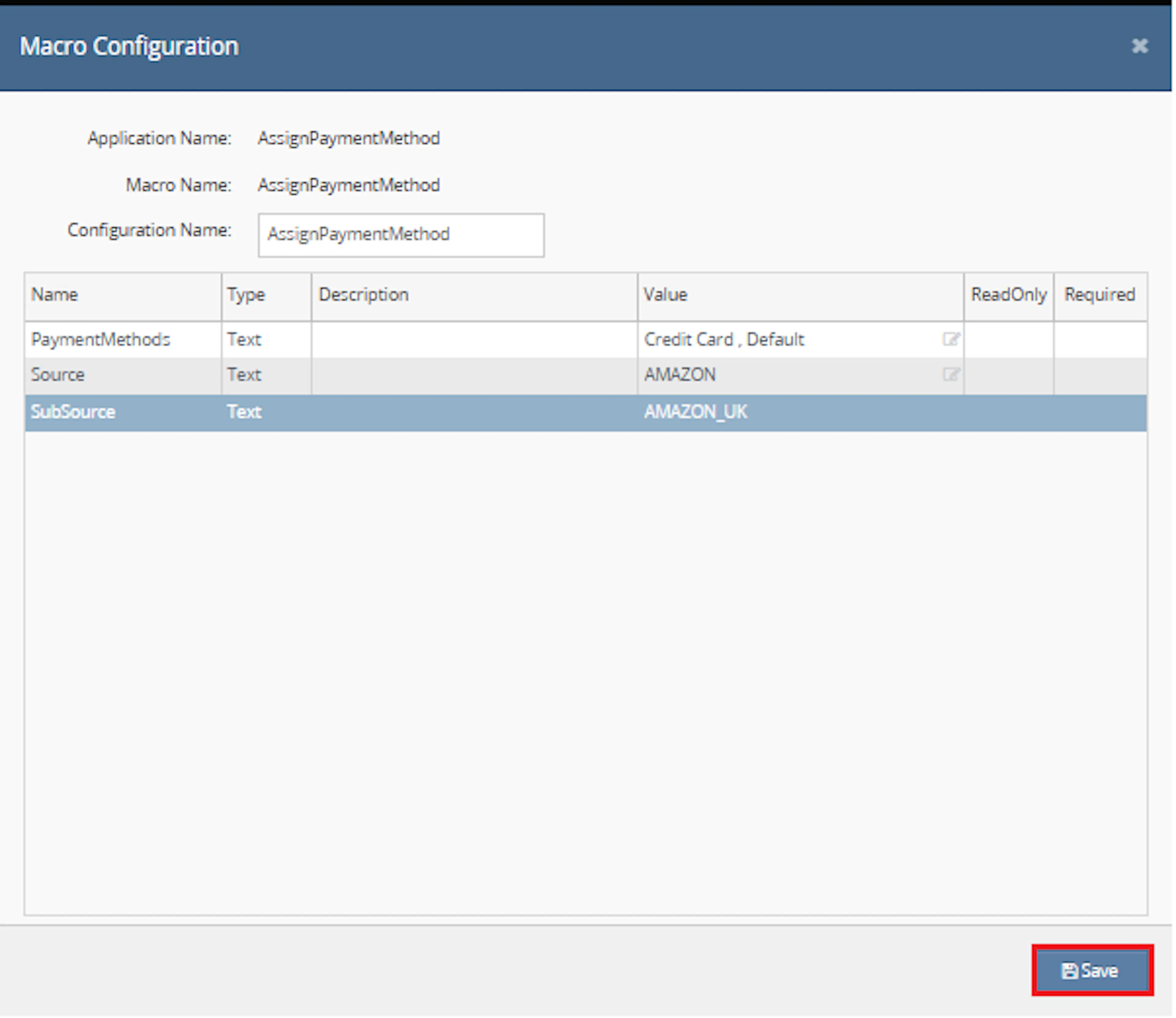
Make sure to enable the macro to continue with the Rule Engine configuration.

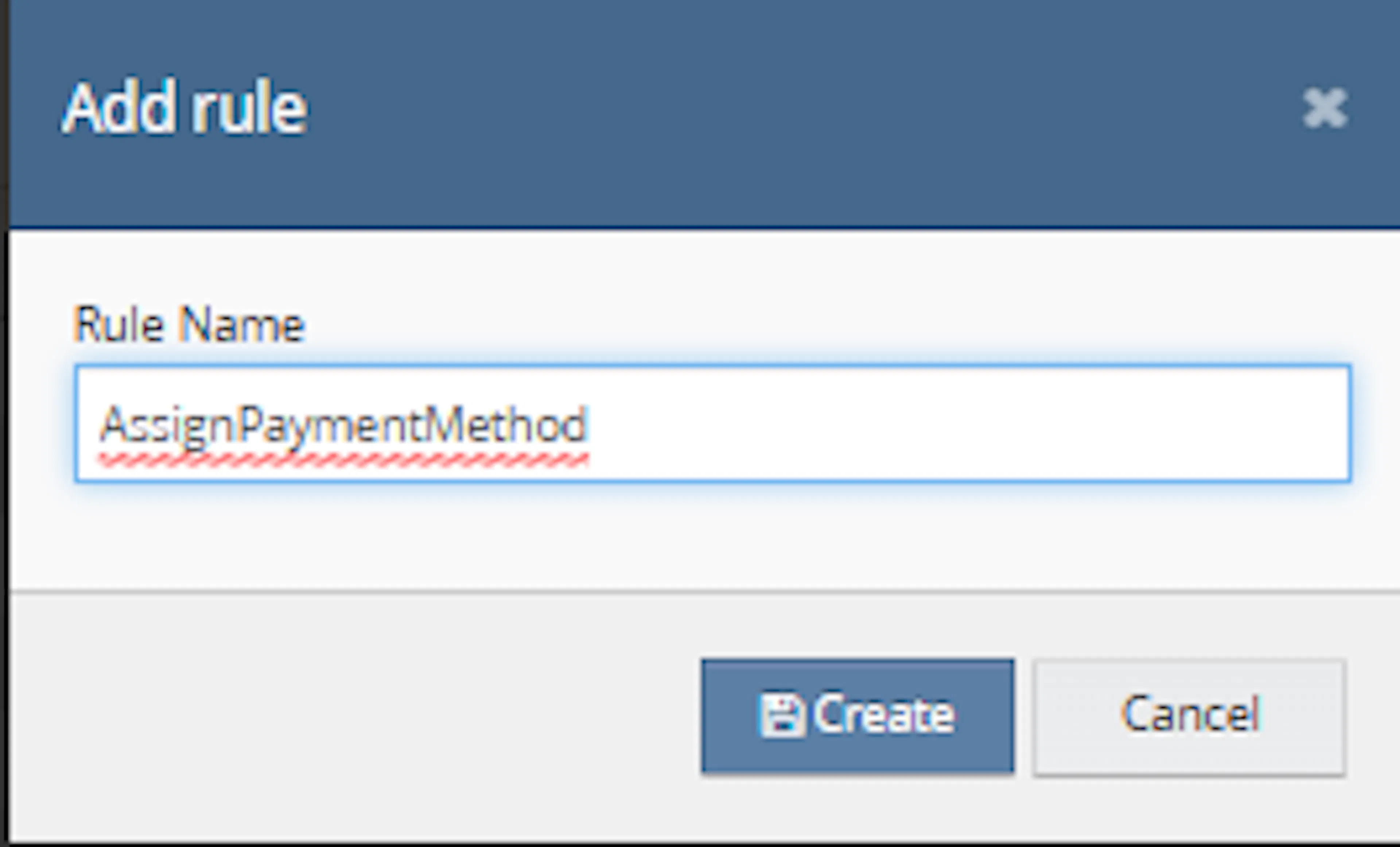
Go to Orders > Rules engine and click + Add new rule.
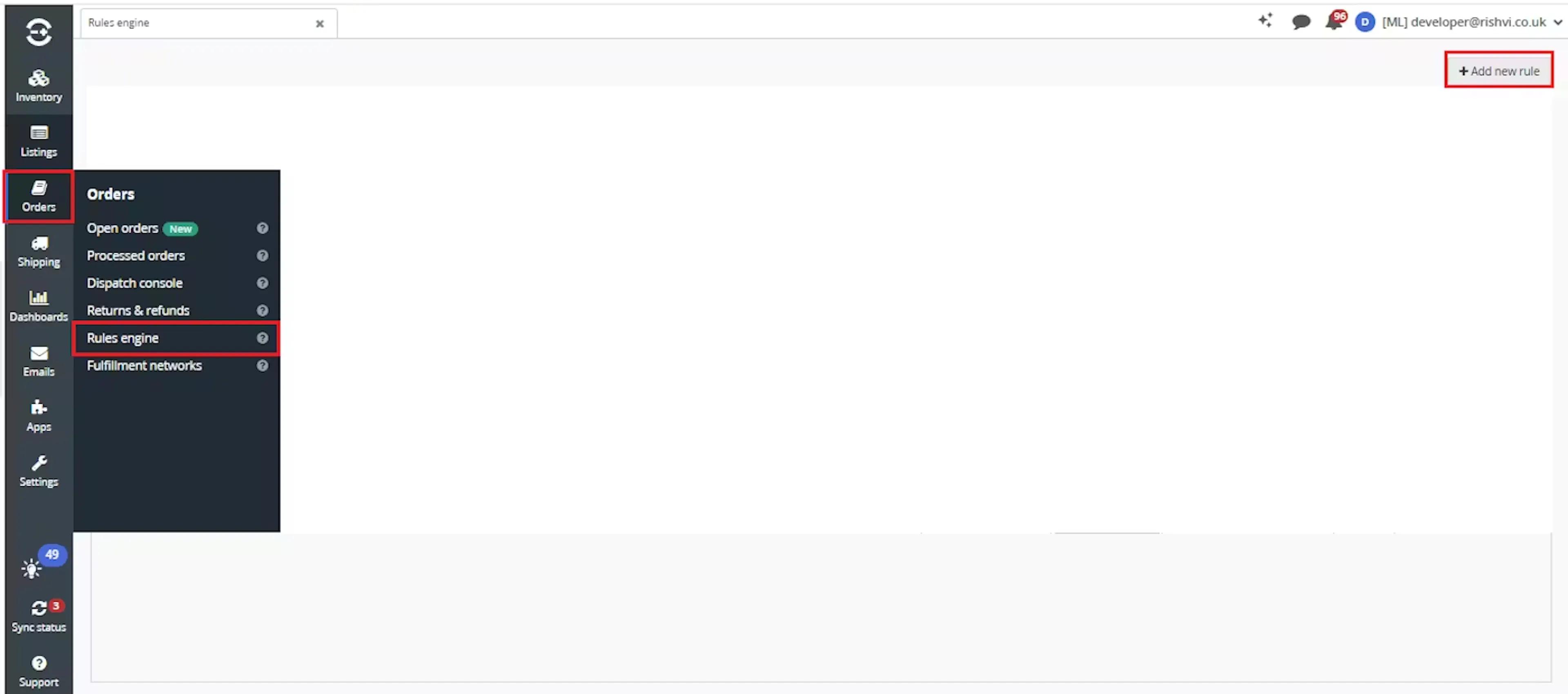
Enter the rule name and click Create.
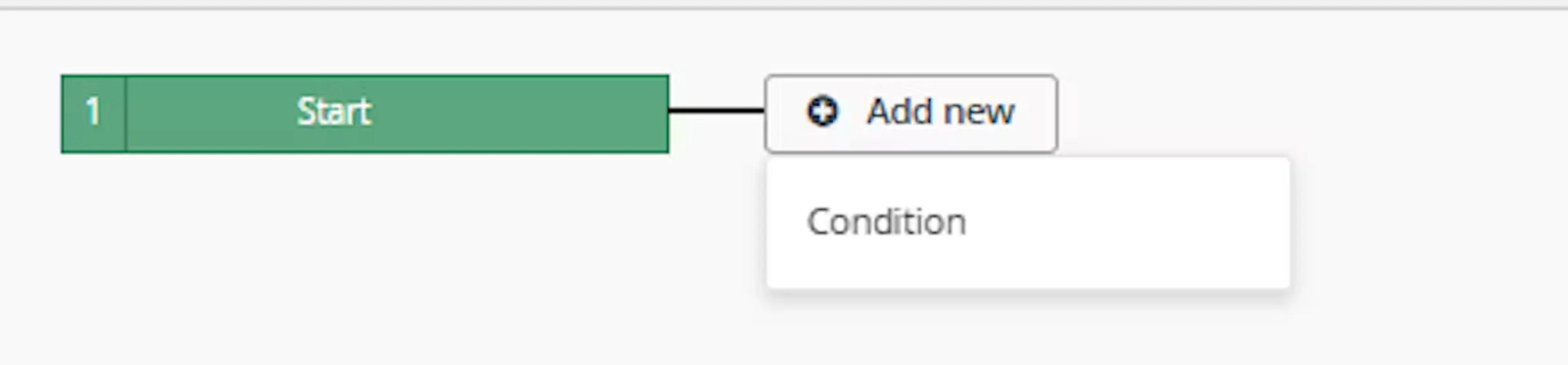
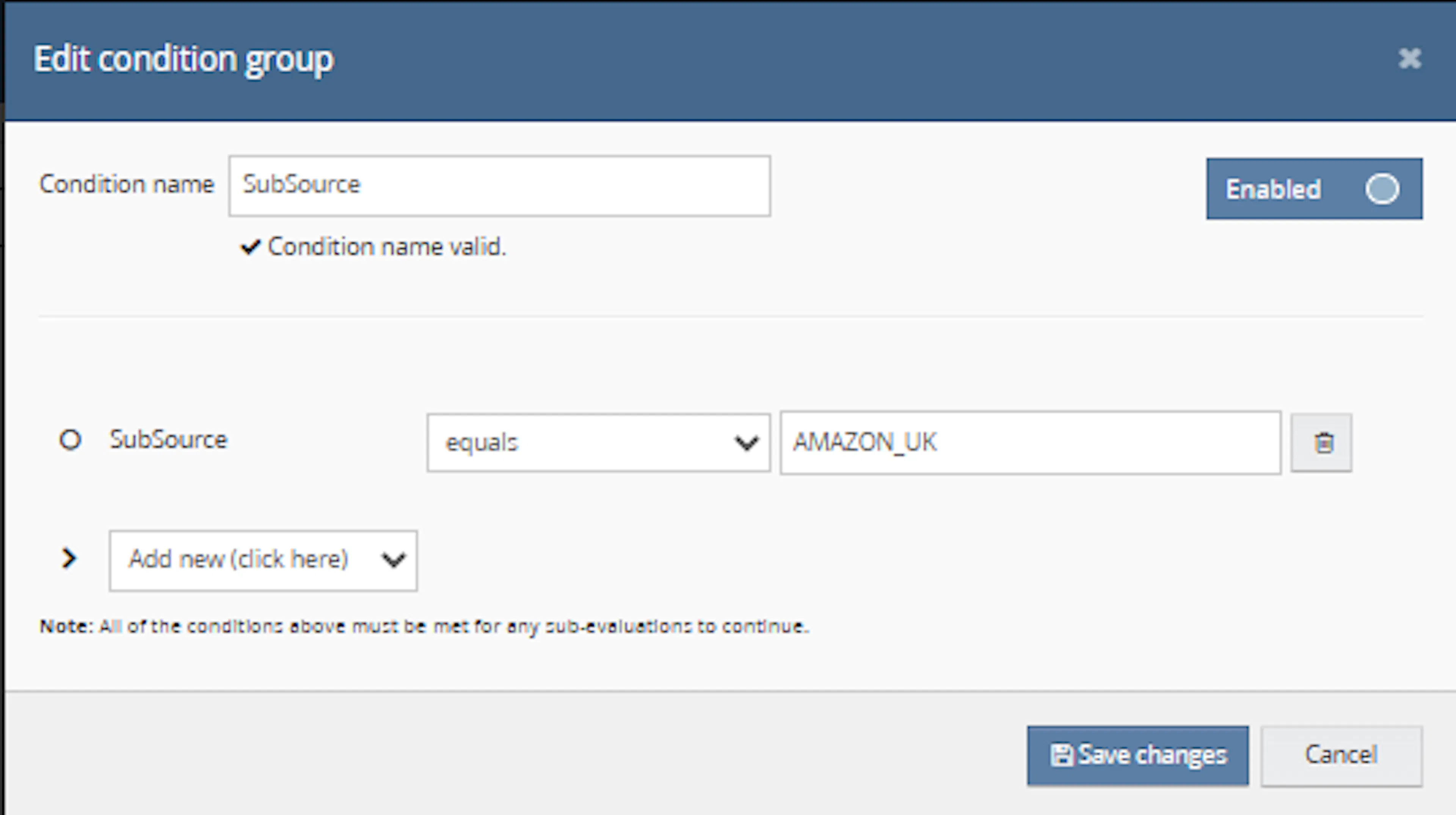
Click Add new, select Condition, set the condition as required, and save it.
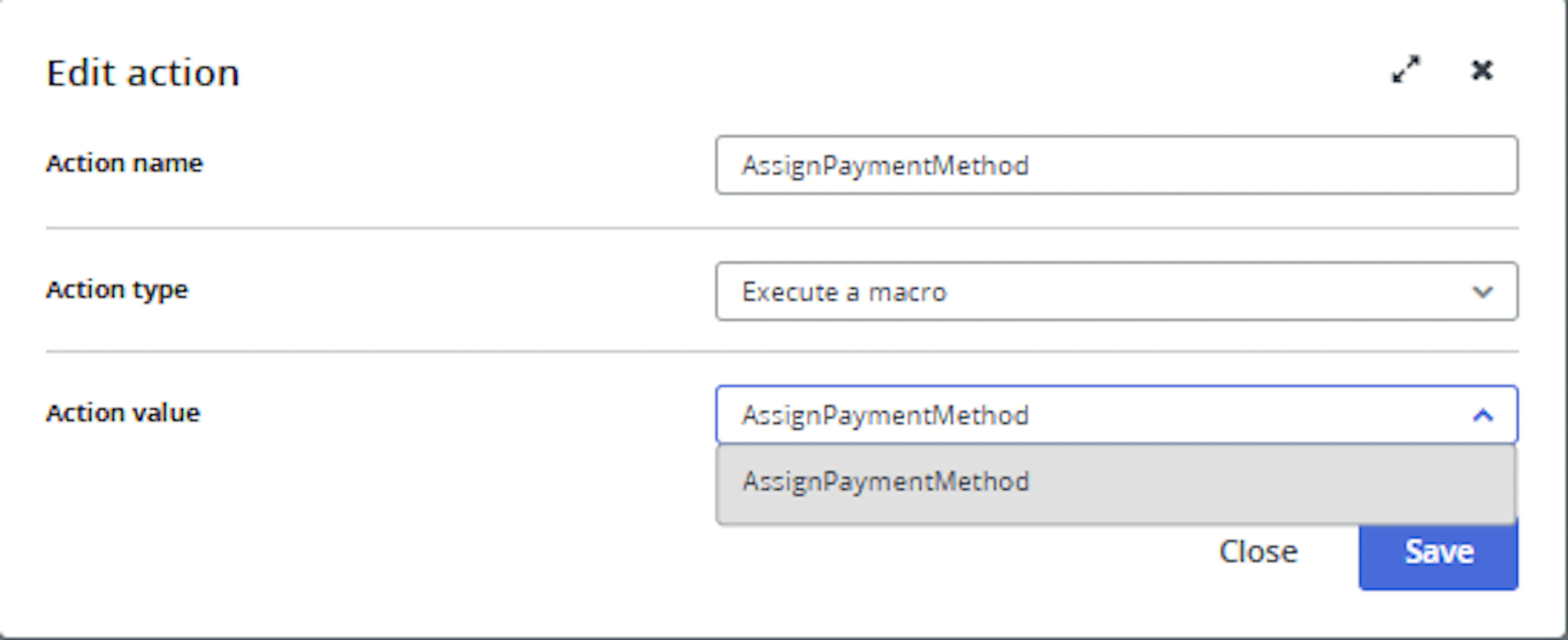
Add the macro action and click Save.

Review the saved rule setup.
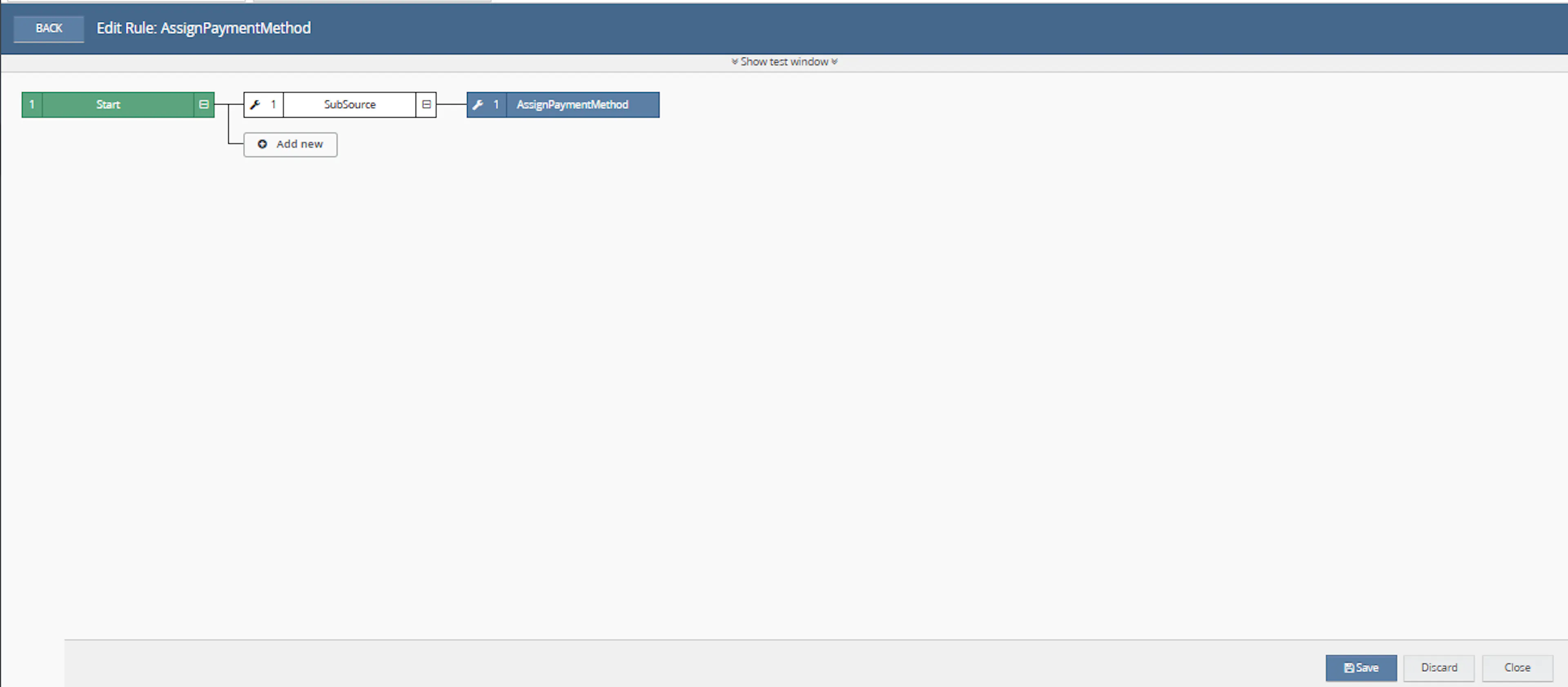
Verify the condition and action are connected correctly
Click Save in the bottom-right corner to save the rule
Key Benefits
Assigning payment methods manually can lead to inconsistent order data and additional operational work. This macro helps standardise payment method assignment using configured source and subsource rules.
Automate Payment Assignment
Automatically updates the payment method on selected orders when the configured source and subsource match.
Reduce Manual Order Edits
Removes the need to manually open each order and change the payment method one by one.
Improve Payment Data Accuracy
Helps ensure orders from specific channels or subsources use the correct payment method.
Support Multi-Channel Rules
Allows multiple source, subsource, and payment method combinations to be configured using comma-separated values.
Save Operational Time
Quickly applies payment method updates across multiple selected orders in a single macro run.
Log Processing Activity
Logs macro start, processed order numbers, errors, and completion for easier tracking.
How It Works
The macro checks each selected order and compares its source and subsource against the configured mapping list. If a match is found, it assigns the corresponding payment method.
Step 1
The macro starts execution and writes Macro started to the log.
Step 2
It retrieves all available Linnworks payment methods using the Orders API.
Step 3
The macro splits the configured Source, SubSource, and PaymentMethods values into separate lists.
Step 4
It loops through each selected order ID provided in the OrderIds parameter.
Step 5
For each order, the macro retrieves the order details and logs the Linnworks order number.
Step 6
It checks whether the order source and subsource match one of the configured source and subsource pairs.
Step 7
When a match is found, the macro finds the configured payment method by name.
Step 8
The macro updates the order payment method ID and payment method name in the order totals information.
Step 9
The updated totals information is saved back to the order using SetOrderTotalsInfo.
Usage of App
This macro is designed to update selected Linnworks orders based on source and subsource mapping rules. It is useful when different marketplaces, channels, or subsources require specific payment method values.
OrderIds
Defines the selected Linnworks order IDs that should be processed by the macro.
Source
Defines one or more order source values to check. Multiple values should be entered as comma-separated values.
SubSource
Defines one or more order subsource values to check. Each value must align with the matching source value by position.
PaymentMethods
Defines one or more Linnworks payment method names to assign. Each value must align with the matching source and subsource by position.
Mapping Logic
The first Source value maps to the first SubSource value and the first PaymentMethods value. The second value maps to the second value, and so on.
Order Update Behaviour
Orders are updated only when their source and subsource match a configured pair and the payment method exists in Linnworks.
Key Points to Remember
-
The macro processes only the orders included in OrderIds
-
Source, SubSource, and PaymentMethods must be comma-separated lists
-
Values are matched by their position in each list
-
Payment method names must already exist in Linnworks
-
Source and subsource values must match the order values exactly after trimming configured values
-
If no matching rule is found, the order is not updated
-
If the payment method name is not found, the order is not updated for that rule
Once configured correctly, the macro helps keep payment method assignment consistent across selected orders.
What You Can Expect
-
Selected orders are checked automatically
Each provided order ID is retrieved and reviewed by the macro -
Source and subsource rules are applied
The macro compares order source and subsource values with the configured mapping -
Payment methods are assigned when matched
Matching orders receive the corresponding Linnworks payment method -
Unmatched orders are skipped
Orders that do not match the configured source and subsource values are left unchanged -
Processing is logged
The macro logs the start, each processed order number, errors, and completion
Overall Impact
This macro improves payment method consistency, reduces manual order updates, and supports cleaner order data across different channels and subsources.
What To Do After the Macro Runs
After the macro has completed, review a sample of processed orders to confirm that payment methods were assigned correctly.
Steps to Follow
Step 1
Open Linnworks and locate the orders included in the OrderIds parameter.
Step 2
Check the order source and subsource values.
Step 3
Confirm that the payment method matches the configured rule.
Step 4
Review the macro logs for processed order numbers and any error messages.
Step 5
If an order was not updated, verify the source, subsource, payment method name, and list alignment in the macro parameters.
Why This Matters
Correct payment method assignment helps:
-
Improve order data consistency
-
Reduce manual corrections
-
Support reporting by payment method
-
Keep marketplace-specific workflows organised
-
Avoid incorrect payment method values on selected orders
Best Practices
To get the most value from this macro, maintain clean and accurate source, subsource, and payment method mappings.
Recommended Guidelines
-
Keep list values aligned
Make sure each source value has a matching subsource and payment method at the same position. -
Use exact payment method names
The configured payment method name must match an existing Linnworks payment method. -
Avoid extra commas
Extra or missing values can cause incorrect mapping or missed updates. -
Test with a small order set first
Run the macro on a small group of orders before using it on larger batches. -
Review logs after execution
Check the macro logs to confirm which orders were processed. -
Update mappings when channel rules change
If marketplace or payment rules change, update the macro parameters accordingly.
Accurate mapping between source, subsource, and payment method is essential for reliable automated payment assignment.
Example Scenario
To better understand how this works, here’s a simple example:
Configured values:
-
Source = Amazon,eBay,Shopify
-
SubSource = Amazon UK,eBay UK,Online Store
-
PaymentMethods = Amazon Pay,PayPal,Shopify Payments
Orders found in Linnworks:
-
Order A source is Amazon and subsource is Amazon UK → Payment method set to Amazon Pay
-
Order B source is eBay and subsource is eBay UK → Payment method set to PayPal
-
Order C source is Shopify and subsource is Online Store → Payment method set to Shopify Payments
-
Order D source is Amazon and subsource is Amazon DE → No update
What This Means
-
Each source/subsource pair maps to the payment method in the same list position
-
Orders are updated only when the configured pair matches
-
Orders without a matching pair remain unchanged
Final Summary
The Assign Payment Method by Subsource macro automatically updates selected Linnworks orders with the correct payment method based on configured source and subsource rules.
By applying consistent payment method mappings, reducing manual edits, and updating only matching orders, this macro helps improve order accuracy and streamline multi-channel order management.