Automated Monitoring & Notification for Unfulfilled Marketplace Orders
Track and manage delayed marketplace orders in Linnworks with automated alerts. Improve order processing, reduce delays, and enhance operational efficiency with real-time monitoring.
Managing unfulfilled orders manually can be time-consuming and increases the risk of delays going unnoticed. The Automated Monitoring & Notification for Unfulfilled Marketplace Orders feature helps you stay on top of your operations by automatically identifying orders that have not been processed within your expected timeframe.
This solution continuously monitors all Open Orders in Linnworks and alerts your team when any order exceeds the defined time limit. By providing timely notifications, it enables your team to quickly investigate issues, priorities tasks, and prevent delays from impacting customers.
With this automated approach, you gain better visibility into your order pipeline, reduce manual effort, and ensure a more efficient and reliable fulfilment process.
Stay in control of your order processing by getting notified before delays impact your customers.
Configure the Macro
Once the app is installed, you need to set up the configuration, so the system knows how and when to monitor delayed orders. This is a one-time setup and can be adjusted anytime based on your business needs.
Steps to Configure
Go to Apps > Macro Configuration and click + Add new configuration.
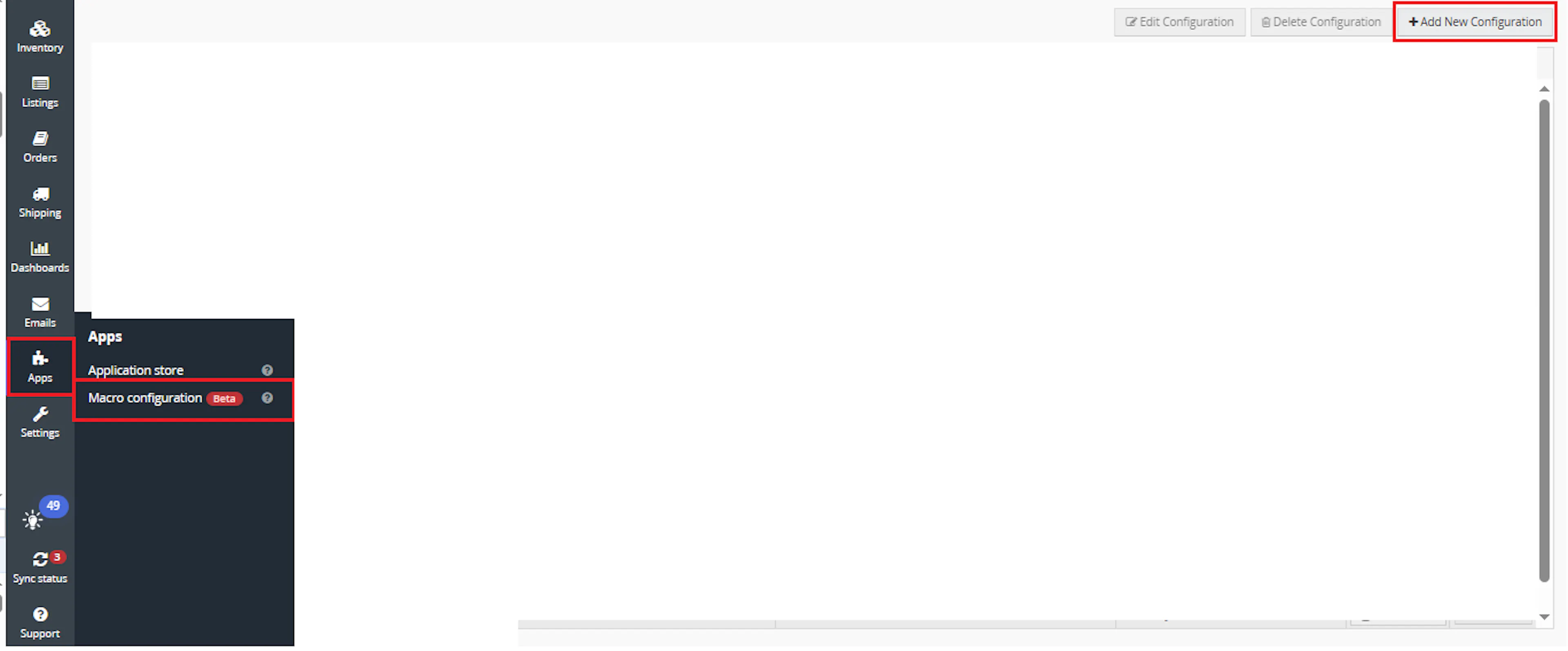
Select the Monitor Unfulfilled Orders macro and click Create Configuration

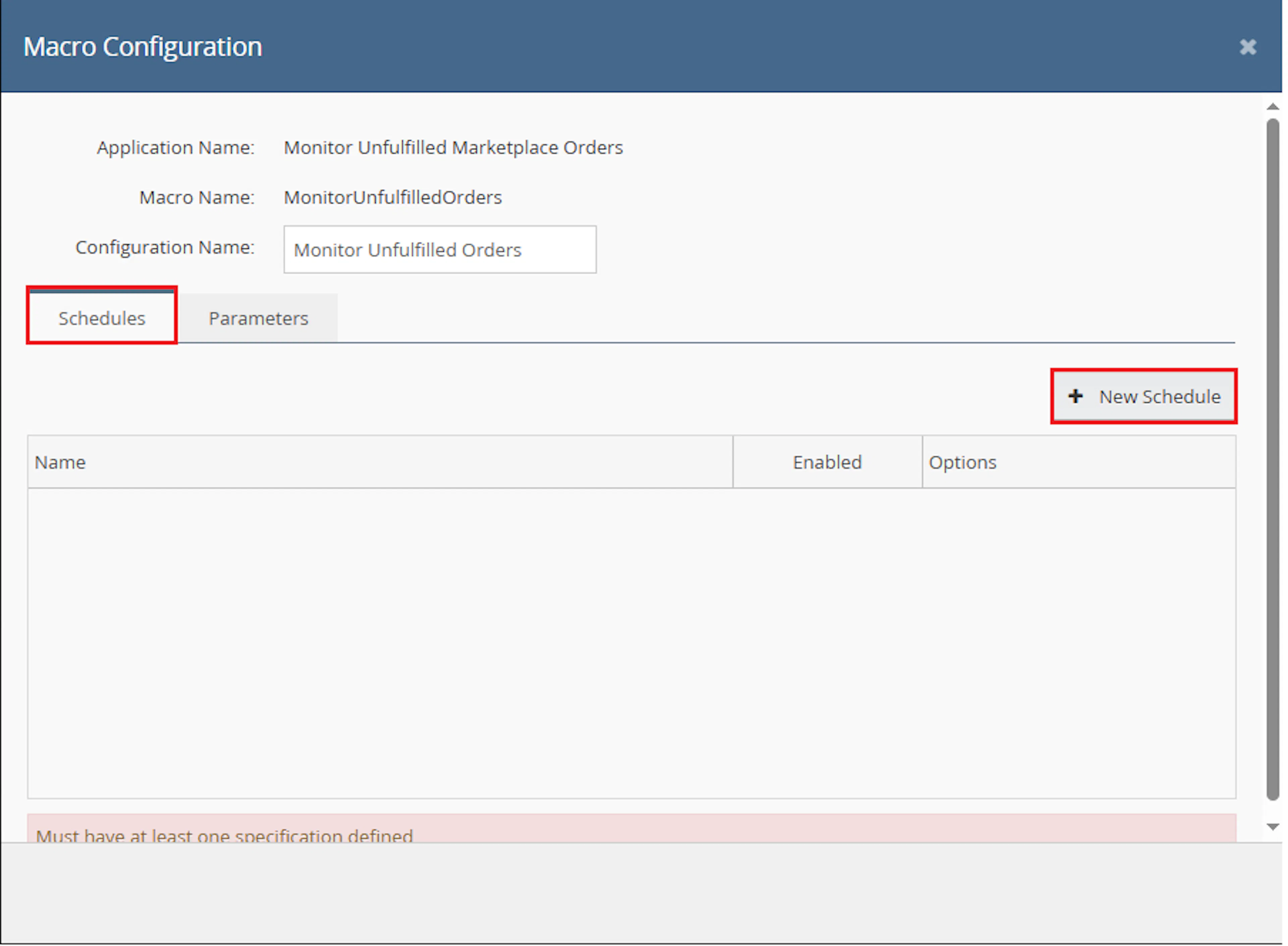
In the Macro Configuration screen, go to the Schedules tab and click on New Schedules.
-
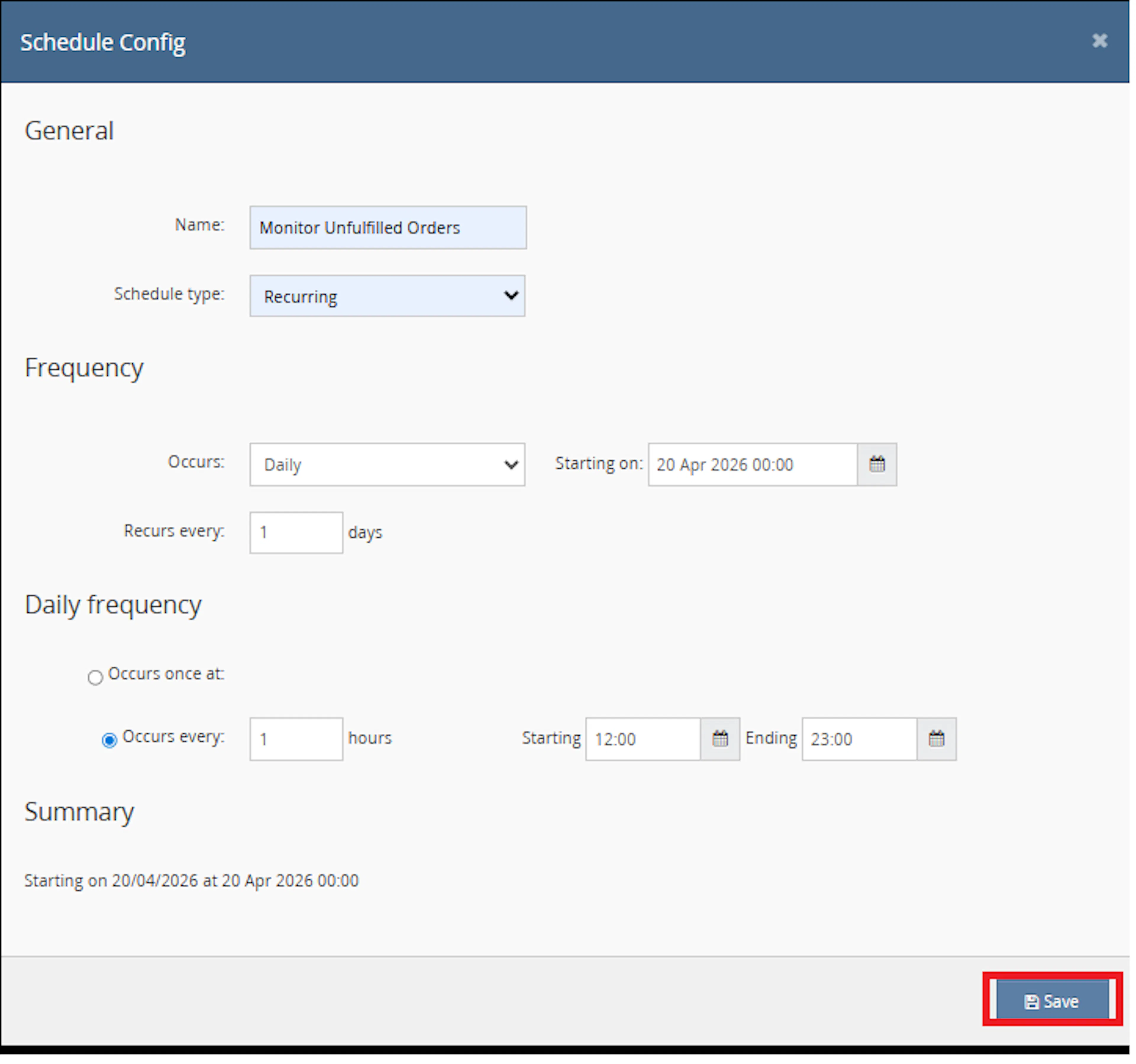
In the Schedule Config window, enter the Name
-
Select Schedule type from the dropdown:
-
One time (runs only once)
-
Recurring (runs repeatedly based on schedule)
-
-
If Recurring is selected:
-
In Frequency, choose Occurs from dropdown:
-
Daily
-
Weekly
-
-
-
Set Recurs every value (e.g., 1 day or 1 week)
-
Set the Starting on date and time
-
Under Daily frequency, choose one option:
-
Occurs once at → specify exact time
-
Occurs every → enter interval in hours and define:
-
Starting time
-
Ending time
-
-
-
Review the Summary section
-
Click Save
-
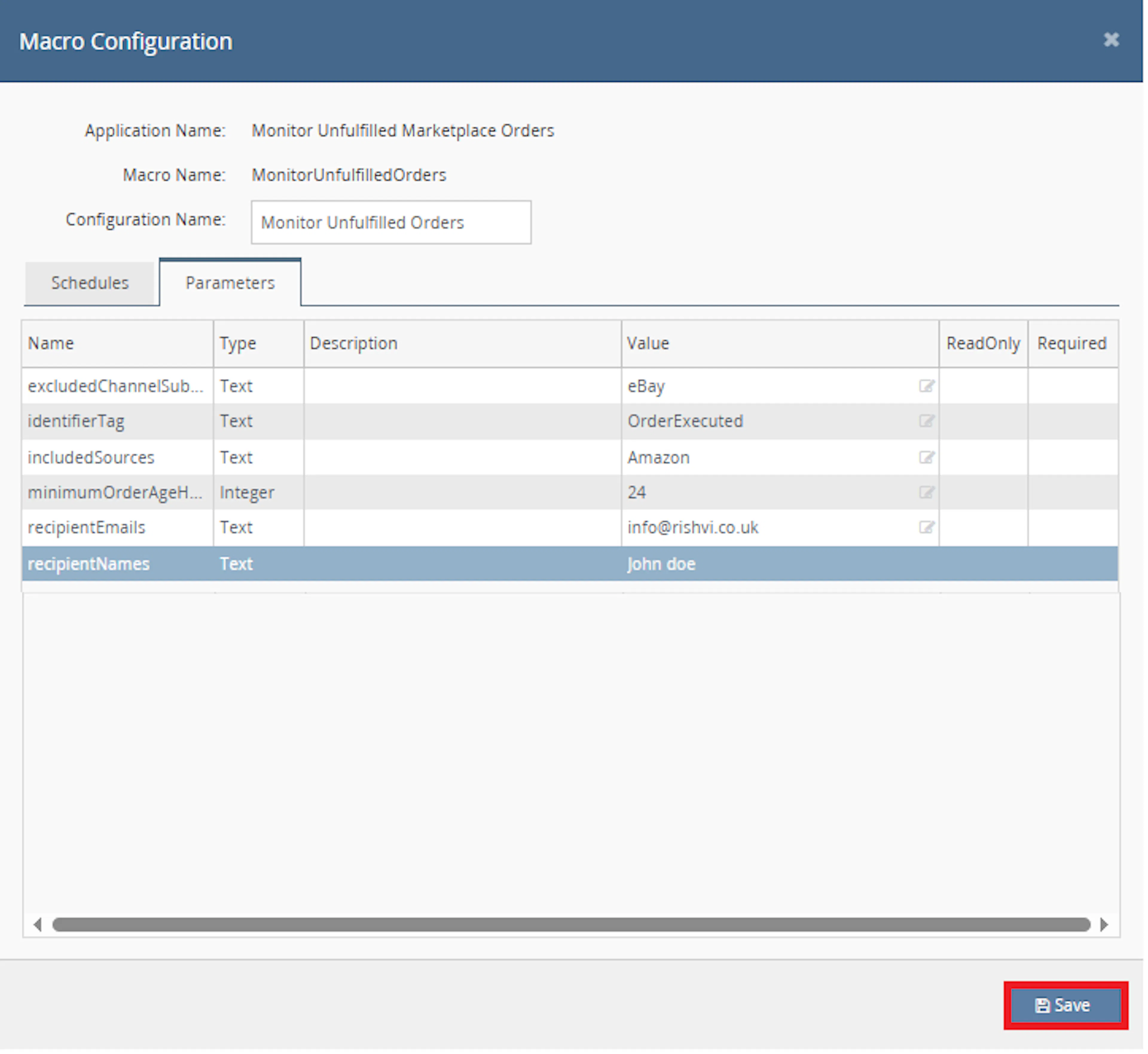
Navigate to the Parameters tab
-
In the parameters list, review each field (e.g., excludedChannelSubsource , identifierTag, includedSources, minimumminimumOrderAgeHours, recipientEmails, recipientNames)
-
Enter or update values in the Value column as required
-
Ensure all required parameters are filled
-
Verify any ReadOnly fields (cannot be edited)
-
Click Save to apply the configuration
Make sure to enable the macro to continue with the schedule Engine configuration.

Key Benefits
Managing order delays manually can be difficult, especially when dealing with high order volumes across multiple marketplaces. This feature is designed to simplify that process by providing clear visibility and timely alerts, helping your team stay proactive.
Save Time on Manual Monitoring
Eliminates the need for manual order checks by automatically monitoring open orders in the background continuously.
Get Instant Alerts on Delays
Receive timely email notifications when orders exceed your defined time limit, so your team can quickly identify issues and take immediate action.
Ensure No Order Is Missed
Continuously tracks all open orders and highlights only those that require attention, ensuring that no order is overlooked or left unprocessed.
Improve Operational Visibility
Provides clear and structured insights into delayed orders, helping you understand where delays are occurring and how to improve your workflow.
Enable Faster Decision Making
Delivers relevant order information at the right time, allowing your team to prioritise tasks and resolve delays without unnecessary back-and-forth.
Avoid Duplicate Notifications
Ensures each delayed order is alerted only once by marking processed alerts, reducing noise and keeping notifications clear and actionable.
How It Works
This feature works in the background to continuously monitor your order processing and highlight any delays. Once configured, it requires no manual intervention and ensures your team is always informed about orders that need attention.
Step 1
Orders are imported into Linnworks from your connected marketplaces (such as Amazon, eBay, etc.).
Step 2
The system regularly checks all orders that are still in Open status.
Step 3
It calculates how long each order has been waiting since it was received.
Step 4
If an order exceeds your defined time limit, it is marked as delayed.
Step 5
An email notification is sent to your team with order details and a downloadable report.
Usage of App
This feature is designed to work automatically once configured. It monitors your orders in the background and only notifies your team when action is required, making it simple and efficient to use.
Minimum Order Age (Hours)
Defines how long an order can remain unprocessed before it is considered delayed (for example, 24 hours).
Included Sources (Optional)
Allows you to select specific marketplaces to monitor, such as Amazon or eBay. If not specified, all sources will be included.
Excluded Sub Sources (Optional)
Let's you exclude certain order types or sub sources that you do not want to monitor.
Recipient Emails
Email addresses that will receive notifications when delayed orders are detected. Multiple recipients can be added.
Identifier Tag
A unique tag used internally to ensure the same order is not alerted multiple times.
Key Points to Remember
-
The process runs in the background without interrupting your workflow
-
Only relevant orders are evaluated based on your configuration
-
Alerts are triggered only when necessary, avoiding unnecessary noise
Once the macro is running, it provides clear and actionable results that help your team stay on top of delayed orders and maintain smooth operations.
Legal Information
-
Privacy Policy: https://rishvi.co.uk/privacy-policy/
-
Terms and Conditions: https://rishvi.co.uk/terms-conditions/
Please review these pages to understand how data is handled and the terms governing the use of this integration.
What You Can Expect
-
Delayed orders are automatically identified
Orders that exceed your defined time limit are flagged without any manual effort -
Email notifications are sent instantly
Your team receives timely alerts with all necessary order details -
Detailed report for better tracking
A CSV file is included with each alert for easy review and follow-up -
No duplicate alerts
Each order is reported only once, ensuring notifications remain relevant -
Improved order processing efficiency
Your team can quickly take action on delays and keep orders moving
Overall Impact
This ensures better visibility, faster response times, and a more efficient fulfilment process across your operations.
What To Do When You Receive an Alert
When your team receives a notification, it means some orders require immediate attention. Taking quick action helps avoid delays and ensures smooth order fulfilment.
Steps to Follow
Step 1
Open Linnworks and locate the affected orders mentioned in the email
Step 2
Review the order details and check the reason for delay
Step 3
Identify the issue, such as:
-
Stock not available
-
Warehouse delay
-
Integration or system issue
Step 4
Take the necessary action:
-
Process the order
-
Allocate stock
-
Escalate internally if required
Why This Matters
Acting quickly on alerts helps:
-
Prevent further delays
-
Improve customer satisfaction
-
Keep operations running smoothly
Best Practices
To get the most value from this feature, it’s important to configure and use it in a way that aligns with your operational workflow. Following these best practices will help you maximise efficiency and avoid unnecessary delays.
Recommended Guidelines
-
Set a realistic time threshold
Choose a delay limit that matches your normal processing time, so alerts are meaningful and not too frequent -
Monitor alerts regularly
Ensure your team checks notifications consistently to avoid missing important updates -
Act quickly on delays
Address flagged orders as soon as possible to prevent customer impact -
Keep inventory updated
Maintaining accurate stock levels helps reduce delays caused by unavailable items -
Review and adjust settings when needed
Update your configuration as your business grows or processes change
Regular monitoring and quick action are key to maintaining smooth order fulfilment and high customer satisfaction.
Example Scenario
To better understand how this works, here’s a simple example:
If your delay threshold is set to 24 hours:
-
Order A (30 hours old) → Alert sent
-
Order B (10 hours old) → No alert
-
Order C (26 hours old) → Alert sent
Your team will receive an email notification with details of Order A and Order C, along with a CSV report for further review.
What This Means
-
Only orders that exceed the defined time limit are flagged
-
Your team focuses only on orders that need attention
-
No unnecessary alerts are generated
Final Summary
The Automated Monitoring & Notification for Unfulfilled Marketplace Orders feature helps you stay in control of your order processing by automatically identifying delays and notifying your team at the right time.
By reducing manual monitoring, improving visibility, and enabling faster action, this solution ensures smoother operations and better customer satisfaction.