Dropship Order Email Notification
Automatically generate and send dropship order emails for selected Linnworks orders, assign orders to a defined folder, and route emails to configured recipients based on item rules.
Overview
Dropship Order Email Notification is an automated supplier and internal-team communication solution for Linnworks. It creates a structured email for each selected order using the order number, item details, and customer delivery information.
The macro processes order IDs supplied through the Linnworks Rule Engine. For each qualifying order, it:
- Retrieves the complete Linnworks order.
- Builds an HTML email containing the required order information.
- Evaluates item category and SKU routing rules.
- Creates the defined Linnworks order folder when required.
- Assigns the processed order to that folder.
- Sends the email through the SMTP settings defined inside the macro code.
Recipient selection can vary according to the category and SKU rules implemented in the macro.
Send consistent dropship order emails automatically while grouping processed orders into the appropriate Linnworks folder.
Who Should Use Dropship Order Email Notification
Dropship Operations Teams
Teams coordinating supplier-fulfilled orders can send structured order requests without manually copying Linnworks order data.
Warehouse & Fulfilment Teams
Fulfilment teams can keep dropship orders grouped in a defined folder and confirm that the required email was generated.
Integration Administrators
Administrators maintain SMTP settings, recipient rules, folder names, category checks, SKU routing logic, and Rule Engine configuration.
Operations & Customer Service Teams
Operations teams can review processing logs and confirm that order and delivery details were routed to the correct recipient.
Key Features
Automatic Email Generation
Builds a formatted HTML email automatically for each selected Linnworks order.
Structured Item Details
Includes item quantities, SKUs, and product titles in the generated email.
Delivery Address Inclusion
Adds the customer name, company, address lines, town, region, postcode, telephone number, and email address.
Rule-Based Recipient Routing
Uses item category and SKU matching logic to determine the configured email recipient.
Automatic Folder Assignment
Creates the defined Linnworks order folder when necessary and assigns processed orders to it.
SMTP Delivery and Logging
Sends each message through the SMTP configuration defined in the macro and records the result in the execution log.
How Dropship Order Email Notification Works
Dropship Order Email Notification follows a defined sequence whenever it receives one or more order IDs through the Linnworks Rule Engine.
Step 1: Read selected order IDs
The macro loops through each order ID supplied through the OrderIds parameter.
Step 2: Retrieve the Linnworks order
The complete order details are retrieved for each selected order.
Step 3: Create the email subject
The macro builds an email subject using the Linnworks order number.
Step 4: Start the HTML email body
A formatted order-request message is created and the Linnworks order number is added.
Step 5: Add order item details
Each item's quantity, SKU, and title are added to the email body.
Step 6: Evaluate routing rules
Item categories and SKUs are checked against the recipient-routing logic defined inside the macro.
Step 7: Create the order folder
The defined Linnworks folder is created when it does not already exist.
Step 8: Assign the order to the folder
The selected order is placed into the defined folder for operational review.
Step 9: Add delivery information
Customer delivery address and contact details are appended to the HTML email.
Step 10: Select the recipient
The target recipient is selected according to the implemented category and SKU rules.
Step 11: Send the email
The message is sent using the SMTP server, sender details, and credentials stored in the macro code.
Step 12: Record the result
The email response, processing errors, and macro completion status are written to the execution log.
Configure the Macro
Once the app is installed, you need to create a macro configuration so the system knows which macro to run when the rule is triggered.
This setup can be adjusted anytime based on your operational requirements.
Note: SMTP server details, sender details, recipient email addresses, folder name, category checks, and SKU routing logic are currently defined inside the macro code. They are not entered as configurable parameters in the Macro Configuration screen.
Steps to Configure
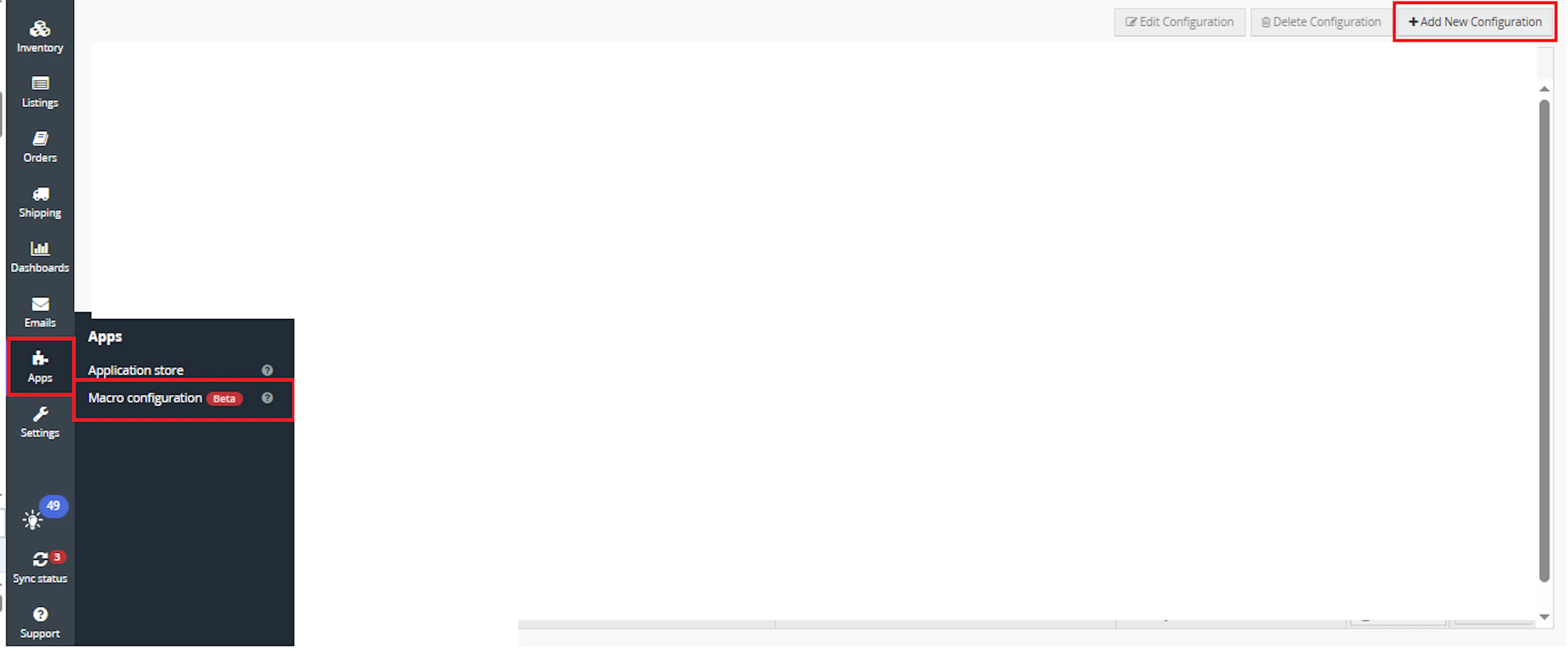
Go to Apps > Macro Configuration and click + Add new configuration.
Select the DropshipOrderEmailNotificat macro and click Create Configuration
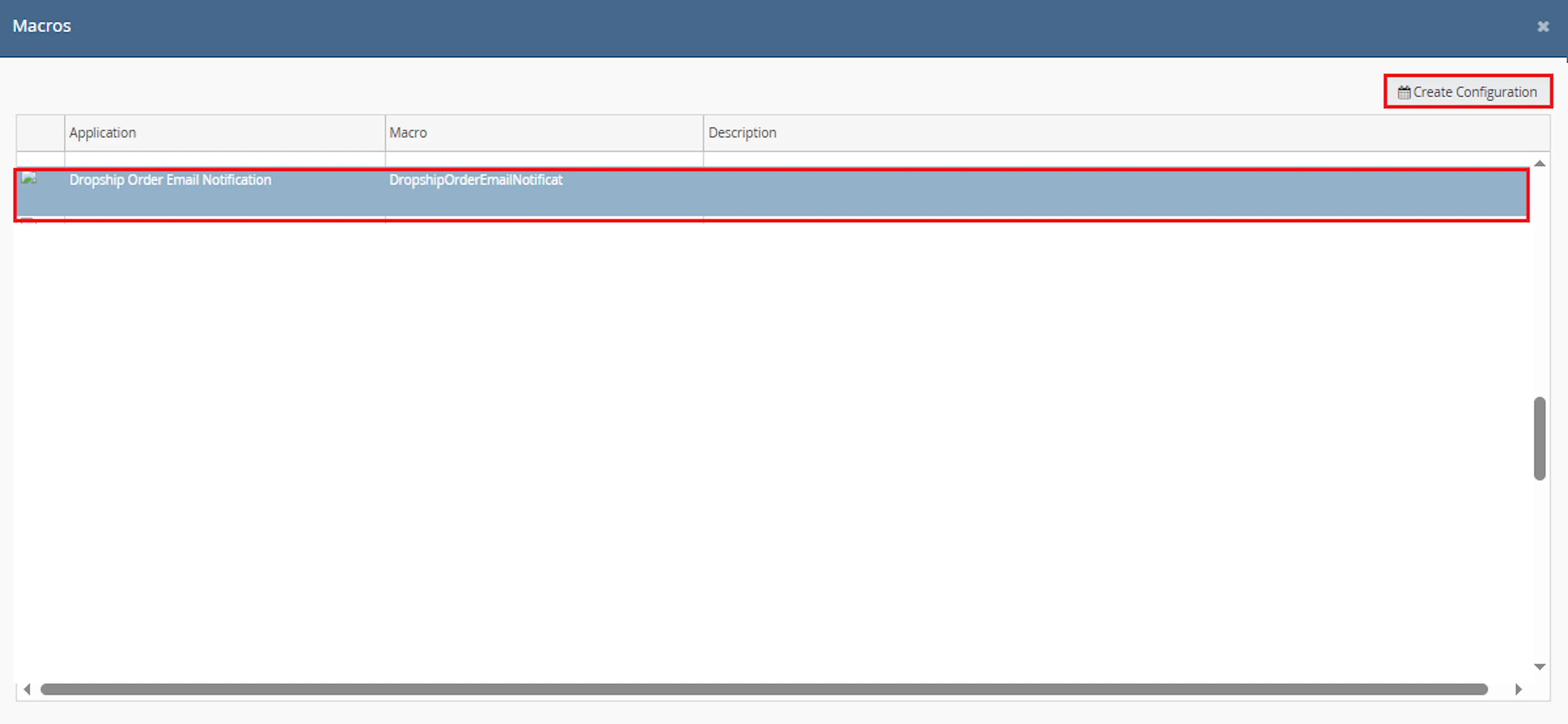
This creates a new configuration where the selected order IDs are passed to the macro when it runs from the rule.
In the Macro Configuration screen, add the configuration name.
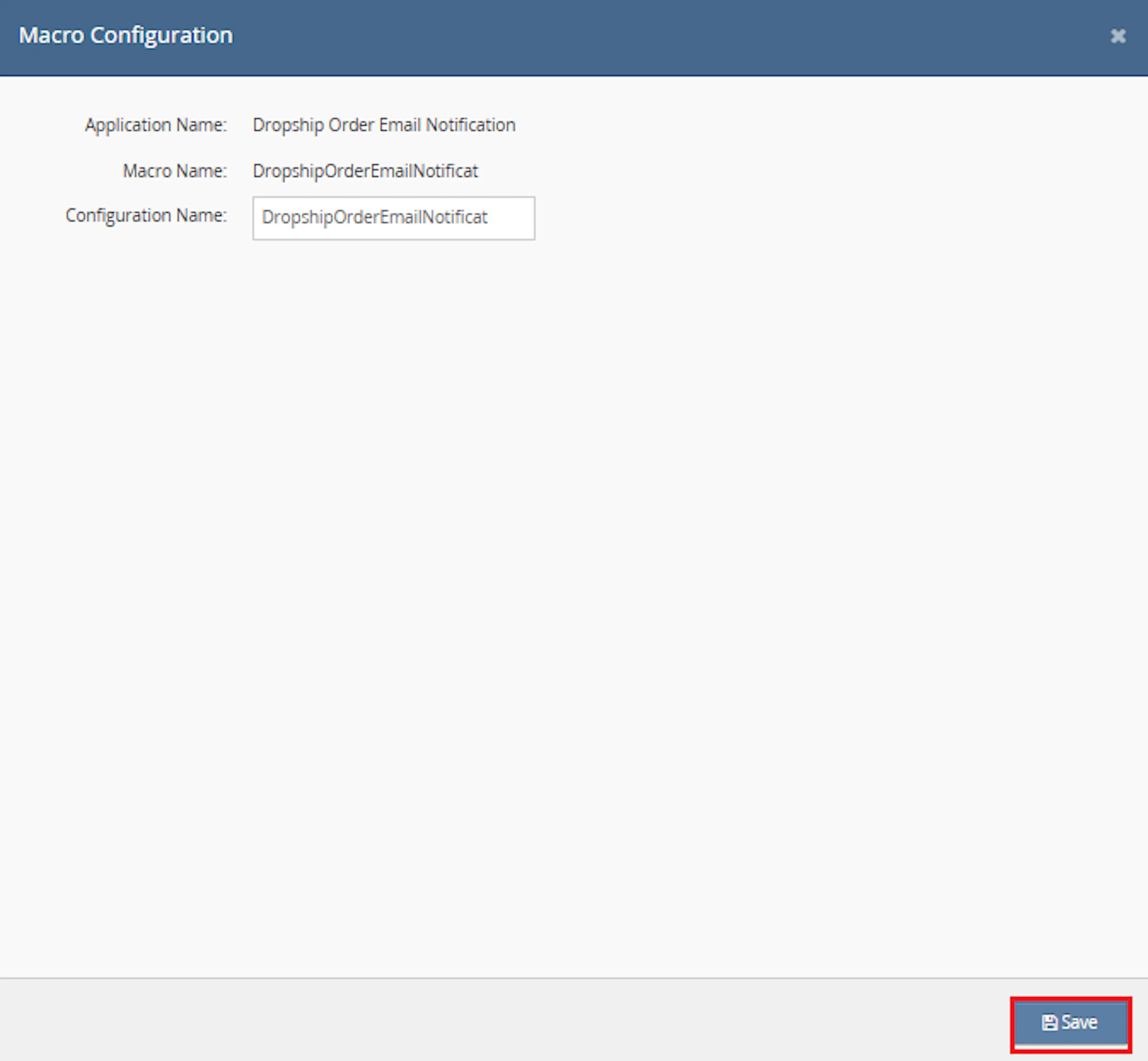
Example configuration name:
Dropship Order Email Notification
This macro does not require additional user-entered parameter values. The OrderIds value is provided automatically by the selected orders or rule context.
Make sure to enable the macro to continue with the Rule Engine configuration.

Note: If the macro is not enabled, it will not appear in the Action value list when setting up the rule.
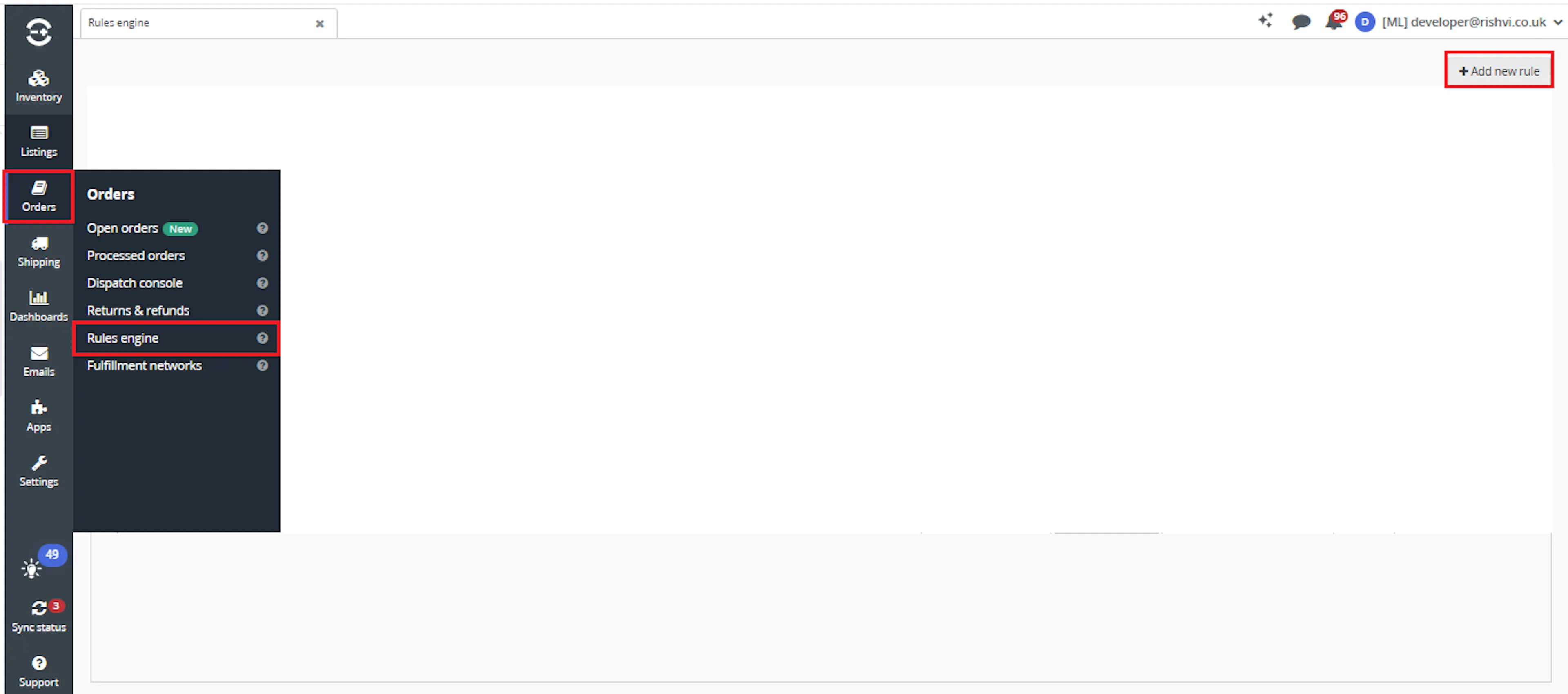
Go to Orders > Rules engine and click + Add new rule.
Key Benefits
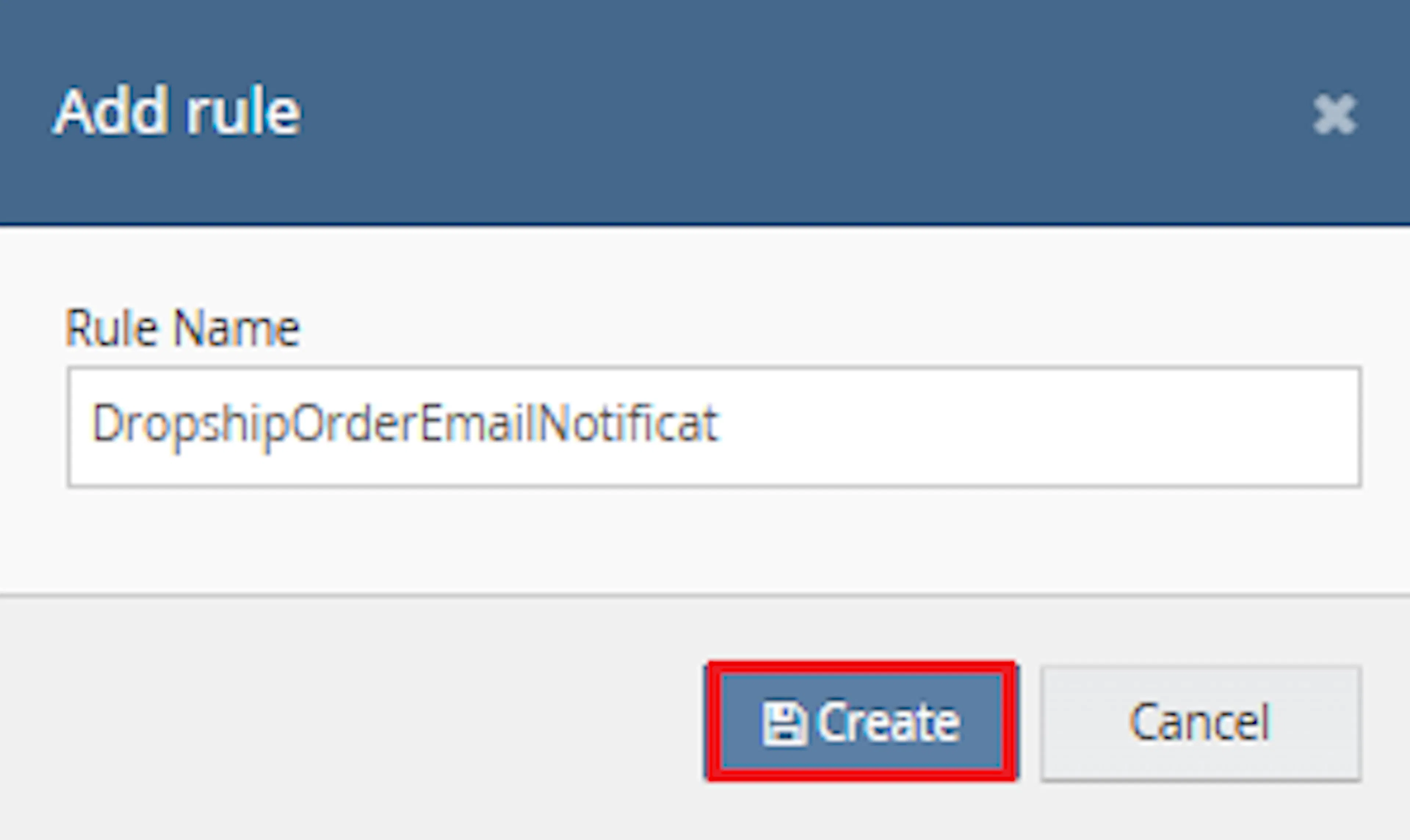
Enter the rule name and click Create.
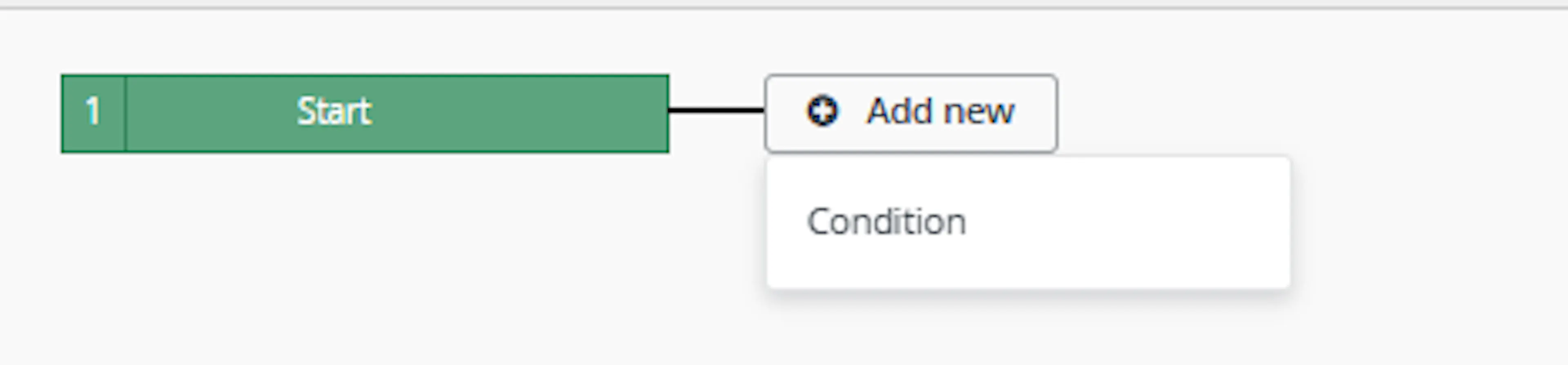
Click Add new, select Condition, set the condition as required, and save it.
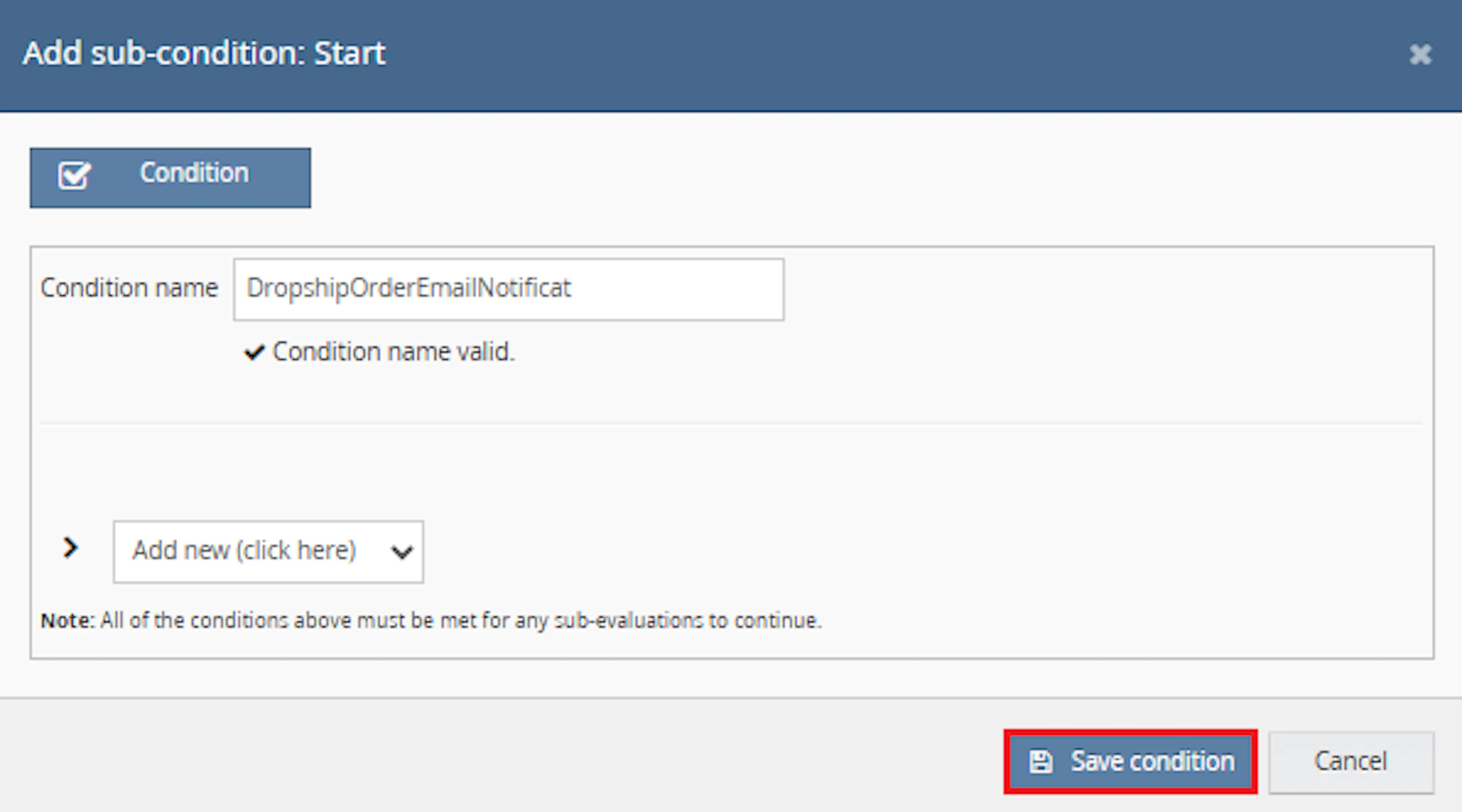
Example condition:
Order is received
You can adjust the condition based on when the dropship email should be created and sent.
Add the macro action and click Save.

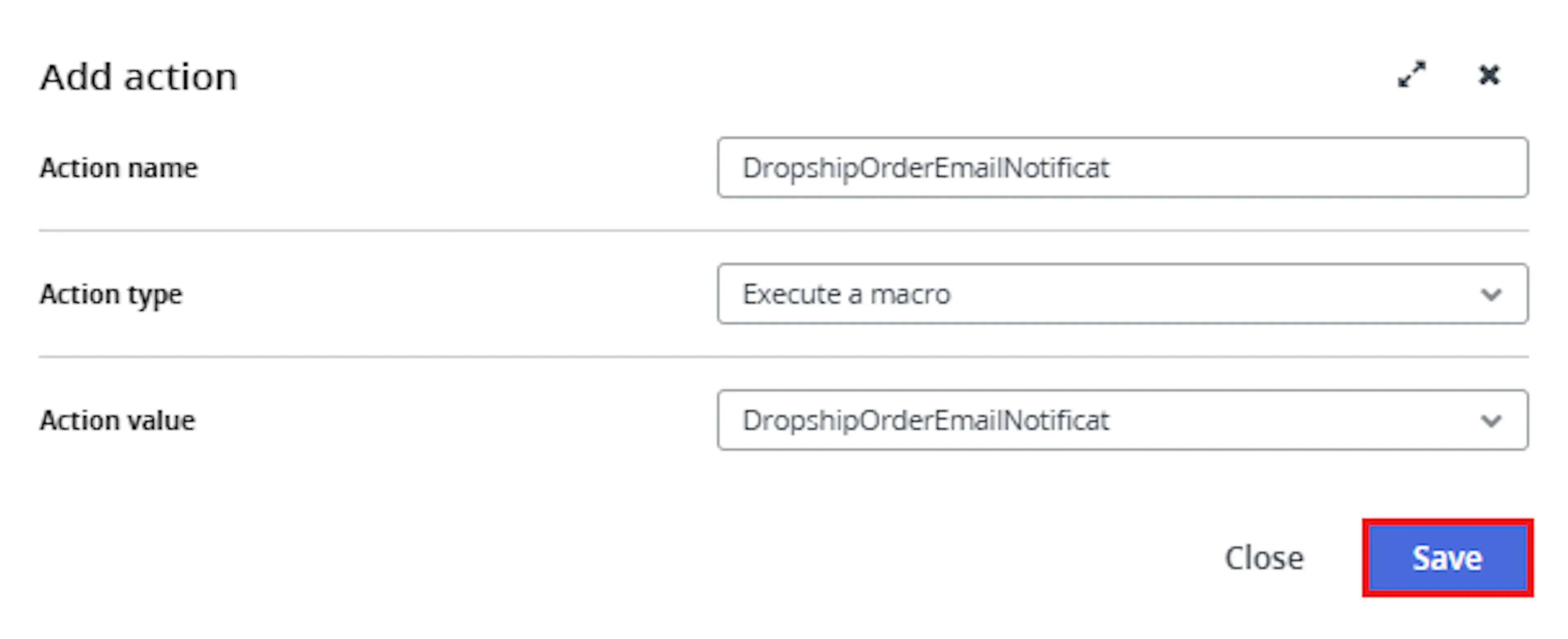
In the Add action window, enter the Action name, for example:
DropshipOrderEmailNotification
-
Set Action type to:
Execute a macro -
In Action value, select:
GenericDropshipEmail -
Click Save
Note: If the macro is not enabled, it will not appear in the Action value list when setting up the rule.
Review the saved rule setup.
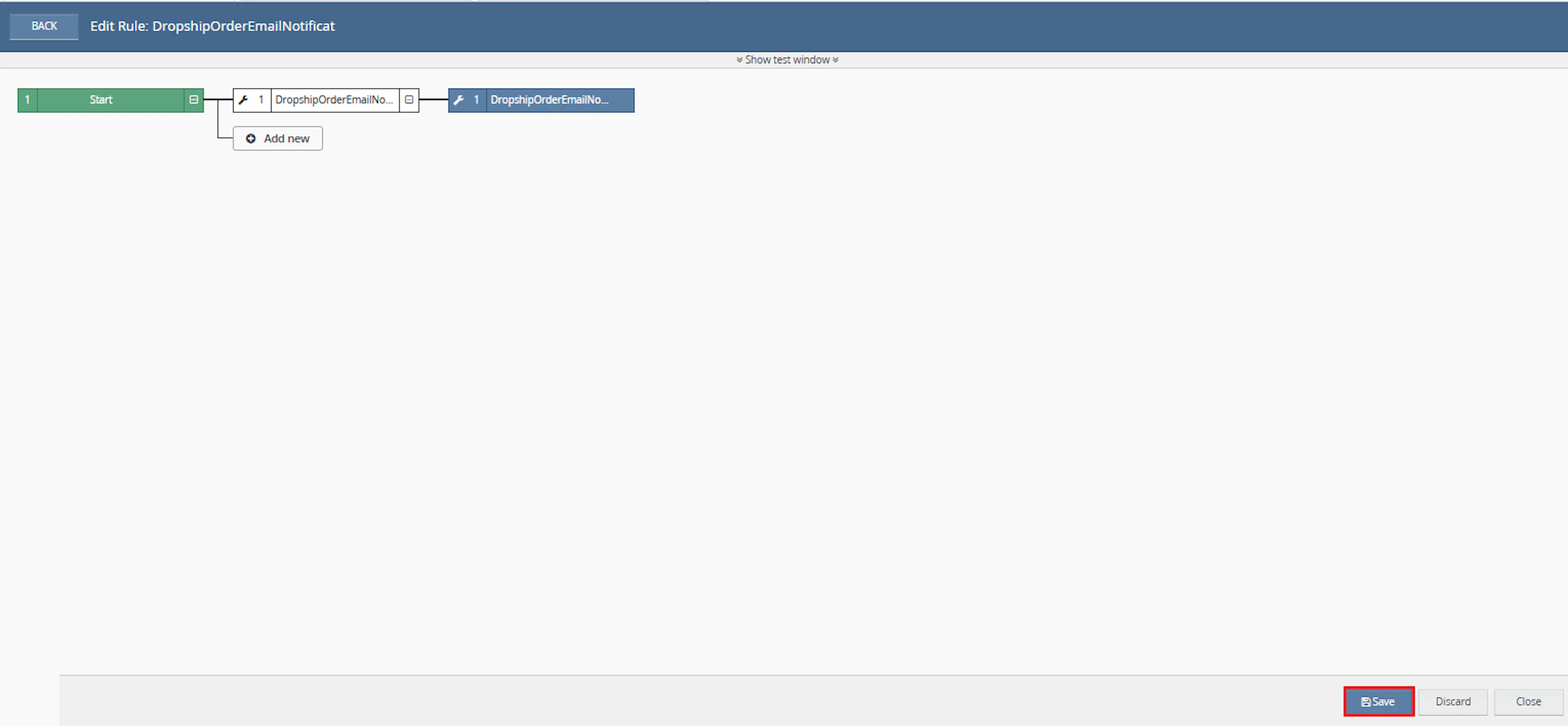
- Verify the condition and action are connected correctly
- Confirm the action value is set to
GenericDropshipEmail - Click Save in the bottom-right corner to save the rule
Key Benefits
Creating dropship emails manually requires teams to copy product and customer information, determine the correct recipient, send the message, and then organise the Linnworks order separately.
Dropship Order Email Notification applies the same communication workflow automatically to each selected order.
Reduce manual email preparation, improve dropship communication consistency, and keep processed orders grouped for operational review.
Reduce Manual Email Creation
Removes the need to manually copy order, item, and delivery details into individual supplier emails.
Send Consistent Order Information
Uses a structured HTML format so recipients receive the same types of order information each time.
Route Emails Automatically
Applies category and SKU rules to select the intended configured recipient.
Group Processed Orders
Assigns orders to the defined Linnworks folder after the folder has been created or confirmed.
Process Multiple Orders
Generates and sends a separate email for each qualifying order supplied through OrderIds.
Maintain Execution Visibility
Records email responses, folder operations, errors, and completion through macro logging.
Usage of App
Dropship Order Email Notification is triggered through the Linnworks Rule Engine to generate and send dropship emails for selected orders.
Execution
Trigger via Rule Engine
Call the GenericDropshipEmail action through the Rule Engine with the required OrderIds. No additional values are entered through Macro Configuration.
Outcome
When the macro runs against an order, it:
Retrieves the selected order
Reads the complete order, item, customer, source, and delivery information from Linnworks.
Builds the email content
Creates an HTML message containing the order number, item quantities, SKUs, titles, and delivery details.
Checks item routing rules
Evaluates the order source, item categories, and SKUs against the rules defined in the macro.
Creates or finds the folder
Ensures that the required Linnworks folder exists.
Assigns the order
Places the processed order into the defined folder.
Selects the recipient
Chooses the configured recipient based on the implemented routing rules.
Sends the email
Uses the SMTP details defined in the macro code to deliver the message.
Logs the response
Records the send result, any exceptions, and completion status.
Input Parameters
Dropship Order Email Notification requires the following runtime input:
| Parameter | Required | Description |
|---|---|---|
| OrderIds | Yes | The Linnworks order IDs to process. Supplied automatically through the Rule Engine or selected-order context. |
No custom values are entered through the Macro Configuration screen.
The macro instead relies on settings defined inside its code:
| Internal Setting | Purpose |
|---|---|
| SMTP server | Defines the email server used to send messages. |
| SMTP port and security settings | Control how the SMTP connection is established. |
| SMTP username and password | Authenticate the sender with the email server. |
| Sender name and address | Define the From details shown on the email. |
| Recipient addresses | Define the possible email destinations. |
| Folder name | Defines the Linnworks folder used for processed orders. |
| Category rules | Help determine the required email route. |
| SKU rules | Provide additional recipient-routing conditions. |
| Direct source rule | Controls when category and SKU checks are applied according to the macro logic. |
Security: SMTP passwords, usernames, server information, and recipient addresses should not be included in public documentation, logs, screenshots, or source repositories.
Email Content
The generated email includes information from the selected Linnworks order.
| Email Section | Included Information |
|---|---|
| Subject | Uses the Linnworks order number. |
| Order reference | Includes the Linnworks order number in the HTML body. |
| Item quantity | Adds the ordered quantity for each item. |
| Item SKU | Adds the Linnworks or channel SKU available on the order item. |
| Item title | Adds the product title. |
| Customer name | Includes the delivery customer name. |
| Company | Includes the delivery company where available. |
| Address lines | Includes the delivery address lines. |
| Town and region | Includes the delivery town and region. |
| Postcode | Includes the delivery postcode. |
| Telephone number | Includes the customer delivery telephone number. |
| Email address | Includes the customer email address. |
The supplied documentation does not provide the complete HTML template or exact field formatting.
Email Routing Rules
Recipient routing is controlled by logic inside the macro rather than through the Macro Configuration screen.
| Routing Input | Behaviour |
|---|---|
| Order source | The macro reads the source and applies category or SKU checks when the source is not the configured direct source. |
| Item category | Can direct the message to a recipient associated with a product category. |
| Item SKU | Can apply a specific recipient route when the SKU matches an implemented rule. |
| No matching route | The resulting behaviour depends on the fallback logic defined inside the macro. |
Test every category, SKU, source, and fallback route before enabling the macro for live orders.
Folder Assignment
The macro groups processed orders in a defined Linnworks order folder.
| Folder Behaviour | Description |
|---|---|
| Folder lookup | Checks whether the required folder already exists. |
| Folder creation | Creates the folder when it cannot be found. |
| Order assignment | Assigns each processed order to the folder. |
| Folder name | Defined inside the macro code rather than Macro Configuration. |
The exact folder name is not provided in the supplied public documentation.
Best Practices
Test SMTP delivery, recipient routing, and folder assignment with controlled orders before enabling the macro in a live workflow.
Protect SMTP credentials
Store usernames and passwords securely and avoid exposing them in documentation, logs, or public source control.
Validate recipient routing
Test every category, SKU, source, and fallback path to confirm that emails reach the correct destination.
Review the email template
Confirm that the HTML body contains every item and delivery field required by the supplier or internal team.
Check customer data quality
Ensure delivery addresses and contact details are complete before the email is generated.
Use targeted Rule Engine conditions
Trigger the macro only for orders intended for dropship email processing.
Monitor execution logs
Review logs for recipient selection, folder operations, SMTP responses, failures, and completion.
FAQ
How is Dropship Order Email Notification triggered?
The macro is triggered through the Linnworks Rule Engine. Matching order IDs are supplied through the OrderIds parameter.
Which action value should be selected?
Select GenericDropshipEmail in the Rule Engine action.
Which macro is selected during Macro Configuration?
The supplied configuration instructions identify DropshipOrderEmailNotificat.
Does the macro require additional configuration parameters?
No. The configuration requires a name and must be enabled, but no additional parameter values are entered.
Where are the SMTP settings configured?
They are defined inside the macro code.
Where are the recipient addresses configured?
Recipient addresses are defined inside the macro code.
Where is the folder name configured?
The folder name is also defined inside the macro code.
What information is included in the email?
The email contains the order number, item quantities, SKUs, titles, and customer delivery and contact information.
Is the email formatted as HTML?
Yes. The macro builds an HTML email body.
Does the macro send one email for all selected orders?
The supplied documentation states that it sends one email per qualifying selected order.
How is the recipient selected?
The macro uses the order source, item category, and SKU routing rules defined in its code.
Are the routing rules visible in Macro Configuration?
No. They are not exposed as configuration parameters.
What happens when the required Linnworks folder does not exist?
The macro creates the defined folder before assigning the order.
Does the macro assign every processed order to the folder?
The documented workflow states that the processed order is assigned to the defined folder during processing.
Does the macro add an order note?
No order-note behaviour is described in the supplied documentation.
Does the macro change stock or shipping services?
No. The documented purpose is email generation, routing, folder assignment, and logging.
Does the macro attach documents to the email?
No attachment behaviour is described.
What happens when SMTP delivery fails?
The failure is recorded through the macro logger. The supplied documentation does not describe an automatic retry mechanism.
What should be checked when an email reaches the wrong recipient?
Review the configured source, category, SKU, and fallback routing logic inside the macro code.
What should be checked when no email is sent?
Confirm that the order matched the Rule Engine condition, the macro is enabled, the action value is GenericDropshipEmail, and the SMTP configuration is valid.
What should be checked when the order is not assigned to the folder?
Review the folder name, folder-creation response, order permissions, and macro execution logs.
Legal Information
- Privacy Policy: https://rishvi.co.uk/privacy-policy/
- Terms and Conditions: https://rishvi.co.uk/terms-conditions/
Please review these pages to understand how data is handled and the terms governing the use of this application.
Because the email contains customer delivery and contact information, SMTP configuration and recipient access should be reviewed against your organisation's security and data-protection requirements.
Summary
Dropship Order Email Notification automates the creation and delivery of structured dropship emails for selected Linnworks orders.
Once connected to the Rule Engine, the macro retrieves each order, builds an HTML email from item and delivery data, evaluates category and SKU routing rules, creates or finds the required folder, assigns the order, and sends the message using its internal SMTP configuration.
Automatic email generation
A structured HTML dropship email is created for each qualifying selected order.
Order and customer details
Item quantities, SKUs, titles, and delivery information are included automatically.
Rule-based routing
Category, SKU, and source rules determine the configured recipient.
Automatic folder assignment
Processed orders are grouped in the Linnworks folder defined by the macro.
For emails that are not generated or routed as expected, review the Rule Engine and macro logs, verify the SMTP configuration, confirm the category and SKU routing rules, and check that the action value is set to GenericDropshipEmail.