Reduce Item’s Discount
Automatically update discounts on zero-value Linnworks order items and rebalance the recovered value against an eligible paid item on the same order.
Managing zero-value order items manually can be time-consuming and increases the risk of inconsistent pricing adjustments across order lines. The Automated Discount Rebalancing for Zero-Value Order Items macro helps identify selected orders that contain items with zero or negative value and updates their discount using a configured discount value.
This solution checks each selected Linnworks order, finds order items where CostIncTax is less than or equal to zero and the item discount is 100, changes the item discount to the configured value, marks the item as changed, and then offsets the recovered value against an eligible paid item on the same order.
With this automated approach, your team can handle zero-value order items more consistently, reduce manual order edits, and keep an item-level marker showing that the zero-value item has already been adjusted.
Automatically adjust zero-value order items and rebalance the related discount value against a paid item in the same order.
Configure the Macro
Once the app is installed, you need to set up the configuration, so the system knows which orders to review and what discount value to apply to eligible zero-value items. This is a one-time setup and can be adjusted anytime based on your operational needs.
Steps to Configure
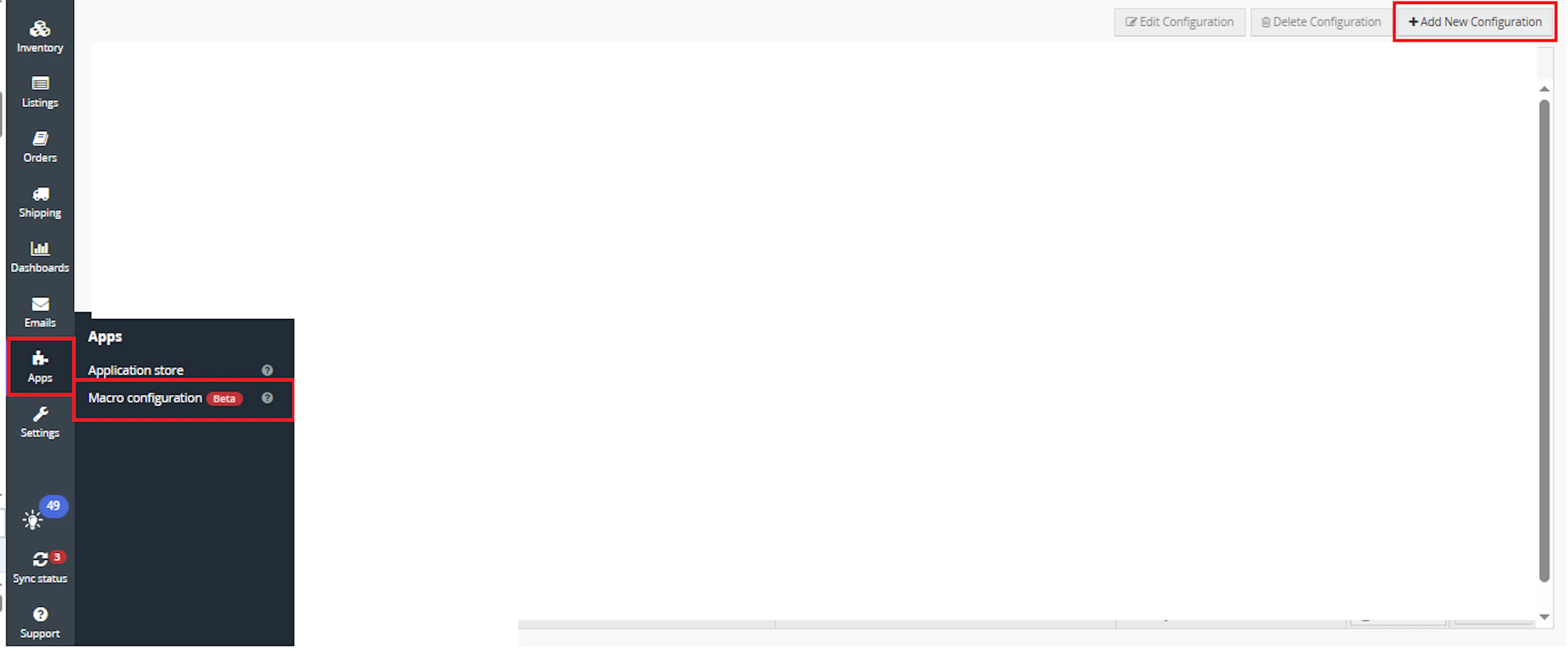
Go to Apps > Macro Configuration and click + Add new configuration.
Select the Reduce Item Discount macro and click Create Configuration
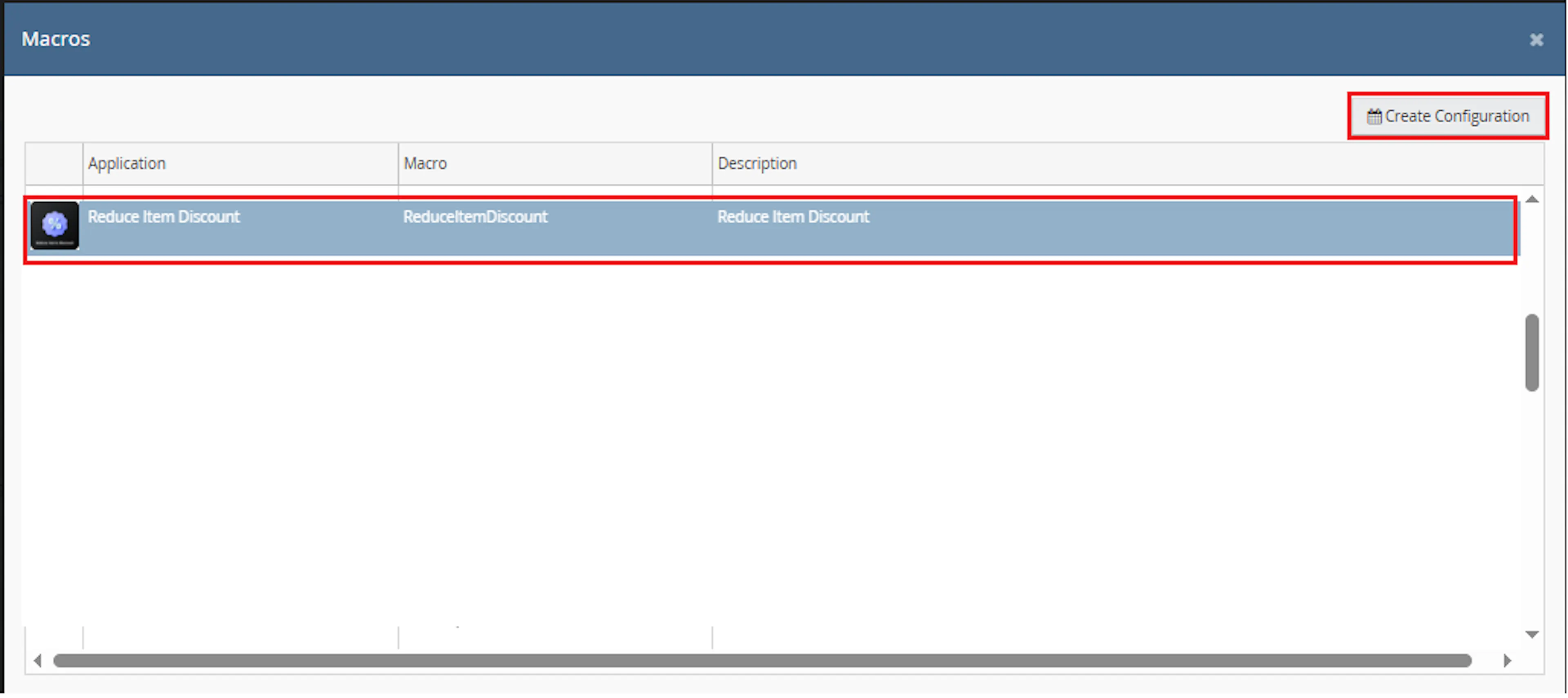
This creates a new configuration where you can define the schedule and required parameter values.
In the Macro Configuration screen, add the configuration name and parameter values.
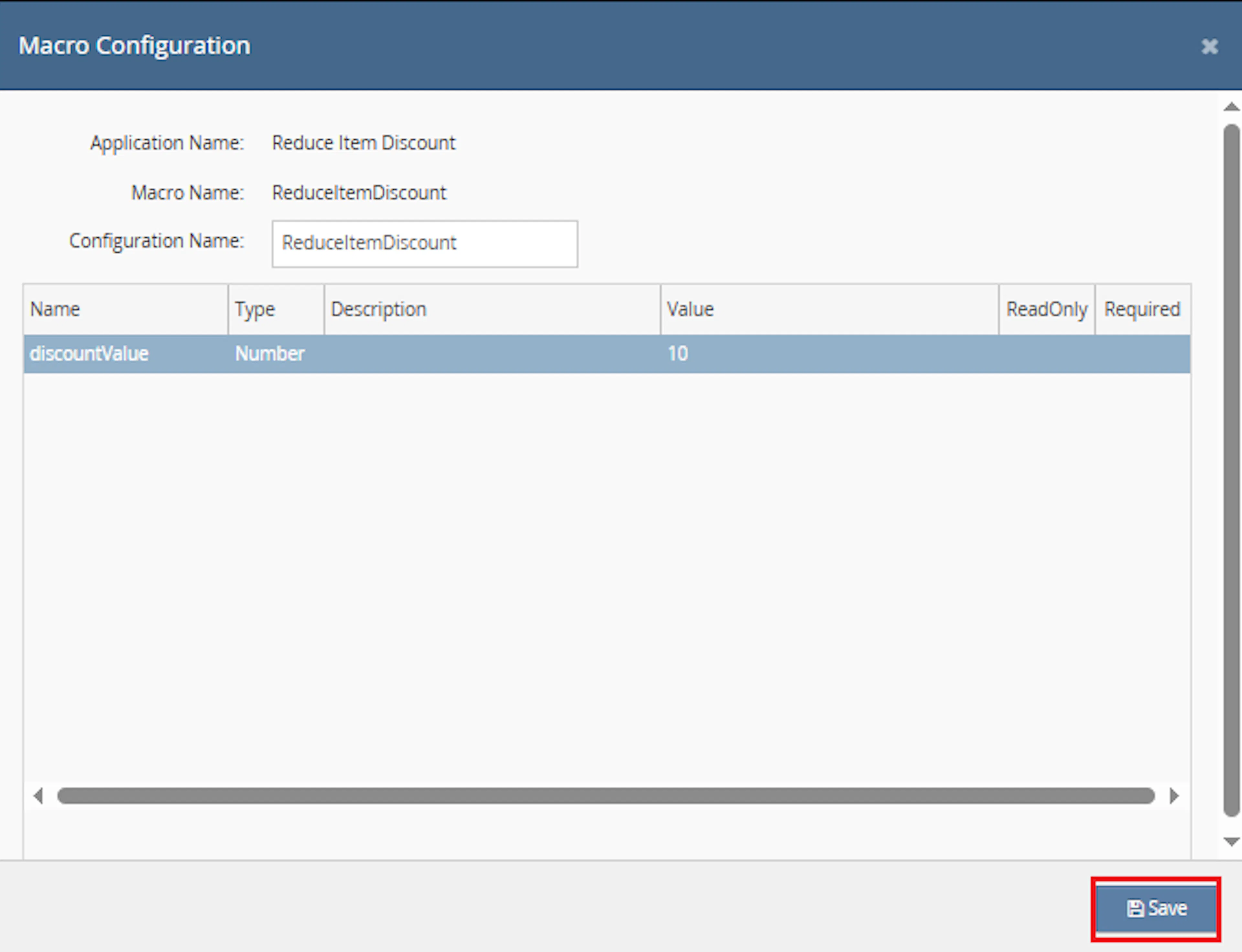
- Enter or update the discountValue value in the Value column
Make sure to enable the macro to continue with the Rule Engine configuration.

Note: If the macro is not enabled, it will not appear in the Action value list when setting up the rule.
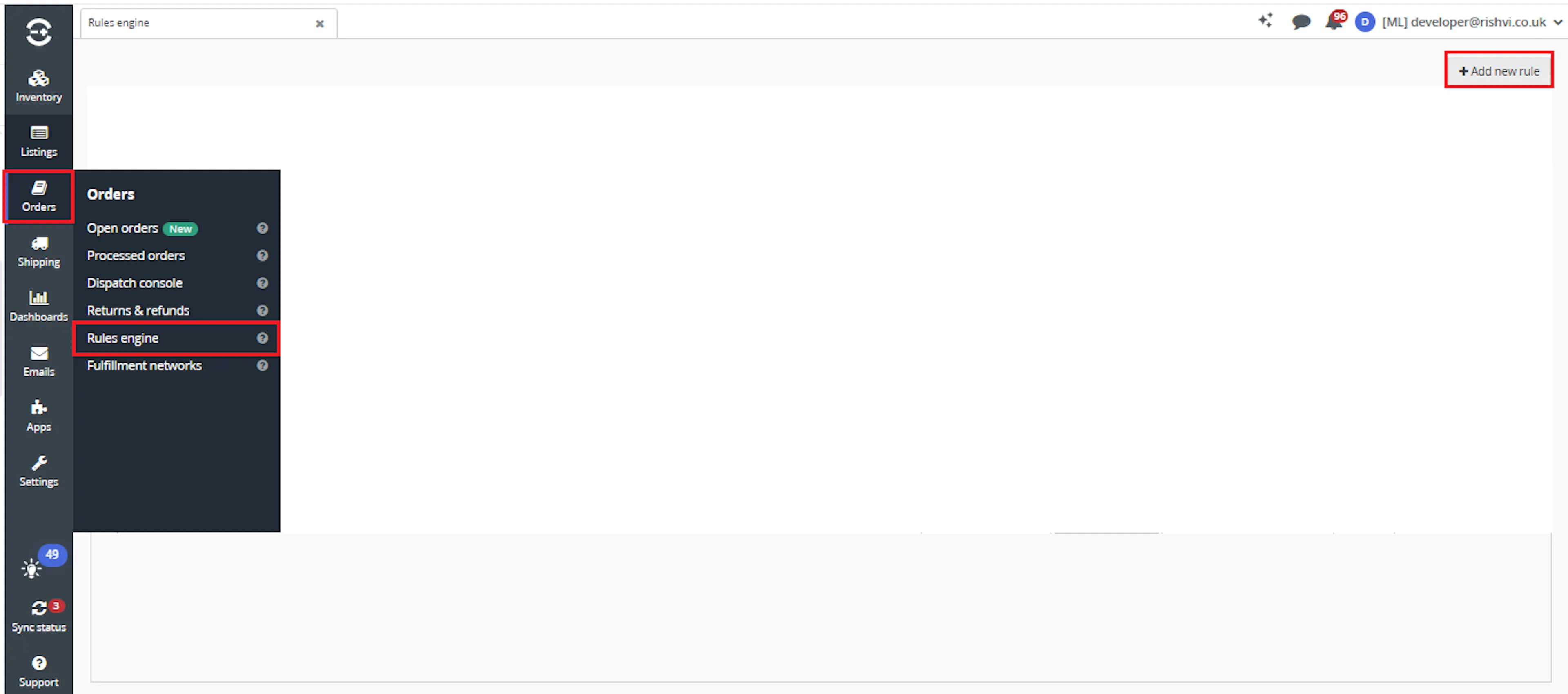
Go to Orders > Rules engine and click + Add new rule.
Key Benefits
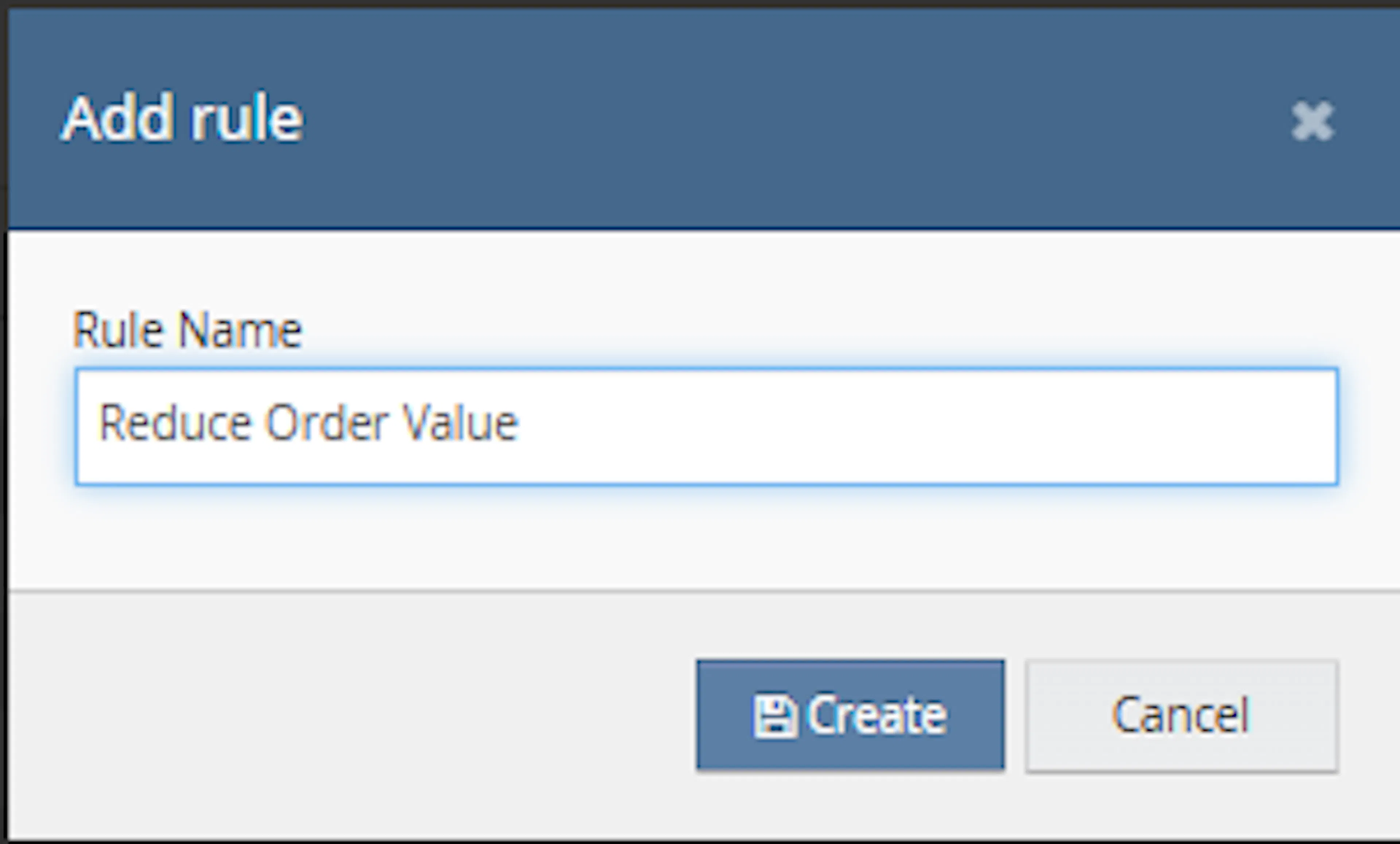
Enter the rule name and click Create.
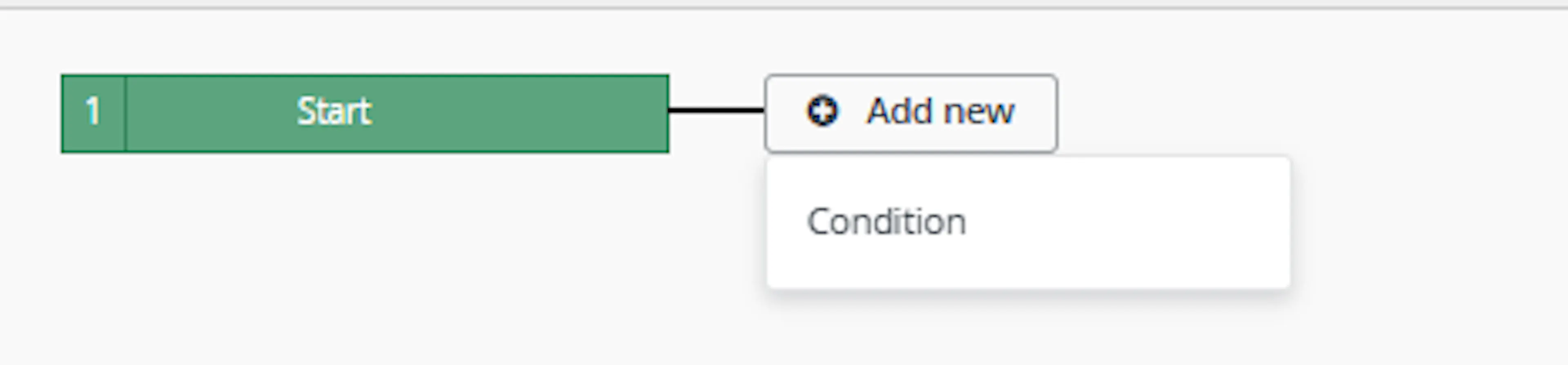
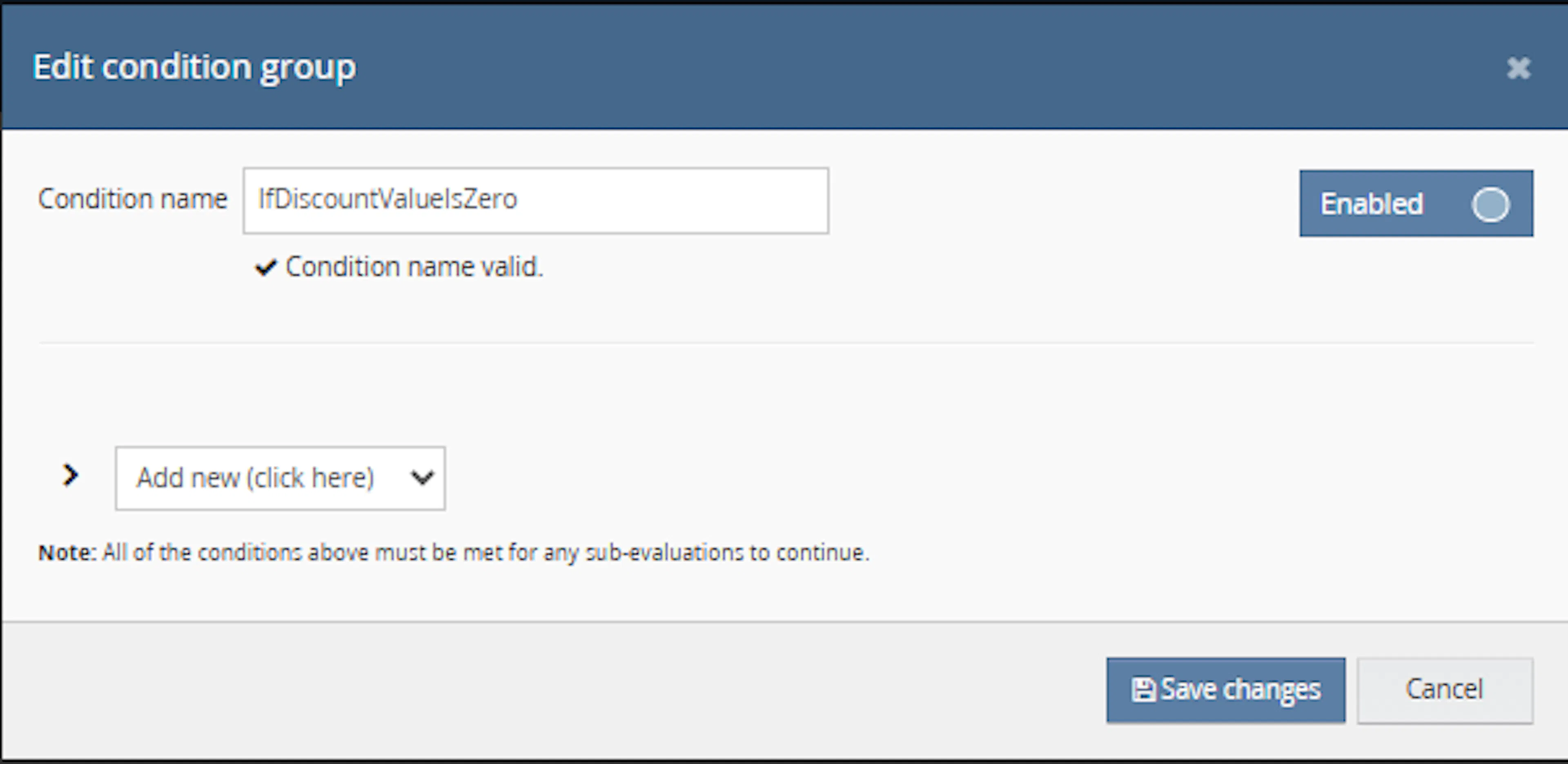
Click Add new, select Condition, set the condition as required, and save it.
Add the macro action and click Save.
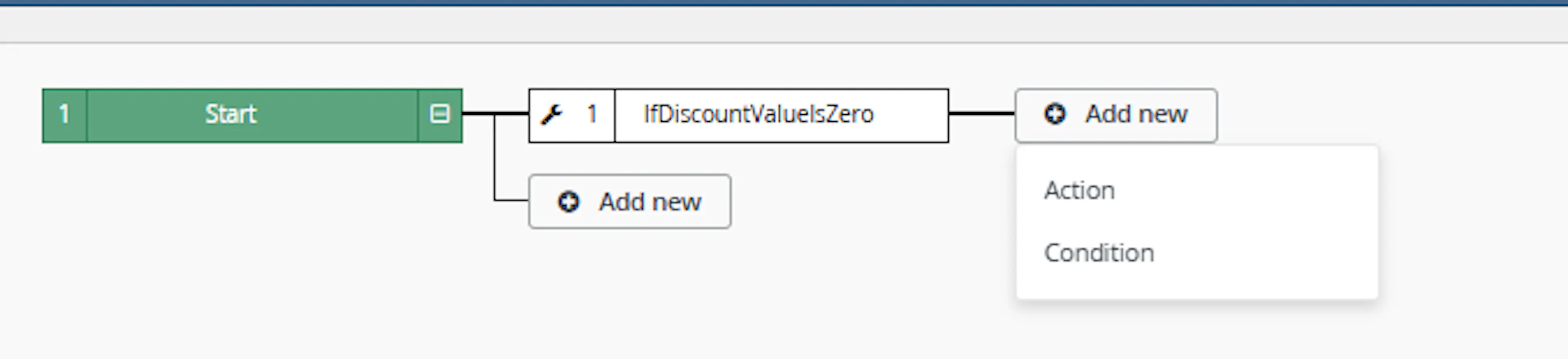
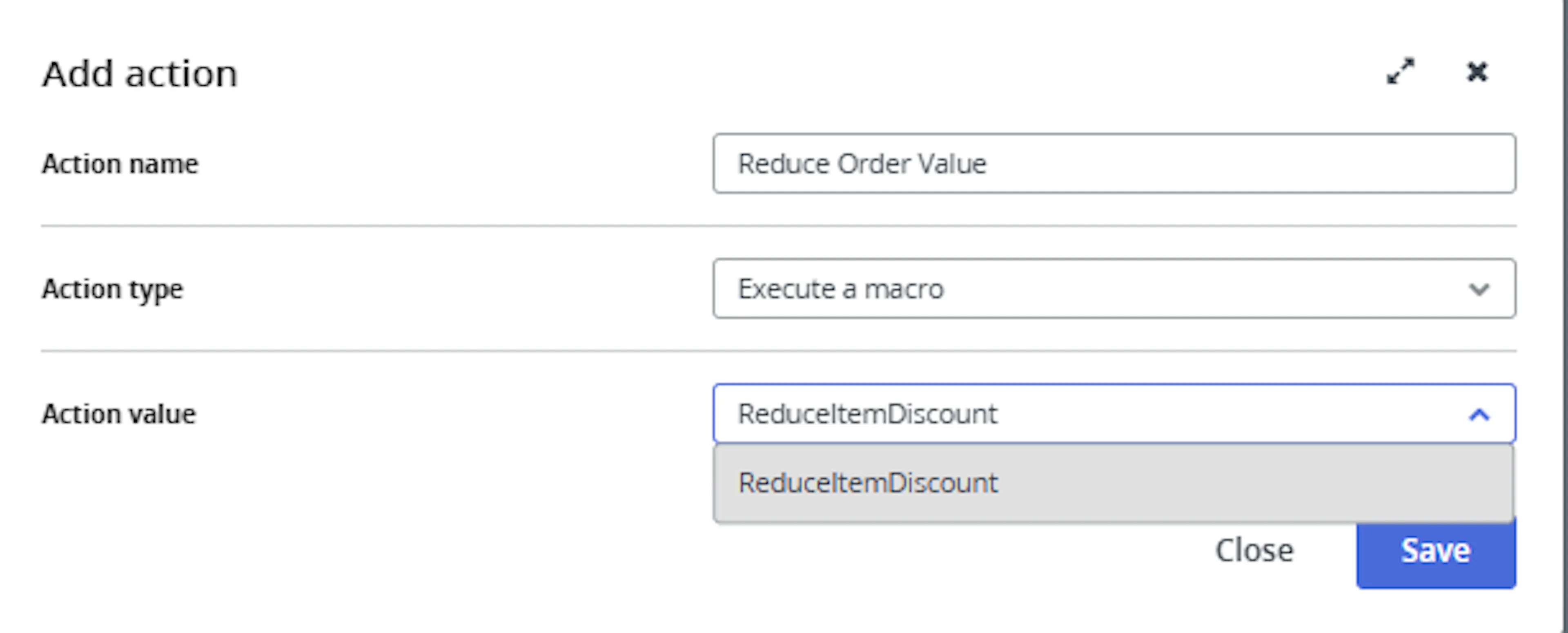
In the Add action window, enter the Action name, for example:
IfDiscountValueZero
-
Set Action type to:
Execute a macro -
In Action value, select:
AddMissingPhoneAndEmail -
Click Save
Note: If the macro is not enabled, it will not appear in the Action value list when setting up the rule.
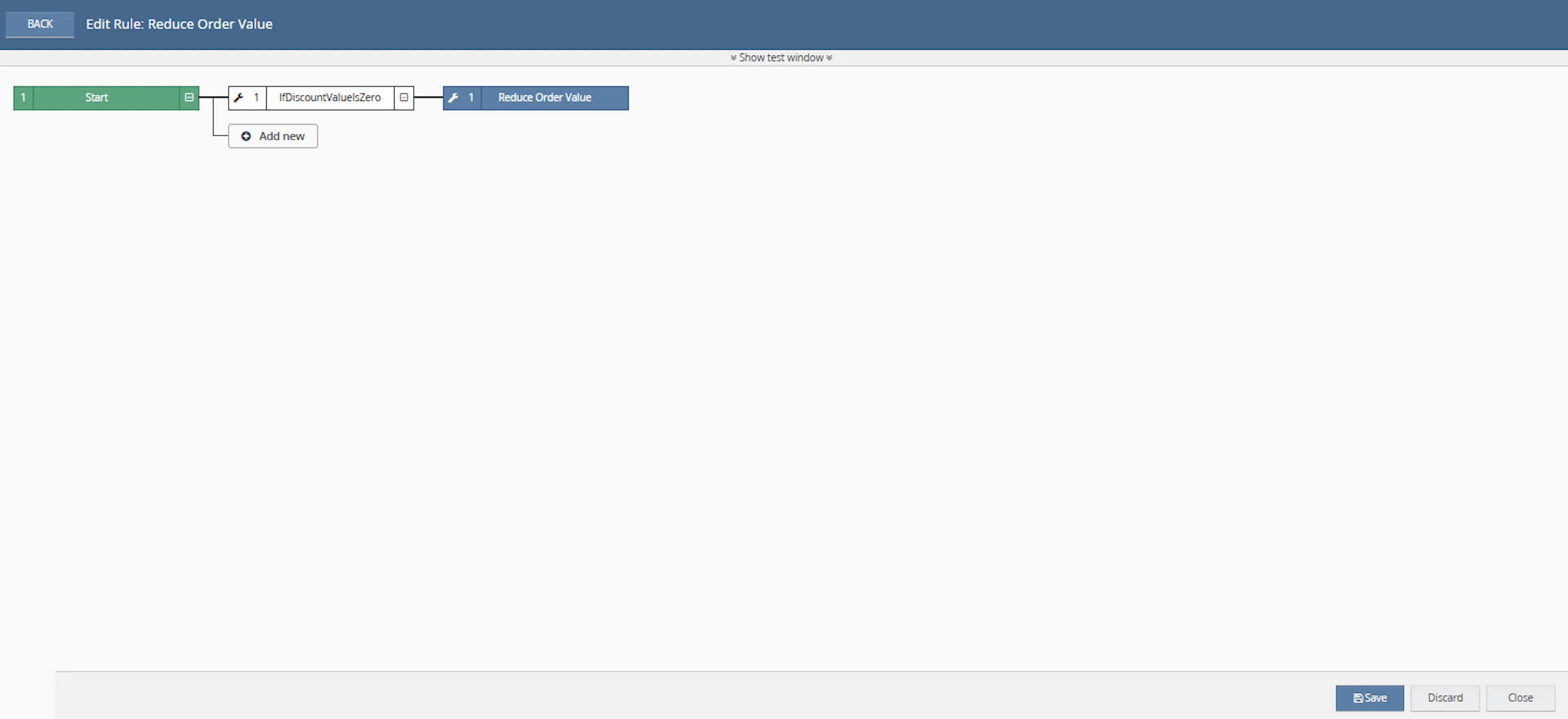
Review the saved rule setup.
-
Verify the condition and action are connected correctly
-
Click Save in the bottom-right corner to save the rule
Key Benefits
Correcting zero-value order lines manually requires checking item prices, discount values, and related paid items. This macro is designed to automate that process while marking adjusted items to avoid repeat item-level changes.
Find Zero-Value Items
Reviews selected orders and identifies items where CostIncTax is less than or equal to zero.
Update 100% Discounts
Changes eligible items with Discount = 100 to the configured discountValue.
Mark Changed Items
Adds ItemValueChanged = Yes to item additional information when the item has not already been marked.
Rebalance Paid Item Value
Applies the recovered value by reducing the PricePerUnit of an eligible paid item on the same order.
Process Selected Orders
Works only on the order IDs supplied to the macro through the OrderIds parameter.
Log Macro Activity
Writes macro start, error, and finish messages to the macro log.
How It Works
This macro works against the provided list of order IDs. Once it runs, it checks each order for zero-value items and updates only the eligible items that match the macro conditions.
Step 1
The macro starts and writes Macro started in the log.
Step 2
It loops through each order ID provided in the OrderIds parameter.
Step 3
It retrieves the order details from Linnworks using GetOrderById.
Step 4
It checks whether the order contains any item where CostIncTax is less than or equal to 0.
Step 5
For each zero-value item where Discount is 100, the macro changes the item discount to the configured discountValue.
Step 6
It updates the order item using UpdateOrderItem and adds the updated item cost to the value that needs to be rebalanced.
Step 7
If the item does not already contain ItemValueChanged, the macro adds ItemValueChanged = Yes to the item additional information.
Step 8
If a rebalance value exists, the macro finds a paid item where CostIncTax is greater than 0 and greater than the rebalance value.
Step 9
It reduces that paid item’s PricePerUnit by the rebalance value and updates the order item.
Step 10
The macro finishes and writes Macro Finished in the log.
Usage of App
This macro is designed to adjust selected Linnworks orders where one or more order items have zero or negative value and a full discount. It should be used when those zero-value items need their discount changed while the related value is offset against another eligible paid item on the same order.
OrderIds
Defines the list of Linnworks orders that the macro should process. Each order ID is checked individually.
discountValue
Defines the discount value that replaces 100 on eligible zero-value items. For example, if the value is 50, matching items are updated from Discount = 100 to Discount = 50.
CostIncTax
Used to identify zero-value items. The macro checks for items where CostIncTax is less than or equal to 0.
Discount
The macro only changes zero-value items where the current Discount value is 100.
ItemValueChanged
Added to the item additional information with the value Yes after an eligible item is updated.
PricePerUnit
Reduced on one eligible paid item by the total rebalance value calculated from updated zero-value items.
Key Points to Remember
-
The macro works on the order IDs passed through OrderIds
-
The discountValue parameter controls the new discount applied to eligible zero-value items
-
The macro only targets items where
CostIncTax <= 0andDiscount = 100 -
Updated zero-value items are marked with
ItemValueChanged = Yes -
The macro totals the updated item cost returned by UpdateOrderItem
-
If the total rebalance value is greater than 0, one paid item is selected for price adjustment
-
The paid item must have
CostIncTax > 0andCostIncTax > addDiscountValue -
The selected paid item’s PricePerUnit is reduced by the calculated rebalance value
-
The macro writes errors to the log and always writes Macro Finished at the end
Once the macro is running, it helps ensure zero-value item discount adjustments are applied consistently across selected orders.
What You Can Expect
-
Selected orders are reviewed one by one
Each order ID passed to the macro is retrieved and checked before changes are made -
Only orders with zero-value items are changed
Orders without items whereCostIncTax <= 0are skipped -
Only fully discounted zero-value items are updated
The item must haveDiscount = 100before the macro changes it to discountValue -
Changed items are marked
The macro addsItemValueChanged = Yesto item additional information when the marker is not already present -
A paid item may be reduced
If the macro calculates a rebalance value, it reduces the PricePerUnit of the first eligible paid item found -
Macro completion is logged
The macro writes Macro Finished after the run ends
Overall Impact
This helps reduce manual item-level edits, improves consistency when changing discounts for zero-value order lines, and supports controlled rebalancing against paid items on the same order.
What To Do When an Order Is Not Updated
If an expected order is not updated by the macro, review the order and macro conditions before taking manual action.
Steps to Follow
Step 1
Open Linnworks and locate the order that was expected to be updated.
Step 2
Confirm that the order ID was included in the OrderIds parameter.
Step 3
Check whether the order contains at least one item where CostIncTax is less than or equal to 0.
Step 4
Confirm that the zero-value item currently has Discount = 100.
Step 5
Review the item additional information and check whether ItemValueChanged already exists.
Step 6
If the paid item was not adjusted, confirm there is an item where CostIncTax > 0 and CostIncTax > addDiscountValue.
Step 7
Review the macro logs for any exception or processing message.
Why This Matters
Reviewing these conditions helps you understand whether the order was skipped because it did not contain eligible zero-value items, the item was not fully discounted, the item was already marked as changed, no suitable paid item was available, or the macro failed during processing.
Best Practices
To get the most value from this macro, use it carefully on the correct order set and verify the discount value before running it.
Recommended Guidelines
-
Check the selected orders before running
Confirm that only the intended orders are included in the OrderIds list -
Use a clear discount value
Enter the replacement discount as a numeric value such as 50 for a 50% discount -
Review zero-value items first
Confirm that the target order items haveCostIncTax <= 0andDiscount = 100 -
Confirm a paid item exists
Make sure the order includes a paid item with enough value to absorb the rebalance amount -
Review item additional information after processing
Check thatItemValueChanged = Yeshas been added where expected -
Review updated paid item pricing
Confirm that the selected paid item’s PricePerUnit has been reduced correctly -
Test before production use
Validate the discount and rebalance logic on a small order set before using it at scale
Review the selected orders and discount value before enabling or running the macro.
Example Scenario
To better understand how this works, here’s a simple example:
If your discountValue is set to 50:
-
Item A CostIncTax = 0.00 and Discount = 100→ Discount becomes 50 -
The macro updates Item A and adds the returned item cost to the rebalance value
-
If the calculated rebalance value is 5.00, the macro searches for a paid item where
CostIncTax > 5.00 -
Item B PricePerUnit = 20.00→ PricePerUnit becomes 15.00 -
Item A receives
ItemValueChanged = Yesin additional information
What This Means
-
Eligible zero-value items have their discount changed from 100 to the configured value
-
A related paid item may be reduced to rebalance the order value
-
Updated zero-value items are marked so the change can be identified later
-
The macro log confirms when processing starts, errors occur, and the macro finishes
Final Summary
The Automated Discount Rebalancing for Zero-Value Order Items macro helps adjust selected Linnworks orders that contain zero-value or negative-value items.
By checking each selected order, updating eligible items where CostIncTax <= 0 and Discount = 100, marking changed items with ItemValueChanged = Yes, and reducing an eligible paid item by the calculated rebalance value, this macro supports a controlled item-level discount correction workflow.