Character Limit Validation & Fix
Automatically check selected Linnworks orders for address fields that exceed a configured character limit, store the original values in order notes, and trim the fields to the allowed length.
Overview
Character Limit Validation & Fix is an automated address-cleaning solution for Linnworks. It checks selected orders for delivery address values that exceed a configured maximum character length.
The macro reviews the delivery address Town, Company, and Region fields. Each value is compared with the configured Charcount parameter.
When a field exceeds the permitted length, the macro:
- Preserves the original value in an internal order note.
- Trims the field to the configured number of characters.
- Saves the updated customer information back to the Linnworks order.
Fields already within the configured limit are left unchanged. Billing address fields are not modified by this macro.
Keep important delivery address fields within accepted character limits while preserving their original values for reference.
Who Should Use Character Limit Validation & Fix
Warehouse & Fulfilment Teams
Teams preparing orders for picking, packing, label generation, and dispatch can reduce manual address corrections.
Shipping & Logistics Teams
Logistics teams can keep delivery address values within courier-supported character limits before labels are generated.
Integration Administrators
Administrators configure Charcount, enable the macro, create the Rule Engine action, and monitor execution logs.
Operations Teams
Operations teams benefit from more consistent address data while retaining original values in internal notes.
Key Features
Configurable Character Limit
Uses the Charcount parameter to define the maximum permitted length for each checked address field.
Town Validation
Checks the delivery address Town value and trims it when the configured limit is exceeded.
Company Validation
Checks the delivery address Company value and shortens it only when required.
Region Validation
Checks the delivery address Region value against the configured character limit.
Original Value Preservation
Stores the original untrimmed value in an internal order note before changing the address field.
Conditional Order Updates
Saves customer information only when at least one checked field requires correction.
How Character Limit Validation & Fix Works
Character Limit Validation & Fix follows a defined sequence whenever it receives one or more order IDs through the Linnworks Rule Engine.
Step 1: Read selected order IDs
The macro loops through each order ID supplied through the OrderIds parameter.
Step 2: Retrieve the Linnworks order
For each selected order ID, the macro retrieves the complete Linnworks order details.
Step 3: Retrieve existing order notes
Existing notes are retrieved so the macro can preserve original address values alongside the order.
Step 4: Check delivery Town
The delivery address Town value is compared with the configured Charcount.
Step 5: Check delivery Company
The delivery address Company value is compared with the same configured limit.
Step 6: Check delivery Region
The delivery address Region value is checked against Charcount.
Step 7: Preserve original values
For every value that exceeds the limit, the full original value is added to an internal order note.
Step 8: Trim long values
Each qualifying field is shortened to the first number of characters specified by Charcount.
Step 9: Save the order changes
When at least one field changes, the internal notes and updated customer address information are saved.
Step 10: Record the execution result
The macro logs changed fields, unchanged orders, notes saved, errors, and completion.
Configure the Macro
Once the app is installed, you need to create a macro configuration so the system knows which macro to run and what character limit should be applied.
This setup can be adjusted anytime based on your operational requirements.
Steps to Configure
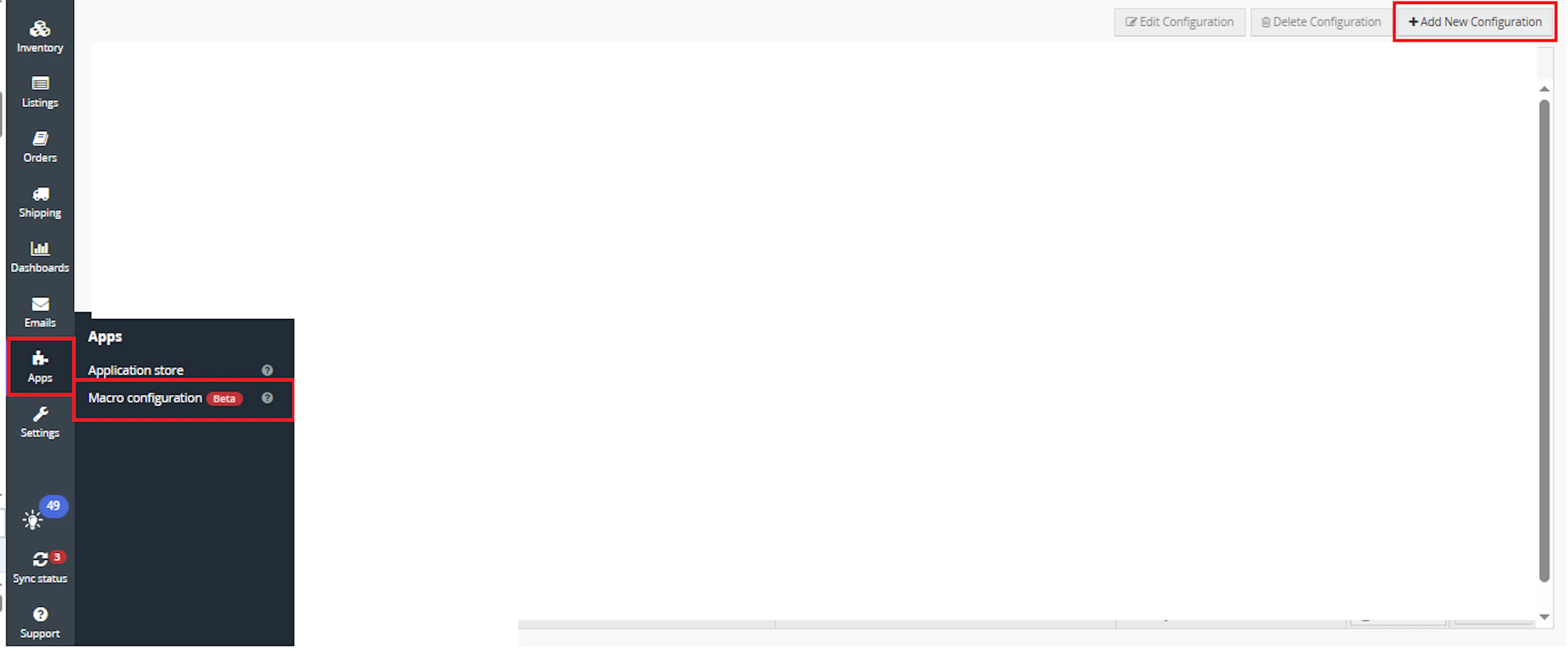
Go to Apps > Macro Configuration and click + Add new configuration.
Select the CheckAndUpdateDataCharwise macro and click Create Configuration
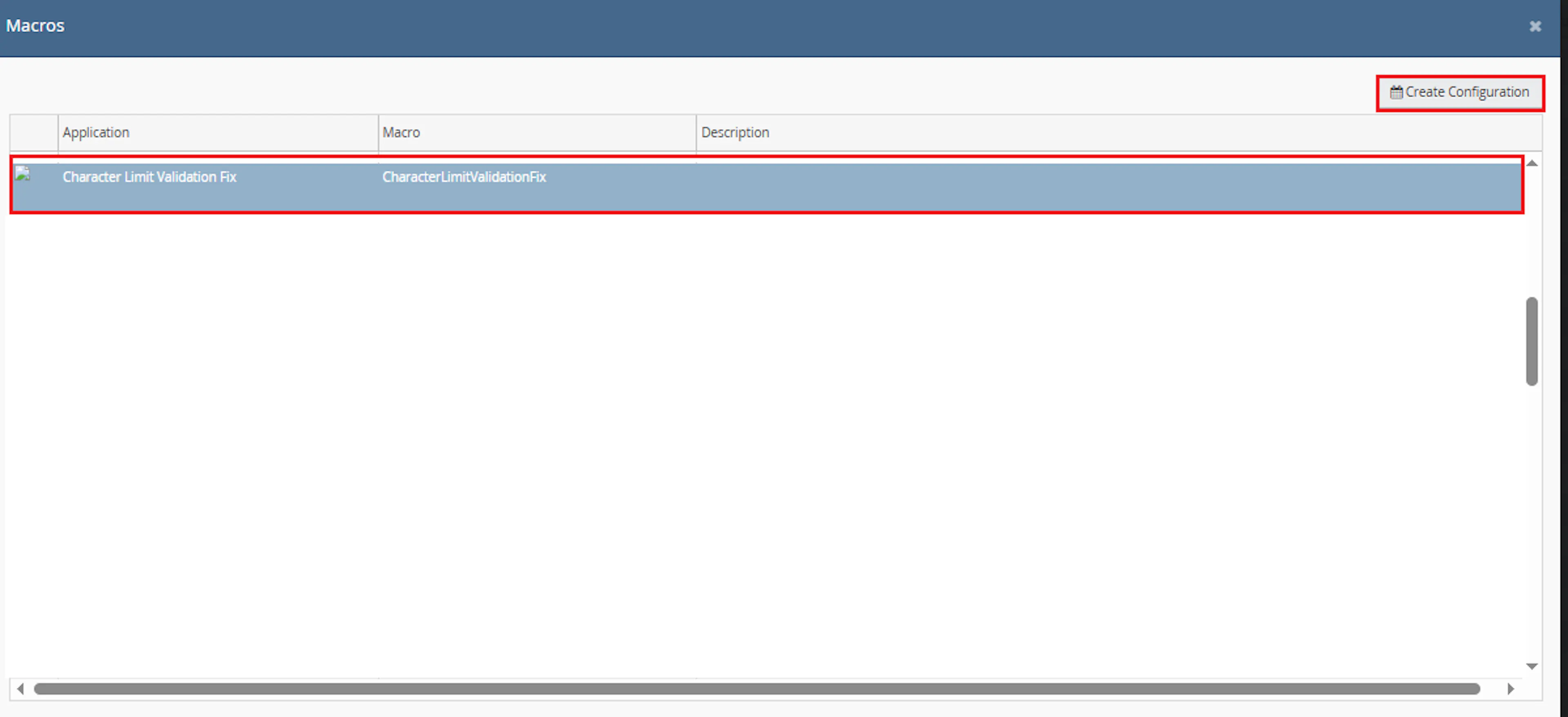
This creates a new configuration where you can define the character limit parameter used by the macro.
In the Macro Configuration screen, add the configuration name and parameter values.
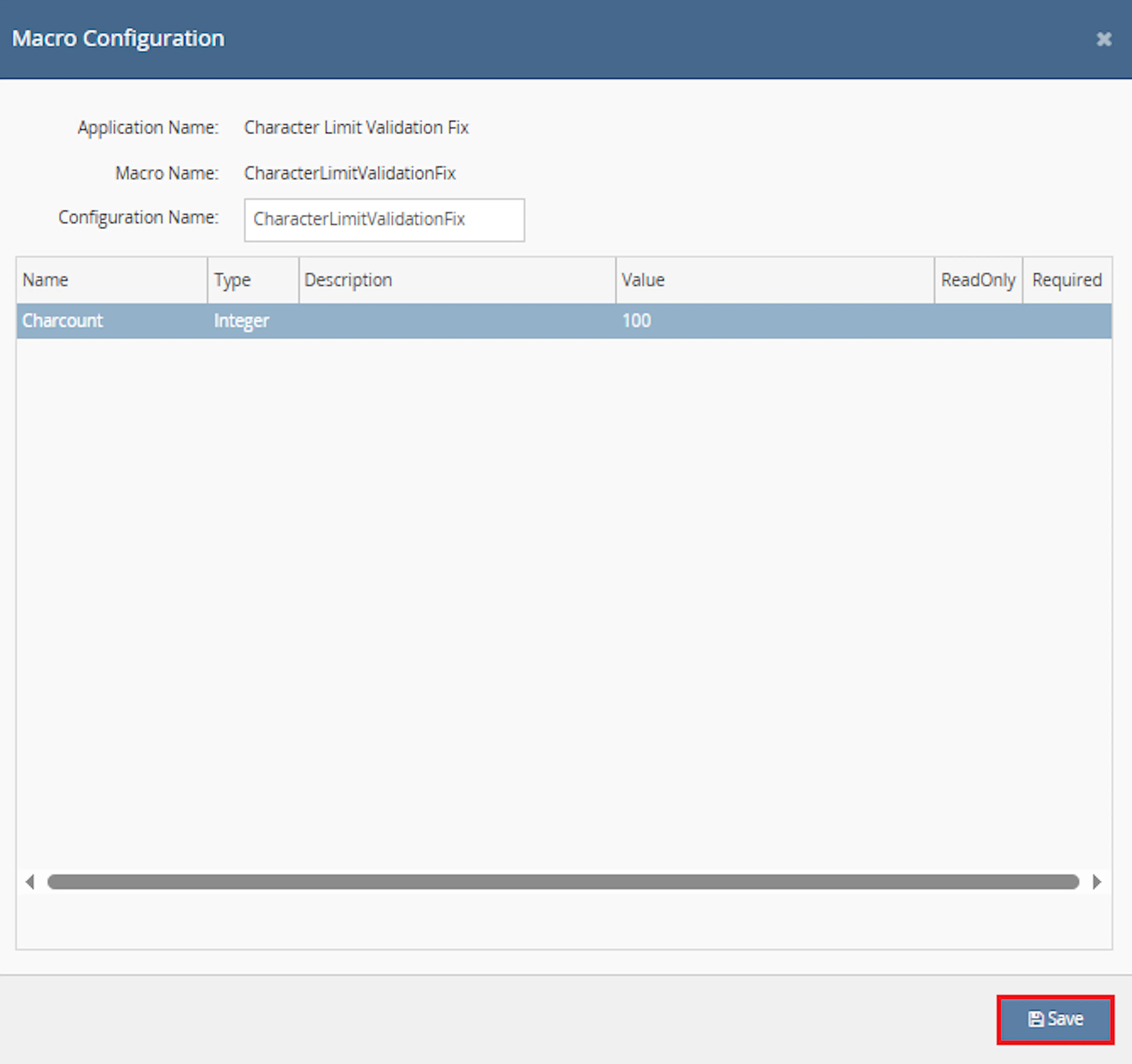
Example configuration name:
Address Field Character Limit Check
Example parameter value:
- Charcount =
100
Make sure to enable the macro to continue with the Rule Engine configuration.

Note: If the macro is not enabled, it will not appear in the Action value list when setting up the rule.
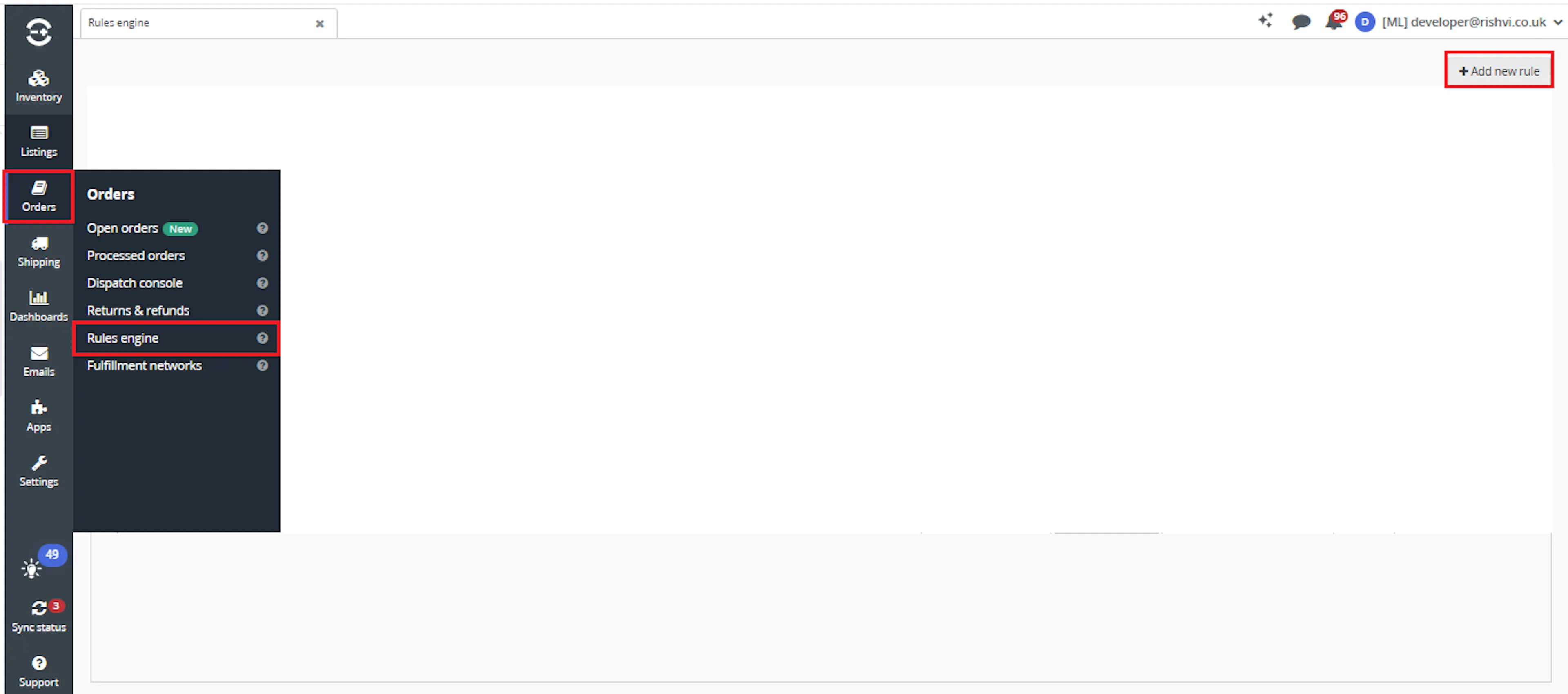
Go to Orders > Rules engine and click + Add new rule.
Key Benefits
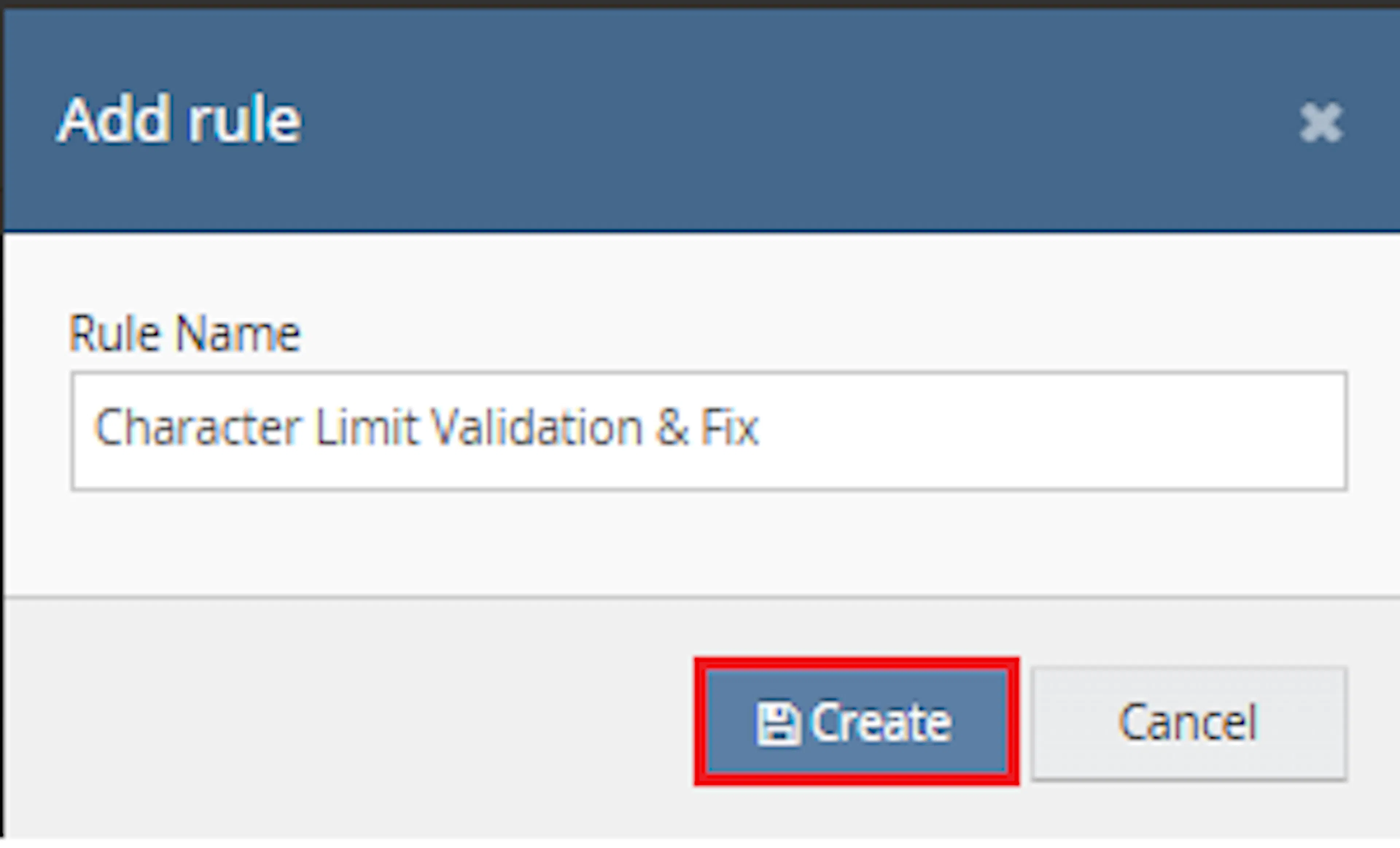
Enter the rule name and click Create.
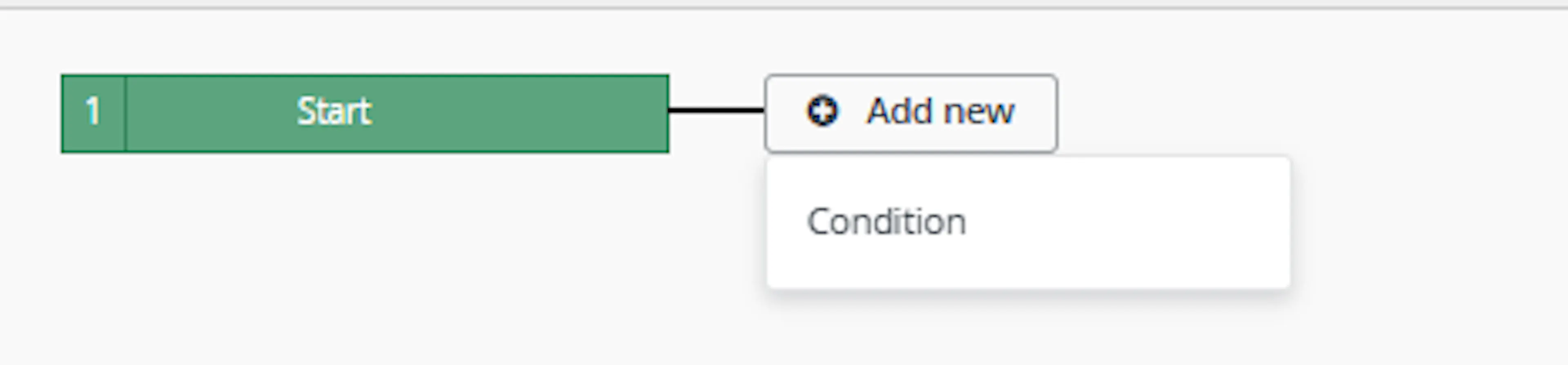
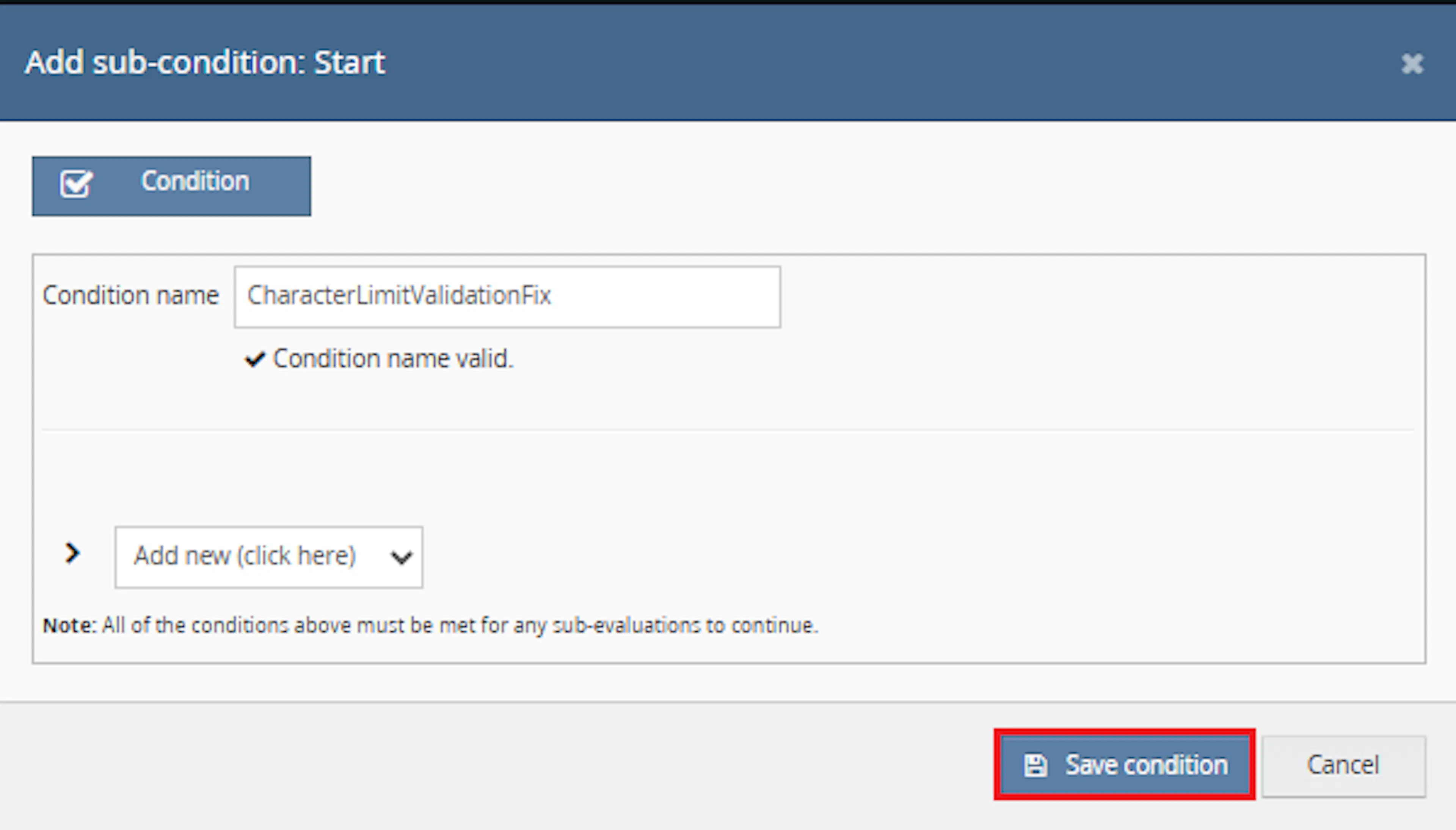
Click Add new, select Condition, set the condition as required, and save it.
Add the macro action and click Save.

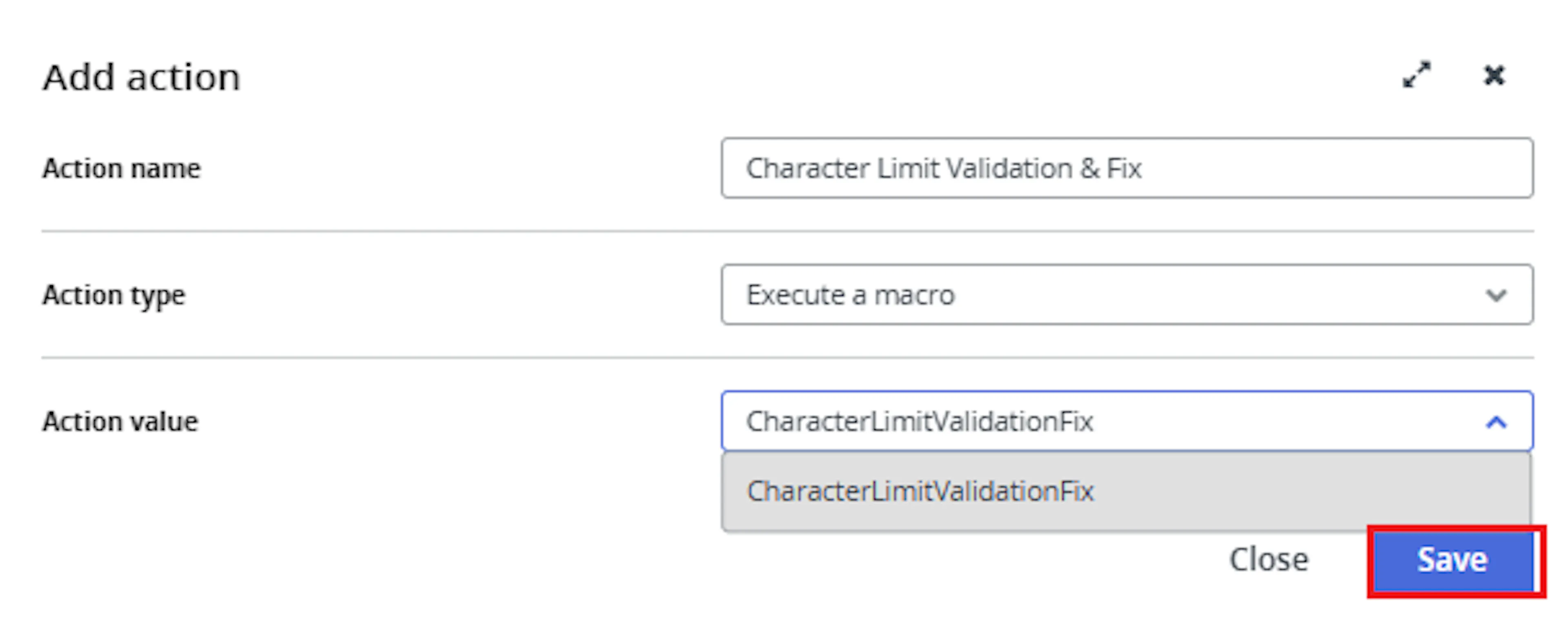
In the Add action window, enter the Action name, for example:
Character Limit Validation & Fix
-
Set Action type to:
Execute a macro -
In Action value, select:
CharacterLimitValidationFix -
Click Save
Note: If the macro is not enabled, it will not appear in the Action value list when setting up the rule.
Review the saved rule setup.
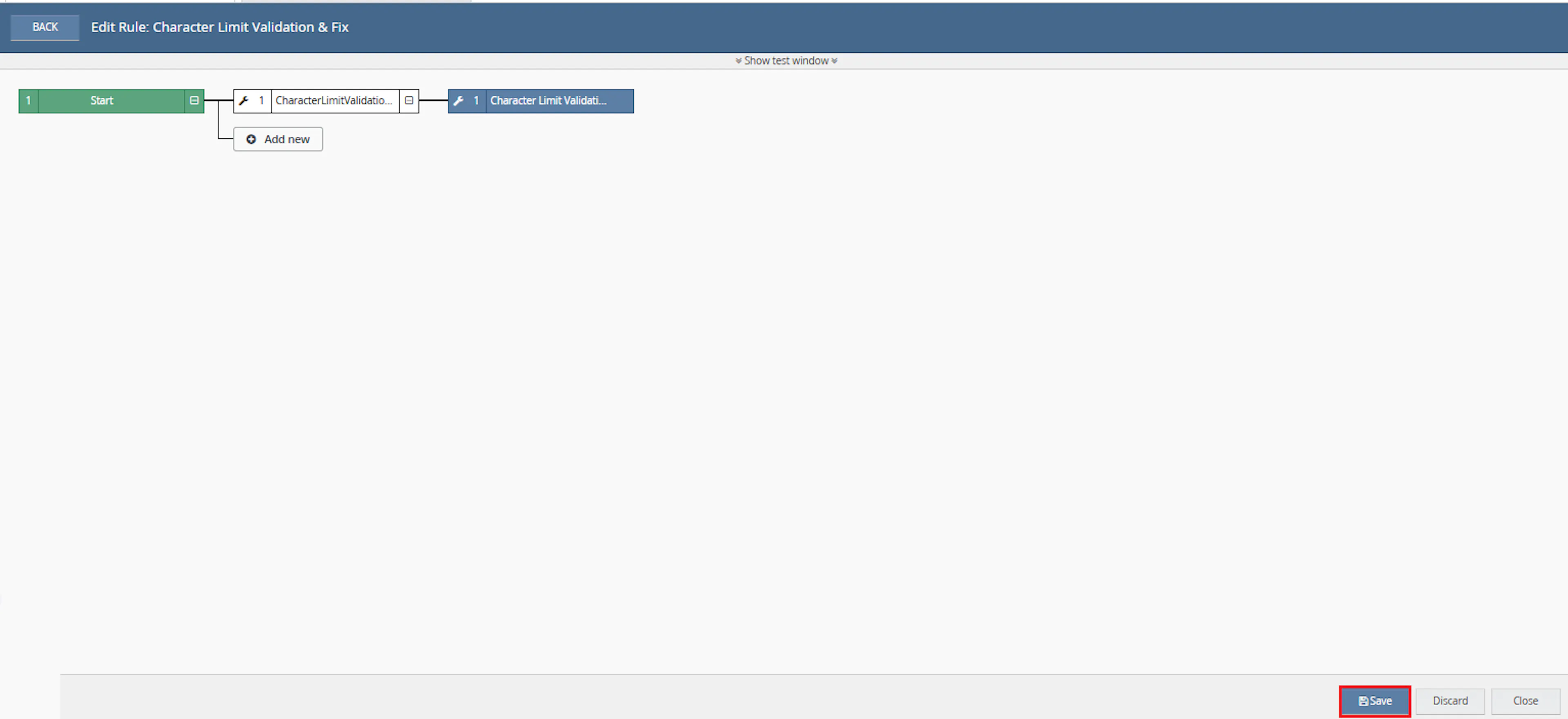
- Verify the condition and action are connected correctly
- Click Save in the bottom-right corner to save the rule
Key Benefits
Long delivery address values can cause courier validation errors, failed label generation, export issues, and delays during fulfilment. Character Limit Validation & Fix applies a consistent character limit while retaining the original information.
Reduce manual address cleanup, improve courier readiness, and preserve original field values before shortening them.
Reduce Manual Address Checks
Removes the need to open each selected order and manually inspect the checked address fields.
Improve Courier Readiness
Helps keep delivery address values within the field-length limits required by courier systems.
Preserve Original Values
Stores the complete original value in an internal order note before trimming it.
Maintain Cleaner Address Data
Shortens only the delivery address values that exceed the configured limit.
Process Multiple Orders
Checks and corrects multiple selected Linnworks orders in a single macro execution.
Avoid Unnecessary Updates
Leaves orders unchanged when Town, Company, and Region are already within Charcount.
Usage of App
Character Limit Validation & Fix is triggered through the Linnworks Rule Engine to check and update selected orders automatically.
Execution
Trigger via Rule Engine
Call the CharacterLimitValidationFix action through the Rule Engine with the required OrderIds and configured Charcount value.
Outcome
When the macro runs against an order, it:
Reads the configured character limit
Uses Charcount as the maximum allowed length for each checked delivery address field.
Checks delivery Town
Compares the Town value length with the configured maximum.
Checks delivery Company
Compares the Company value length with Charcount.
Checks delivery Region
Compares the Region value length with Charcount.
Preserves original values
Adds internal order notes for every field that requires trimming.
Trims qualifying fields
Keeps the first Charcount characters of each field that exceeds the limit.
Saves customer information
Updates the Linnworks order only when one or more checked fields were changed.
Input Parameters
Character Limit Validation & Fix requires the following inputs:
| Parameter | Required | Description |
|---|---|---|
| OrderIds | Yes | The Linnworks order IDs to process. Supplied through the Rule Engine action. |
| Charcount | Yes | The maximum number of characters permitted in each checked delivery address field. |
Example configuration:
| Setting | Example |
|---|---|
| Configuration Name | Address Field Character Limit Check |
| Charcount | 100 |
Important: Charcount should be configured as a positive whole number suitable for the strictest courier, export, or downstream field limit in your workflow.
Fields Checked by the Macro
The macro checks the following delivery address fields:
| Display Name | Linnworks Address Field | Checked | Updated |
|---|---|---|---|
| City / Town | Town | Yes | Yes |
| Company | Company | Yes | Yes |
| County / Region | Region | Yes | Yes |
| Delivery Address Line 1 | Address1 | No | No |
| Delivery Address Line 2 | Address2 | No | No |
| Postcode | PostCode | No | No |
| Billing address fields | Billing address | No | No |
Character Limit Rules
The macro applies the following validation behaviour:
| Field Condition | Macro Behaviour |
|---|---|
| Field length is greater than Charcount | Saves the original value in an internal note and trims the field. |
| Field length equals Charcount | Leaves the value unchanged. |
| Field length is less than Charcount | Leaves the value unchanged. |
| One or more checked fields are changed | Saves order notes and customer information. |
| No checked fields are changed | Does not update the customer information. |
The trimmed value uses the first characters of the original field:
TrimmedValue = OriginalValue.Substring(0, Charcount)
Internal Note Behaviour
When a checked field exceeds Charcount, the original complete value is preserved in an internal order note before the address is changed.
| Note Setting | Behaviour |
|---|---|
| Visibility | Internal |
| Created by | CheckAndUpdateDataCharwise Macro |
| Purpose | Preserve the complete original Town, Company, or Region value. |
| Created when | A checked field exceeds Charcount. |
The supplied documentation does not define the exact text format used inside each generated note.
Example Scenario
Assume the macro is configured with:
Configured Character Limit
Charcount: 20
The following orders produce these outcomes:
| Order | Original Value | Result |
|---|---|---|
| Order A | Town: Very Long City Name Example | Original Town is saved in an internal note and Town is trimmed to the first 20 characters. |
| Order B | Company: Example Company Name That Is Too Long | Original Company is saved and Company is trimmed to 20 characters. |
| Order C | Region: Greater Metropolitan Region Name | Original Region is saved and Region is trimmed to 20 characters. |
| Order D | All checked values contain 20 characters or fewer | No update is made. |
The macro truncates the value at the configured character position. It does not attempt to shorten the value at a word boundary.
Best Practices
Configure Charcount according to the strictest field-length requirement used by your courier, marketplace, export, or downstream integration.
Choose Charcount carefully
Use a positive whole number that matches the maximum supported field length in your workflow.
Run before label generation
Trigger the macro before courier validation or shipping-label creation.
Use targeted rule conditions
Configure the Rule Engine to process only orders that require address-length validation.
Review internal notes
Use the generated notes when the complete original address value is needed later.
Test sample values first
Test Town, Company, and Region values above, below, and exactly equal to Charcount.
Monitor execution logs
Review logs for field lengths, trimmed values, saved notes, unchanged orders, and API errors.
FAQ
How is Character Limit Validation & Fix triggered?
The macro is triggered through the Linnworks Rule Engine. Matching order IDs are supplied through the OrderIds parameter.
What configuration value is required?
The macro requires the Charcount parameter.
What does Charcount control?
Charcount defines the maximum permitted number of characters in each checked delivery address field.
Which address fields are checked?
The macro checks delivery address Town, Company, and Region.
Does the macro check billing address fields?
No. The supplied documentation states that billing address fields are not updated.
Does it check Address1 or Address2?
No. The documented logic checks Town, Company, and Region only.
What happens when a field exceeds Charcount?
The original value is saved in an internal order note, and the field is trimmed to the first Charcount characters.
What happens when a field length equals Charcount?
The field is not changed because the logic applies only when the value is longer than the configured limit.
What happens when every checked field is within the limit?
No customer-information update is made.
Are original values permanently lost?
The macro preserves the original full values in internal order notes before trimming them.
Who creates the internal notes?
The documentation identifies the note creator as CheckAndUpdateDataCharwise Macro.
Does the macro trim at the nearest space?
The supplied behaviour describes keeping the first Charcount characters. It does not describe word-boundary trimming.
Can multiple fields be changed on the same order?
Yes. Town, Company, and Region can each be checked and corrected during the same execution.
Can multiple orders be processed in one run?
Yes. The macro loops through every order ID supplied through OrderIds.
Does the macro add an identifier?
No identifier behaviour is described in the supplied documentation.
Does the macro update the shipping service?
No. It updates delivery customer address information only.
Does the macro change empty fields?
The source advises that the relevant fields should contain values before the macro runs. It does not describe filling missing fields.
What should be checked when a field is not trimmed?
Confirm that its length is greater than Charcount and that the order was supplied through the configured Rule Engine action.
What should be checked when the macro is unavailable in the Rule Engine?
Confirm that the macro configuration has been created and enabled.
What should be checked when customer information does not save?
Review the execution logs for Linnworks API errors and confirm that the order can be edited.
Legal Information
- Privacy Policy: https://rishvi.co.uk/privacy-policy/
- Terms and Conditions: https://rishvi.co.uk/terms-conditions/
Please review these pages to understand how data is handled and the terms governing the use of this application.
Summary
Character Limit Validation & Fix automates delivery address length validation for selected Linnworks orders.
Once connected to the Rule Engine, the macro checks delivery Town, Company, and Region against the configured Charcount value. Values that exceed the limit are preserved in internal notes, trimmed to the permitted length, and saved back to the order.
Automatic field validation
Delivery Town, Company, and Region values are checked automatically.
Configurable maximum length
Charcount controls the maximum number of characters permitted in each checked field.
Original value preservation
Complete original values are saved in internal order notes before trimming.
Conditional customer updates
Linnworks customer information is saved only when one or more fields require correction.
For orders that do not update as expected, review the Rule Engine and macro logs, confirm that Charcount is configured correctly, and verify that the delivery Town, Company, or Region value exceeds the configured limit.