HYPER Linnworks CRM Integration
A centralized CRM and inventory-management integration that synchronizes products, warehouses, inventory, pricing, customers, and orders between Linnworks and the HYPER CRM platform.
Hyper CRM, developed by Rishvi Ltd, is a powerful Customer Relationship Management (CRM) and B2B Sales Management platform designed specifically for businesses using Linnworks. It centralizes customer management, B2B sales operations, quotations, pricing, inventory, warehouses, and order processing into a single integrated solution.
Unlike a traditional CRM, Hyper CRM is built around the complete B2B sales lifecycle. Sales teams can manage leads, business customers, quotations, negotiated pricing, purchase history, credit terms, and sales orders while keeping all products, inventory, and customer data synchronized with Linnworks.
The platform enables businesses to create customer-specific and business-specific pricelists, allowing different customers, distributors, wholesalers, and trade partners to receive their own negotiated pricing automatically. Sales representatives can quickly generate quotations, convert them into orders, and synchronize them with Linnworks without duplicate data entry.
Orders created within Hyper CRM are synchronized directly with Linnworks, ensuring fulfilment teams can process them immediately. Customer information, products, stock availability, warehouses, pricing, and order statuses remain synchronized across both systems, giving every department access to accurate and up-to-date information.
Inventory is automatically synchronized from Linnworks to Hyper CRM every 15 minutes, ensuring sales teams always have access to current stock availability before creating quotations or confirming orders. This helps prevent selling unavailable products and improves customer satisfaction.
Designed for distributors, wholesalers, manufacturers, and B2B retailers, Hyper CRM streamlines customer relationship management, quotation management, pricing control, and order processing while reducing manual administration and improving collaboration between sales and warehouse teams.
Built with secure API communication, automated synchronization, structured logging, validation, retry mechanisms, and scalable architecture, Hyper CRM provides a reliable, enterprise-ready CRM solution fully integrated with Linnworks.
Key Features
CRM & Customer Management
- Complete customer and contact management
- Lead and opportunity management
- Customer activity tracking
- Customer communication history
- Customer-specific notes and documents
- Sales representative assignment
- Customer segmentation
B2B Sales Management
- Complete B2B sales workflow
- Business account management
- Company and branch management
- Customer-specific pricing
- Trade and wholesale customer support
- Credit limit and payment term management
- Customer purchase history
- Repeat order management
Business Pricelists
- Customer-specific pricelists
- Business-specific pricing
- Wholesale pricing
- Tiered pricing structures
- Quantity-based pricing
- Discount management
- Promotional pricing
- Flexible pricing rules
Quotation & Order Management
- Create quotations
- Convert quotations into sales orders
- Real-time order creation in Linnworks
- Order approval workflow
- Sales order tracking
- Order history
- Backorder management
Linnworks Synchronization
- Real-time order synchronization
- Automatic inventory synchronization every 15 minutes
- Product synchronization
- Customer synchronization
- Warehouse synchronization
- Order status synchronization
- Pricing synchronization
- Stock availability synchronization
Inventory & Warehouse
- Multi-warehouse support
- Live inventory visibility
- Stock availability checking
- Warehouse-specific inventory
- Inventory adjustments
- Product catalogue synchronization
Reporting & Administration
- Sales dashboard
- Customer performance reports
- Revenue analytics
- Order reports
- Sales representative performance
- Role-based user permissions
- Audit logs
Enterprise Features
- Secure API integration
- Automated scheduled synchronization
- Retry mechanisms
- Structured logging
- Error diagnostics
- Scalable cloud architecture
- Production-ready deployment
Key Benefits
- Complete B2B CRM built specifically for Linnworks users
- Manage the entire B2B sales process from lead to order
- Customer-specific and business-specific pricelists
- Generate quotations and convert them directly into Linnworks orders
- Real-time order creation in Linnworks
- Inventory automatically synchronises every 15 minutes
- Live stock visibility before confirming customer orders
- Centralise customers, quotations, pricing, and sales operations
- Reduce manual data entry across sales and warehouse teams
- Improve sales productivity with automated workflows
- Support wholesalers, distributors, manufacturers, and trade customers
- Maintain accurate pricing for every business customer
- Improve collaboration between sales, warehouse, and fulfilment teams
- Scale your B2B operations with a secure, enterprise-ready CRM
- Single source of truth for customers, products, inventory, and orders
Overview
The HYPER Linnworks CRM Integration connects Linnworks with a centralized CRM platform for managing products, inventory, warehouses, pricing, customers, quotations, and sales orders.
Linnworks remains the primary operational and inventory system. HYPER CRM provides a synchronized interface where authorized users can review product data, manage customers, monitor warehouse stock, create quotations, prepare sales orders, and synchronize eligible orders with Linnworks.
The integration supports both manual synchronization tools and automated background jobs for keeping recent inventory and order information up to date.
Architecture at a glance
Linnworks
Acts as the primary source for inventory, warehouses, product categories, products, shipping services, countries, open orders, processed orders, and operational order statuses.
Integration Services
Retrieves Linnworks data, validates and transforms records, applies mappings, updates CRM records, sends confirmed CRM orders to Linnworks, and runs scheduled synchronization jobs.
HYPER CRM
Provides the user interface for products, warehouses, customers, pricing, inventory visibility, quotations, sales orders, synchronization controls, and operational review.
Once configured, the integration reduces manual product, inventory, customer, and order administration while keeping Linnworks as the primary source of operational truth.
Integration Scope
The integration covers four primary areas.
Product and Inventory Synchronization
Imports warehouses, product categories, products, prices, and stock quantities from Linnworks into HYPER CRM.
Order Management
Imports open and processed Linnworks orders, supports individual order recovery, and allows eligible confirmed CRM orders to be sent to Linnworks.
Pricing and Customer Management
Supports pricelists, discounts, customer-specific pricing, customer comparison, quotations, and CRM sales-order preparation.
System Configuration
Uses secure system parameters, feature settings, warehouse selections, page ranges, date ranges, scheduled jobs, and administrator-controlled access options.
Installation Guide
Before using the integration, install the application from Linnworks and complete the initial CRM setup.
Steps to Install
Open HYPER CRM from Linnworks
- Sign in to Linnworks.
- Open Apps.
- Locate the HYPER Linnworks CRM application.
- Open the application.
- Review the installation or setup page.
Note: Use an authorized Linnworks account with the permissions required to install and configure applications.
Start the installation process
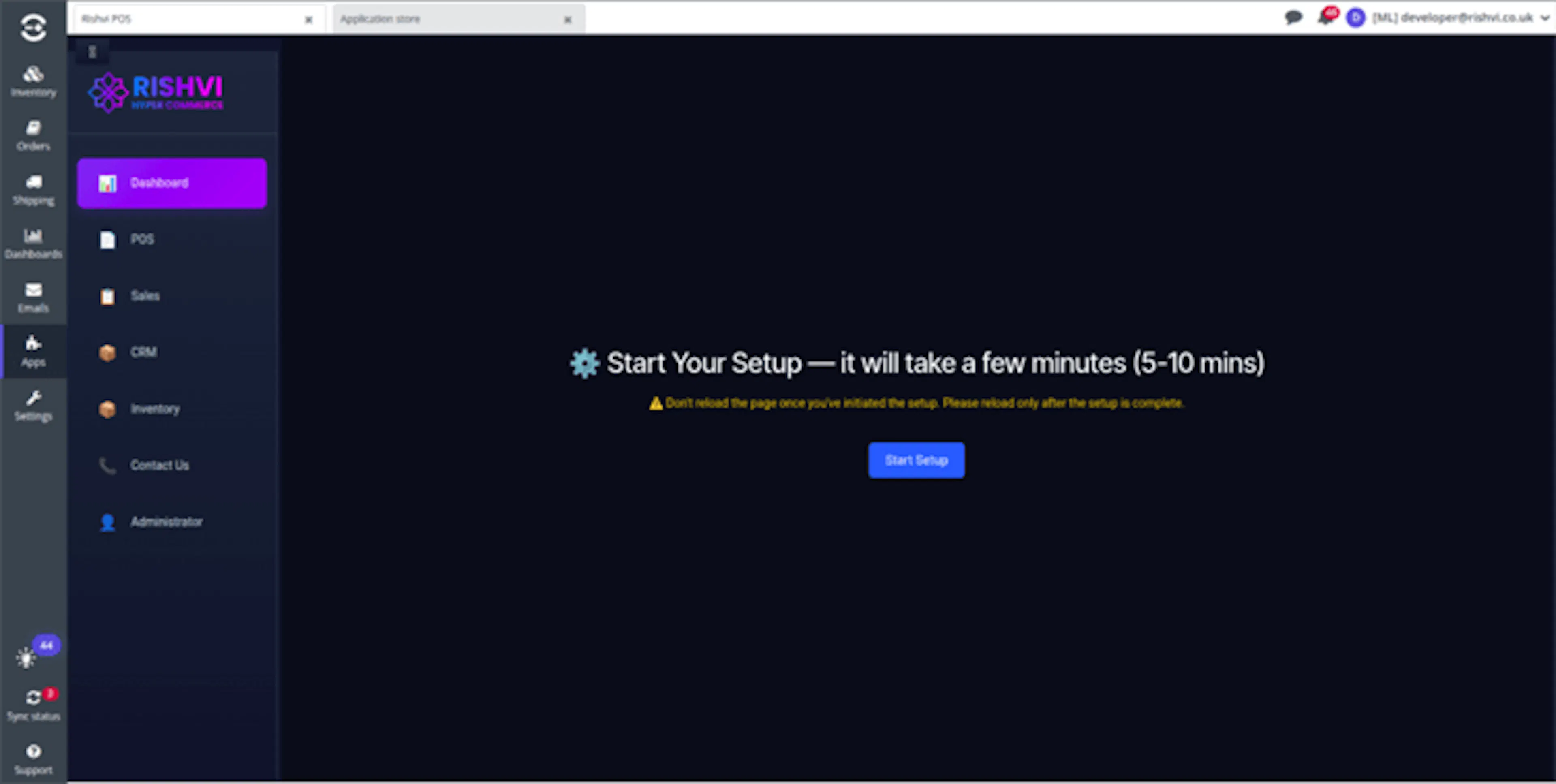
- Click Start Setup.
- Keep the browser open while the setup runs.
- Do not refresh the page during installation.
The setup prepares the required modules, including:
- Dashboard
- Sales
- CRM
- Inventory
- Point of Sale
- Logistics and metrics
- User access
- Base system dependencies
Wait for the setup to finish
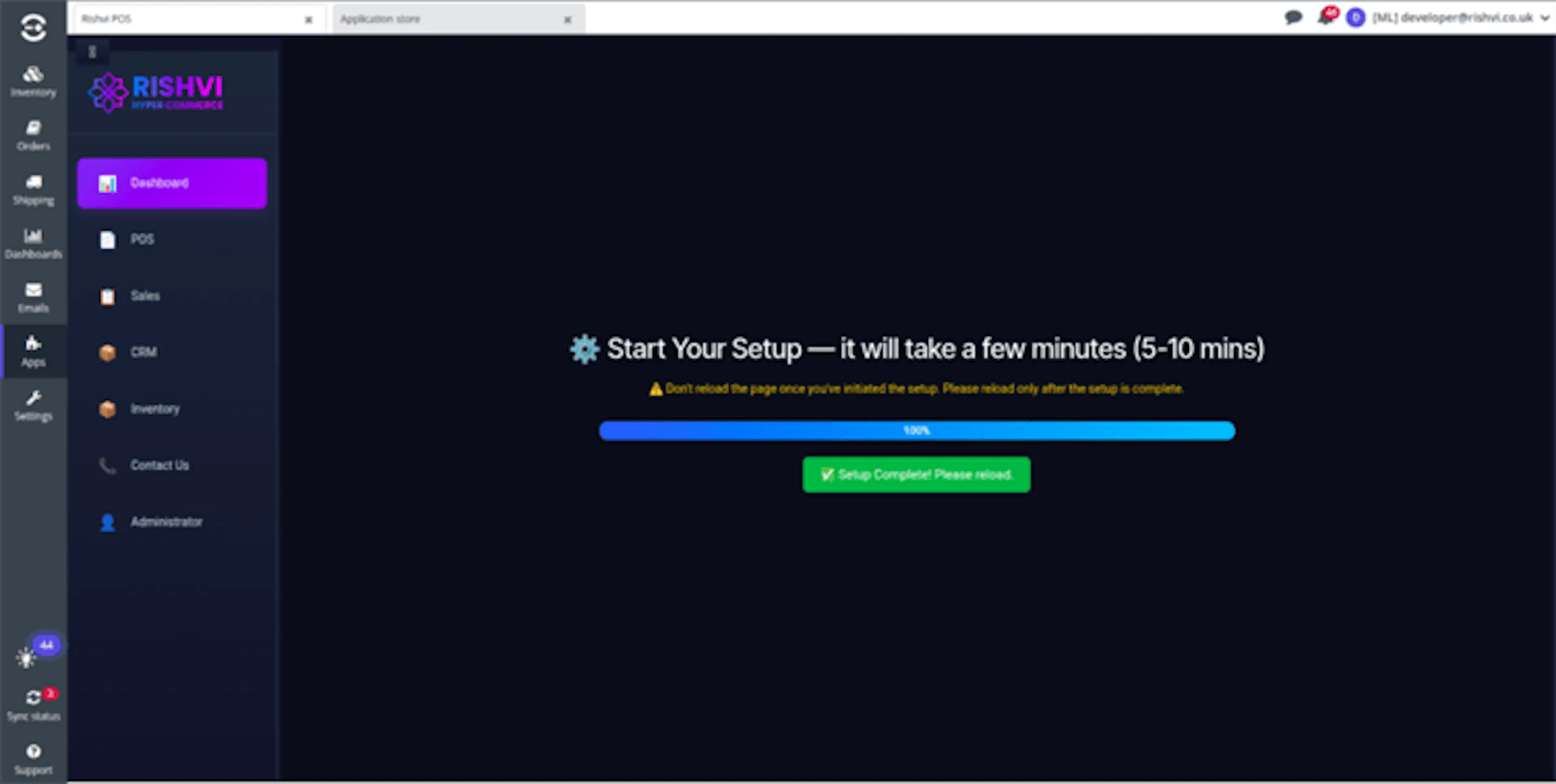
The setup page displays the installation progress.
The process normally takes approximately 5–10 minutes, depending on the environment and installed modules.
Wait until the progress reaches 100% and the setup-complete message appears.
Important: Do not refresh the browser while setup is running.
Reload the application
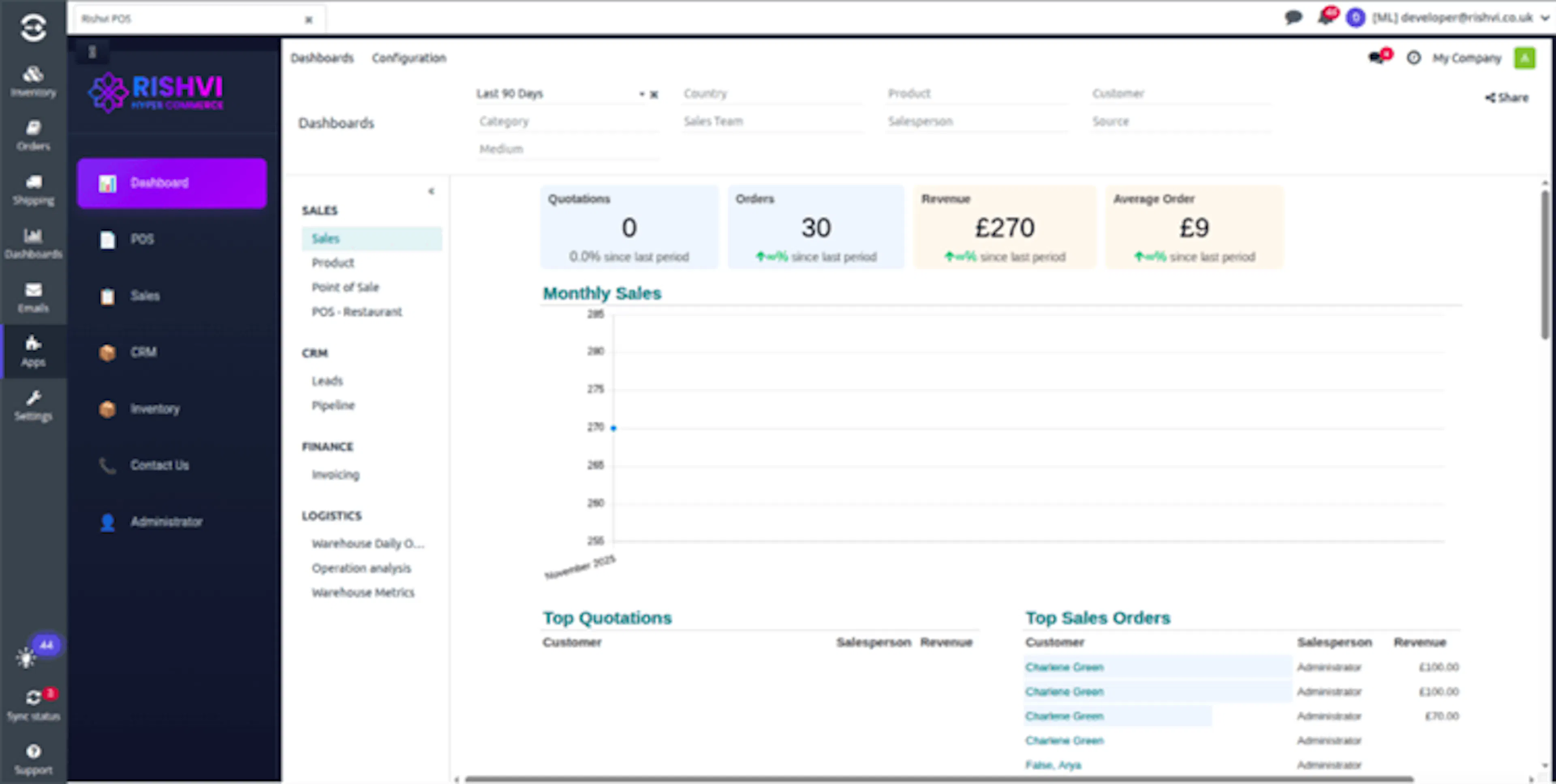
After the setup-complete message appears:
- Refresh the browser.
- Reopen the application if required.
- Confirm that the CRM dashboard loads.
- Review the installed modules.
Sign in to HYPER CRM
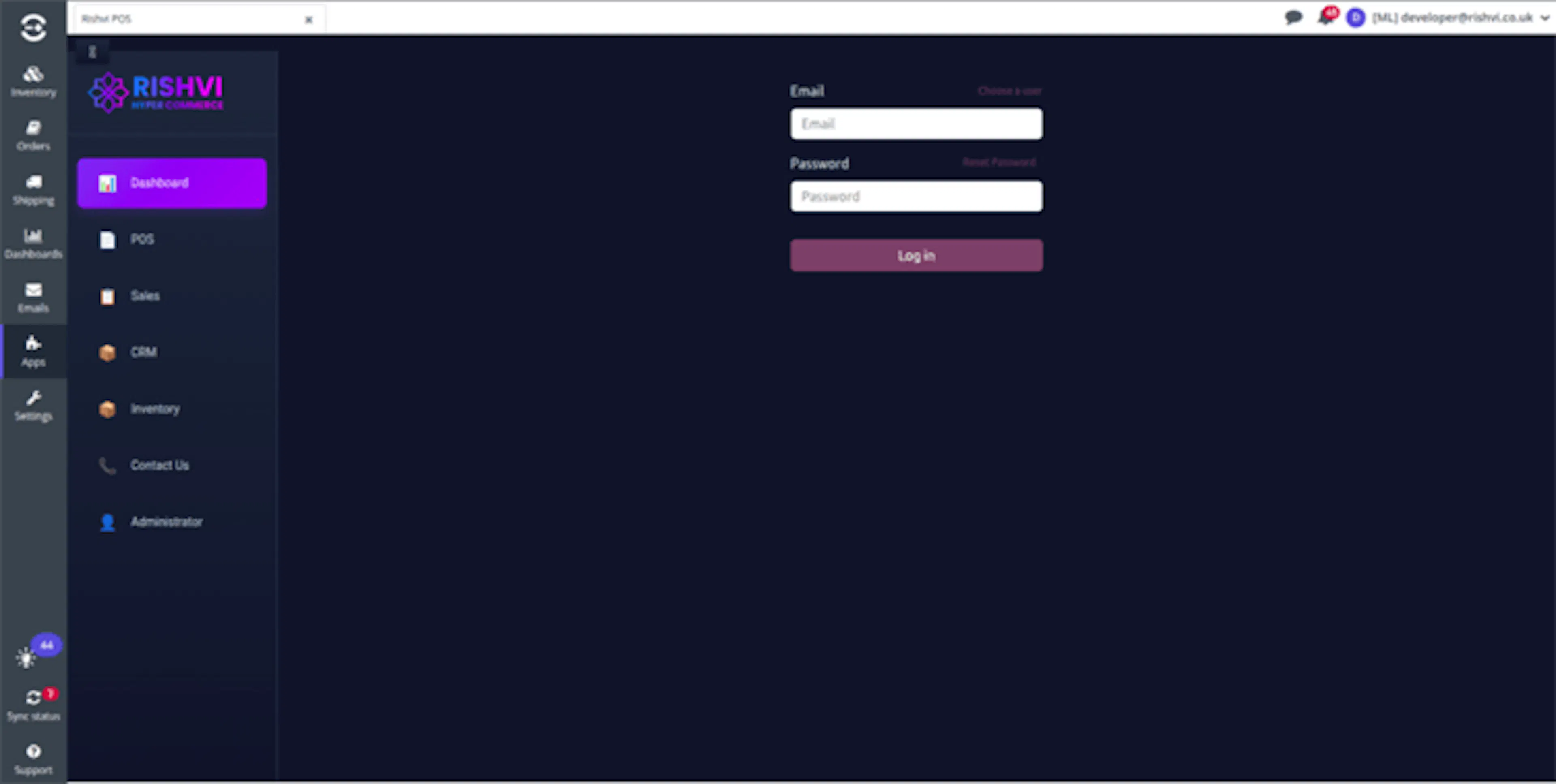
If the login page appears:
- Enter your authorized email address.
- Enter your password.
- Click Login.
- Confirm that the dashboard is accessible.
Additional login options can include:
- Choose a user
- Reset password
Dashboard Overview
After installation, the CRM dashboard provides a summary of sales and order activity.
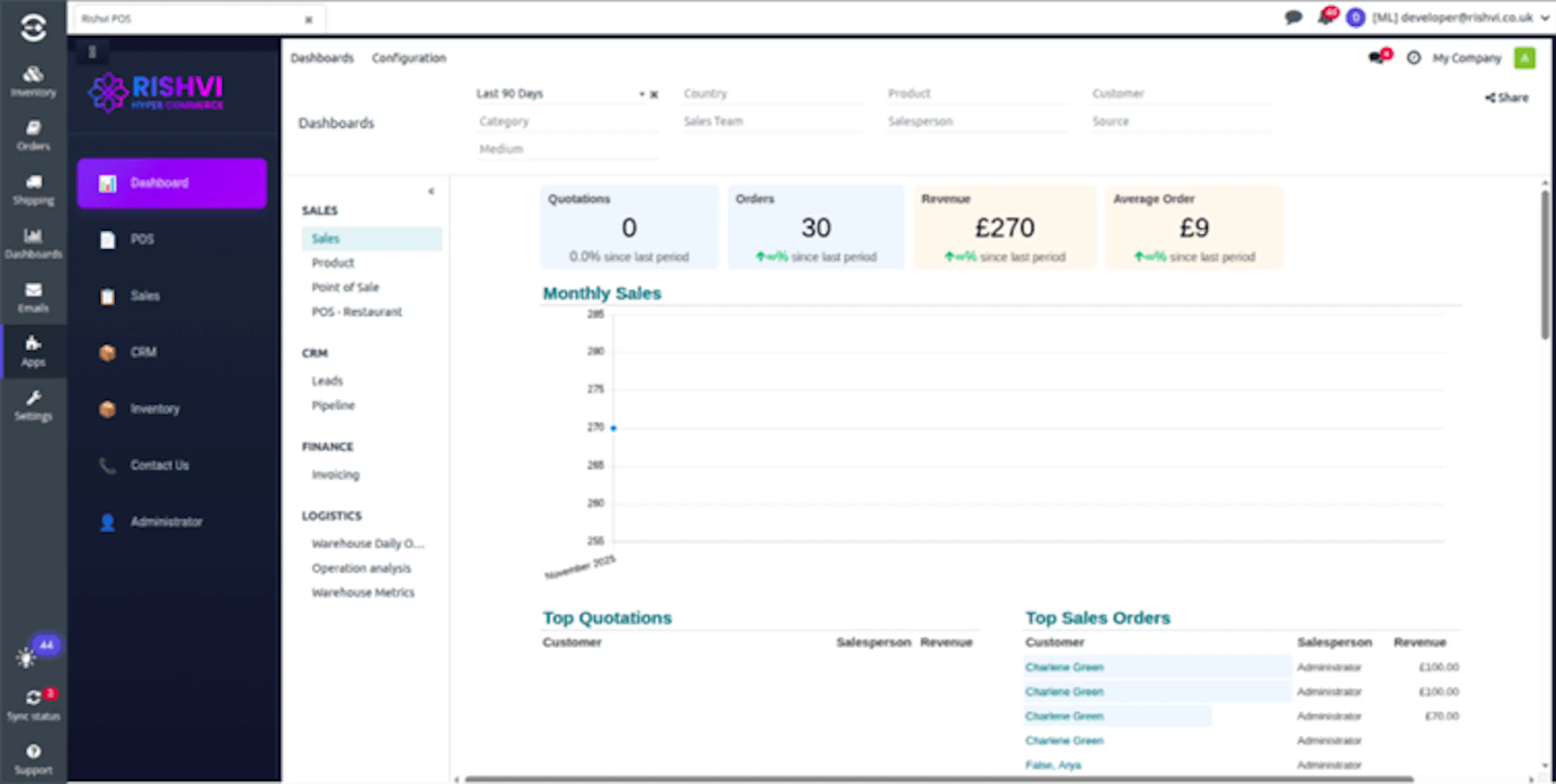
Sales Orders
Displays the number of sales orders currently available in HYPER CRM.
Revenue
Displays recorded sales revenue.
Average Order Value
Displays the average value of recorded sales orders.
Monthly Sales
Displays sales activity across the available monthly reporting period.
Top Sales Orders
Highlights significant sales orders for operational review.
Quotation Overview
Displays current quotation activity and quotation records.
Initial System Configuration
After installation, configure the main business and integration settings.
Company Information
Configure the company logo, address, tax information, and other business details.
Users and Roles
Create user accounts and assign the required access permissions.
Products and Categories
Review the product and category structure used for Linnworks imports.
Warehouses and Locations
Configure or import the warehouse structure required for inventory and order processing.
Pricelists
Configure retail, wholesale, currency, discount, markup, and customer-specific pricing rules.
Payment Methods
Configure the cash, card, bank, or other payment methods required for CRM sales.
System Parameters
System parameters are key-value settings that control application and integration behavior without requiring source-code changes.
Each parameter follows this structure:
Key = Value
Navigate to:
Settings → Technical → Parameters → System Parameters
The integration requires parameters for the following areas:
| Configuration Area | Purpose |
|---|---|
| Application mode | Controls the enabled CRM or POS application mode |
| Linnworks customer or account ID | Identifies the connected Linnworks account |
| Linnworks authentication token | Authorizes Linnworks API requests |
| Integration service URL | Defines the secure integration-service endpoint |
Example placeholder values:
<application_mode_parameter> = CRM/POS
<linnworks_customer_id_parameter> = your_customer_identifier
<linnworks_token_parameter> = your_secure_api_token
<integration_base_url_parameter> = your_secure_integration_url
Important: Use the exact system-parameter keys required by the installed application. The examples above are placeholders.
Contact an authorized application administrator when a required system-parameter value is unavailable.
Inventory Synchronization
Inventory synchronization imports Linnworks warehouse, category, product, price, and stock information into HYPER CRM.
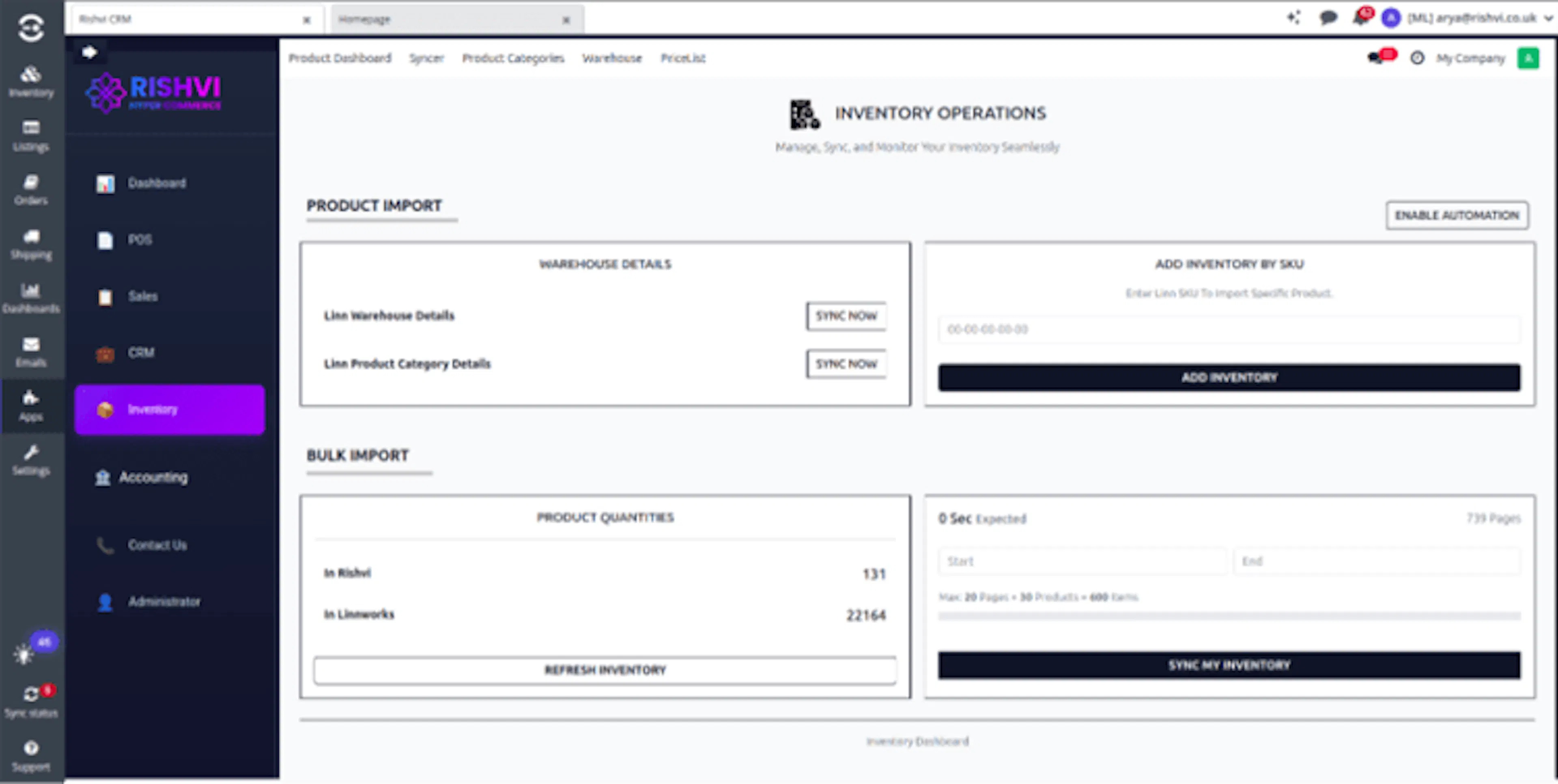
Linnworks Warehouse Details
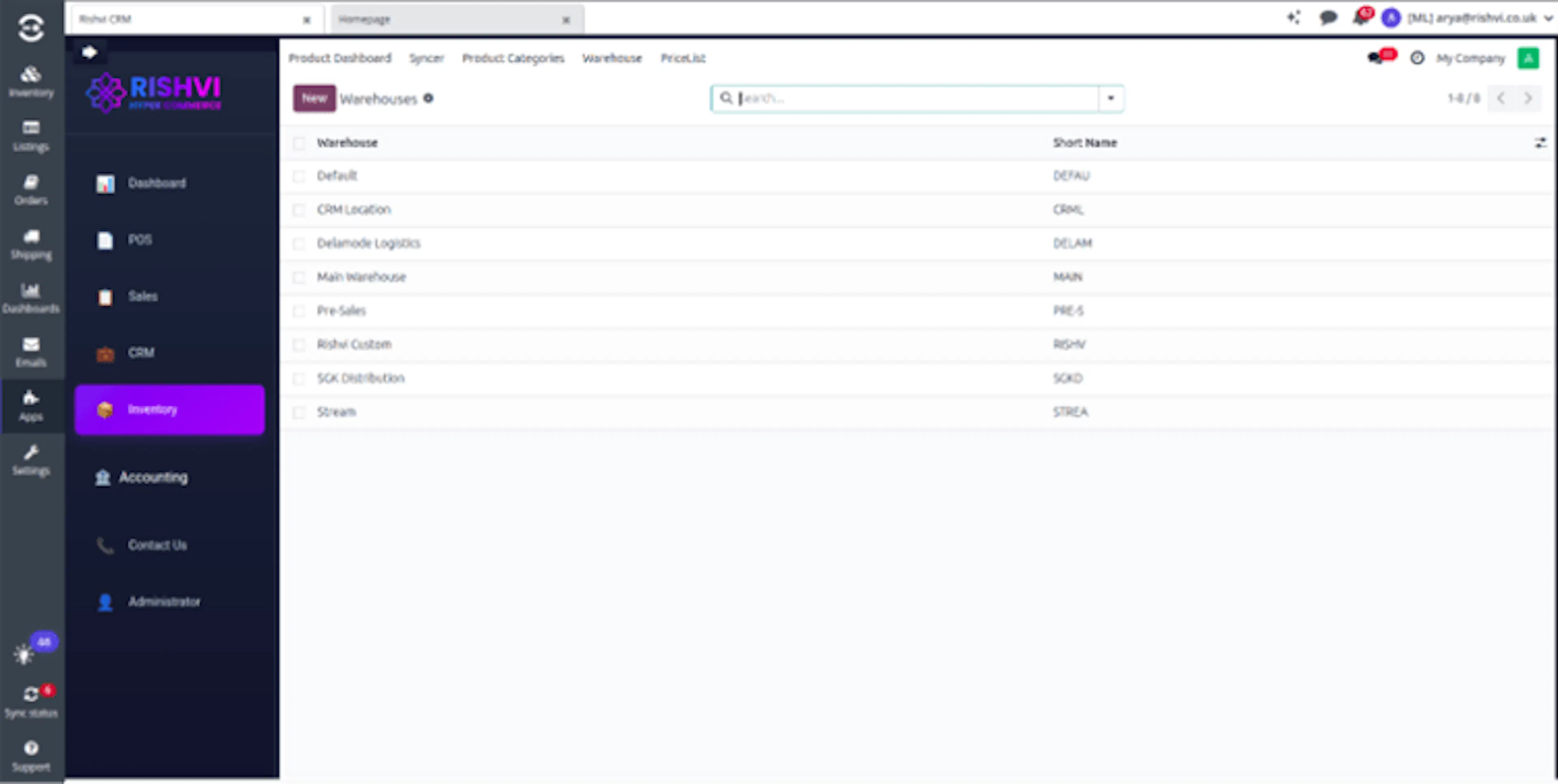
Use Sync Now to:
- Retrieve Linnworks stock locations
- Create missing CRM warehouse records
- Update existing CRM warehouses
- Store Linnworks warehouse identifiers
- Prepare warehouses for inventory and order synchronization
Run this synchronization after a warehouse is added or changed in Linnworks.
Linnworks Product Category Details
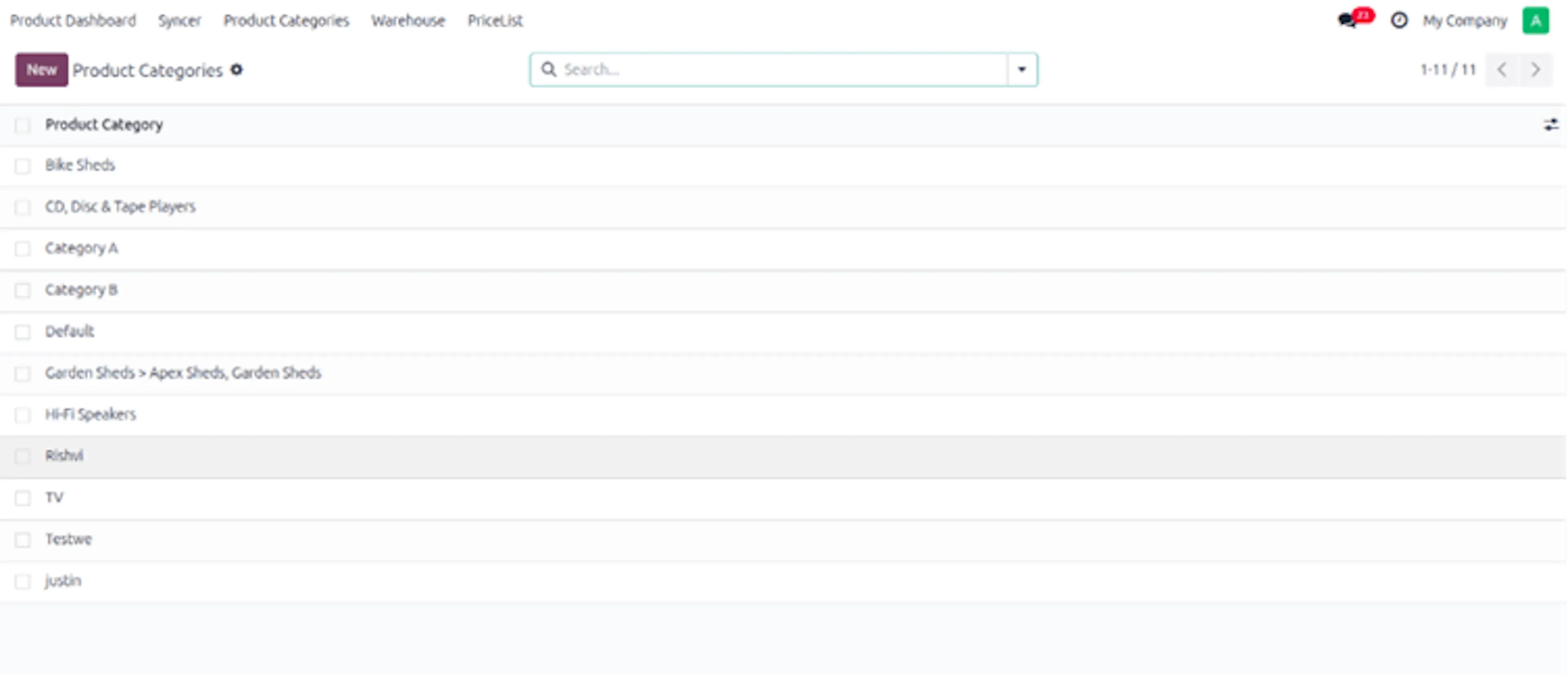
Use Sync Now to:
- Retrieve Linnworks product categories
- Retrieve Linnworks subcategories
- Create missing CRM categories
- Update existing category records
- Maintain consistent product classification
- Prepare HYPER CRM for product and inventory imports
Import categories before running a large inventory synchronization.
Add Inventory by Linnworks SKU
Use this option to retrieve and update one product.
Enter the SKU
Enter the Linnworks SKU for the required inventory item.
Start the Import
Click Add Inventory.
Retrieve Product Data
The integration retrieves the matching Linnworks product and inventory information.
Create or Update the Record
The corresponding CRM product and inventory records are created or updated.
This option is useful for quick corrections or refreshing one product without running a complete bulk synchronization.
Bulk Inventory Import
The bulk synchronization interface can display:
- Inventory records currently stored in HYPER CRM
- Inventory records available in Linnworks
- Selected start page
- Selected end page
- Number of selected pages
- Estimated maximum number of products
Products are imported using controlled Linnworks page ranges.
How Inventory Is Synchronized
Step 1 - Validate the connection
The integration confirms that the required Linnworks account and authentication settings are available.
Step 2 - Select the inventory range
The user selects a single SKU or a bulk page range.
Step 3 - Retrieve Linnworks inventory
Product, category, warehouse, pricing, and quantity information is retrieved from Linnworks.
Step 4 - Match existing CRM records
The system checks whether the product, category, warehouse, and related records already exist.
Step 5 - Create or update records
Missing records are created and existing records are updated.
Step 6 - Record the result
Successful imports, skipped records, missing mappings, and failed operations are recorded for operational review.
Refresh Inventory
The Refresh Inventory action updates the inventory totals displayed for Linnworks and HYPER CRM.
It can be used to:
- Retrieve the current CRM inventory count
- Retrieve the current Linnworks inventory count
- Compare the high-level totals
- Review whether another synchronization may be required
Note: Refreshing the inventory counts provides a statistical overview. It does not perform a complete product-by-product reconciliation.
Bulk Inventory Synchronization
The Sync My Inventory or Sync All Inventory action imports products using a selected Linnworks page range.
Page Range Example
If a page contains 30 products:
Pages 1–20 = up to 600 products
Synchronization Flow
Select the Start Page
Enter the first Linnworks inventory page to retrieve.
Select the End Page
Enter the final Linnworks inventory page to retrieve.
Review the Estimated Volume
Confirm the number of selected pages and estimated product count.
Start the Synchronization
Click Sync All Inventory.
Retrieve Inventory Batches
The system retrieves inventory records from Linnworks in page-based batches.
Create or Update Records
Product and warehouse quantity records are created or updated in HYPER CRM.
Review the Results
Check imported products, warehouse quantities, prices, and failed records.
Recommendation: Use small page ranges during the first synchronization. Increase the range only after the initial mappings and results have been validated.
On-Hand Quantity
On-hand quantity represents the physical inventory currently held in a warehouse.
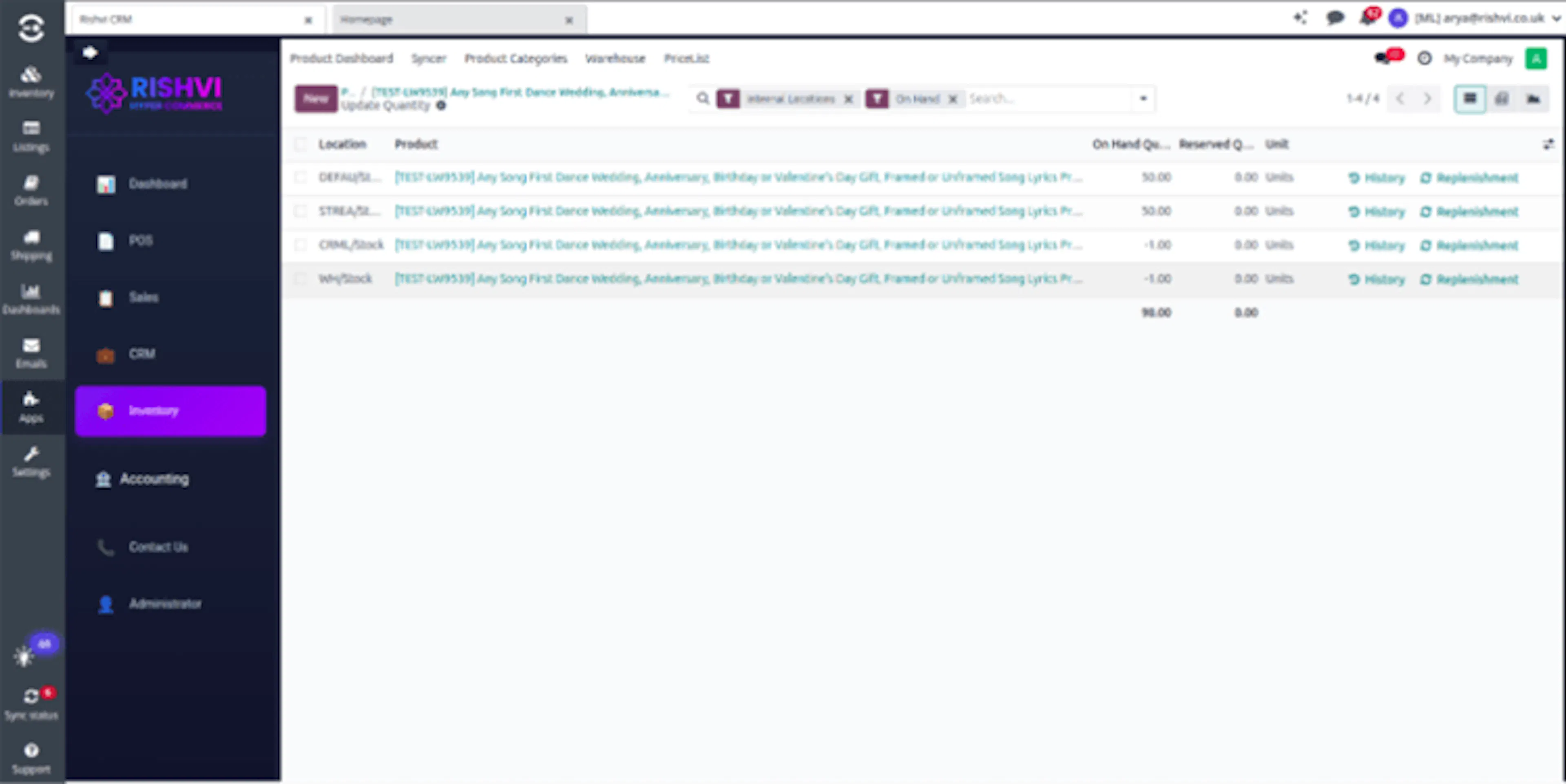
It supports:
- Product-availability review
- Warehouse-level stock monitoring
- Sales planning
- Fulfilment planning
- Inventory comparison
Important: Linnworks remains the source of truth for inventory. HYPER CRM quantities depend on the most recent successful synchronization.
Automated Inventory Synchronization
The application includes an automatic inventory-synchronization job.
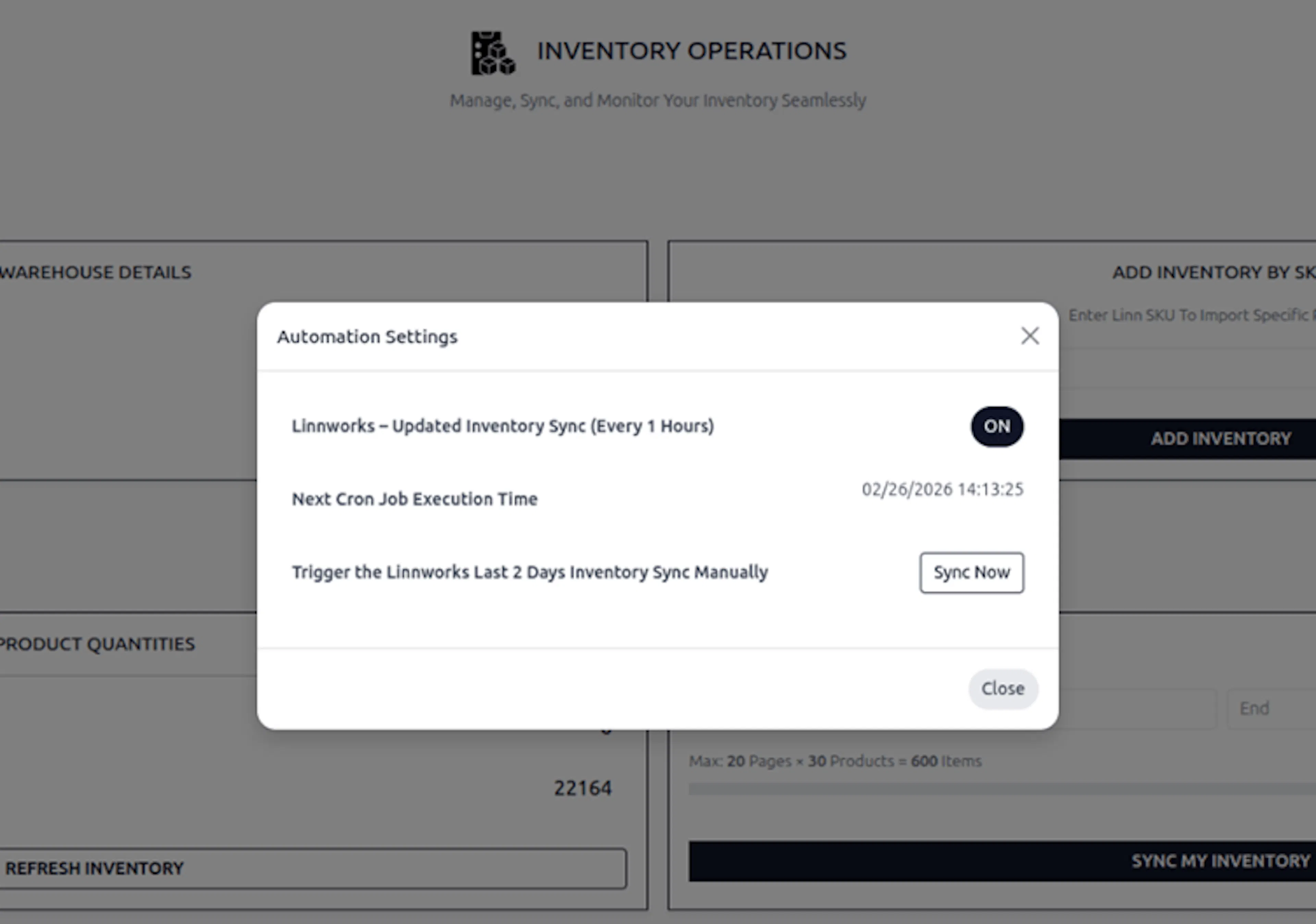
The scheduled job:
- Runs automatically every hour
- Retrieves recent stock and quantity changes
- Checks changes from the previous two days
- Updates CRM inventory records
- Helps maintain inventory consistency
- Displays the next scheduled execution time
Use Manual Sync when an immediate inventory refresh is required.
Manual synchronization is useful after:
- Stock corrections
- Purchase-order receipts
- Warehouse transfers
- Product imports
- Linnworks quantity adjustments
- A failed scheduled execution
Important: Avoid starting a manual synchronization while the scheduled synchronization is already active.
Pricelists
Pricelists control the selling prices used for products and orders.
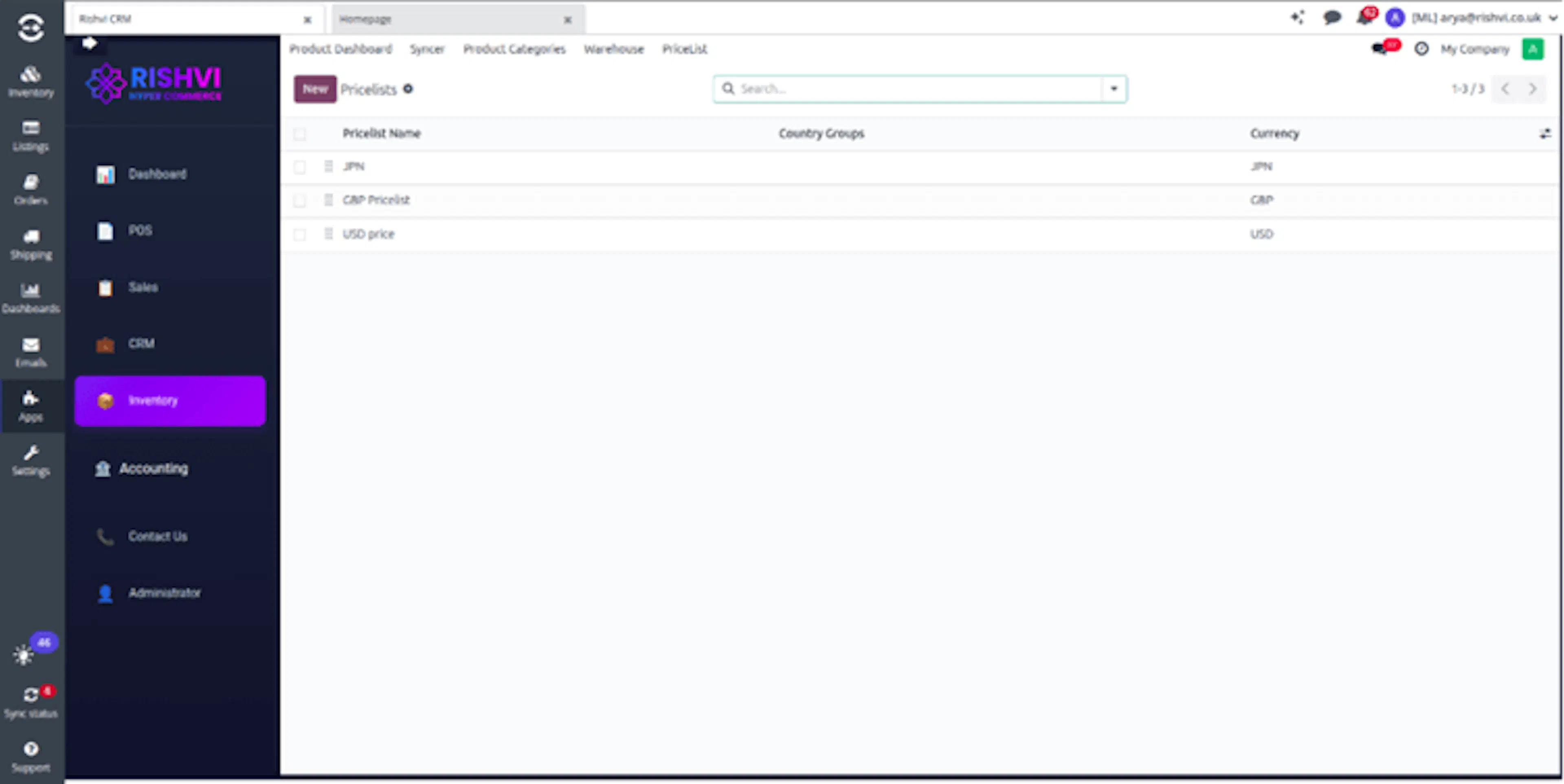
Authorized users can:
- Create new pricelists
- Create pricing rules
- Configure discounts
- Configure markups
- Assign currencies
- Assign a pricelist to a customer
- Assign a pricelist to a customer group
Pricelists help ensure that:
- Linnworks prices are imported correctly
- CRM pricing remains aligned with Linnworks
- Future orders use the correct selling price
- Customer-specific pricing can be applied
- Currency-specific pricing can be maintained
Important: Enable and configure pricelists before importing or creating orders that depend on Linnworks pricing.
Order Management
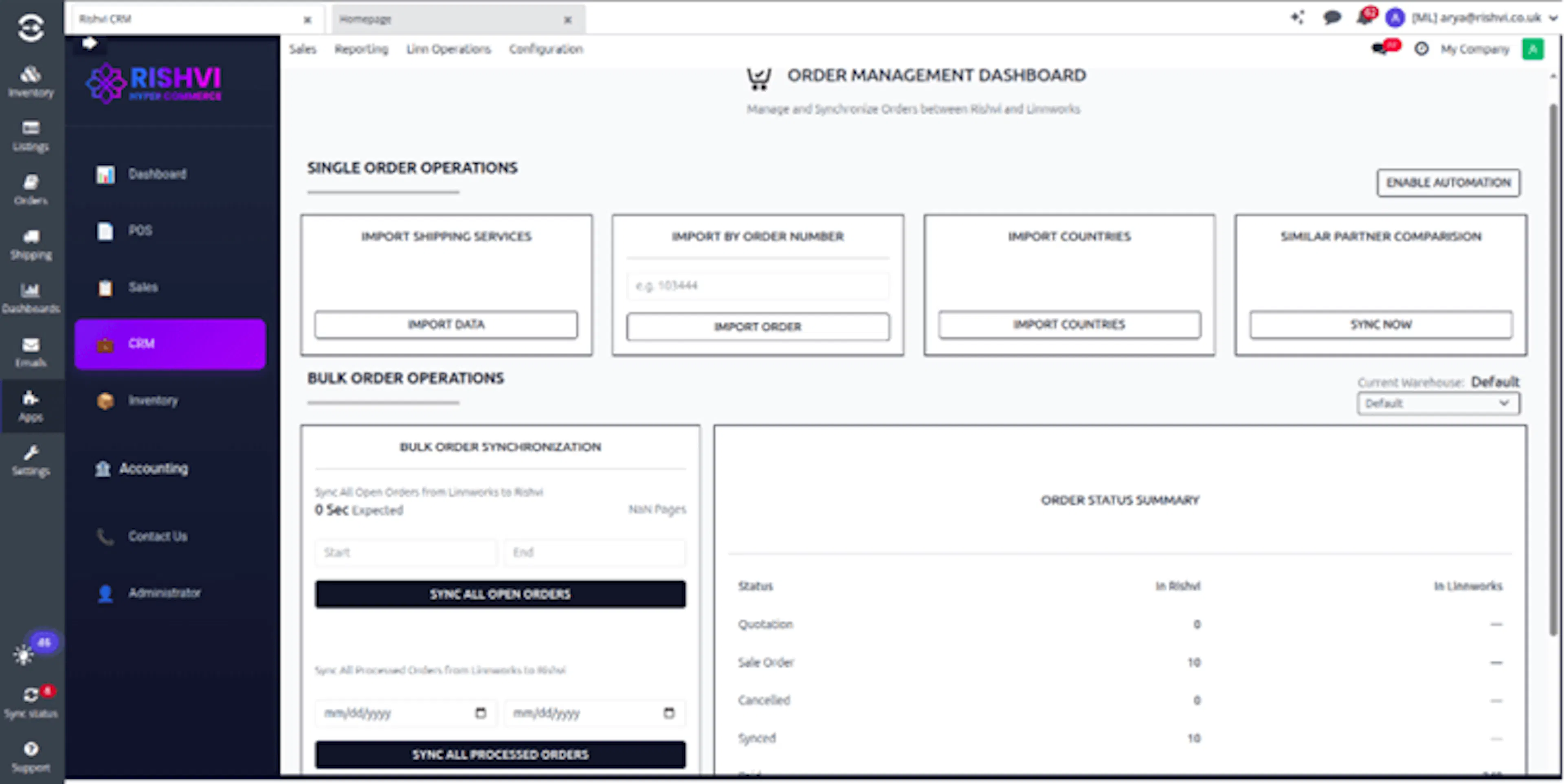
The Order Management Dashboard provides tools for importing, reviewing, creating, and synchronizing orders.
The dashboard supports:
Individual Order Import
Imports or refreshes one Linnworks order using its order number.
Open Order Import
Imports open Linnworks orders using a warehouse, page range, or date range.
Processed Order Import
Imports processed Linnworks orders using a warehouse and processed-date range.
CRM Order Submission
Sends an eligible confirmed CRM sales order to Linnworks.
Supporting Data Import
Imports shipping services and country records required for order mapping.
Customer Comparison
Identifies potentially similar or duplicate customer records.
Order Management Prerequisites
Before synchronizing orders, enable the required features.
Pricelists
Required for applying and maintaining the correct selling prices.
Discounts
Required for importing and maintaining discounted order values.
Product Variants
Required for products that use size, color, or other product options.
Enable the Features
Open Settings
Open the HYPER CRM Settings area.
Enable Pricelists
Navigate to Sales → Pricelists and enable the feature.
Enable Discounts
Navigate to Sales → Discounts and enable the feature.
Enable Product Variants
Navigate to Inventory → Product Variants and enable the feature.
Save the Settings
Save the configuration before synchronizing orders.
Important: These features are required for accurate price, discount, and product-variant handling.
How Orders Are Synchronized
When an order is imported from Linnworks, the integration follows a defined process.
Step 1 - Order selection
The user selects an individual order, an open-order page range, an open-order date range, or a processed-order date range.
Step 2 - Warehouse filtering
Where required, the selected Linnworks warehouse is applied to the request.
Step 3 - Order retrieval
The integration retrieves the matching Linnworks order records.
Step 4 - Data mapping
Products, customers, addresses, shipping services, countries, quantities, prices, discounts, and order statuses are mapped to CRM records.
Step 5 - Customer matching
Existing customer records are identified where possible, reducing unnecessary duplicate customers.
Step 6 - Order creation or update
Missing CRM orders are created and existing synchronized orders are updated.
Step 7 - Reference storage
The Linnworks order number is stored against the CRM order for later status synchronization and operational review.
Individual Order Operations
Import Orders by Order Number
Use this function to retrieve one Linnworks order using its order number.
This is useful for:
- Recovering a missing order
- Reprocessing one order
- Reviewing the latest Linnworks state
- Resolving a synchronization discrepancy
- Importing an order that was processed before its initial CRM import
Enter the Order Number
Enter the required Linnworks order number.
Click Import
Start the individual-order synchronization.
Retrieve and Validate
The integration retrieves the order and validates the required data.
Create or Update
A CRM order is created or the existing CRM order is updated.
Import Shipping Services
This action:
- Retrieves the configured Linnworks shipping services
- Creates missing CRM shipping-service records
- Updates existing records where required
- Prepares shipping-service values for order synchronization
Note: This feature imports shipping-service master data. The supplied workflow does not define automatic parcel-tracking synchronization.
Import Countries
Country import supports:
- Billing-address mapping
- Delivery-address mapping
- Country validation
- Consistent customer records
- Order-import processing
Compare Similar Customers
Similar-customer matching can use:
- Customer name
- Email address
- Phone number
- Company name
- Other available customer identifiers
Review suggested matches before merging or correcting customer records.
Bulk Order Operations
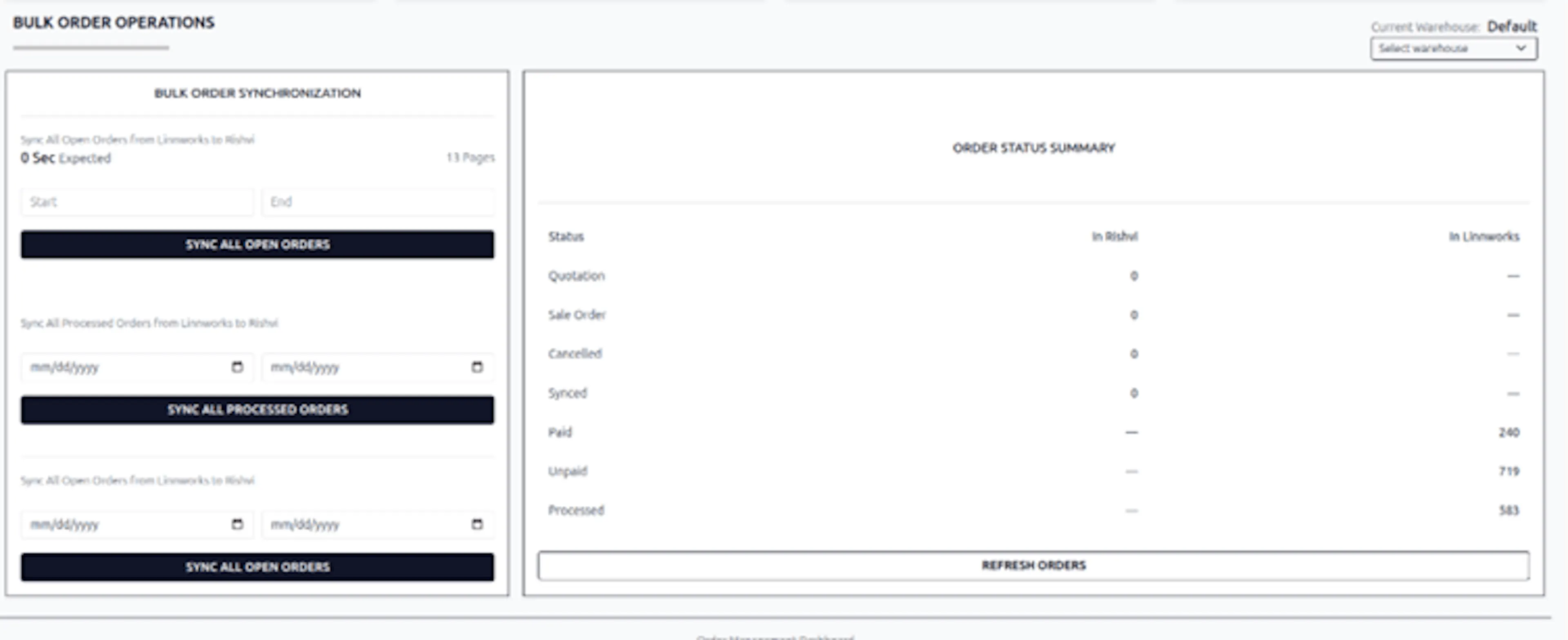
Sync Open Orders by Page Range
Select:
- Warehouse
- Start page
- End page
The integration retrieves open Linnworks orders associated with the selected warehouse and page range.
This is useful when a large number of open orders must be imported in controlled batches.
Sync Open Orders by Date Range
Select:
- Warehouse
- Start date
- End date
The integration retrieves open Linnworks orders whose order dates fall within the selected range.
Sync Processed Orders
Select:
- Warehouse
- Start date
- End date
The integration retrieves processed Linnworks orders whose processed or completed dates fall within the selected range.
This is useful for historical imports, reconciliation, and missing processed-order recovery.
Refresh Orders
The Refresh Orders action displays high-level order counts from HYPER CRM and Linnworks.
HYPER CRM Counts
HYPER CRM can display totals for:
- Quotations
- Cancelled orders
- Confirmed sales orders
Linnworks Counts
Linnworks totals can include:
- Paid orders
- Unpaid orders
- Processed orders
Select a warehouse before refreshing the counts to limit the displayed information to that location.
Note: Refresh Orders provides a statistical comparison. It does not perform a complete order-by-order reconciliation.
Create and Sync a CRM Order
A CRM quotation can be sent to Linnworks after it has been confirmed as a sales order.
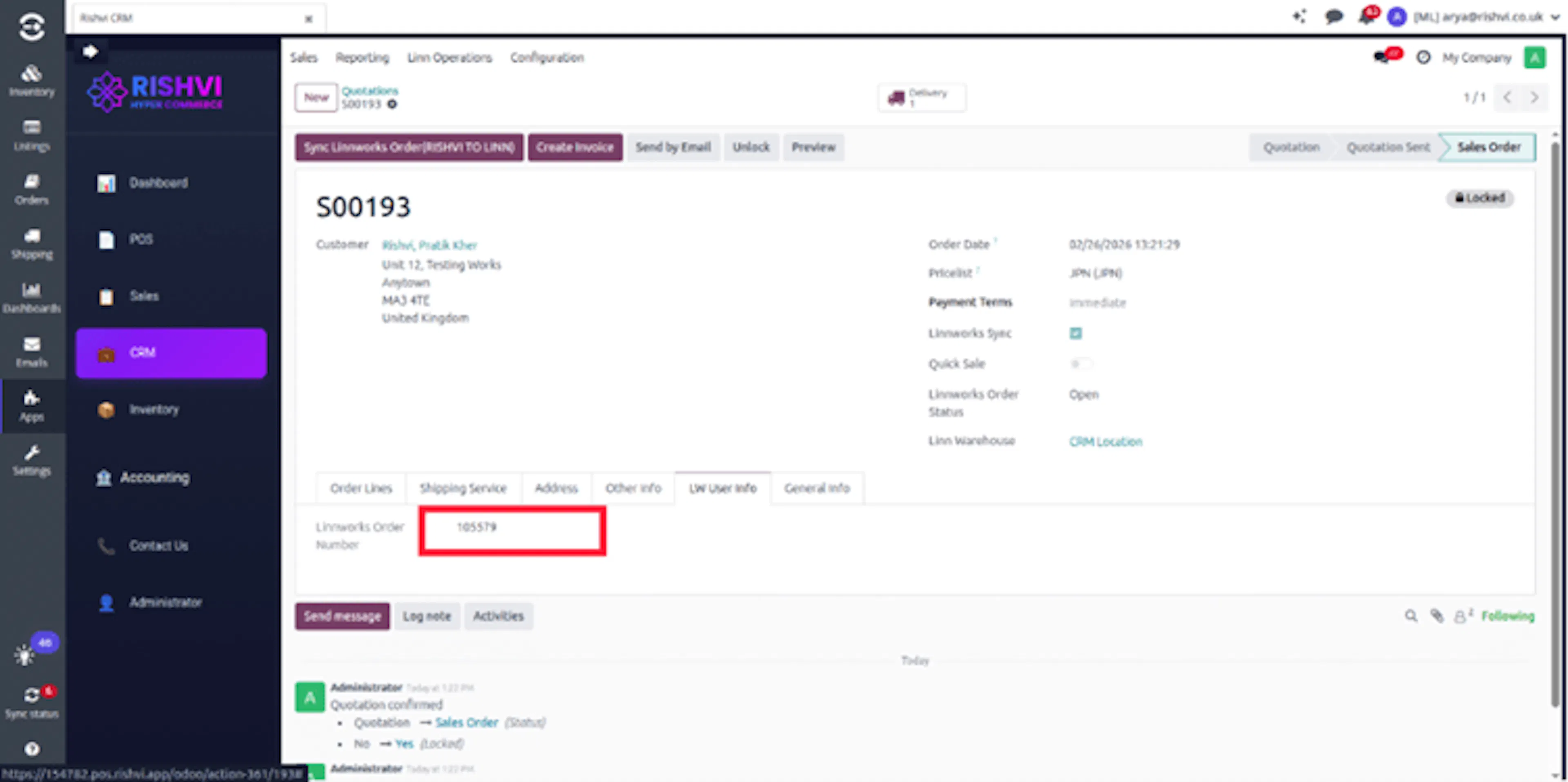
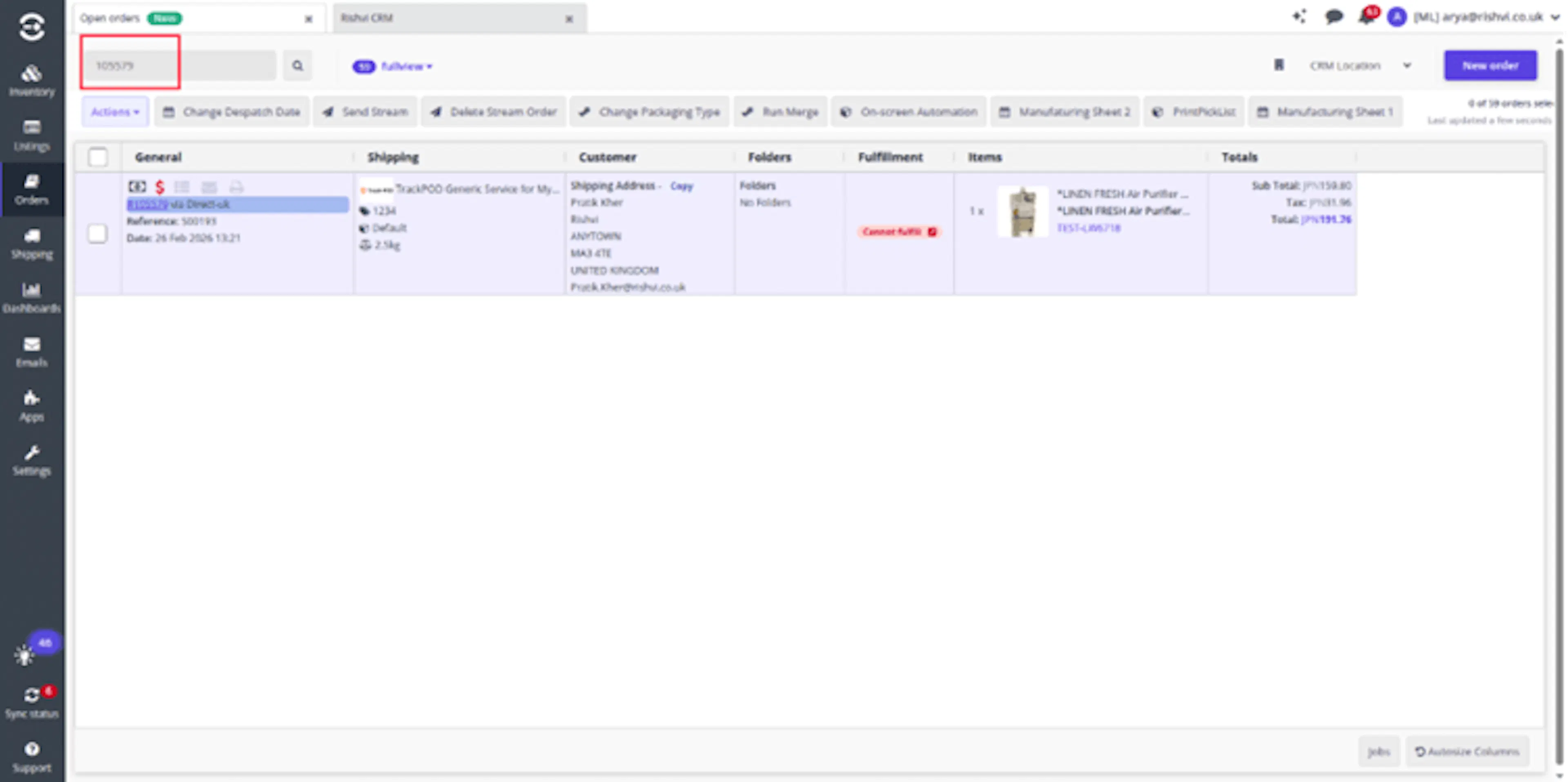
Create the Quotation
Select the customer and add the required products, quantities, prices, delivery details, and payment information.
Confirm the Sales Order
Confirm the quotation so that it becomes a sales order.
Open the Linnworks Sync Action
After confirmation, locate Sync with Linnworks.
Send the Order
Click Sync with Linnworks to create the order in Linnworks.
Store the Linnworks Reference
The returned Linnworks order number is saved against the CRM order.
Verify the Result
Use the stored Linnworks order number to locate and review the new Linnworks order.
Important: Only confirmed CRM sales orders should be sent to Linnworks.
Quick Sale
Quick Sale automates delivery and invoice creation when a CRM sales order is confirmed.
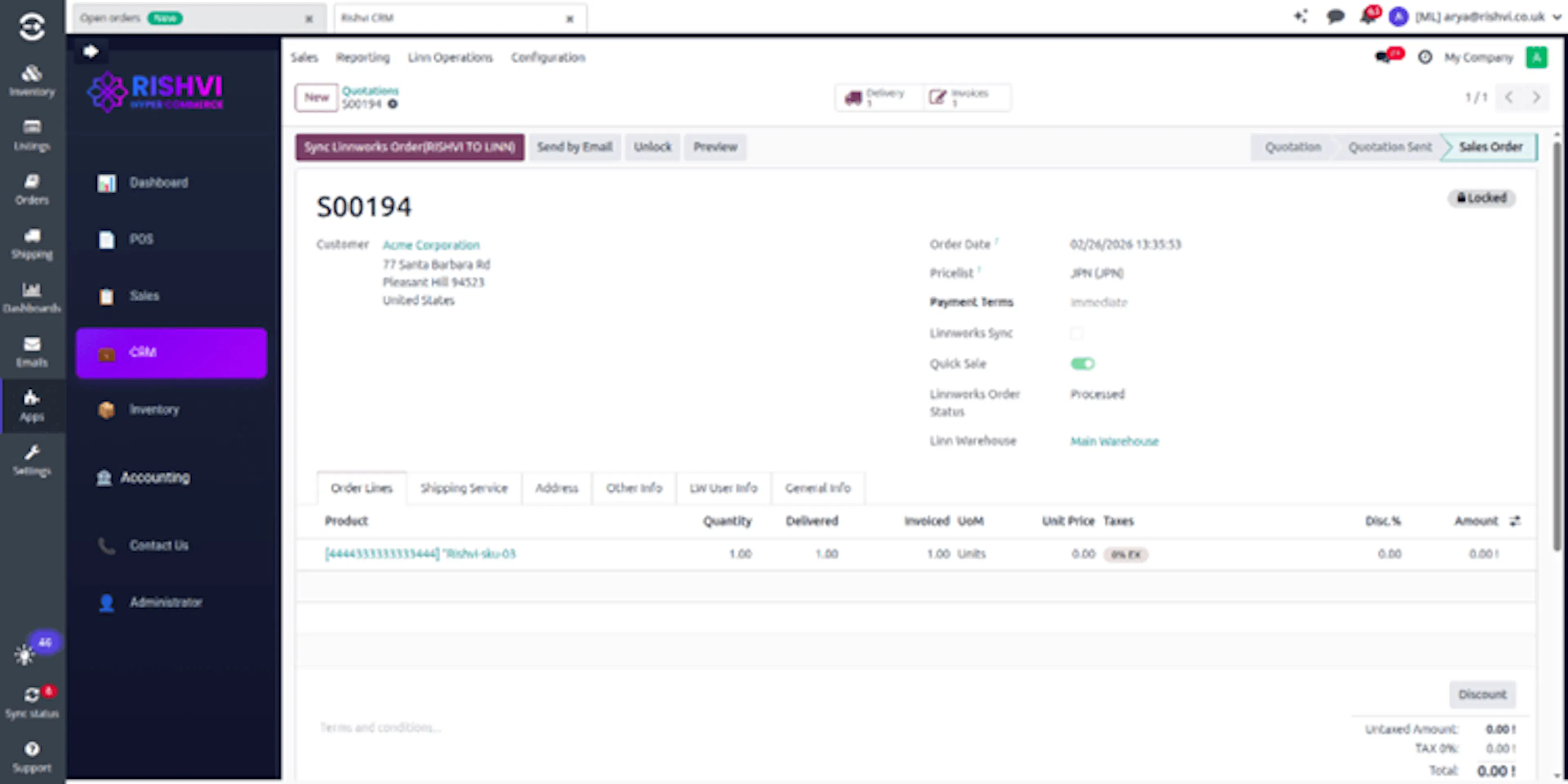
When enabled:
- The user confirms the sales order
- A delivery order is created automatically
- An invoice is created automatically
- Separate delivery validation is reduced
- Separate invoice creation is reduced
Important: Review customer details, product availability, quantities, prices, taxes, and delivery information before confirming a Quick Sale.
Automated Order Synchronization
The application includes an automatic order-synchronization job.
The scheduled job:
- Runs automatically every hour
- Retrieves orders modified during the previous two days
- Updates recent order statuses
- Updates payment changes
- Updates processing information
- Keeps recent Linnworks and CRM records aligned
- Displays the next scheduled execution time
Use Manual Sync when an immediate order update is required.
Manual synchronization is useful after:
- An urgent Linnworks status change
- A payment update
- Linnworks order processing
- A failed scheduled execution
- A newly imported order
- A support investigation
Order Cancellation and Return Visibility
The CRM can display cancelled and returned order information where those statuses are available through synchronization.
Cancellation and Return Monitoring
Cancelled and returned orders can be included in CRM order counts and operational review. The supplied application workflow does not define a separate CRM-to-Linnworks cancellation or returns-management process.
Manage operational cancellations, returns, and refunds in the authoritative order system unless a separate workflow has been configured.
Required Order Synchronization Sequence
The recommended order workflow is:
Open in Linnworks
Keep the order open in Linnworks.
Import into HYPER CRM
Synchronize or import the open order before processing it.
Process in Linnworks
Complete the required Linnworks fulfilment workflow.
Allow the Scheduled Update
Allow the automatic synchronization job to update the CRM order from open to processed.
Critical Scenario
If an order is processed in Linnworks before it is initially imported into HYPER CRM:
- The automatic open-order synchronization may not retrieve it
- The order may not appear in HYPER CRM automatically
- The processed-order update may not have a CRM record to update
Recovery
Use Import Orders by Order Number to retrieve the missing Linnworks order manually.
Critical: Follow the sequence Import the open order → Process it in Linnworks → Allow the automatic CRM update whenever possible.
Inventory Source of Truth
Linnworks is the primary source of truth for inventory.
Inventory changes should originate from Linnworks and flow into HYPER CRM through synchronization.
HYPER CRM inventory values reflect the latest successful synchronization and should not replace Linnworks as the authoritative stock record.
Important: Always verify operational stock in Linnworks when an inventory discrepancy is identified.
Negative Stock Handling
HYPER CRM can allow stock quantities to fall below zero.
Linnworks does not support negative stock in the same way.
This difference can create mismatches when CRM orders are confirmed without sufficient Linnworks stock.
Important: Review Linnworks stock availability before confirming or processing orders that could create negative CRM inventory.
Order Payment Requirement
Orders should be marked as paid in Linnworks before they are processed.
Unpaid orders should not move through the normal processing workflow because this can create order-status and synchronization inconsistencies.
Important: Verify the Linnworks payment status before processing an order.
Linnworks Mode
Linnworks Mode is an administrator-controlled setting that determines whether the HYPER CRM application icon is available to normal users.
When Linnworks Mode is enabled:
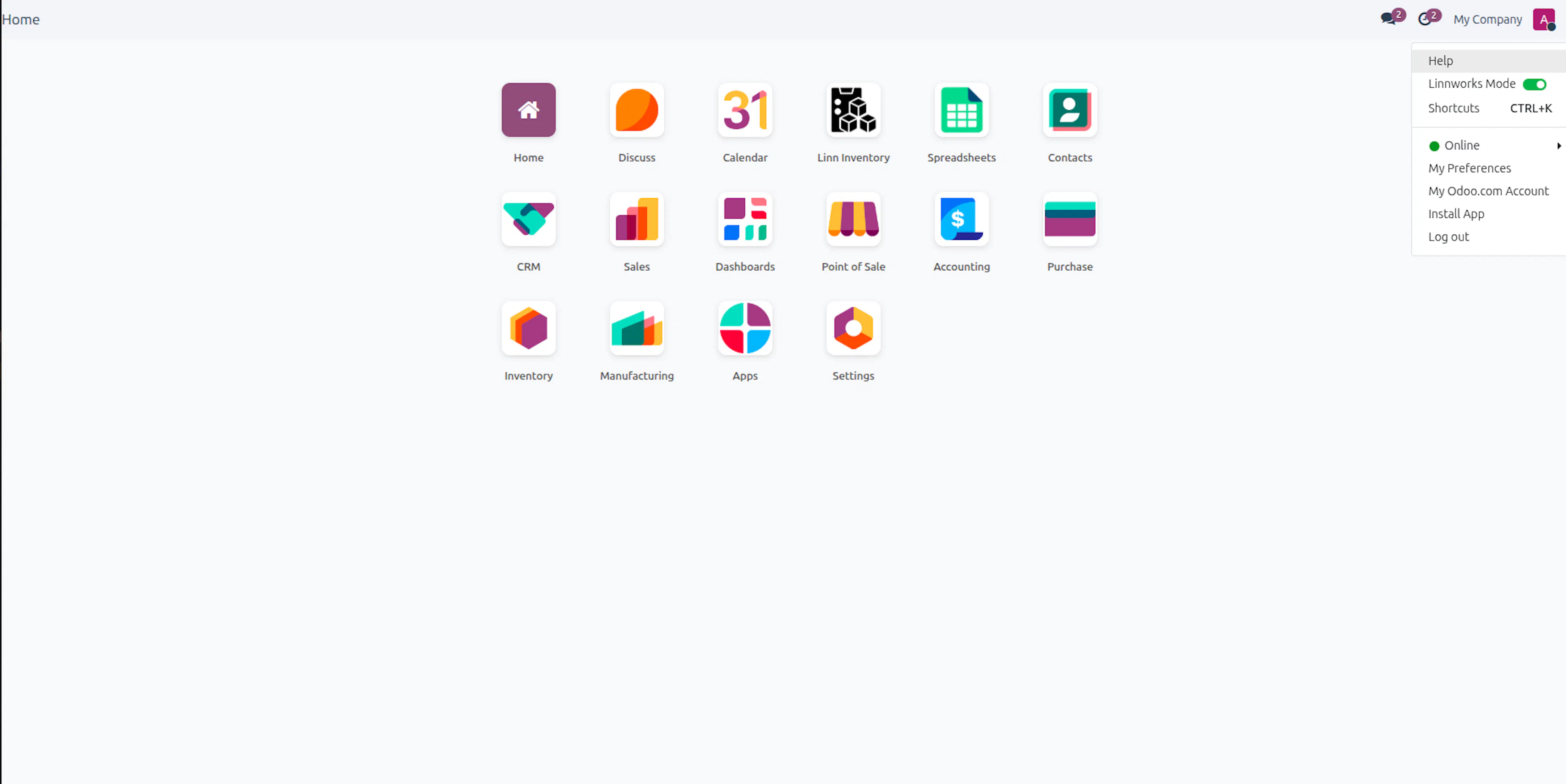
- The application icon is hidden or disabled
- Normal users cannot open the application from the standard icon
When Linnworks Mode is disabled:
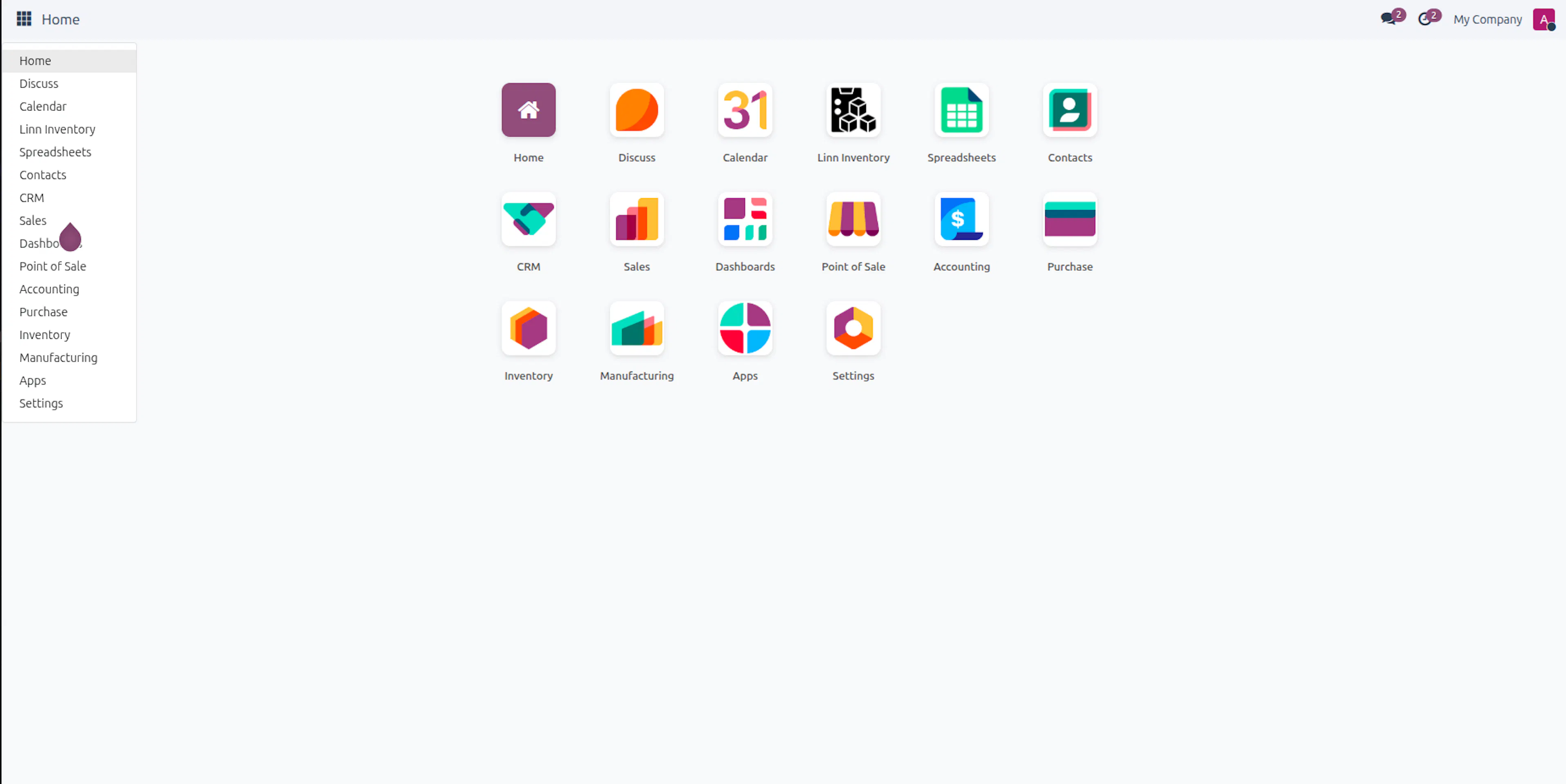
- The application icon is visible
- Authorized users can access the application
The toggle is available from the top-right user menu.
Important: Confirm the required user-access state before changing Linnworks Mode.
Multi-Warehouse Configuration
The integration supports multiple Linnworks warehouses.
Per-Warehouse Behavior
| Configuration Area | Description |
|---|---|
| Warehouse import | Retrieves Linnworks stock locations and creates corresponding CRM warehouse records |
| Inventory quantities | Maintains product quantities at warehouse level |
| Open-order filtering | Retrieves open orders assigned to the selected warehouse |
| Processed-order filtering | Retrieves processed orders assigned to the selected warehouse |
| Order counts | Displays warehouse-specific order totals |
| Bulk synchronization | Applies the selected warehouse and page or date filters |
Multi-Warehouse Benefits
Warehouse-Level Visibility
Product quantities and orders can be reviewed for a specific Linnworks warehouse.
Controlled Order Imports
Users can limit open and processed order synchronization to a selected warehouse.
Operational Accuracy
Warehouse filtering helps prevent unrelated stock and order records from being included in a synchronization.
Scalable Inventory Management
Additional Linnworks warehouses can be imported as the operational network grows.
Production-Readiness Features
The integration includes operational controls designed to support regular synchronization.
Secure Configuration
Sensitive Linnworks and integration values are stored as system parameters rather than displayed in normal user-facing pages.
Scheduled Synchronization
Hourly inventory and order jobs maintain recent CRM information without requiring constant manual operation.
Manual Recovery Tools
Individual order import, manual inventory synchronization, and manual order synchronization provide operational recovery options.
Controlled Bulk Processing
Page ranges, date ranges, and warehouse filters allow large imports to be divided into controlled groups.
Source-of-Truth Control
Linnworks remains the primary inventory and operational order system.
Feature Prerequisites
Pricelists, discounts, and product variants can be enabled before order synchronization begins.
Administration and Operational Tools
Authorized users can use the CRM interface to:
Manage Integration Parameters
Review and maintain the system parameters required for Linnworks connectivity.
Review Inventory Counts
Compare the high-level inventory totals displayed for Linnworks and HYPER CRM.
Run Manual Synchronization
Trigger immediate inventory or order synchronization when required.
Recover Individual Orders
Import a missing or specific Linnworks order using its order number.
Review Similar Customers
Identify possible duplicate customer records before correcting or merging data.
Control User Visibility
Use Linnworks Mode to control access to the application icon.
Order Lifecycle
Orders can move through the following HYPER CRM and Linnworks stages.
| Status | Description |
|---|---|
| Quotation | The order is being prepared in HYPER CRM and has not yet been confirmed |
| Sales Order | The quotation has been confirmed in HYPER CRM |
| Ready to Sync | The confirmed CRM order is eligible to be sent to Linnworks |
| Synced to Linnworks | Linnworks accepted the order and returned an order number |
| Open in Linnworks | The order is available in Linnworks and has not yet been processed |
| Processed in Linnworks | Linnworks completed the order and HYPER CRM was updated through synchronization |
| Cancelled | The order is recorded as cancelled in the available synchronized order data |
| Returned | The order is recorded as returned where that status is available |
| Failed | An import, update, or order-submission operation did not complete successfully |
Lifecycle Flow
Quotation
A customer quotation is prepared in HYPER CRM.
Confirmed Sales Order
The quotation is confirmed and becomes a sales order.
Synced to Linnworks
The confirmed sales order is sent to Linnworks and the returned Linnworks order number is stored.
Open in Linnworks
The order remains open while the Linnworks fulfilment workflow is completed.
Processed
The scheduled synchronization detects the Linnworks change and updates HYPER CRM.
Validation Errors and Common Causes
| Validation Error | Common Cause |
|---|---|
| Linnworks connection failed | The account identifier, token, or integration URL is missing or invalid |
| Warehouse not found | The Linnworks warehouse has not been imported or mapped |
| Product category missing | Category synchronization has not been completed |
| SKU not found | The entered or imported SKU does not exist in Linnworks |
| Product variant unavailable | Product variants are disabled or the item mapping is incomplete |
| Pricelist unavailable | Pricelists are disabled or the customer or product has no valid pricing rule |
| Country not found | Country records have not been imported |
| Shipping service missing | Linnworks shipping services have not been synchronized |
| Order not found | The supplied Linnworks order number is invalid or inaccessible |
| Order imported after processing | The order was processed in Linnworks before its initial CRM import |
| Customer appears duplicated | Similar customer records were created without comparison |
| Scheduled synchronization missed | The scheduler, integration service, or authentication configuration is unavailable |
Troubleshooting Guide
Application setup does not complete
Symptom: Installation progress does not reach 100%.
Likely cause: The browser was refreshed, a module failed to install, or the setup process stopped.
Resolution: Keep the setup page open, review the installation status, and rerun setup only after confirming the previous process is not active.
Dashboard does not load
Symptom: The application opens but the dashboard is unavailable.
Likely cause: Setup has not completed or the application needs to be reloaded.
Resolution: Confirm that setup reached 100%, refresh the browser, and reopen the application.
Login failed
Symptom: The user cannot access HYPER CRM.
Likely cause: The account is inactive or the supplied login details are incorrect.
Resolution: Confirm that the account is active or use the password-reset option.
Linnworks connection failed
Symptom: Imports and synchronization operations fail.
Likely cause: A Linnworks system parameter, authentication token, account ID, or integration URL is missing or invalid.
Resolution: Review the secure system parameters without exposing their values in support messages.
Warehouse was not imported
Symptom: A Linnworks warehouse is missing from HYPER CRM.
Likely cause: The warehouse import has not been run or the Linnworks connection failed.
Resolution: Run Sync Now from the Linnworks Warehouse Details section.
Product category was not imported
Symptom: Products cannot be organized under the expected category.
Likely cause: Product category synchronization has not completed.
Resolution: Run Sync Now from the Linnworks Product Category Details section.
Single SKU inventory was not added
Symptom: Add Inventory does not create or update the product.
Likely cause: The supplied SKU does not exist in Linnworks or the connection failed.
Resolution: Confirm the exact Linnworks SKU and run the operation again.
Inventory synchronization is incomplete
Symptom: Only some Linnworks products appear in HYPER CRM.
Likely cause: The selected page range did not cover the complete inventory or one or more records failed.
Resolution: Review the selected page range and synchronize the missing pages in smaller groups.
Inventory totals do not match
Symptom: Linnworks and HYPER CRM inventory counts are different.
Likely cause: HYPER CRM has not completed the most recent inventory synchronization.
Resolution: Refresh the counts and run a manual inventory synchronization if required.
CRM stock is negative
Symptom: HYPER CRM displays a quantity below zero.
Likely cause: HYPER CRM permits negative quantities while Linnworks applies different stock controls.
Resolution: Review the authoritative Linnworks stock and correct HYPER CRM through synchronization.
Pricelist was not applied
Symptom: An imported or created order uses an unexpected price.
Likely cause: Pricelists are disabled or the product, customer, currency, or pricing rule is incomplete.
Resolution: Enable pricelists and review the applicable pricing rule.
Shipping services were not imported
Symptom: A Linnworks shipping service is unavailable in HYPER CRM.
Likely cause: Shipping-service import has not completed.
Resolution: Run Import Shipping Services again.
Country mapping failed
Symptom: A billing or delivery address cannot be mapped.
Likely cause: Country master data has not been imported.
Resolution: Run Import Countries and review the country value on the order.
Customer appears more than once
Symptom: Multiple CRM customer records appear to represent the same person or company.
Likely cause: Customer matching did not identify the existing record.
Resolution: Use Similar Customers to review the records before correcting or merging them.
Order was not imported
Symptom: An expected Linnworks order is missing from HYPER CRM.
Likely cause: The warehouse, page range, date range, or order status did not match the import.
Resolution: Use Import Orders by Order Number to retrieve the order directly.
Processed order is missing
Symptom: An order processed in Linnworks does not appear in HYPER CRM.
Likely cause: The order was processed before its initial open-order import.
Resolution: Import the order manually using its Linnworks order number.
Sync with Linnworks is unavailable
Symptom: The synchronization action is not visible on a CRM quotation.
Likely cause: The quotation has not been confirmed as a sales order.
Resolution: Confirm the quotation and review the sales order again.
Linnworks order number was not stored
Symptom: The CRM order does not display a Linnworks order reference.
Likely cause: The CRM-to-Linnworks request did not complete successfully.
Resolution: Review the synchronization result before retrying the order.
Quick Sale did not create delivery or invoice
Symptom: Confirming the order did not create the expected delivery and invoice.
Likely cause: Quick Sale was not enabled before order confirmation.
Resolution: Review the Quick Sale setting and the current order workflow.
Automatic inventory sync did not run
Symptom: Recent Linnworks stock changes do not appear in HYPER CRM.
Likely cause: The scheduled job failed or has not reached its next execution time.
Resolution: Review the next execution time and use Manual Sync when an immediate update is required.
Automatic order sync did not run
Symptom: Recent Linnworks order changes do not appear in HYPER CRM.
Likely cause: The scheduled job failed or the order falls outside the recent two-day update window.
Resolution: Run Manual Sync or import the order directly using its Linnworks order number.
Application icon is missing
Symptom: Users cannot locate HYPER CRM in Linnworks.
Likely cause: Linnworks Mode is enabled.
Resolution: Review the Linnworks Mode toggle in the top-right user menu.
Deliverables
The application provides the following functional capabilities.
Installed CRM Platform
A configured CRM environment containing the Dashboard, Sales, CRM, Inventory, POS, user access, and supporting modules.
Warehouse Synchronization
Tools for importing and updating Linnworks warehouse records.
Product and Category Synchronization
Tools for importing product categories, individual SKUs, prices, and bulk inventory records.
Order Synchronization
Individual and bulk import tools for open and processed Linnworks orders.
CRM-to-Linnworks Order Creation
A workflow for sending eligible confirmed CRM sales orders to Linnworks.
Automated Background Jobs
Hourly inventory and order synchronization jobs with manual synchronization options.
Supporting Data Imports
Imports for Linnworks shipping services and country master data.
Operational Documentation
Guidance for installation, configuration, inventory operations, order workflows, special cases, and troubleshooting.
Best Practices
Consistent configuration and controlled synchronization are important for reliable inventory and order management.
Import warehouses first
Synchronize Linnworks warehouses before importing products, inventory, or warehouse-filtered orders.
Import categories before bulk products
Create the required category structure before running large inventory imports.
Use small page ranges initially
Start with small inventory and order page ranges so mappings and imported records can be reviewed.
Keep credentials secure
Store Linnworks tokens and integration URLs in secure system parameters and update them when rotated.
Import open orders before processing
Synchronize open orders into HYPER CRM before completing them in Linnworks.
Treat Linnworks as the stock authority
Use Linnworks when validating or correcting operational inventory.
Review payment status
Confirm that Linnworks orders are paid before processing.
Avoid overlapping sync jobs
Do not start unnecessary manual synchronization while an automatic job is active.
FAQ
What information can be synchronized from Linnworks?
The integration supports warehouses, product categories, products, inventory quantities, prices, shipping services, countries, open orders, processed orders, and recent order-status changes.
Is Linnworks or HYPER CRM the inventory source of truth?
Linnworks is the source of truth for operational inventory. HYPER CRM reflects inventory information retrieved through synchronization.
How often does automatic inventory synchronization run?
The supplied workflow states that the inventory synchronization runs every hour and retrieves changes from the previous two days.
How often does automatic order synchronization run?
The supplied workflow states that the order synchronization runs every hour and retrieves orders modified during the previous two days.
Can I synchronize one product without running a bulk import?
Yes. Use Add Inventory by Linnworks SKU to retrieve and update one product.
Can I synchronize one order manually?
Yes. Use Import Orders by Order Number to retrieve a specific Linnworks order.
What happens if an order is processed before it is imported into HYPER CRM?
The automatic open-order synchronization may not create the CRM record. Import the order manually using its Linnworks order number.
Can HYPER CRM create orders in Linnworks?
Yes. After a CRM quotation is confirmed as a sales order, use Sync with Linnworks. The returned Linnworks order number is stored against the CRM order.
What does Quick Sale do?
When enabled, Quick Sale automatically creates the delivery order and invoice when the CRM sales order is confirmed.
Why do Linnworks and HYPER CRM inventory quantities differ?
The CRM may not have completed the latest synchronization, or HYPER CRM may contain negative stock while Linnworks applies different stock controls. Verify the authoritative quantity in Linnworks.
How are large inventory imports controlled?
Users select a start page and end page. The integration retrieves only the Linnworks inventory pages included in that range.
How are large order imports controlled?
Open orders can be synchronized using warehouse and page-range filters or warehouse and date-range filters. Processed orders use warehouse and date-range filters.
Why is the application icon hidden?
Linnworks Mode may be enabled. Review the toggle in the top-right user menu.
Does this integration automatically update shipment tracking numbers?
The supplied HYPER CRM workflow documents shipping-service master-data import but does not define an automatic parcel-tracking synchronization workflow.
Does this integration submit cancellations or returns to Linnworks?
The supplied workflow includes visibility of cancelled and returned orders but does not define a separate cancellation or returns-submission process.
Legal Information
- Privacy Policy: https://rishvi.co.uk/privacy-policy/
- Terms and Conditions: https://rishvi.co.uk/terms-conditions/
Please review these pages to understand how data is handled and the terms governing the use of this application.
Summary
The HYPER Linnworks CRM Integration provides a centralized interface for managing synchronized products, warehouses, inventory, pricing, customers, quotations, and orders.
Product and Inventory Synchronization
Linnworks warehouses, categories, products, prices, and stock quantities can be imported into HYPER CRM.
Flexible Order Imports
Individual, open, and processed Linnworks orders can be imported using order-number, warehouse, page, and date controls.
CRM Order Creation
Confirmed CRM sales orders can be sent to Linnworks and linked using the returned Linnworks order number.
Automated Synchronization
Hourly background jobs update recent inventory and order information, with manual synchronization available when needed.
Warehouse-Level Visibility
Inventory and order operations can be filtered and reviewed by Linnworks warehouse.
Operational Controls
Secure system parameters, feature prerequisites, source-of-truth rules, Linnworks Mode, and recovery tools support controlled operation.
The recommended operational sequence is:
Synchronize the open Linnworks order → Process it in Linnworks → Allow the automatic job to update HYPER CRM
If an order is processed before its initial CRM import, use Import Orders by Order Number to recover it manually.