HYPER Linnworks POS
Configure and operate HYPER Linnworks POS for synchronized products, inventory, warehouses, categories, pricing, shipping services, customers, payments, and point-of-sale orders between Linnworks and HYPER POS.
Overview
The HYPER Linnworks POS integration connects Linnworks with HYPER POS for retail and service-based sales operations.
The integration supports:
- Linnworks warehouse synchronization
- Product-category synchronization
- Individual inventory import by SKU
- Bulk inventory synchronization
- Warehouse-level inventory availability
- Pricelist management
- Shipping-service synchronization
- POS warehouse selection
- Customer and product selection
- Discounts and internal notes
- Payment processing
- Automatic Linnworks order creation
- Linnworks order-reference storage
- Scheduled inventory synchronization
Linnworks is the operational source for warehouse and inventory information. HYPER POS provides the interface used by cashiers and sales teams to process customer sales.
Architecture at a glance
Linnworks
Provides warehouses, product categories, inventory quantities, prices, shipping services, and operational order records.
Integration Services
Retrieves Linnworks data, updates HYPER POS records, sends validated POS orders to Linnworks, and runs scheduled inventory processes.
HYPER POS
Provides product selection, customer management, discounts, payments, shipping selection, order validation, and receipt generation.
Once configured, the integration reduces manual POS setup, improves warehouse-level inventory accuracy, and provides traceable Linnworks order synchronization.
Who Should Use HYPER POS
Cashiers and Sales Teams
Process customer purchases, select products, apply discounts, accept payments, and validate POS orders.
Store Managers
Monitor POS sessions, review sales activity, control cash handling, and verify warehouse and product availability.
Inventory Teams
Synchronize warehouses, categories, products, quantities, and pricing from Linnworks.
Integration Administrators
Configure system parameters, warehouse mappings, POS settings, automated inventory processing, and Linnworks Mode.
Key Features
Product Selection
Browse, search, scan, and add products to a POS order.
Payment Processing
Process configured payment methods such as cash, card, and digital payments.
Discount Management
Apply eligible discounts to individual products or the complete order.
Inventory Updates
Retrieve Linnworks inventory changes and update POS stock availability.
Receipt Generation
Generate printable or digital customer receipts using the configured POS layout.
Customer Management
Link a sale to an existing customer or create a new customer.
Warehouse-Level Stock
Display and deduct stock using the Linnworks warehouse selected for the POS configuration.
Automatic Linnworks Orders
Send validated POS orders to Linnworks and store the returned Linnworks order number.
Installation Guide
System Installation Overview
HYPER Linnworks POS can be installed and configured from the Application Store within Linnworks.
During the first-time setup, HYPER prepares the required modules and system dependencies, including:
- Point of Sale
- Dashboard
- Sales
- CRM
- Inventory
- Logistics and metrics
- User access
- Base system dependencies
The setup normally takes approximately 5–10 minutes.
If HYPER Linnworks POS has already been installed centrally, open it from Apps → My applications and continue from Step 2 — Start Setup.
Before You Begin
Confirm that you have:
- Access to an authorized Linnworks account
- Permission to install and authorize applications
- Administrator credentials for HYPER Linnworks POS
- Access to the correct test or production environment
- A stable internet connection
- Permission to review and accept the application terms
- Contact details for the integration administrator
Installation Steps
Open HYPER Linnworks POS
- Sign in to Linnworks.
- Open Apps from the main navigation menu.
- Select Application Store.
- Locate HYPER Linnworks POS or Rishvi POS.
- Review the application details, requested permissions, and terms.
- Click Install, Authorize, or the equivalent action.
- After installation, open Rishvi POS from My applications.
Install the application only from an approved Linnworks account and confirm that you are working in the correct test or production environment.
Start the system setup
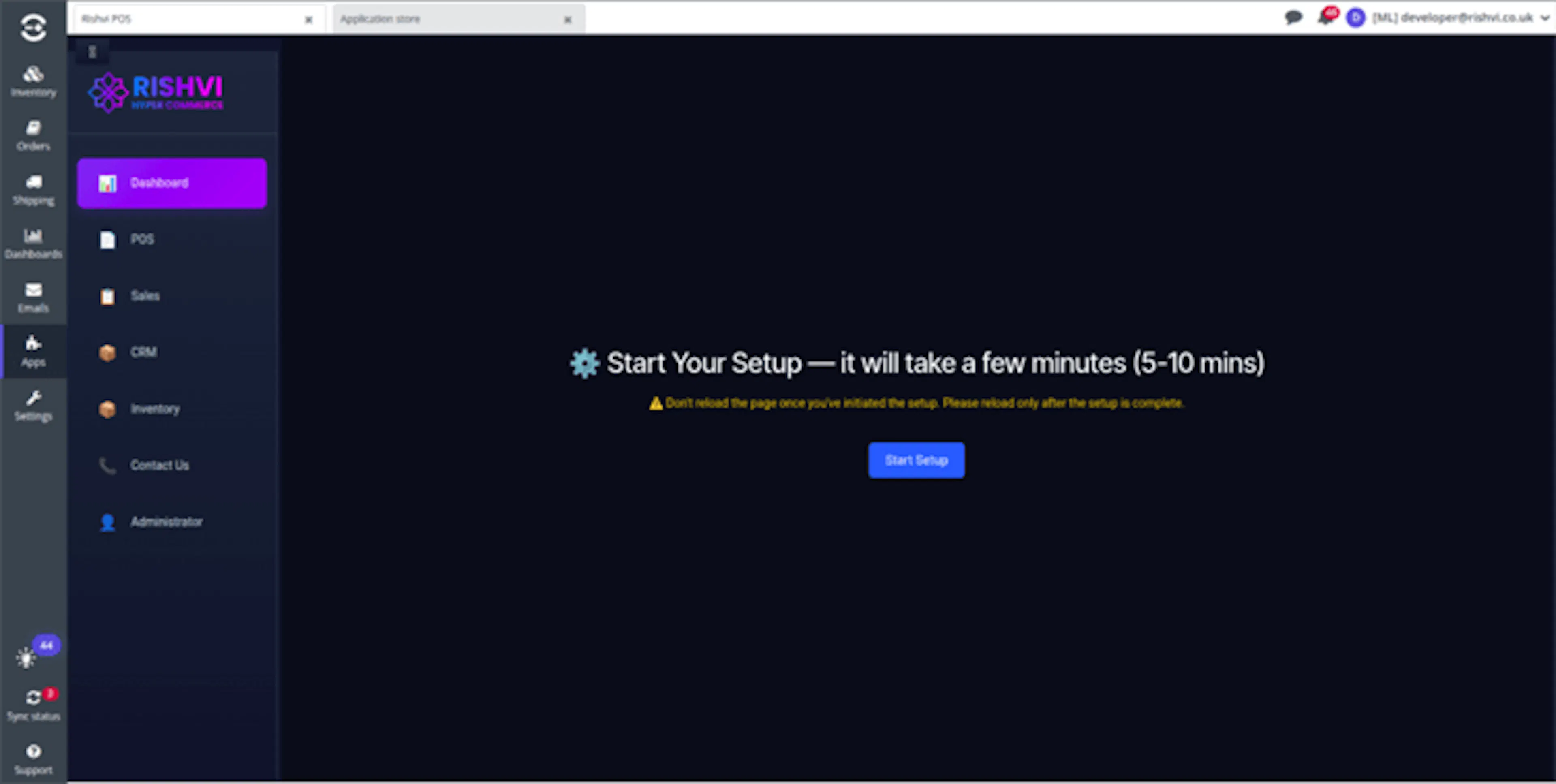
When the setup page opens:
- Confirm that the page displays Start Your Setup.
- Click Start Setup.
- Keep the browser tab open while the setup runs.
- Do not navigate away from the application.
The setup configures:
- POS
- Dashboard
- Sales
- CRM
- Inventory
- Logistics and metrics
- User access
- Base system dependencies
Do not refresh or close the page after starting the setup.
Monitor the setup progress
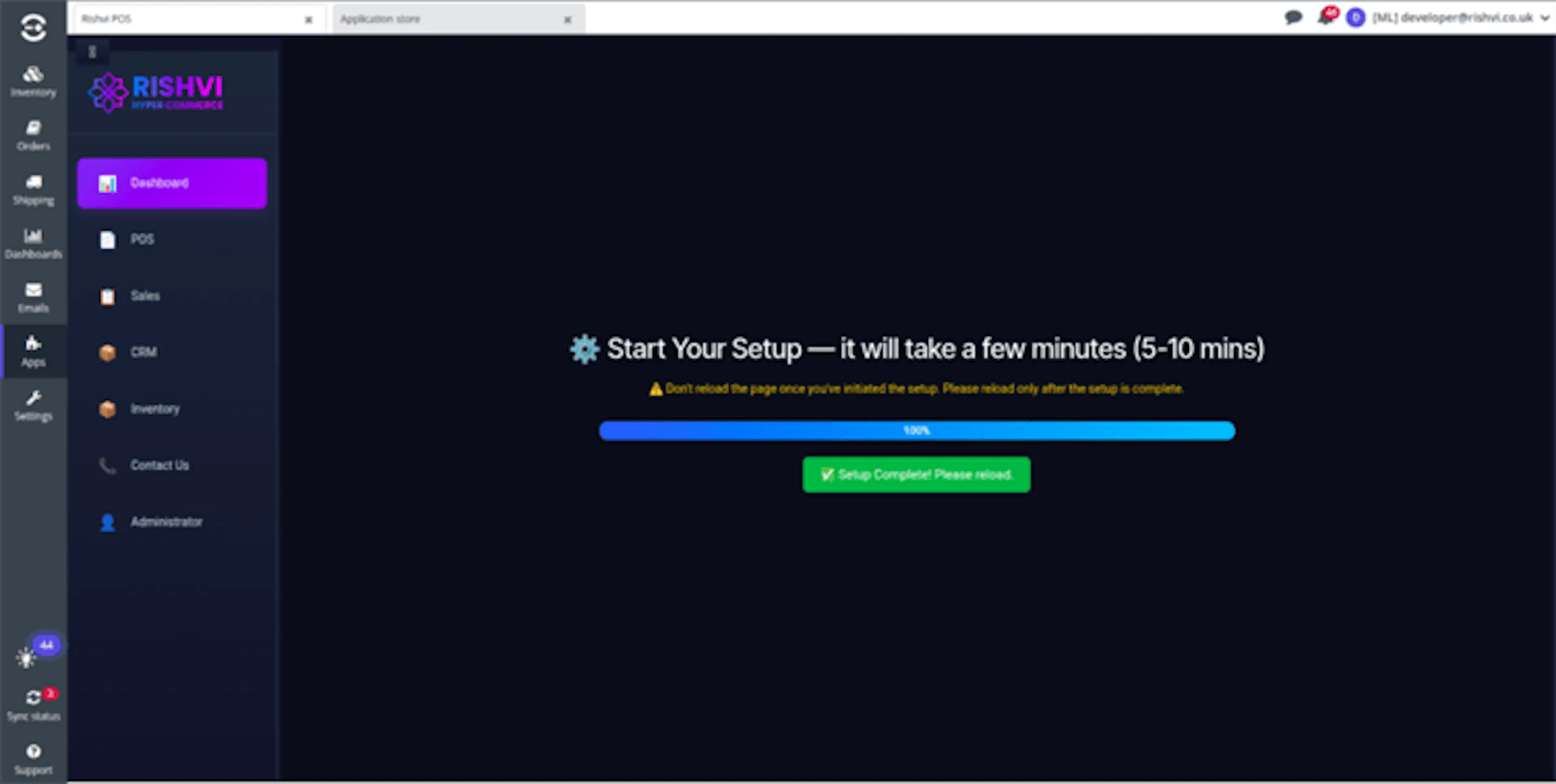
The setup page displays a progress bar while the required modules are configured.
The process normally takes 5–10 minutes, depending on the environment and the modules being installed.
Wait until:
- The progress bar reaches 100%
- A green confirmation message appears
- The page displays Setup Complete! Please reload.
Refresh the page only after the progress reaches 100% and the setup-complete message appears.
Reload and verify the dashboard
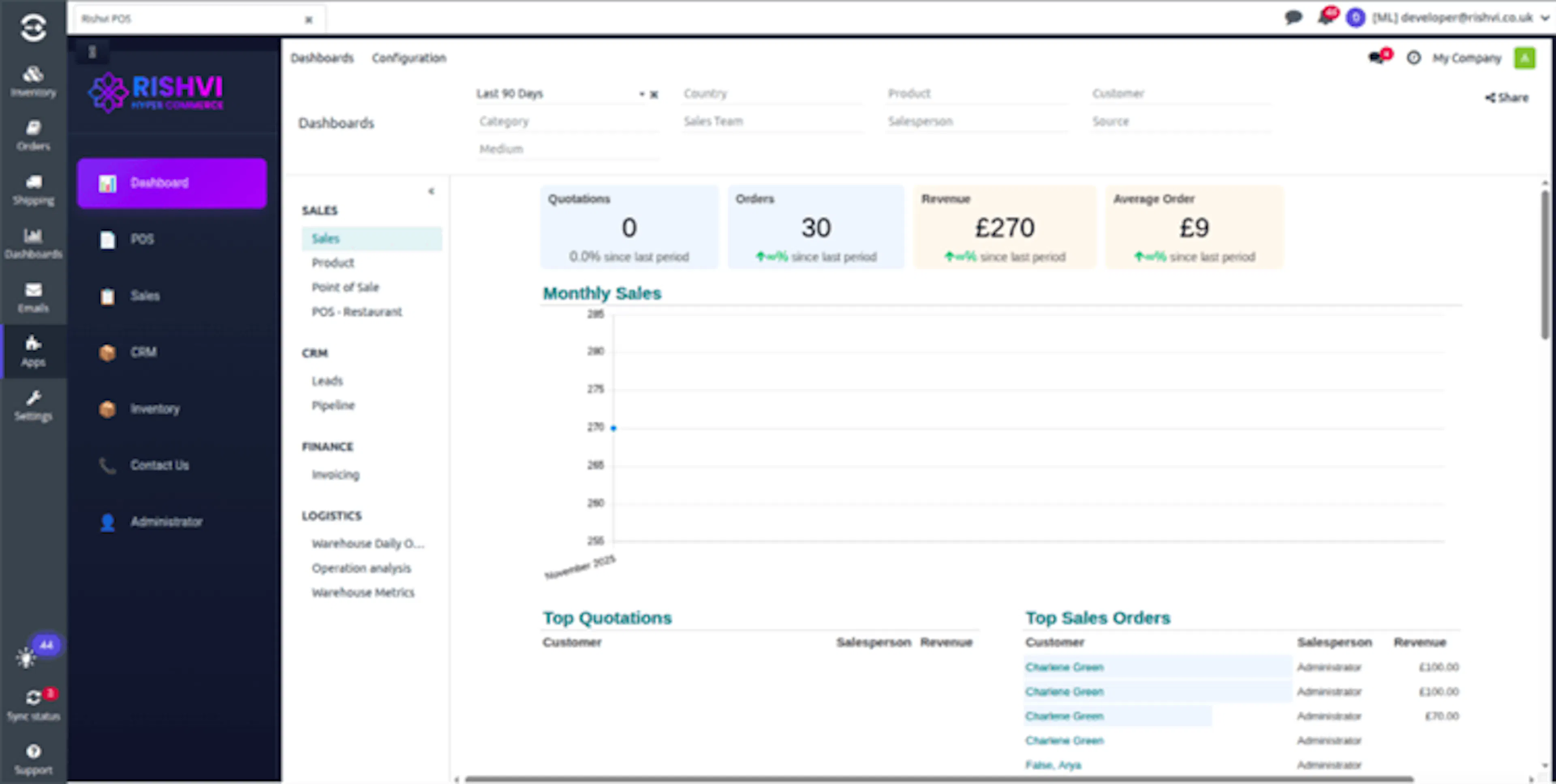
After the setup-complete message appears:
- Refresh the browser or use the available reload action.
- Reopen Rishvi POS if required.
- Confirm that the dashboard loads successfully.
- Confirm that the POS, Sales, CRM, and Inventory menus are available.
- Check that no setup or loading error is displayed.
The installation is successful when the Rishvi POS dashboard loads and the authorized user can access the required modules.
Sign in when prompted
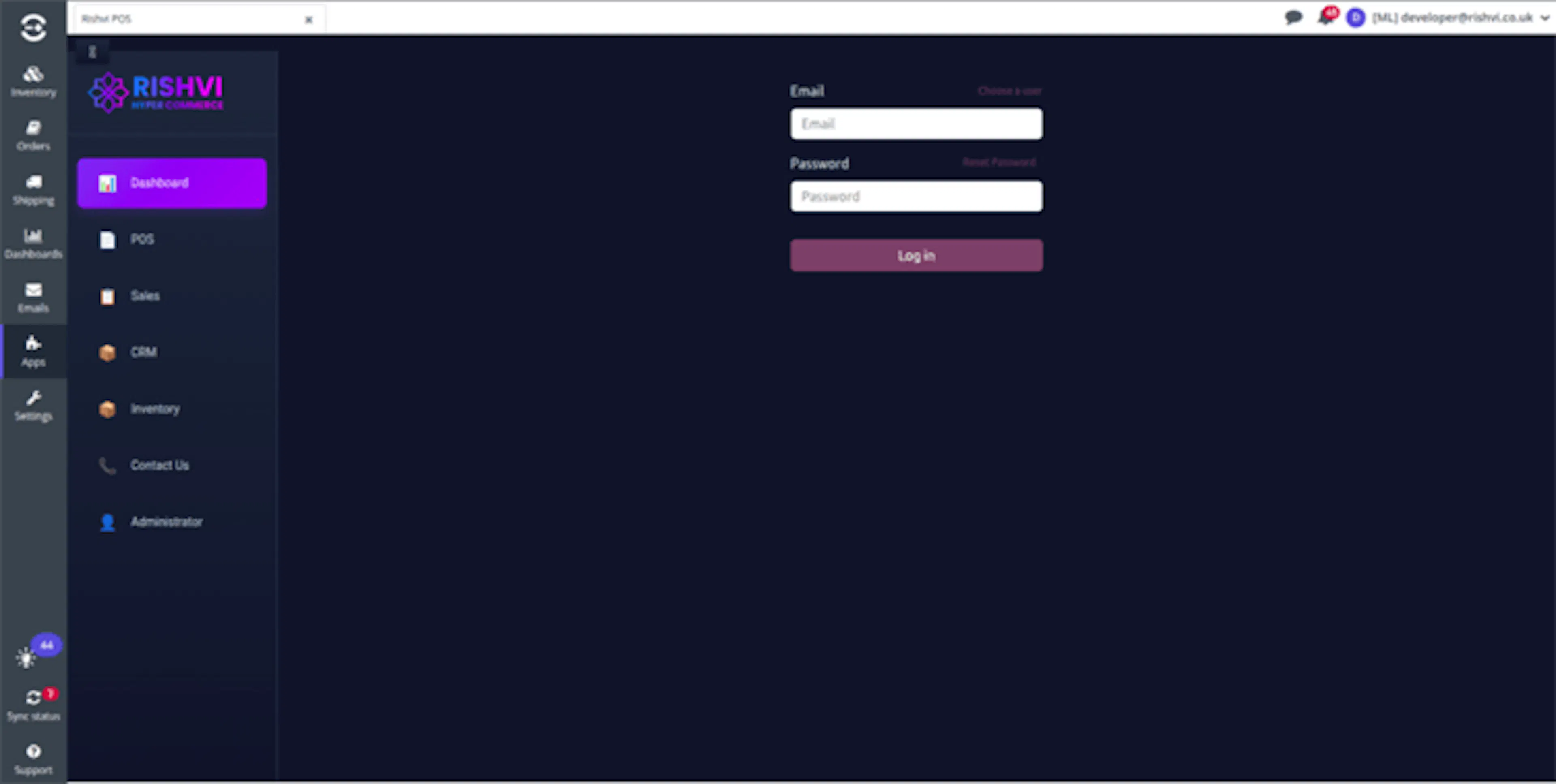
If the login page appears after reloading:
- Enter the authorized administrator email address.
- Enter the account password.
- Click Log in.
- Confirm that the dashboard opens successfully.
Additional login options can include:
- Choose a user
- Reset Password
Contact the integration administrator if you do not have an authorized account. Never share login credentials or API tokens through documentation, screenshots, or support messages.
HYPER Linnworks POS is installed successfully when the dashboard loads and the authorized user can access the POS and Inventory modules.
Installation Verification
Before continuing with integration configuration, confirm the following:
| Check | Expected Result |
|---|---|
| Application access | Rishvi POS opens from Apps → My applications |
| Setup status | Setup reached 100% without an error |
| Dashboard | The Rishvi POS dashboard loads after reloading |
| Module access | POS, Sales, CRM, and Inventory menus are visible |
| Authentication | The authorized user can sign in successfully |
| Environment | The correct test or production environment is active |
| Permissions | The user can access the required configuration areas |
Do not begin production configuration or process POS orders until every installation check has completed successfully.
Initial Configuration
After installation, complete the system and integration configuration required for HYPER Linnworks POS.
The recommended configuration process is:
- Create the required system parameters.
- Verify the Linnworks connection.
- Synchronize warehouses.
- Synchronize product categories.
- Import inventory.
- Configure pricelists.
- Import shipping services.
- Select the Linnworks warehouse.
- Test a POS sale.
- Verify the resulting order in Linnworks.
Before You Begin
Confirm that you have:
- Administrator access to HYPER POS
- Access to technical system parameters
- An authorized Linnworks account
- The Linnworks customer or account identifier
- A secure Linnworks API token
- The integration-service URL
- Permission to synchronize warehouses, categories, inventory, and orders
- The required POS warehouse configuration
- The required payment methods
- The required pricelist and discount settings
Configure System Parameters
System parameters are key-value settings used to control integration behavior without modifying the application source code.
Each parameter follows this format:
Key = Value
Navigation Path
Settings → Technical → Parameters → System Parameters
Required Parameters
| Parameter | Purpose | Example Value |
|---|---|---|
rishvi_app | Controls the enabled application mode | CRM/POS |
lw_customer_id | Identifies the connected Linnworks account | <linnworks_customer_id> |
lw_token | Authorizes Linnworks API operations | <secure_linnworks_api_token> |
rishvi_base_app_url | Defines the integration-service URL | <secure_integration_service_url> |
Use the exact parameter keys required by the application. Replace the example values with the secure values supplied by an authorized integration administrator.
Configuration Steps
Navigate to the system-parameter list
- Open Settings.
- Open Technical.
- Open Parameters.
- Select System Parameters.
- Confirm that you have permission to create and edit parameter records.
Configure the application mode
- Locate or create the
rishvi_appparameter. - Set the value to the application mode supplied by the administrator.
- Save the record.
Example:
rishvi_app = CRM/POS
Configure the Linnworks account identifier
- Locate or create the
lw_customer_idparameter. - Enter the authorized Linnworks customer or account identifier.
- Save the record.
Example:
lw_customer_id = <linnworks_customer_id>
Configure the Linnworks API token
- Locate or create the
lw_tokenparameter. - Enter the secure Linnworks API token.
- Save the record.
Example:
lw_token = <secure_linnworks_api_token>
Configure the integration-service URL
- Locate or create the
rishvi_base_app_urlparameter. - Enter the secure integration-service URL.
- Save the record.
Example:
rishvi_base_app_url = <secure_integration_service_url>
Confirm the parameter values
Review each required parameter and confirm that:
- The parameter key is spelled correctly
- The value belongs to the correct environment
- The Linnworks token is active
- The Linnworks account identifier is correct
- The integration-service URL is reachable
- Secret values are not exposed to unauthorized users
Contact the authorized integration administrator when a required parameter value is unavailable.
Inventory Operations
Inventory Operations provides tools for synchronizing warehouses, categories, products, quantities, and prices between Linnworks and HYPER POS.
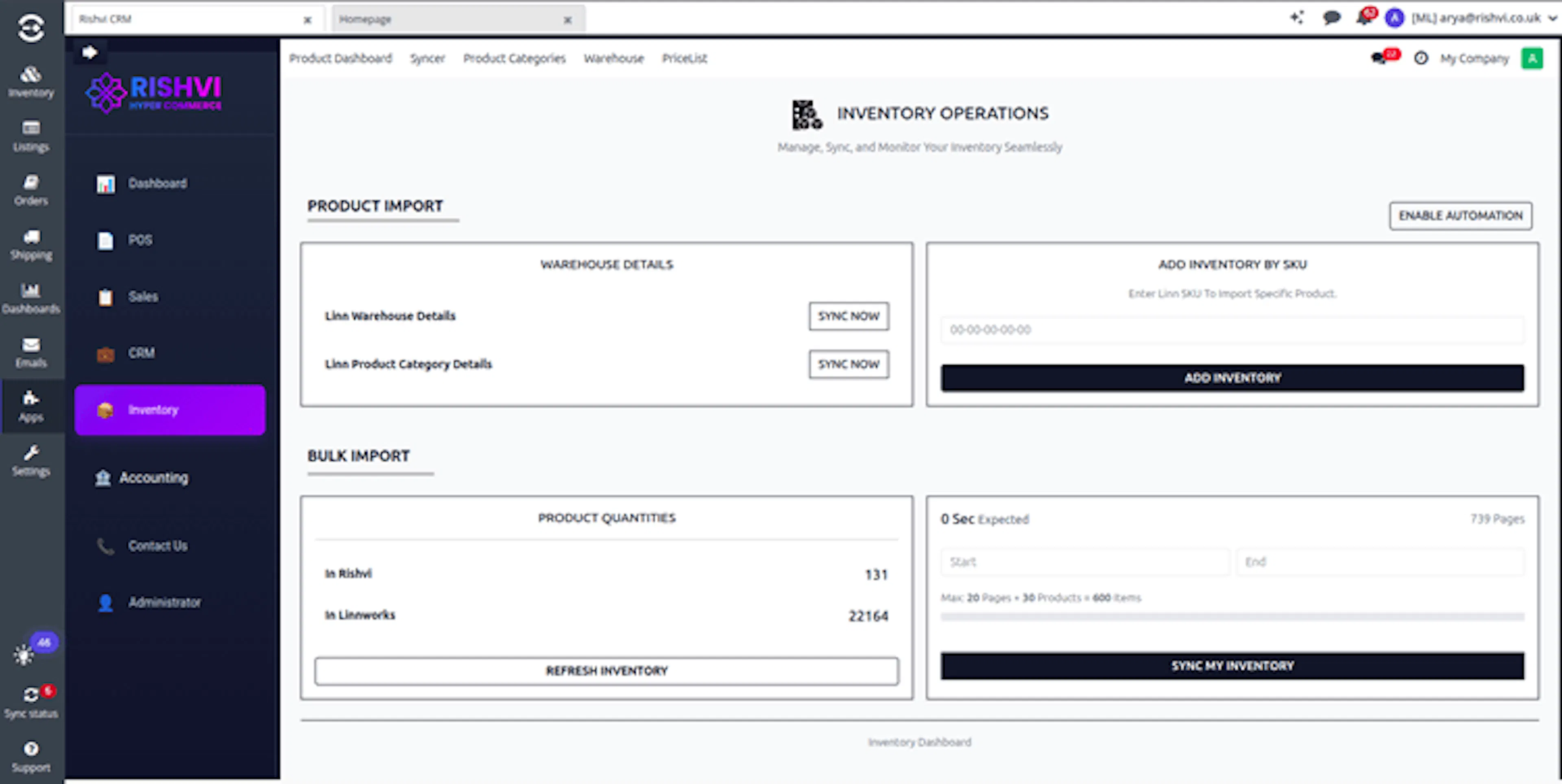
The dashboard includes:
- Linnworks warehouse synchronization
- Linnworks product-category synchronization
- Inventory import by SKU
- Inventory-count comparison
- Bulk inventory synchronization
- On-hand quantity review
- Pricelist management
- Automated inventory synchronization
Warehouse Synchronization
Import and update Linnworks warehouse records.
Category Synchronization
Import Linnworks categories and subcategories.
Individual SKU Import
Retrieve and update one product using its Linnworks SKU.
Bulk Inventory Import
Import products and quantities using controlled page ranges.
Warehouse Synchronization
The Linn Warehouse Details function retrieves Linnworks stock locations and creates or updates the corresponding HYPER warehouse records.
Synchronize Warehouses
Open Inventory Operations
Open the HYPER Inventory Operations dashboard.
Locate Linn Warehouse Details
Find the warehouse-synchronization section.
Start the synchronization
Click Sync Now.
Retrieve Linnworks warehouses
The integration retrieves all configured Linnworks stock locations.
Create or update records
Missing HYPER warehouses are created and existing warehouse records are updated.
Verify warehouse identifiers
Confirm that the Linnworks warehouse identifiers are stored correctly.
When to Run Warehouse Synchronization
Run warehouse synchronization when:
- Adding a new Linnworks warehouse
- Updating an existing warehouse
- Correcting a warehouse mapping
- Preparing a new POS configuration
- Resolving a missing warehouse in POS
Product-Category Synchronization
The Linn Product Category Details function imports Linnworks categories and subcategories.
Synchronize Product Categories
Open Inventory Operations
Open the Product Import section.
Locate Product Category Details
Find Linn Product Category Details.
Start the synchronization
Click Sync Now.
Retrieve Linnworks categories
The integration retrieves Linnworks categories and subcategories.
Create or update POS categories
Linnworks categories are mapped to the corresponding HYPER product categories.
Review the result
Confirm that the required product groups are available in POS.
Synchronize product categories before performing a large product or inventory import.
Add Inventory by Linnworks SKU
The Add Inventory by Linn SKU function retrieves and updates one product using its Linnworks SKU.
Steps
Enter the Linnworks SKU
Enter the required SKU in the inventory input field.
Click Add Inventory
Start the individual-product import.
Retrieve product information
The integration retrieves the matching Linnworks product and inventory information.
Update HYPER POS
The corresponding product and quantity records are created or updated.
Review the product
Confirm the product, category, warehouse, price, and quantity information.
This function is useful for:
- Refreshing one product
- Correcting one SKU
- Testing a product mapping
- Updating one quantity without a complete bulk import
- Recovering a missing product
Refresh Inventory
The Refresh Inventory function recalculates the high-level inventory totals displayed for HYPER and Linnworks.
It can display:
- Inventory records stored in HYPER
- Product-quantity records available in Linnworks
- Differences between the displayed totals
Refresh Flow
Open the Bulk Import section
Navigate to the inventory-count area.
Click Refresh Inventory
Retrieve the current high-level totals.
Review both counts
Compare the displayed HYPER and Linnworks values.
Run synchronization when required
Use individual-SKU or bulk synchronization when records are missing.
Inventory counts provide a high-level comparison. They do not perform a complete product-by-product reconciliation.
Bulk Inventory Synchronization
The Sync My Inventory or Sync All Inventory function imports Linnworks inventory using a selected page range.
Page Selection
The interface uses:
- Start Page
- End Page
- Number of selected pages
- Estimated maximum number of products
Example:
Pages 1–20 × 30 products per page = up to 600 products
Bulk Synchronization Flow
Select the Start Page
Enter the first Linnworks inventory page to retrieve.
Select the End Page
Enter the final Linnworks inventory page to retrieve.
Review the estimated volume
Confirm the selected page count and estimated product total.
Start the synchronization
Click Sync My Inventory.
Retrieve inventory batches
The integration retrieves Linnworks products and quantities in controlled batches.
Update HYPER records
Product and warehouse-quantity records are created or updated.
Review the results
Check imported products, quantities, categories, prices, and failed records.
Use small page ranges during the first synchronization. Increase the range only after reviewing the imported records.
On-Hand Quantity
On-hand quantity represents the physical inventory currently available for a product in a warehouse.
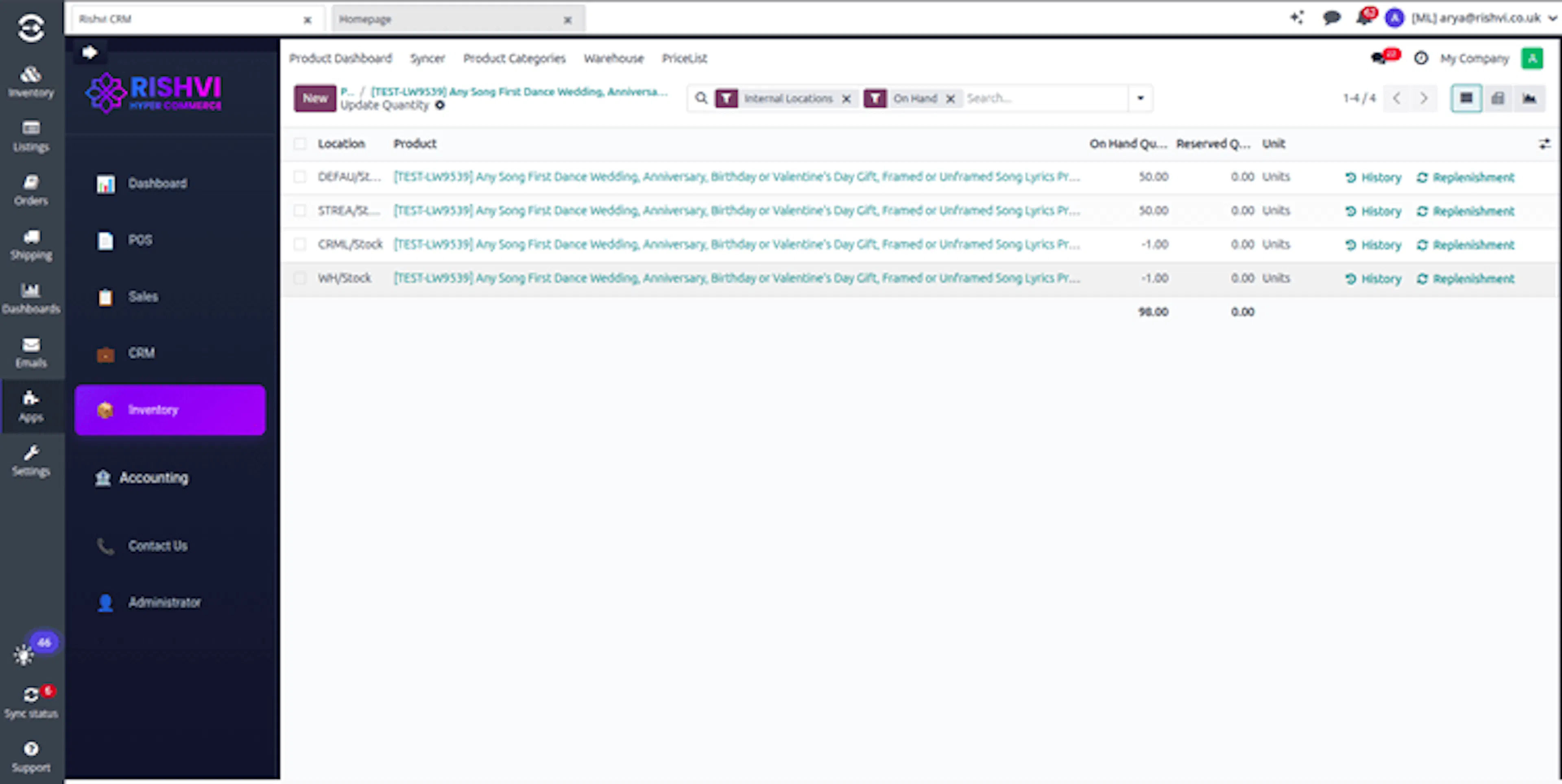
The inventory list can display:
- Inventory location
- Product reference
- On-hand quantity
- Reserved quantity
- Unit of measure
- Quantity history
- Replenishment information
On-hand quantity supports:
- Product-availability review
- Warehouse-level stock monitoring
- Sales planning
- Replenishment decisions
- POS product availability
- Stock verification
Linnworks remains the operational source for inventory. HYPER POS quantities depend on the latest successful synchronization.
Pricelists
Pricelists control the selling prices used during POS order creation and customer billing.
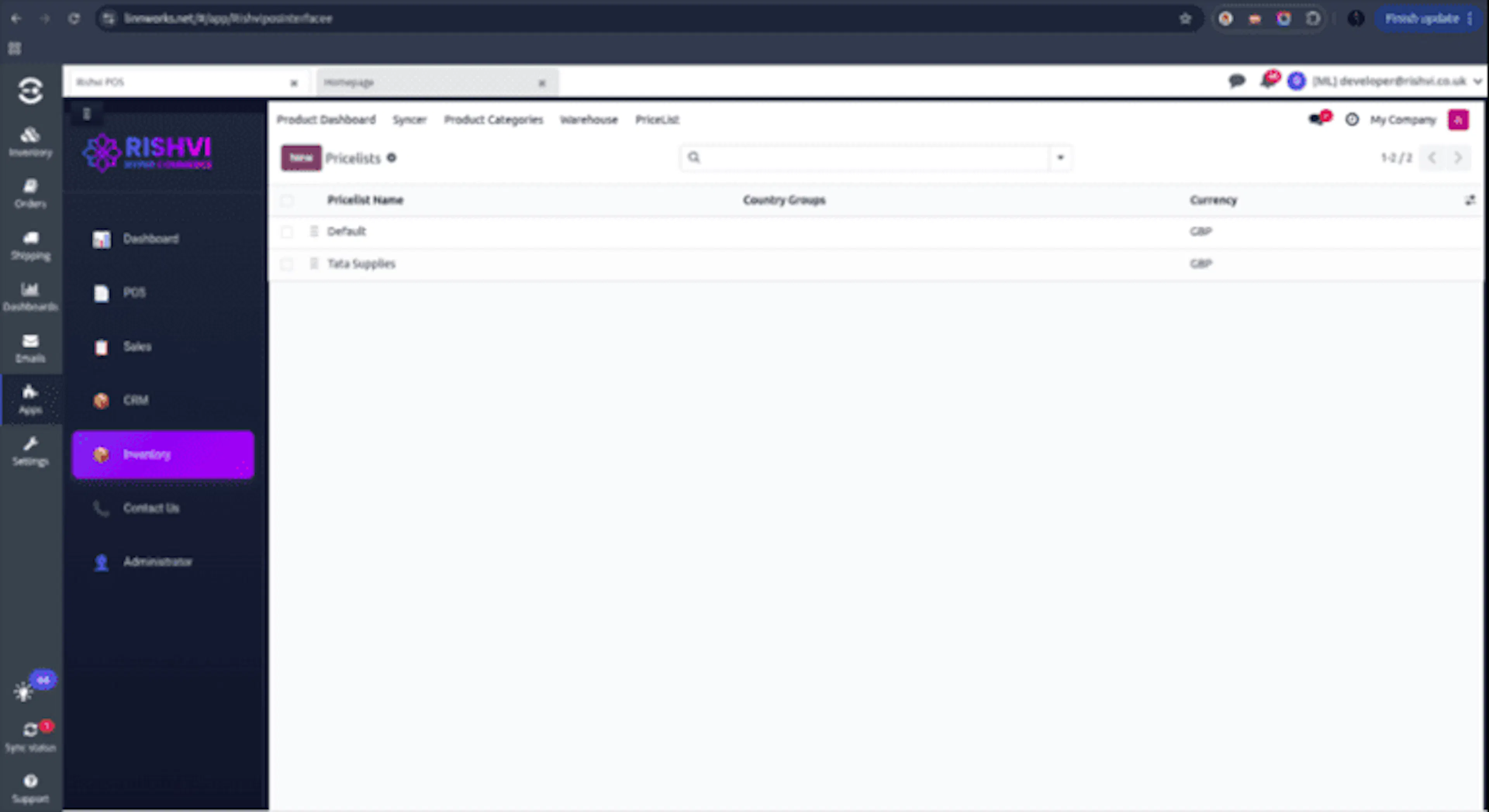
Pricelists help ensure that:
- Linnworks prices are synchronized correctly
- HYPER and Linnworks use consistent selling prices
- Future POS orders use the correct price
- Customer-specific pricing can be applied
- Promotional prices can be maintained
- Multiple currencies can be supported
Authorized users can:
- Create new pricelists
- Configure pricing rules
- Define discounts
- Define markups
- Assign currencies
- Assign pricelists to customers
- Assign pricelists to customer groups
Configure and enable pricelists before processing POS orders that depend on Linnworks or customer-specific pricing.
Automated Inventory Synchronization
HYPER POS includes a scheduled inventory synchronization process.
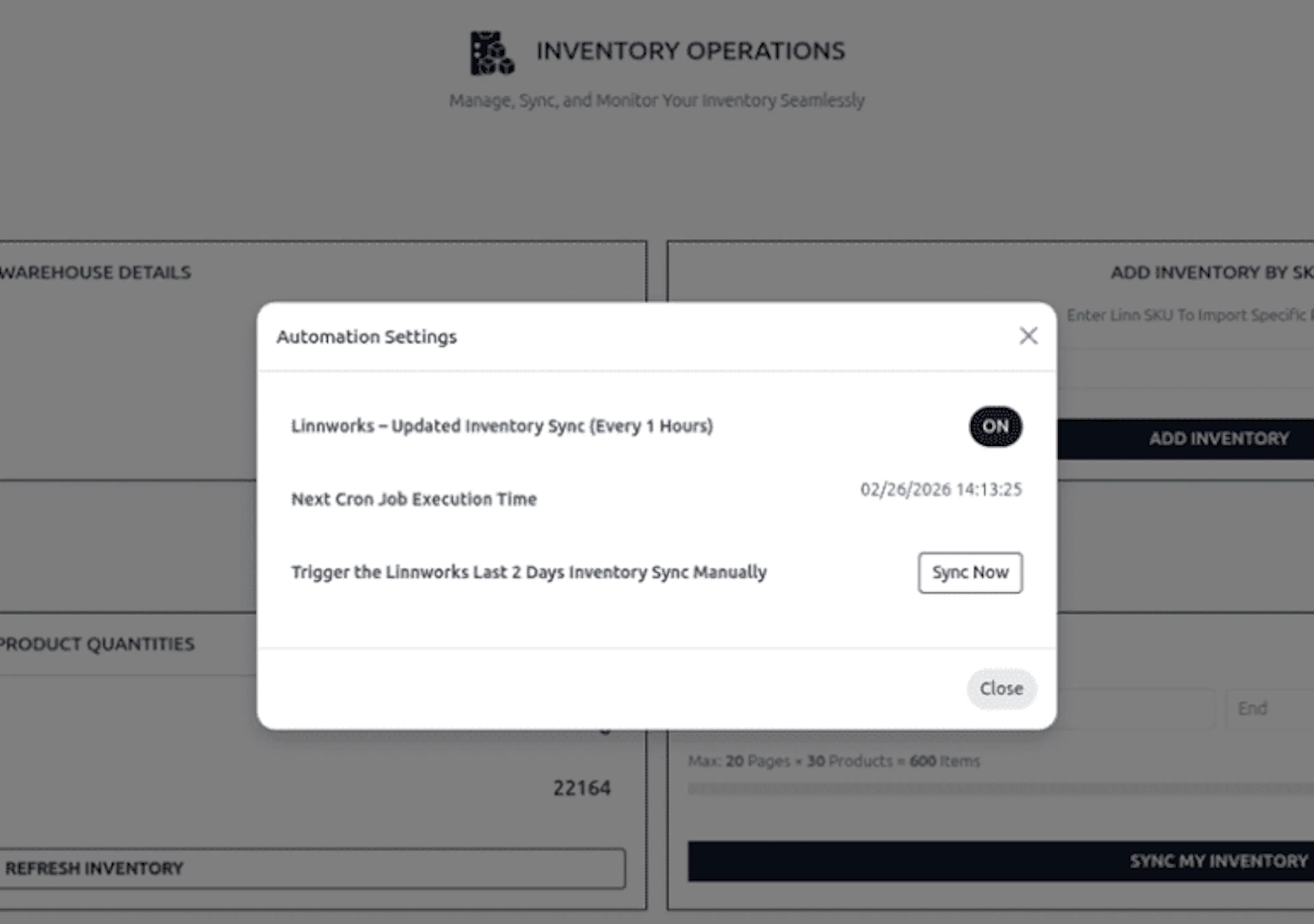
The Automation Settings window shows:
- Whether automated synchronization is enabled
- The configured hourly frequency
- The next scheduled execution time
- The manual Sync Now action
- The recent-inventory synchronization period
The automated inventory process:
- Runs every hour
- Retrieves stock changes from the previous two days
- Retrieves recent quantity updates
- Updates HYPER inventory records
- Maintains recent inventory consistency
- Displays the next scheduled execution time
Use Sync Now when an immediate inventory update is required.
Manual synchronization is useful after:
- Stock corrections
- Warehouse transfers
- Product imports
- Purchase receipts
- Linnworks quantity changes
- A failed scheduled execution
Avoid starting an unnecessary manual synchronization while the scheduled process is already running.
Point of Sale Overview
A Point of Sale system is used to process retail or service-based sales transactions.
HYPER POS helps users:
- Select products
- Record customer purchases
- Process payments
- Apply discounts
- Update inventory
- Generate receipts
- Validate orders
- Link sales to customers
- Synchronize sales with Linnworks
Core POS Features
Product Selection
Browse, search, scan, and add products to an order.
Payment Processing
Process configured cash, card, or digital payment methods.
Discount Application
Apply eligible discounts to one product or the complete order.
Inventory Update
Update warehouse inventory after a completed sale.
Receipt Generation
Produce printable or digital receipts for customers.
Order Validation
Confirm that products, payment, customer, and shipping details are complete.
Customer Management
Link a sale to an existing customer or create a new customer.
Linnworks Integration
Synchronize supported sales and inventory information with Linnworks.
Advanced POS Features
Multi-Session Handling
Allows multiple POS terminals or sessions to operate independently.
Cash Control
Tracks opening cash, cash movements, closing balance, and cash differences.
Barcode Scanning
Adds products using a compatible barcode scanner.
Sales History
Maintains previous POS orders for operational review.
User Access Control
Restricts discounts, order changes, session closing, and administrative actions to authorized users.
Receipt Customization
Supports configured logos, contact information, terms, and barcode or QR content.
Accounting Integration
Posts supported sales and payment information to configured accounting journals.
Tax Management
Applies configured product and regional taxes during order calculation.
End-of-Day Summary
Summarizes sales, payment methods, and cash differences at session close.
Linnworks POS Integration Dashboard
The POS Shipping Management dashboard provides the main actions used to import supporting Linnworks configuration into HYPER POS.
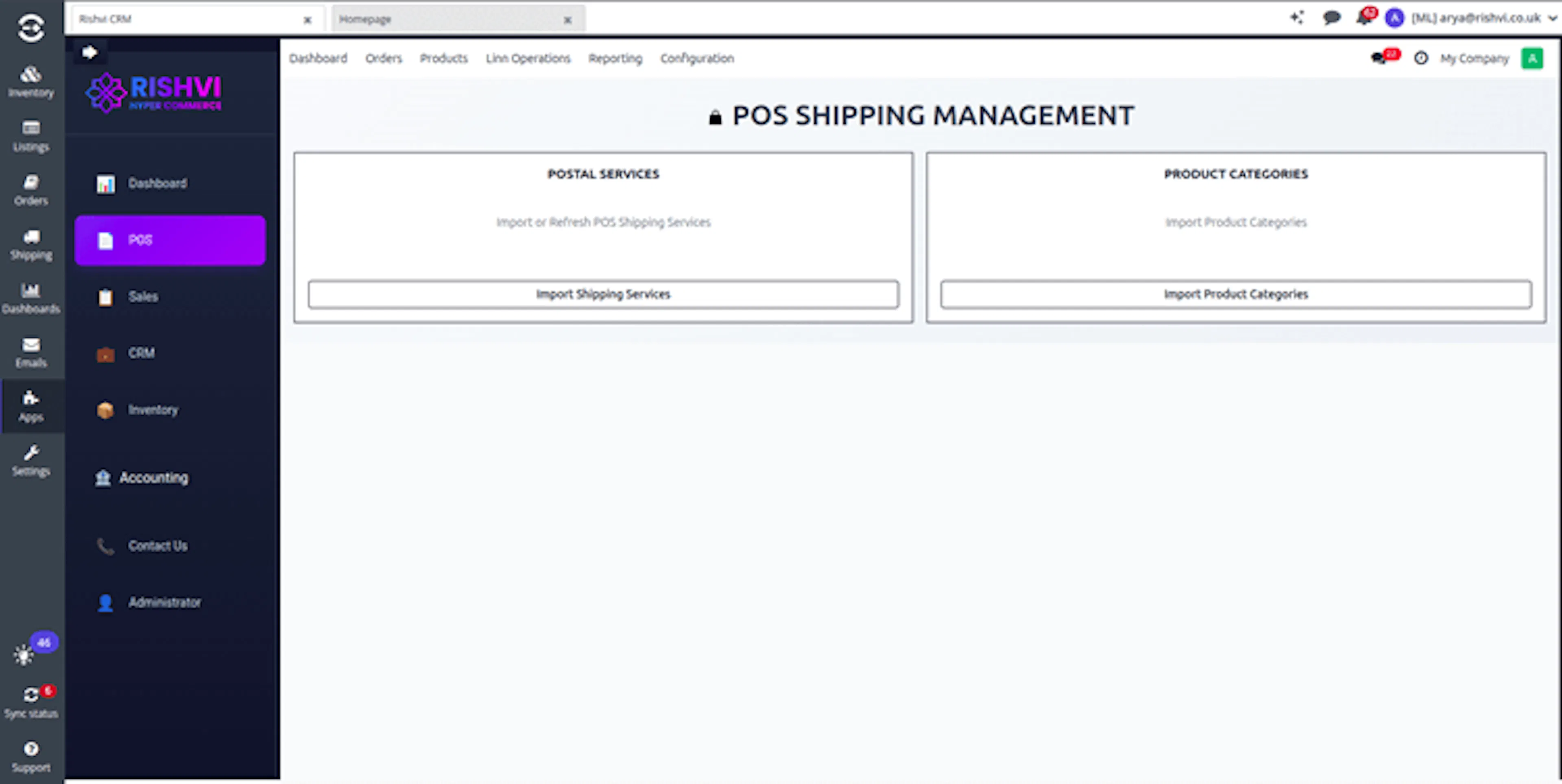
From this dashboard, authorized users can:
- Import or refresh POS shipping services
- Import Linnworks product categories
- Prepare shipping options for POS checkout
- Prepare product groups for the POS product interface
Import Shipping Services
Retrieves shipping-service information from Linnworks.
Enable Pricelists
Activates pricelist support for POS pricing.
Import Product Categories
Retrieves Linnworks product categories for POS product grouping.
Manage Discounts
Supports configured POS discount rules.
Import Shipping Services
The Import Shipping Services function retrieves Linnworks shipping-service details through the integration API.
After starting the import, open the shipping-service list to review the imported records.
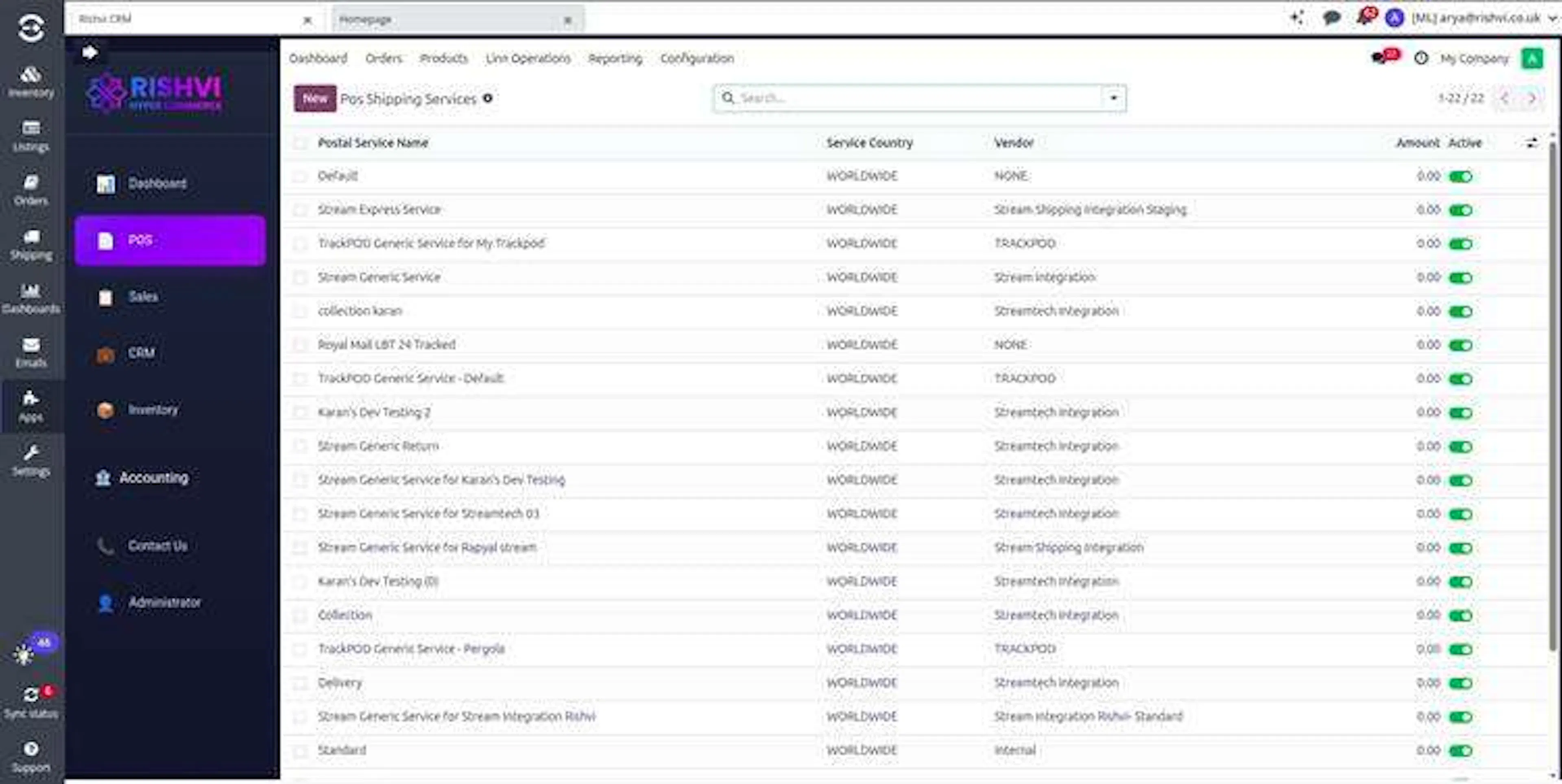
The imported list can display:
- Postal service name
- Service country
- Carrier or vendor
- Configured amount
- Active status
After import:
- Shipping services become available in HYPER POS
- Cashiers can select the applicable service during checkout
- Services can be displayed as selectable buttons
- The selected shipping service is included with the synchronized order
Import Flow
Open the POS Integration Dashboard
Navigate to the Linnworks POS configuration dashboard.
Locate Import Shipping Services
Find the shipping-service import action.
Start the import
Click Import Shipping Services.
Retrieve Linnworks services
The integration retrieves the configured Linnworks shipping services.
Review POS availability
Confirm that the required services appear in the POS interface.
Reimport shipping services after a service is added, renamed, disabled, or assigned to a different carrier in Linnworks.
Enable Pricelists in POS
Enabling pricelists allows POS to use different selling prices according to configured pricing rules.
Pricelists can support:
- Customer-specific pricing
- Customer-group pricing
- Seasonal pricing
- Promotional pricing
- Multiple currencies
- Discounts
- Markups
Enable pricelists before processing sales that require anything other than the default product price.
Import Product Categories for POS
Product-category import retrieves Linnworks product groups and saves them as HYPER POS categories.
This helps:
- Organize products in the POS interface
- Improve product search and navigation
- Reduce manual category setup
- Maintain consistent category structures
- Prepare products for POS display
POS Category Settings
To make products from all synchronized categories available in POS, review the Product and POS category settings.
Open the Point of Sale settings and locate Product & POS categories.
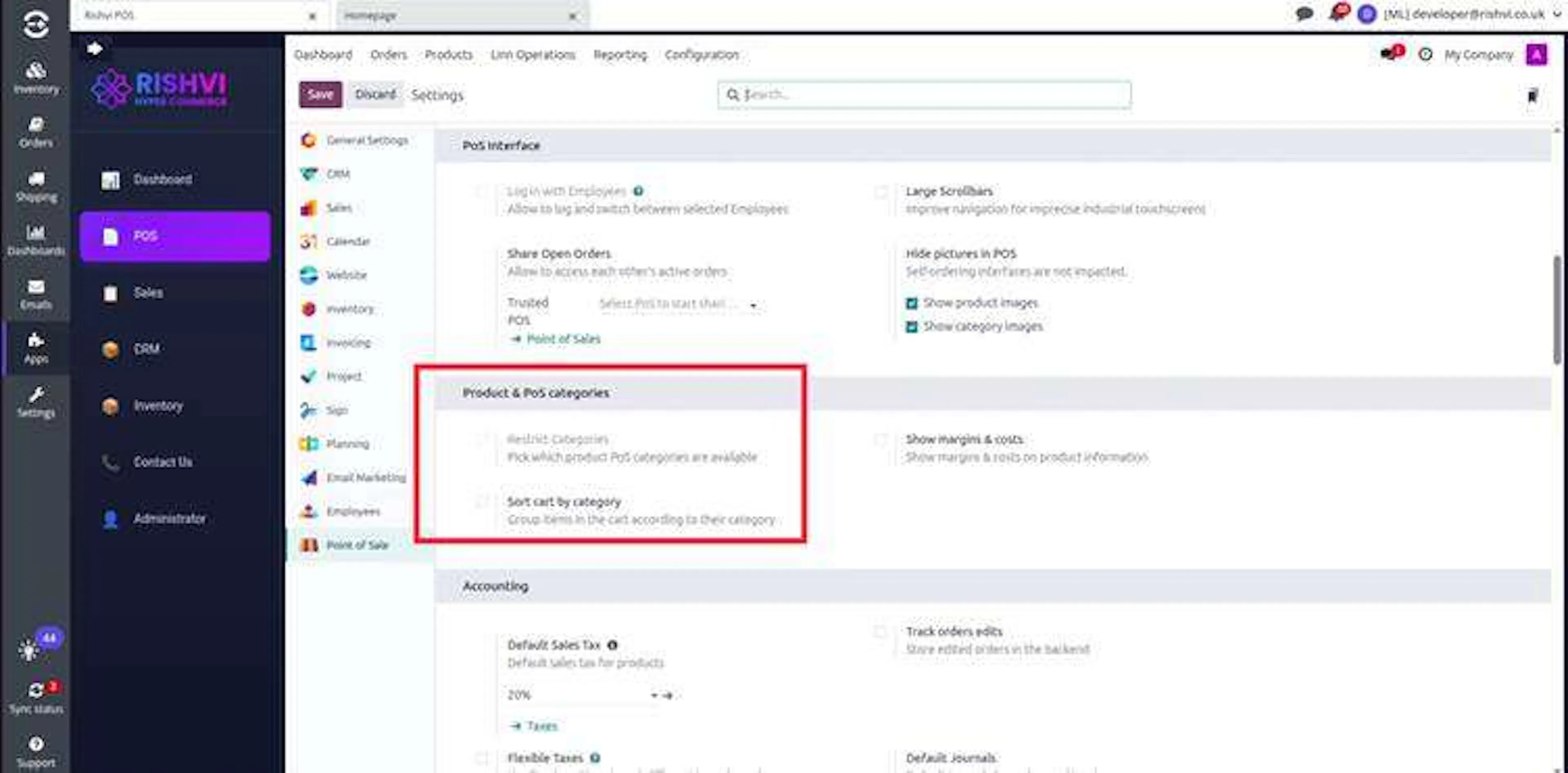
Required Setting
Do not enable:
Restrict Categories
When category restriction is disabled:
- Products from all available POS categories can be displayed
- Synchronized Linnworks categories remain selectable
- Products are less likely to be hidden by POS category restrictions
- Newly synchronized categories do not require separate POS assignment
Enabling Restrict Categories can hide products that belong to categories not explicitly assigned to the POS configuration.
Configure the Linnworks Warehouse
Each POS configuration must use the appropriate Linnworks warehouse.
Open the required Point of Sale configuration and locate the Linn Warehouse field.
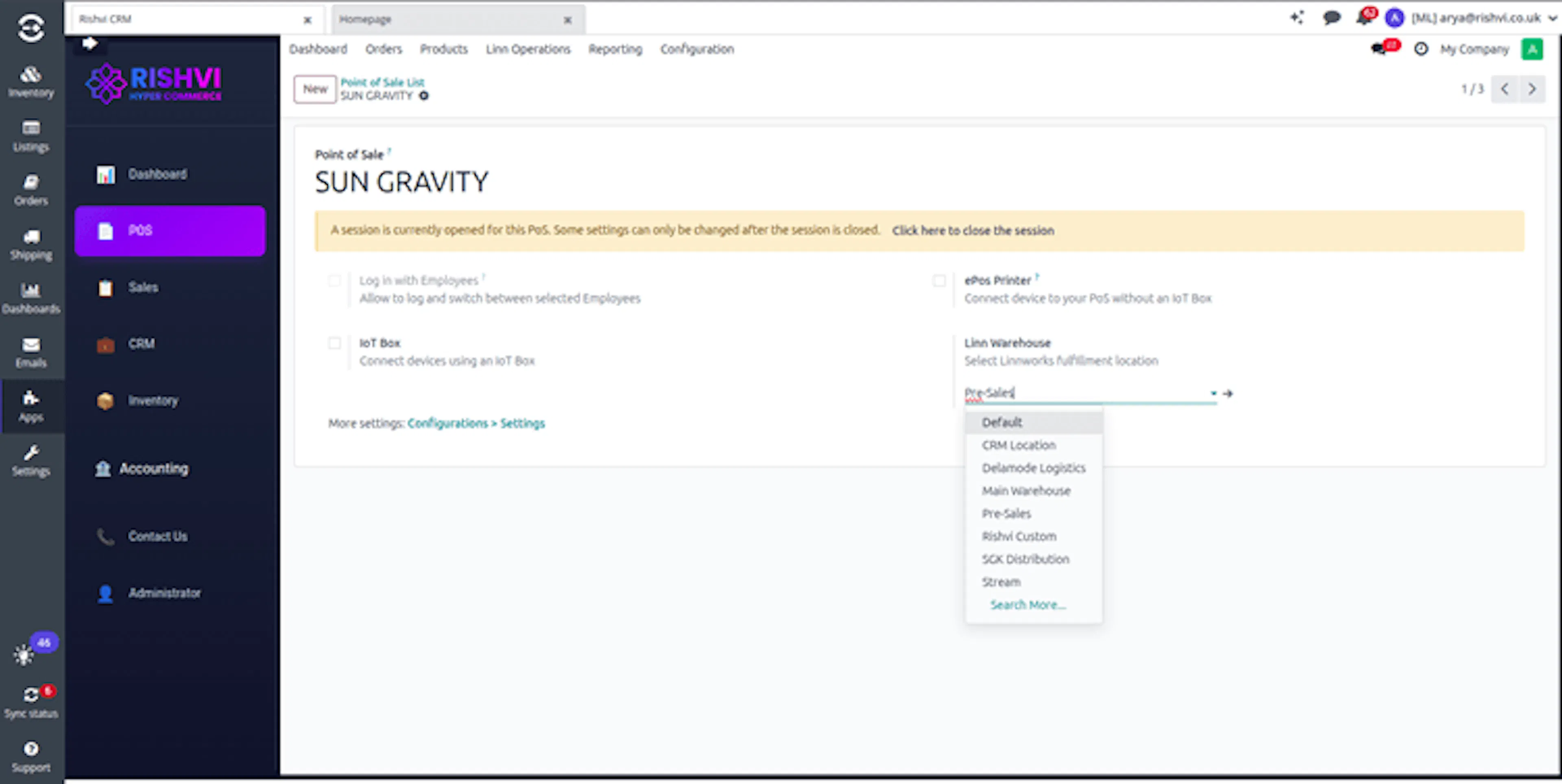
The selected warehouse controls:
- Where the POS order is created in Linnworks
- Which warehouse quantity is shown in POS
- Which warehouse stock is deducted
- Which warehouse is associated with the synchronized order
Warehouse Selection
Open the POS configuration
Open the required Point of Sale configuration.
Locate Linn Warehouse
Find the Linn Warehouse selection field.
Select the required warehouse
Choose the Linnworks warehouse used by this POS.
Save the configuration
Save the POS settings before opening a session.
Verify product availability
Confirm that POS displays quantities from the selected warehouse.
Example Behavior
When Pre-Sales is selected:
- POS orders are created against the Pre-Sales warehouse
- Stock is deducted from Pre-Sales
- POS displays Pre-Sales inventory availability
When Main Warehouse is selected:
- Orders are created against Main Warehouse
- Stock is deducted from Main Warehouse
- POS displays Main Warehouse inventory availability
Stock from other Linnworks warehouses is not automatically combined with the warehouse selected for the POS session.
POS Sales Flow
The POS sales workflow follows a defined sequence from session opening to Linnworks order verification.
Complete Sales Process
Select the Linnworks warehouse
Confirm that the correct Linnworks warehouse is selected in the POS configuration.
Open a POS session
Open a new POS session to begin processing sales.
Product availability is displayed using stock from the selected Linnworks warehouse.
Select or add the customer
Select an existing customer or create a new customer.
Linking a customer supports order tracking and Linnworks synchronization.
Add products to the cart
Browse, search, or scan the required products and add them to the order.
Review the displayed price, category, and available stock.
Apply a discount
Apply a configured order-level or product-level discount when required and permitted.
Add an internal note
Enter operational notes or instructions that need to accompany the order.
Select a shipping service
Select one of the shipping services imported from Linnworks.
Select payment and validate
Choose the payment method and confirm that the customer, products, quantities, discounts, notes, shipping service, and payment details are correct.
Synchronize the order
After validation, the order is sent automatically to Linnworks.
Linnworks returns an order number that is stored against the HYPER POS order.
Verify the Linnworks order
Use the Linnworks order number to locate the synchronized order and review its customer, products, quantities, discounts, notes, shipping service, and warehouse.
Open a POS Session
Opening a POS session initializes the cashier interface and allows sales transactions to begin.
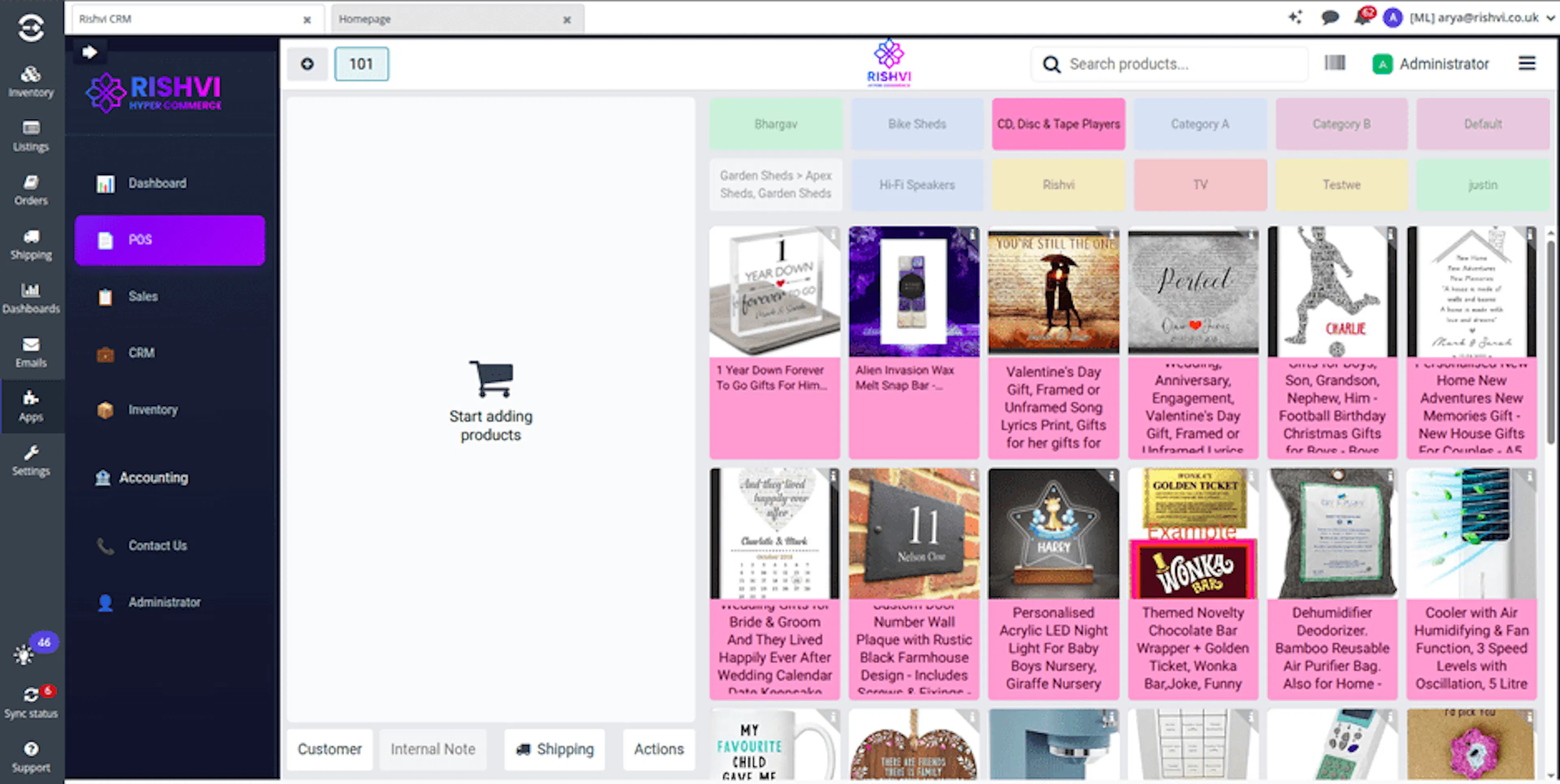
The POS session provides access to:
- Product categories
- Product search
- Product selection
- Customer selection
- Internal notes
- Shipping-service selection
- Quantity controls
- Price controls
- Payment processing
During the session:
- Product availability uses the selected warehouse
- Stock from other warehouses is not combined
- Cash and payment activity is tracked
- Validated orders are recorded
- Session totals can be reviewed at closing
Confirm the Linnworks warehouse before opening the session. Changing the warehouse after transactions begin can create operational inconsistencies.
Customer Selection
A customer can be selected before completing the POS order.
Click Customer to open the customer-selection window.
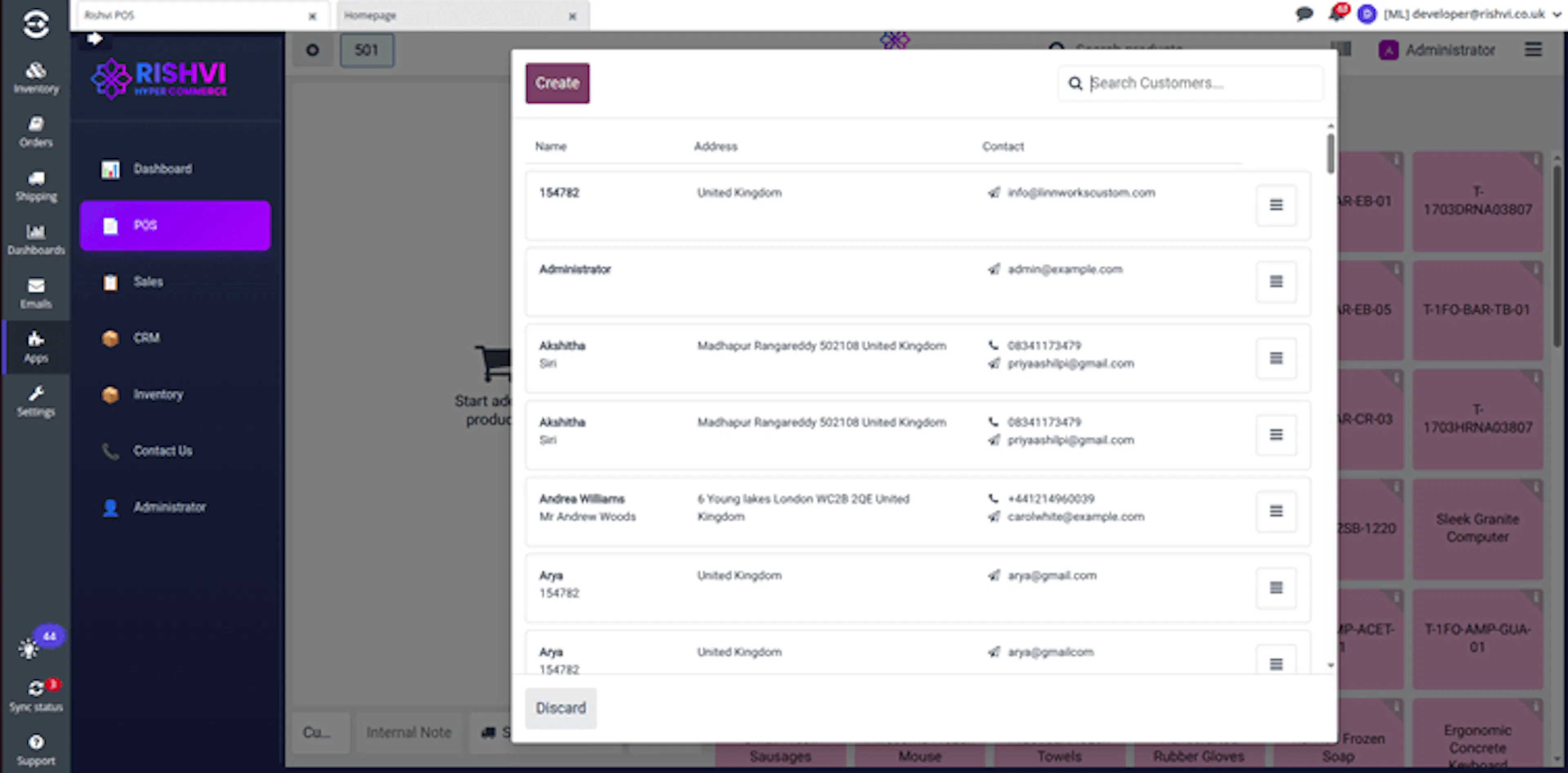
Search for the customer and select the correct record.
Customer selection helps:
- Link the sale to the correct customer
- Maintain purchase history
- Apply customer-specific pricelists
- Support customer-specific discounts
- Synchronize accurate customer information with Linnworks
- Improve order traceability
Product Selection and Barcode Scanning
Products can be added to the cart by:
- Browsing categories
- Searching by name
- Searching by SKU
- Using a compatible barcode scanner
- Selecting products from the product grid
Before adding a product, review:
- Available warehouse stock
- Selling price
- Product category
- Unit of measure
- Tax
- Applicable pricelist
Discounts
Discounts can be applied when the feature is enabled and the user has the required permission.
After adding products to the cart, use the available discount or price controls to apply the required adjustment.
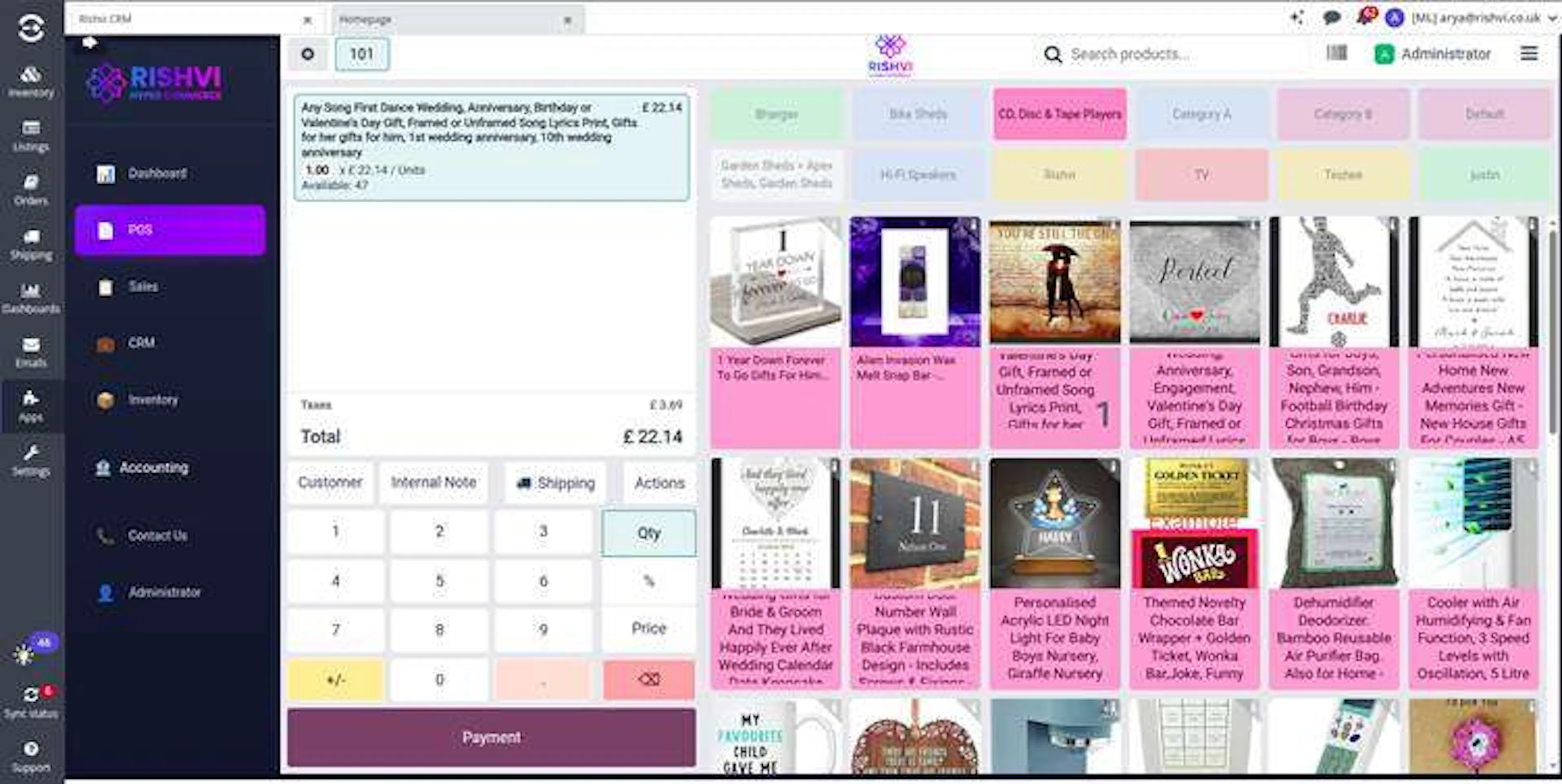
Discounts can apply to:
- One product line
- Multiple product lines
- The complete POS order
After applying the discount, verify:
- Original unit price
- Discount percentage
- Discount amount
- Updated line total
- Updated order total
- User authorization
Review the final order total after applying a discount and before validating payment.
Internal Notes
Internal notes allow the cashier to include operational instructions with the order.
Click Internal Note to open the note-selection window.
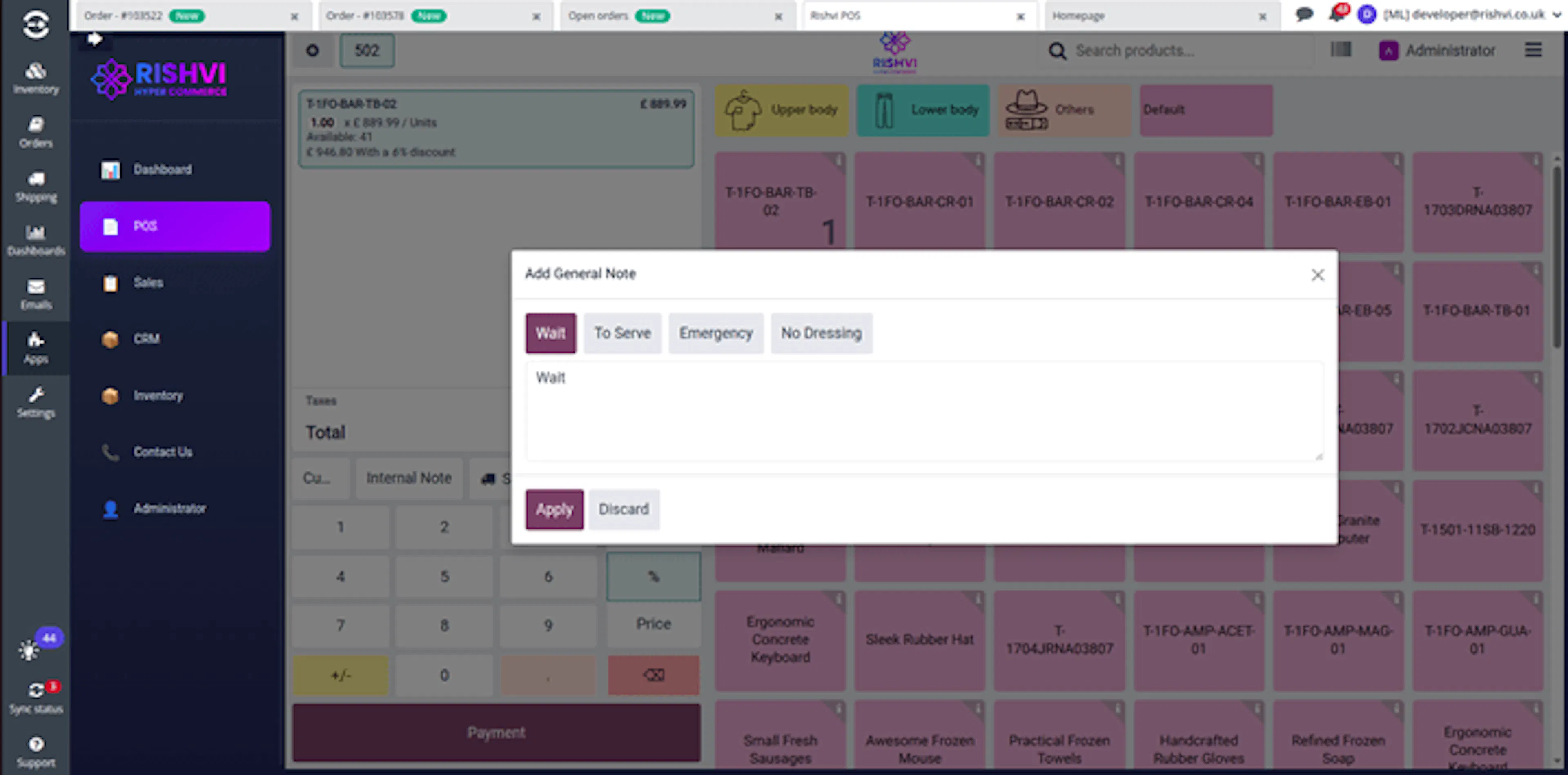
Select or enter the required note and click Apply.
Notes can be used for:
- Delivery instructions
- Collection information
- Product-handling notes
- Customer requests
- Warehouse instructions
- Support information
Do not enter payment credentials or unnecessary sensitive customer information in internal notes.
Shipping-Service Selection
Shipping services imported from Linnworks are displayed as selectable options in POS.
Click Shipping Service to open the service-selection window.
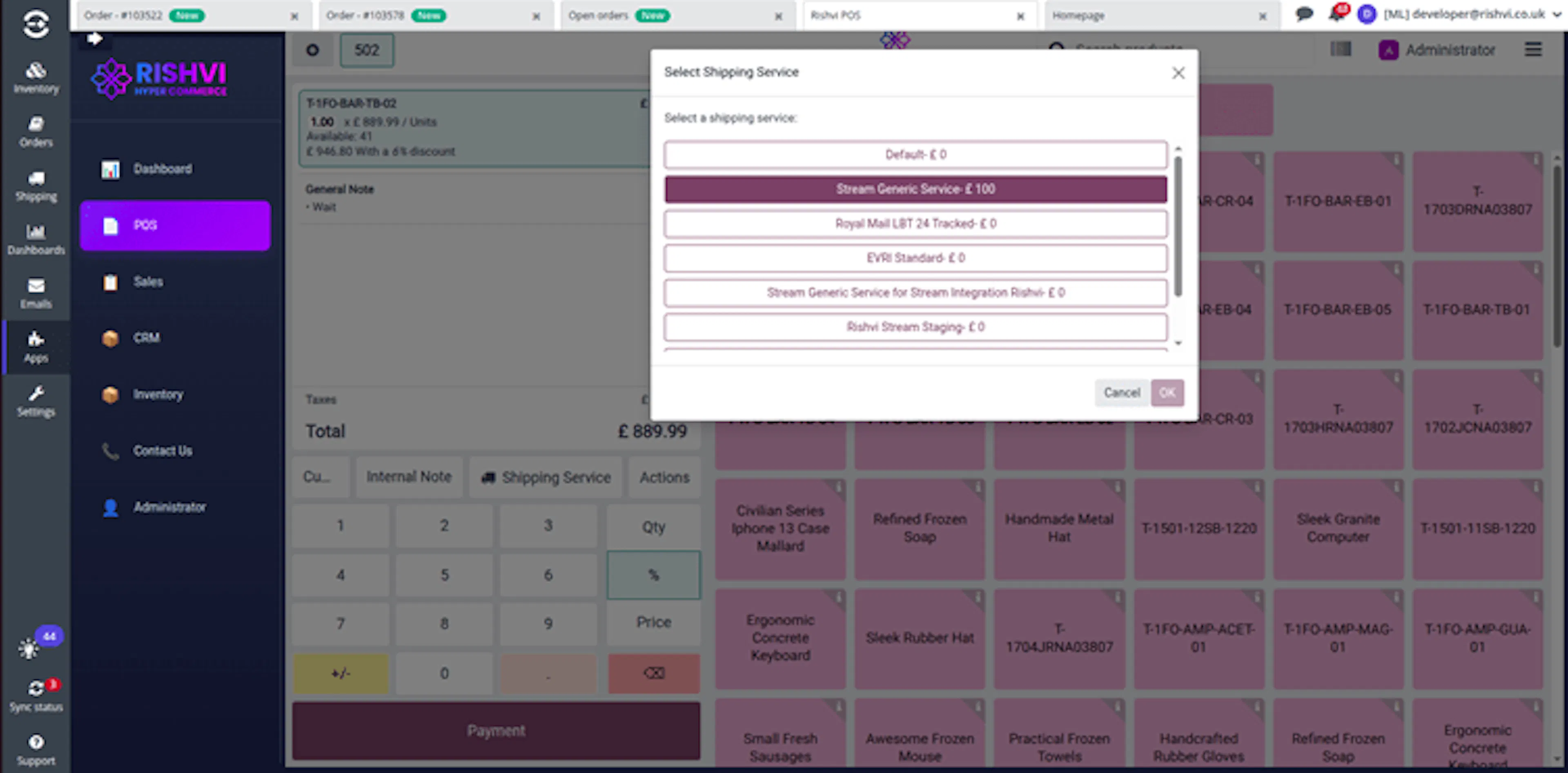
Select the service that matches the customer’s delivery requirements and click OK.
The selected service can affect:
- Shipping cost
- Order total
- Linnworks postal service
- Fulfilment workflow
- Customer delivery expectations
The selected service is included when the order is sent to Linnworks.
Reimport shipping services after a service is added, renamed, or disabled in Linnworks.
Validate the POS Order
After reviewing the customer, products, quantities, discounts, notes, shipping service, and taxes, continue to the payment screen.
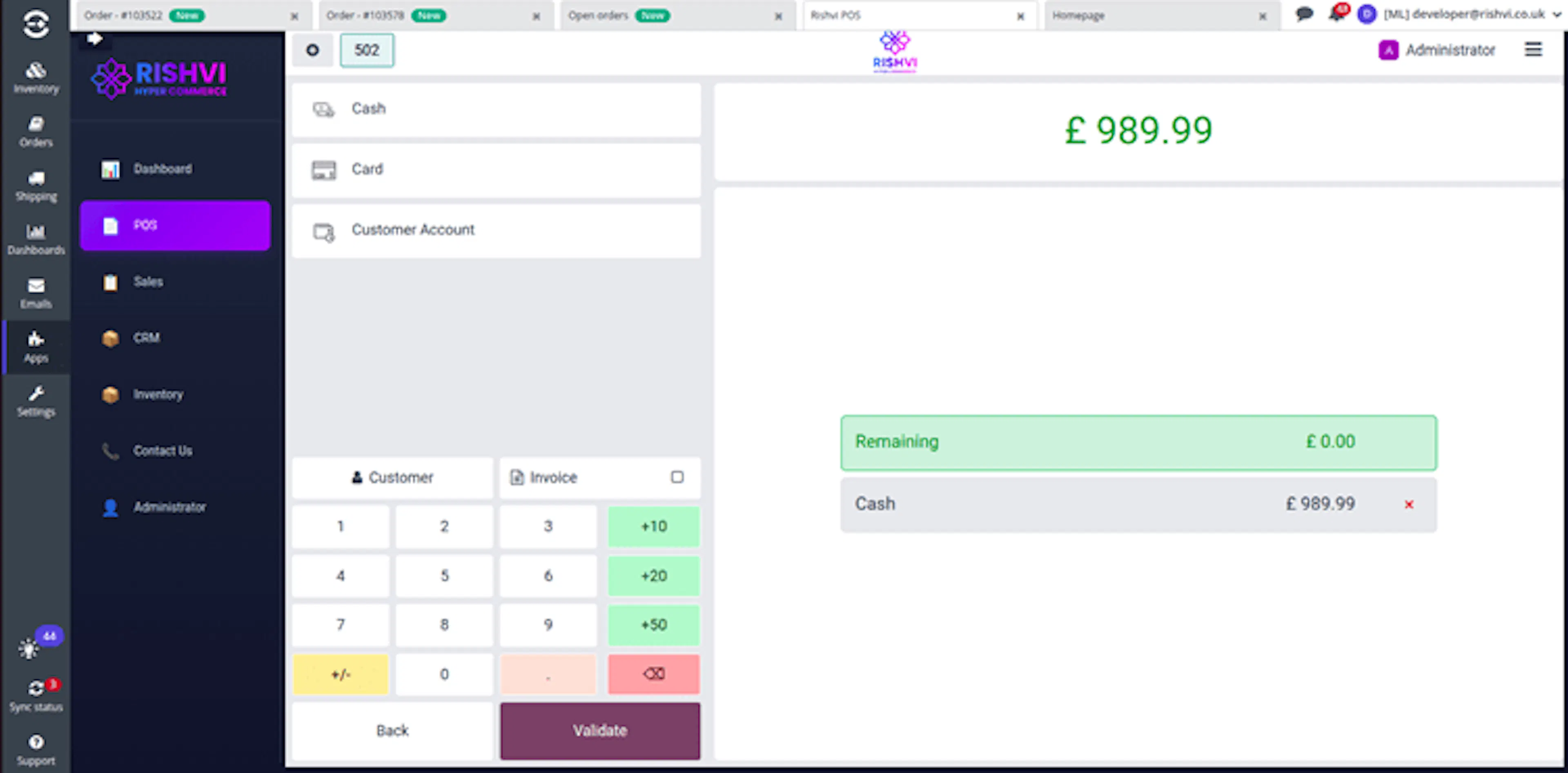
Select the required payment method and confirm that the remaining balance is zero.
Before validation, confirm:
- A valid customer is selected when required
- The correct products are in the cart
- Quantities are correct
- Prices are correct
- Discounts are correct
- Taxes are correct
- Internal notes are appropriate
- The shipping service is correct
- The payment method is correct
- The Linnworks warehouse is correct
Click Validate to complete the sale.
After validation:
- The POS sale is completed
- Inventory is updated
- The order is sent to Linnworks
- A Linnworks order number is returned
- The order number is stored in the backend POS order record
Validate the order only after confirming that payment and order totals are correct.
Linnworks Order Synchronization
After a POS order is validated, HYPER sends the completed order to Linnworks.
Open the HYPER order list to confirm that a Linnworks order number was returned.
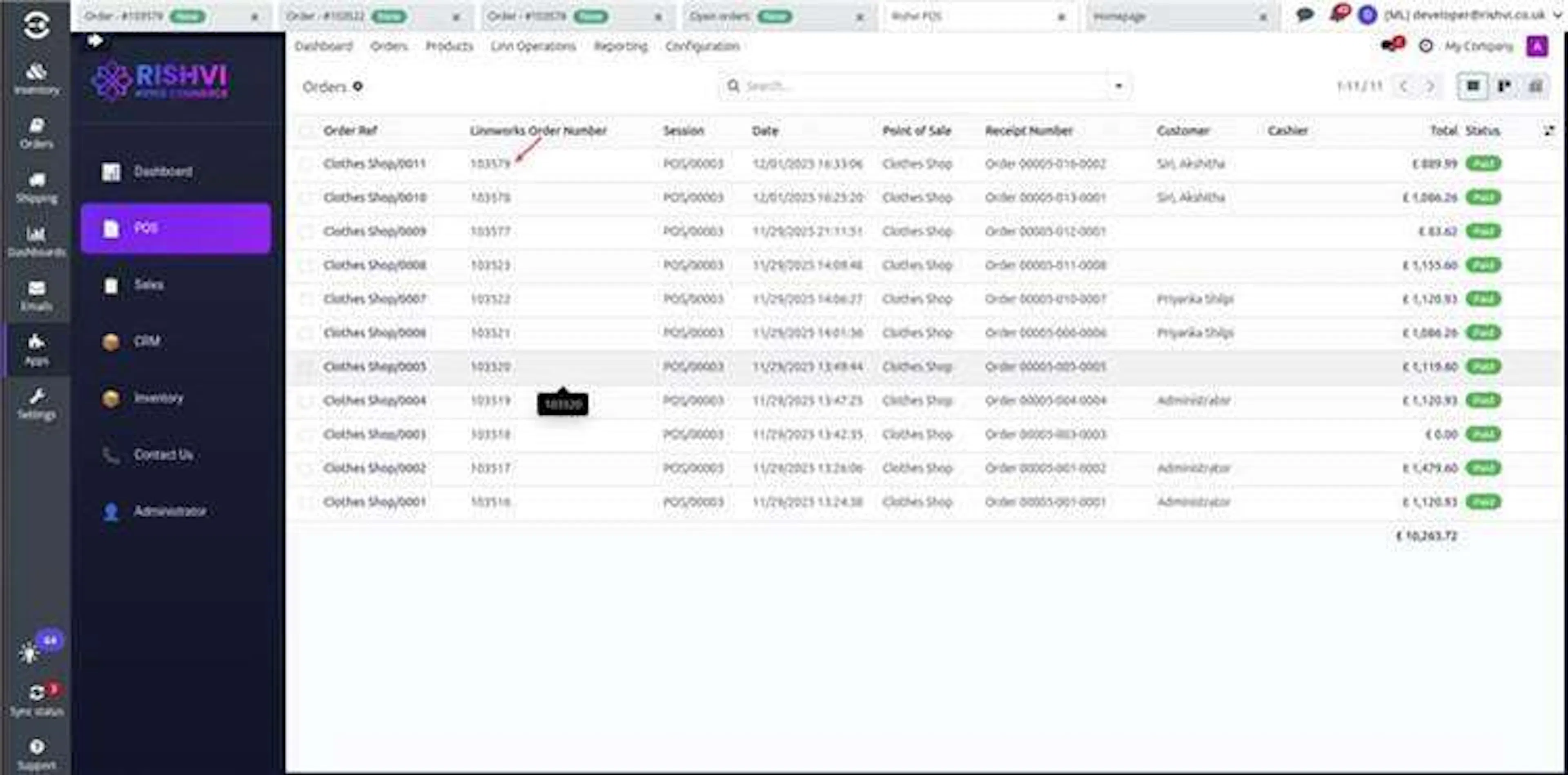
The order list can display:
- HYPER order reference
- Linnworks order number
- Invoice reference
- Order date
- Point of Sale
- Receipt number
- Customer
- Cashier
- Total
- Payment status
The synchronized order can contain:
- Customer details
- Product lines
- Quantities
- Prices
- Discounts
- Taxes
- Internal notes
- Shipping service
- Selected Linnworks warehouse
- POS order reference
Synchronization Result
When the request succeeds:
- Linnworks creates the order
- Linnworks returns an order number
- HYPER stores the Linnworks order number
- The order can be located and reviewed in Linnworks
A stored Linnworks order number confirms that HYPER received a Linnworks order reference for the synchronized sale.
Verify the Order in Linnworks
Use the stored Linnworks order number to locate the exact order in Linnworks.
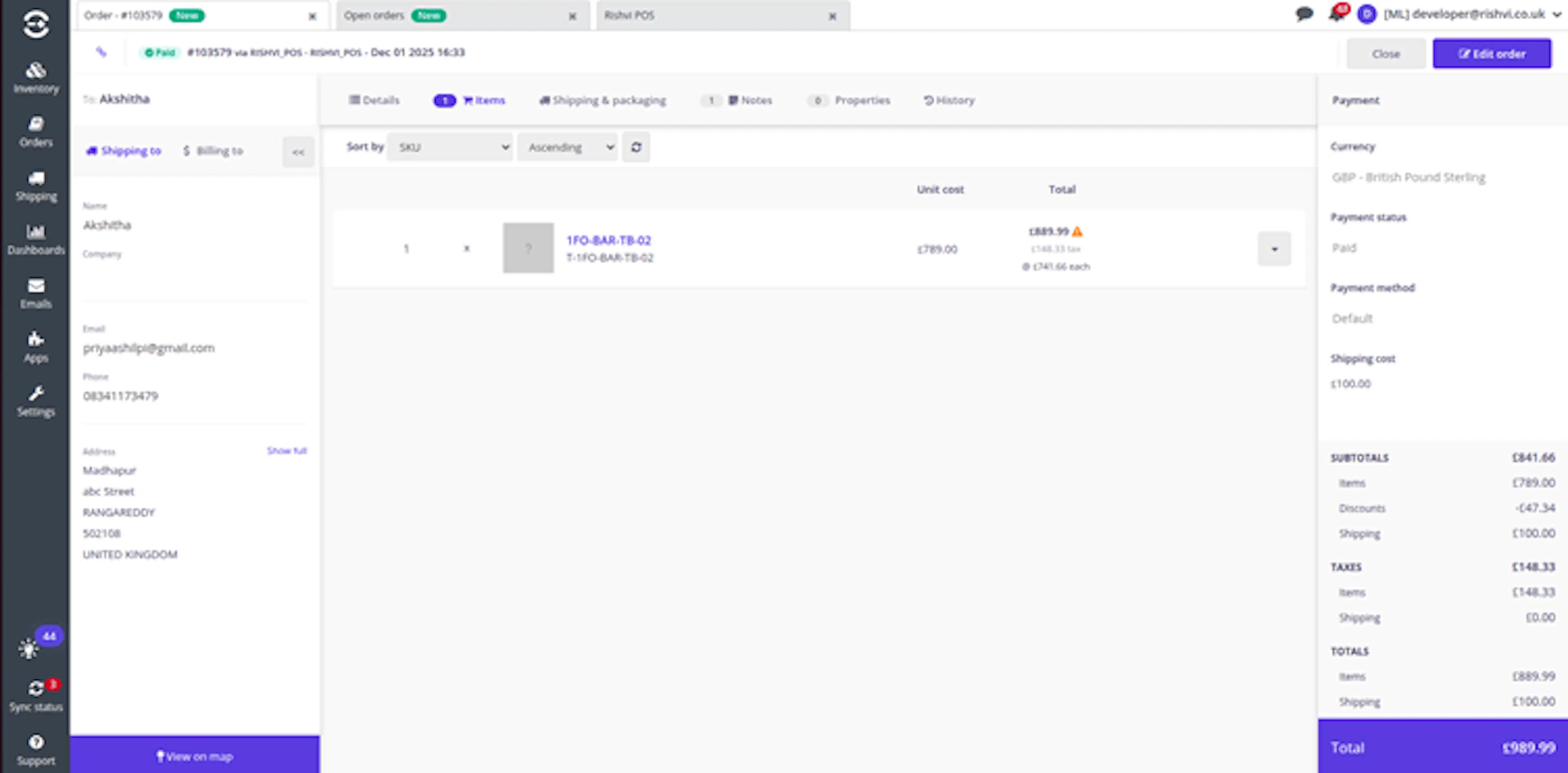
Verification Checklist
Confirm that Linnworks displays:
- The correct customer
- The correct delivery information
- The correct products
- The correct quantities
- The correct prices
- The correct discount
- The correct internal note
- The correct shipping service
- The correct warehouse
- The correct shipping cost
- The correct tax values
- The correct payment status
- The correct order total
A missing Linnworks order number can indicate that synchronization did not complete successfully.
Linnworks Mode
Linnworks Mode controls whether users can access the HYPER Linnworks POS application.
The toggle is available from the top-right user menu.
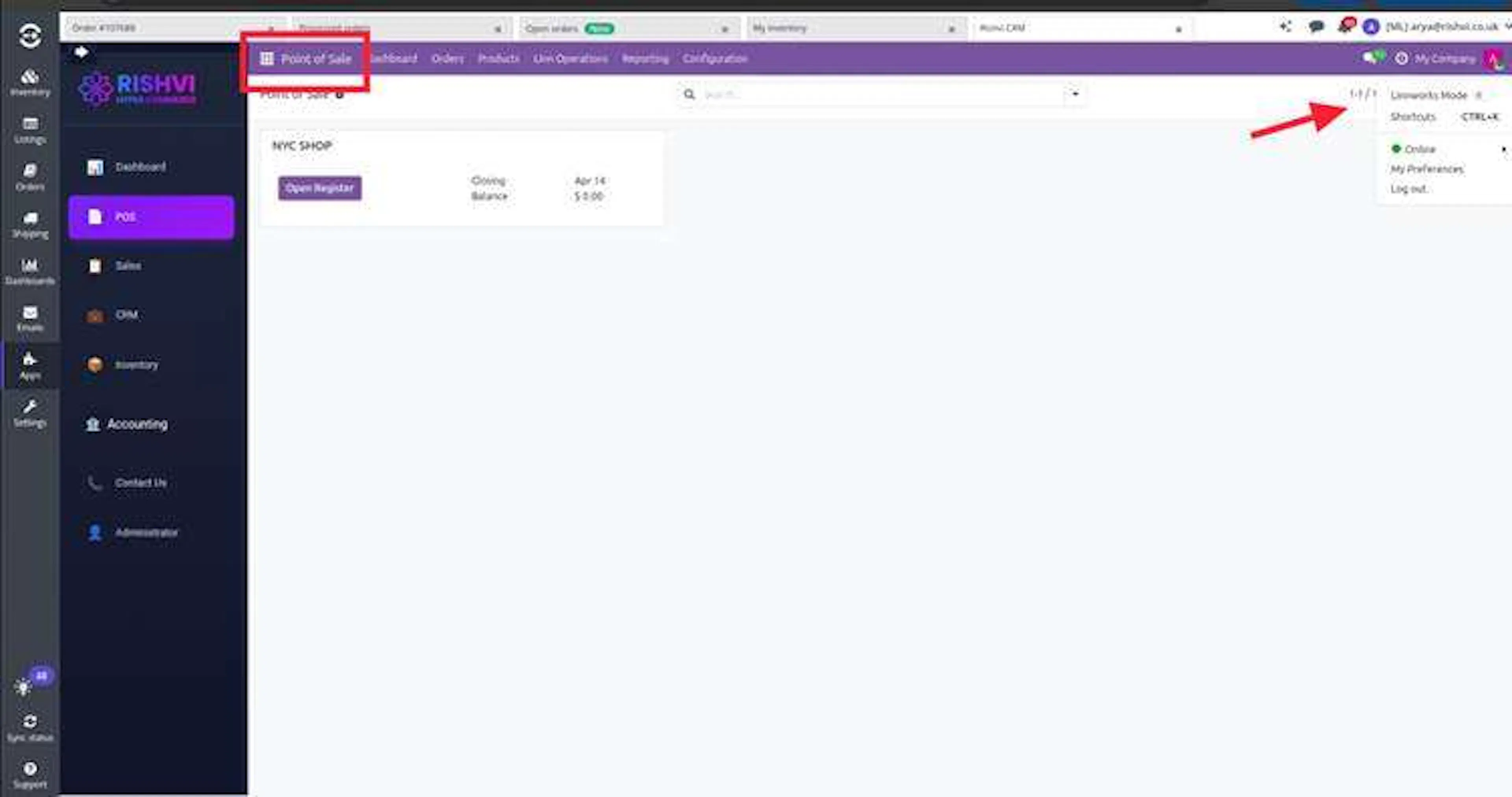
When Linnworks Mode is enabled:
- The application icon is hidden or disabled
- Normal users cannot open the application from the standard interface
- Access to the Linnworks POS interface is restricted
When Linnworks Mode is disabled:
- The application icon is visible
- Authorized users can access HYPER POS
- Normal POS operation is available
Confirm the required user-access state before changing Linnworks Mode.
Warehouse-Level Inventory Behavior
The selected Linnworks warehouse is applied throughout the POS workflow.
| POS Operation | Warehouse Behavior |
|---|---|
| Product availability | Displays inventory from the selected warehouse |
| Order submission | Creates the order against the selected warehouse |
| Inventory deduction | Reduces inventory from the selected warehouse |
| Inventory review | Uses quantities synchronized for the selected warehouse |
| Order verification | Displays the warehouse associated with the Linnworks order |
Production-Readiness Features
Secure System Parameters
Linnworks tokens, account identifiers, and integration URLs are stored in controlled system parameters.
Scheduled Inventory Updates
Hourly synchronization retrieves recent Linnworks inventory changes.
Manual Recovery Tools
Individual-SKU imports and manual synchronization provide immediate correction options.
Controlled Bulk Processing
Page ranges allow large inventory imports to be processed in manageable batches.
Warehouse Isolation
POS inventory and orders are associated with the selected Linnworks warehouse.
Order Traceability
The returned Linnworks order number links each POS order to its operational Linnworks record.
Validation Errors and Common Causes
| Validation Error | Common Cause |
|---|---|
| Linnworks connection failed | The customer ID, token, or service URL is missing or invalid |
| Warehouse not found | Linnworks warehouses have not been synchronized |
| Product category missing | Category synchronization has not completed |
| SKU not found | The entered SKU does not exist in Linnworks |
| Inventory was not updated | The selected page range or SKU did not match the required product |
| Product is hidden in POS | Restrict Categories is enabled or the POS category is unavailable |
| Price is incorrect | Pricelists are disabled or the pricing rule is incomplete |
| Shipping service is missing | Linnworks shipping services have not been imported |
| Warehouse inventory is incorrect | The wrong Linnworks warehouse is selected |
| Product is unavailable | The selected warehouse has no synchronized inventory |
| Discount is unavailable | Discounts are disabled or the user lacks permission |
| Order validation failed | Required customer, product, payment, or order data is incomplete |
| Linnworks order was not created | The Linnworks connection or order request failed |
| Linnworks order number is missing | Order synchronization did not complete successfully |
| Scheduled inventory sync did not run | The scheduled process or integration connection is unavailable |
| Application icon is missing | Linnworks Mode is enabled |
Troubleshooting Guide
Linnworks Connection Failed
Symptom: Warehouse, category, inventory, or order synchronization fails.
Likely cause: A required system parameter is missing, incorrect, or expired.
Resolution: Review lw_customer_id, lw_token, and the integration-service URL without exposing their values.
Warehouse Was Not Imported
Symptom: A Linnworks warehouse is unavailable in HYPER POS.
Likely cause: Warehouse synchronization has not completed.
Resolution: Run Sync Now from Linn Warehouse Details.
Product Category Is Missing
Symptom: An expected product category is unavailable.
Likely cause: Product-category synchronization has not completed.
Resolution: Run Sync Now from Linn Product Category Details.
Product Is Not Visible in POS
Symptom: A synchronized product cannot be selected in the POS interface.
Likely cause: Restrict Categories is enabled, the category is unavailable, or the product is not configured for sale.
Resolution: Disable category restriction, synchronize the category, and review the product configuration.
Individual-SKU Import Failed
Symptom: Add Inventory does not create or update the product.
Likely cause: The SKU is incorrect or does not exist in Linnworks.
Resolution: Confirm the exact Linnworks SKU and run the import again.
Bulk Inventory Is Incomplete
Symptom: Only part of the Linnworks inventory appears in HYPER.
Likely cause: The selected page range did not include all products.
Resolution: Synchronize the missing pages using smaller controlled ranges.
Inventory Totals Do Not Match
Symptom: Linnworks and HYPER show different high-level inventory counts.
Likely cause: The latest inventory changes have not been synchronized.
Resolution: Refresh the counts and run Sync Now when required.
POS Displays the Wrong Warehouse Inventory
Symptom: Product availability does not match the expected warehouse.
Likely cause: The POS configuration uses a different Linnworks warehouse.
Resolution: Review the Linn Warehouse field and reopen the POS session after saving the correct warehouse.
Pricelist Was Not Applied
Symptom: A product uses an unexpected selling price.
Likely cause: Pricelists are disabled or the applicable customer and product rule is incomplete.
Resolution: Enable pricelists and review the pricing configuration.
Shipping Service Is Unavailable
Symptom: The required Linnworks shipping service is not shown in POS.
Likely cause: Shipping services have not been imported or the service was changed in Linnworks.
Resolution: Run Import Shipping Services again.
Discount Cannot Be Applied
Symptom: The discount action is unavailable.
Likely cause: Discounts are not enabled or the cashier lacks permission.
Resolution: Review the POS feature settings and user access rights.
Order Cannot Be Validated
Symptom: POS does not complete the sale.
Likely cause: Required customer, product, payment, or order information is incomplete.
Resolution: Review all cart lines, payment values, customer details, and required POS fields.
Linnworks Order Was Not Created
Symptom: The POS order is completed but cannot be found in Linnworks.
Likely cause: The order synchronization request failed.
Resolution: Review the Linnworks connection, selected warehouse, order details, and available integration logs.
Linnworks Order Number Is Missing
Symptom: The POS backend order does not display a Linnworks reference.
Likely cause: Linnworks did not accept the order or the response was not stored.
Resolution: Review the synchronization result before creating another order.
Automatic Inventory Sync Did Not Run
Symptom: Recent Linnworks quantities do not appear in HYPER POS.
Likely cause: The scheduled process failed or has not reached its next execution time.
Resolution: Review the next execution time and use Sync Now when an immediate update is required.
Application Icon Is Missing
Symptom: Users cannot locate HYPER POS.
Likely cause: Linnworks Mode is enabled.
Resolution: Review the Linnworks Mode toggle in the top-right user menu.
Best Practices
Synchronize Warehouses First
Import Linnworks warehouses before configuring the POS warehouse.
Import Categories Before Products
Synchronize categories before running a large inventory import.
Use Small Page Ranges Initially
Test bulk inventory imports with small page ranges before increasing the volume.
Verify the POS Warehouse
Confirm the selected Linnworks warehouse before opening a POS session.
Keep Pricelists Current
Review pricing rules whenever Linnworks or customer pricing changes.
Reimport Shipping Services
Synchronize shipping services after they are changed in Linnworks.
Verify Orders Using the Reference
Use the stored Linnworks order number when checking synchronized sales.
Protect Integration Credentials
Store tokens, account identifiers, and service URLs only in secure system parameters.
Privacy and Data Protection
HYPER POS can process customer, contact, product, inventory, payment, order, warehouse, note, and shipping information.
To protect this information:
- Restrict POS and configuration access to authorized users
- Use secure Linnworks API tokens
- Store integration secrets in system parameters
- Do not expose customer details in screenshots
- Do not enter payment credentials in internal notes
- Avoid including personal data in public support messages
- Mask sensitive values in operational logs
- Review user access when roles change
- Use only the data required for order processing
- Follow the configured data-retention policy
FAQ
What does HYPER Linnworks POS synchronize?
It supports Linnworks warehouses, product categories, inventory quantities, pricelists, shipping services, and POS orders.
Which system is the inventory source?
Linnworks is the operational source for inventory and warehouse stock.
How are Linnworks warehouses imported?
Open Linn Warehouse Details and click Sync Now.
How are product categories imported?
Open Linn Product Category Details and click Sync Now.
Can one product be synchronized without a bulk import?
Yes. Enter its Linnworks SKU and use Add Inventory.
How does bulk inventory synchronization work?
Select a start page and end page, review the estimated product count, and click Sync My Inventory.
How often does automated inventory synchronization run?
The documented scheduled process runs every hour and retrieves changes from the previous two days.
Can inventory be synchronized immediately?
Yes. Use the Sync Now option in Automation Settings.
What is on-hand quantity?
It is the physical quantity currently available for a product in a warehouse.
Why does POS show stock from only one warehouse?
POS displays stock from the Linnworks warehouse selected in the POS configuration. Stock from other warehouses is not combined automatically.
What does enabling pricelists do?
It allows POS to apply configured product, customer, customer-group, currency, discount, or promotional pricing rules.
How are shipping services added to POS?
Use the Import Shipping Services action to retrieve them from Linnworks.
Why are some products hidden in POS?
Restrict Categories may be enabled, the product category may be missing, or the product may not be configured for sale.
Can discounts be applied in POS?
Yes, when discounts are enabled and the user has the required permission.
What information is sent to Linnworks after a sale?
The synchronized order can include the customer, products, quantities, prices, discounts, taxes, notes, shipping service, warehouse, and POS reference.
How can I verify that a POS order reached Linnworks?
Use the Linnworks order number stored against the backend POS order.
What happens when the Linnworks order number is missing?
The synchronization may not have completed successfully. Review the connection and available integration logs before retrying.
What is Linnworks Mode?
It is an administrator-controlled toggle that hides or displays the HYPER POS application icon.
Legal Information
- Privacy Policy: https://rishvi.co.uk/privacy-policy/
- Terms and Conditions: https://rishvi.co.uk/terms-conditions/
Please review these pages to understand how data is handled and the terms governing the use of this application.
Summary
The HYPER Linnworks POS integration provides a synchronized retail interface for products, inventory, warehouses, pricing, customers, shipping services, payments, and sales orders.
Inventory Synchronization
Linnworks warehouses, categories, products, and quantities can be imported into HYPER POS.
Warehouse-Level Selling
POS product availability and inventory deduction use the selected Linnworks warehouse.
Flexible POS Operations
Cashiers can select customers and products, apply discounts, add notes, select shipping, and process payments.
Automatic Linnworks Orders
Validated POS orders are sent to Linnworks automatically.
Order Traceability
The returned Linnworks order number links the POS order to its corresponding Linnworks record.
Automated Inventory Updates
Hourly inventory synchronization keeps recent warehouse quantities updated.
The recommended setup sequence is:
Install HYPER POS → Configure System Parameters → Synchronize Warehouses → Synchronize Categories → Import Inventory → Configure Pricelists → Import Shipping Services → Select the POS Warehouse → Test a POS Sale
The POS order flow is:
Open POS Session → Select Customer → Add Products → Apply Discount → Add Note → Select Shipping → Process Payment → Validate Order → Send to Linnworks → Store Linnworks Order Number
The inventory flow is:
Read Linnworks Inventory → Synchronize Warehouse Quantities → Display Selected-Warehouse Availability in POS → Deduct Inventory After Sale