Out of Stock Order Splitter
Automatically review selected Linnworks orders, split out-of-stock items into separate orders where required, and assign an out-of-stock identifier for easier review.
Overview
Out of Stock Order Splitter is an automated stock-availability and order-splitting solution for Linnworks. It reviews selected orders, checks item availability at the order fulfilment location, and separates out-of-stock items where the order contains both fulfilment-ready and unavailable items.
The macro processes order IDs supplied through the Linnworks Rule Engine. For each selected order, it retrieves the order details, identifies the fulfilment location, and compares the required item quantities with the available stock at that location.
When an order contains a mixture of available and out-of-stock items, the macro creates a separate order for the out-of-stock items. The split request retains the original postal service and fulfilment location.
Orders containing unavailable items receive the OUT OF STOCK! identifier and internal notes explaining the split result. A macro-run tracking extended property is also added after processing to prevent the same order from being processed repeatedly.
Keep fulfilment-ready items moving by automatically separating unavailable stock and clearly marking orders that require review.
Who Should Use Out of Stock Order Splitter
Warehouse & Fulfilment Teams
Teams responsible for picking, packing, and dispatch can separate unavailable items while allowing fulfilment-ready items to continue.
Inventory Teams
Inventory teams can use fulfilment-location stock levels to identify orders containing unavailable quantities.
Integration Administrators
Administrators configure the macro, enable it for the Rule Engine, define suitable rule conditions, and monitor split and stock-validation logs.
Operations & Customer Service Teams
Operations and customer service teams can use the OUT OF STOCK! identifier to locate orders requiring replenishment, customer contact, or another action.
Key Features
Location-Based Stock Validation
Checks item availability against stock held at the fulfilment location assigned to the selected order.
Automatic Order Splitting
Creates a separate order for out-of-stock items when both available and unavailable items exist.
Out-of-Stock Identification
Assigns the OUT OF STOCK! identifier to orders or split orders containing unavailable items.
Internal Split Notes
Adds internal notes explaining whether the relevant order contains out-of-stock or in-stock items.
Repeat-Run Protection
Adds a tracking extended property after processing so the same order is not processed repeatedly.
Detailed Execution Logging
Records stock values, quantities, split results, identifier assignments, skipped orders, errors, and completion.
How Out of Stock Order Splitter Works
Out of Stock Order Splitter follows a defined sequence whenever it receives one or more order IDs through the Linnworks Rule Engine.
Step 1: Read selected order IDs
The macro loops through each order ID supplied through the OrderIds parameter.
Step 2: Retrieve the Linnworks order
For each selected ID, the macro retrieves the complete order details and existing extended properties.
Step 3: Check repeat-run protection
The macro checks whether its tracking extended property already exists. Orders already marked as processed are skipped.
Step 4: Identify the fulfilment location
The fulfilment location assigned to the order is identified and used for the stock-availability checks.
Step 5: Check item availability
Each order item's required quantity is compared with the available stock at the fulfilment location.
Step 6: Classify item quantities
The macro separates fulfilment-ready items or quantities from items or quantities considered out of stock by the macro logic.
Step 7: Evaluate the order result
The macro determines whether the order contains only available items, only out-of-stock items, or a mixture of both.
Step 8: Split mixed orders
When both available and out-of-stock items exist, a Linnworks order split is created for the unavailable items.
Step 9: Preserve order settings
The split request uses the original postal service and fulfilment location.
Step 10: Add internal notes
Internal notes are added to explain whether the relevant order contains out-of-stock or fulfilment-ready items.
Step 11: Assign the review identifier
Orders containing out-of-stock items receive the OUT OF STOCK! identifier. The identifier is created first when necessary.
Step 12: Handle fully unavailable orders
When all items are out of stock, the original order is not split. It receives an internal note and the OUT OF STOCK! identifier.
Step 13: Mark the order as processed
The macro adds its tracking extended property after processing to prevent another run against the same order.
Configure the Macro
Once the app is installed, you need to create a macro configuration so the system knows which macro to run when the rule is triggered.
This setup can be adjusted anytime based on your operational requirements.
Steps to Configure
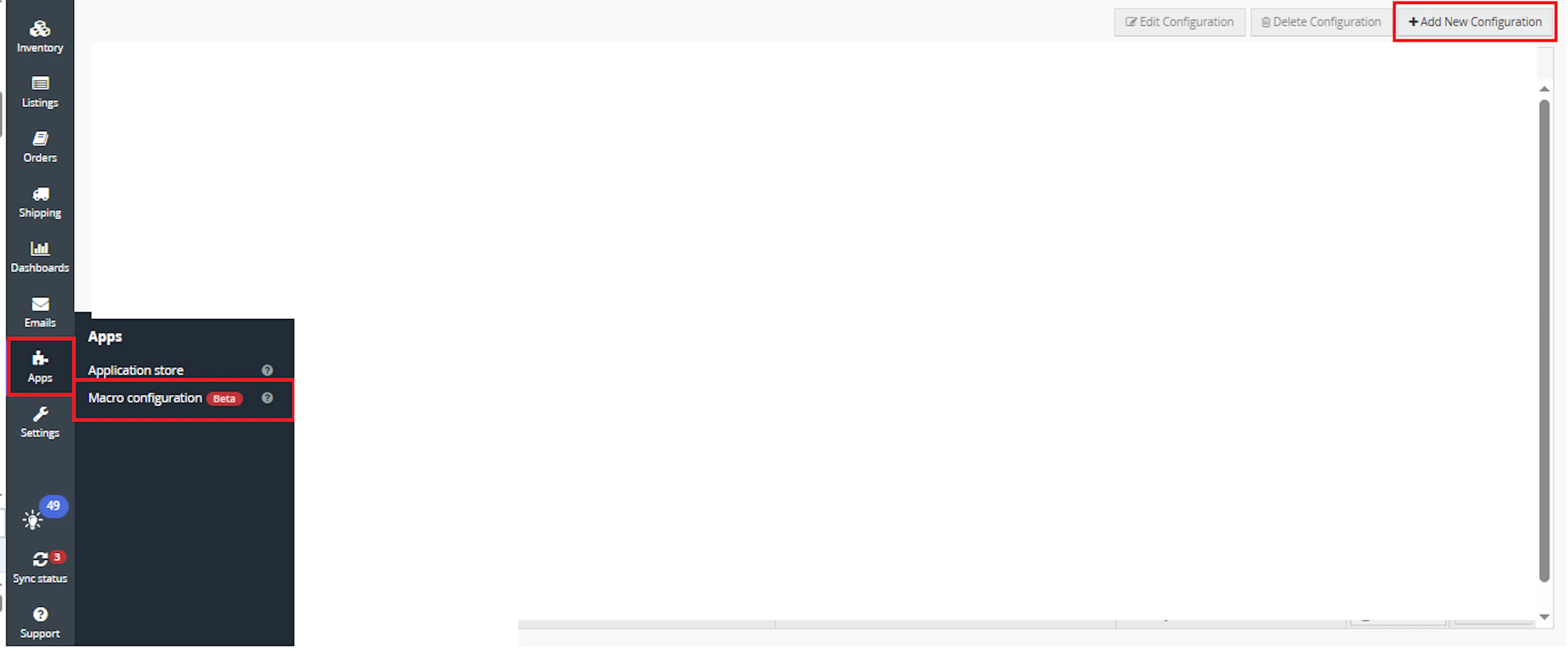
Go to Apps > Macro Configuration and click + Add new configuration.
Select the OutOfStockOrderSplitter macro and click Create Configuration
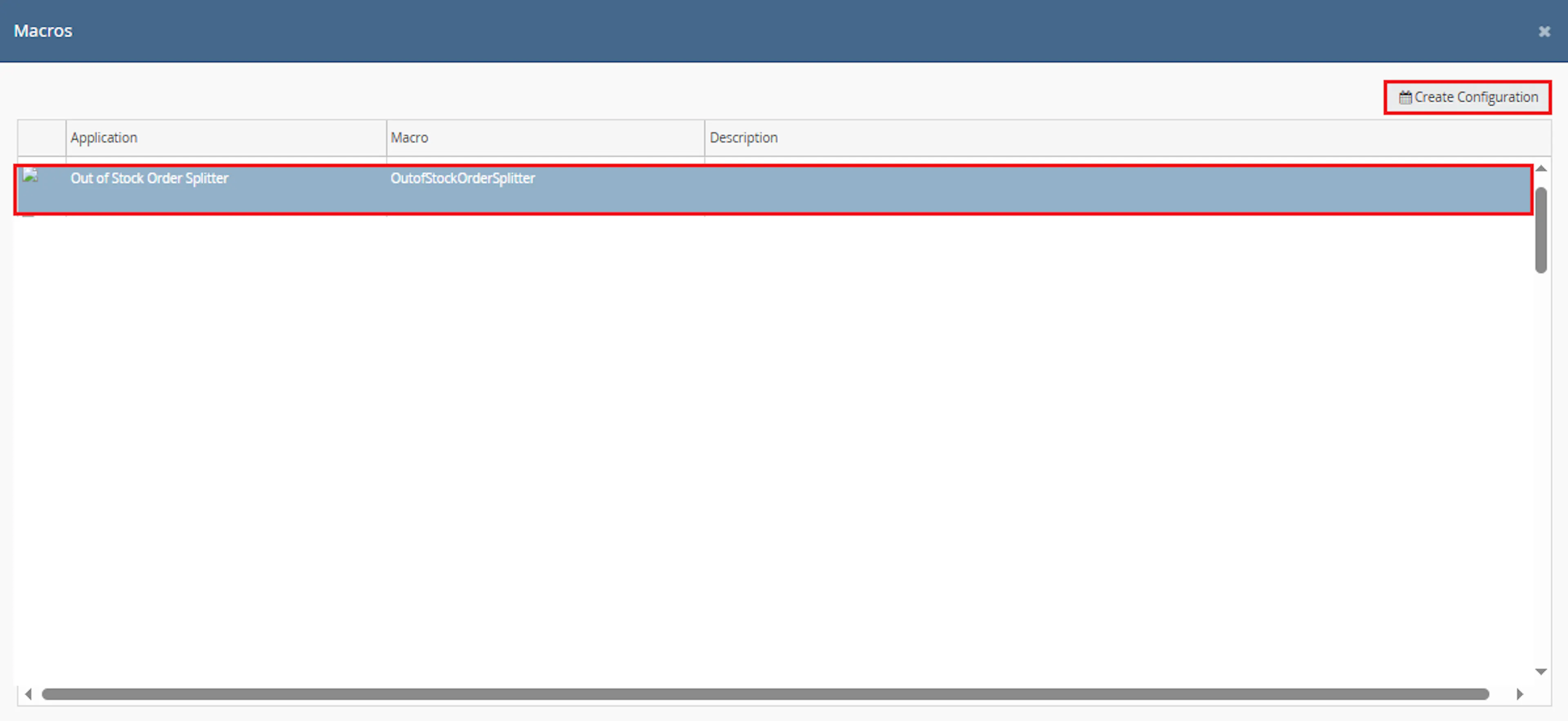
This creates a new configuration where the selected order IDs are passed to the macro when it runs from the rule.
In the Macro Configuration screen, add the configuration name.
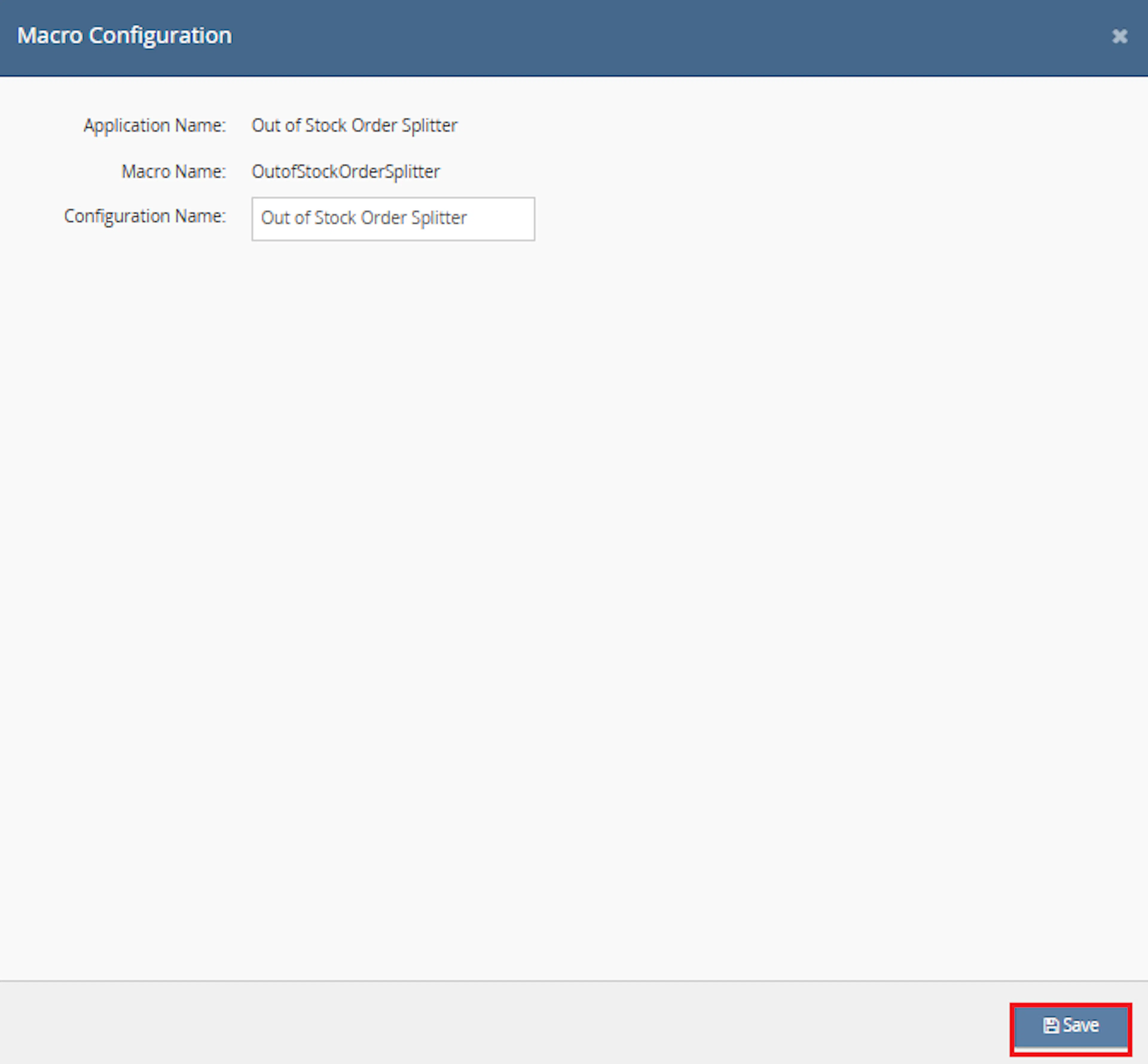
Example configuration name:
Out of Stock Order Splitter
This macro does not require additional user-entered parameter values. The OrderIds value is provided automatically by the selected orders or rule context.
Make sure to enable the macro to continue with the Rule Engine configuration.

Note: If the macro is not enabled, it will not appear in the Action value list when setting up the rule.
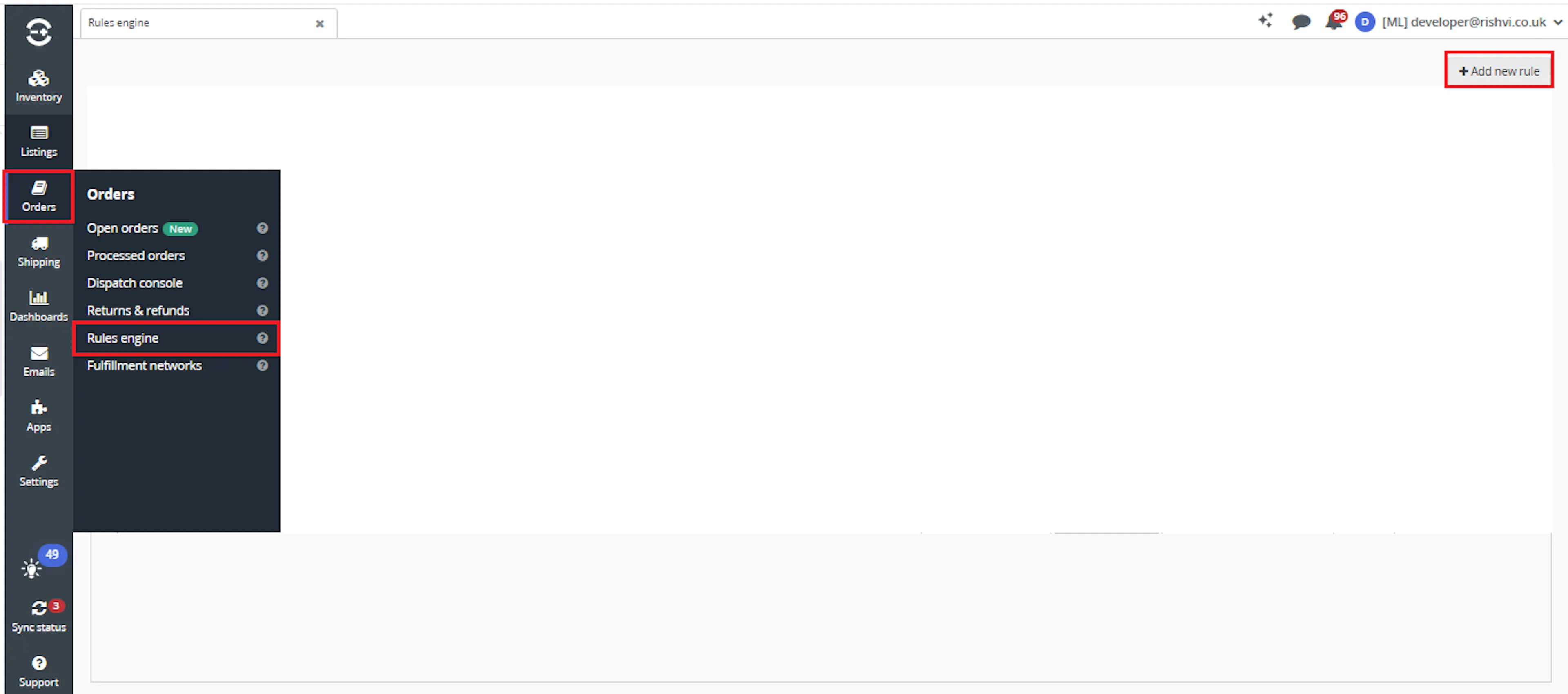
Go to Orders > Rules engine and click + Add new rule.
Key Benefits
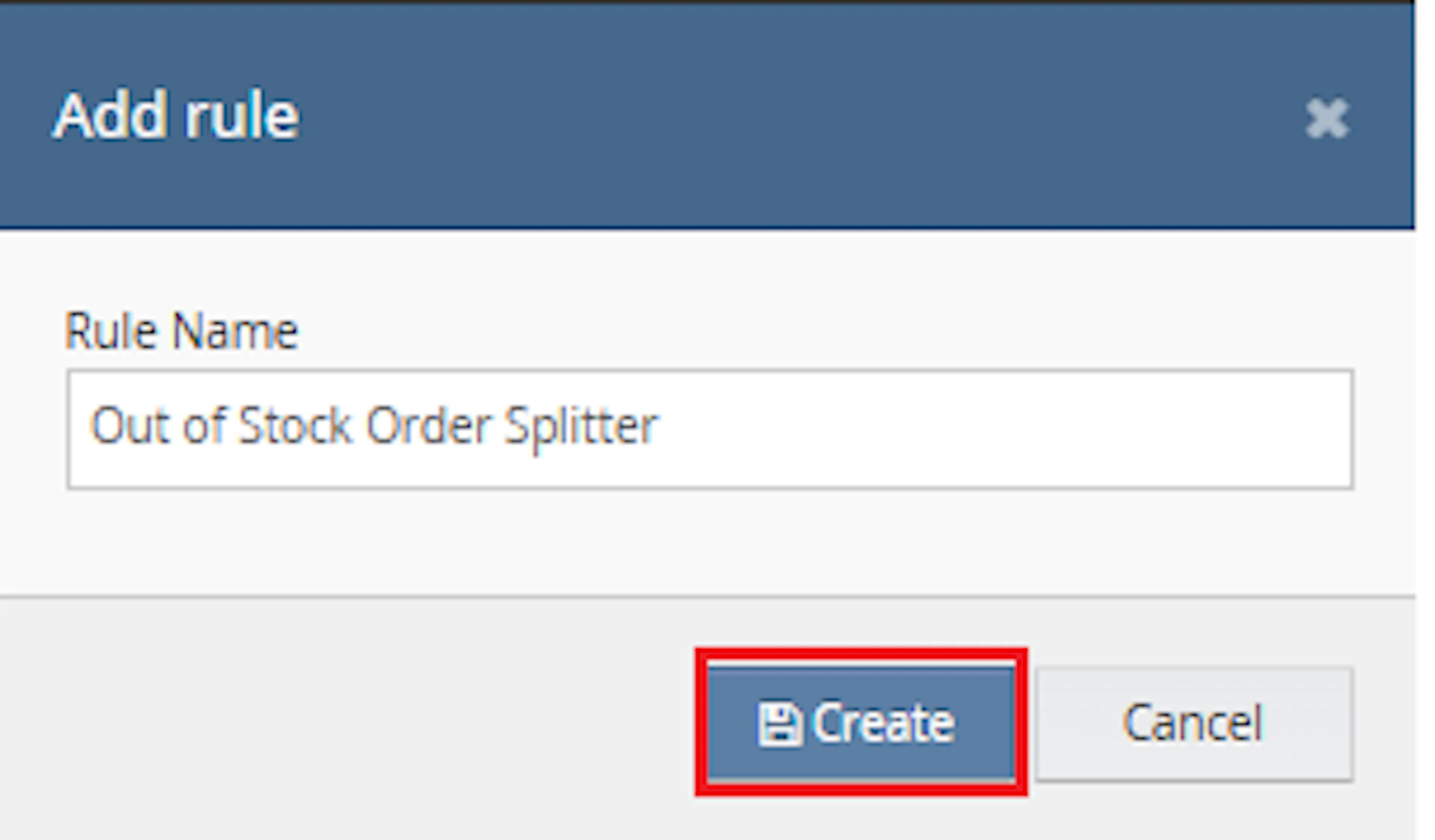
Enter the rule name and click Create.
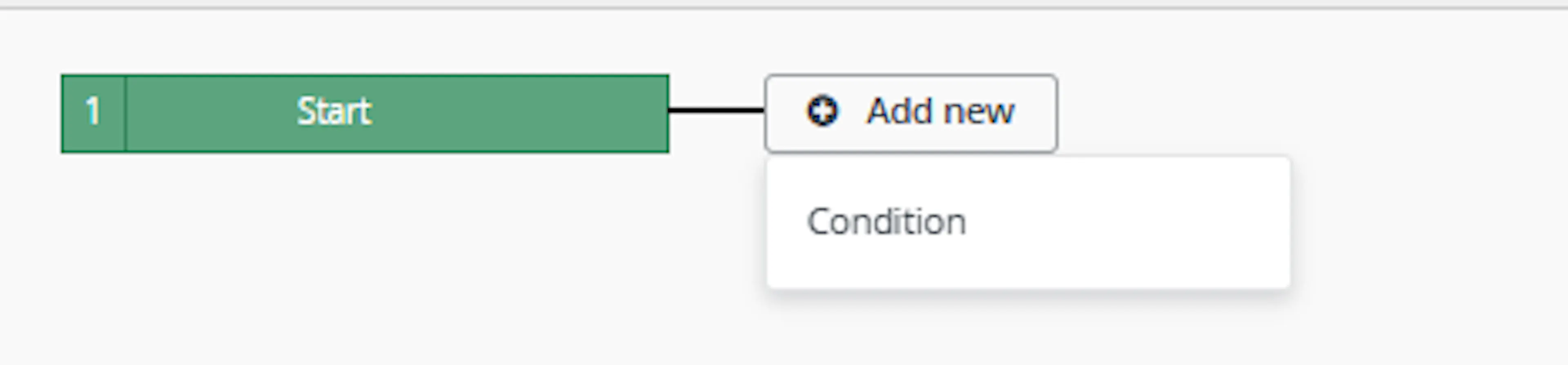
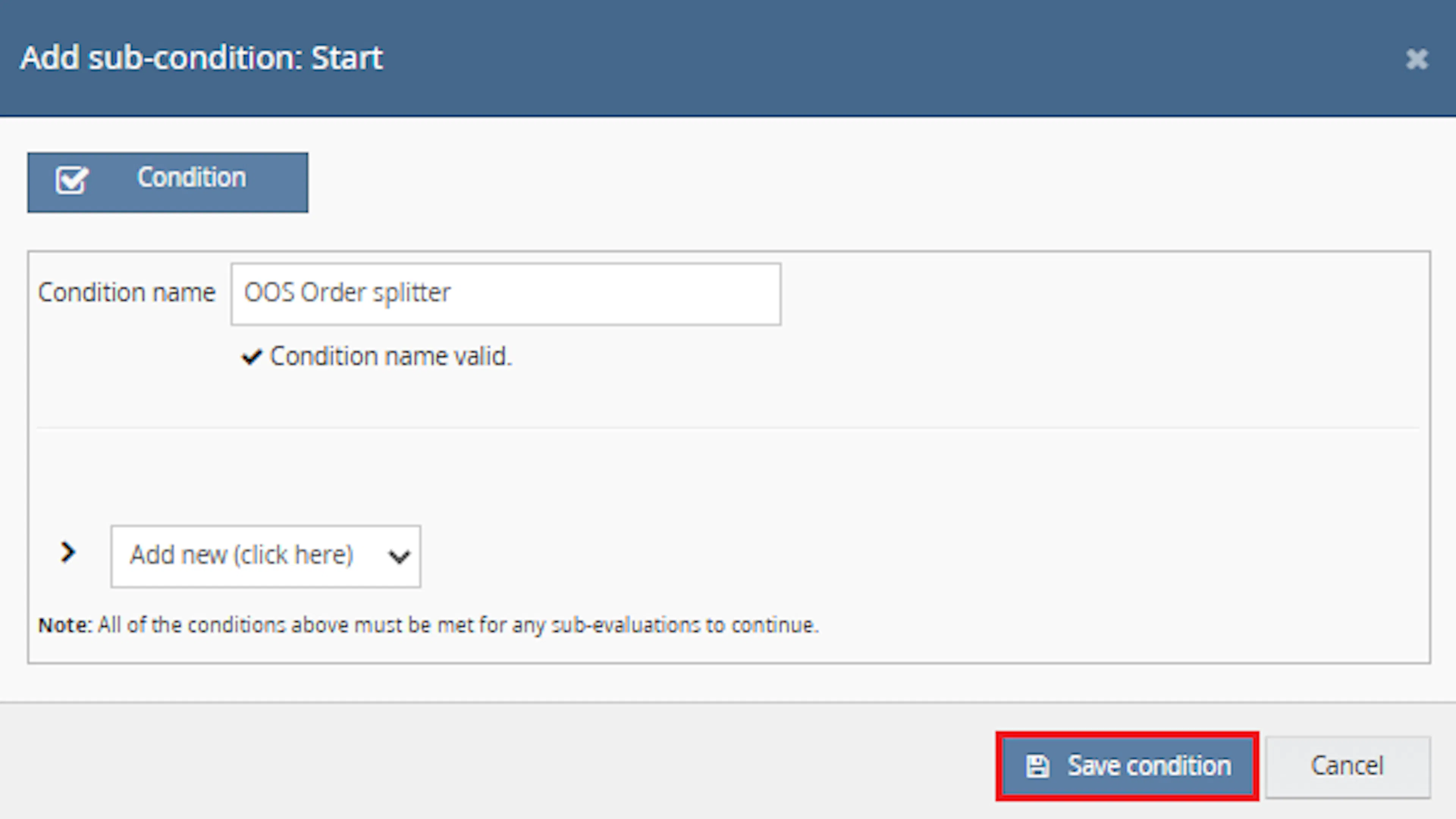
Click Add new, select Condition, set the condition as required, and save it.
Add the macro action and click Save.
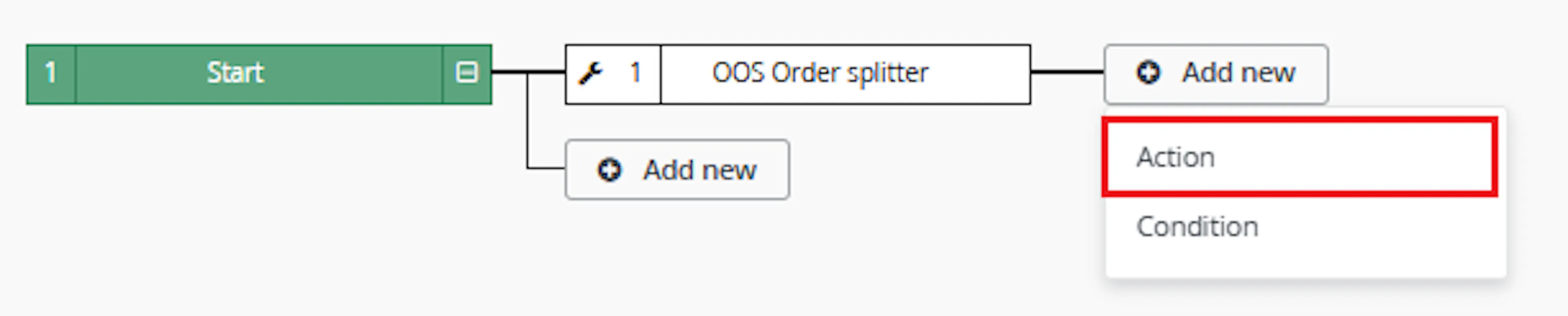
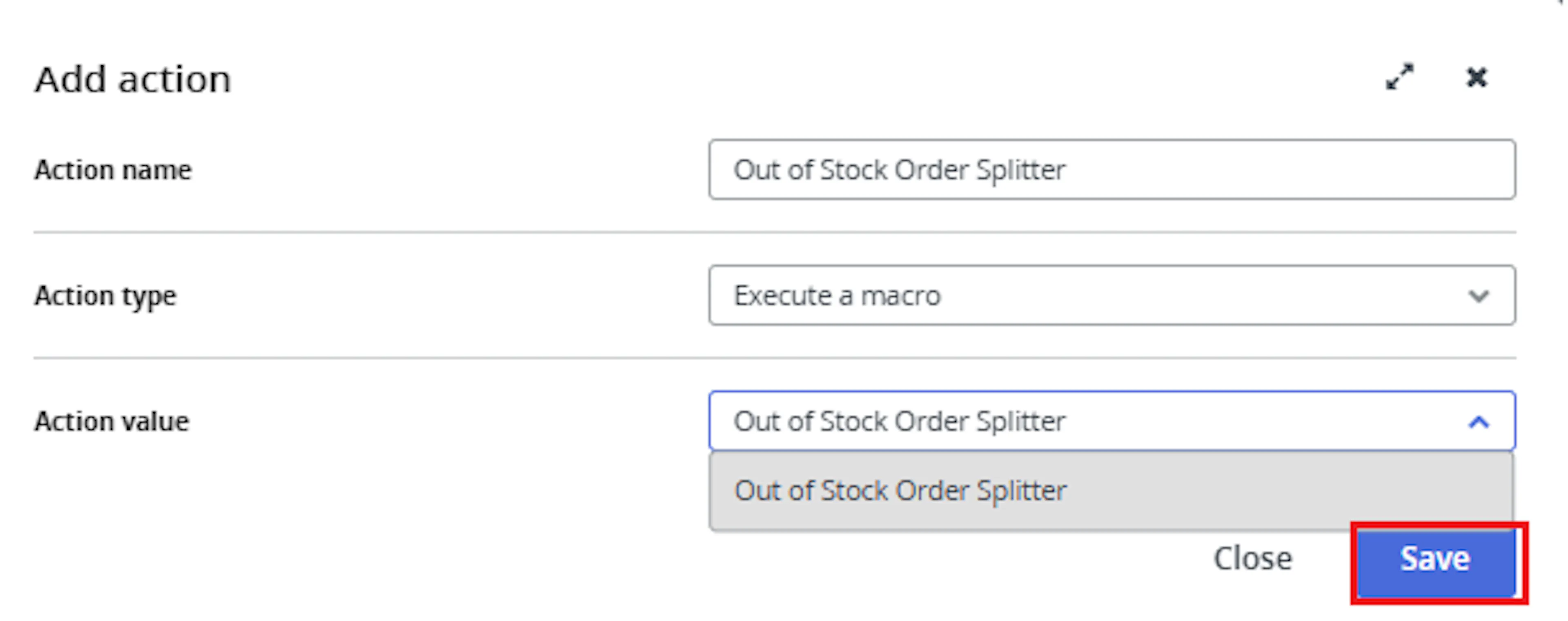
In the Add action window, enter the Action name, for example:
OutOfStockOrderSplitter
-
Set Action type to:
Execute a macro -
In Action value, select:
OutOfStockOrderSplitter -
Click Save
Note: If the macro is not enabled, it will not appear in the Action value list when setting up the rule.
Review the saved rule setup.
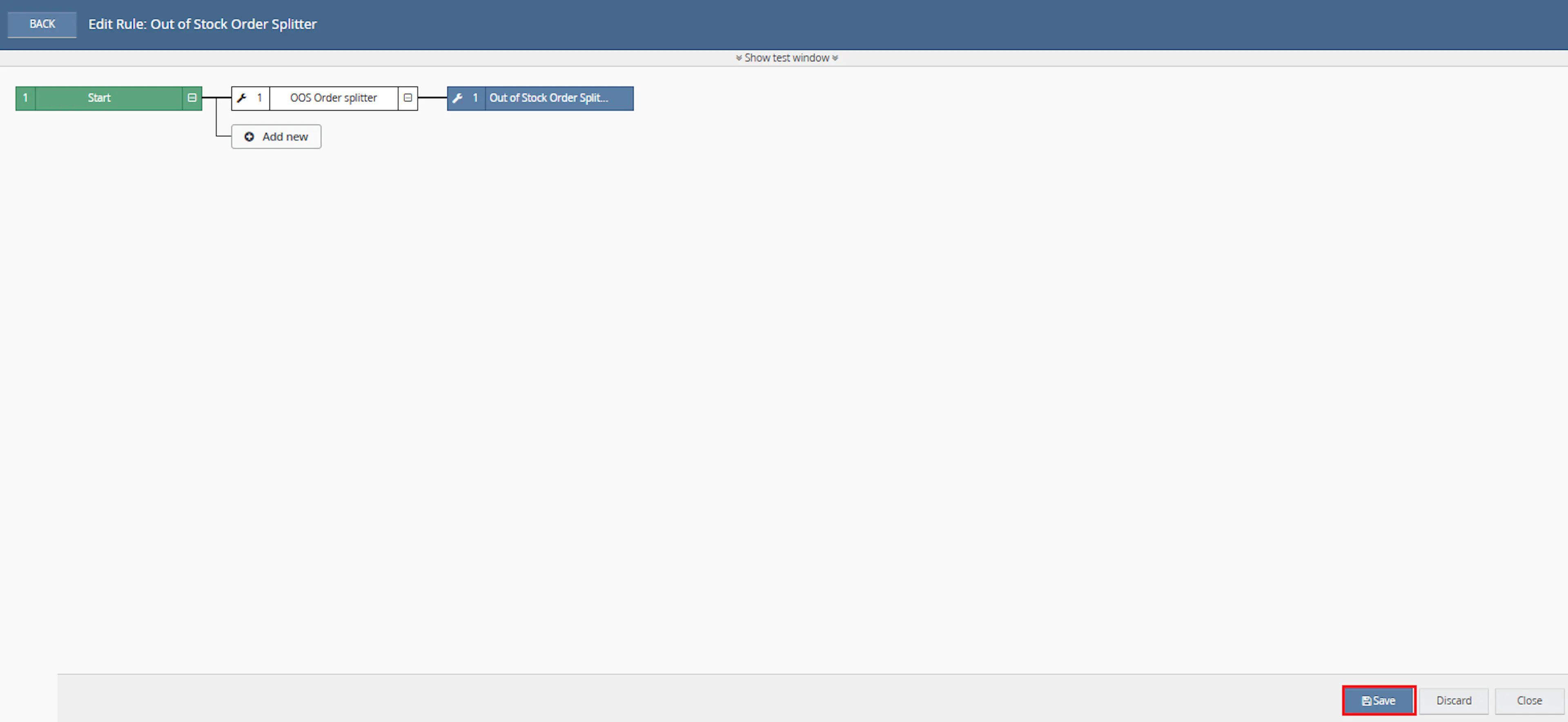
- Verify the condition and action are connected correctly
- Click Save in the bottom-right corner to save the rule
Key Benefits
Orders containing unavailable items can delay fulfilment when the entire order must be reviewed manually. Out of Stock Order Splitter separates stock exceptions while keeping fulfilment-ready items visible.
Reduce manual stock reviews, keep available items moving, and make out-of-stock exceptions easier to manage.
Reduce Manual Stock Review
Removes the need to inspect every selected item manually before deciding whether an order should be split.
Keep Available Items Moving
Separates unavailable items so fulfilment-ready items can continue where the order contains mixed availability.
Flag Out-of-Stock Orders
Applies the OUT OF STOCK! identifier to orders that require stock or customer-service review.
Maintain Split Traceability
Adds internal notes explaining the relationship and stock status of the resulting orders.
Prevent Repeat Processing
Uses a tracking extended property to avoid running the same split logic repeatedly.
Process Multiple Orders
Evaluates all order IDs supplied through the Rule Engine in one macro execution.
Usage of App
Out of Stock Order Splitter is triggered through the Linnworks Rule Engine to evaluate and split selected orders automatically.
Execution
Trigger via Rule Engine
Call the OutOfStockOrderSplitter macro through the Rule Engine with the required OrderIds. No additional custom parameter values are required.
Outcome
When the macro runs against an order, it:
Checks previous processing
Reviews the order extended properties and skips the order when the macro-run tracking property already exists.
Checks stock by location
Compares the required item quantities with stock available at the order fulfilment location.
Classifies item availability
Separates fulfilment-ready and out-of-stock items or quantities according to the macro logic.
Splits mixed-availability orders
Creates a separate Linnworks order for out-of-stock items when available and unavailable items are both present.
Adds internal notes
Records the split result and identifies the stock status of the relevant order.
Assigns the OUT OF STOCK! identifier
Marks the original or split order containing the unavailable items.
Prevents another run
Adds the macro-run tracking extended property after processing.
Input Parameters
Out of Stock Order Splitter requires the following input:
| Parameter | Required | Description |
|---|---|---|
| OrderIds | Yes | The Linnworks order IDs to process. Supplied automatically through the Rule Engine or selected-order context. |
No additional user-entered values are required in Macro Configuration.
The macro relies on the following Linnworks order and inventory data:
| Data Requirement | Description |
|---|---|
| Fulfilment location | Identifies the stock location used for the availability check. |
| Order item quantity | Defines the quantity required by the order. |
| Available stock | Used to determine whether each item can be fulfilled at the location. |
| Postal service | Retained when the macro creates the split request. |
| Order extended properties | Used to determine whether the macro has already processed the order. |
| Order identifiers | Used to apply the OUT OF STOCK! review marker. |
Stock Availability Rules
The macro applies the following stock evaluation behaviour:
| Order or Stock Condition | Macro Behaviour |
|---|---|
| Tracking extended property already exists | Skips the order. |
| All required items are available | No out-of-stock split is required. |
| Both available and out-of-stock items exist | Creates a separate order for the out-of-stock items. |
| An item cannot be fully fulfilled | The unavailable item or quantity is treated according to the macro's out-of-stock split logic. |
| All items are out of stock | Does not split the order; marks the original order for review. |
| Out-of-stock items exist in a split order | Assigns the OUT OF STOCK! identifier to that order. |
| Processing completes | Adds the macro-run tracking extended property. |
Important: Stock availability is evaluated at the fulfilment location assigned to the order. Accurate location-level inventory data is required for reliable results.
Order Split Behaviour
When the order contains both fulfilment-ready and unavailable items, the macro creates a Linnworks order split.
The split operation retains:
| Split Setting | Behaviour |
|---|---|
| Postal service | Uses the original order postal service. |
| Fulfilment location | Uses the original order fulfilment location. |
| Out-of-stock items | Moved into the separate order according to the macro logic. |
| Internal notes | Added to describe the stock status and split result. |
| Identifier | OUT OF STOCK! is applied to the order containing unavailable items. |
The exact note wording and macro-run tracking property name are not specified in the supplied documentation.
Example Scenario
Assume a selected order contains three items:
| Item | Availability Result | Macro Treatment |
|---|---|---|
| SKU-001 | Enough stock at the fulfilment location | Remains fulfilment-ready. |
| SKU-002 | Insufficient stock for the full ordered quantity | The unavailable quantity is handled by the out-of-stock split logic. |
| SKU-003 | Fully unavailable at the fulfilment location | Added to the out-of-stock order. |
The resulting behaviour is:
Fulfilment-Ready Order
Available items remain available for normal picking, packing, and dispatch.
Out-of-Stock Order
Unavailable items are separated, noted, and marked with the OUT OF STOCK! identifier.
The original order is then marked with the macro-run tracking extended property to prevent repeat processing.
Best Practices
Test the macro against representative stock scenarios before enabling it across a large order volume because it can create split orders automatically.
Keep stock data accurate
Maintain reliable location-level stock values so availability decisions reflect the actual fulfilment position.
Use targeted rule conditions
Configure the Rule Engine to pass only orders that should be evaluated for out-of-stock splitting.
Test mixed-stock scenarios
Test fully available, partially available, mixed, and fully unavailable orders before production use.
Review split orders
Check the resulting orders and internal notes to confirm that the correct items or quantities were separated.
Monitor the identifier
Use the OUT OF STOCK! identifier to manage replenishment, cancellation, delayed fulfilment, or customer communication.
Monitor execution logs
Review logs for stock values, split results, skipped orders, identifier assignments, notes, and API errors.
FAQ
How is Out of Stock Order Splitter triggered?
The macro is triggered through the Linnworks Rule Engine. Matching order IDs are supplied through the OrderIds parameter.
Does the macro require additional configuration parameters?
No. The macro configuration requires a name and must be enabled, but no additional custom values are entered.
Where is stock checked?
Stock is checked at the fulfilment location assigned to the order.
How does the macro determine whether an item is available?
It compares the required item quantity with the available stock at the order location.
What happens when every item is available?
No out-of-stock split is required.
What happens when the order contains both available and out-of-stock items?
The macro creates a separate order for the out-of-stock items.
What happens when an item has some, but not all, required stock?
The source documentation states that the macro separates available and out-of-stock quantities according to its stock logic. The precise partial-quantity calculation is implemented within the macro.
What happens when every item is out of stock?
The order is not split. The original order receives an internal note and the OUT OF STOCK! identifier.
Which order receives the OUT OF STOCK! identifier after a split?
The order containing the out-of-stock items receives the identifier.
Does the macro create the identifier when it is missing?
Yes. The documented behaviour states that the macro creates the OUT OF STOCK! identifier when necessary.
Are internal notes added?
Yes. Internal notes are added to explain whether the relevant order contains out-of-stock or in-stock items.
What is the exact note text?
The exact note wording is not provided in the supplied documentation.
Does the split retain the original postal service?
Yes. The split request uses the original postal service.
Does the split retain the fulfilment location?
Yes. The split request uses the original fulfilment location.
How does the macro prevent duplicate processing?
It checks for a macro-run tracking extended property before processing and adds the property after the run.
What is the tracking extended property called?
The source confirms that a tracking property is used but does not provide its exact name.
Can multiple orders be processed in one execution?
Yes. The macro loops through each order ID supplied through OrderIds.
Does the macro update stock levels?
The supplied documentation describes reading stock availability and splitting orders. It does not state that stock levels are changed.
What should be checked when an order is skipped?
Check whether the macro-run tracking extended property already exists on the order.
What should be checked when an order is split incorrectly?
Review the fulfilment location, location-level stock values, ordered quantities, and macro execution logs.
What should teams do after an order receives the OUT OF STOCK! identifier?
Review whether the order requires replenishment, delayed fulfilment, customer contact, cancellation, or another manual action.
Legal Information
- Privacy Policy: https://rishvi.co.uk/privacy-policy/
- Terms and Conditions: https://rishvi.co.uk/terms-conditions/
Please review these pages to understand how data is handled and the terms governing the use of this application.
Summary
Out of Stock Order Splitter automates stock validation and order splitting for selected Linnworks orders.
Once connected to the Rule Engine, the macro checks repeat-run tracking, retrieves stock availability at the fulfilment location, separates available and unavailable items, creates a split order where required, adds internal notes, and assigns the OUT OF STOCK! identifier.
Automatic stock validation
Item quantities are compared automatically with stock available at the order fulfilment location.
Mixed-order splitting
Out-of-stock items are separated when the order contains both available and unavailable stock.
Out-of-stock identification
Orders containing unavailable items receive the OUT OF STOCK! identifier.
Repeat-run protection
A tracking extended property prevents the same order from being processed repeatedly.
For orders that do not split as expected, review the Rule Engine and macro logs, confirm the fulfilment location, verify location-level stock quantities, and check whether the macro-run tracking property already exists.