Evri 3PL - Linnworks Integration
Connect Linnworks with Evri 3PL to automate fulfillment, order sync, stock updates, and cancellations.
1. Overview
This integration connects Linnworks with Evri 3PL to automatically send and manage your orders.
What the system does
-
Sends orders from Linnworks to Evri automatically
-
Receives shipping and delivery status updates
-
Keeps stock levels accurate and handles order cancellations
-
Matches your data perfectly so nothing gets lost between systems
System Roles
| System | Responsibility |
|---|---|
| Linnworks | Where you manage your orders and sales |
| Evri 3PL | The warehouse that packs and ships your orders |
| Integration | The digital bridge keeping both systems talking to each other |
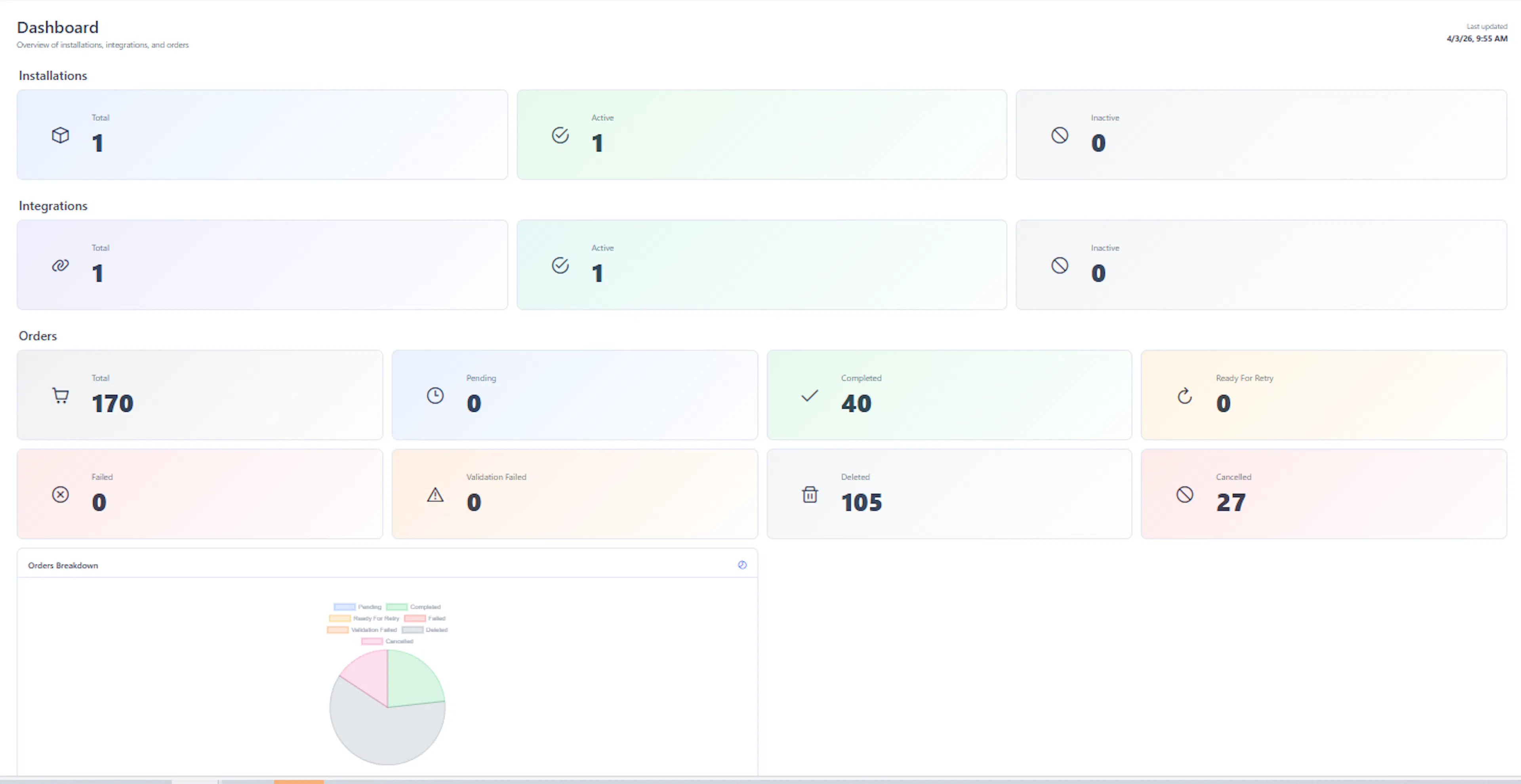
2. Dashboard Overview
The dashboard provides a quick, bird's-eye view of how the system is running.
Key Numbers to Watch
-
Installations: Total, Active, and Inactive connections
-
Integrations: A quick green light / red light status overview
-
Orders:
-
Total
-
Pending (Waiting)
-
Completed (Done)
-
Failed (Has an issue)
-
Deleted
-
Cancelled
-
Insights
-
Quickly spot orders with issues
-
Monitor the overall health of the system
-
Track where orders are sitting in their shipping journey
3. Orders Overview
Order Status Breakdown
| Status | Meaning |
|---|---|
| Pending | Waiting to be processed |
| Completed | Successfully sent and packed |
| Failed | There was an error sending the order to the warehouse |
| Validation Failed | Information was missing or incorrect before it could even be sent |
| Deleted | Orders you have removed |
| Cancelled | Orders that were called off |
4. Integration Setup
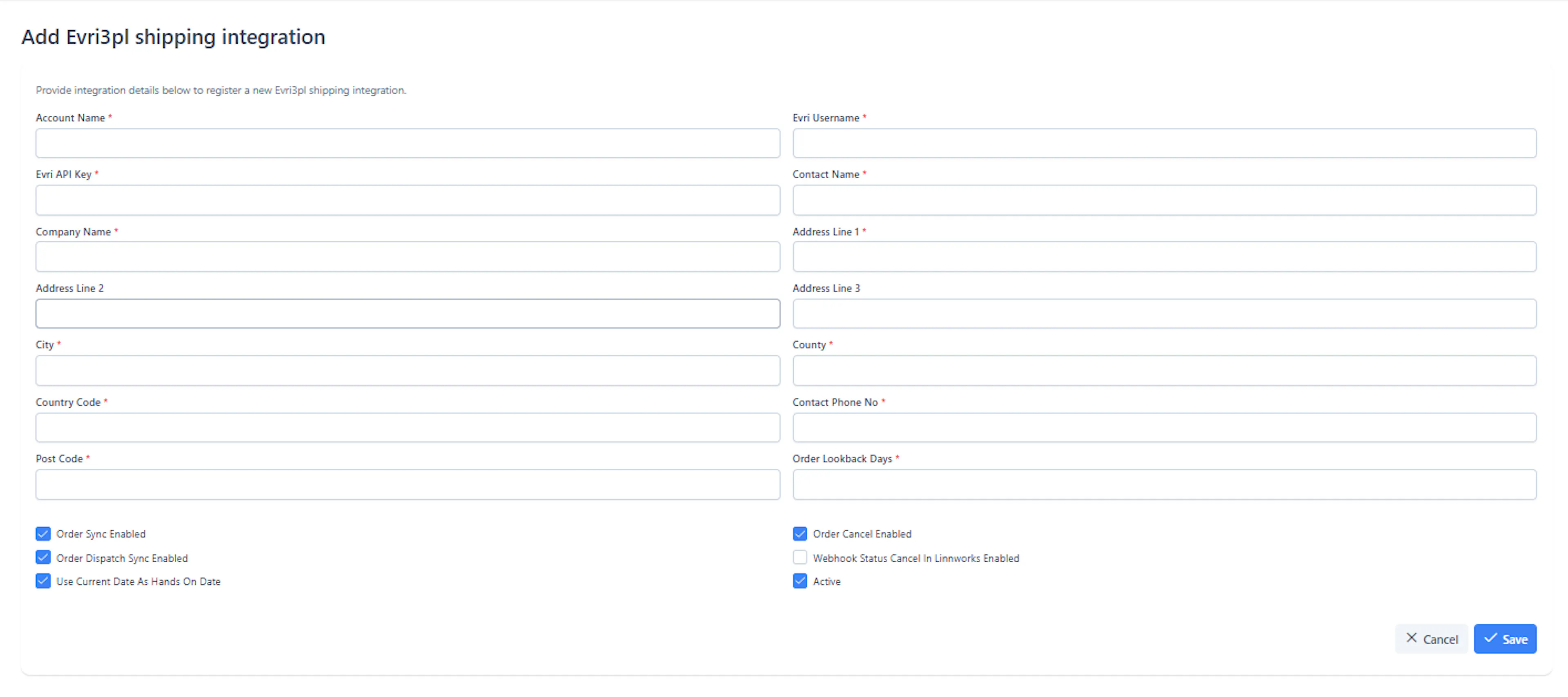
Required Fields
Credentials (Logins)
-
Evri Username
-
Evri API Key (Secret Password)
Sender Details
-
Name
-
Address
-
Contact number
-
Postcode
Sync Controls (On/Off Switches)
-
Order Sync Enable (Turns on automatic order sending)
-
Dispatch Sync Enable (Turns on tracking number updates)
-
Cancellation Enable (Turns on cancellation matching)
-
Order Lookback Days (How many past days of orders the system checks)
Notes
-
If your passwords/keys are wrong, orders will simply stop sending to Evri.
-
These switches control exactly how the system behaves.
5. Order Queue
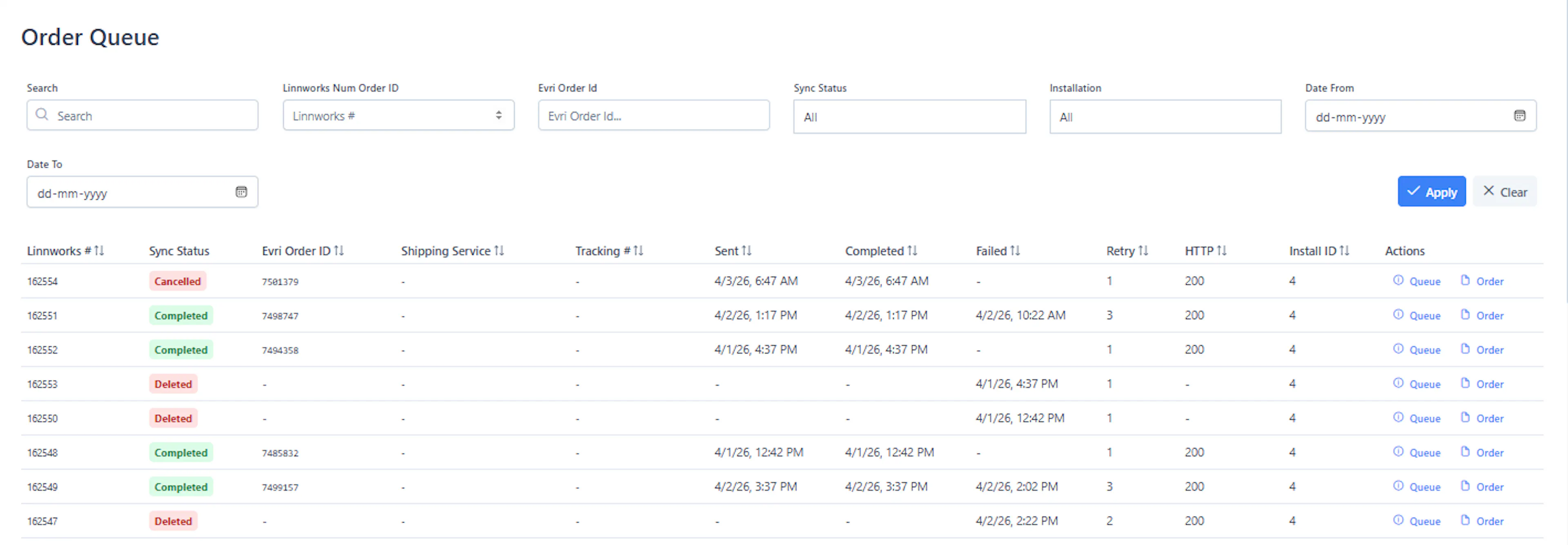
Features
-
Search and filter through all your orders
-
Check if an order was successfully sent
-
Click to retry orders that failed
-
Read basic error messages if something goes wrong
Columns Explained
| Column | Description |
|---|---|
| Linnworks ID | Your internal order number |
| Evri Order ID | The warehouse's reference number |
| Sync Status | Where the order is in the process |
| Tracking # | The shipment tracking code |
| HTTP Status | A simple success or error code from the computer |
| Actions | Buttons to Retry, Queue, or View details |
6. Service Mapping (Mandatory)
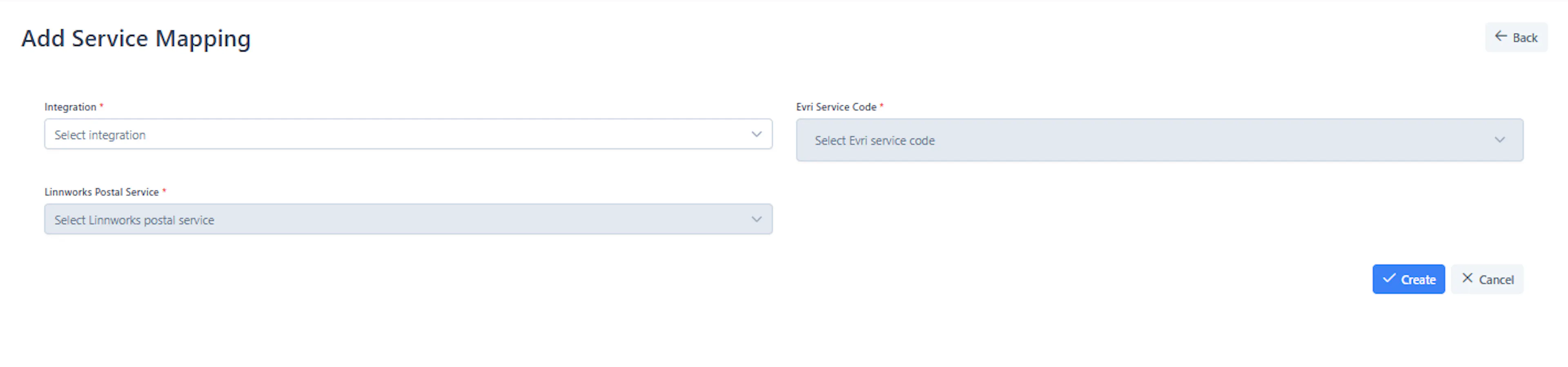
Purpose
Tells the system which shipping method in Linnworks matches the shipping method at Evri.
Why it matters
-
The system cannot process an order without this.
-
If you forget to match a shipping method, the order will fail to send.
Example
| Linnworks Service | Evri Code |
|---|---|
| Domestic Standard | EVRI_STANDARD |
7. SKU Mapping (Recommended)
Purpose
Makes sure the right barcode is used so the warehouse picks the correct product.
Behavior
-
Perfect Match: The system uses the correct barcode.
-
Multiple Matches: The system tries to pick the best-fitting barcode.
-
No Match: The system uses a backup barcode.
-
No Valid Barcode: The order will fail because the warehouse won't know what item to pick.
8. Users Section
Displays the list of staff members who have access to manage this connection.
Staff Roles & Permissions
-
Administrator: Complete control. Can change passwords, toggle settings, and delete things.
-
Operator: Can use the order queue, retry failed orders, and check logs.
-
Read-Only: Can only look at the dashboard and check order statuses without changing anything.
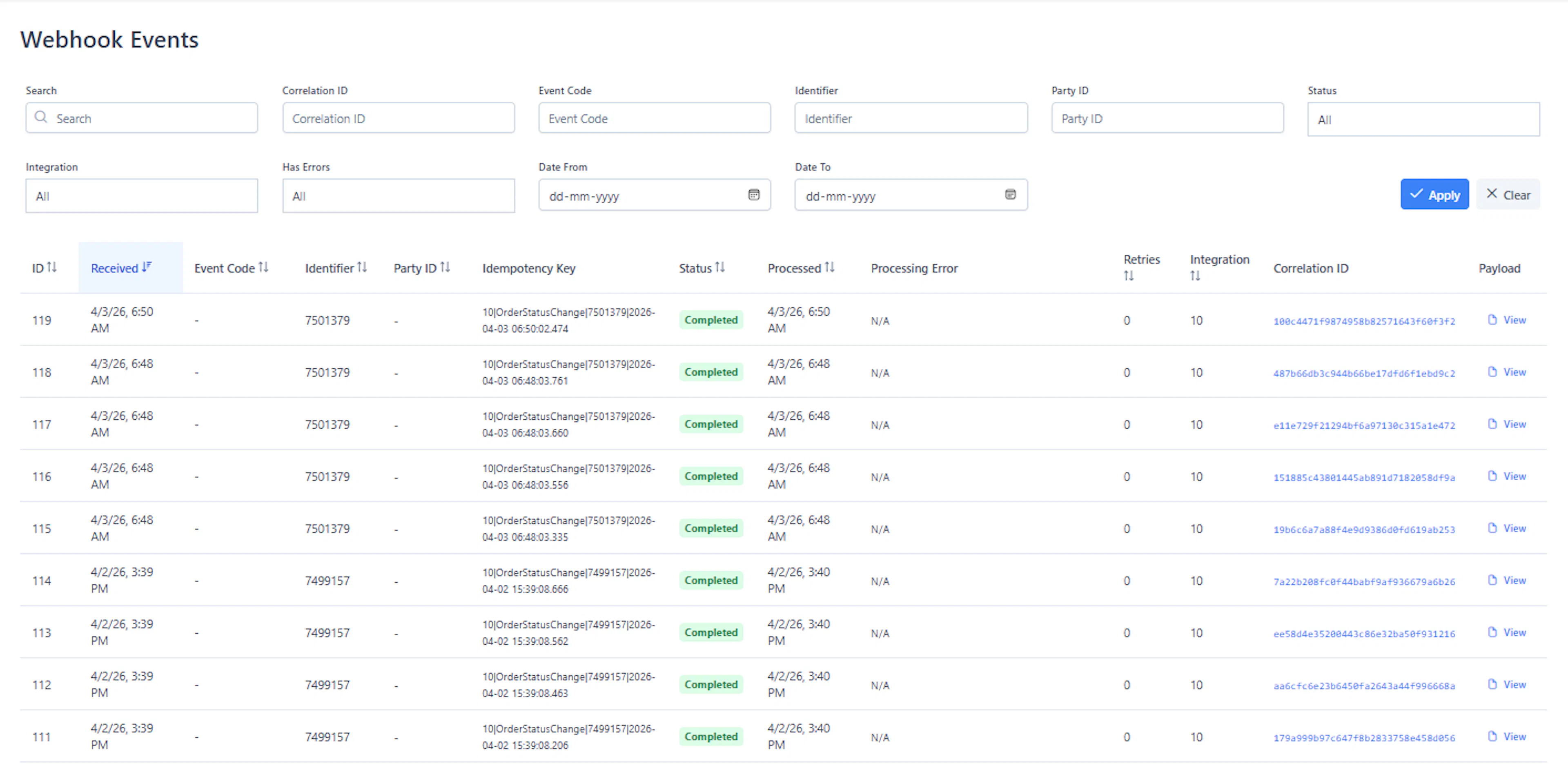
9. Automated Updates (Webhooks)
Tracks
-
Order status changes (e.g., when it leaves the warehouse)
-
Delivery tracking numbers
-
Stock level updates
Key Fields
| Field | Description |
|---|---|
| Event Code | The type of update happening |
| Identifier | The order number it applies to |
| Status | Did the update succeed or fail? |
| Correlation ID | A reference code to find this specific update in the log |
10. Update History (Audit Logs)
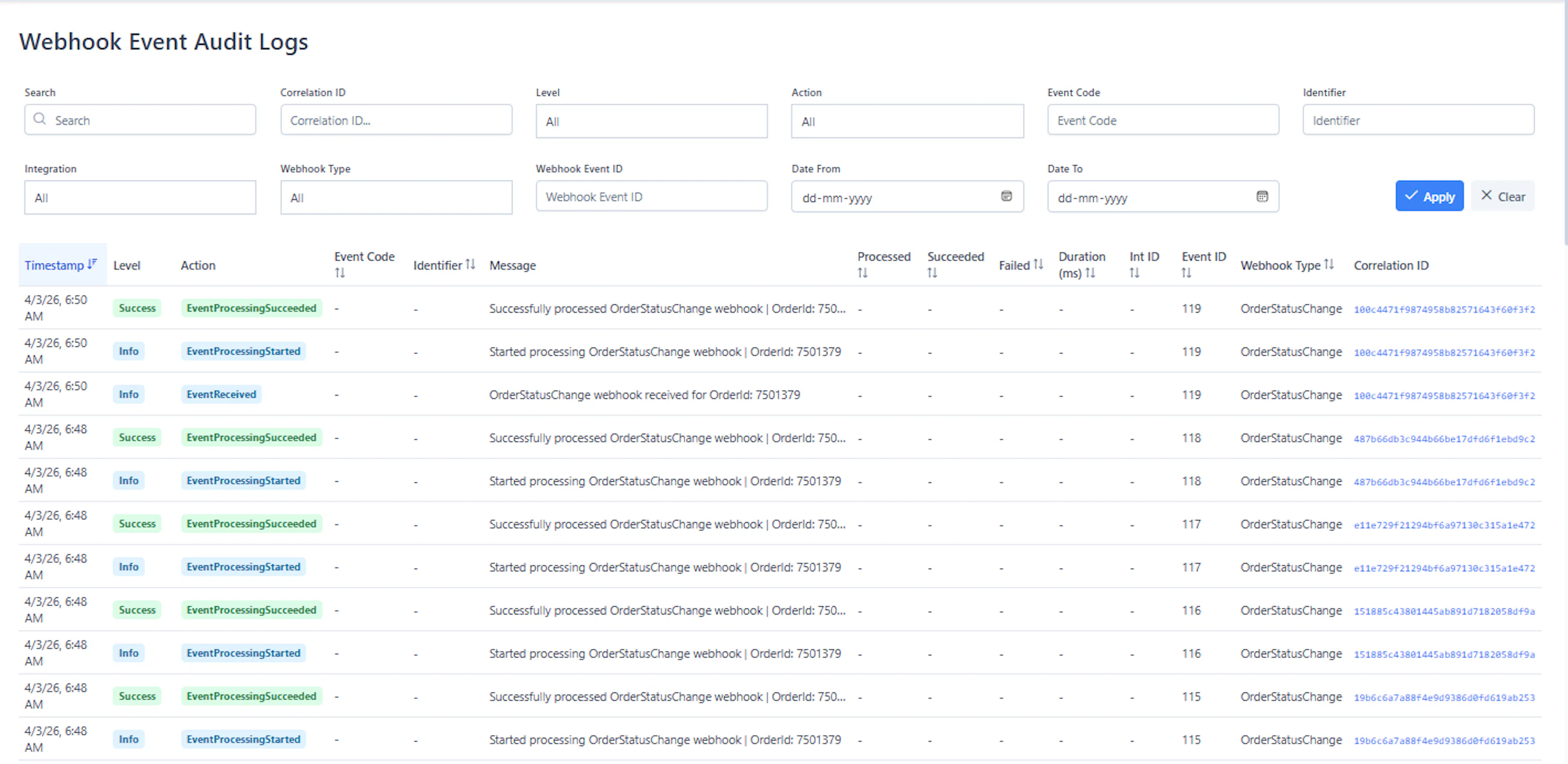
Purpose
A digital paper trail of every update that has passed through the system.
Includes
-
Whether the update went through successfully or failed
-
Error notes explaining what went wrong
-
How many times the system tried to send the update
11. Order Sync Behavior
Success Flow
-
Order is automatically sent to Evri
-
Evri provides a warehouse order number which the system saves
-
A "Sent to Evri" tag is applied to the order in Linnworks
Validation Failure
-
The order is marked as failed
-
An error tag is applied
-
Clear notes are added explaining exactly what was missing
Retry Process
-
Fix the missing information in Linnworks (like a broken address)
-
Remove the error tag
-
The system will automatically try sending it again
12. Cancellation Behavior
Scenarios
| Case | Behavior |
|---|---|
| Not sent to warehouse yet | The order is simply cancelled right in Linnworks |
| Already sent to warehouse | A request is sent to Evri to stop and cancel the order |
Important
-
If the warehouse has already packed or shipped the box, Evri will not allow it to be cancelled.
-
The system must follow the warehouse's physical timeline rules.
13. System Processing Flow
-
The system checks for new or failed orders every few minutes
-
It sends all valid orders straight to Evri
-
It processes any cancellations you have made
-
It receives delivery updates and tracking numbers from Evri
Automatic Retries
-
If a temporary glitch happens, the system will try again automatically.
-
It will only try a set number of times before stopping.
-
If an order fails permanently, a staff member must step in to fix the data.
14. Troubleshooting
Orders Not Sending
Check:
-
Are the passwords/keys correct?
-
Is the integration turned on?
-
Did you match the shipping services?
-
Did you match the product barcodes?
-
Does it have an error tag holding it back?
Validation Failures
Check:
-
Did you forget to match a shipping service?
-
Is the customer's address incomplete or invalid?
-
Is there a barcode issue?
Cancellation Issues
Check:
-
What is the current status of the order in Evri? (They may have already shipped it)
-
Is the cancellation switch turned on in settings?
15. Daily Operations Checklist
-
Make sure passwords haven't expired
-
Keep shipping methods matched when you add new ones
-
Keep product barcodes up to date
-
Keep an eye on failed orders in the queue
-
Check the update logs for any recurring errors
-
Fix any orders marked with "Error from Evri"
16. Operational Notes
-
Orders with errors will stop trying automatically until a human fixes the data.
-
The system uses digital tags to prevent sending the same order twice by accident.
-
Keeping your stock accurate depends heavily on matching your product barcodes.
-
Sometimes there are slight delays in delivery updates, but the system will keep trying until they go through.
17. Summary
This integration guarantees:
-
Reliable, hands-free order sending
-
Automatic warehouse workflows
-
Accurate stock updates
-
Controlled handling of errors so nothing gets lost in the void