Auto Archive Inventory
Automatically archive Linnworks inventory items where the SKU/item number contains a configured prefix, suffix, or matching text value.
Overview
Auto Archive Inventory is a scheduled inventory-maintenance solution for Linnworks. The underlying Inventory Archiving by SKU Match macro searches inventory item numbers for configured text and archives every matching stock item.
The macro uses the suffixOrPrefix parameter as a contains-based search value. Despite the parameter name, the value can appear anywhere within the SKU or item number; it is not limited to the beginning or end.
When the schedule runs, the macro:
- Searches the Linnworks
stockitemtable for item numbers containing the configured text. - Collects the matching
pkStockItemIdvalues. - Converts the returned IDs into inventory item identifiers.
- Sends the complete list to the Linnworks Inventory API for archiving.
This macro can archive multiple inventory items during one execution and does not provide a preview before submitting the archive request.
Archive groups of matching inventory items automatically by using a carefully selected SKU text value.
Who Should Use Auto Archive Inventory
Inventory Administrators
Administrators responsible for inventory maintenance can archive groups of discontinued or legacy SKUs automatically.
Catalogue Management Teams
Catalogue teams can remove matching SKU groups from active inventory views without archiving each item individually.
Operations Teams
Operations teams can schedule recurring inventory-cleanup tasks using consistent item-number rules.
Technical Administrators
Technical teams can review the custom query, parameter handling, archive request, and execution logs.
Key Features
Contains-Based SKU Matching
Finds inventory items where the item number contains the configured suffixOrPrefix value anywhere in the text.
Bulk Inventory Archiving
Collects all matching stock item IDs and archives them in a single macro execution.
Scheduled Execution
Supports one-time or recurring execution through Linnworks Macro Configuration.
Custom Stock Item Query
Uses a Linnworks custom script query to search the stockitem table.
Inventory API Integration
Archives the matching inventory records through the Linnworks Inventory API.
Execution Logging
Records macro start, errors, and completion through the macro logger.
How Auto Archive Inventory Works
Auto Archive Inventory follows a defined sequence whenever its configured schedule runs.
Step 1: Read the configured match value
The macro receives the suffixOrPrefix parameter from Macro Configuration.
Step 2: Build the inventory query
A custom SQL query is built to search the Linnworks stockitem table for item numbers containing the configured value.
Step 3: Execute the custom script
The query is submitted through the Linnworks Dashboards API.
Step 4: Validate the query response
The macro checks whether the custom script completed successfully and returned matching rows.
Step 5: Collect matching inventory IDs
Each returned pkStockItemId is converted into the identifier format required by the archive request.
Step 6: Build the archive request
An InventoryParametersRequest is created using the complete list of matching stock item IDs.
Step 7: Archive matching items
The macro calls ArchiveInventoryItems to archive the matching Linnworks inventory records.
Step 8: Record completion
Errors are logged where applicable, and the macro records that inventory archiving has finished.
Configure the Macro
Once the app is installed, you need to set up the macro configuration so the system knows which SKU text value should be used when searching for inventory items to archive.
This setup can be adjusted anytime based on your operational requirements.
Steps to Configure
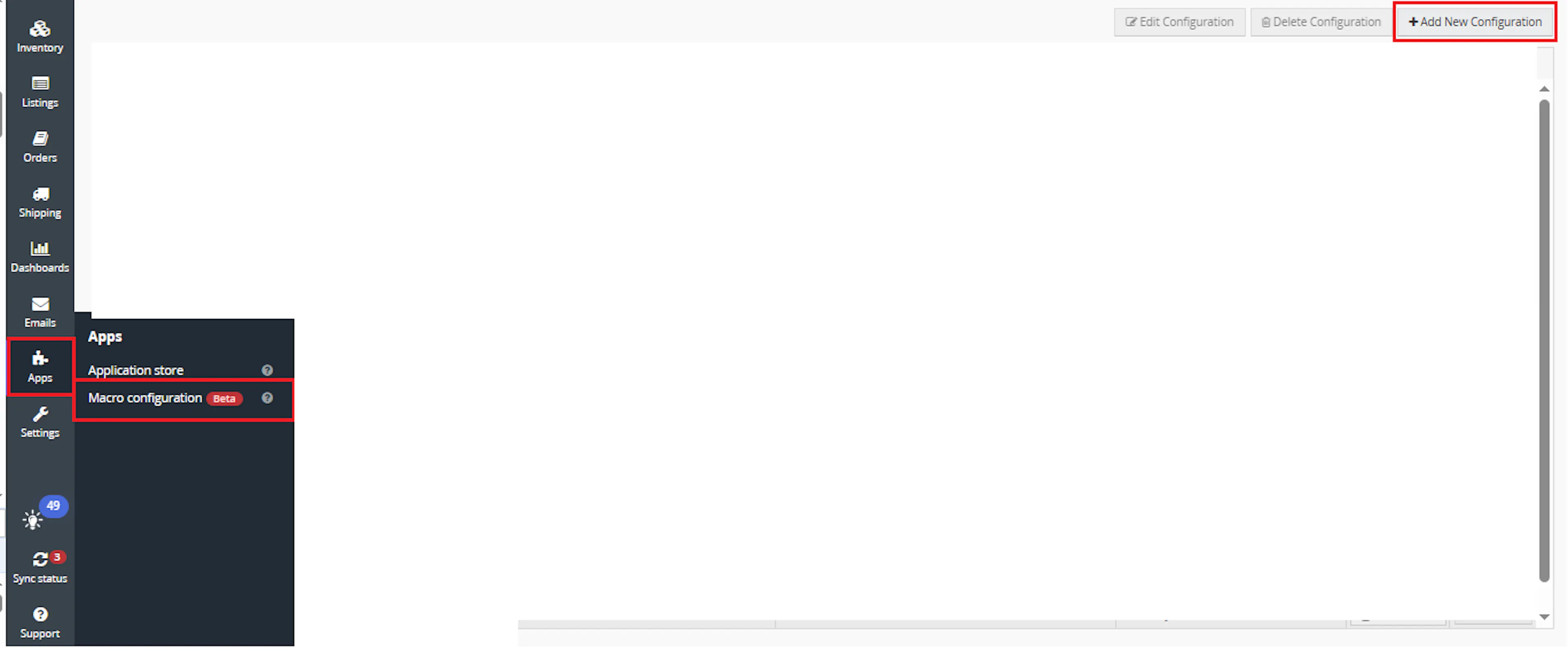
Go to Apps > Macro Configuration and click + Add new configuration.
Select the Auto Archive Inventory macro and click Create Configuration.
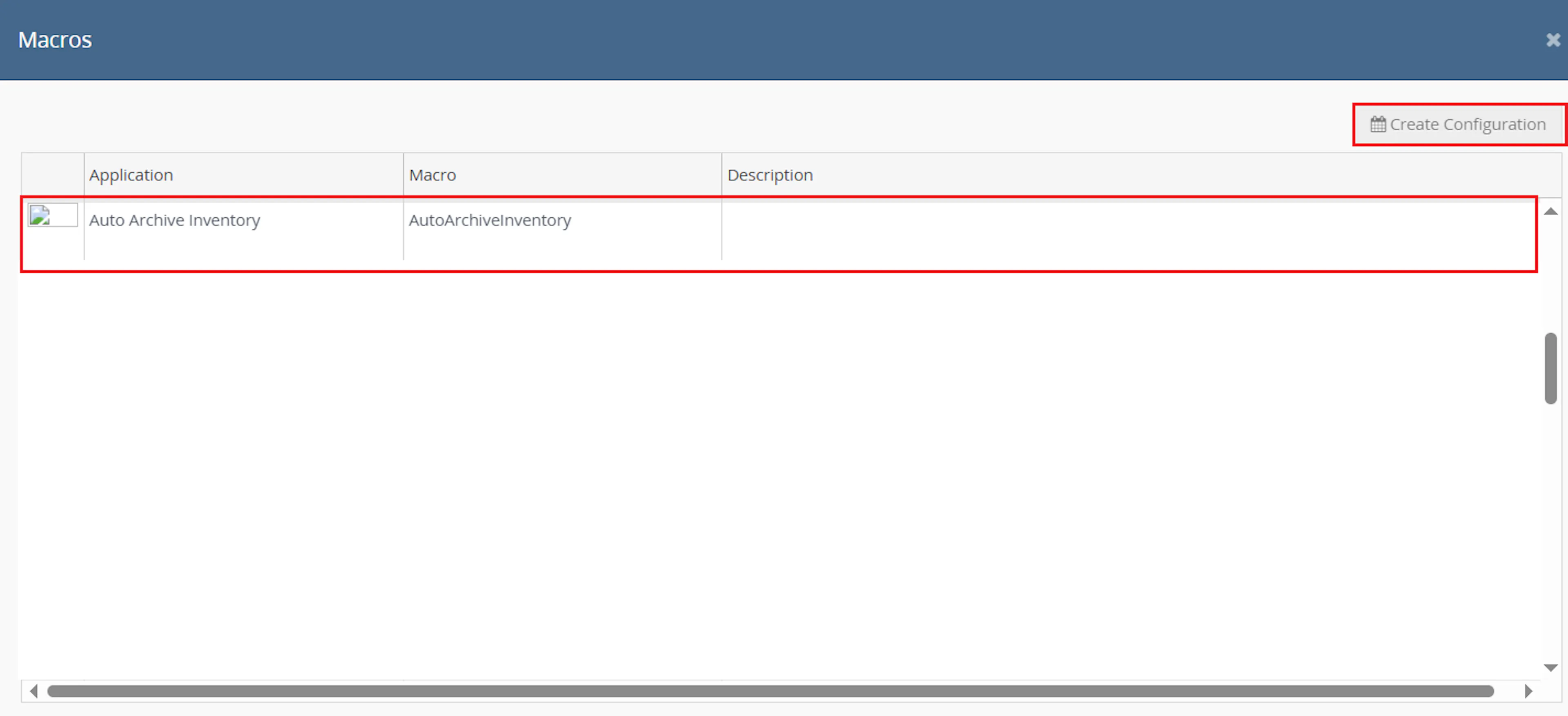
This creates a new configuration where you can define the schedule and required parameter value.
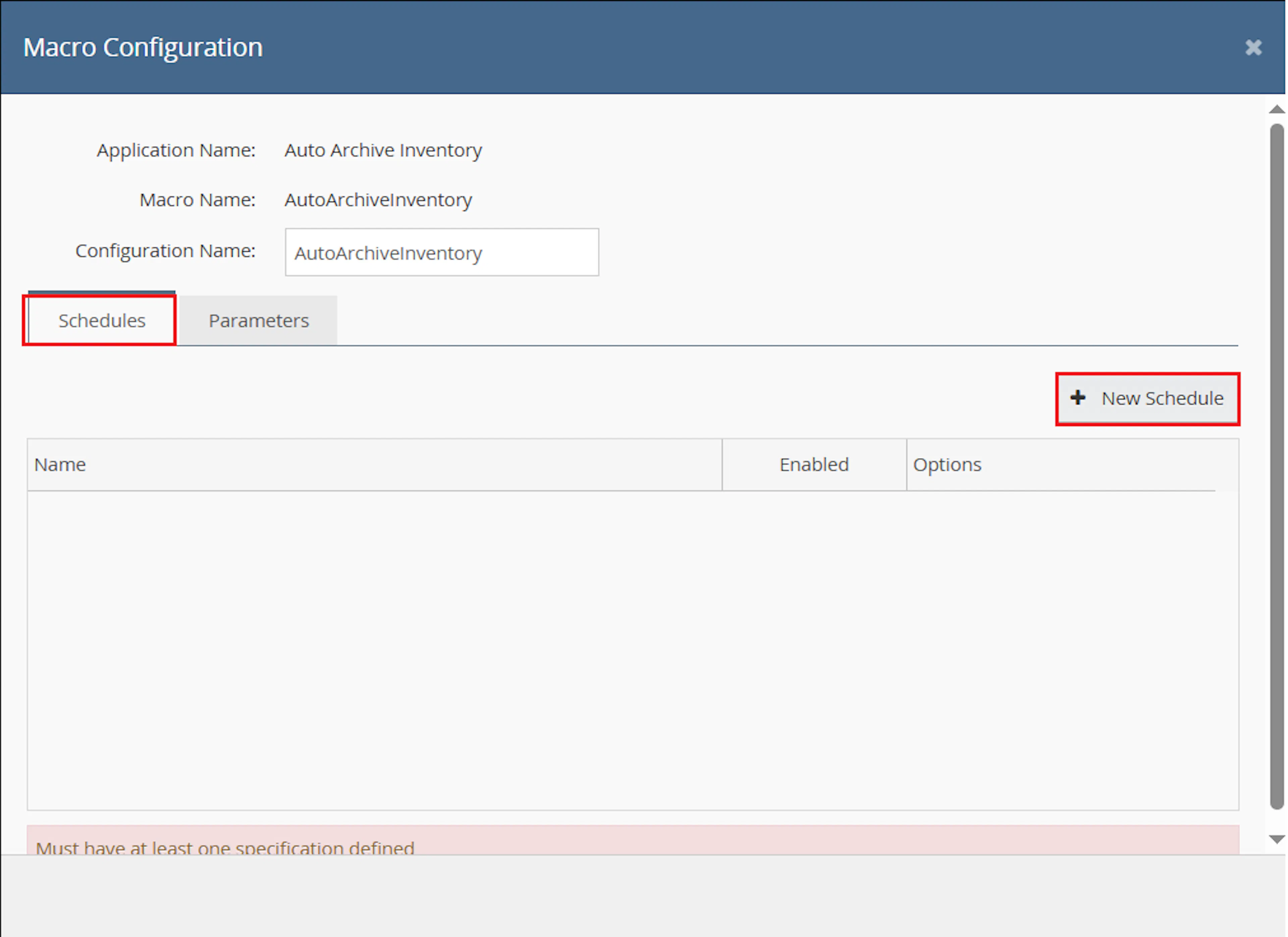
In the Macro Configuration screen, go to the Schedules tab and click New Schedule.
Configure the schedule settings.
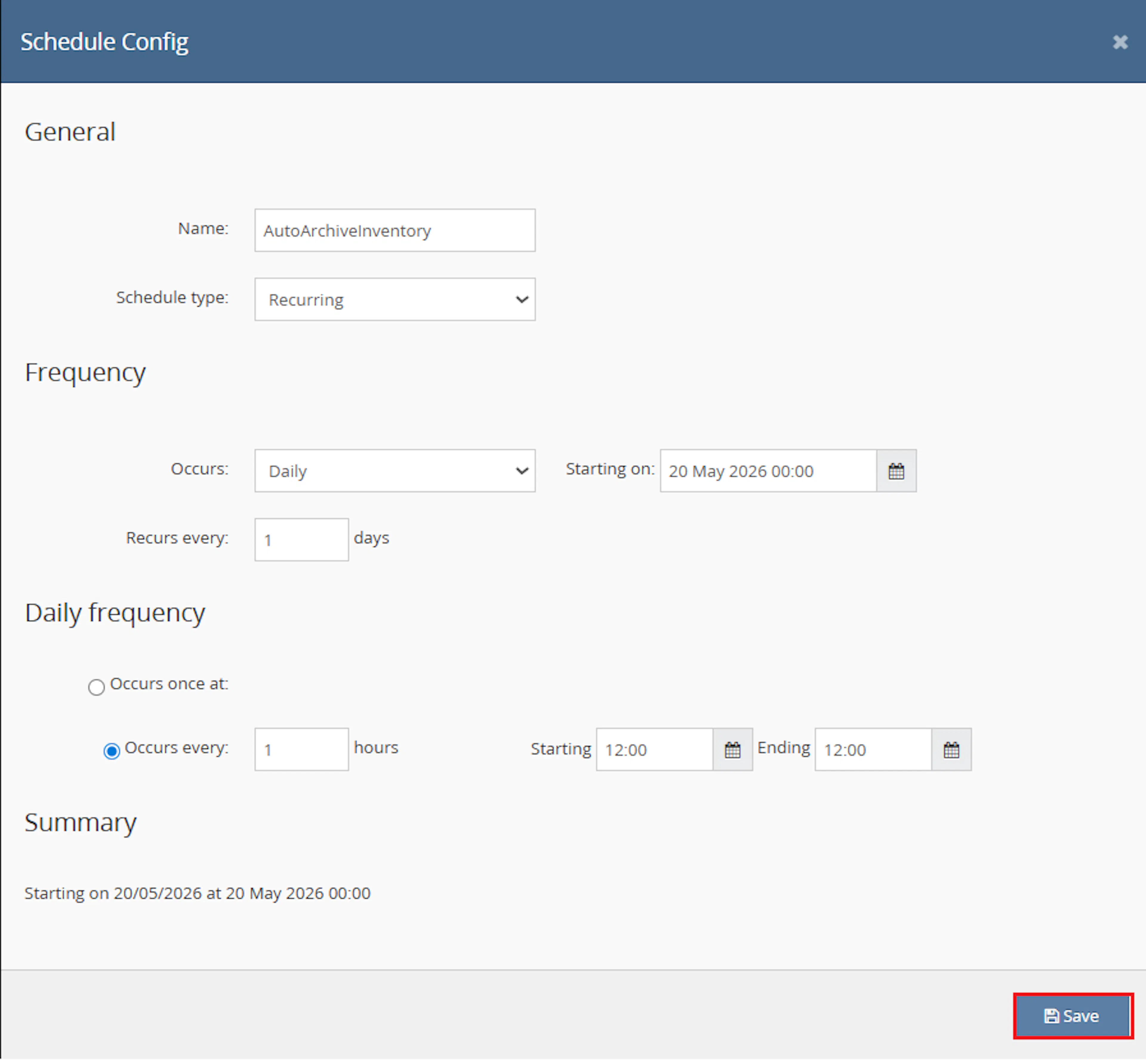
- In the Schedule Config window, enter the Name
- Select Schedule type from the dropdown:
- One time runs only once
- Recurring runs repeatedly based on the configured schedule
- If Recurring is selected:
- In Frequency, choose Occurs from the dropdown:
- Daily
- Weekly
- In Frequency, choose Occurs from the dropdown:
- Set Recurs every value, for example 1 day or 1 week
- Set the Starting on date and time
- Under Daily frequency, choose one option:
- Occurs once at → specify the exact time
- Occurs every → enter the interval in hours and define:
- Starting time
- Ending time
- Review the Summary section
- Click Save
Note: Use the schedule carefully. This macro can archive multiple inventory items in one run.
Navigate to the Parameters tab and enter the required value.
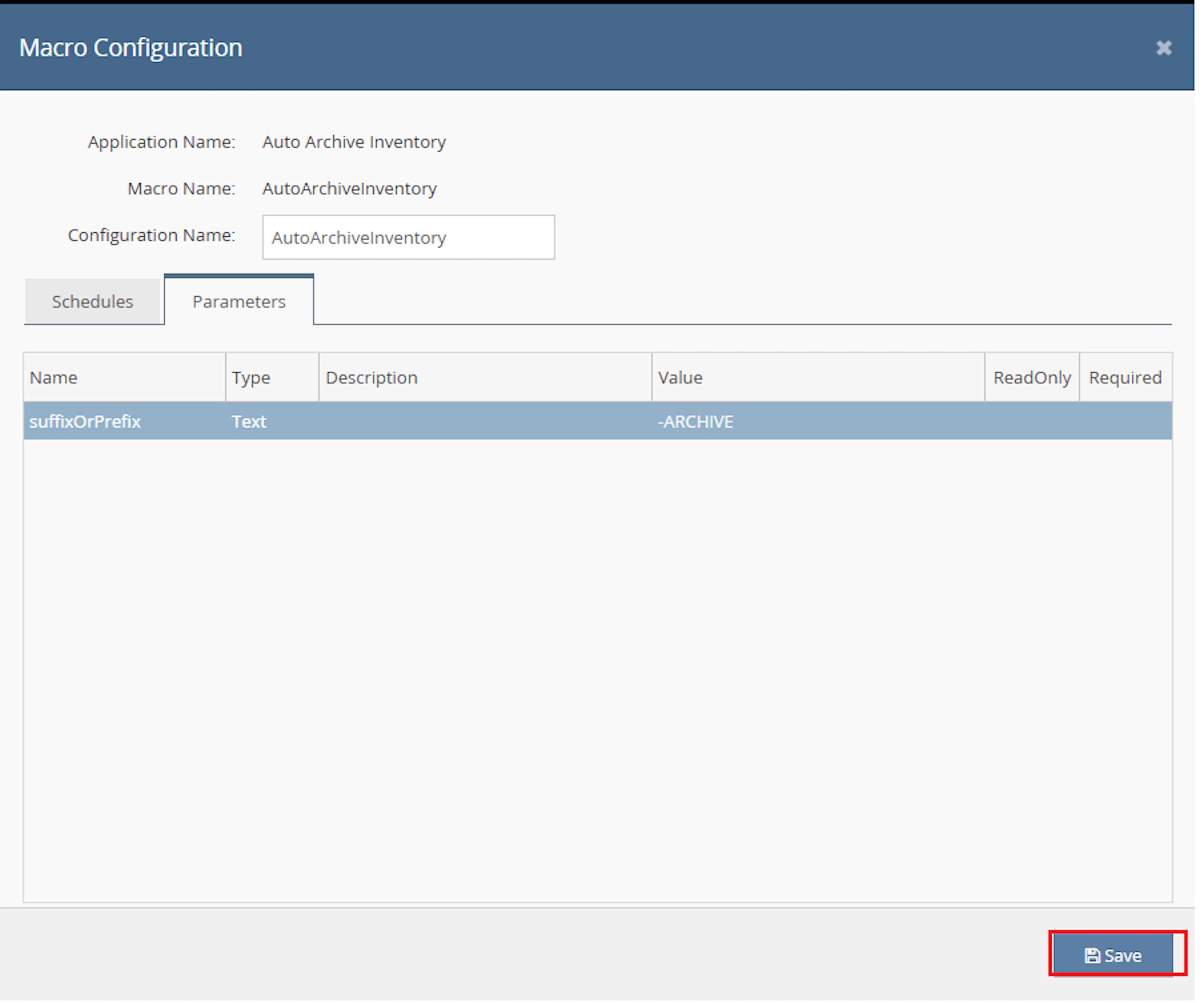
Configure the following parameter:
- suffixOrPrefix
This value is used to search inventory item numbers.
For example:
-OLD
or
DISCONTINUED
Important: The macro searches for item numbers that contain the configured value anywhere in the SKU/item number. It does not only check the start or end of the SKU.
Make sure to enable the macro to continue with the schedule Engine configuration.
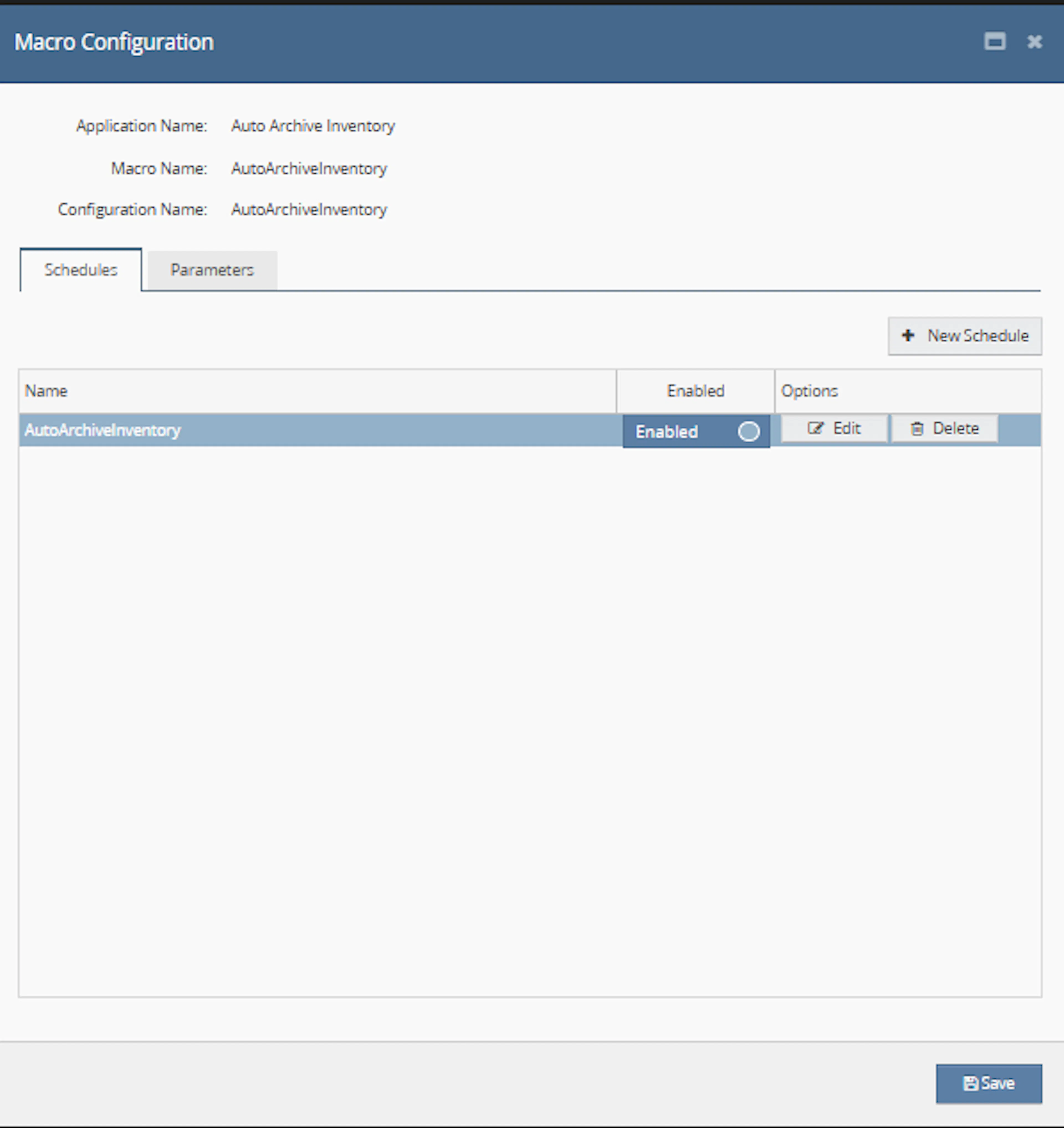
Make sure to enable the macro so it can run from the configured schedule.

Key Benefits
Archiving inventory items by SKU pattern can be repetitive and time-consuming when performed manually. Auto Archive Inventory applies a consistent item-number rule and processes every matching record together.
Reduce manual inventory cleanup while maintaining a repeatable, scheduled archiving process.
Reduce Manual Inventory Cleanup
Removes the need to locate and archive each matching stock item individually.
Archive by SKU Text
Finds inventory items where the item number contains the configured matching value.
Support Bulk Archiving
Sends all matching stock item IDs to the archive operation during one execution.
Improve Inventory Maintenance
Helps remove discontinued, legacy, or unwanted SKU groups from active inventory views.
Automate Repeated Cleanup
Allows the archiving process to run automatically through a one-time or recurring schedule.
Use Linnworks APIs
Uses Linnworks custom script querying and inventory archiving functionality.
Usage of App
Auto Archive Inventory is designed to run through the Linnworks Macro Schedule Engine.
It does not use selected order IDs. Each scheduled execution searches Linnworks inventory directly using the configured suffixOrPrefix value.
Execution
Trigger via Schedule
Configure a one-time or recurring schedule, enter the required suffixOrPrefix value, and enable the macro configuration.
Outcome
When the scheduled macro runs, it:
Searches inventory item numbers
Queries the stockitem table for item numbers containing the configured value.
Collects matching stock item IDs
Reads the pkStockItemId value from each returned row.
Builds the bulk archive request
Adds all matching identifiers to an InventoryParametersRequest.
Archives matching items
Submits the complete list through the Linnworks Inventory API.
Records the result
Logs errors and macro completion.
Input Parameters
Auto Archive Inventory requires the following configuration:
| Parameter | Required | Description |
|---|---|---|
| suffixOrPrefix | Yes | Text used to find inventory item numbers containing the configured value. |
| Schedule | Yes | One-time or recurring schedule used to trigger the macro. |
| OrderIds | No | The macro searches inventory directly and does not process selected orders. |
Example match values:
| Value | Example Matching Item Numbers |
|---|---|
-OLD | ABC-OLD, ABC-OLD-01, OLD-ABC-OLD |
DISCONTINUED | DISCONTINUED-100, ABC-DISCONTINUED |
Important: The search uses contains behaviour. A short or common value may match more inventory items than intended.
The macro has the following documented behaviour:
| Condition | Macro Behaviour |
|---|---|
| Item number contains suffixOrPrefix | Adds the stock item ID to the archive request. |
| Item number does not contain suffixOrPrefix | Does not include the item. |
| Multiple items match | Archives all matching items in one run. |
| No items match | No stock item IDs are available to archive. |
| Item may already be archived | The macro does not perform a documented pre-check before building the archive request. |
| Matching items are found | No preview or confirmation stage is provided before archiving. |
The search is based only on the inventory item number. The documented logic does not evaluate:
- Product title
- Barcode
- Category
- Supplier
- Stock level
- Sales activity
- Other inventory fields
Best Practices
Treat the configured match value as a bulk archive rule and validate it carefully before enabling the schedule.
Use precise match text
Choose a distinctive SKU pattern that is unlikely to appear in unrelated inventory items.
Review matches manually first
Search Linnworks inventory using the intended value before allowing the scheduled macro to run.
Avoid short common values
Short text can match many unrelated SKUs because the search is not limited to prefixes or suffixes.
Use cautious scheduling
Prefer a controlled one-time execution while testing and use recurring schedules only when the rule is well understood.
Avoid unsafe characters
Avoid commas, quotes, wildcards, or special SQL characters unless the macro has been updated to handle them safely.
Review execution logs
Check the logs after each run for query errors, archive failures, and completion status.
FAQ
How is Auto Archive Inventory triggered?
The macro is triggered through a one-time or recurring schedule configured in Linnworks Macro Configuration.
Does the macro use OrderIds?
No. It searches Linnworks inventory directly.
What configuration parameter is required?
The macro requires suffixOrPrefix.
Does suffixOrPrefix have to be at the start of the SKU?
No. The macro checks whether the item number contains the value anywhere.
Does suffixOrPrefix have to be at the end of the SKU?
No. It can appear at the beginning, middle, or end.
Which inventory field is searched?
The inventory item number in the Linnworks stockitem table is searched.
Which database value is collected?
The macro collects pkStockItemId from each matching row.
Can multiple items be archived in one execution?
Yes. All matching stock item IDs are sent in one archive request.
Does the macro show a preview before archiving?
No preview behaviour is described in the supplied documentation.
Does the macro ask for confirmation before archiving?
No confirmation stage is documented.
Does it check whether an inventory item is already archived?
The supplied documentation states that the macro does not perform that check before sending IDs to the archive request.
Does the macro search product titles?
No. The search is based on item number only.
Does the macro search barcodes or categories?
No. Barcode and category matching are not described.
Does the macro add notes to archived items?
No inventory-note behaviour is described.
Which Linnworks operation archives the items?
The macro uses Api.Inventory.ArchiveInventoryItems.
What happens when no items match?
No matching stock item IDs are available for the archive request.
What should be checked when no items are archived?
Confirm that active inventory item numbers contain the configured value exactly as expected.
What should be checked when too many items are archived?
Review whether the configured suffixOrPrefix value was too broad or common.
Why can a middle section of a SKU cause a match?
The query uses contains matching rather than strict prefix or suffix matching.
Should SQL special characters be used in the parameter?
The source advises avoiding commas, quotes, wildcards, or special SQL characters unless the macro has been updated to handle them safely.
What should be checked when the macro does not run?
Confirm that the configuration is enabled and the schedule has been saved correctly.
What should be checked when the macro reports an error?
Review the message logged after Error occurred: and verify the query value and Linnworks API permissions.
Legal Information
- Privacy Policy: https://rishvi.co.uk/privacy-policy/
- Terms and Conditions: https://rishvi.co.uk/terms-conditions/
Please review these pages to understand how data is handled and the terms governing the use of this application.
Because this macro can archive multiple inventory items without a preview stage, access to its configuration and schedule should be limited to authorised users.
Summary
Auto Archive Inventory automates the archiving of Linnworks inventory items that match a configured SKU text value.
Once scheduled and enabled, the macro searches the stockitem table for item numbers containing suffixOrPrefix, collects the matching stock item IDs, and submits them to the Linnworks Inventory API for archiving.
Contains-based SKU search
The configured value can match anywhere within the inventory item number.
Bulk inventory archiving
Every matching stock item ID is included in the archive operation.
Scheduled automation
One-time and recurring schedules can trigger the inventory cleanup process.
Operational caution
Precise match values and pre-run review are important because no preview step is provided.
For unexpected results, review the configured suffixOrPrefix value, confirm the matching inventory item numbers, inspect the macro logs, and verify that the scheduled configuration is enabled.