Auto File Manifest
Automatically file shipping manifests in Linnworks, download the generated manifest PDF, and email it as an attachment to the configured recipient.
Overview
Auto File Manifest is a scheduled manifest-processing solution for Linnworks. It automates the process of filing a shipping manifest, downloading the generated PDF, and emailing the document to a configured recipient.
When the configured schedule runs, the macro prepares a request for the Linnworks ShippingService API using the supplied shipping vendor and account information. It processes the manifest request, retrieves the generated PDF URL, downloads the document, and attaches it to an outgoing email.
The email is sent using the SMTP server, sender, recipient, authentication, and subject values stored in Macro Configuration.
The macro class is named AutoFileMenifest.
Keep shipping manifest processing consistent by automatically generating, downloading, and emailing manifest PDFs on schedule.
Who Should Use Auto File Manifest
Warehouse & Fulfilment Teams
Teams completing regular dispatch activity can receive manifest documents without manually downloading and forwarding each PDF.
Shipping & Logistics Teams
Logistics teams can schedule manifest generation after the relevant shipping activity has been completed.
Integration Administrators
Administrators configure the shipping account, vendor information, SMTP connection, recipient details, and execution schedule.
Operations Teams
Operations teams can use a shared mailbox as a consistent location for receiving and retaining manifest PDFs.
Key Features
Scheduled Manifest Processing
Runs automatically through a one-time or recurring Linnworks macro schedule.
ShippingService Integration
Sends the configured manifest request through the Linnworks ShippingService API.
Automatic PDF Download
Downloads the generated manifest document from the PDF URL returned by the shipping service.
Email Attachment Creation
Converts the downloaded PDF bytes into an attachment for the outgoing email.
Configurable SMTP Delivery
Uses configurable SMTP server, security, authentication, sender, recipient, and subject values.
Execution Logging
Records ShippingService responses, email responses, successful delivery messages, and errors.
How Auto File Manifest Works
Auto File Manifest follows a defined sequence whenever its configured schedule runs.
Step 1: Start the scheduled execution
Linnworks starts the macro according to the one-time or recurring schedule configured in Macro Configuration.
Step 2: Prepare the manifest request
The macro builds the Linnworks ShippingService request using the configured shipping vendor, account ID, and vendor information.
Step 3: Submit the ShippingService request
A proxied POST request is sent to the Linnworks ShippingService endpoint.
Step 4: Record the API response
The response returned by the ShippingService request is written to the macro log.
Step 5: Retrieve the generated PDF
The macro reads the returned PDF URL and downloads the generated manifest document.
Step 6: Create the attachment
The downloaded PDF bytes are converted into an email attachment.
Step 7: Build the outgoing email
The macro applies the configured SMTP server, security, sender, recipient, authentication, and subject values.
Step 8: Send the manifest email
The generated manifest PDF is sent as an email attachment to the configured recipient.
Step 9: Record the result
The macro logs the email response and records confirmation when the message is sent successfully.
Configure the Macro
Once the app is installed, you need to set up the configuration, so the system knows when to run the manifest process and where to send the generated PDF.
This is a one-time setup and can be adjusted anytime based on your business needs.
Steps to Configure
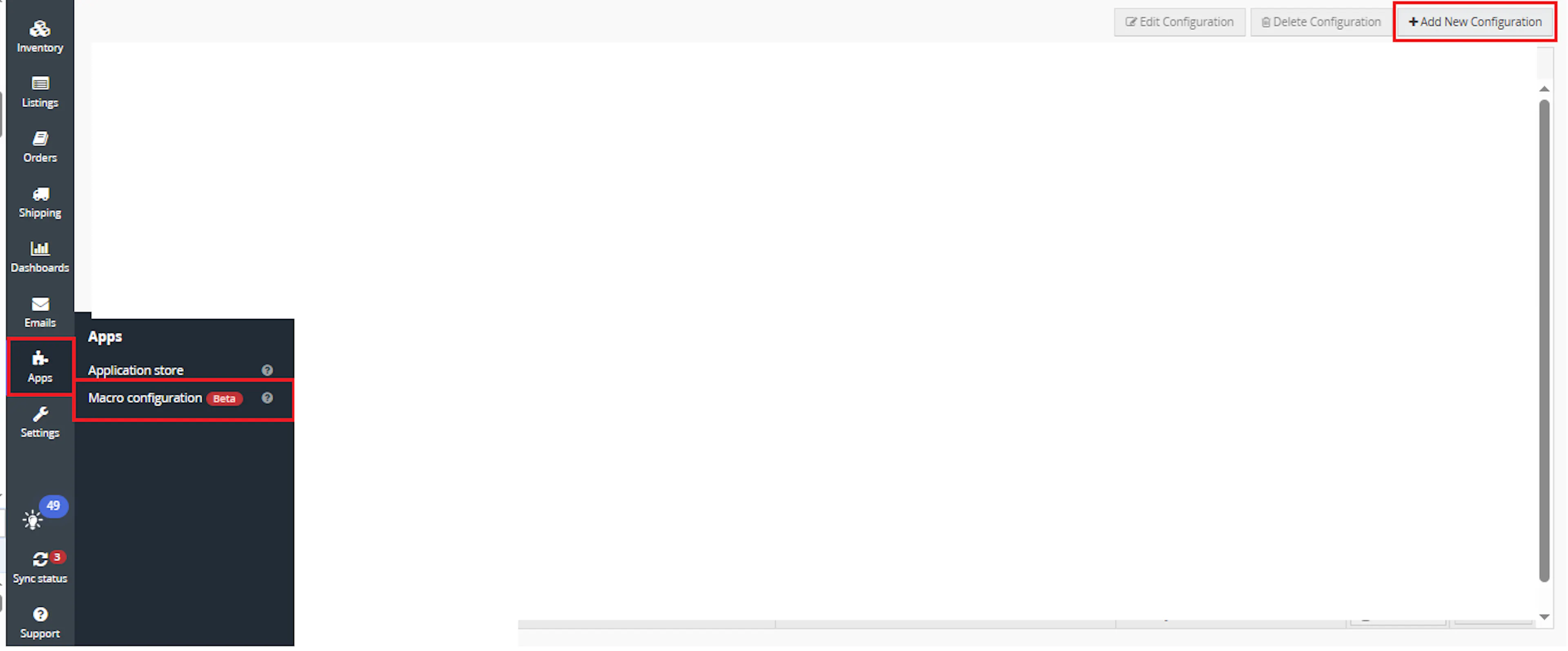
Go to Apps > Macro Configuration and click + Add new configuration.
Select the AutoFileMenifest macro and click Create Configuration.
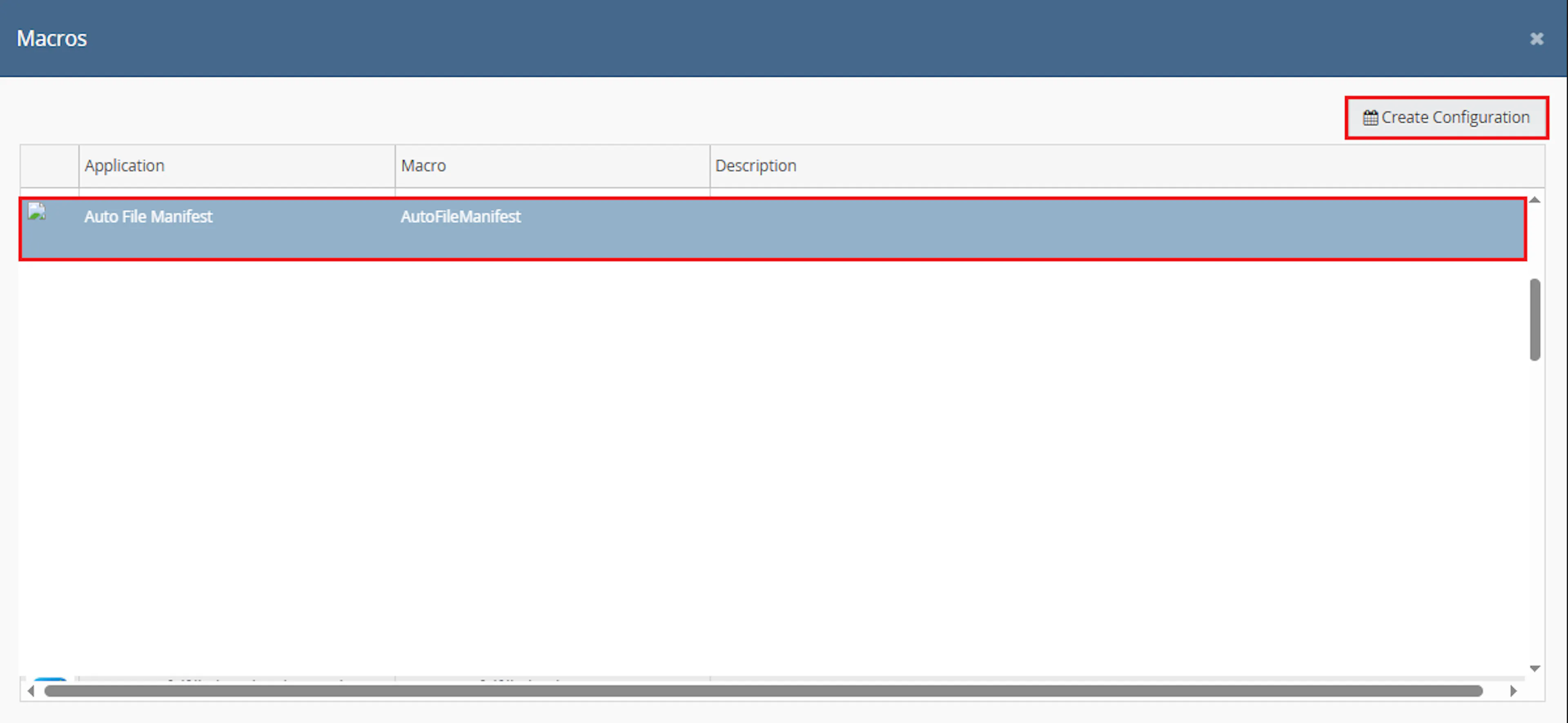
This creates a new configuration where you can define the schedule and required parameter values.
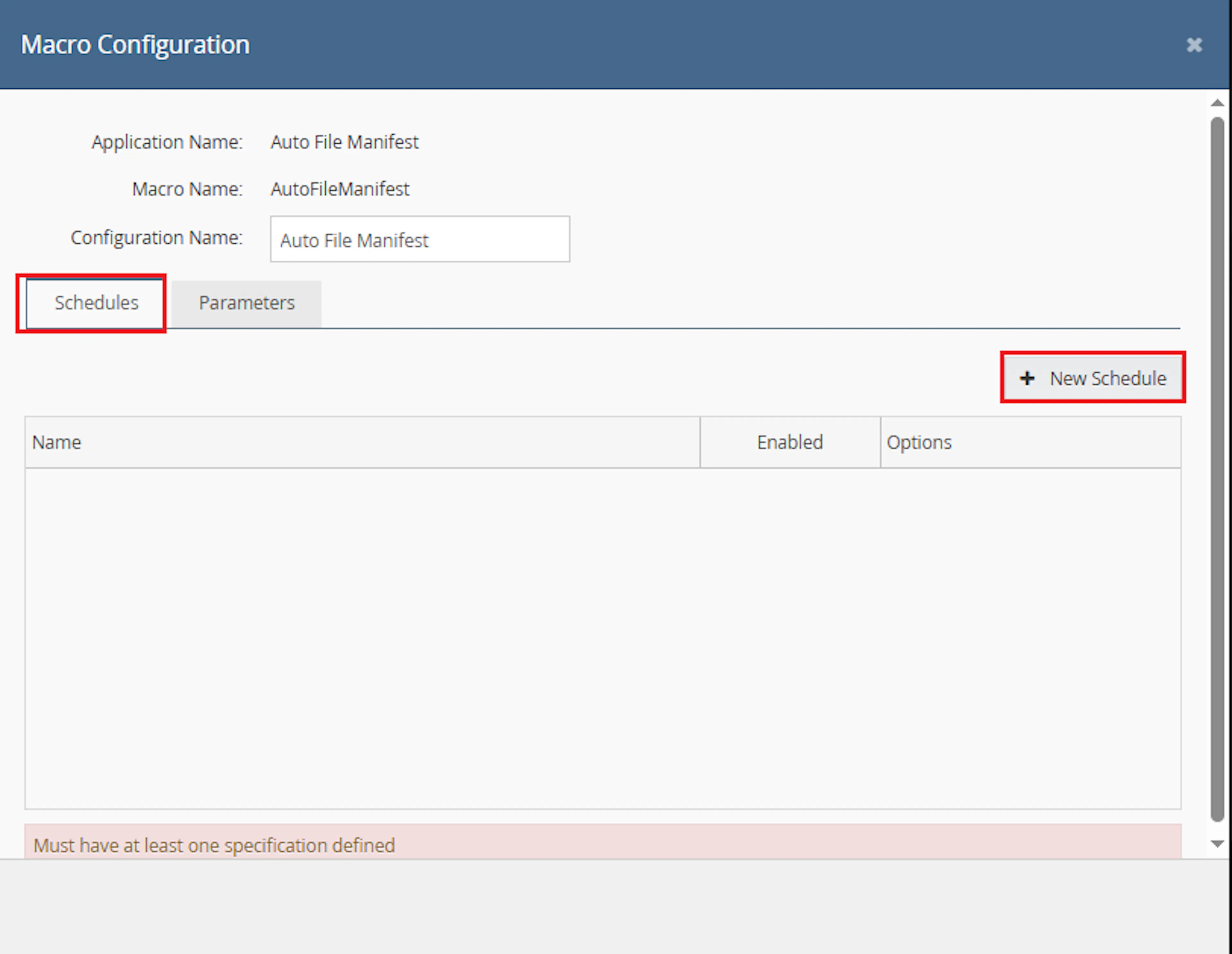
In the Macro Configuration screen, go to the Schedules tab and click on New Schedules.
- In the Schedule Config window, enter the Name
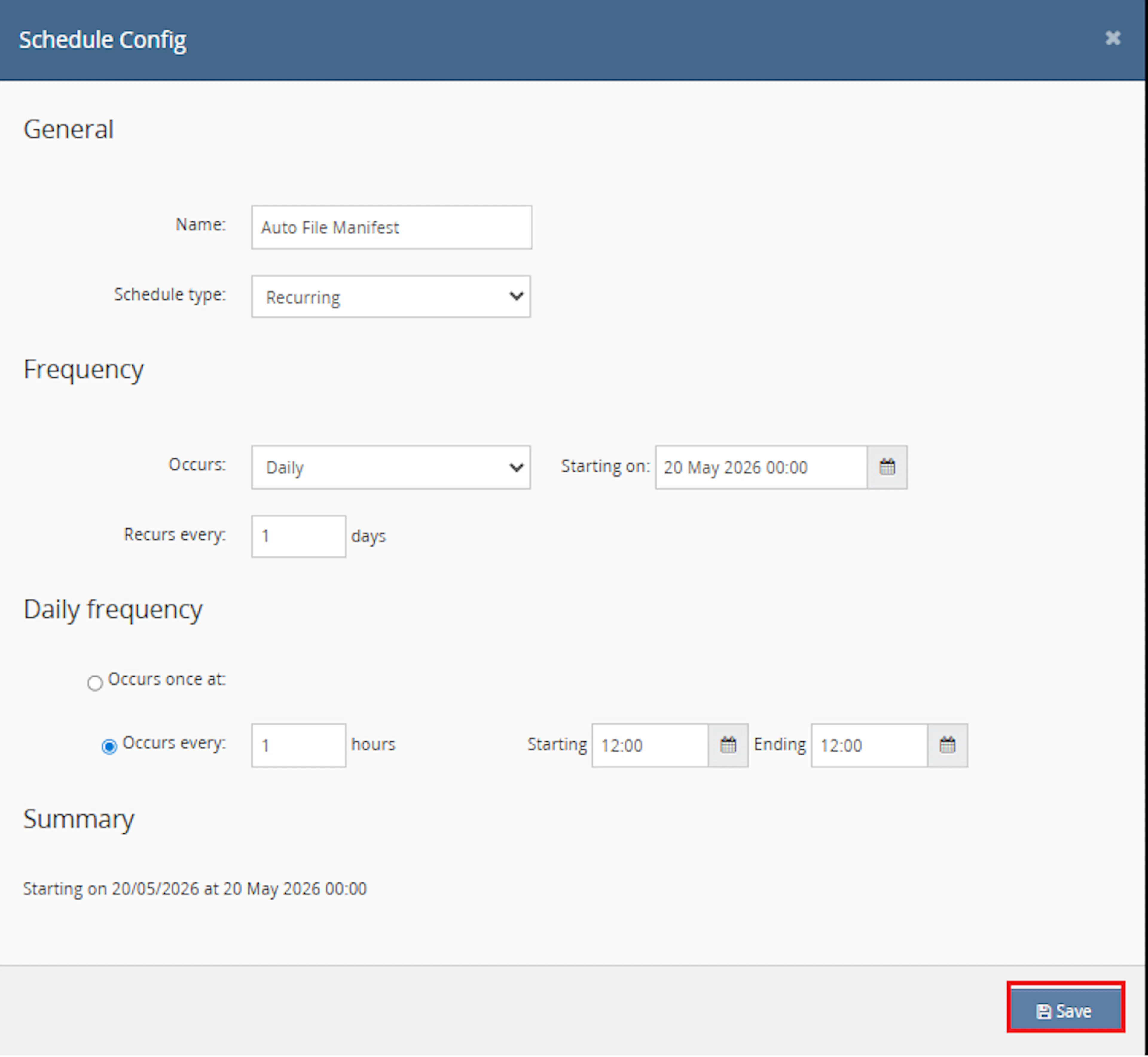
- Select Schedule type from the dropdown:
- One time runs only once
- Recurring runs repeatedly based on schedule
- If Recurring is selected:
- In Frequency, choose Occurs from dropdown:
- Daily
- Weekly
- In Frequency, choose Occurs from dropdown:
- Set Recurs every value, for example 1 day or 1 week
- Set the Starting on date and time
- Under Daily frequency, choose one option:
- Occurs once at → specify exact time
- Occurs every → enter interval in hours and define:
- Starting time
- Ending time
- Review the Summary section
- Click Save
- Navigate to the Parameters tab
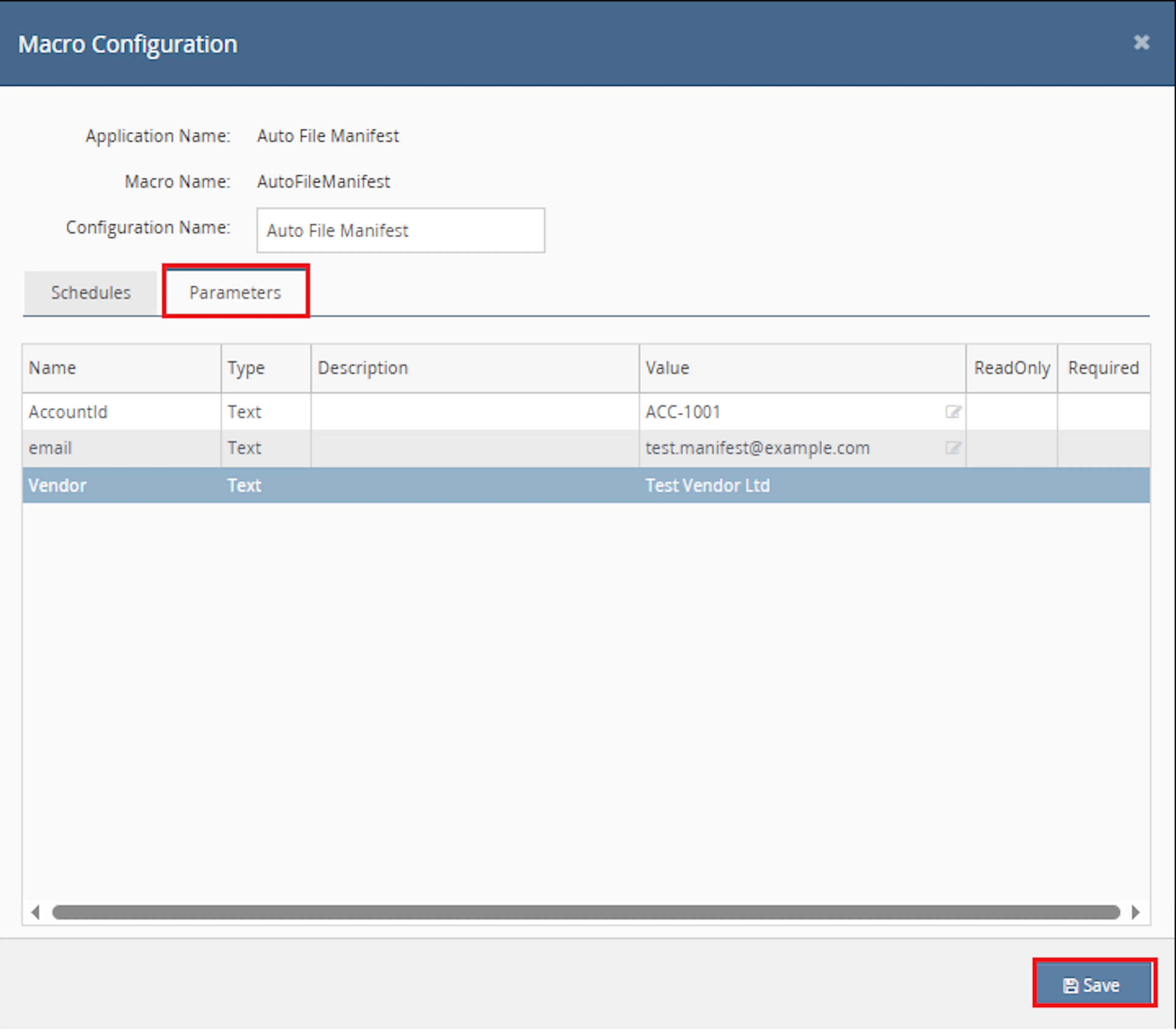
- In the parameters list, review each field, for example:
- AccountId = ACC-1001
- email = test.manifest@example.com
- Vendor = Test Vendor Ltd
- Enter or update values in the Value column as required
- Ensure all required email and SMTP parameters are filled
- Verify any ReadOnly fields that cannot be edited
- Click Save to apply the configuration
Note: Do not expose SMTP passwords or email credentials in shared documentation. Store credentials securely in the macro configuration.
Make sure to enable the macro to continue with the schedule Engine configuration.
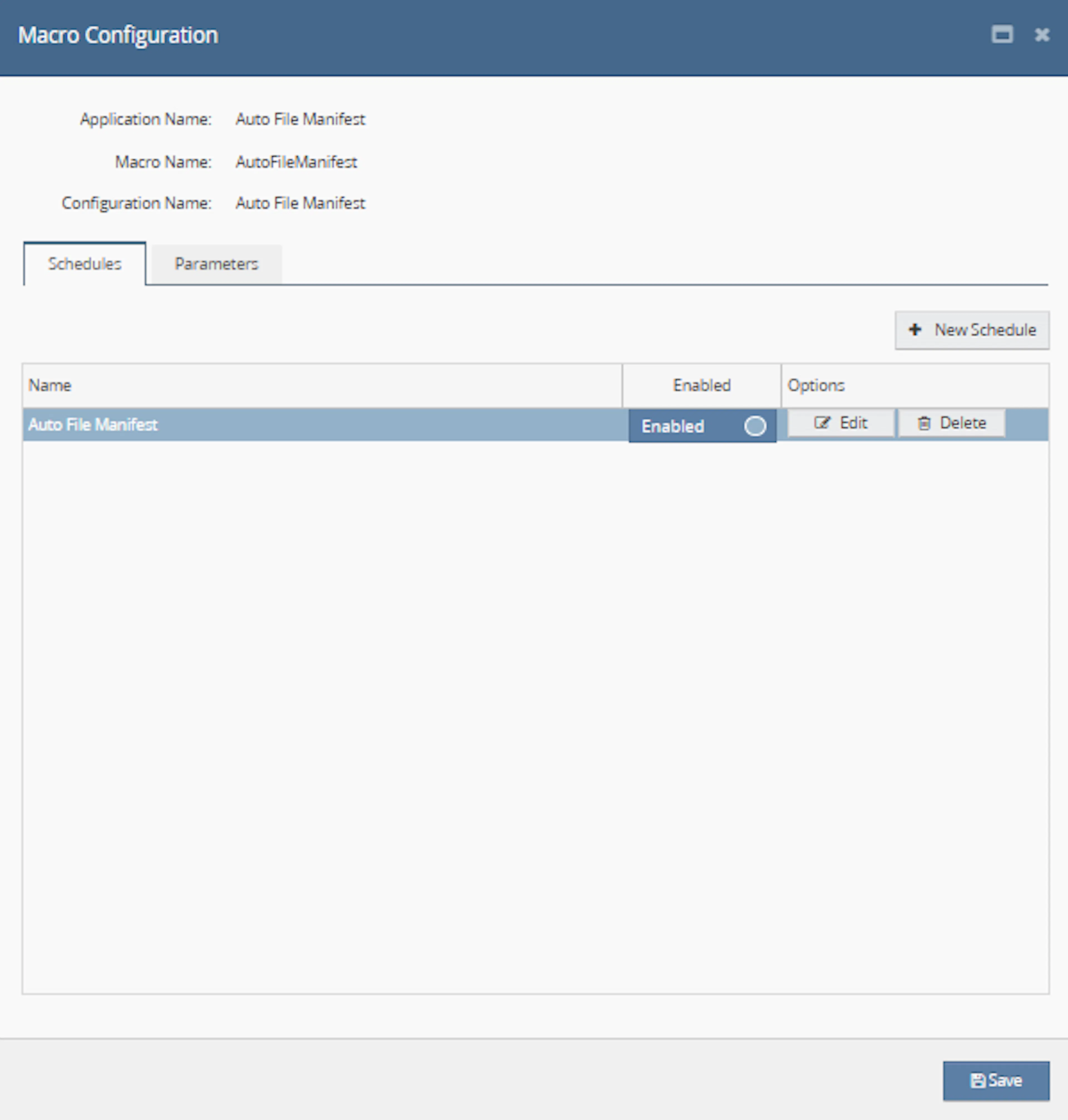
Make sure to enable the macro to continue with the schedule Engine configuration.

Key Benefits
Managing shipping manifests manually can require users to file the manifest, wait for the document, download the PDF, create an email, attach the file, and send it to the correct operational contact.
Auto File Manifest combines these steps into one scheduled workflow.
Reduce manual manifest administration and deliver generated manifest PDFs to a consistent mailbox automatically.
Save Time on Manifest Processing
Reduces the need to file manifests, download documents, and send emails manually.
Deliver PDFs Automatically
Sends the generated manifest PDF as an attachment to the configured recipient.
Improve Operational Consistency
Runs according to a repeatable schedule instead of depending on a manual user action.
Centralise Manifest Delivery
Allows manifest documents to be delivered to a shared fulfilment or operations mailbox.
Support Regular Shipping Workflows
Can be scheduled after dispatch activity or as part of an end-of-day manifest process.
Maintain Processing Visibility
Logs the shipping request, email response, successful delivery, and processing errors.
Usage of App
Auto File Manifest is designed to run through the Linnworks Macro Schedule Engine.
It does not require selected order IDs. Each execution uses the configured shipping and email settings to process the manifest and send the resulting document.
Execution
Trigger via Schedule
Configure a one-time or recurring schedule, enter the required ShippingService and SMTP values, save the configuration, and enable the macro.
Outcome
When the scheduled macro runs, it:
Submits the manifest request
Sends the configured shipping vendor and account information to the Linnworks ShippingService endpoint.
Receives the manifest response
Records the API response and retrieves the URL for the generated manifest PDF.
Downloads the PDF
Reads the manifest file from the returned URL.
Creates the attachment
Names and attaches the downloaded PDF to the outgoing email.
Sends the email
Delivers the message using the configured SMTP and recipient values.
Logs the result
Records the email response, successful completion, or error information.
Input Parameters
The supplied documentation identifies the following configuration values and behaviours.
| Parameter | Required | Description |
|---|---|---|
| AccountId | Yes | Identifies the configured shipping account used by the ShippingService request. |
| Vendor | Yes | Defines the shipping vendor used during manifest processing. |
| ServerName | Yes | Defines the SMTP server used to send the manifest email. |
| useSSL | Yes | Defines whether SSL is enabled for the SMTP connection. |
| port | Yes | Defines the SMTP port used for email delivery. |
| username | Yes | Defines the SMTP account username. |
| password | Yes | Defines the SMTP account password and must be stored securely. |
| fromEmail | Yes | Defines the sender email address. |
| fromName | Yes | Defines the sender display name. |
| toEmail | Yes | Defines the recipient email address. |
| toName | Yes | Defines the recipient display name. |
| subject | Yes | Defines the subject of the outgoing manifest email. |
| Schedule | Yes | Defines when the macro runs. |
| OrderIds | No | The macro is scheduled and does not process selected orders. |
The configuration screen may also contain read-only fields that should be reviewed but cannot be edited.
Example values shown in the configuration guidance include:
| Parameter | Example |
|---|---|
| AccountId | ACC-1001 |
| Vendor | Test Vendor Ltd |
test.manifest@example.com |
Security: Never publish SMTP usernames, passwords, private server details, or live recipient addresses in shared documentation, screenshots, logs, or public source repositories.
The manifest attachment uses the following file-name format:
Manifest_ddMMyyyy_hhmmss.pdf
For example:
Manifest_23072026_173015.pdf
The supplied documentation states that when the email process fails, the macro logs the error and returns false.
Best Practices
Configure the schedule after shipping activity is complete and verify the full email workflow with a controlled test before relying on it operationally.
Use a shared mailbox
Send manifest documents to a fulfilment or operations mailbox that the required team can access.
Schedule at the correct time
Run the macro after the relevant dispatch or shipping activity has completed.
Protect SMTP credentials
Keep authentication details secure and restrict access to the macro configuration.
Test PDF generation
Confirm that the ShippingService response contains a valid PDF URL and that the downloaded attachment opens correctly.
Verify email delivery
Confirm that the configured recipient receives the expected subject and PDF attachment.
Monitor execution logs
Review API responses, email responses, attachment failures, authentication errors, and delivery confirmation.
FAQ
How is Auto File Manifest triggered?
The macro is triggered through a one-time or recurring schedule configured in Linnworks Macro Configuration.
Does the macro use OrderIds?
No. It runs independently as a scheduled macro.
Which macro should be selected in Macro Configuration?
Select AutoFileMenifest.
Is the spelling AutoFileMenifest intentional?
The supplied documentation identifies the macro and class using the spelling AutoFileMenifest.
What does the macro do first?
It prepares and submits a manifest-related request through the Linnworks ShippingService API.
Which settings are used for the shipping request?
The documentation identifies the shipping vendor, account ID, and vendor information as inputs to the request.
How is the manifest PDF obtained?
The macro downloads the document using the PDF URL returned by the ShippingService response.
How is the PDF delivered?
It is attached to an email and sent using the configured SMTP connection.
What is the attachment file name?
The file uses the format Manifest_ddMMyyyy_hhmmss.pdf.
Can the recipient be configured?
Yes. The recipient address and display name are controlled by toEmail and toName.
Can the sender be configured?
Yes. The sender address and display name are controlled by fromEmail and fromName.
Can the subject be configured?
Yes. The subject value controls the outgoing email subject.
Does the macro support SSL?
The supplied parameters include useSSL, which controls whether SSL is enabled for the SMTP connection.
Which SMTP port is used?
The macro uses the configured port value.
Should the SMTP password be included in documentation?
No. It should be stored securely in Macro Configuration and excluded from shared materials.
What happens when the PDF URL is unavailable?
The attachment may not be created successfully. The macro logs should be reviewed for the ShippingService response and related errors.
What happens when the SMTP settings are incorrect?
Email delivery fails and the error is logged.
Does the macro retry failed emails automatically?
No automatic retry behaviour is described in the supplied documentation.
Does the macro save the PDF to a local folder?
The supplied documentation describes downloading the PDF and attaching it to an email. It does not describe retaining a separate local copy.
Can the macro run more than once per day?
Yes. A recurring schedule can use an interval with a starting and ending time.
What should be checked when no email arrives?
Review the schedule, enabled status, ShippingService response, PDF URL, SMTP server, port, SSL setting, credentials, recipient address, and execution logs.
What should be checked when the email arrives without an attachment?
Confirm that the ShippingService returned a valid PDF URL and that the PDF download completed successfully.
What should be checked when the macro does not run?
Confirm that the configuration and schedule are saved and that the macro is enabled.
Legal Information
- Privacy Policy: https://rishvi.co.uk/privacy-policy/
- Terms and Conditions: https://rishvi.co.uk/terms-conditions/
Please review these pages to understand how data is handled and the terms governing the use of this application.
Access to the macro configuration should be restricted because it contains shipping-account details, email addresses, and SMTP authentication information.
Summary
Auto File Manifest automates scheduled manifest processing in Linnworks.
Once configured and enabled, the AutoFileMenifest macro sends the required ShippingService request, records the response, downloads the generated manifest PDF, creates a timestamped attachment, and emails it to the configured recipient.
Scheduled manifest processing
One-time or recurring schedules control when the manifest workflow runs.
Automatic PDF retrieval
The generated manifest is downloaded from the PDF URL returned by Linnworks.
Configured email delivery
SMTP, sender, recipient, and subject values control how the manifest is delivered.
Traceable execution
ShippingService responses, email results, successful sends, and failures are logged.
For manifest emails that are not generated or delivered as expected, review the schedule and enabled status, verify the ShippingService and SMTP configuration, confirm that a valid PDF URL was returned, and inspect the macro execution logs.