Volumetric Package Validation
Automatically check selected Linnworks orders against parcel weight and size limits, then assign an identifier when an item exceeds the configured parcel limits.
Overview
Volumetric Package Validation is an automated parcel-compliance checking solution for Linnworks. It reviews selected orders and identifies items that exceed the macro's defined parcel weight or calculated size limits.
The macro processes order IDs supplied through the Linnworks Rule Engine. For each selected order, it retrieves the Linnworks packaging calculation and evaluates the weight, quantity, width, height, and depth of each calculated packaging item.
An order is flagged when an item's quantity-adjusted weight exceeds 15 kg or its calculated parcel size exceeds 245 cm. Flagged orders receive the parcel size limits exceeds identifier so warehouse or dispatch teams can review them before fulfilment continues.
Orders that remain within the defined size limit are logged as Good to Go.
Keep parcel-limit exceptions visible by automatically flagging selected orders that exceed the defined weight or size thresholds.
Who Should Use Volumetric Package Validation
Warehouse & Fulfilment Teams
Teams responsible for packing and dispatch can identify overweight or oversized items before shipping labels are generated.
Logistics Managers
Logistics managers can use the identifier to review orders that may require alternative packaging, services, or manual handling.
Integration Administrators
Administrators configure the macro, enable it for the Rule Engine, create suitable order conditions, and monitor execution logs.
Operations Teams
Operations teams can focus on orders that exceed parcel limits instead of manually checking every selected order.
Key Features
Packaging Calculation Review
Uses Linnworks packaging calculation data to evaluate item weight, quantity, width, height, and depth.
Quantity-Adjusted Weight Check
Converts item weight from grams to kilograms and multiplies it by the item quantity before checking the 15 kg limit.
Calculated Parcel Size Check
Converts item dimensions into centimetres and evaluates the quantity-adjusted parcel size against the 245 cm limit.
Automatic Exception Identifier
Assigns the parcel size limits exceeds identifier when either the weight or size limit is exceeded.
Good to Go Logging
Records items that remain within the calculated parcel size threshold as Good to Go.
Detailed Execution Logging
Logs SKU, order number, converted weight, quantity-adjusted results, dimensions, warnings, and completion details.
How Volumetric Package Validation Works
Volumetric Package Validation follows a defined sequence whenever it receives one or more order IDs from the Linnworks Rule Engine.
Step 1: Read selected order IDs
The macro loops through each order ID supplied through the OrderIds parameter.
Step 2: Retrieve the Linnworks order
For each selected ID, the macro retrieves the corresponding Linnworks order details.
Step 3: Retrieve packaging calculation data
The macro requests the order packaging calculation from Linnworks.
Step 4: Evaluate calculated items
Each packaging calculation item is reviewed for quantity, weight, width, height, and depth.
Step 5: Convert and calculate item weight
The item weight is converted from grams to kilograms and multiplied by the item quantity.
Step 6: Apply the weight limit
When the quantity-adjusted weight exceeds 15 kg, the order is assigned the parcel size limits exceeds identifier.
Step 7: Convert item dimensions
When the weight is within the limit, the item width, height, and depth values are converted into centimetres.
Step 8: Calculate parcel size
The macro calculates the parcel size using the converted dimensions and multiplies the result by the item quantity.
Step 9: Apply the size limit
When the calculated parcel size exceeds 245 cm, the order is assigned the parcel size limits exceeds identifier.
Step 10: Record compliant items
Items with a calculated parcel size of 245 cm or less are logged as Good to Go.
Configure the Macro
Once the app is installed, you need to create a macro configuration so the system knows which macro to run when the rule is triggered.
This setup can be adjusted anytime based on your operational requirements.
Steps to Configure
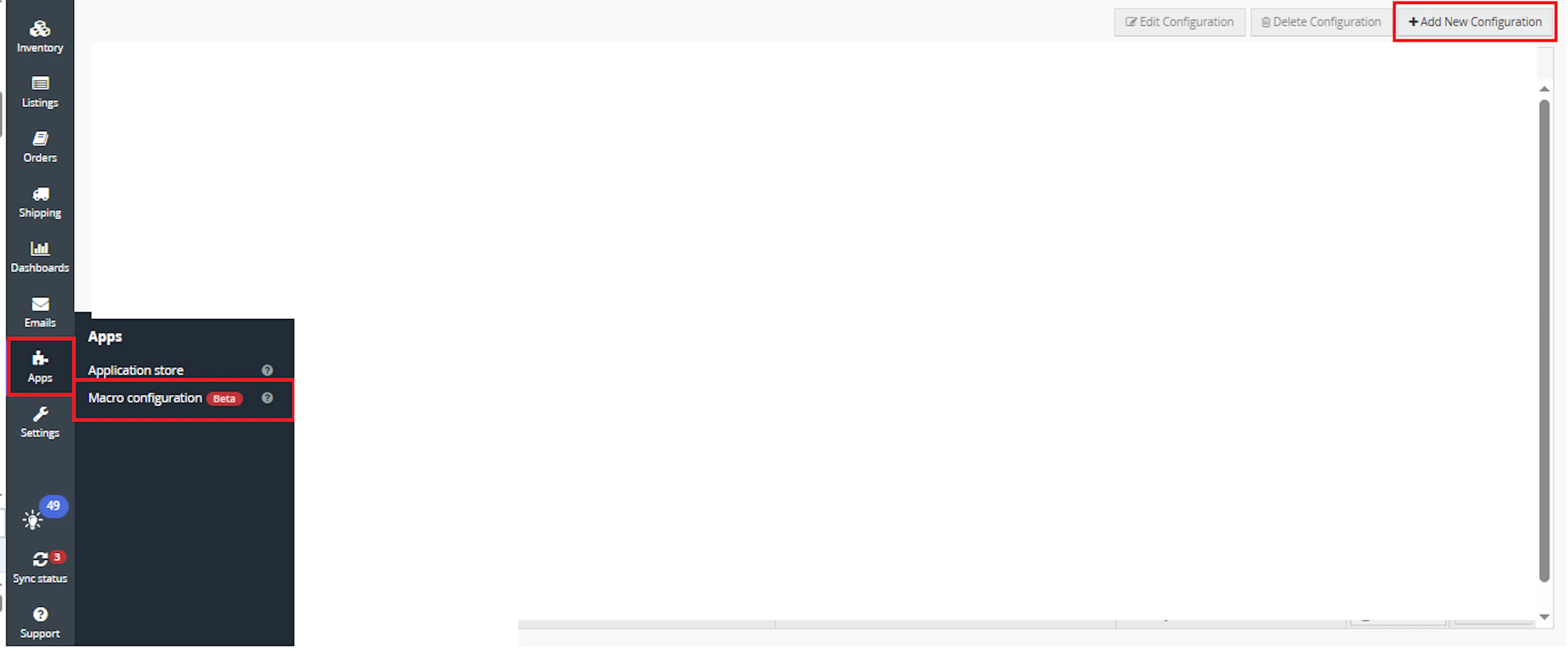
Go to Apps > Macro Configuration and click + Add new configuration.
Select the ParcelSizeLimitCheck macro and click Create Configuration
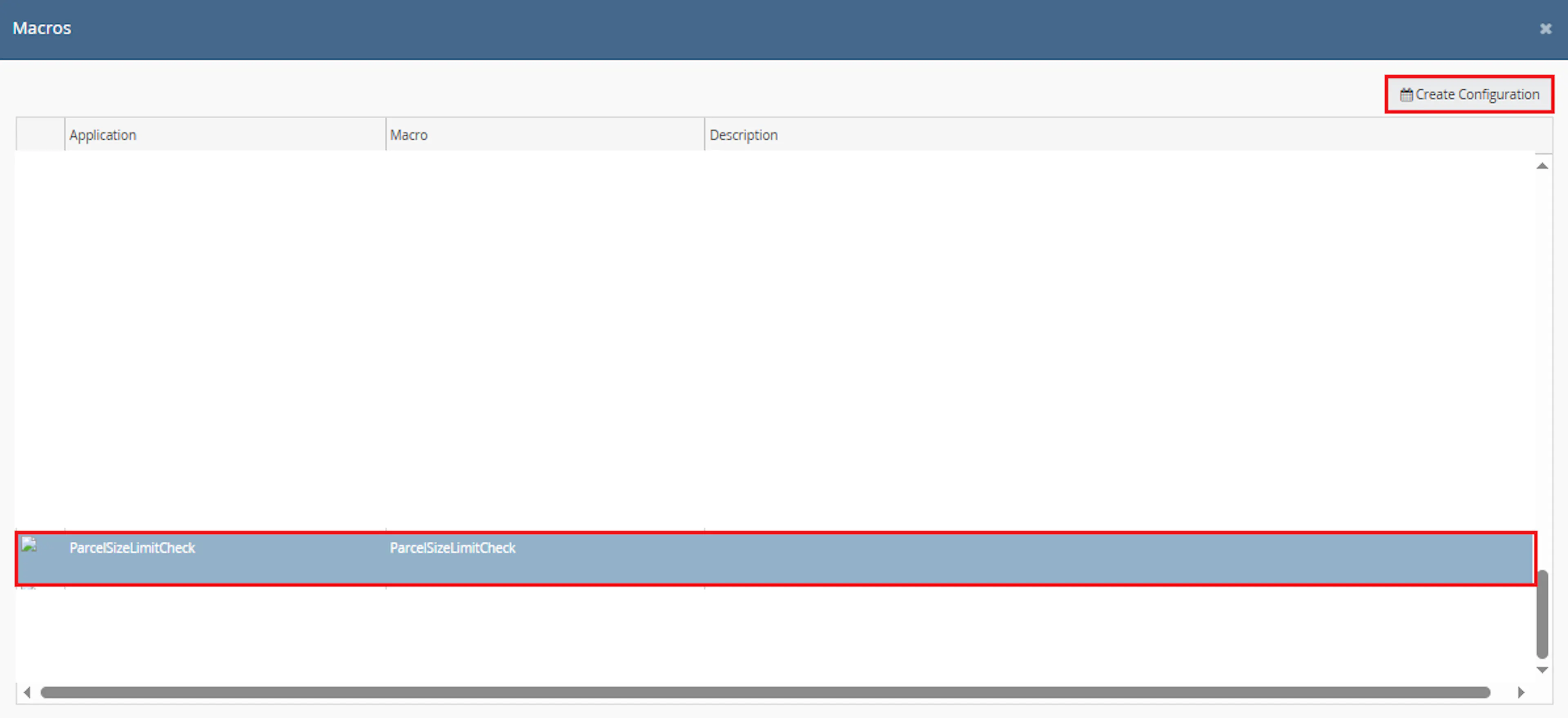
This creates a new configuration where the selected order IDs are passed to the macro when it runs from the rule.
In the Macro Configuration screen, add the configuration name.
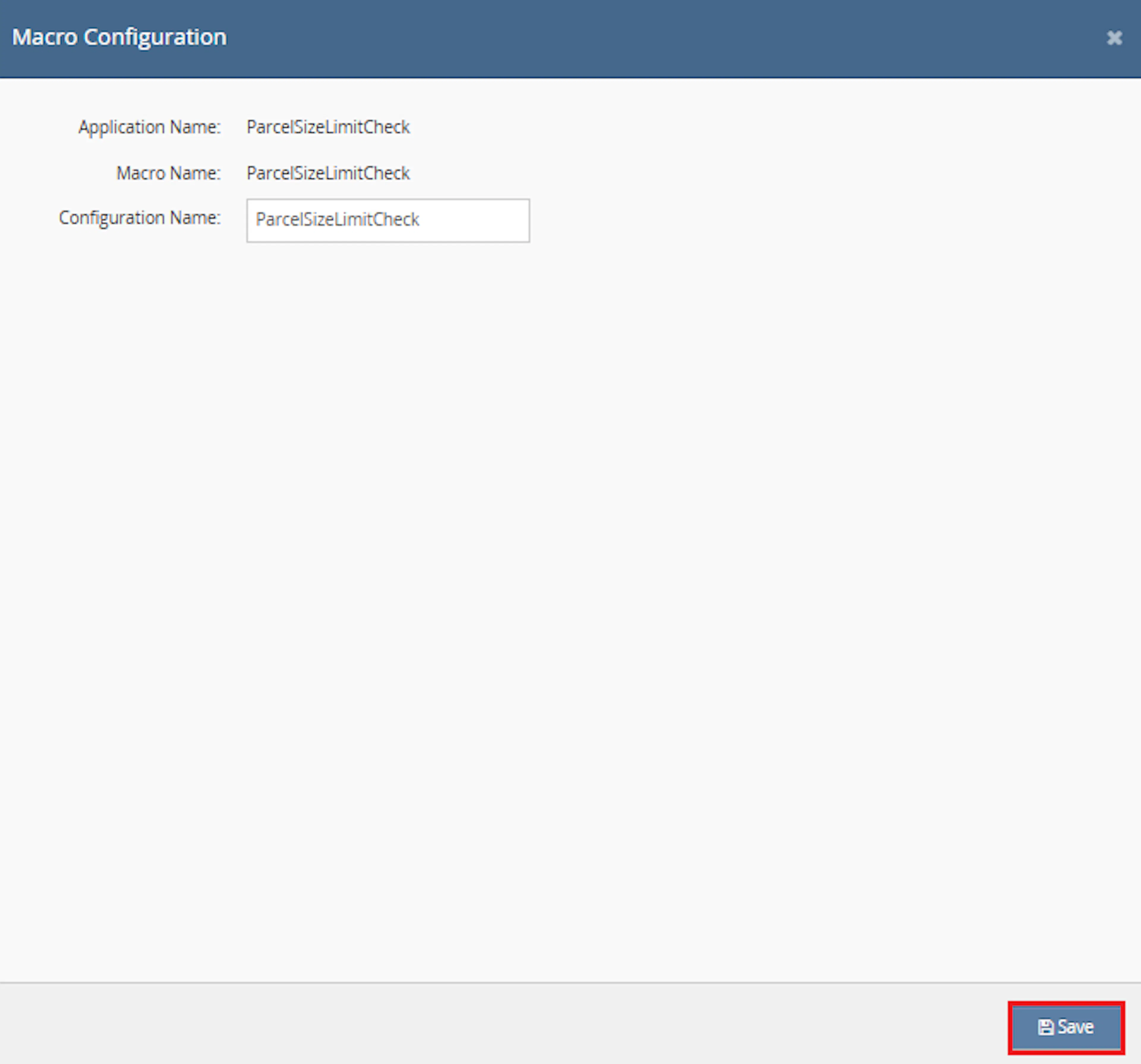
Example configuration name:
Parcel Size Limit Check
This macro does not require additional user-entered parameter values. The OrderIds value is provided automatically by the selected orders or rule context.
Make sure to enable the macro to continue with the Rule Engine configuration.

Note: If the macro is not enabled, it will not appear in the Action value list when setting up the rule.
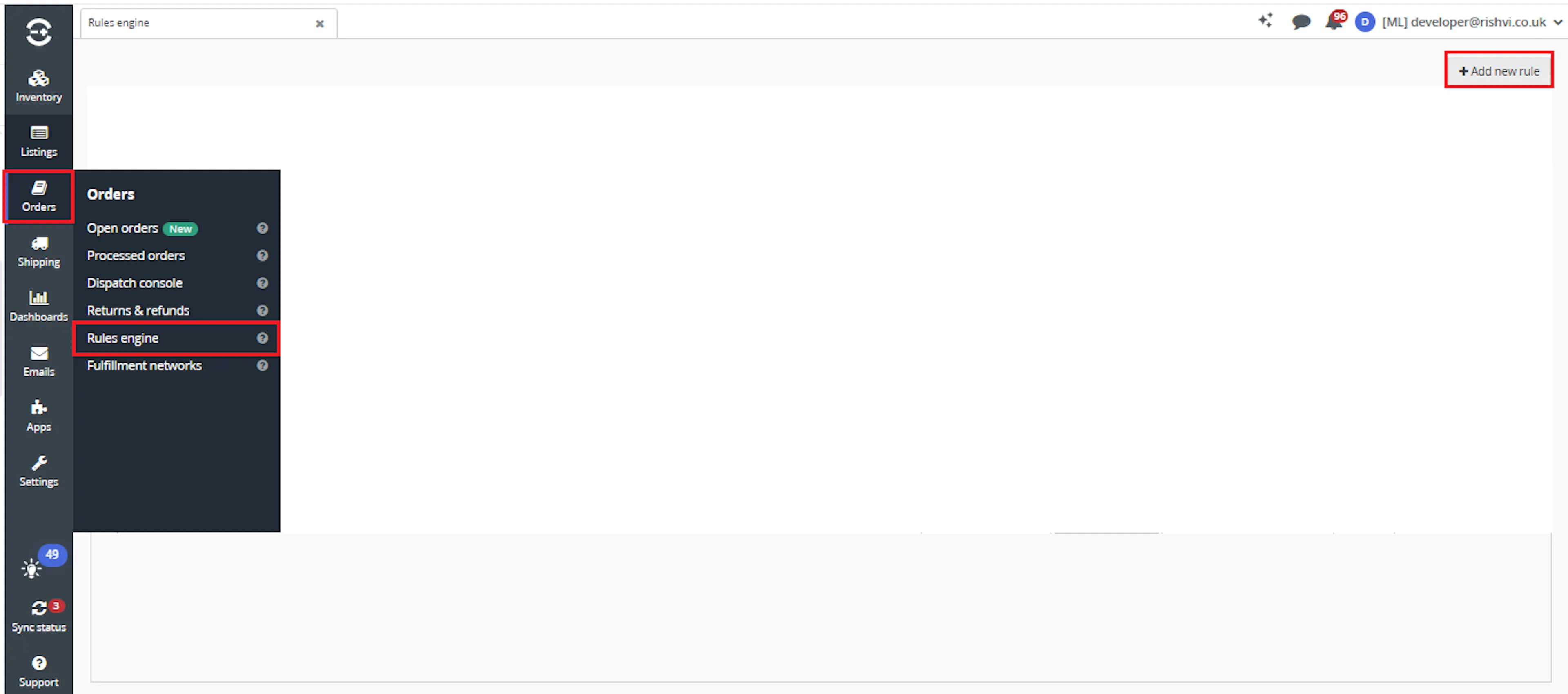
Go to Orders > Rules engine and click + Add new rule.
Key Benefits
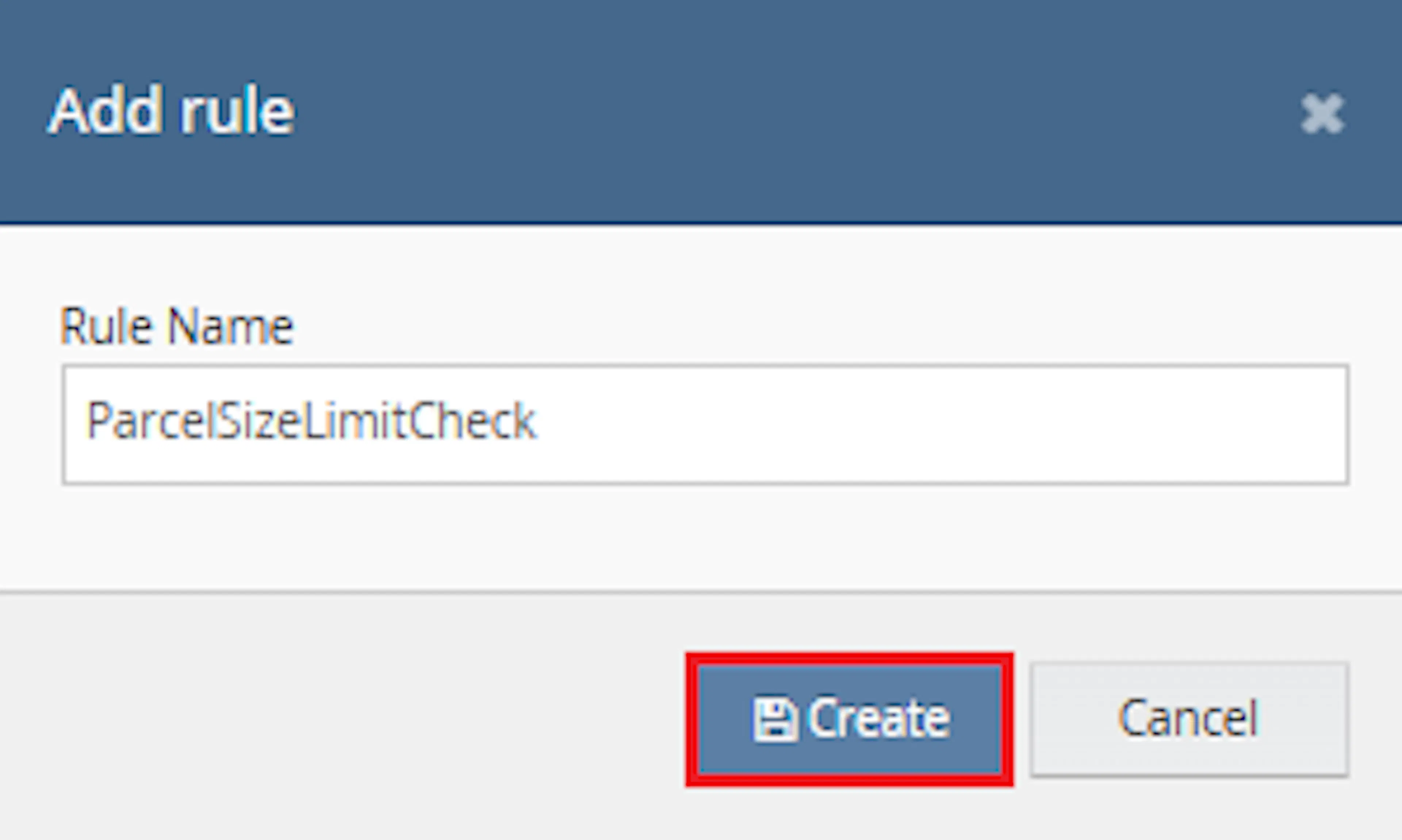
Enter the rule name and click Create.
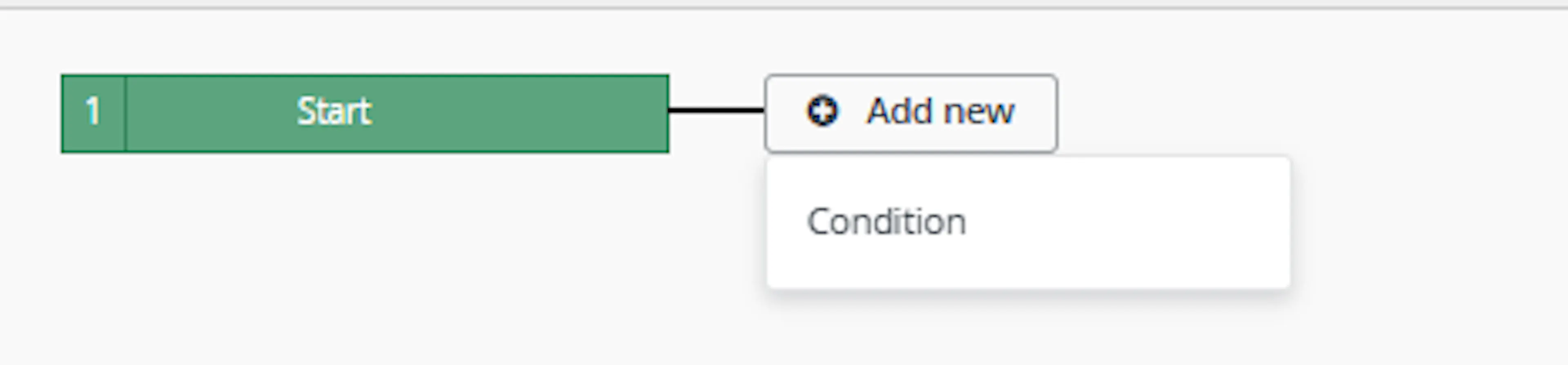
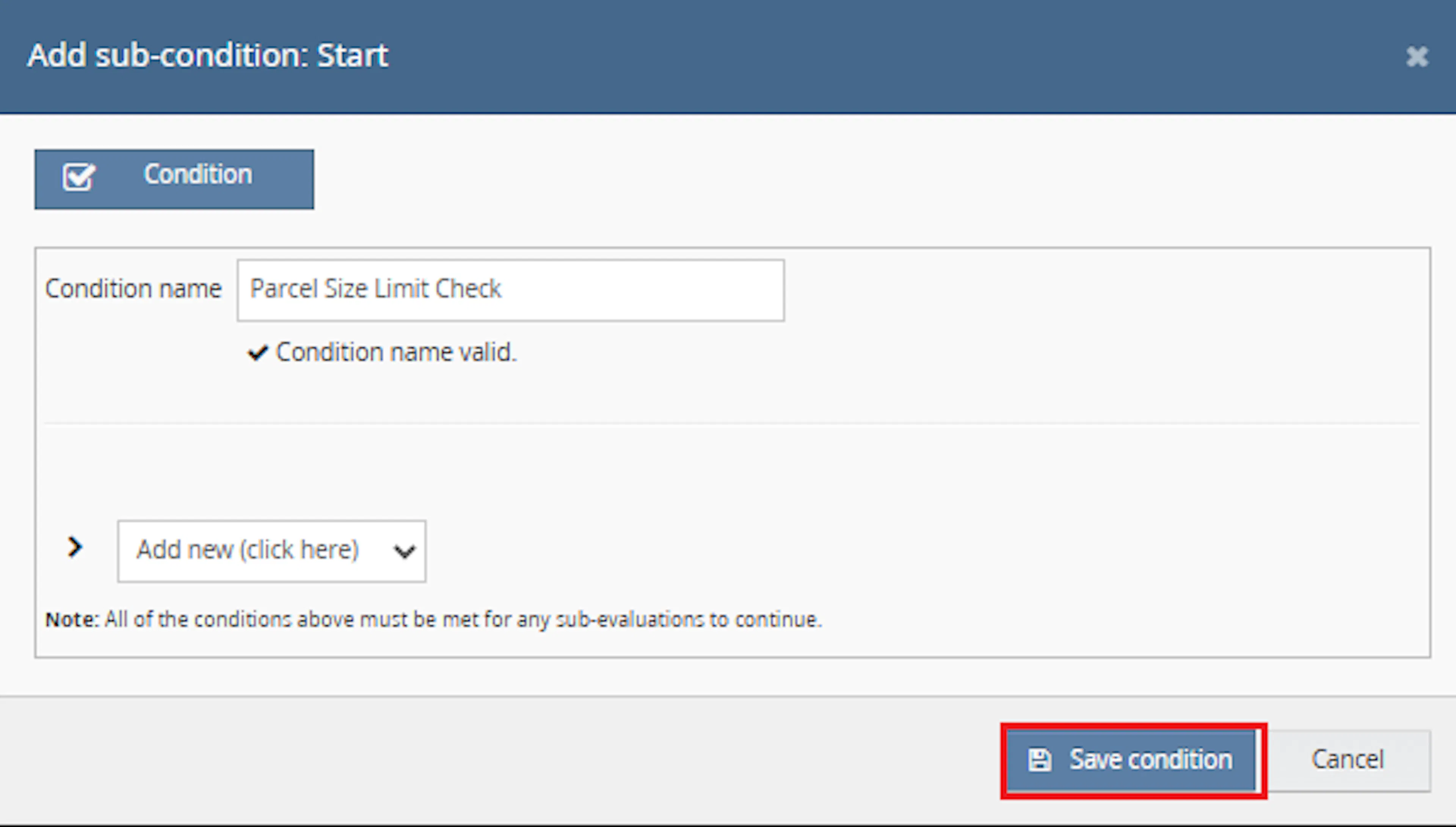
Click Add new, select Condition, set the condition as required, and save it.
Add the macro action and click Save.

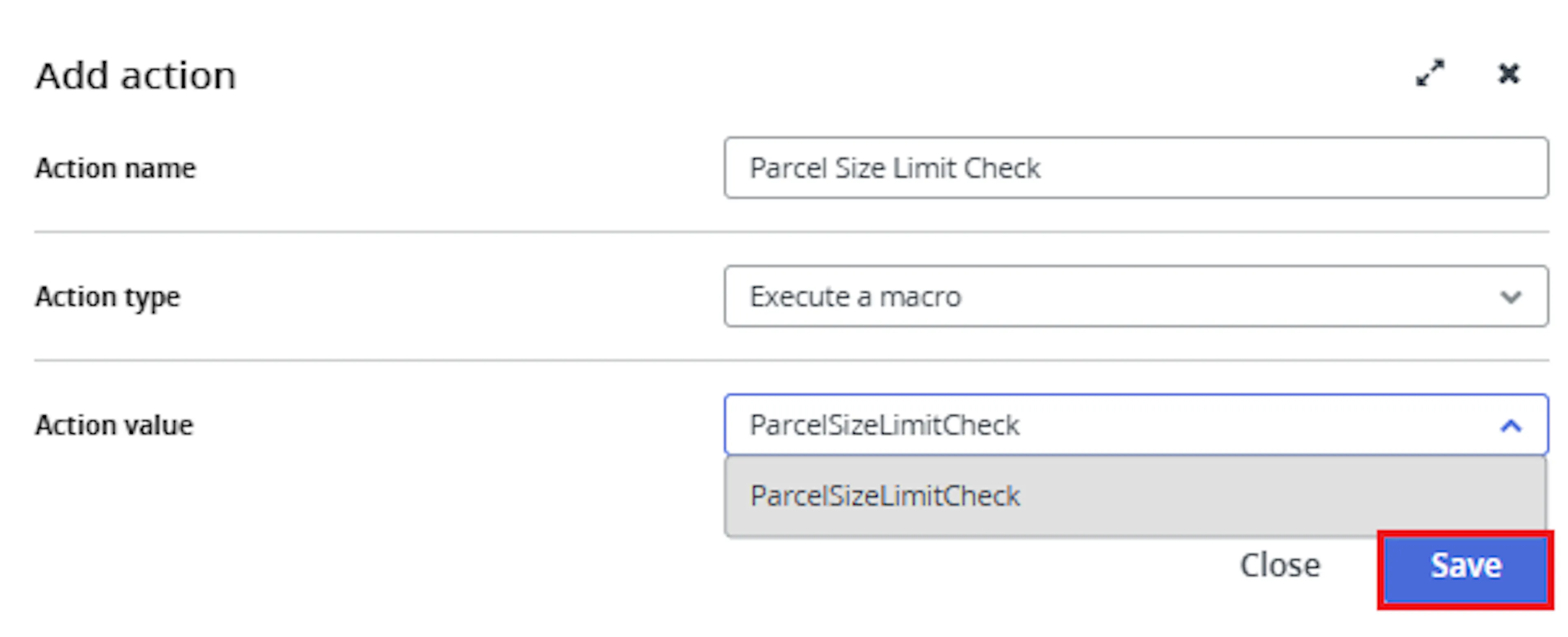
In the Add action window, enter the Action name, for example:
ParcelSizeLimitCheck
-
Set Action type to:
Execute a macro -
In Action value, select:
ParcelSizeLimitCheck -
Click Save
Note: If the macro is not enabled, it will not appear in the Action value list when setting up the rule.
Review the saved rule setup.
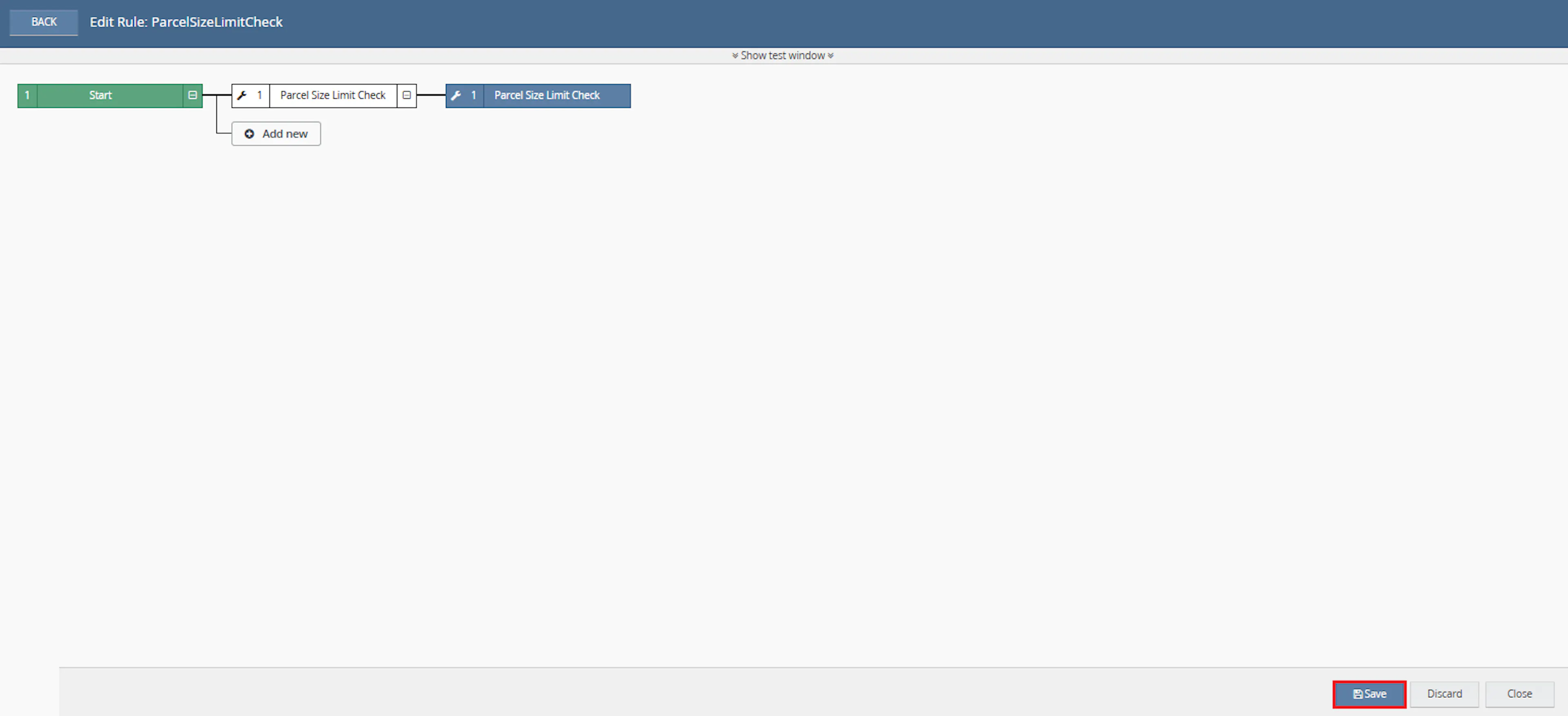
- Verify the condition and action are connected correctly
- Click Save in the bottom-right corner to save the rule
Key Benefits
Oversized or overweight parcels can cause courier validation failures, dispatch delays, unexpected charges, or manual intervention. Volumetric Package Validation identifies these exceptions before orders progress further through fulfilment.
Reduce manual parcel calculations, improve dispatch readiness, and make weight or size exceptions easier to locate.
Reduce Manual Parcel Checks
Removes the need to manually calculate quantity-adjusted weight and parcel size for each selected order.
Improve Dispatch Readiness
Helps identify problematic parcels before courier allocation, label generation, packing, or dispatch.
Flag Limit Exceptions
Assigns an identifier to orders where an item exceeds the weight or calculated size limit.
Use Linnworks Packaging Data
Uses packaging calculation values instead of requiring separate manual dimension calculations.
Process Multiple Orders
Checks all order IDs supplied through the Rule Engine in a single macro execution.
Review Only Exceptions
Allows warehouse and logistics teams to focus on orders carrying the parcel size limits exceeds identifier.
Usage of App
Volumetric Package Validation is triggered through the Linnworks Rule Engine to check selected orders automatically.
Execution
Trigger via Rule Engine
Call the ParcelSizeLimitCheck macro through the Rule Engine with the required OrderIds. No additional custom parameter values are required.
Outcome
When the macro runs against an order, it:
Retrieves the packaging calculation
Reads the calculated packaging items associated with the selected Linnworks order.
Calculates total item weight
Converts the item weight from grams to kilograms and multiplies it by quantity.
Checks the 15 kg limit
Flags the order immediately when the quantity-adjusted item weight exceeds 15 kg.
Calculates the parcel size
Converts the dimensions to centimetres and calculates the quantity-adjusted parcel size.
Checks the 245 cm limit
Flags the order when the calculated parcel size exceeds 245 cm.
Records compliant results
Logs items within the calculated parcel size threshold as Good to Go.
Assigns the review identifier
Creates or uses the parcel size limits exceeds identifier and assigns it to orders requiring review.
Input Parameters
Volumetric Package Validation requires the following input:
| Parameter | Required | Description |
|---|---|---|
| OrderIds | Yes | The Linnworks order IDs to process. Supplied automatically through the Rule Engine or selected-order context. |
No additional user-entered values are required in Macro Configuration.
The macro relies on the following Linnworks data:
| Data Requirement | Description |
|---|---|
| Packaging calculation | Supplies calculated items and associated weight and dimensions. |
| Item quantity | Used to produce quantity-adjusted weight and size results. |
| Item weight | Converted from grams to kilograms before validation. |
| Width, height, and depth | Converted into centimetres before parcel-size calculation. |
| Order identifiers | Used to flag orders that exceed a limit. |
Parcel Validation Limits
The macro uses the following limits:
| Validation | Limit | Result When Exceeded |
|---|---|---|
| Quantity-adjusted item weight | 15 kg | Assigns the parcel size limits exceeds identifier. |
| Quantity-adjusted calculated parcel size | 245 cm | Assigns the parcel size limits exceeds identifier. |
Important: The 15 kg and 245 cm limits are defined within the macro logic and are not entered through Macro Configuration.
Validation Rules
The macro applies the following validation behaviour:
| Item Condition | Macro Behaviour |
|---|---|
| Quantity-adjusted weight is greater than 15 kg | Flags the order. |
| Quantity-adjusted weight is 15 kg or less | Continues to the size calculation. |
| Calculated parcel size is greater than 245 cm | Flags the order. |
| Calculated parcel size is 245 cm or less | Logs the item as Good to Go. |
| One or more items exceed a limit | The order receives the review identifier. |
| All calculated items remain within the limits | No review identifier is assigned by this macro. |
Calculation Behaviour
The source documentation describes the following calculation sequence:
Weight calculation
- Read the item weight in grams.
- Convert the value to kilograms.
- Multiply the converted value by the item quantity.
- Compare the result with the 15 kg limit.
Parcel-size calculation
- Read the calculated width, height, and depth.
- Convert the dimensions to centimetres.
- Calculate the parcel size using the macro's implemented formula.
- Multiply the result by the item quantity.
- Compare the result with the 245 cm limit.
The exact mathematical parcel-size formula is implemented inside the macro. The supplied documentation confirms that width, height, depth, and quantity are used, but does not provide the full formula.
Example Scenario
Assume the macro processes the following selected orders:
| Order | Validation Result | Macro Outcome |
|---|---|---|
| Order A | Total item weight is 12 kg and calculated parcel size is 180 cm | Logged as Good to Go. |
| Order B | Total item weight is 18 kg | Assigned the parcel size limits exceeds identifier. |
| Order C | Total item weight is 8 kg and calculated parcel size is 260 cm | Assigned the parcel size limits exceeds identifier. |
| Order D | Multiple quantities produce a calculated parcel size above 245 cm | Assigned the parcel size limits exceeds identifier. |
Best Practices
Accurate item weight and dimension data is essential because the macro relies on Linnworks packaging calculation values.
Keep item weights accurate
Maintain correct inventory weight values so the quantity-adjusted calculation is reliable.
Keep dimensions accurate
Confirm that item width, height, and depth values are populated correctly.
Run before label generation
Trigger the macro before courier services or shipping labels are applied.
Use targeted rule conditions
Configure the Rule Engine to process only orders that require parcel-limit validation.
Review flagged orders promptly
Check whether flagged orders require different packaging, another courier service, or manual handling.
Monitor execution logs
Review logs for SKUs, converted weights, calculated size results, identifier assignments, and errors.
FAQ
How is Volumetric Package Validation triggered?
The macro is triggered through the Linnworks Rule Engine. Matching order IDs are supplied through the OrderIds parameter.
Does the macro require additional configuration parameters?
No. The configuration requires a name and must be enabled, but no additional custom values are entered.
Which Linnworks data does the macro use?
It uses the order packaging calculation, including calculated item quantity, weight, width, height, and depth.
What is the weight limit?
The quantity-adjusted item weight limit is 15 kg.
How is the weight calculated?
The item weight is converted from grams to kilograms and multiplied by the item quantity.
What happens when the weight exceeds 15 kg?
The order is assigned the parcel size limits exceeds identifier.
Is the size check still performed after the weight limit is exceeded?
The documented flow shows that the order is flagged when the weight exceeds the limit. The size calculation is described for items whose weight remains within the allowed limit.
What is the parcel size limit?
The calculated quantity-adjusted parcel size limit is 245 cm.
Which dimensions are used?
The macro uses the width, height, and depth values returned by the Linnworks packaging calculation.
What happens when the parcel size exceeds 245 cm?
The order is assigned the parcel size limits exceeds identifier.
What happens when the parcel size is exactly 245 cm?
The documentation states that values less than or equal to 245 cm are logged as Good to Go.
Are multiple quantities included in the checks?
Yes. Both the weight and parcel size calculations are multiplied by the item quantity.
Does the macro change the packaging?
No packaging-update behaviour is described. The macro validates the calculated packaging information and flags exceptions.
Does the macro change the shipping service?
No. The macro assigns a review identifier but does not select or update the shipping service.
Does the macro create the identifier when it does not exist?
The supplied documentation states that the macro creates and assigns the parcel size limits exceeds identifier.
Can multiple orders be checked in one execution?
Yes. The macro loops through each order ID supplied through OrderIds.
What should be checked when an order is not flagged?
Confirm that the calculated quantity-adjusted weight exceeds 15 kg or the calculated parcel size exceeds 245 cm.
What should be checked when the calculated values are incorrect?
Review the inventory weight and dimension values used by the Linnworks packaging calculation.
What should teams do with a flagged order?
Review whether the order needs different packaging, a different shipping service, split handling, or manual intervention.
Legal Information
- Privacy Policy: https://rishvi.co.uk/privacy-policy/
- Terms and Conditions: https://rishvi.co.uk/terms-conditions/
Please review these pages to understand how data is handled and the terms governing the use of this application.
Summary
Volumetric Package Validation automates parcel weight and size checks for selected Linnworks orders.
Once connected to the Rule Engine, the macro retrieves the packaging calculation, evaluates quantity-adjusted item weight and parcel size, and assigns the parcel size limits exceeds identifier when the 15 kg or 245 cm limit is exceeded.
Automatic packaging validation
Linnworks packaging calculation values are reviewed automatically for each selected order.
Weight-limit checking
Quantity-adjusted item weight is compared against the 15 kg limit.
Size-limit checking
Quantity-adjusted calculated parcel size is compared against the 245 cm limit.
Exception identification
Orders exceeding either limit receive the parcel size limits exceeds identifier.
For orders that produce unexpected results, review the Rule Engine and macro logs, confirm that the required packaging calculation is available, and verify the item's weight, quantity, and dimension data in Linnworks.