IOSS Note
Automatically add marketplace IOSS or tax ID details from selected Linnworks orders into order notes, helping teams keep tax information visible during order processing and fulfilment.
Marketplace IOSS and tax identification details are often required during international order processing, customs handling, and fulfilment checks. When this information is stored only in order extended properties, teams may need to open each order manually to confirm whether the required tax information is available.
The IOSS Note macro helps make this information easier to access by checking selected Linnworks orders for marketplace IOSS or tax ID extended properties and adding those values into the order notes.
This macro looks for the following order extended properties:
-
MARKETPLACE_IOSS
-
MARKETPLACE_TAXID
When either value is found, the macro creates an order note containing the available tax information. This helps fulfilment, customer service, and operations teams quickly view the required marketplace tax details directly from the order notes.
Keep marketplace IOSS and tax ID information visible by automatically copying it from order extended properties into order notes.
Configure the Macro
Once the app is installed, you need to create a macro configuration so the system knows which macro to run and allows it to be selected in the Rule Engine.
This setup can be adjusted anytime based on your operational requirements.
Steps to Configure
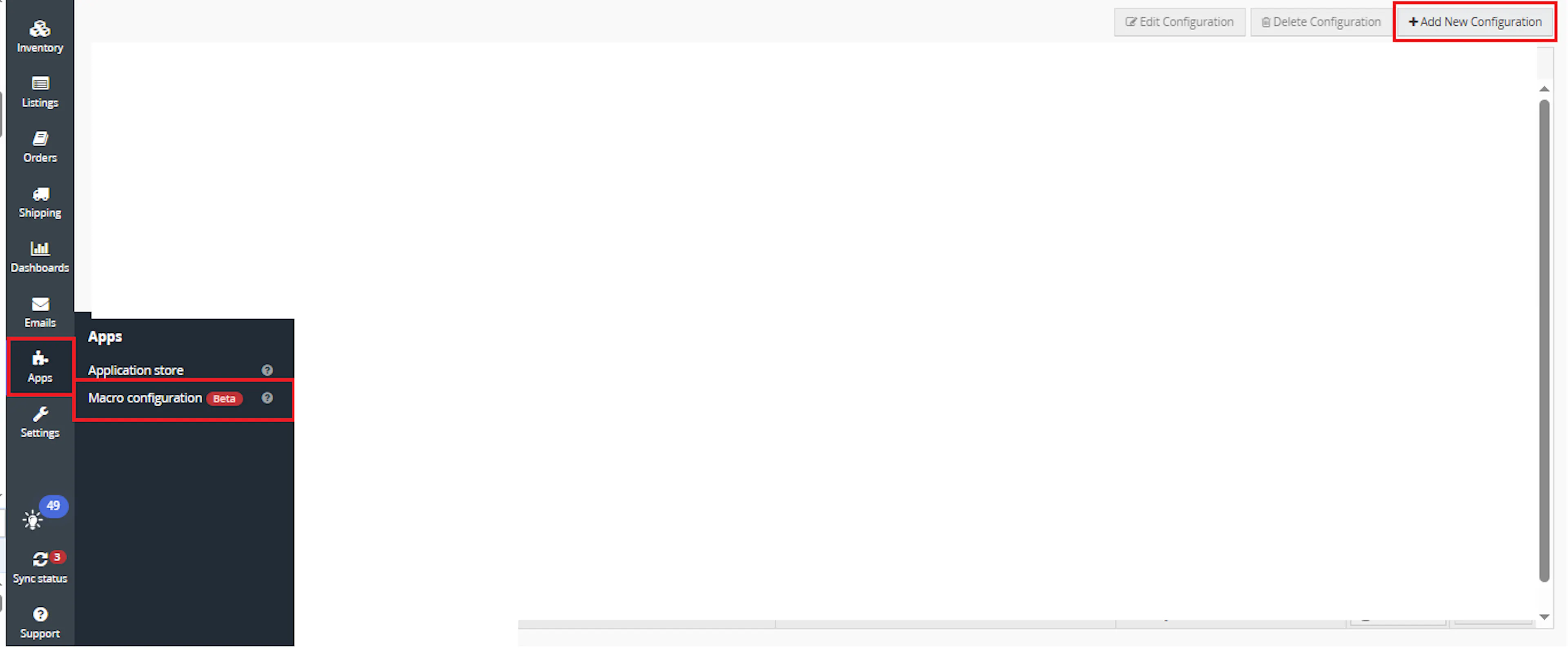
Go to Apps > Macro Configuration and click + Add new configuration.
Select the IOSSNote macro and click Create Configuration.
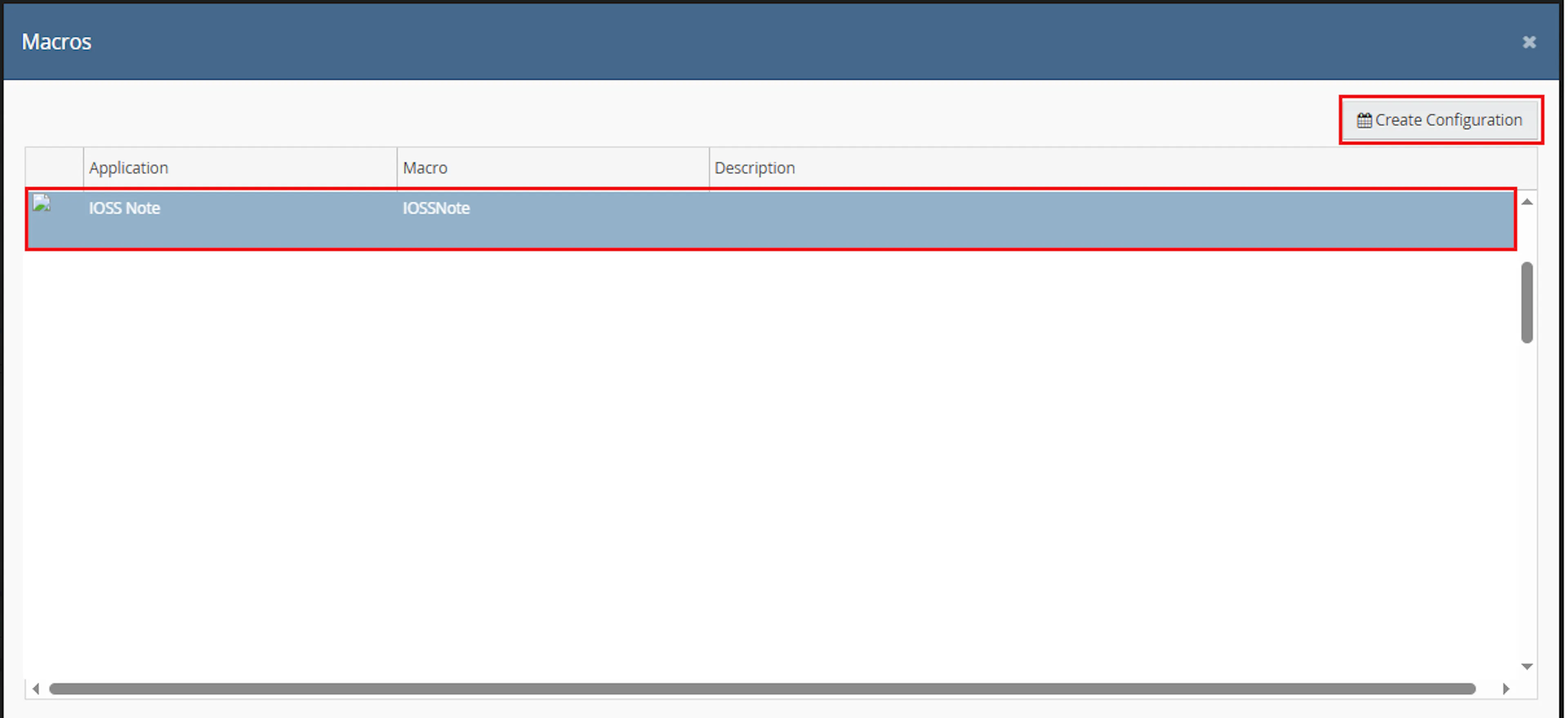
This creates a new configuration where the macro can be enabled and used by the Rule Engine.
In the Macro Configuration screen, add the configuration name.
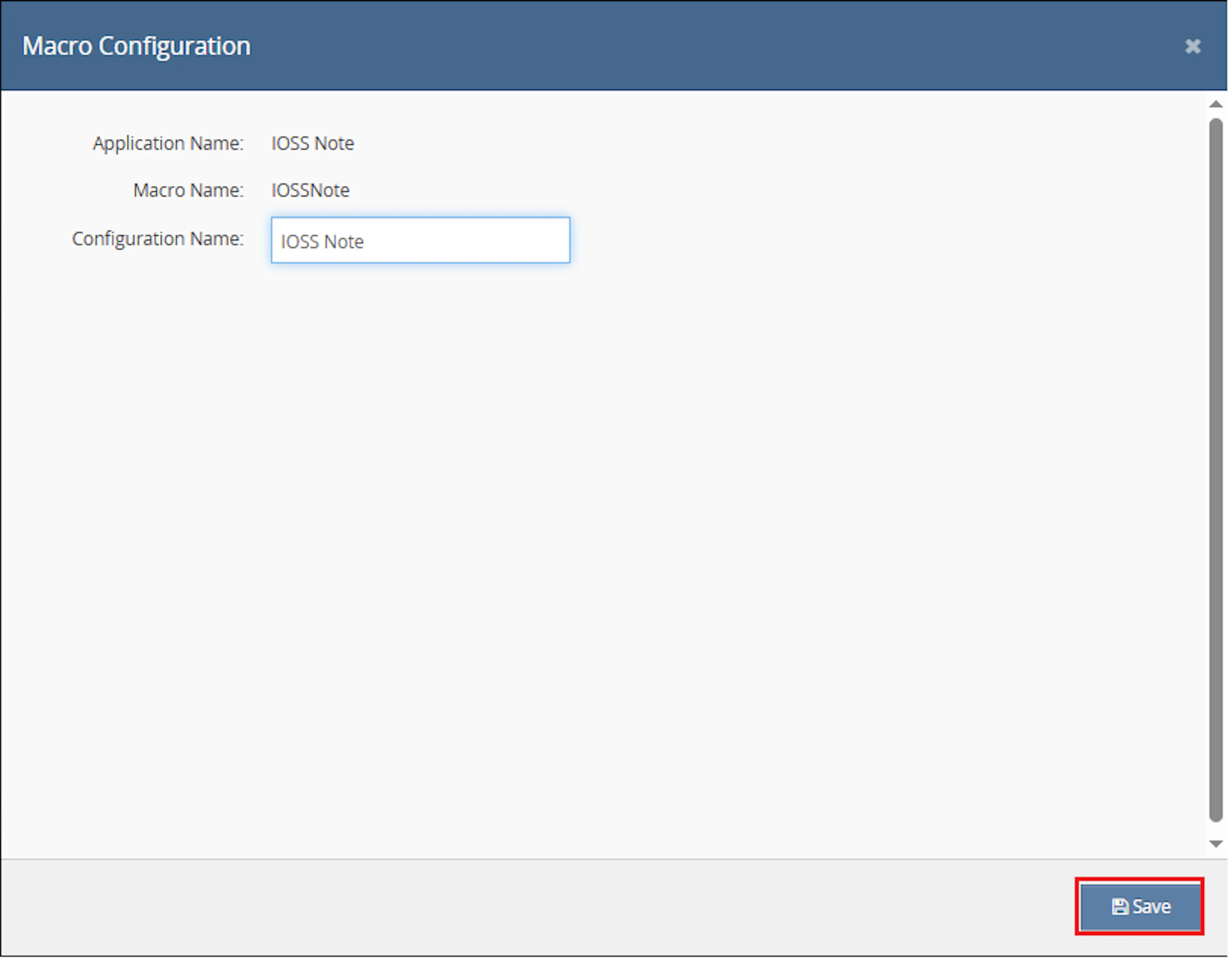
This macro uses the selected order IDs provided by the Rule Engine. No additional custom parameter values are required.
Make sure to enable the macro to continue with the Rule Engine configuration.

Note: If the macro is not enabled, it will not appear in the Action value list when setting up the rule.
Go to Orders > Rules engine and click + Add new rule.
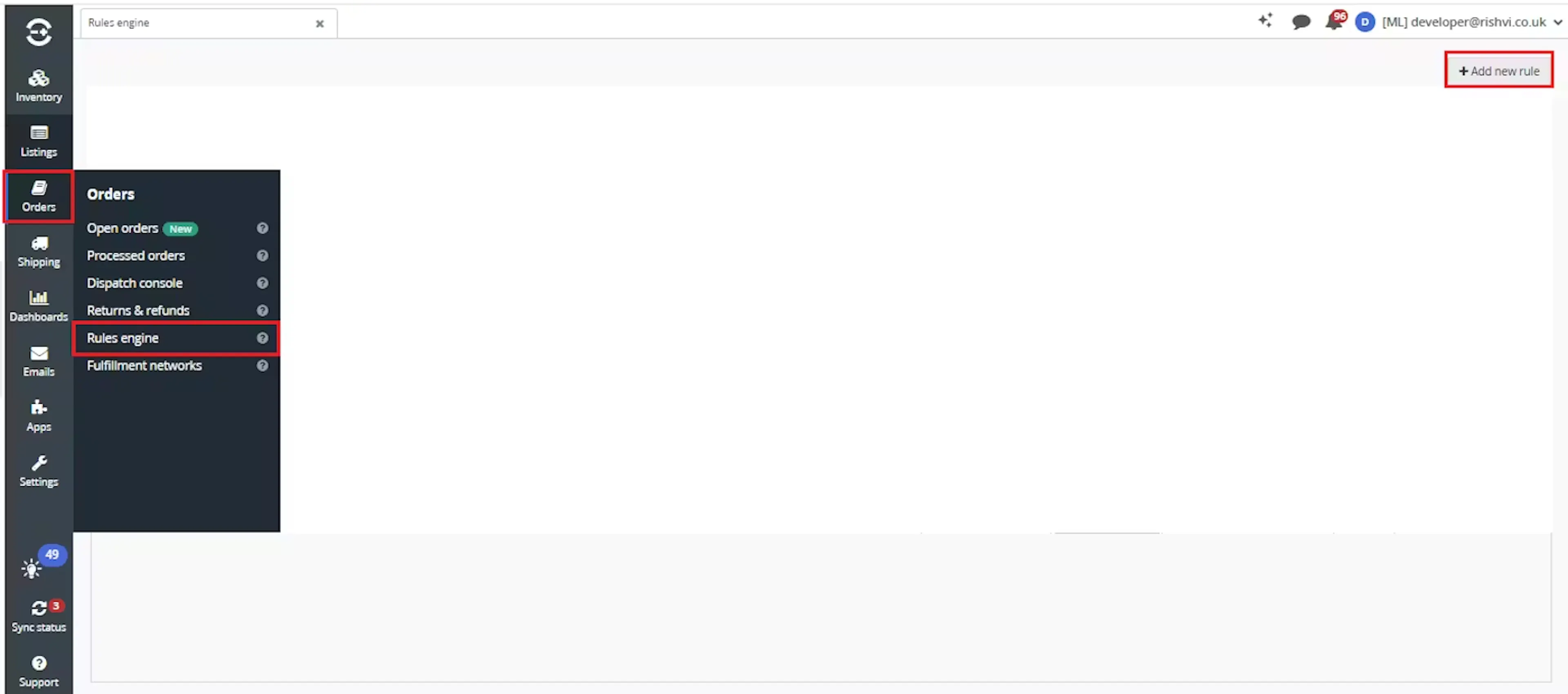
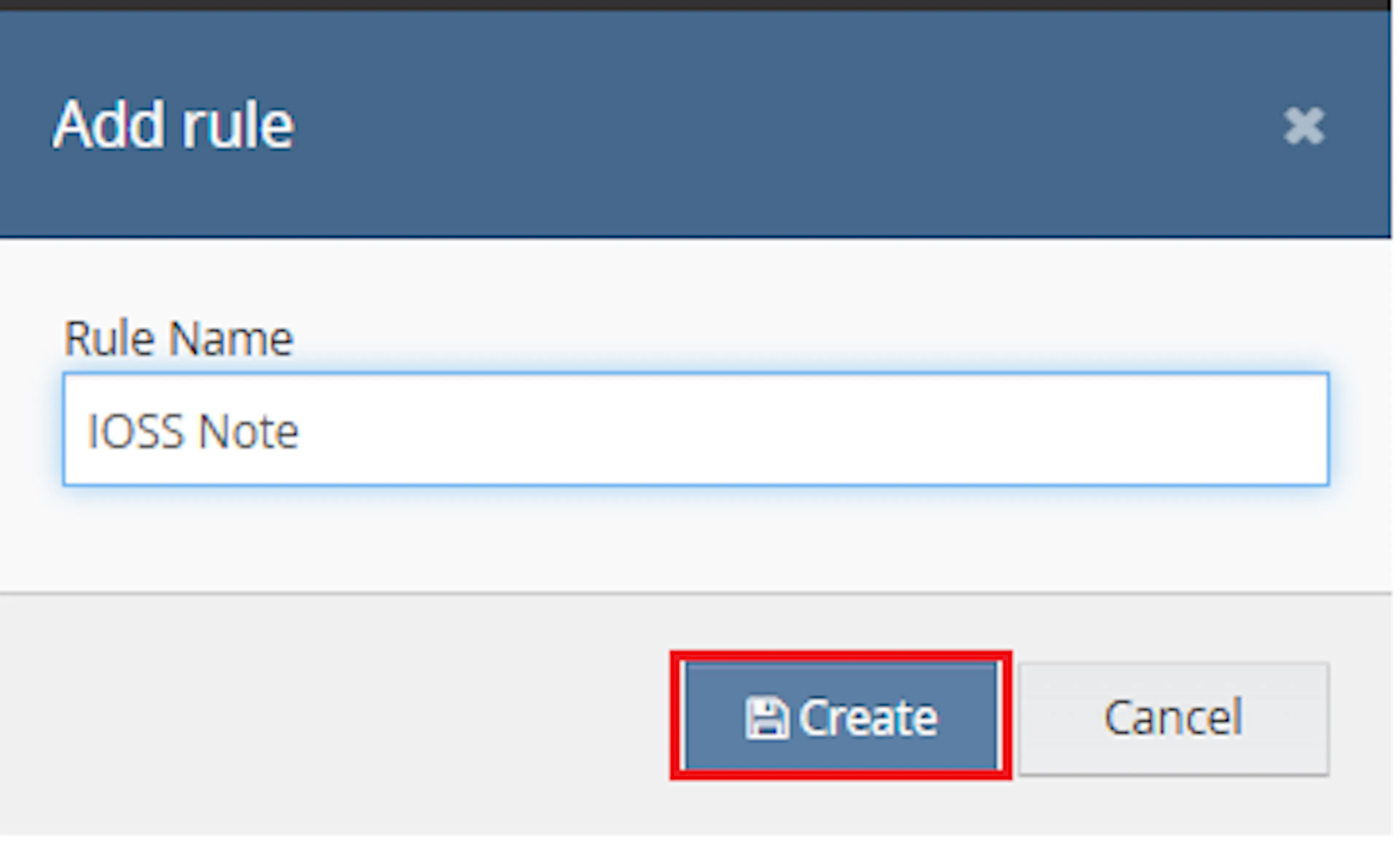
Enter the rule name and click Create.
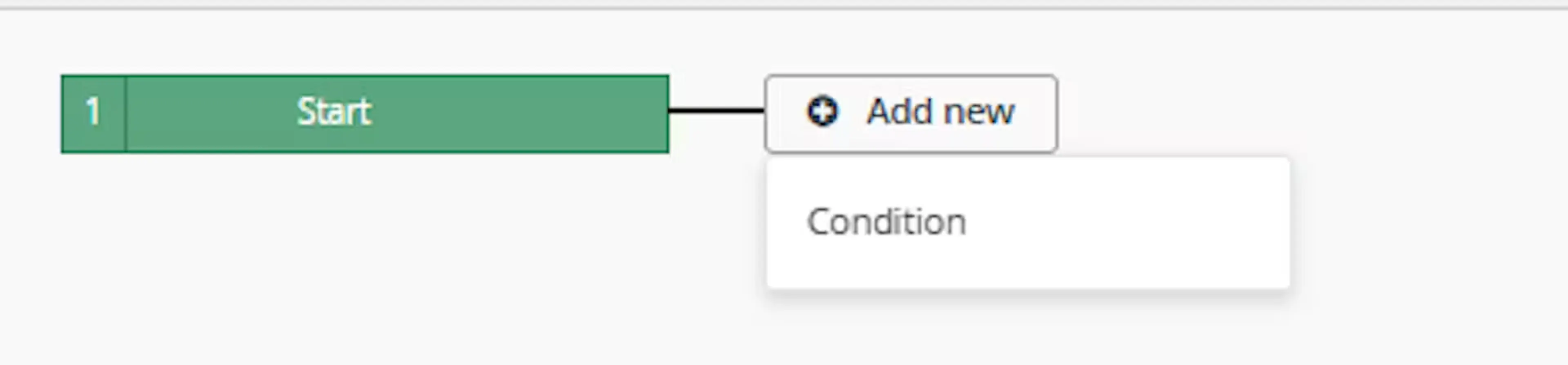
Click Add new, select Condition, set the condition as required, and save it.
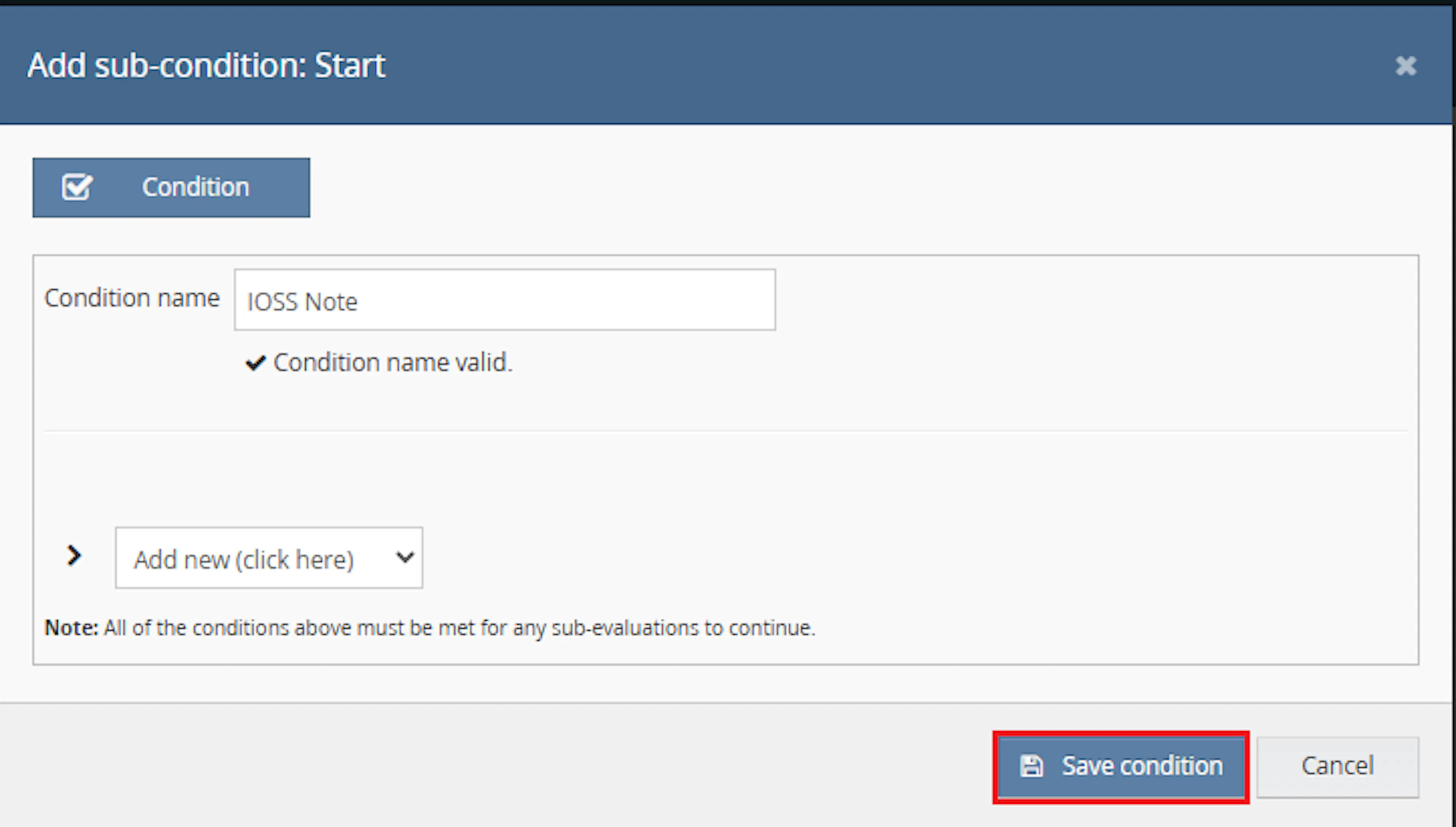
Choose the condition that identifies the orders where IOSS or marketplace tax information should be added to the order notes.
Add the macro action and click Save.
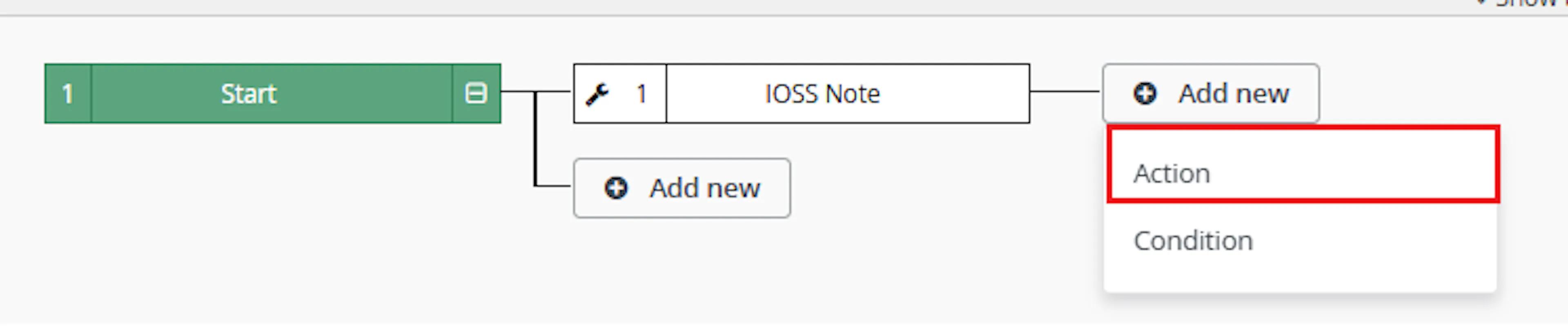
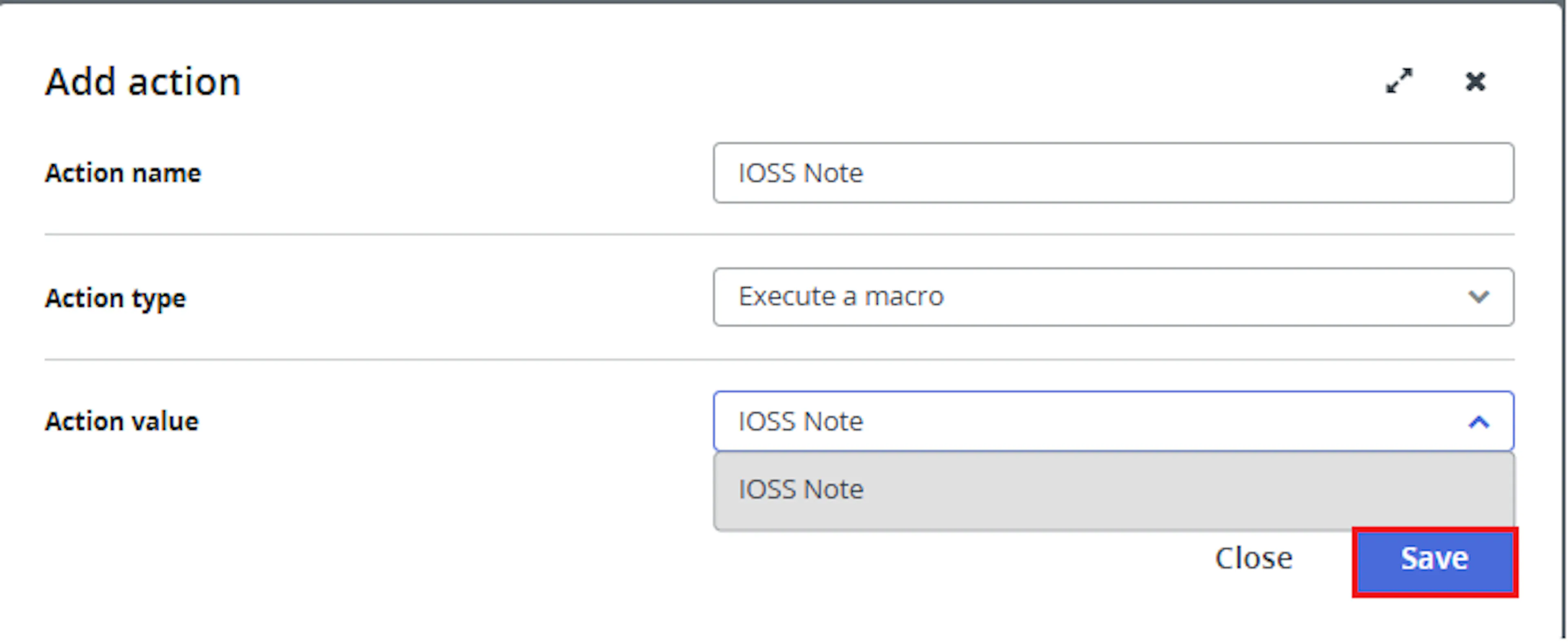
In the Add action window, enter the Action name, for example:
IOSSNote
-
Set Action type to:
Execute a macro -
In Action value, select:
IOSSNote -
Click Save
Note: If the macro is not enabled, it will not appear in the Action value list when setting up the rule.
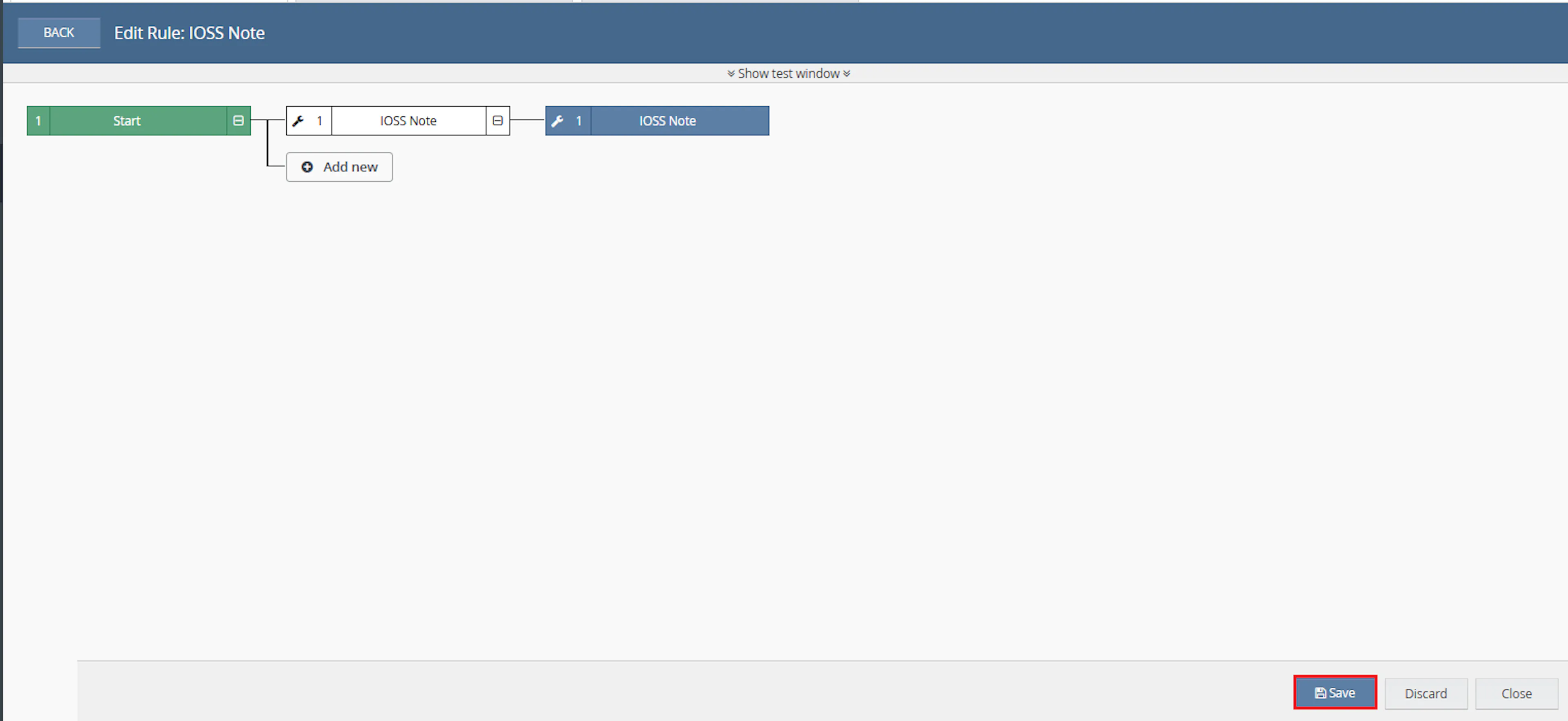
Review the saved rule setup.
-
Verify the condition and action are connected correctly
-
Click Save in the bottom-right corner to save the rule
Marketplace IOSS and tax ID details can be important for order handling, especially when marketplace tax information needs to be visible during fulfilment. This macro helps reduce manual checks by copying the relevant extended property values into the order notes.
Reduce Manual Order Checks
Eliminates the need to manually open each selected order and check extended properties for marketplace IOSS or tax ID values.
Improve Tax Information Visibility
Adds marketplace tax details into the order notes so they are easier to view during order processing.
Support Fulfilment Review
Helps warehouse, dispatch, and operations teams quickly identify relevant marketplace tax information.
Use Existing Order Data
Uses the order extended properties already stored against the order in Linnworks.
Save Operational Time
Allows teams to apply notes automatically instead of copying IOSS or tax ID values manually.
Update Only When Tax Data Exists
The macro creates a note only when the selected order contains a matching marketplace IOSS or tax ID extended property.
How It Works
The macro checks each selected order and creates an order note only when marketplace IOSS or marketplace tax ID information is found.
Step 1
The macro starts execution and writes Macro Start to the log.
Step 2
It loops through each order ID provided in the OrderIds parameter.
Step 3
For each order, the macro retrieves the order details using the Linnworks Orders API.
Step 4
It checks the order extended properties for names matching MARKETPLACE_IOSS or MARKETPLACE_TAXID.
Step 5
If one or more matching extended properties are found, the macro creates a note starting with MARKETPLACE_IOSS :.
Step 6
The macro appends the matching extended property values to the note.
Step 7
The macro saves the note against the order with Internal set to false and CreatedBy set to IOSS Note Macro.
Step 8
The macro logs any errors and writes Macro Finished when execution ends.
Usage of App
This macro is designed to run against selected orders through the Rule Engine. It is useful when orders need marketplace IOSS or tax ID values copied from extended properties into order notes.
OrderIds
Defines the Linnworks order IDs that should be processed. Only these selected orders are checked for marketplace IOSS or tax ID extended properties.
MARKETPLACE_IOSS
The macro checks for this extended property name and adds its value to the order note when found.
MARKETPLACE_TAXID
The macro also checks for this extended property name and adds its value to the order note when found.
Order Note Creation
When matching extended properties are found, the macro creates an order note containing the available marketplace tax values.
Execution Logging
The macro records the start, errors, and completion of the process using the macro logger.
Key Points to Remember
-
The macro processes only the order IDs provided in OrderIds
-
The macro checks order extended properties for MARKETPLACE_IOSS and MARKETPLACE_TAXID
-
A note is created only when at least one matching extended property is found
-
The note starts with MARKETPLACE_IOSS :
-
Matching extended property values are added to the note text
-
The note is created with Internal set to false
-
The note creator is set as IOSS Note Macro
-
The macro does not add a note when no matching extended property exists
-
The macro does not include duplicate-note checking logic
Once the macro is running, it helps make marketplace tax information easier to see directly from order notes.
What You Can Expect
-
Marketplace IOSS values are added to order notes
Orders with a MARKETPLACE_IOSS extended property receive a note containing the value -
Marketplace tax ID values are added to order notes
Orders with a MARKETPLACE_TAXID extended property also have the value added to the note -
Orders without matching properties are skipped
If no matching extended property exists, the macro does not create a note for that order -
Notes are visible as non-internal notes
The macro creates the note with Internal set to false -
Execution is logged
The macro records when it starts, finishes, and if an error occurs
Overall Impact
This macro improves visibility of marketplace tax information, reduces manual checking of extended properties, and helps teams access IOSS or marketplace tax ID values directly from the order notes.
What To Do After the Macro Runs
After the macro has completed, review the selected orders if needed to confirm that the IOSS or marketplace tax ID information has been added to the order notes.
Steps to Follow
Step 1
Open Linnworks and locate the orders processed by the rule.
Step 2
Open an affected order and review the order notes.
Step 3
Confirm that the note starts with MARKETPLACE_IOSS :.
Step 4
Confirm that the expected IOSS or marketplace tax ID value has been added to the note.
Step 5
Continue with normal order processing, fulfilment, customs review, or dispatch handling.
Why This Matters
Keeping marketplace tax details visible helps:
-
Reduce manual extended property checks
-
Improve order review accuracy
-
Make IOSS and tax ID values easier to find
-
Support fulfilment and dispatch workflows
-
Help teams process relevant marketplace orders more efficiently
Best Practices
To get the most value from this macro, use it with rule conditions that target orders where marketplace tax data is expected.
Recommended Guidelines
-
Use clear rule conditions
Configure the Rule Engine so the macro runs only for orders where IOSS or marketplace tax ID data is relevant. -
Review sample orders after setup
Confirm that the note is created correctly before using the macro across a larger order set. -
Avoid repeated rule execution where possible
The macro code does not include duplicate-note checking, so repeated execution may create repeated notes depending on how the order is processed. -
Check extended property names carefully
The macro only checks for MARKETPLACE_IOSS and MARKETPLACE_TAXID. -
Use before fulfilment review
Run the macro before dispatch or customs-related order checks so the tax information is visible in the notes.
Troubleshooting
No note was created
Confirm that the order has an extended property named MARKETPLACE_IOSS or MARKETPLACE_TAXID.
Macro is not visible in the Rule Engine
Confirm that the macro configuration has been created and enabled in Apps > Macro Configuration.
Tax value is missing from the note
Check whether the extended property exists and contains a value on the order.
Duplicate notes appear
Review the rule setup to ensure the macro is not being triggered repeatedly for the same order.
Rule did not run
Confirm that the rule condition matches the order and that the rule has been saved and enabled.
Summary
The IOSS Note macro checks selected Linnworks orders for marketplace IOSS and marketplace tax ID extended properties. When matching values are found, it creates an order note containing those values so the information is easier to access during order processing.
This helps teams reduce manual checks, improve tax information visibility, and support smoother fulfilment workflows.