Set Lowest Shipping Quote
Automatically check available shipping quotes for selected Linnworks orders, apply the most suitable shipping service, and flag orders that need manual review when no valid quote is found.
Overview
Set Lowest Shipping Quote is an automated shipping-service selection solution for Linnworks. It retrieves available shipping quotes for selected orders, applies the macro's defined service-selection rules, and updates each qualifying order with the most suitable shipping method.
The macro processes order IDs supplied through the Linnworks Rule Engine. For each order, it retrieves the enabled shipping integrations, requests live shipping quotes, and evaluates the returned services.
Where special service-selection logic applies, the macro prioritises the relevant matching service. When no special rule applies, it selects the quote with the lowest total cost.
If no suitable quote is available, the order is added to a review list and assigned the Check Order identifier so it can be investigated manually.
The macro also records the previous and newly selected shipping service details as order extended properties, providing greater visibility into the shipping update.
Keep shipping-service selection consistent by automatically applying suitable quotes and clearly identifying orders that require manual review.
Who Should Use Set Lowest Shipping Quote
Warehouse & Fulfilment Teams
Teams preparing orders for label generation, packing, and dispatch can use the macro to assign suitable shipping services automatically.
Logistics Managers
Logistics managers can reduce manual quote comparison and apply consistent shipping-service selection across selected orders.
Integration Administrators
Administrators configure the macro, enable it for the Rule Engine, maintain shipping integrations, and monitor quote and update logs.
Operations Teams
Operations teams can review old and new shipping details and focus attention on orders marked with the Check Order identifier.
Key Features
Live Shipping Quote Retrieval
Requests available shipping quotes for selected orders through enabled Linnworks shipping integrations.
Lowest-Cost Quote Selection
Selects the quote with the lowest total cost when no special service-selection rule applies.
Preferred Service Logic
Applies defined sub-source or preferred-service rules before using the general lowest-cost selection.
Automatic Shipping Method Update
Updates the Linnworks order with the shipping method from the selected quote.
Manual Review Identification
Assigns the Check Order identifier when no suitable shipping quote is found.
Shipping Change Audit Data
Stores previous and new shipping service details and costs as order extended properties.
How Set Lowest Shipping Quote Works
Set Lowest Shipping Quote follows a defined sequence whenever it receives one or more order IDs from the Linnworks Rule Engine.
Step 1: Order retrieval
The macro reads each order ID supplied through the OrderIds parameter and retrieves the corresponding Linnworks order details.
Step 2: Shipping integration retrieval
The macro retrieves the enabled shipping integration accounts available within Linnworks.
Step 3: Shipping quote request
Live shipping quotes are requested for the selected order using the available integration accounts.
Step 4: Preferred rule evaluation
The macro checks whether the order matches defined sub-source or preferred-service selection logic.
Step 5: Lowest-cost selection
When no special rule applies, the quote with the lowest total cost is selected.
Step 6: Shipping method update
If a suitable quote is found, the order shipping method is updated using the selected quote details.
Step 7: Shipping audit update
The old and new shipping services and costs are stored as order extended properties.
Step 8: Manual review collection
Orders without a suitable quote are added to a review list.
Step 9: Identifier assignment
After all selected orders are processed, the Check Order identifier is created if necessary and assigned to unresolved orders.
Configure the Macro
Once the app is installed, you need to create a macro configuration so the system knows which macro to run when the rule is triggered.
This setup can be adjusted anytime based on your operational requirements.
Steps to Configure
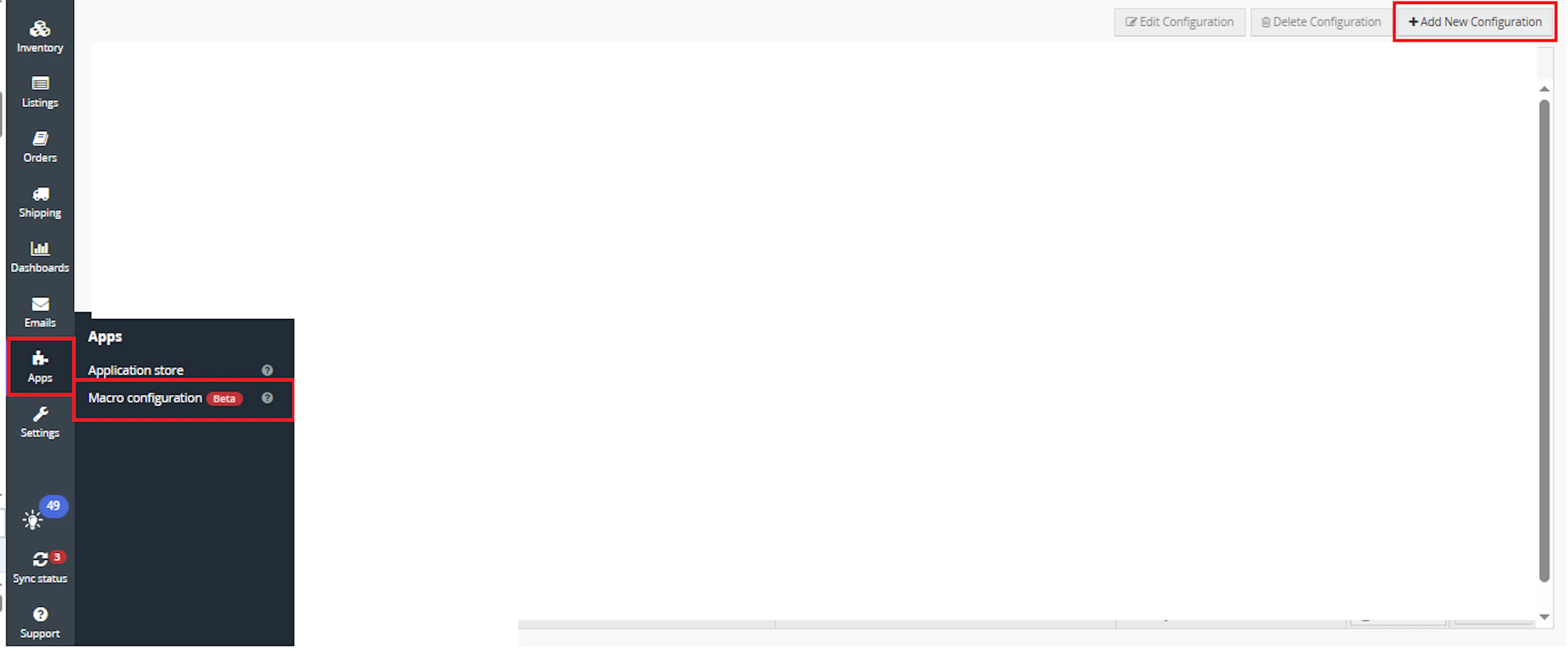
Go to Apps > Macro Configuration and click + Add new configuration.
Select the GetCheapestShippingandAssignService macro and click Create Configuration
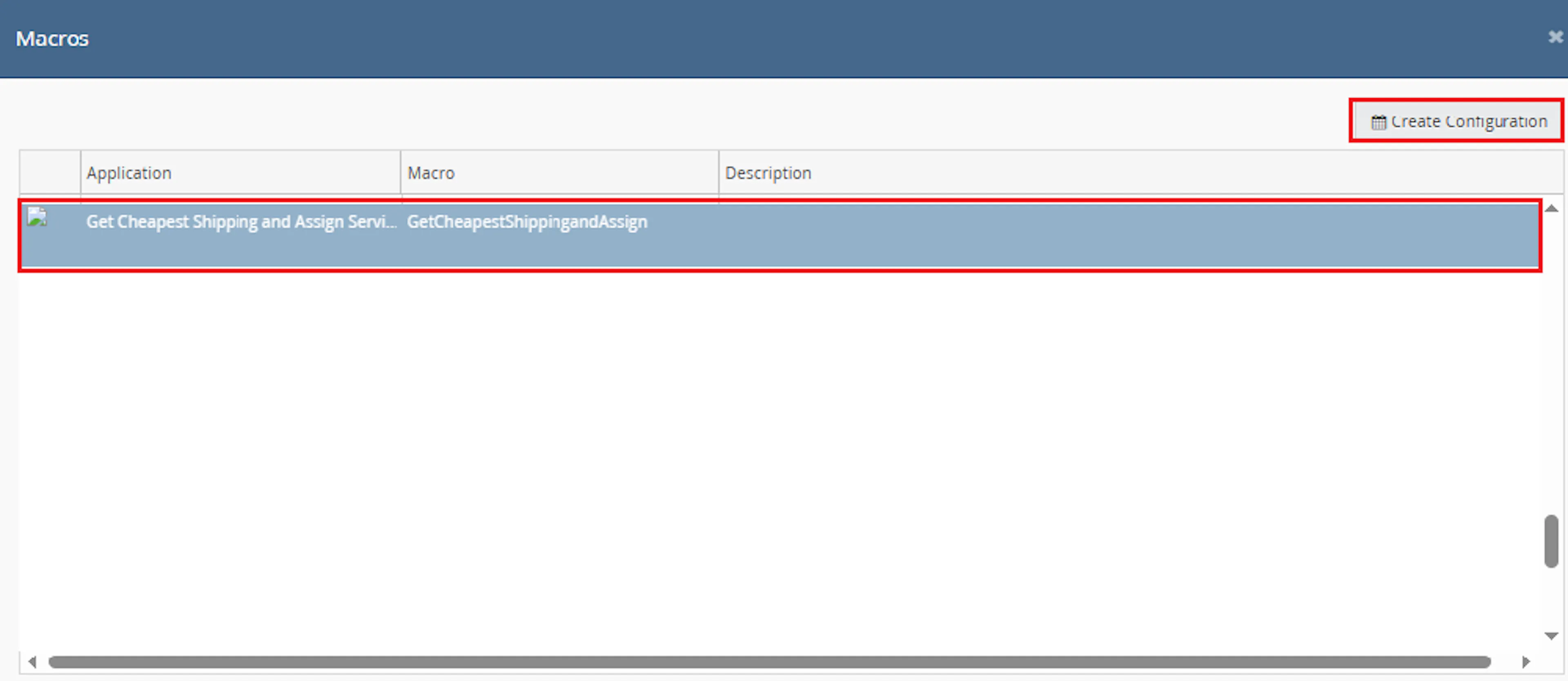
This creates a new configuration where you can define the configuration name. The selected order IDs are passed to the macro when it runs from the rule.
In the Macro Configuration screen, add the configuration name.
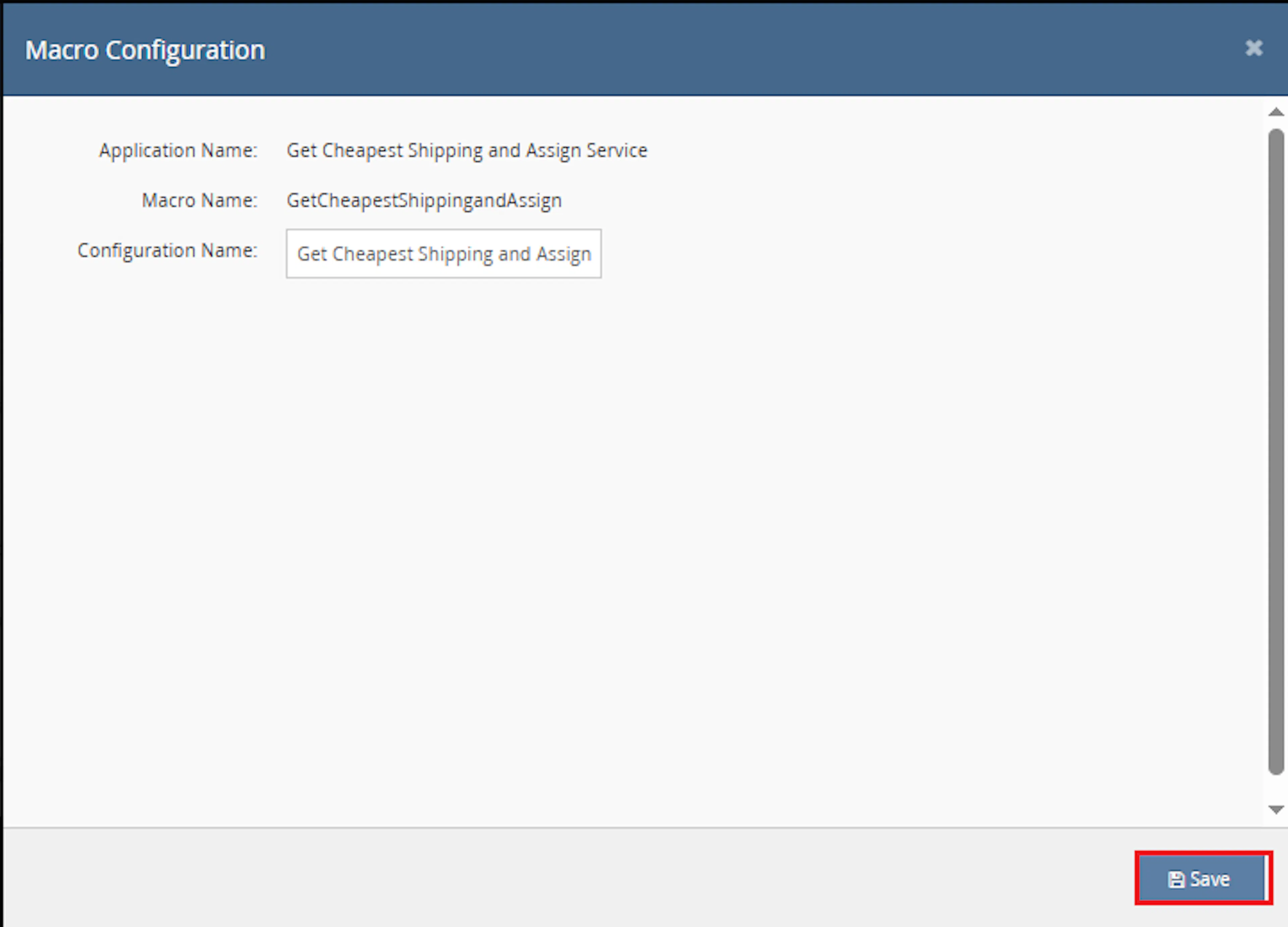
Example configuration name:
Get Cheapest Shipping and Assign Service
This macro does not require additional user-entered parameter values. The OrderIds value is provided automatically by the selected orders or rule context.
Make sure to enable the macro to continue with the Rule Engine configuration.

Note: If the macro is not enabled, it will not appear in the Action value list when setting up the rule.
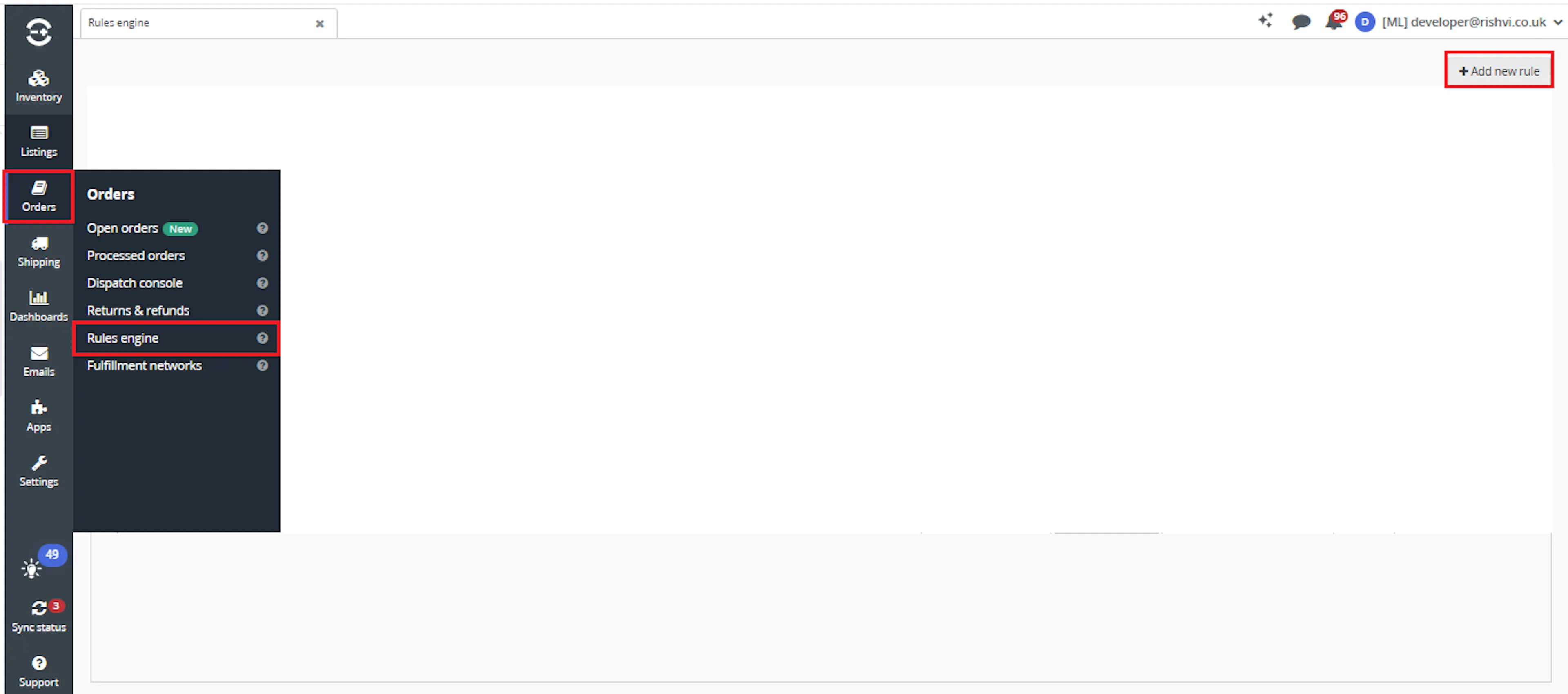
Go to Orders > Rules engine and click + Add new rule.
Key Benefits
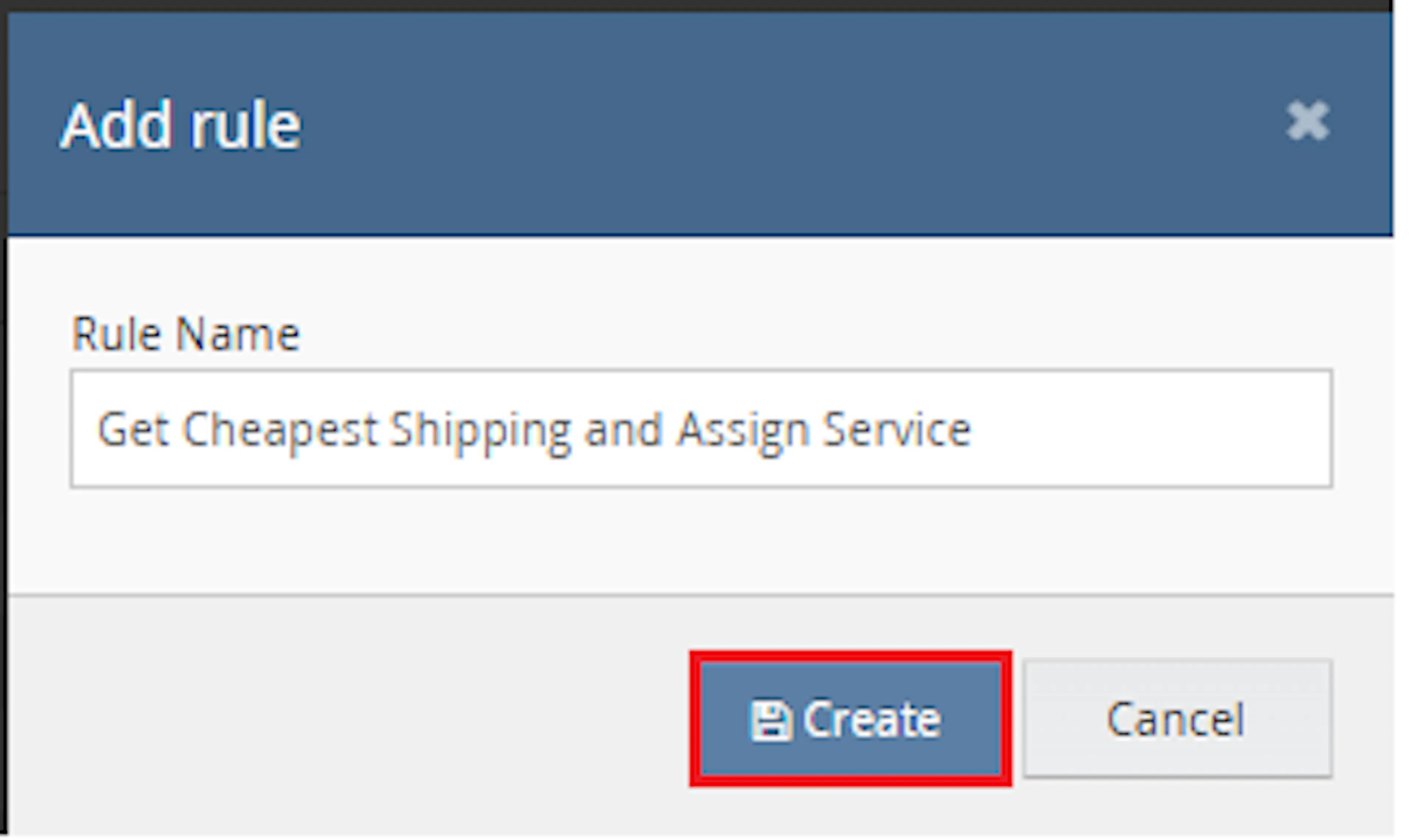
Enter the rule name and click Create.
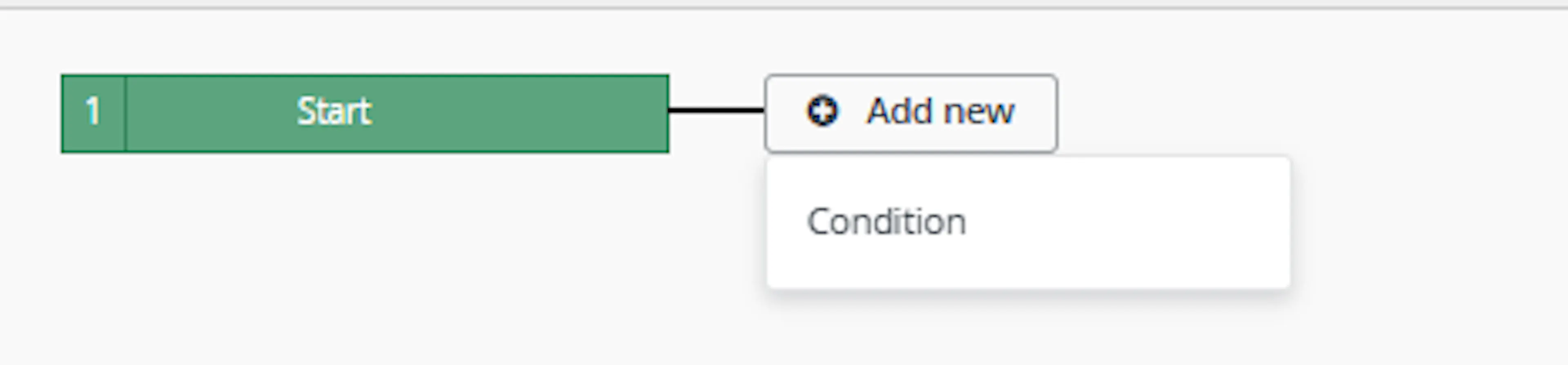
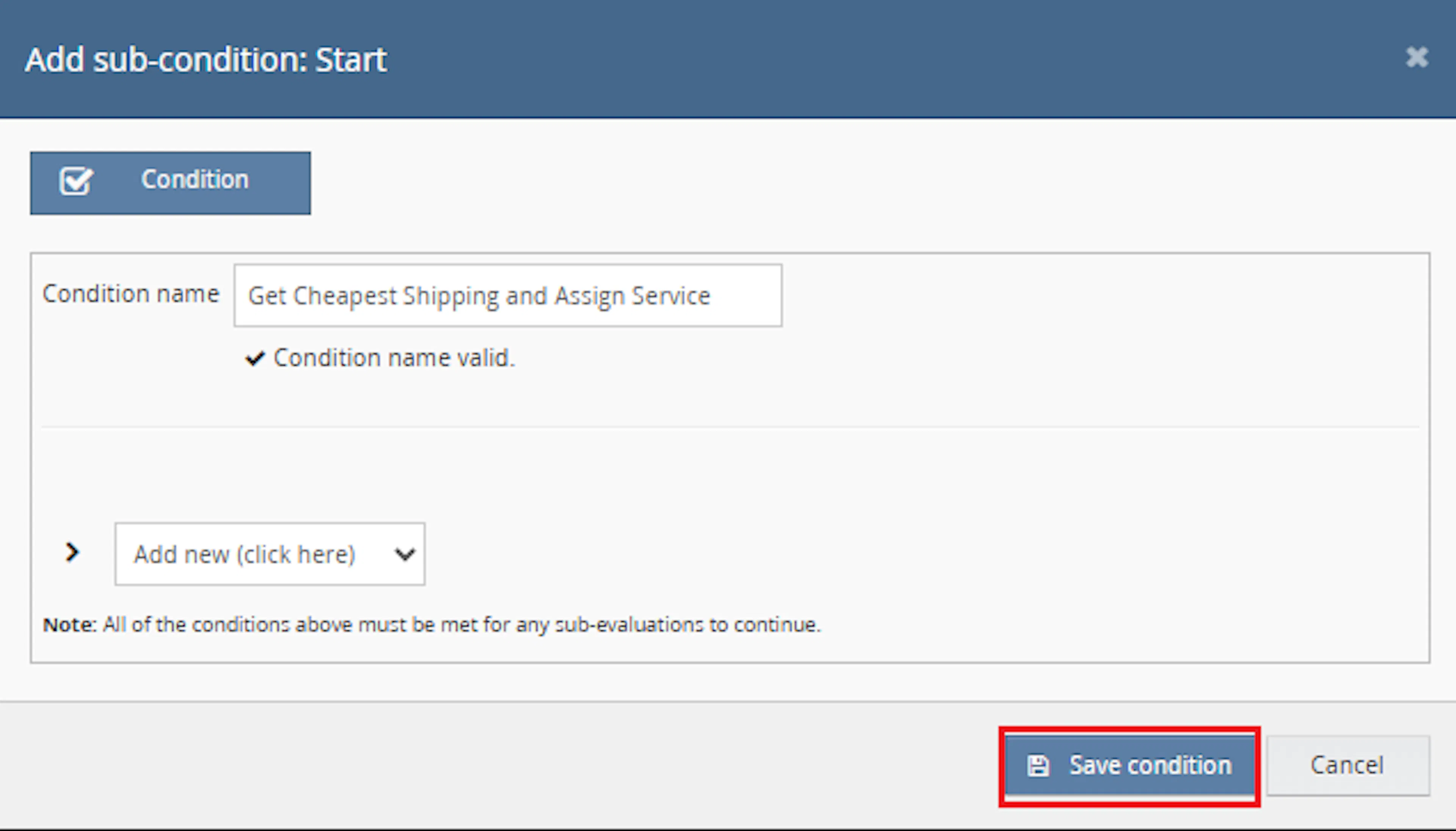
Click Add new, select Condition, set the condition as required, and save it.
Add the macro action and click Save.
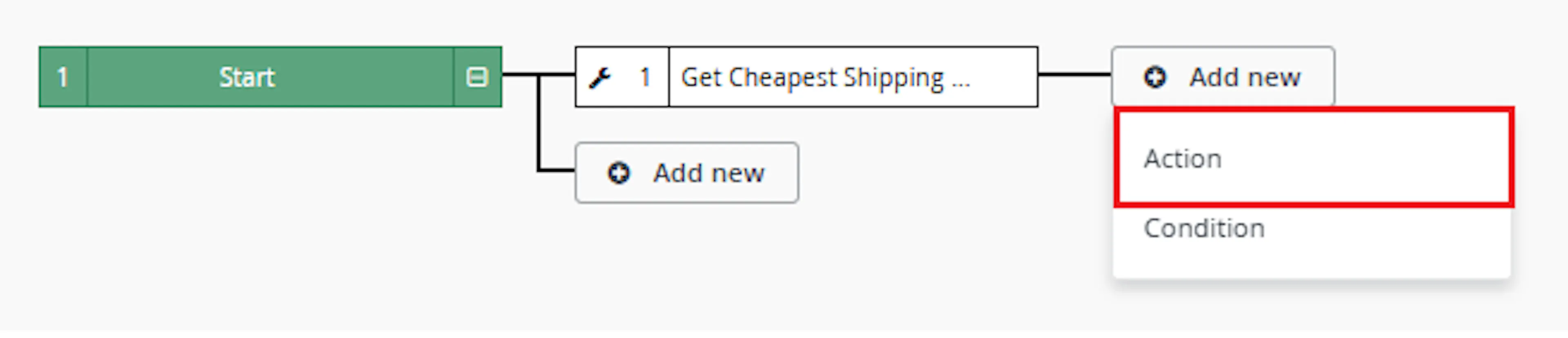
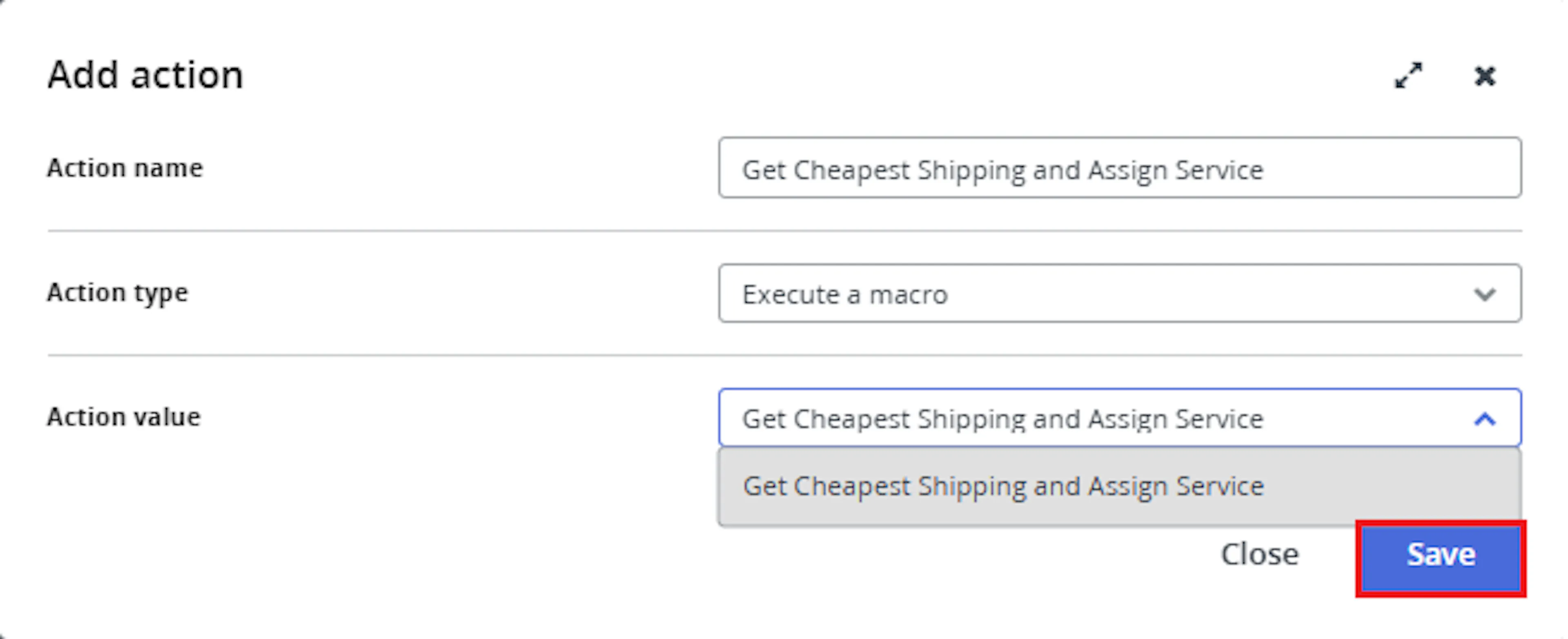
In the Add action window, enter the Action name, for example:
Get Cheapest Shipping and Assign Service
-
Set Action type to:
Execute a macro
In Action value, select:
Get Cheapest Shipping and Assign Service
- Click Save
Note: If the macro is not enabled, it will not appear in the Action value list when setting up the rule.
Review the saved rule setup.
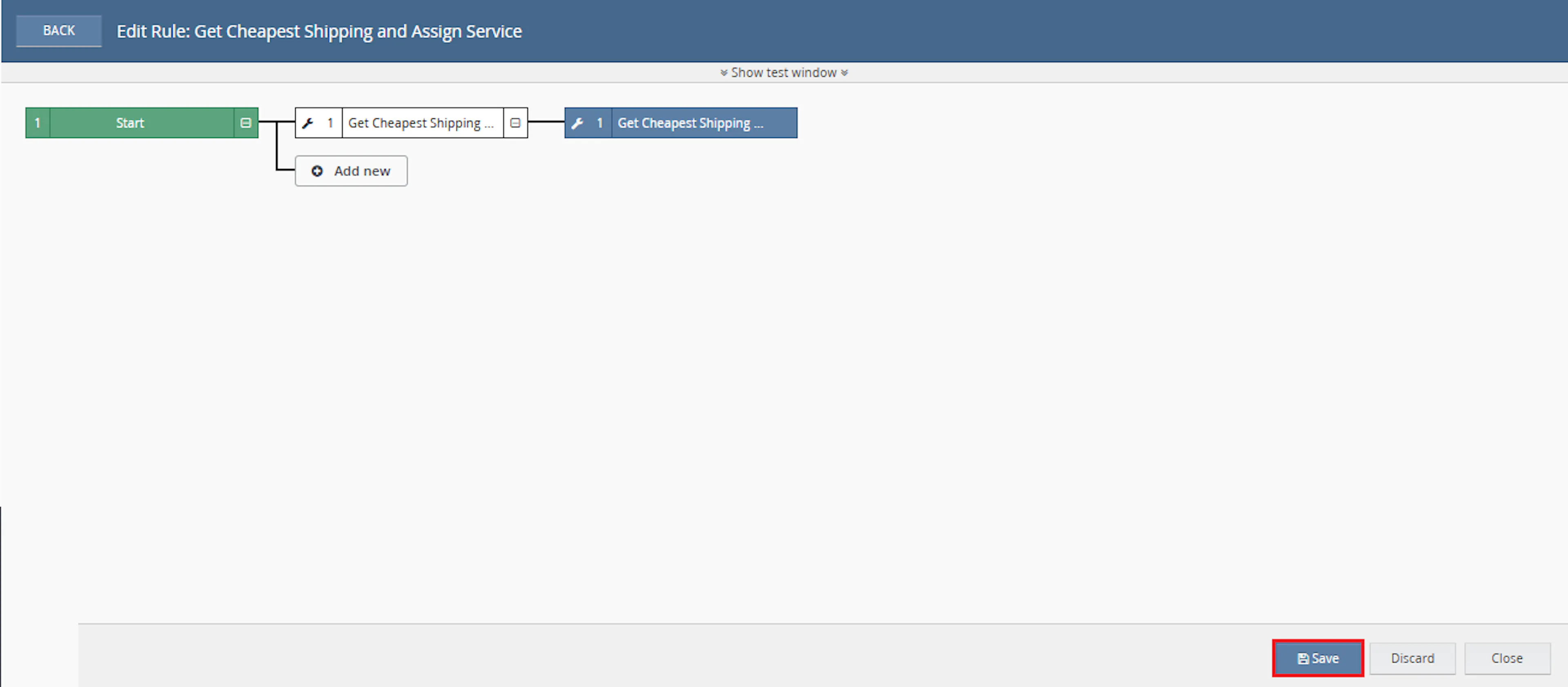
- Verify the condition and action are connected correctly
- Click Save in the bottom-right corner to save the rule
Key Benefits
Manual shipping quote comparison can slow down order processing and lead to inconsistent shipping-service choices. Set Lowest Shipping Quote applies the same quote-selection process to every selected order.
Reduce manual shipping checks, apply suitable shipping services consistently, and make unresolved orders easy to identify.
Reduce Manual Shipping Checks
Removes the need to open each selected order and compare shipping quotes manually.
Improve Shipping Selection
Applies defined service-selection rules and uses the lowest-cost suitable quote where appropriate.
Flag Orders for Review
Assigns the Check Order identifier when no suitable quote is available.
Maintain Shipping Audit Data
Stores previous and new shipping service names and costs as order extended properties.
Save Operational Time
Processes shipping-service updates across multiple selected orders in one macro execution.
Avoid Unsupported Updates
Updates the order shipping method only when a suitable quote has been identified.
Usage of App
Set Lowest Shipping Quote is triggered through the Linnworks Rule Engine to retrieve shipping quotes and update selected orders automatically.
Execution
Trigger via Rule Engine
Call the Get Cheapest Shipping and Assign Service macro through the Rule Engine with the required OrderIds. No additional custom parameter values are required.
Outcome
When the macro runs against an order, it:
Reads the selected order
Retrieves the Linnworks order details for each supplied order ID.
Retrieves shipping integrations
Reads the enabled Linnworks shipping integration accounts.
Requests available quotes
Requests live shipping quotes for the order through the available integrations.
Applies service-selection rules
Uses the preferred service logic where applicable or selects the lowest total-cost quote.
Updates the shipping method
Applies the selected shipping service to the Linnworks order.
Records old and new values
Stores the previous and selected service details and costs as order extended properties.
Flags unresolved orders
Assigns the Check Order identifier when no suitable quote is found.
Input Parameters
Set Lowest Shipping Quote requires the following input:
| Parameter | Required | Description |
|---|---|---|
| OrderIds | Yes | The Linnworks order IDs to process. Supplied automatically through the Rule Engine or selected order context. |
No additional user-entered parameter values are required in the Macro Configuration screen.
The following dependencies and behaviours are built into the macro workflow:
| Setting or Dependency | Description |
|---|---|
| Enabled Shipping Integrations | Used to request available shipping quotes for each selected order. |
| Preferred Service Logic | Applies defined sub-source or service-group selection behaviour where relevant. |
| Lowest Total Cost | Used when no special service rule applies. |
| Check Order Identifier | Applied to orders where no suitable quote is available. |
| Shipping Extended Properties | Store old and new shipping service names and costs. |
Quote Selection Rules
The macro applies the following shipping quote rules:
| Quote or Order Condition | Macro Behaviour |
|---|---|
| Order matches defined preferred-service logic | Prioritises the matching service according to the macro rules. |
| No preferred-service rule applies | Selects the quote with the lowest total cost. |
| Suitable quote is found | Updates the Linnworks shipping method. |
| No suitable quote is found | Leaves the shipping method unchanged and adds the order to the review list. |
| Review orders exist after processing | Creates or uses the Check Order identifier and assigns it to those orders. |
| Shipping service is updated | Saves the old and new service details and costs as order extended properties. |
Important: The exact preferred sub-source and service-group rules are defined within the macro logic and are not configured through the Macro Configuration screen.
Shipping Audit Information
When a shipping method is changed, the macro records audit information against the order.
The documentation describes the following stored values:
| Audit Value | Description |
|---|---|
| Old Shipping Service | The shipping service assigned before the macro update. |
| New Shipping Service | The shipping service selected from the available quotes. |
| Old Shipping Cost | The previous shipping cost associated with the order. |
| New Shipping Cost | The cost returned for the selected shipping quote. |
These values help teams review what changed after the macro selected and applied a new service.
Example Scenario
Assume the required shipping integrations are enabled and the Rule Engine triggers the macro for four selected orders.
| Order | Quote Result | Macro Outcome |
|---|---|---|
| Order A | Multiple valid quotes are returned | Selects the lowest total-cost quote and updates the shipping service. |
| Order B | Matches defined preferred-service logic | Applies the suitable preferred service according to the macro rules. |
| Order C | No suitable quote is returned | Leaves the service unchanged and assigns the Check Order identifier. |
| Order D | Valid quotes are returned and no priority rule applies | Selects the quote with the lowest total cost. |
For updated orders, the previous and new shipping service details are stored as extended properties.
Best Practices
Keep shipping integrations active and review unresolved orders before label generation or dispatch.
Confirm shipping integrations
Ensure the required shipping integration accounts are enabled and able to return quotes.
Run before label generation
Trigger the macro before printing shipping labels so the selected service is applied first.
Use targeted rule conditions
Configure the Rule Engine to process only orders ready for shipping-service assignment.
Review Check Order identifiers
Investigate orders marked for review and resolve quote or shipping-data issues manually.
Review shipping audit values
Use the extended properties to confirm the previous and newly selected services and costs.
Monitor execution logs
Review logs for shipping quote responses, selected services, unresolved orders, and API errors.
FAQ
How is Set Lowest Shipping Quote triggered?
The macro is triggered through the Linnworks Rule Engine. Matching order IDs are supplied through the OrderIds parameter.
Does the macro require additional configuration parameters?
No. The Macro Configuration requires a configuration name and must be enabled, but no additional custom values are entered.
Where do the shipping quotes come from?
The macro retrieves quotes through the enabled Linnworks shipping integration accounts.
Does the macro always choose the cheapest quote?
It selects the lowest total-cost quote when no defined preferred-service or sub-source rule applies.
What happens when a preferred-service rule applies?
The macro prioritises the suitable matching service according to the rules implemented in the macro.
Where are the preferred-service rules configured?
The supplied documentation indicates that the rules are defined within the macro logic rather than entered through Macro Configuration.
When is the shipping method updated?
The shipping method is updated only when the macro identifies a suitable quote.
What happens when no suitable quote is found?
The order is left without a shipping-method update and is added to the manual review list.
How are unresolved orders identified?
They receive the Check Order identifier.
What happens if the Check Order identifier does not exist?
The macro creates it before assigning it to unresolved orders.
Does the macro record the previous shipping service?
Yes. The old shipping service is stored as an order extended property.
Does the macro record the new shipping service?
Yes. The newly selected service is also stored as an order extended property.
Are shipping costs recorded?
The documentation states that the old and new shipping costs are stored as extended properties.
Can the macro process multiple orders in one execution?
Yes. It loops through all order IDs supplied through OrderIds.
What should be checked when no quotes are returned?
Confirm that the shipping integrations are enabled, correctly configured, and capable of quoting the selected order.
What should be checked when an order receives the wrong service?
Review the preferred-service logic, the available quotes, and the execution logs for the selected order.
Does the macro create shipping labels?
The supplied documentation describes shipping quote retrieval and shipping-method assignment. It does not state that the macro creates or prints labels.
Legal Information
- Privacy Policy: https://rishvi.co.uk/privacy-policy/
- Terms and Conditions: https://rishvi.co.uk/terms-conditions/
Please review these pages to understand how data is handled and the terms governing the use of this application.
Summary
Set Lowest Shipping Quote automates shipping-service selection for selected Linnworks orders.
Once connected to the Rule Engine, the macro retrieves enabled shipping integrations, requests live quotes, applies preferred-service logic where relevant, and otherwise selects the quote with the lowest total cost.
Orders with a suitable quote are updated automatically, while orders without a valid option are assigned the Check Order identifier for manual review.
Automated quote retrieval
Available shipping quotes are requested automatically through enabled Linnworks integrations.
Consistent service selection
Preferred-service rules are applied where relevant, with lowest-cost selection used as the default behaviour.
Traceable shipping updates
Previous and new shipping service details and costs are stored as order extended properties.
Manual review identification
Orders without a suitable quote receive the Check Order identifier.
For orders that do not receive the expected shipping service, review the Rule Engine and macro logs, confirm that the required shipping integrations are enabled, and check whether the order was assigned the Check Order identifier.