Missing Town & Region Fix
Automatically update selected Linnworks orders when customer delivery or billing address region and town fields are missing.
Overview
Missing Town & Region Fix is an automated address-cleaning solution for Linnworks. It checks selected orders and fills missing Region and Town values in the customer delivery and billing addresses.
Incomplete address information can cause issues during order validation, courier allocation, shipping-label generation, fulfilment, and dispatch. The macro helps reduce these issues by applying a configured fallback region value where required.
When a Region field is empty, the macro applies the configured RegionName value. When a Town field is empty, it uses the relevant address Region value as the Town.
The macro processes only the order IDs supplied through the Linnworks Rule Engine and saves qualifying address corrections back to the order customer information.
Keep selected Linnworks order addresses complete by automatically filling missing Region and Town values.
Who Should Use Missing Town & Region Fix
Warehouse & Fulfilment Teams
Teams preparing orders for picking, packing, label generation, and dispatch can reduce manual address corrections before fulfilment.
Logistics Teams
Logistics teams can improve address completeness before customer details are submitted to courier systems.
Integration Administrators
Administrators configure the default RegionName value, enable the macro, create the Rule Engine action, and monitor execution logs.
Operations Teams
Operations teams benefit from more consistent delivery and billing address information across selected orders.
Key Features
Missing Region Detection
Checks delivery and billing address Region fields and identifies values that are empty.
Configurable Region Value
Uses the RegionName configuration parameter as the fallback value for missing Region fields.
Automatic Town Completion
Fills a missing Town field using the relevant delivery or billing Region value.
Delivery and Billing Support
Reviews both customer delivery and billing address information during processing.
Conditional Customer Updates
Saves customer information only when the order qualifies for correction under the macro logic.
Execution Logging
Records validation, skipped orders, updates, errors, and completion through the macro logger.
How Missing Town & Region Fix Works
Missing Town & Region Fix follows a defined sequence whenever it receives one or more order IDs from the Linnworks Rule Engine.
Step 1: Validate the order IDs
The macro checks whether any order IDs were supplied through the OrderIds parameter. If no IDs are available, it logs the issue and stops.
Step 2: Validate RegionName
The macro checks whether the configured RegionName parameter contains a value. If it is empty, processing stops.
Step 3: Retrieve the Linnworks order
For each selected order ID, the macro retrieves the corresponding order and customer information from Linnworks.
Step 4: Check the delivery address
The delivery Town and Region fields are reviewed to determine whether address correction is required.
Step 5: Check the billing address
The billing Town and Region fields are reviewed using the same validation logic.
Step 6: Apply skip behaviour
Under the documented macro logic, if either the delivery address or billing address already contains both Town and Region, the order is skipped.
Step 7: Fill missing Region values
Empty delivery or billing Region fields are populated with the configured RegionName value.
Step 8: Fill missing Town values
Empty Town fields are populated using the relevant delivery or billing Region value.
Step 9: Update the Linnworks order
The corrected customer information is saved back to the order.
Step 10: Record completion
The macro records validation results, skipped orders, updates, errors, and completion in the execution log.
Configure the Macro
Once the app is installed, you need to create a macro configuration so the system knows which macro to run and which default region value should be applied.
This setup can be adjusted anytime based on your operational requirements.
Steps to Configure
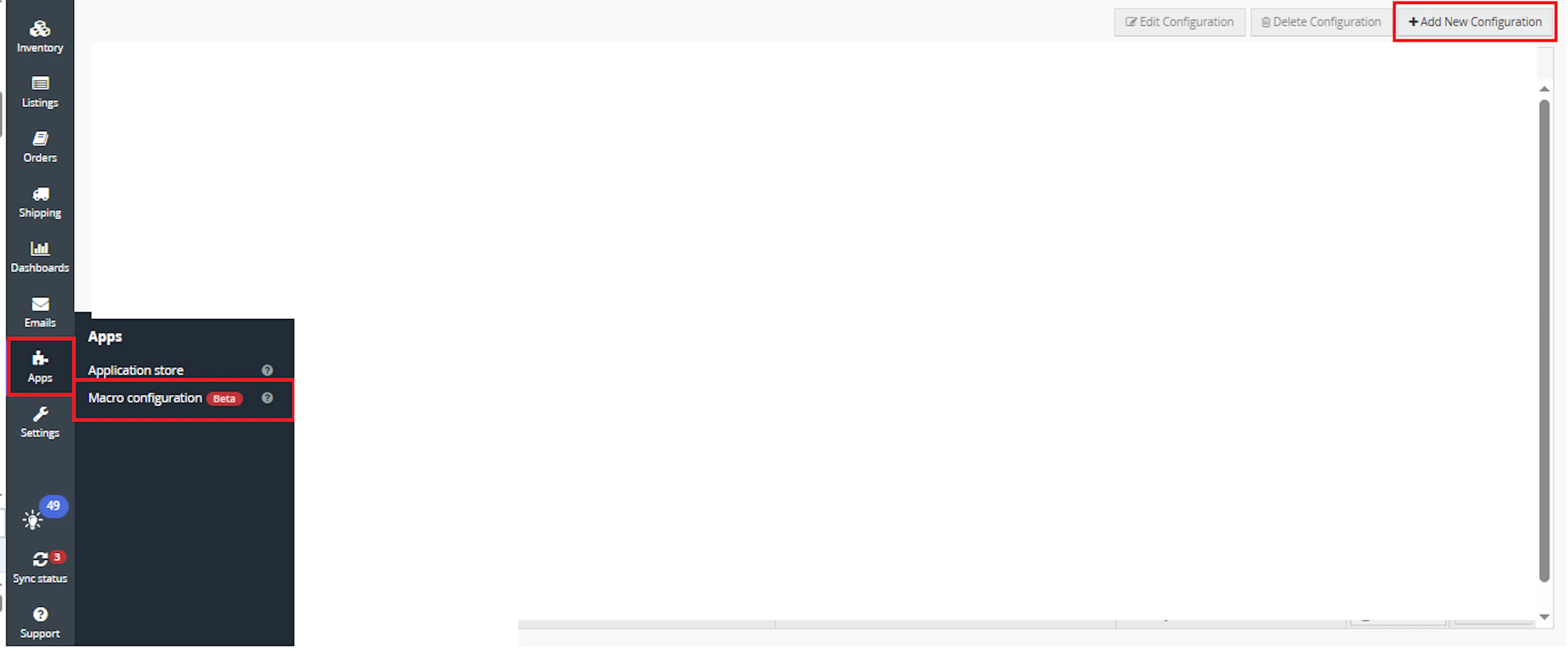
Go to Apps > Macro Configuration and click + Add new configuration.
Select the MissingTownAndRegionFix macro and click Create Configuration.
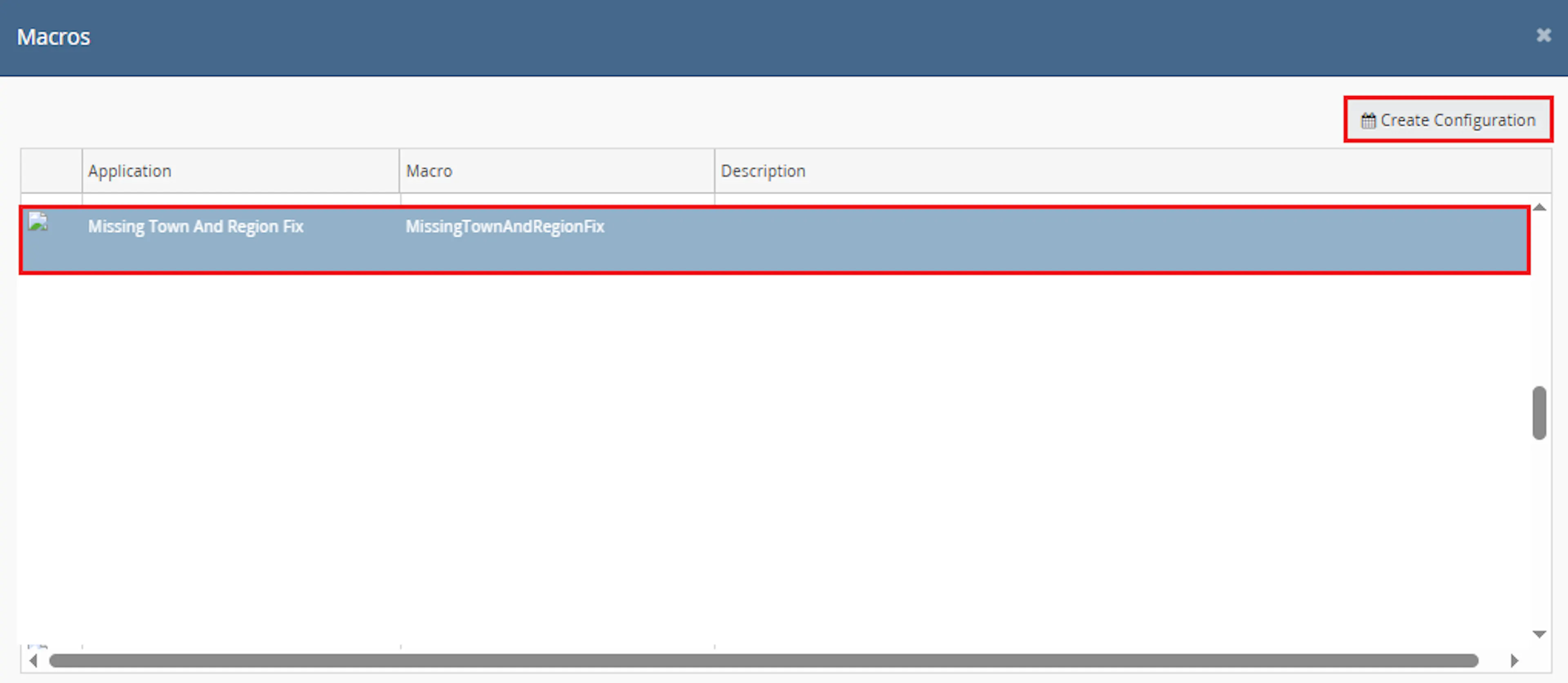
This creates a new configuration where you can define the required region parameter.
In the Macro Configuration screen, add the configuration name and parameter value.
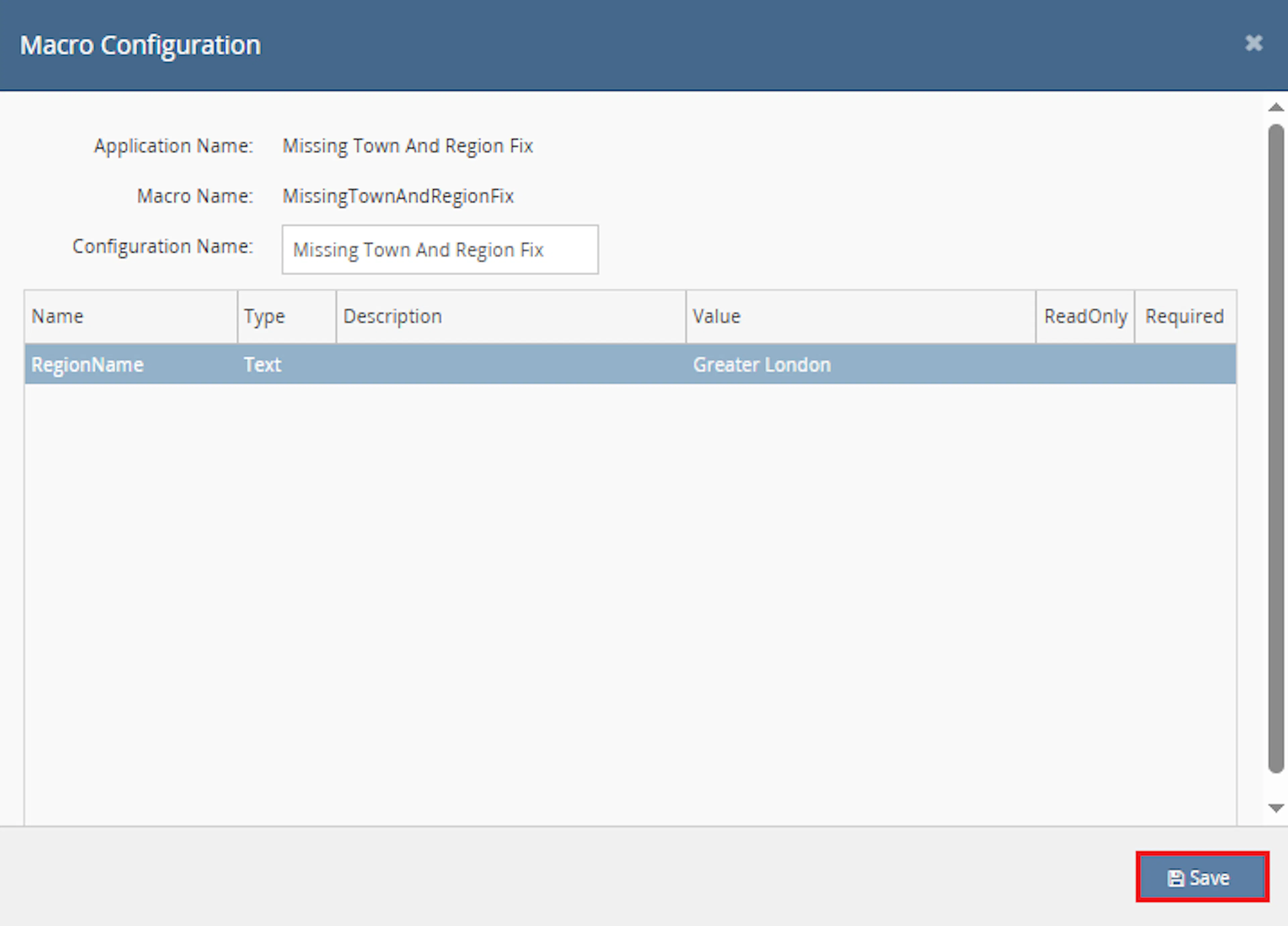
Configure the required parameter:
- RegionName — enter the default region value that should be used when an order address has an empty Region field.
Example:
Configuration Name: Missing Town & Region Fix

RegionName: Greater London
Note: The value entered in RegionName is applied to missing delivery and billing address Region fields when the order qualifies for update.
Make sure to enable the macro to continue with the Rule Engine configuration.

Note: If the macro is not enabled, it will not appear in the Action value list when setting up the rule.
Go to Orders > Rules engine and click + Add new rule.
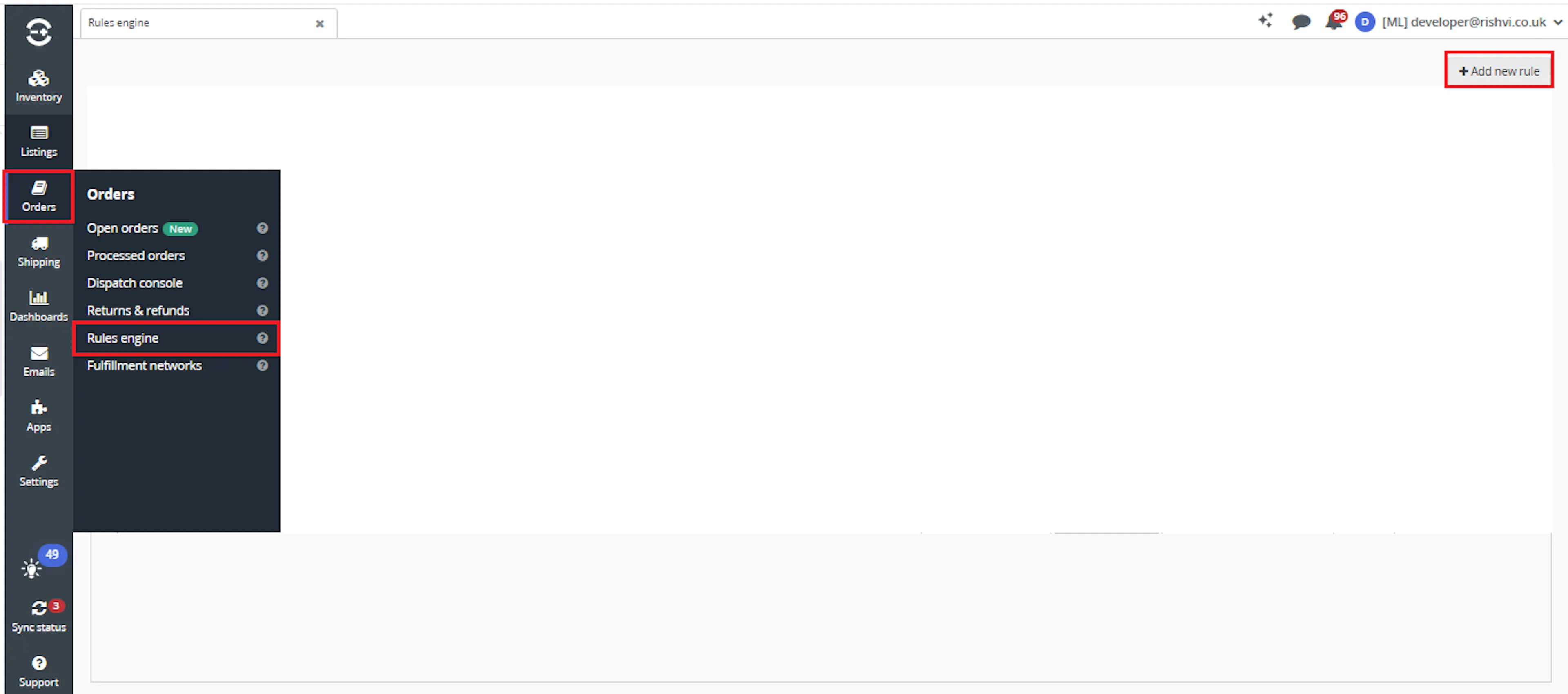
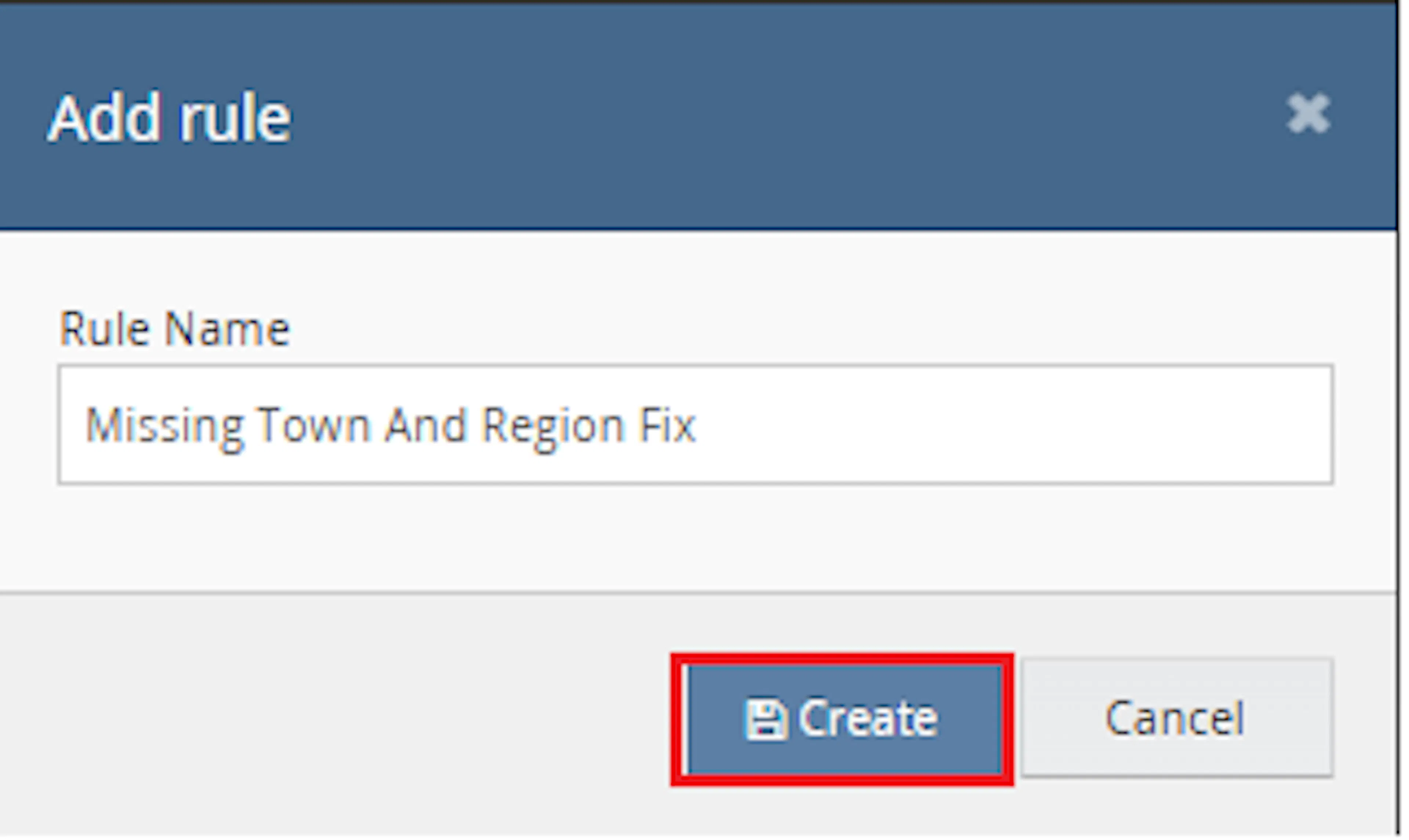
Enter the rule name and click Create.
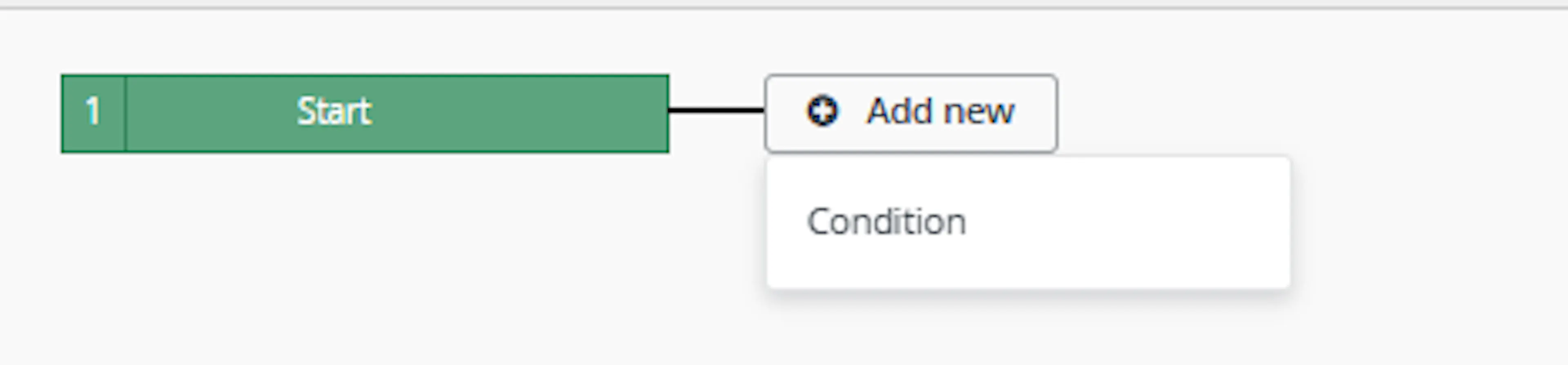
Click Add new, select Condition, set the condition as required, and save it.
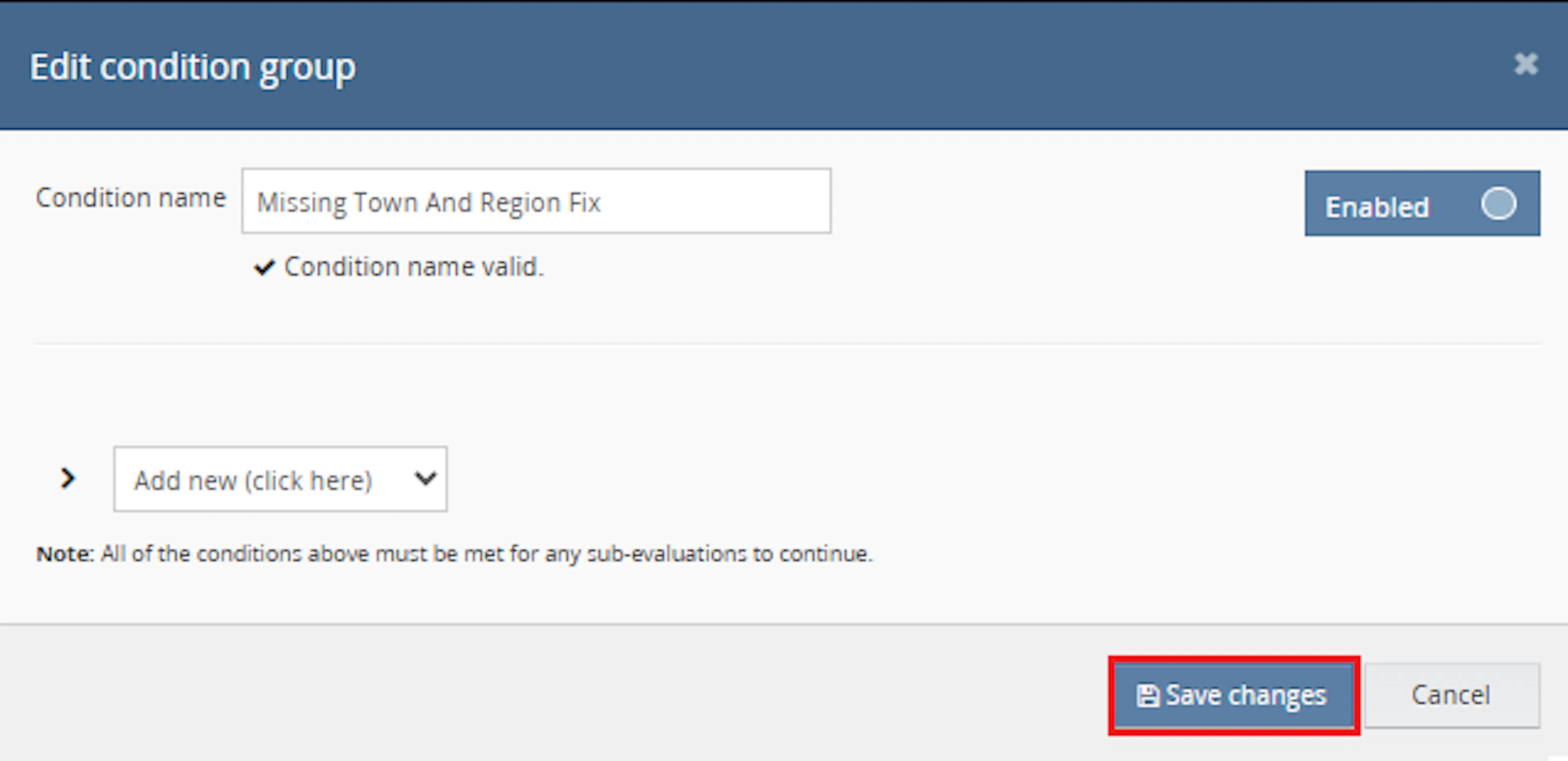
Use a condition that identifies orders where address information should be checked and corrected.
Add the macro action and click Save.

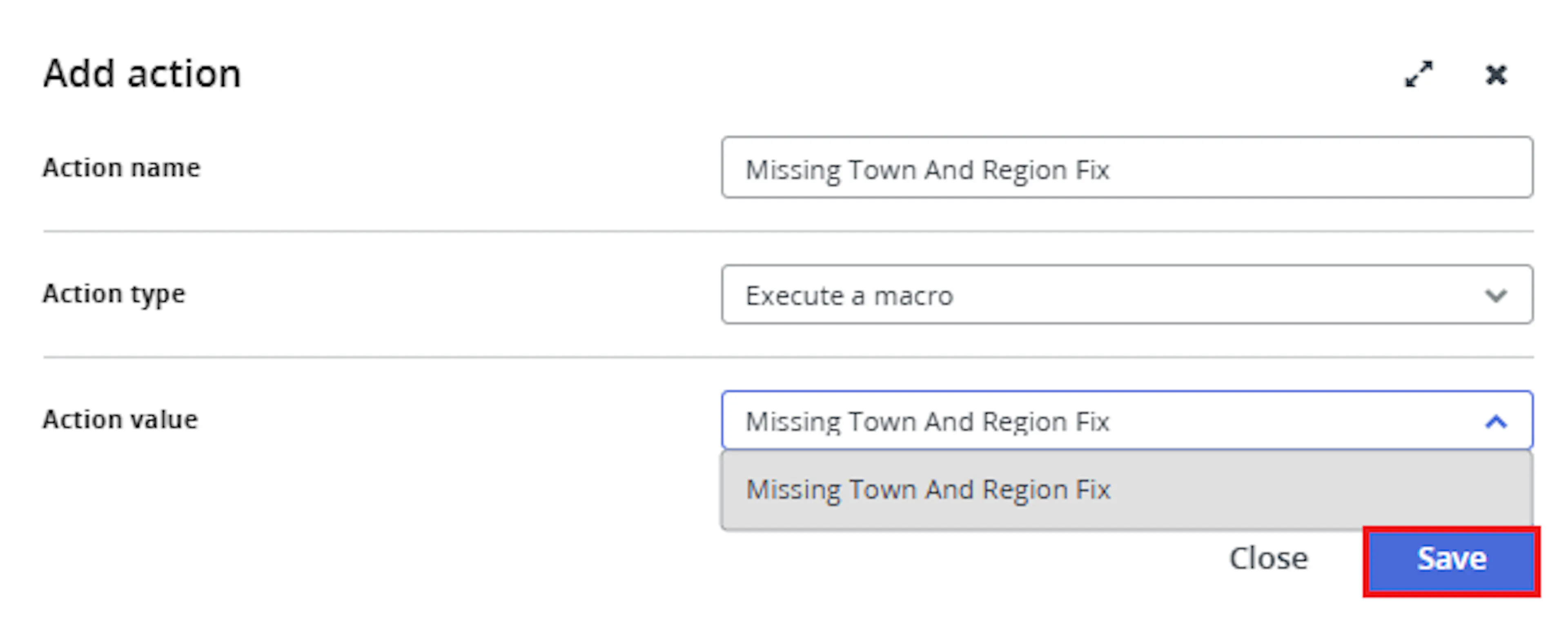
In the Add action window, enter the Action name, for example:
Missing Town And Region Fix
-
Set Action type to:
Execute a macro -
In Action value, select:
Missing Town And Region Fix -
Click Save
Note: If the macro is not enabled, it will not appear in the Action value list when setting up the rule.
Review the saved rule setup.
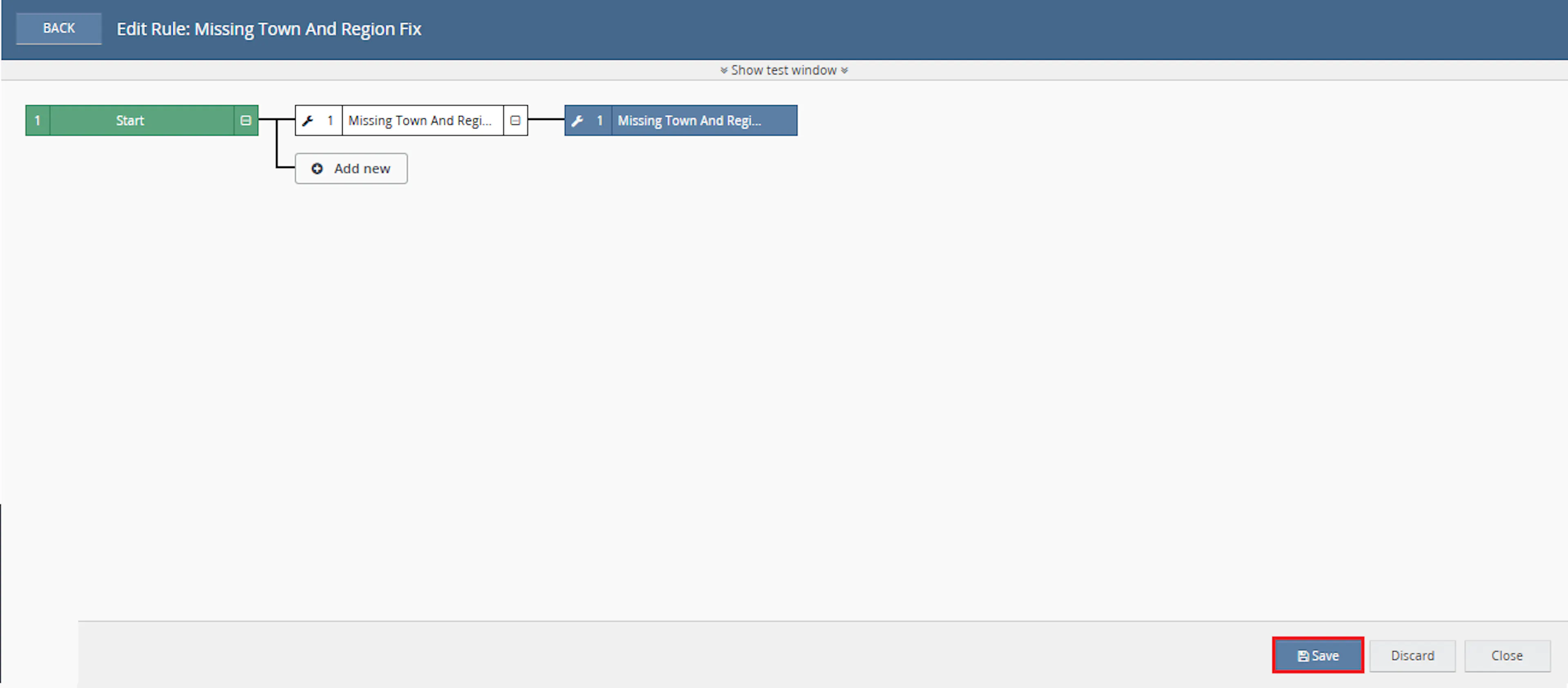
- Verify the condition and action are connected correctly
- Click Save in the bottom-right corner to save the rule
Key Benefits
Missing Region or Town values can delay address validation and downstream order processing. Missing Town & Region Fix applies consistent address-completion rules to selected Linnworks orders.
Reduce manual address checks, improve data completeness, and prepare qualifying orders for smoother courier and fulfilment processing.
Reduce Manual Address Checks
Removes the need to manually inspect selected orders for missing delivery or billing Region and Town values.
Improve Address Data Quality
Helps keep customer delivery and billing address details more complete and consistent.
Support Courier Validation
Reduces address validation issues caused by missing Town or Region information.
Apply a Defined Region
Uses the configured RegionName value whenever a qualifying address has an empty Region.
Fill Missing Town Values
Uses the relevant address Region value when the Town field is empty.
Automate Through Rule Engine
Processes selected orders automatically when they match the configured Linnworks rule.
Usage of App
Missing Town & Region Fix is triggered through the Linnworks Rule Engine to update qualifying customer address fields automatically.
Execution
Trigger via Rule Engine
Call the Missing Town And Region Fix macro through the Rule Engine with the required OrderIds and configured RegionName value.
Outcome
When the macro runs against an order, it:
Validates required inputs
Confirms that OrderIds were supplied and that RegionName contains a value.
Reads customer address information
Retrieves the delivery and billing Town and Region values from the selected order.
Checks whether the order should be skipped
Applies the documented skip logic when either address already contains both Town and Region.
Fills missing Region values
Applies RegionName to qualifying empty delivery and billing Region fields.
Fills missing Town values
Uses the corresponding Region value when the delivery or billing Town is empty.
Updates Linnworks customer information
Saves the corrected customer delivery and billing address details back to the order.
Records execution results
Logs validation results, skipped orders, updates, errors, and completion.
Input Parameters
Missing Town & Region Fix requires the following inputs:
| Parameter | Required | Description |
|---|---|---|
| OrderIds | Yes | The Linnworks order IDs to process. Supplied through the Rule Engine action. |
| RegionName | Yes | The default Region value applied when a qualifying delivery or billing Region field is empty. |
Example values:
| Setting | Example |
|---|---|
| Configuration Name | Missing Town & Region Fix |
| RegionName | Greater London |
Important: RegionName must contain a value. If it is empty, the macro logs the issue and stops without updating orders.
Address Update Rules
The macro applies the following address-completion rules:
| Address Condition | Macro Behaviour |
|---|---|
| Delivery Region is empty | Applies RegionName when the order qualifies for update. |
| Delivery Town is empty | Uses the delivery Region value. |
| Billing Region is empty | Applies RegionName when the order qualifies for update. |
| Billing Town is empty | Uses the billing Region value. |
| Delivery Town and Region are both populated | The documented macro logic marks the order to be skipped. |
| Billing Town and Region are both populated | The documented macro logic also marks the order to be skipped. |
| Either address is marked complete | The order is skipped. |
| Existing field already contains a value | The populated value is not overwritten. |
Example Scenarios
Example 1: Missing Delivery Region and Town
| Field | Before Processing | After Processing |
|---|---|---|
| Delivery Region | Empty | Greater London |
| Delivery Town | Empty | Greater London |
The macro first applies RegionName to the delivery Region and then uses that Region value for the missing Town.
Example 2: Missing Billing Town
| Field | Before Processing | After Processing |
|---|---|---|
| Billing Region | London | London |
| Billing Town | Empty | London |
The existing billing Region is preserved and copied into the empty billing Town field when the order qualifies for processing.
Example 3: Complete Delivery Address
| Field | Value |
|---|---|
| Delivery Region | Greater London |
| Delivery Town | London |
Under the documented skip logic, the order is skipped when the delivery address already contains both Town and Region, even when the billing address may still contain missing values.
Recommended Test Region Values
For testing, use a recognisable placeholder value that makes updated orders easy to identify.
Other example values include:
EnglandLondonGreater LondonDefault RegionUnited Kingdom
Use a value that is suitable for your operational and courier requirements.
Best Practices
Test the macro with orders containing different combinations of missing delivery and billing address values before enabling it at scale.
Choose RegionName carefully
Configure a fallback value that is suitable for your address, shipping-label, and courier requirements.
Use targeted rule conditions
Configure the Rule Engine to pass only orders that may require Town or Region correction.
Test delivery and billing scenarios
Test orders with missing delivery fields, missing billing fields, and combinations of complete and incomplete addresses.
Review the skip behaviour
Confirm that the documented skip logic matches your intended workflow before enabling the macro widely.
Run before label generation
Trigger the macro before courier validation or shipping-label creation.
Monitor execution logs
Review logs for missing inputs, skipped orders, customer-information update failures, and completion.
FAQ
How is Missing Town & Region Fix triggered?
The macro is triggered through the Linnworks Rule Engine. Matching order IDs are supplied automatically through the OrderIds parameter.
What configuration value is required?
The macro requires the RegionName parameter.
What happens when RegionName is empty?
The macro logs that RegionName is required and stops without processing the orders.
Which addresses are checked?
The macro checks both the customer delivery address and billing address.
Which fields are checked?
It checks the Town and Region fields in both address types.
What happens when a Region field is empty?
The configured RegionName value is applied when the order qualifies for correction.
What happens when a Town field is empty?
The macro uses the relevant delivery or billing Region value.
Are existing Region values overwritten?
No. Existing populated Region values are preserved.
Are existing Town values overwritten?
No. Existing populated Town values are preserved.
When is an order skipped?
Under the documented logic, the order is skipped if either the delivery address or billing address already contains both Town and Region.
Can the order be skipped when one address is incomplete?
Yes. Based on the documented behaviour, if the other address is already complete, the order may still be skipped.
Does the macro add an order note?
The supplied documentation describes customer-information updates and execution logging. It does not specify that an order note is added.
Which Linnworks operation saves the changes?
The macro saves the updated customer information using SetOrderCustomerInfo.
Can multiple orders be processed in one run?
Yes. The macro loops through the order IDs supplied through OrderIds.
What happens when no OrderIds are supplied?
The macro logs the issue and stops.
What should be checked when an order is not updated?
Confirm that OrderIds were supplied, RegionName is configured, and the order was not skipped because either delivery or billing already contained both Town and Region.
Legal Information
- Privacy Policy: https://rishvi.co.uk/privacy-policy/
- Terms and Conditions: https://rishvi.co.uk/terms-conditions/
Please review these pages to understand how data is handled and the terms governing the use of this application.
Summary
Missing Town & Region Fix automates the completion of selected Linnworks customer delivery and billing address fields.
Once connected to the Rule Engine, the macro validates OrderIds and RegionName, checks the delivery and billing addresses, fills qualifying missing Region values with RegionName, fills missing Town values from the relevant Region, and saves the updated customer information.
Automatic Region completion
Missing delivery and billing Region values are filled using the configured RegionName.
Automatic Town completion
Missing Town values are filled using the corresponding address Region.
Controlled address updates
Existing populated values are preserved and updates follow the documented skip logic.
Rule Engine automation
Selected orders are processed automatically through the configured Linnworks rule.
For orders that do not update as expected, review the Rule Engine and macro logs, confirm that RegionName has been configured, and check whether the order was skipped because either address already contained both Town and Region.