HyperStock - Mobile Inventory Management for Linnworks
HyperStock connects to Linnworks to manage inventory, stock takes, bin racks, purchase orders, orders, sales dashboards, and team access from mobile and Zebra handheld devices.
Overview
HyperStock is a mobile inventory management application for Linnworks, built by Rishvi. It runs on iOS and Android phones and on Zebra Android handheld scanners, and connects directly to your Linnworks account.
HyperStock gives your team live access to Linnworks stock items, stock locations, purchase orders, and orders from the warehouse floor. Users can search and scan stock, add and edit items, update stock levels and bin racks, carry out stock takes, transfer stock between locations, and raise and receive purchase orders without returning to a desktop.
Alongside day-to-day stock control, HyperStock provides a sales dashboard, open and processed order views, low-stock alerts, inventory analytics, and per-user permissions for your team. Changes are made directly in Linnworks, so your Linnworks account remains the source of truth.
HyperStock is designed to help your team keep stock accurate, act on problems early, and manage Linnworks inventory from any device. We hope this guide helps you get the most from it.
Architecture at a glance
HyperStock App
Used by warehouse staff and managers on phones and Zebra handhelds to search, scan, update stock, manage purchase orders, and view reports.
HyperStock Platform
Manages accounts, subscriptions, team permissions, stock locations, search, low-stock alerts, inventory analytics, and audit records.
Linnworks
Provides stock items, locations, suppliers, purchase orders, and orders. Receives every stock, item, and purchase order change made in HyperStock.
Who Should Use HyperStock
Warehouse & Stock Teams
Teams scan items, update stock levels and bin racks, and complete stock takes directly from the shelf.
Purchasing & Goods-In Teams
Teams raise purchase orders, add items and costs, and move orders through to delivered from a mobile device.
Business Owners & Operations
Owners track open and processed orders, sales, and average order value by channel and location.
Account Owners & Administrators
Account owners connect Linnworks, manage subscriptions, add team members, and control which features and stock locations each user can access.
Key Features
Mobile Inventory Management
Add, edit, duplicate, archive, and delete Linnworks stock items, including images, prices, dimensions, and extended properties.
Scanning & Bin Racks
Scan barcodes with the camera or a Zebra scanner, and assign items to bin racks one at a time or in bulk.
Stock Takes & Stock Counts
Count stock by SKU, bin rack, category, or location, and review stock count discrepancies.
Stock Transfers & Labels
Transfer stock between locations and print stock item labels to Linnworks virtual printers.
Purchase Orders
Create purchase orders, add items and other costs, and move them from Pending to Delivered.
Universal Search
Search stock by SKU, title, barcode, category, or supplier from a single search box.
Orders & Sales Dashboard
Track open and processed orders, sales, average order value, sources, locations, and top products.
Categories, Suppliers & Locations
Manage Linnworks categories, suppliers, and stock locations from the app.
Low-Stock Alerts & Analytics
Receive low-stock push notifications and review stock health, risk, and data quality per location.
Team & Permission Control
Add team members individually or in bulk, and control which features and stock locations each user can access.
Getting Started
Getting started is quick and straightforward. The account owner connects HyperStock to Linnworks once. Team members can then be created from Linnworks users or added manually, and sign in with their own credentials.
Before You Begin
Before you start, please make sure that you have:
- Access to the Linnworks account you want to connect
- Permission to install Linnworks applications
- A supported iOS or Android phone, or a Zebra Android handheld
- An internet connection on the device
Security: To help keep your account safe, please do not share Linnworks passwords, HyperStock passwords, API tokens, or customer information in screenshots, emails, or public documentation.
Connection Steps
Download and open HyperStock
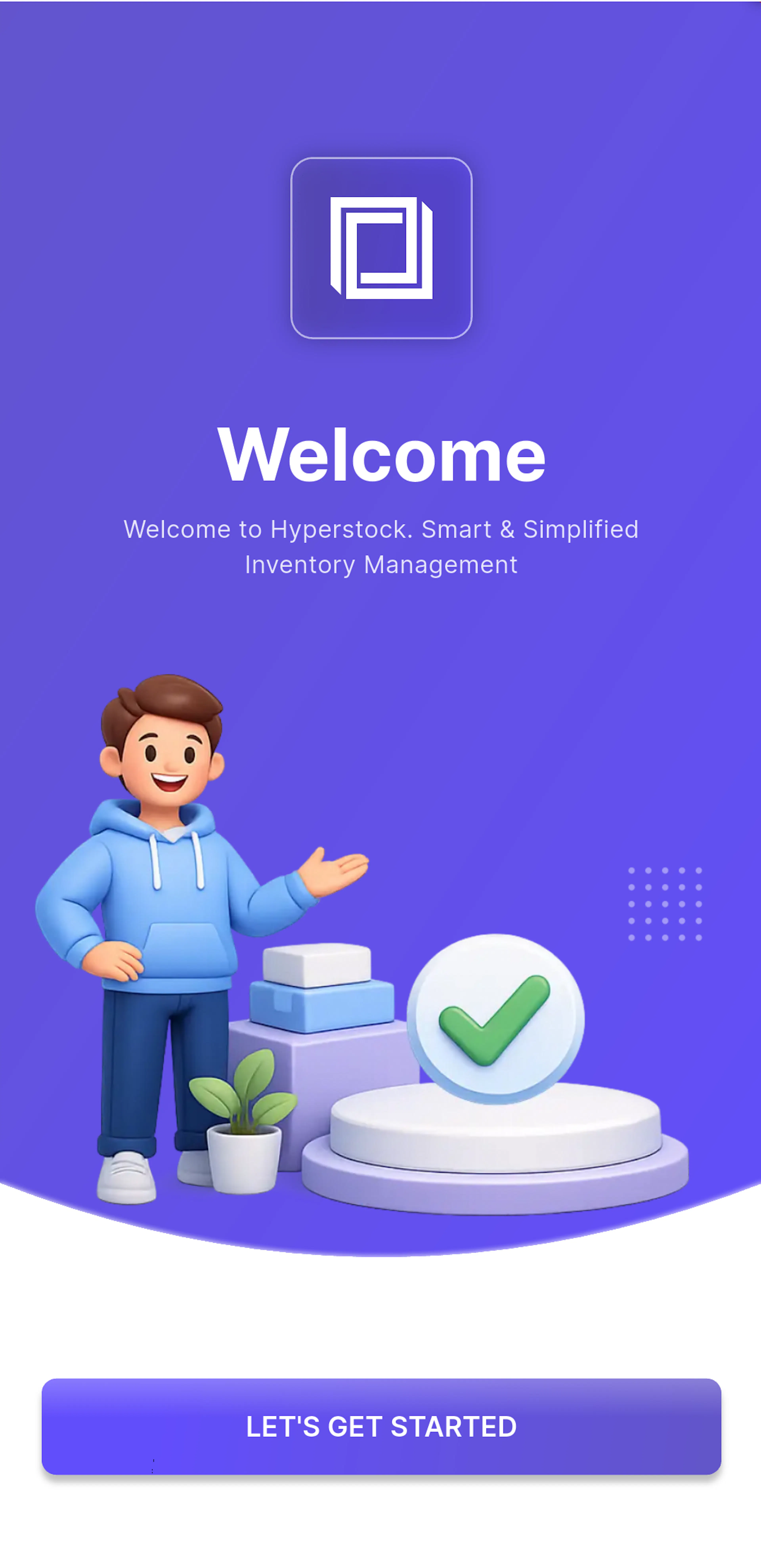
Please download HyperStock from the Apple App Store or Google Play Store. When you open the app for the first time, the Welcome screen appears. Tap LET'S GET STARTED to continue.
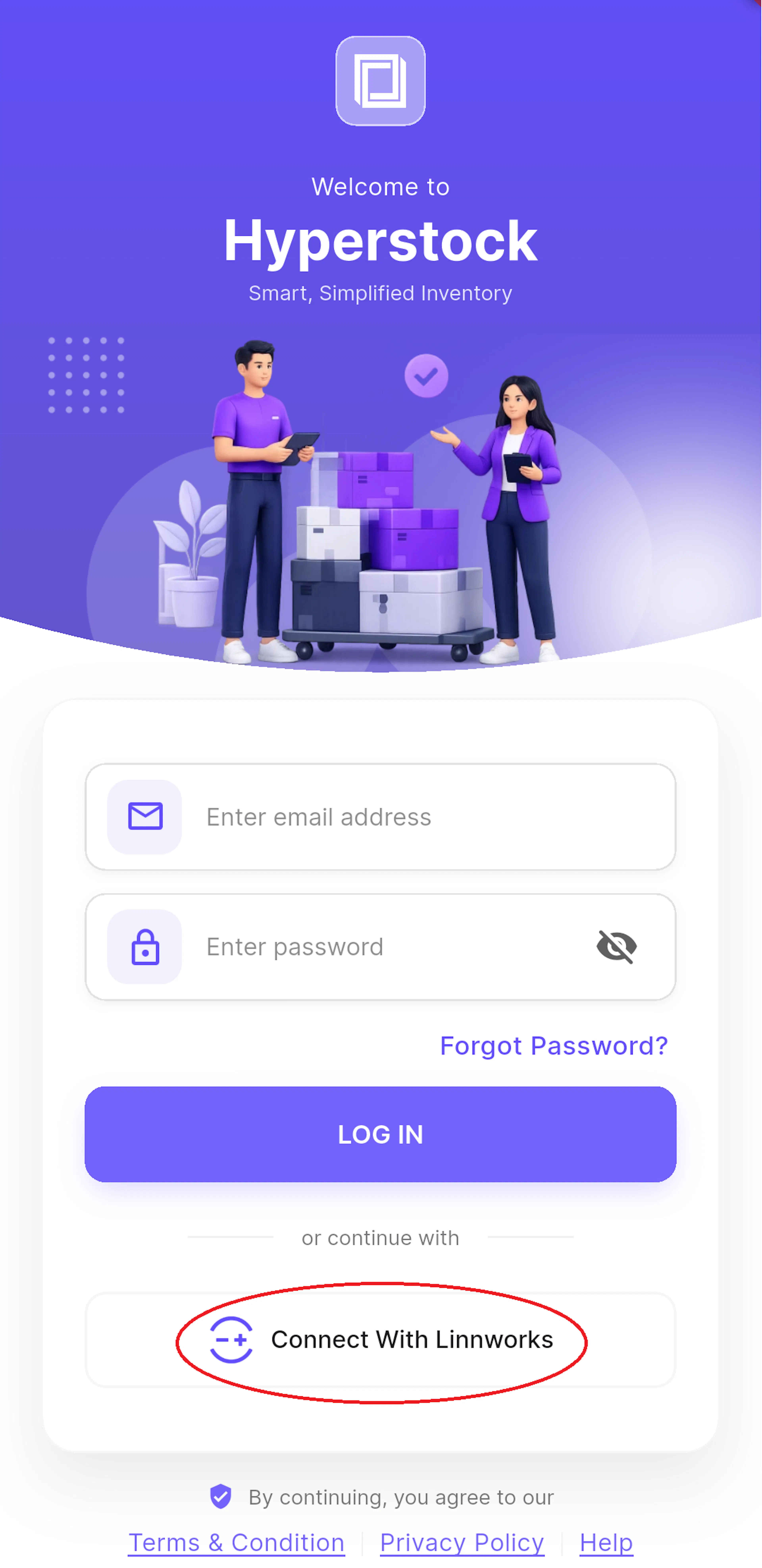
Connect with Linnworks
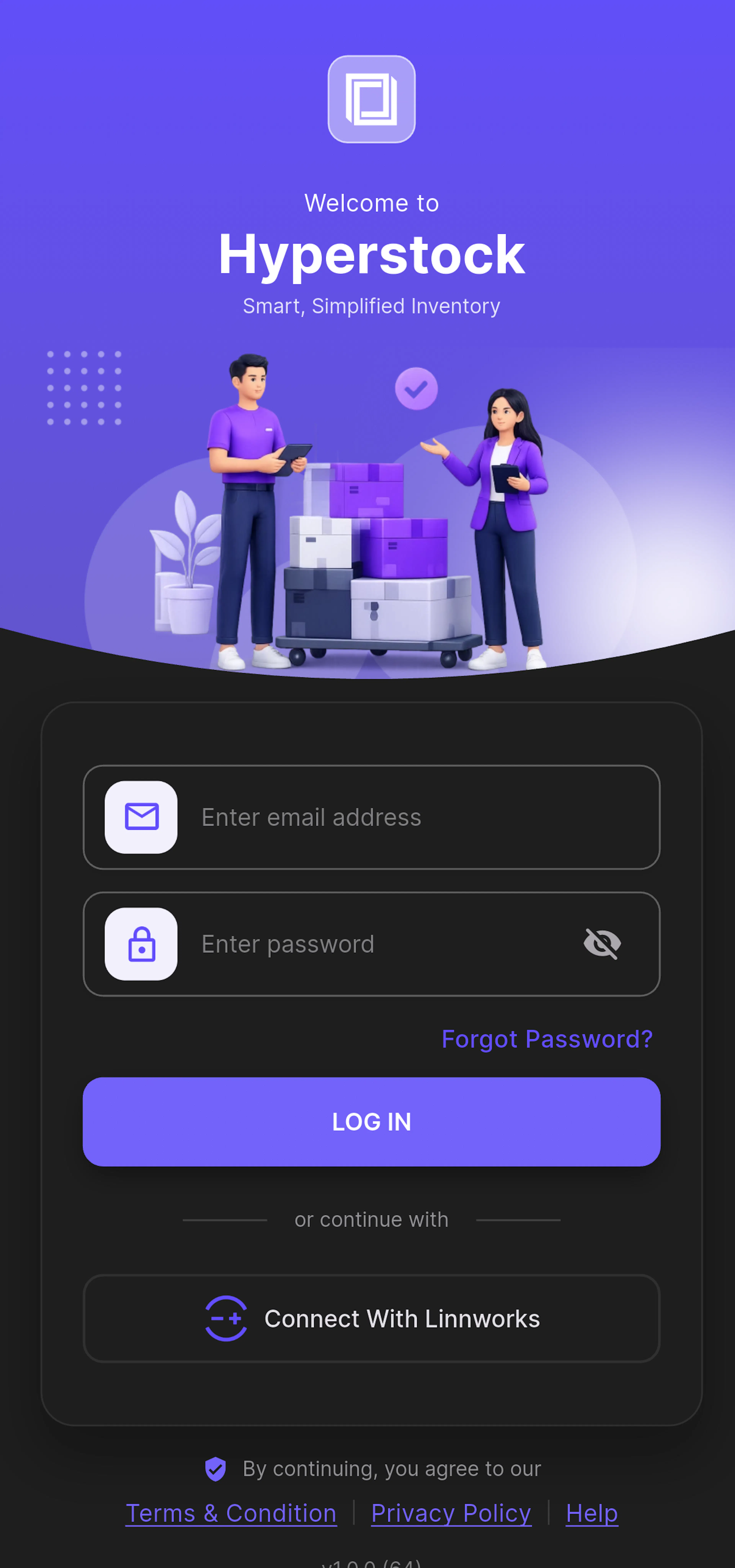
- On the login screen, tap Connect With Linnworks.
- Sign in to Linnworks in the window that opens.
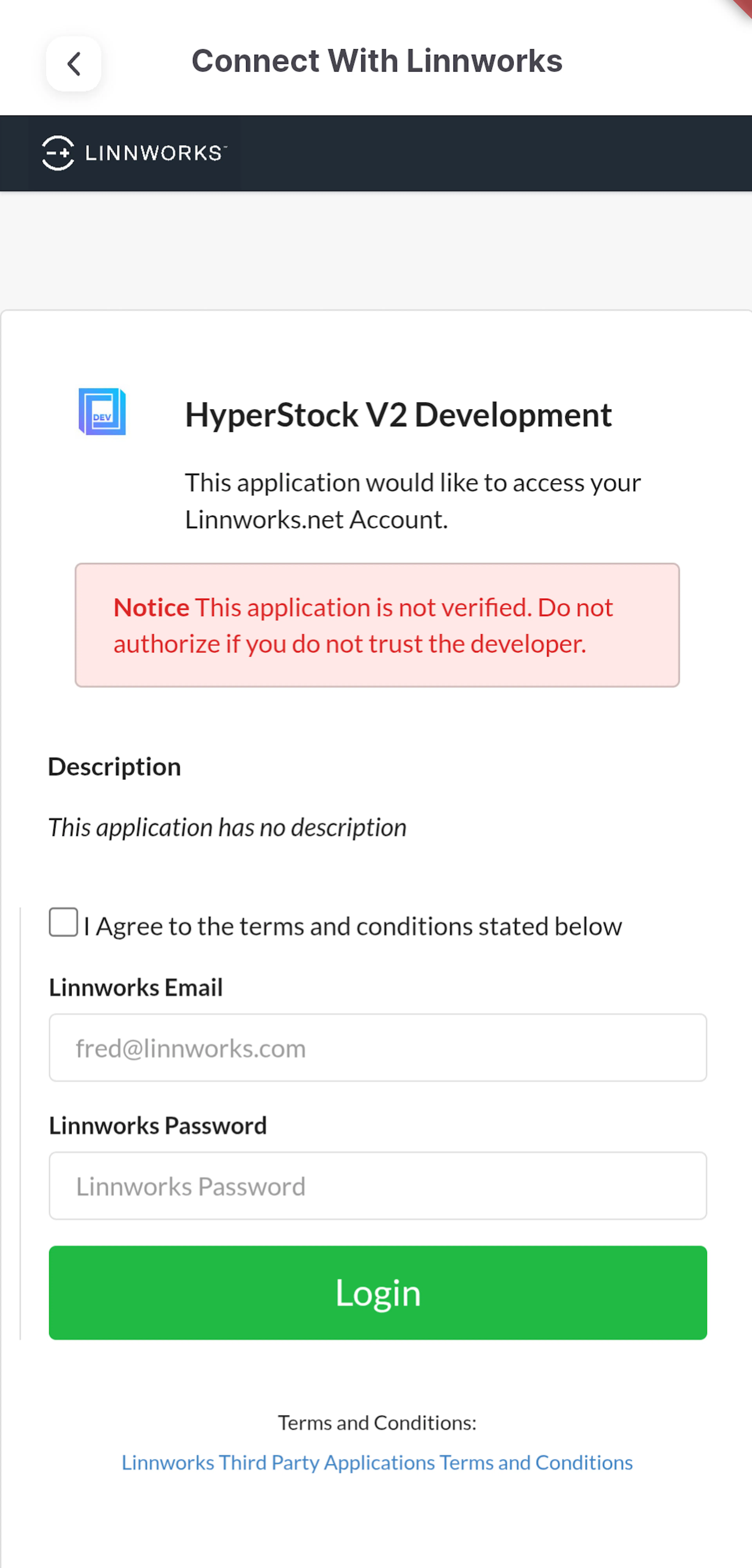
Authorise the application
- Tick I Agree to the terms and conditions, enter your Linnworks email and password, and tap Login.
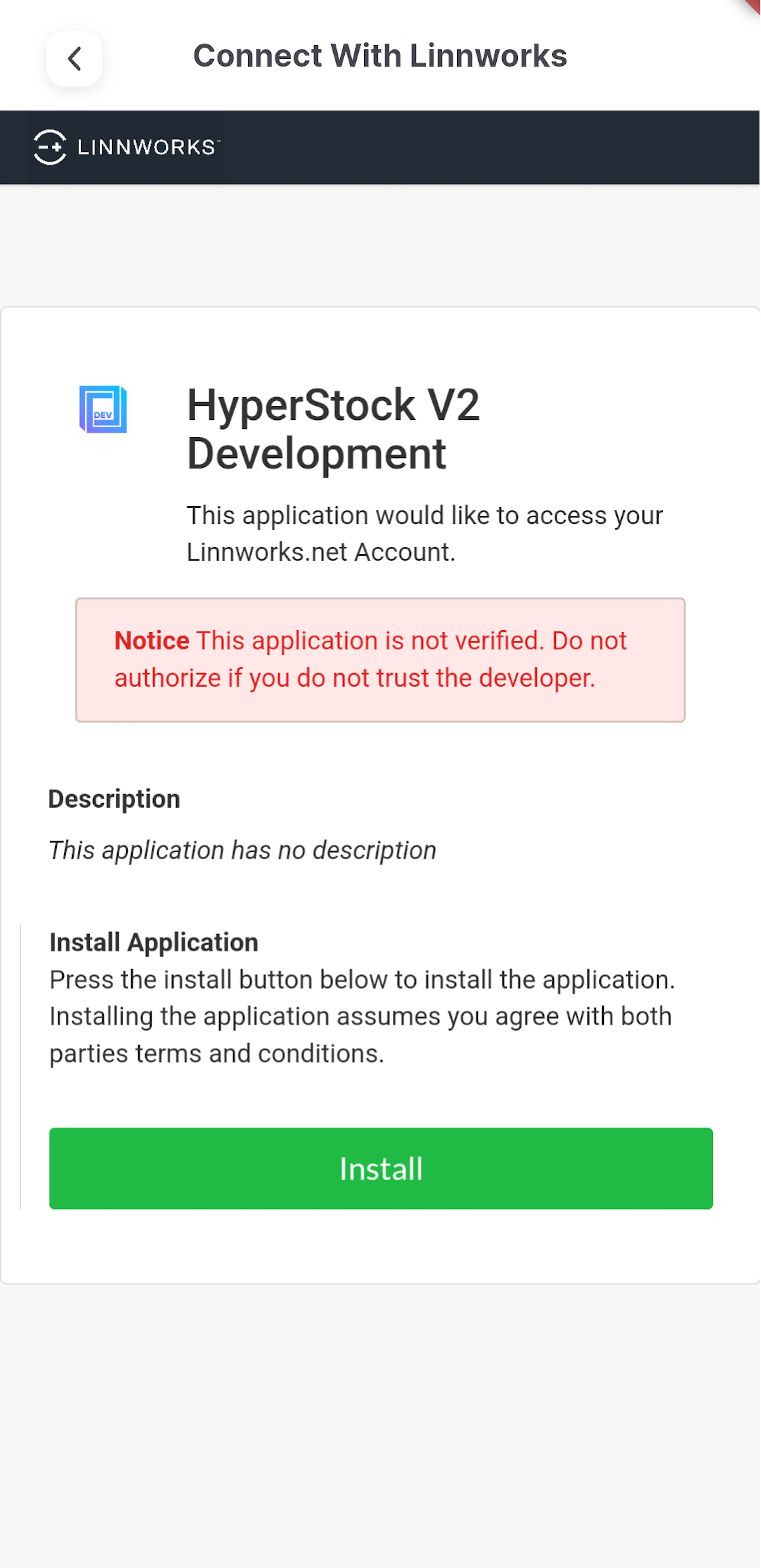
- Please review the permissions requested by HyperStock, then tap Install.
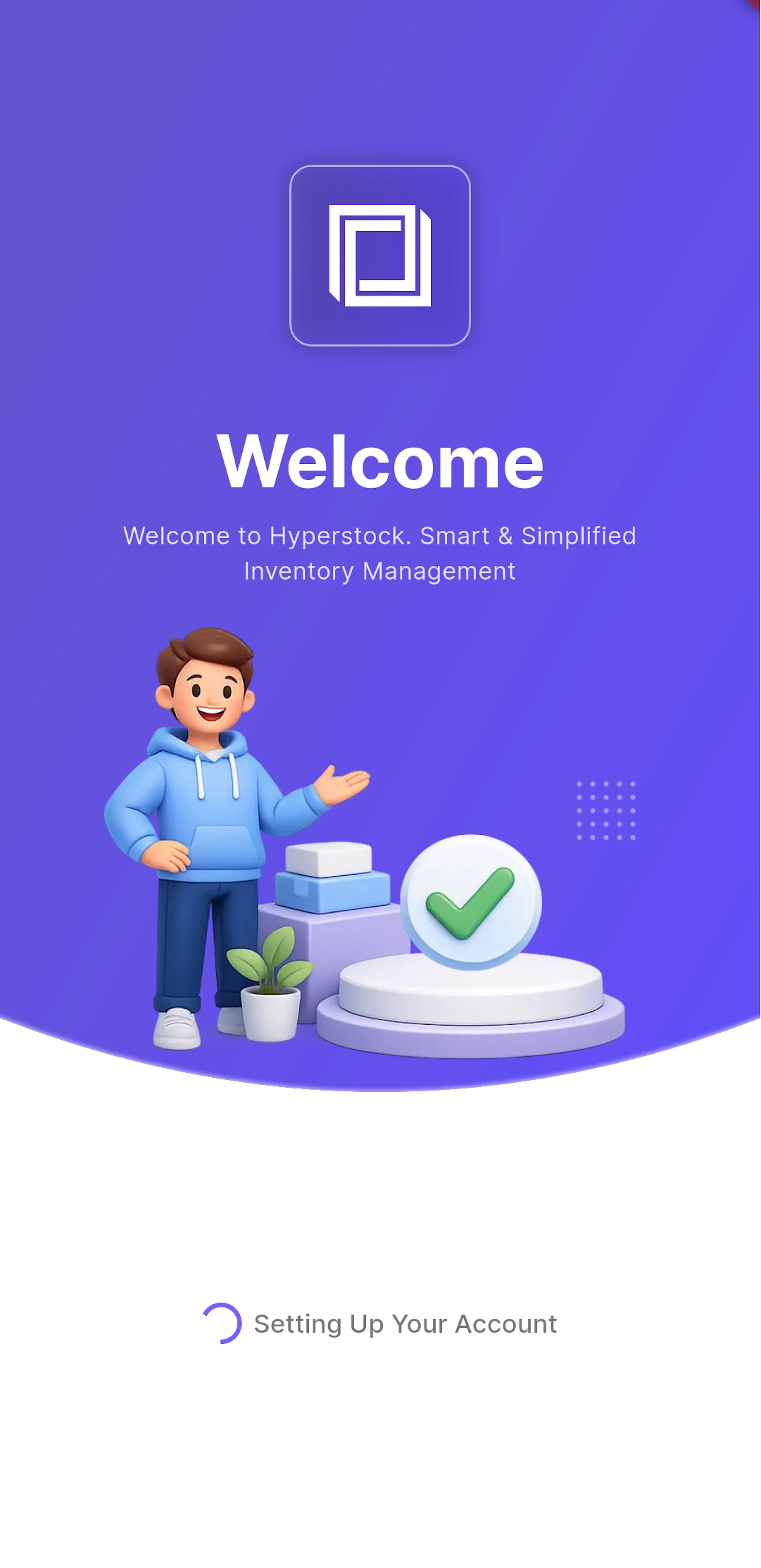
- HyperStock shows Setting Up Your Account. This usually takes only a few moments.
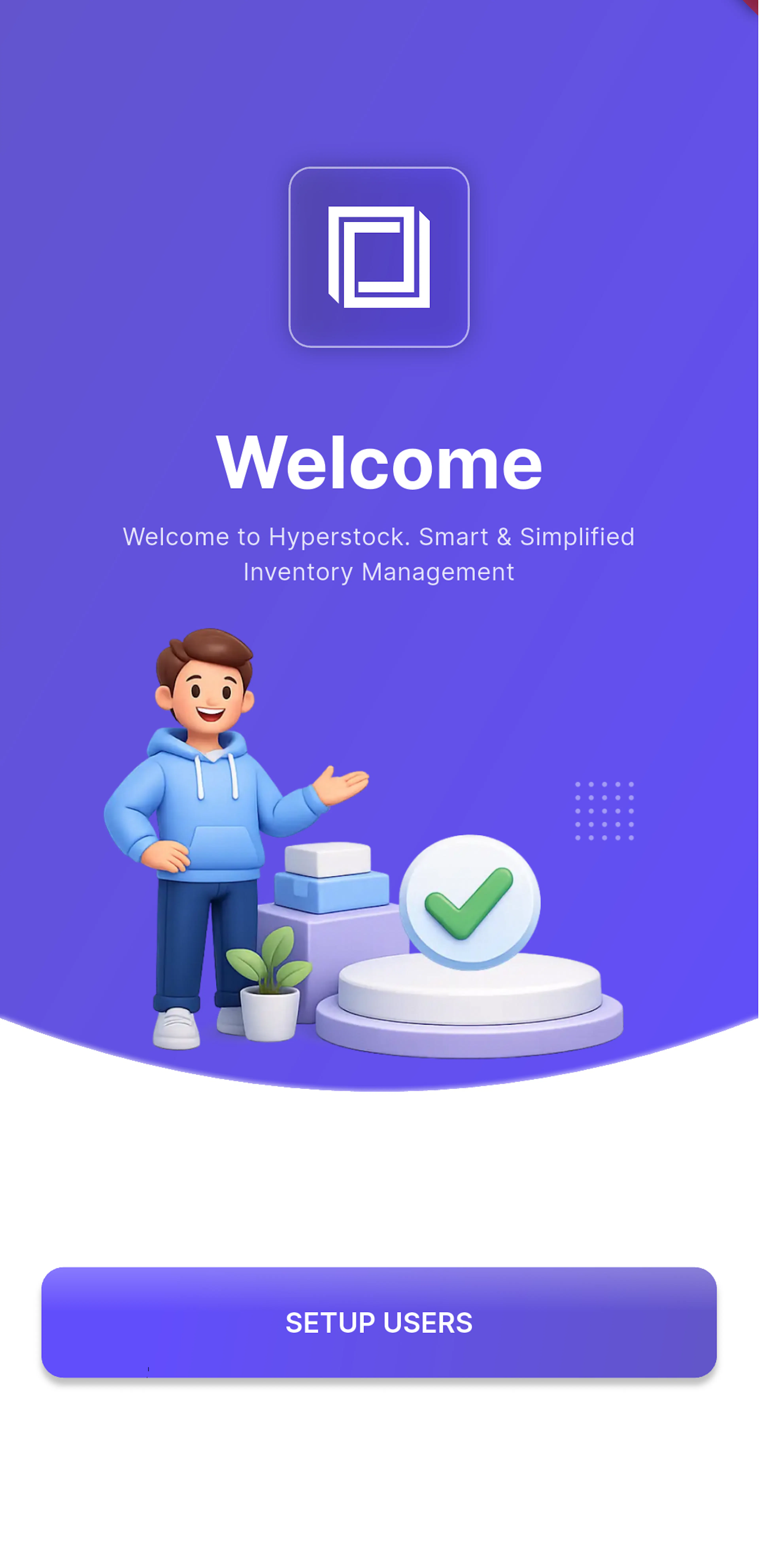
- When your account is ready, tap SETUP USERS.
If you already have an account with this email address, HyperStock shows An account with this email already exists. In that case, simply tap GO TO LOGIN to sign in.
Set up users
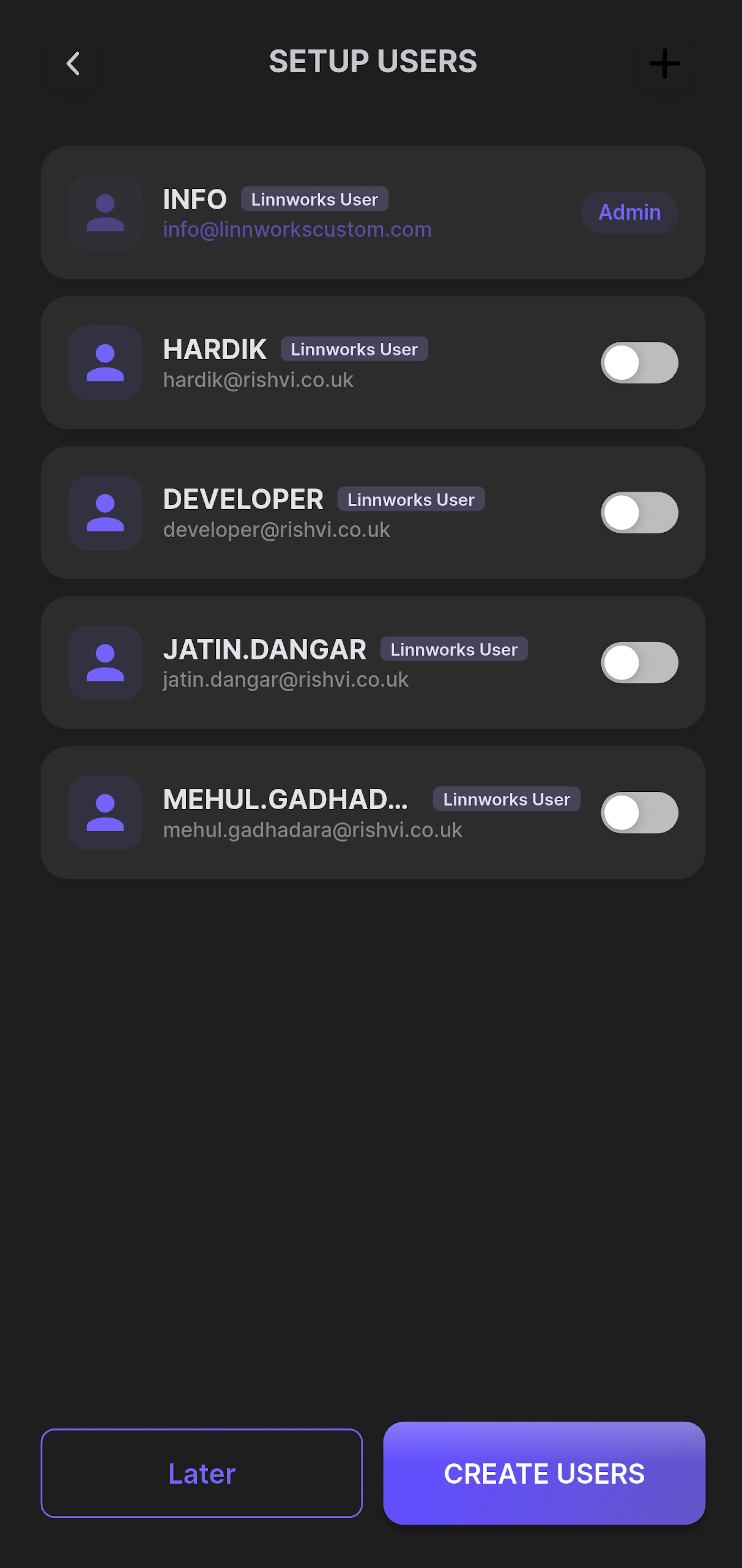
The SETUP USERS screen lists the Linnworks users on your account.
- Switch on each user you would like to give access to HyperStock. Your own account is always on.
- Tap CREATE USERS to create them, or tap Later if you would prefer to do this another time.
Users who are switched off are created as inactive, and you can activate them whenever you are ready.
Sign in
- Please check your inbox for the Welcome email containing your password.
- Enter your email address and password, then tap LOG IN.
- If your login belongs to more than one account, please choose the account you would like to use in the Select Account window.
If you have forgotten your password, tap Forgot Password?, enter your registered email address, and tap SEND LINK. HyperStock emails you a temporary password. Please sign in with it, then change it from My Profile > Reset Password.
Choose your location and plan
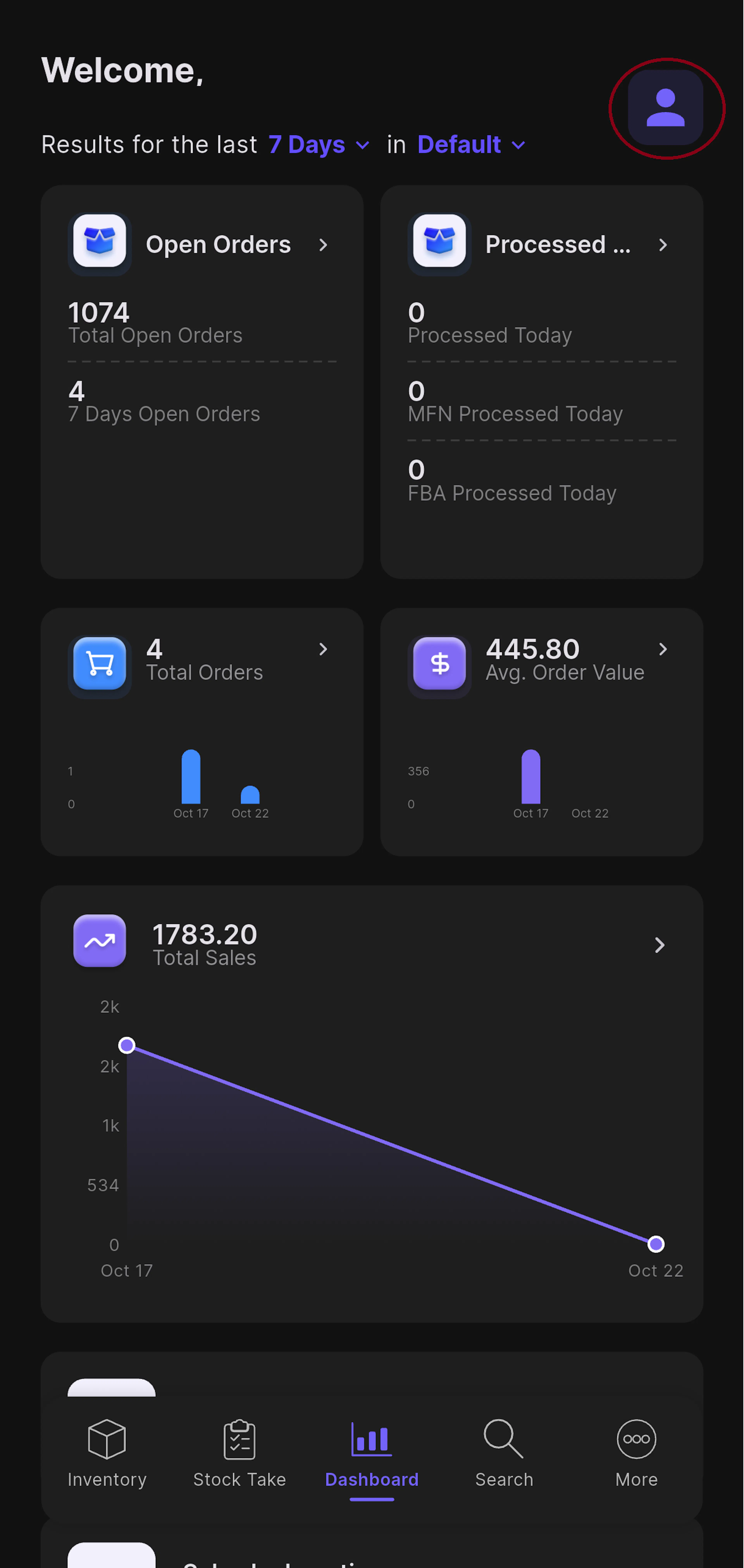
- Tap your avatar to open My Profile, then tap Hyperstock Settings.
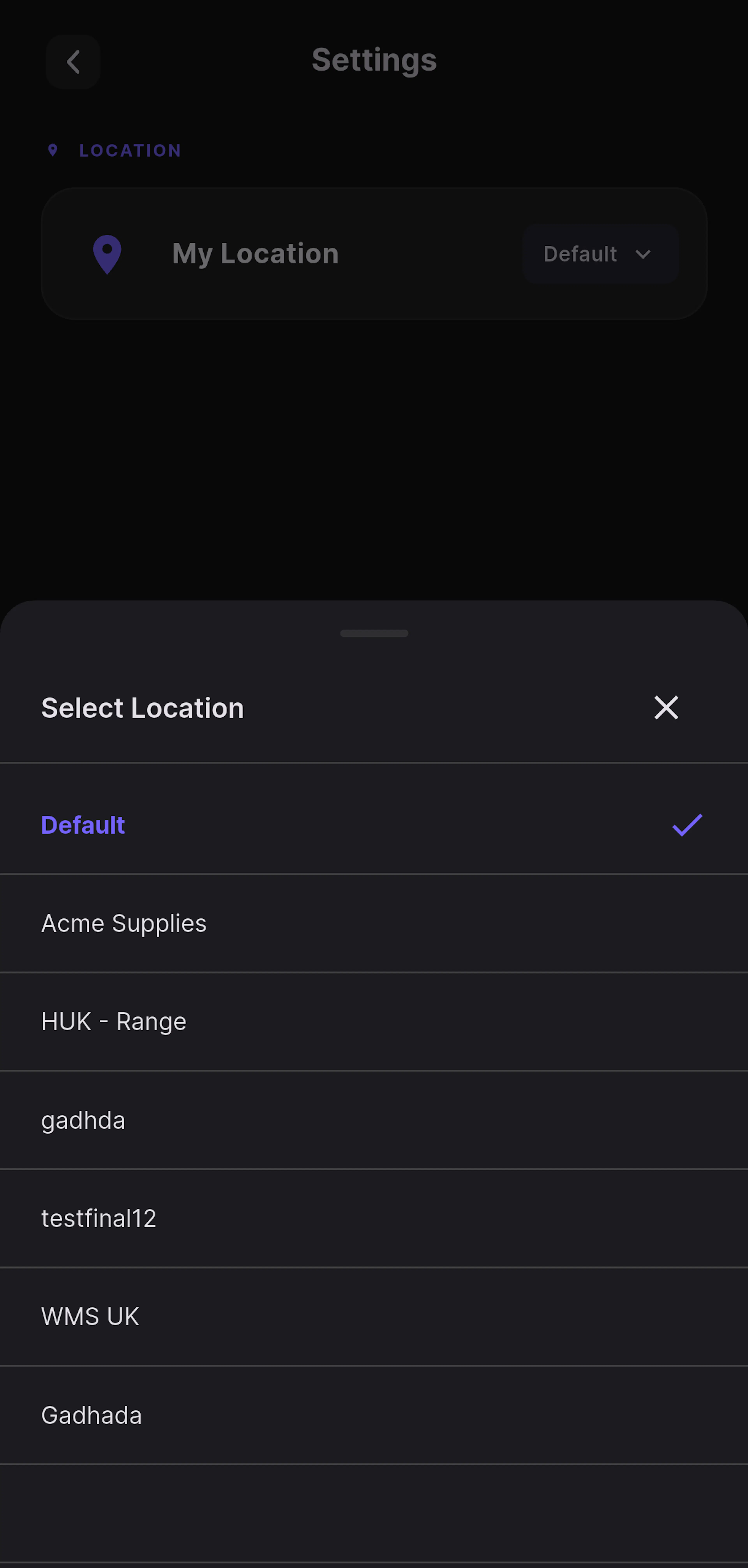
- Choose My Location, the default stock location for the app.
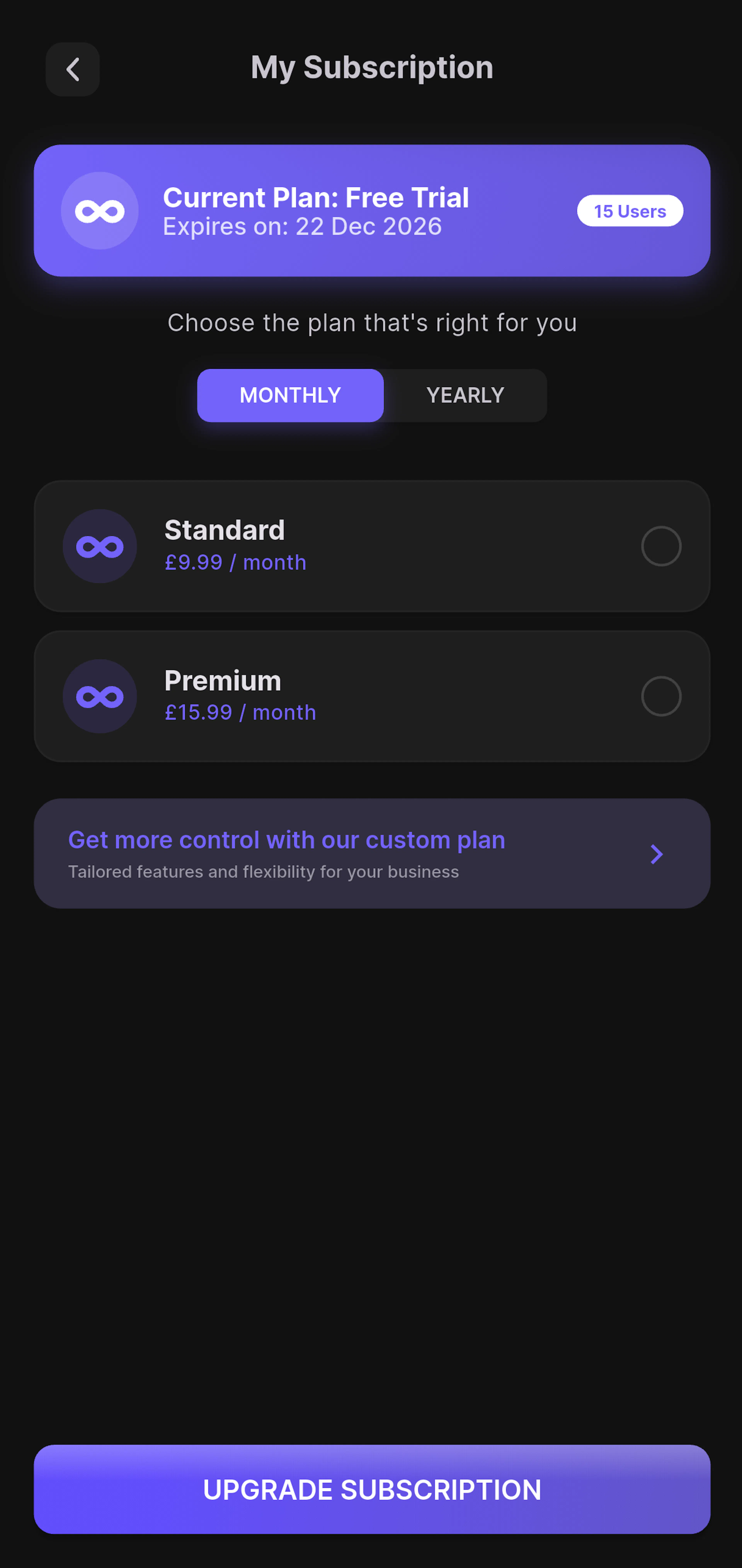
- New accounts start on a free trial so you can explore HyperStock. Before the trial ends, please choose a plan from Your Subscription to keep using paid features.
Verify the Setup
Once HyperStock is connected, we recommend checking the following:
Dashboard Shows Orders
The Dashboard tab shows open and processed order totals from Linnworks.
Locations Are Visible
Every Linnworks stock location you use appears in the location picker.
Stock Is Searchable
Searching or scanning a known SKU returns the correct item and stock level.
Plan Is Active
Your Subscription shows your current plan, expiry date, and number of users.
Navigating the App
HyperStock opens on the Dashboard tab. To keep things simple, you will only see the tabs and actions you have access to.
| Tab | What It Contains |
|---|---|
| Inventory | The inventory list, filters, quick stock updates, and item actions. |
| Stock Take | Scan and manual stock takes, bin rack updates, purchase orders, and stock counts. |
| Dashboard | Orders, sales, average order value, sources, locations, and top products. |
| Search | Universal search across SKU, title, barcode, category, and supplier. |
| More | Categories, locations, and suppliers. |
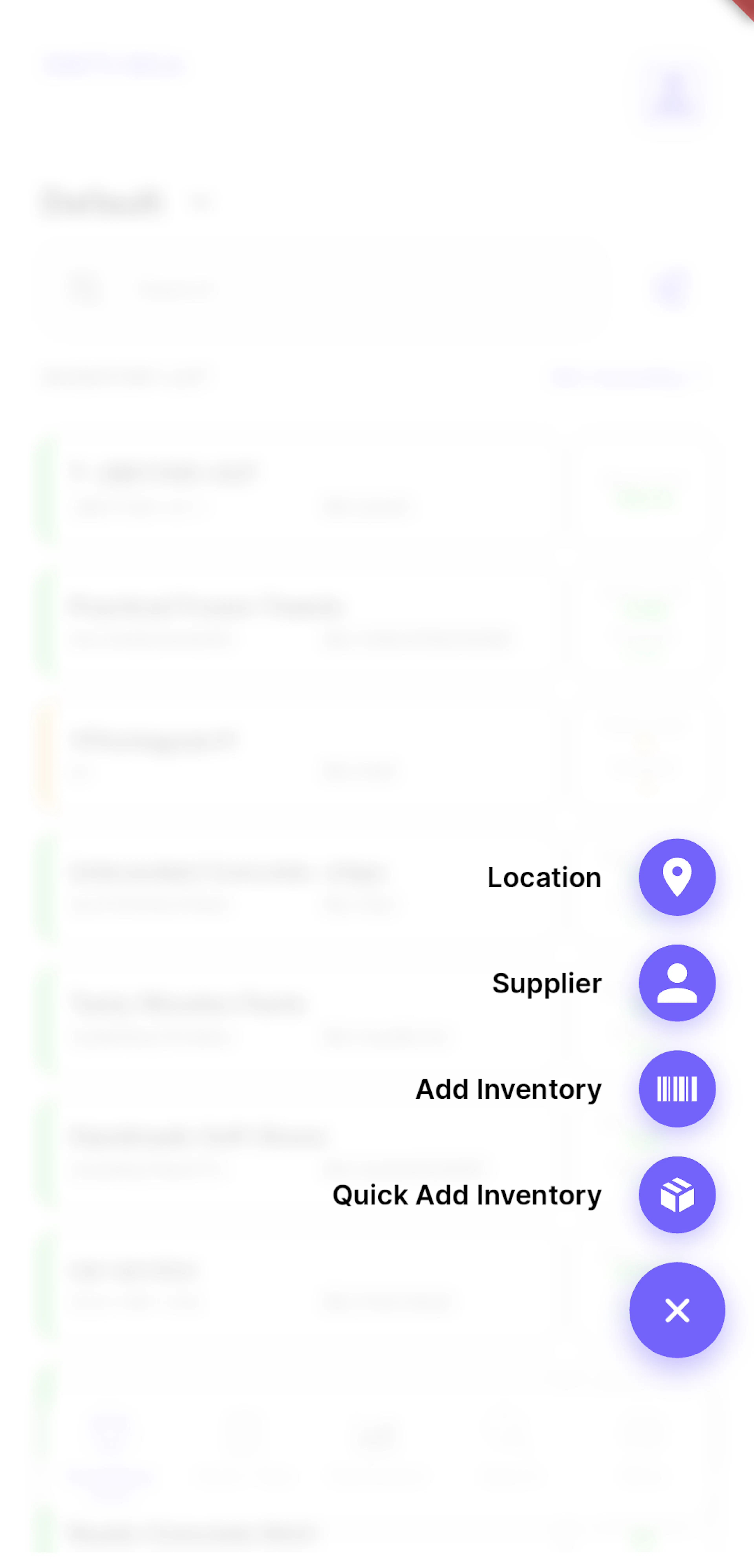
Quick Action button
The floating button on each tab opens Location, Supplier, Category, Add Inventory, or Quick Add Inventory, depending on your permissions.
Profile
Tap your avatar at the top right to open My Profile, settings, subscription, and user management.
Location: The location you choose is used across the app. You only see the stock locations you have been granted. Default shows all locations combined in inventory lists.
Inventory Management
Inventory List
The Inventory tab shows the number of SKUs and a searchable, filterable list of stock items for the selected location. Each item shows its title, SKU, bin rack, stock level, and available quantity.
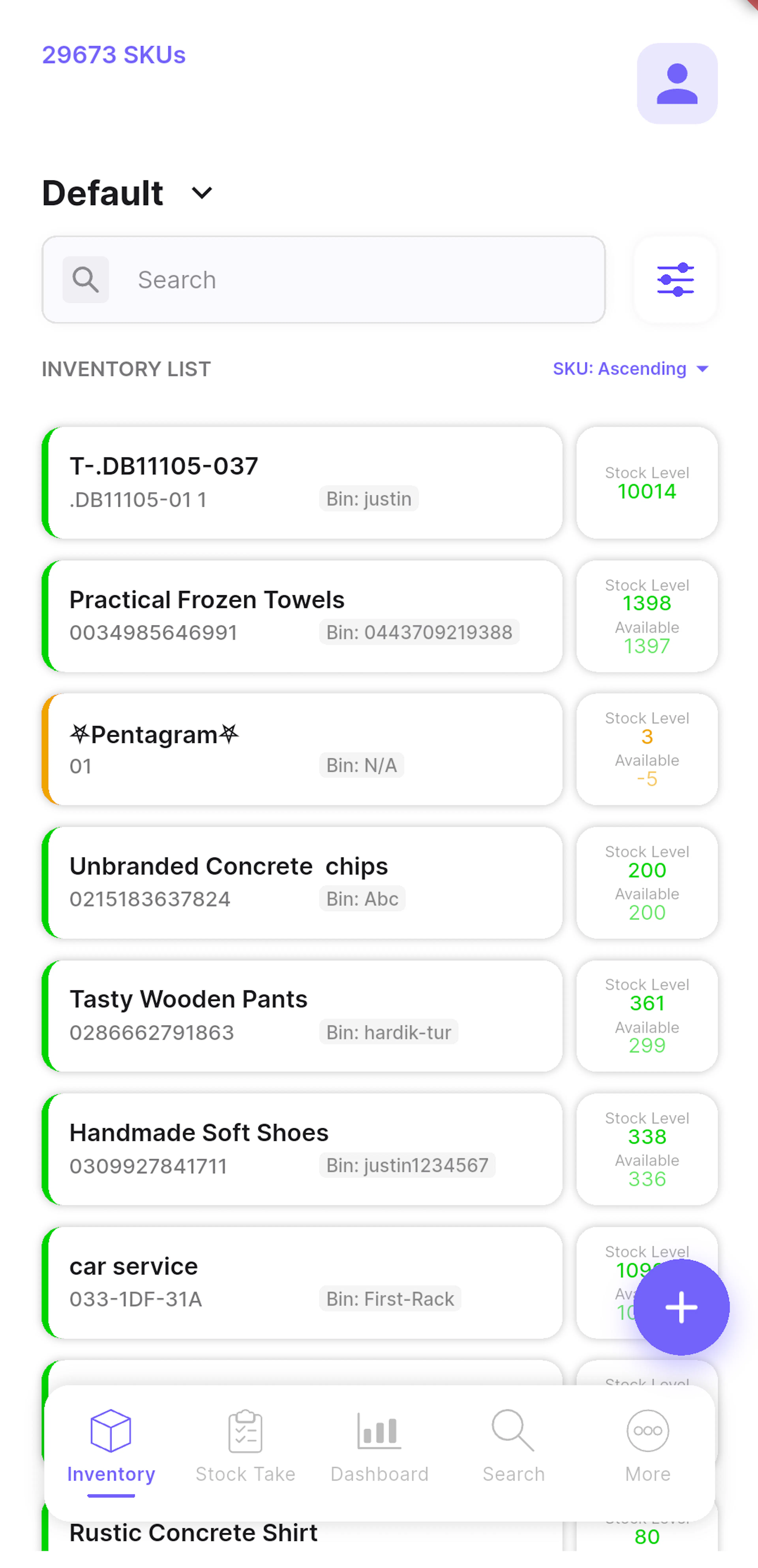
| Colour bar | Meaning |
|---|---|
| Red | Available quantity is 0. |
| Amber | Available quantity is below the minimum level. |
| Grey | Available quantity equals the minimum level. |
| Green | Available quantity is above the minimum level. |
- Tap an item to open Inventory Detail.
- Tap the stock box to INCREASE or DECREASE stock quickly.
- Long-press an item to open its actions menu.
- Sort by SKU: Ascending, Descending, or None.
Please note that batch items need to be updated from the batch list, and composite items cannot be updated directly.
Filters
Tap a chip to apply it:
- Out of Stock
- Non Variation
- Variation Parents
- Untracked Inventory
- Tracked Inventory
- Archived
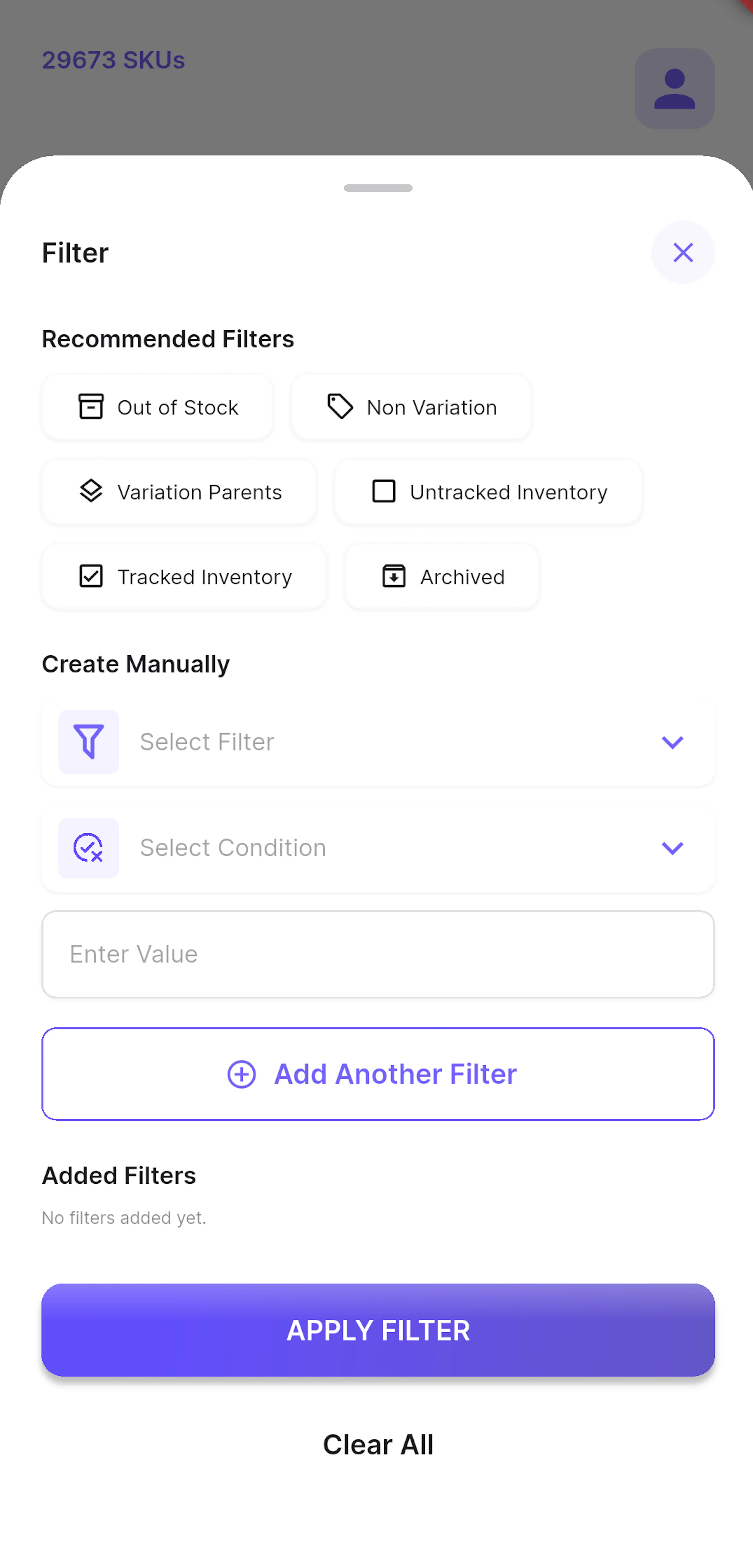
Build your own filter:
- Select Filter - SKU, Title, Barcode, BinRack, Category, StockLevel, or Available.
- Select Condition - Contains, Equals, NotContains, or NotEquals.
- Enter Value.
Tap Add Another Filter to combine filters, then APPLY FILTER. Use Clear All to reset.
Inventory Detail
The detail screen shows the item's title, SKU, category, barcode, stock level, bin rack, available quantity, quantity in open orders, minimum level, quantity due, purchase and retail prices, batch type, packaging group, weight, dimensions, and images.
- Tap the pencil to edit the item.
- Tap Stock Level to increase or decrease stock.
- Tap Stock Audit to see the stock history.
- Use the ⋮ menu for item actions.
Add or Edit an Item
Open Add Inventory from the Quick Action button, or tap the pencil on an item.
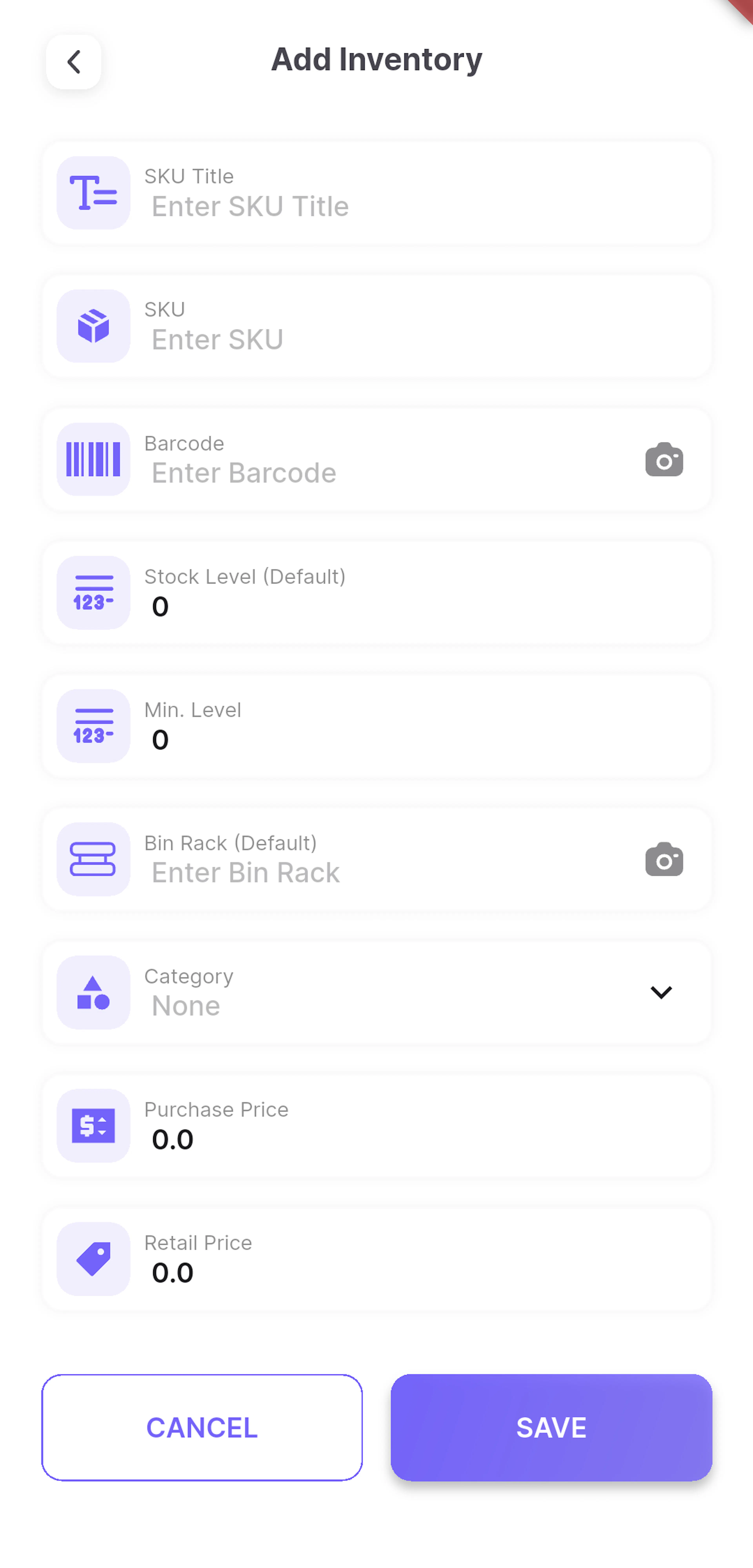
| Field | Required | Notes |
|---|---|---|
| SKU Title | Yes | The item name. |
| SKU | Yes | Must be unique. Changing an existing SKU may affect channel integrations. |
| Barcode | No | Type it or tap the camera icon to scan. |
| Stock Level | No | Opening stock at the selected location. |
| Min. Level | No | The minimum stock level. |
| Bin Rack | No | Type it or tap the camera icon to scan. |
| Category | Yes | Choose from your Linnworks categories. |
| Purchase / Retail Price | No | Up to 2 decimal places. |
| Packaging Group | Yes | Choose from your Linnworks packaging groups. |
| Batch Type | Yes | None, Ordered by sell by date, or Ordered by priority sequence. |
| Width / Height / Depth (cm) | No | Up to 2 decimal places. |
| Weight | No | Up to 2 decimal places. |
| Images | No | Up to 10, from the camera or gallery. |
When you are happy with the details, tap SAVE. HyperStock saves the item, stock level, bin rack, minimum level, batch type, and images to Linnworks for you.
Item Actions
Long-press an item in the inventory list, or use the ⋮ menu on Inventory Detail, to open its actions.
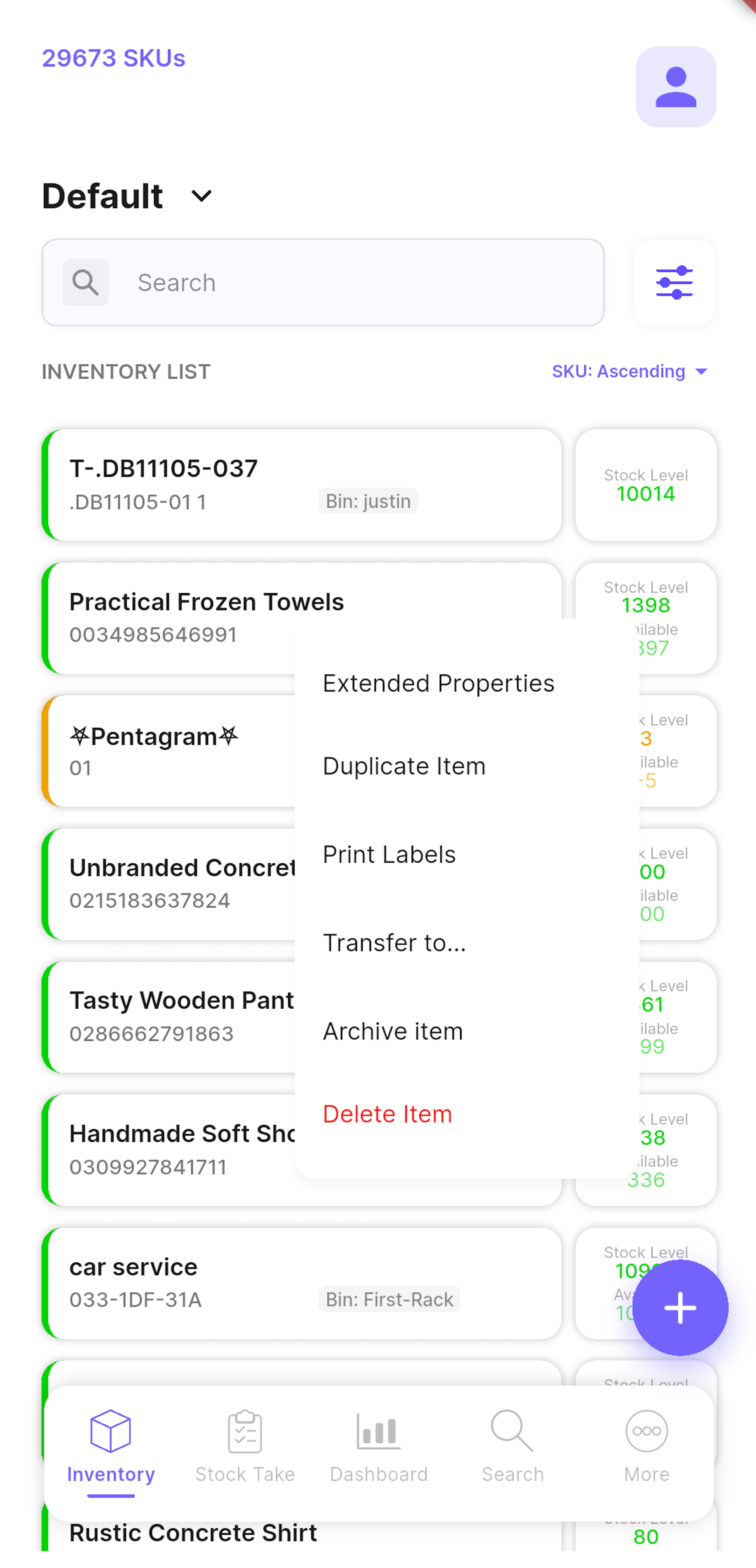
From Inventory Detail, choose Duplicate Item. Enter a new SKU, title, and barcode, choose whether to Copy Image, and tap DUPLICATE.
Choose Print Labels, then select a Stock Item Labels template, a printer, and the No. of Labels. Tap PRINT.
Please make sure your printer is turned on and connected to the Linnworks Virtual Printer Client before printing.
Choose Transfer to..., then select Transfer From, Transfer To, and the Quantity to Transfer. Tap TRANSFER.
HyperStock creates and completes a Linnworks warehouse transfer for you. Please note that stock cannot be transferred directly into a warehouse-managed location.
Choose Extended Properties to view, add, edit, or delete properties. Each property has a name, value, and type: Attribute, Channel, Compatibility, Condition, Fulfilment SKU, Other, Shipping, or StockItem Label.
Tap Stock Audit on the detail screen to see stock changes grouped by date, including stock level, stock value, and the size of each change.
- Archive item hides the item from active stock after confirmation.
- Unarchive Item restores an archived item. Archived items appear with the Archived filter.
- Delete Item permanently deletes the item after confirmation, so please use it with care.
Stock Take
The Stock Take tab groups stock-taking tools into three sections.
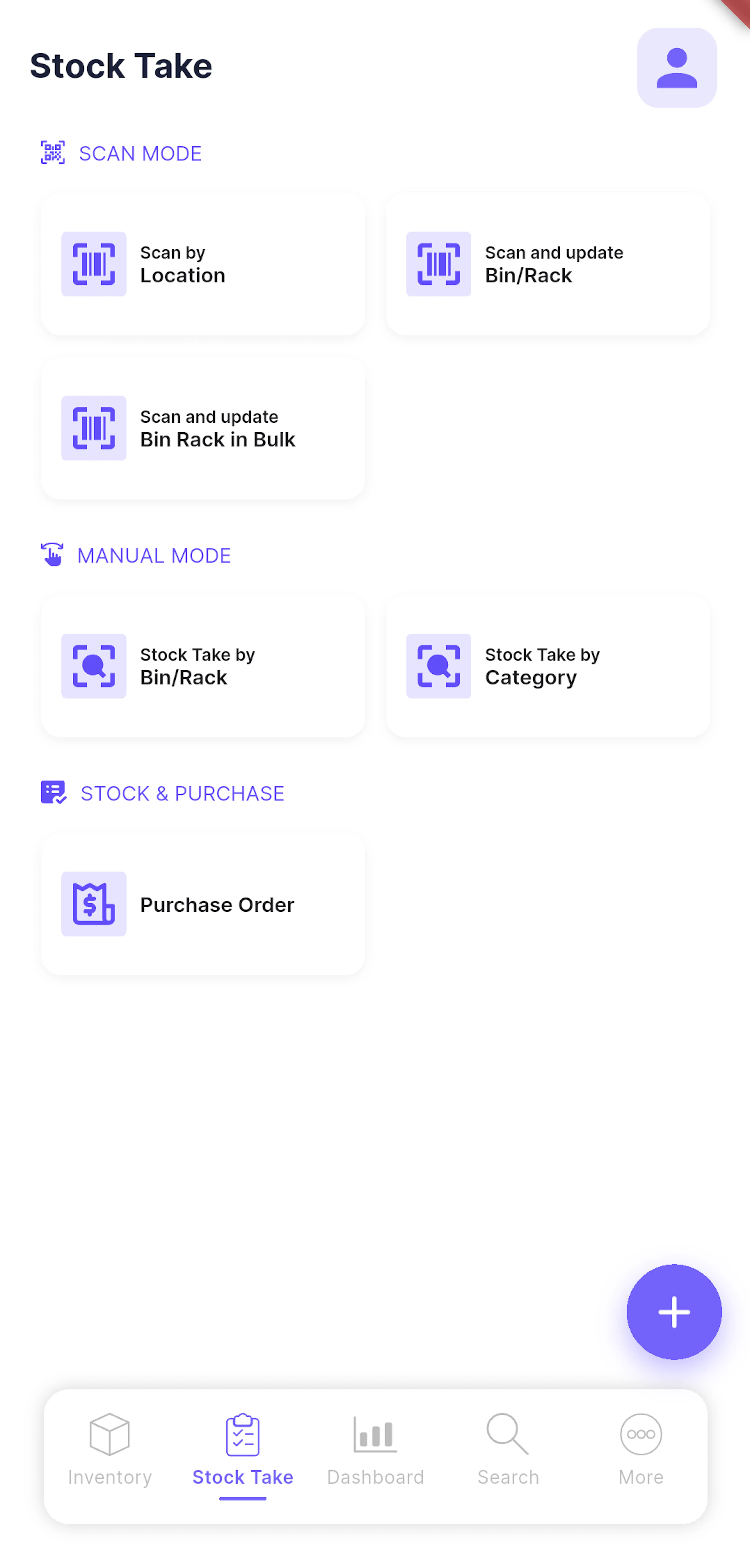
- Scan by SKU / Barcode / Title - scan an item to find it.
- Scan by Location - scan a location name to list all of its items.
- Scan and update Bin/Rack - scan a bin rack, then scan items into it one at a time.
- Scan and update Bin Rack in Bulk - scan a bin rack, then scan many items in one go.
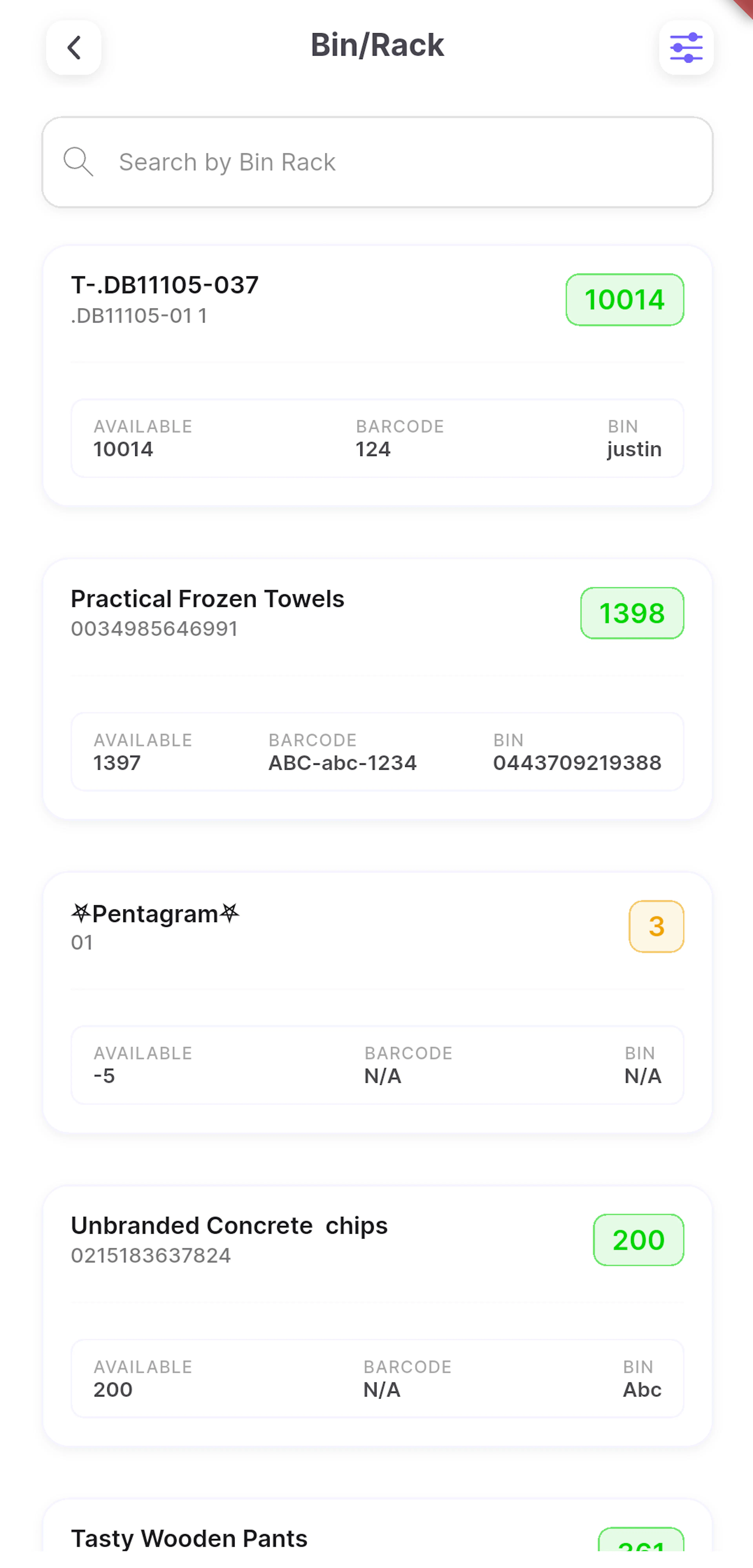
- Stock Take by SKU / Barcode / Title - search and filter the item list.
- Stock Take by Bin/Rack - search by bin rack.
- Stock Take by Category - choose a category and stock location.
- Purchase Order - create and manage purchase orders.
- Stock Count - review and record stock counts.
Update Stock Level
Tap any item in a stock take list to open the update screen.
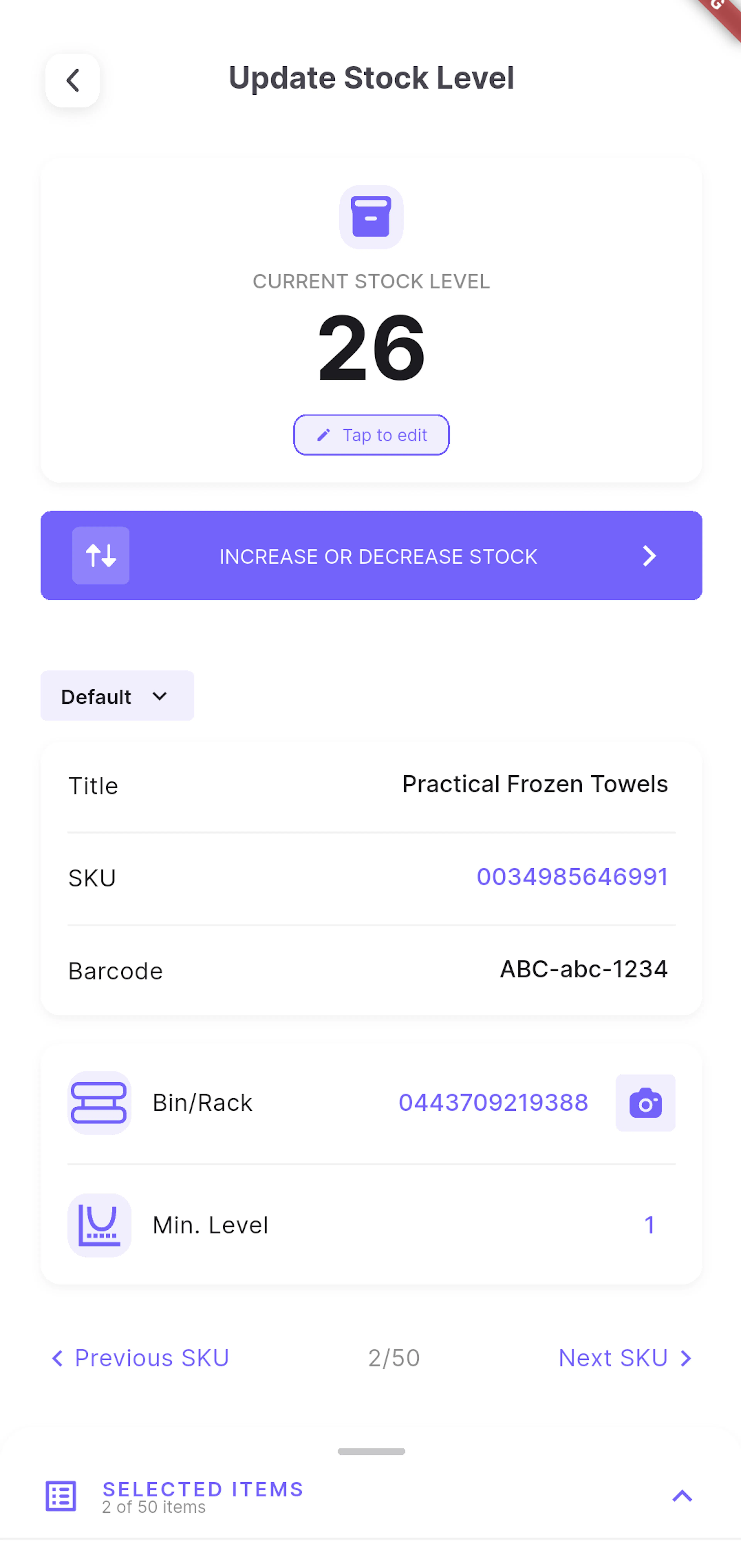
Step 1 - Check the item
Confirm the title, SKU, barcode, and location. Tap the SKU to open the full item detail.
Step 2 - Update the stock level
Tap CURRENT STOCK LEVEL to enter the counted quantity, or tap INCREASE OR DECREASE STOCK to adjust it.
Step 3 - Update the bin rack or minimum level
Tap Bin/Rack or Min. Level to edit them. Tap the scan icon to scan a bin rack.
Step 4 - Move to the next item
Use Previous SKU and Next SKU, or open SELECTED ITEMS, to work through your list.
Scan and Update Bin Racks
Step 1 - Scan the bin rack
Choose Scan and update Bin/Rack or Bin Rack in Bulk and scan the bin rack. HyperStock lists the items already in it.
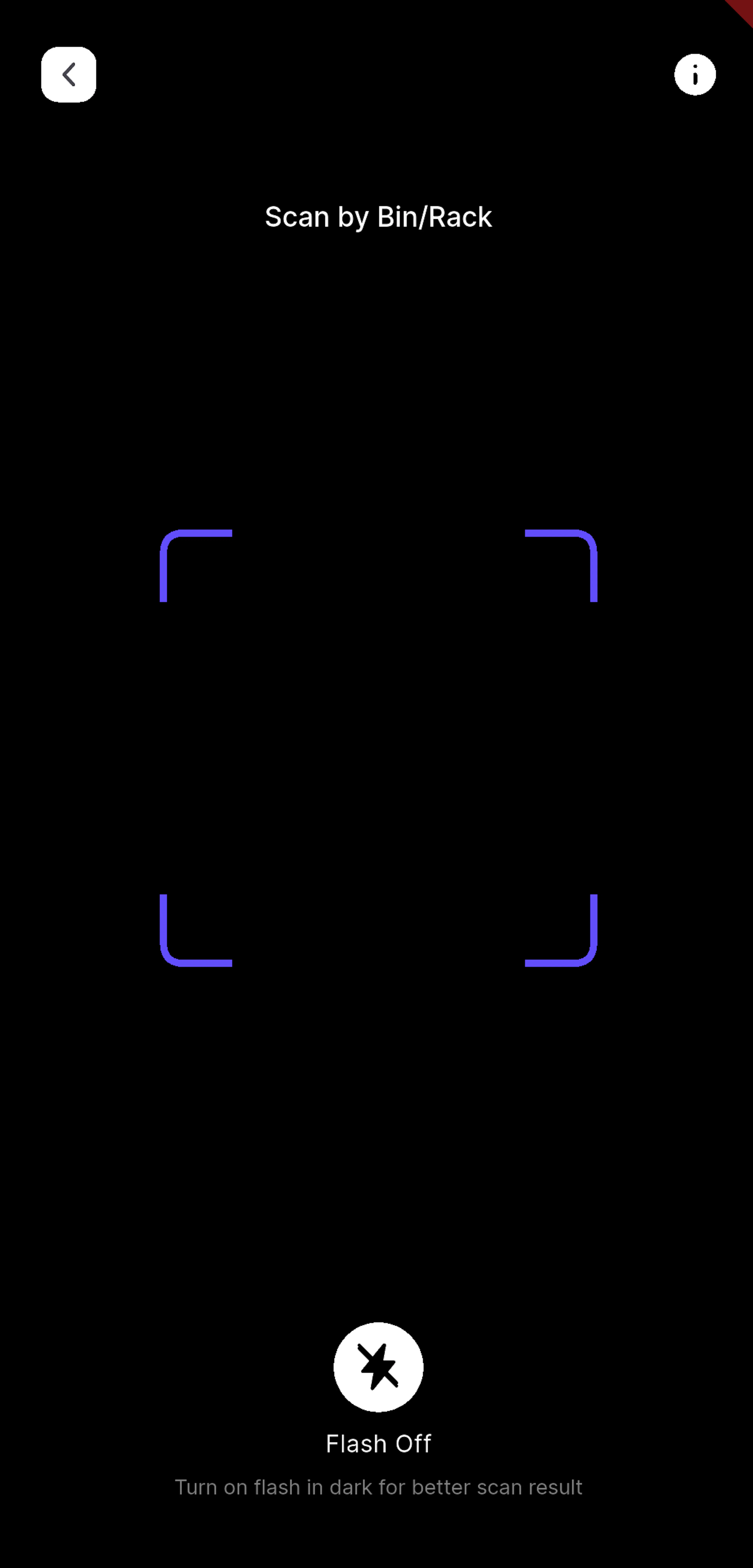
Step 2 - Scan the items
Scan each item's SKU or barcode. In single mode, tap ADD TO LIST for each item. In bulk mode, items are added automatically and any problems are listed under Errors.
Step 3 - Review the list
Tap View List to check the selected items and remove any added by mistake.
Step 4 - Save
Tap UPDATE TO BIN RACK to save the bin rack against every selected item in Linnworks.
Stock Count
Stock Count lists recorded stock counts with the total quantity and value discrepancy.
- Tap a count to see each item's previous and counted quantity, value, bin rack, user, and date.
- Use Filter to search by date range, bin rack, SKU, and location, and to include negative, positive, or no-change discrepancies.
- Tap Edit Stock Count, search or scan items, enter the counted quantity for each, and tap SAVE to record a new stock count in Linnworks.
Scanning
Camera scanning
Tap any scan icon to use the device camera. In low light, you may find the flash helpful. Please allow camera access when prompted.
Zebra scanners
If you use a Zebra Android handheld, simply switch on Enable Zebra Scanner in your profile to scan with the hardware trigger.
Purchase Orders
Open Purchase Order from the Stock Take tab to view, search, and create purchase orders.
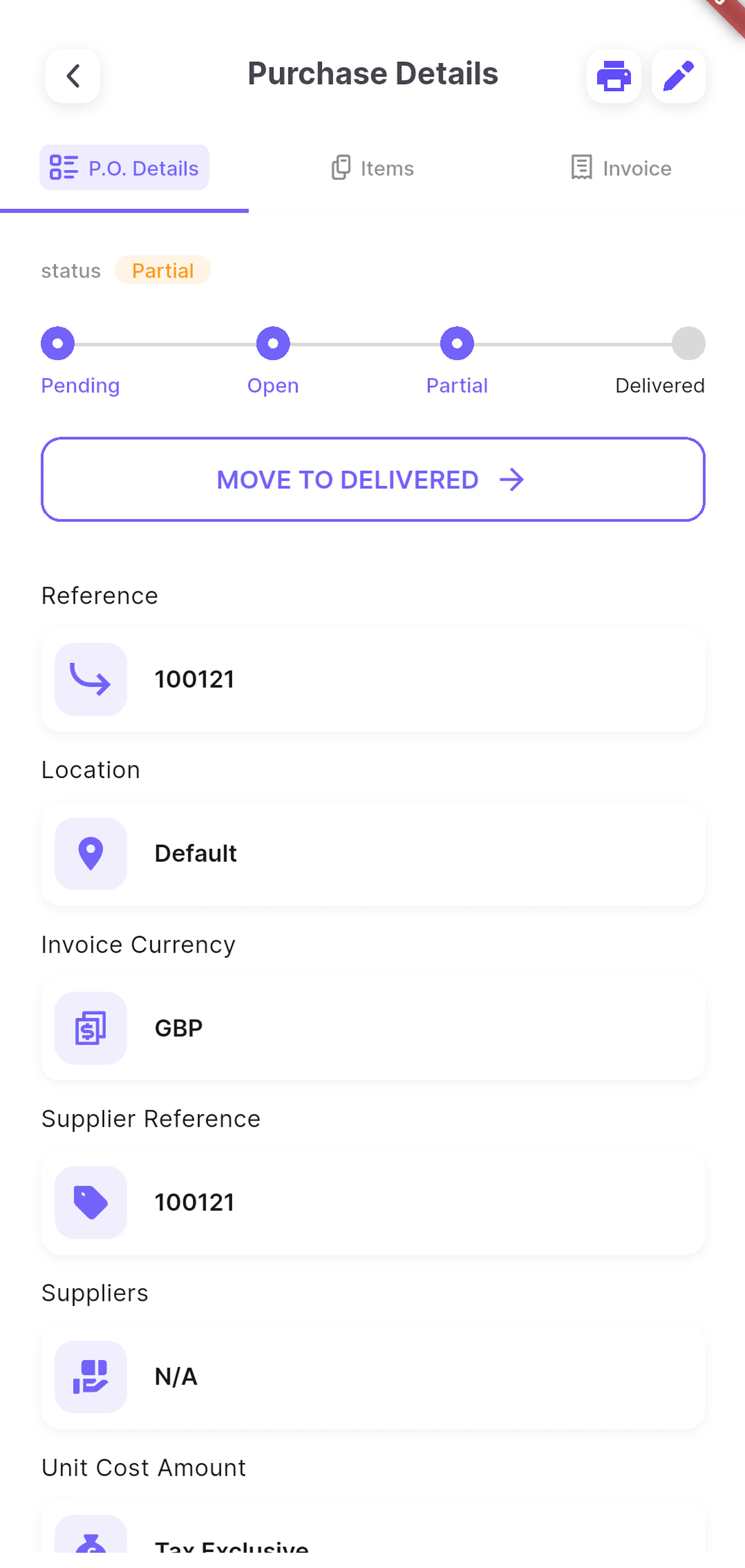
Purchase Order Statuses
| Status | Meaning |
|---|---|
| Pending | Draft. All header details and items can be edited. |
| Open | Ordered from the supplier. Stock due is increased at the location. |
| Partial | Some items have been delivered. |
| Delivered | Complete. The purchase order can no longer be edited. |
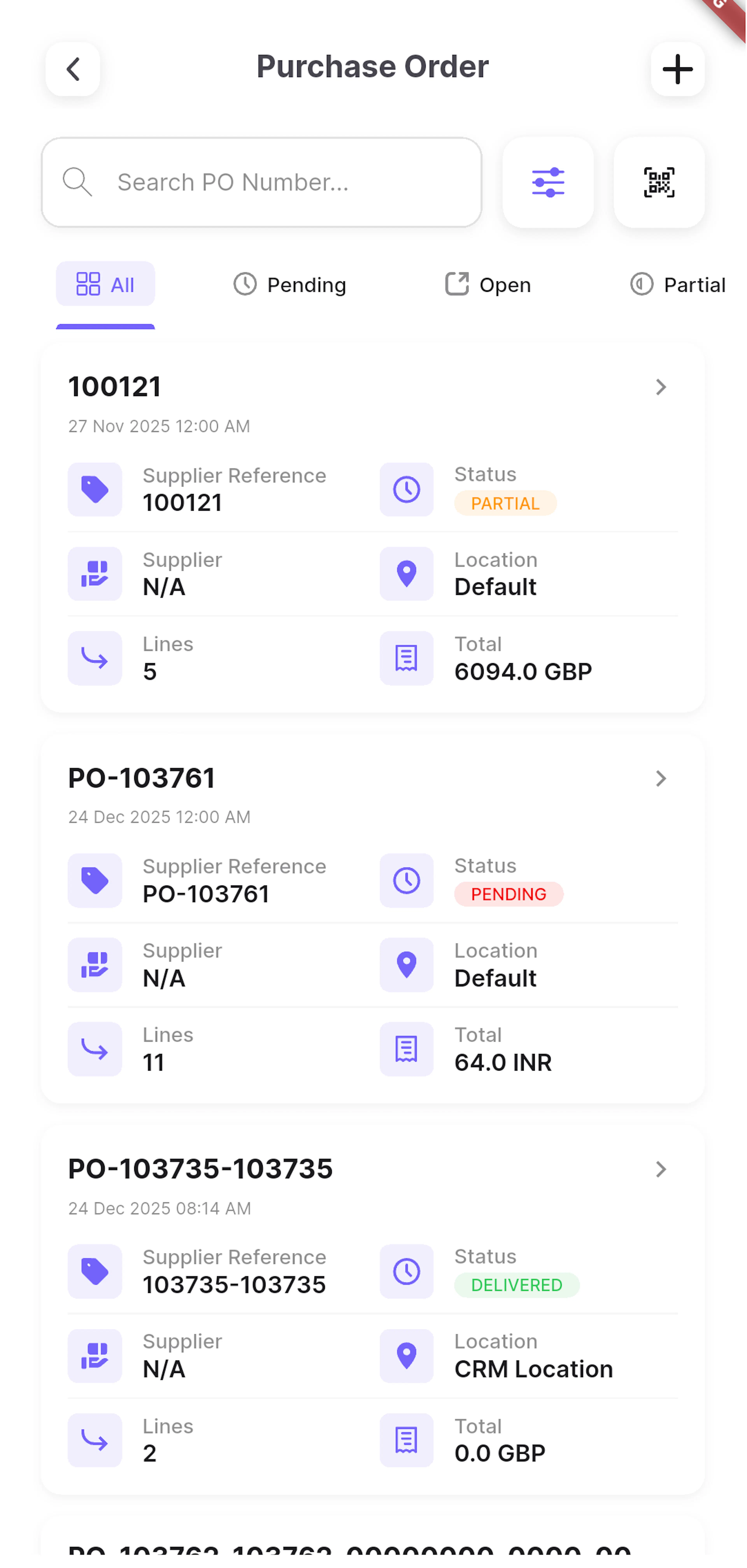
Use the status tabs, Search PO Number..., the scan button, and Filter (date range, location, and supplier) to find purchase orders.
Create a Purchase Order
Step 1 - Enter the details
Tap + and complete the P.O. Details tab: Reference, Location, Invoice Currency, Supplier Reference, Supplier, unit cost tax mode, Date, and Expected Date. Tap SAVE CHANGES.
Step 2 - Add items
On the Items tab, tap Add Items, search by SKU, title, or barcode, select items, and tap SAVE ITEMS. Composite items are added as their components.
Step 3 - Adjust quantities and costs
Tap an existing item to change its quantity, unit cost, or tax rate.
Step 4 - Add other costs
On the Invoice tab, tap Add Other Cost to add costs such as shipping or duty, with a reference, amount, and tax rate.
Step 5 - Move the status forward
On the purchase order detail, tap MOVE TO OPEN once at least one item has a quantity, and MOVE TO DELIVERED when the goods arrive.
Delivering a purchase order: Please check your items carefully before moving a purchase order to Delivered. Any undelivered items will not be booked into stock, and their due quantity will be removed.
Additional Purchase Order Tools
- Print - generate the Linnworks purchase order PDF.
- Properties - add, edit, or delete extended properties.
- Notes - add and delete notes.
- Audit Log - view the history of changes.
Search
The Search tab searches your Linnworks stock by SKU, title, barcode, category, or supplier. Type a term or tap the camera icon to scan.
- Results are grouped into SKU, TITLE, BARCODE, CATEGORY, and SUPPLIER.
- Tap See All to see every result in a group.
- Tap an item to open its detail, or tap a category or supplier to open its list.
Categories, Suppliers, and Locations
Open these from the More tab or the Quick Action button.
Search, add, edit, and delete Linnworks categories. Category names are required and can be up to 100 characters. The Default category cannot be edited or deleted.
Search, add, edit, and delete Linnworks suppliers. The Default supplier cannot be deleted.
| Field | Required | Notes |
|---|---|---|
| Supplier Name | Yes | 2-100 characters. |
| Contact Name | No | Letters only. |
| Address / Alternative Address | No | Up to 200 characters each. |
| City / Town, Region, Country | No | Letters only. |
| Post Code | No | Up to 20 characters. |
| Telephone / Secondary Telephone | No | Validated if entered. |
| Fax Number, Webpage | No | |
| No | Must be a valid email address. | |
| Currency | No | For example GBP, USD, or EUR. |
Search, add, edit, and delete stock locations. Changes are saved to Linnworks.
- Location Name is required, must be unique, and can be up to 100 characters.
- Choose whether the location Is Fulfillment Center or Is Warehouse Managed. A location cannot be both.
- Tap Sync to refresh locations from Linnworks.
Orders and Sales Dashboard
Dashboard
The Dashboard tab shows results for the selected period and location. Tap the period or location in the header to change them.
- Periods: 7 Days, 15 Days, 1 Month, 3 Months, 6 Months, 1 Year, or 6 Years.
- Location: a single stock location, or Default for all locations.
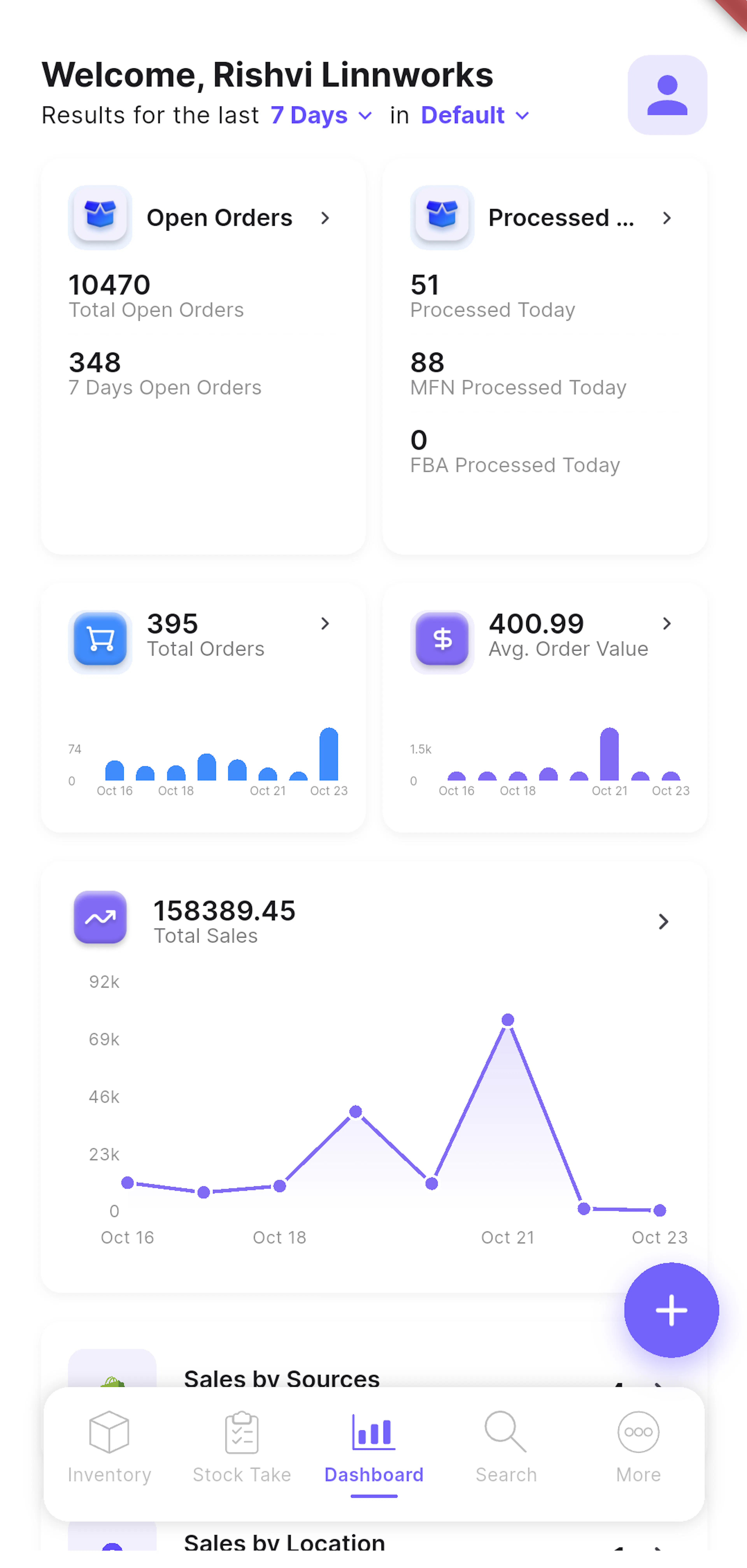
| Card | What It Shows |
|---|---|
| Open Orders | Total open orders and open orders for the selected period. |
| Processed Orders | Orders processed today, split into MFN and FBA. |
| Total Orders | Order count with a trend chart, by source and subsource. |
| Avg. Order Value | Average order value with a trend chart, by source and subsource. |
| Total Sales | Sales value with a trend chart, by source and subsource. |
| Sales by Sources | Orders by sales channel. |
| Sales by Location | Orders by stock location. |
| Top Products | Best-selling products by quantity. |
Tap Total Orders, Avg. Order Value, or Total Sales to open a detailed view with a chart, the change compared with the previous period, and a breakdown by Source and Subsource. Pull down on any dashboard screen to refresh it.
The top of the dashboard may also show banners with news and updates from the HyperStock team. Tap a banner to find out more.
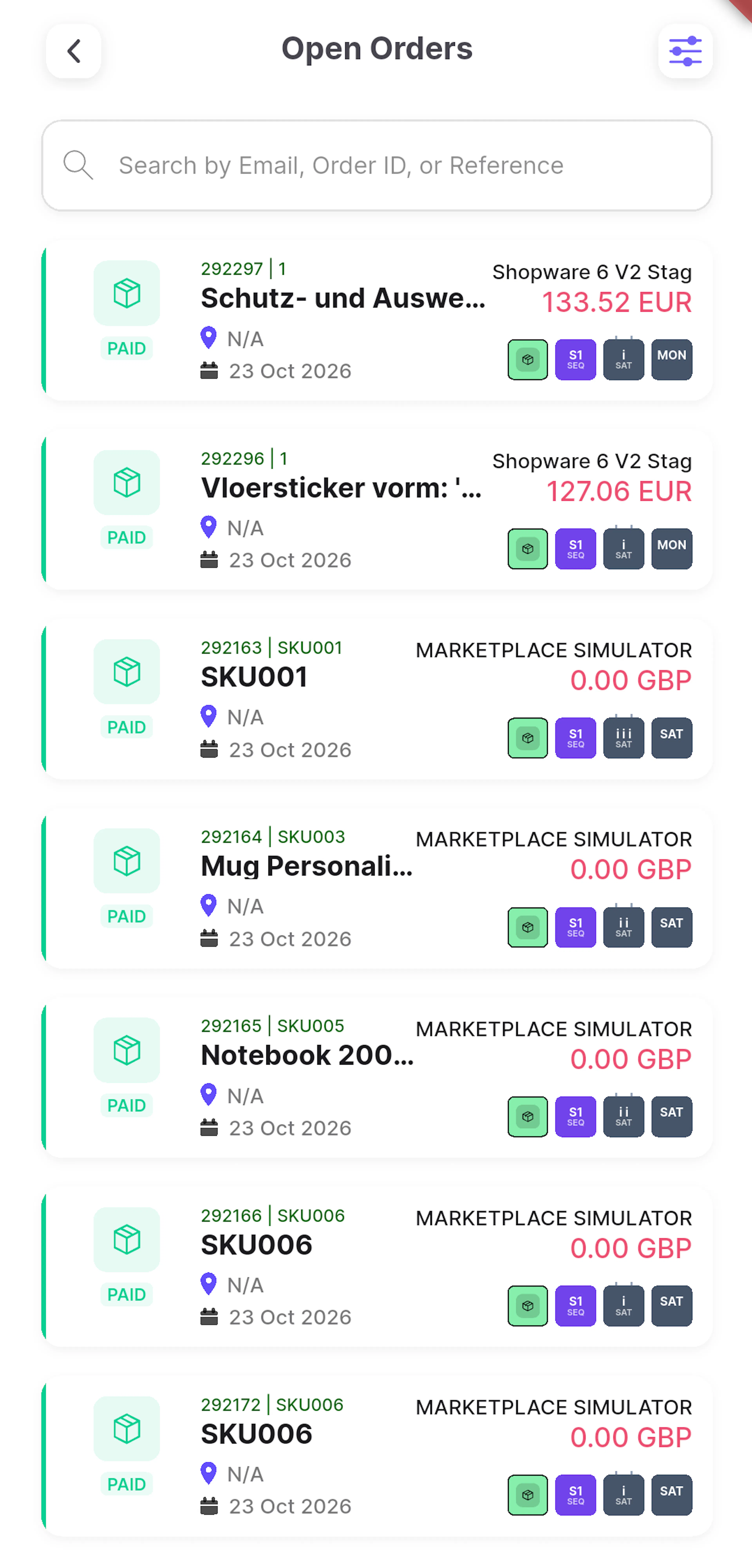
Open Orders
Search open orders and use Filter to choose what to search by:
- Email, Order ID, or Reference
- Item SKU / Barcode (with scanning)
- Item Title
- Customer Name
- Country
- POSTCODE
- Shipping Vendor / Service
Each order shows its status (UNPAID, PAID, RETURN, PENDING, or RESEND), items, location, received date, source, and total. A warning icon marks orders that are loss-making, on hold, cancelled, or parked.
Processed Orders
Search processed orders by email, order ID, or reference. Use Filter to choose the Date Field (Processed, Order, Payment, or Cancelled date) and the Date Range (Today, Yesterday, Last 7 Days, This Month, or Custom Range).
Order Details
Tap any order to view it. Order details are read-only.
- ORDER DETAILS - Order ID and channel reference (with copy buttons), address and shipping information, status, packaging, and totals.
- ORDER ITEM - each item's quantity, price, SKU, barcode, bin rack, category, and weight.
Low-Stock Alerts
Create a low-stock alert for any stock item and location. HyperStock checks the Linnworks stock level on your chosen schedule and sends a push notification when the quantity falls below your threshold.
| Field | Required | Description |
|---|---|---|
| Stock item | Yes | The item to monitor. |
| Location | Yes | The stock location to check. |
| Threshold | Yes | The quantity below which an alert is sent. Must be above 0. |
| Recurs | Yes | Hourly, Daily, Weekly, Monthly, or Yearly. |
| Start date | Yes | When monitoring begins. |
| End date | No | When monitoring stops. The alert is deactivated after this date. |
Notifications appear as Low Stock Alert! on the device you most recently signed in on.
Notifications
HyperStock uses push notifications to keep you informed. Please allow notifications when the app asks, so you do not miss important updates.
| Notification | What Happens When You Tap It |
|---|---|
| Order updates | Opens the related order in Order Details. |
| Subscription updates | Opens Your Subscription. |
| Low-stock alerts | Lets you know an item is running low. |
Inventory Analytics
Compare 30, 60, or 90-day windows for each stock location:
- Summary - total, low, out-of-stock, negative, and overstocked SKUs, dead stock, and stock value
- Top risk SKUs - items most likely to run out
- Data quality - missing barcodes, weights, dimensions, suppliers, images, and descriptions
- Warehouse readiness - percentage of items ready for warehouse operations
- Purchasing - open, late, and reorder purchase orders, and stock due in 7 days
- Slow and dead stock - items without sales for 30-90, 90-180, and 180+ days
- Listing health - active, inactive, errored, and unlinked listings
- Health score - an overall inventory health measure
Plan availability: Inventory analytics is available on plans that include it.
Team Management
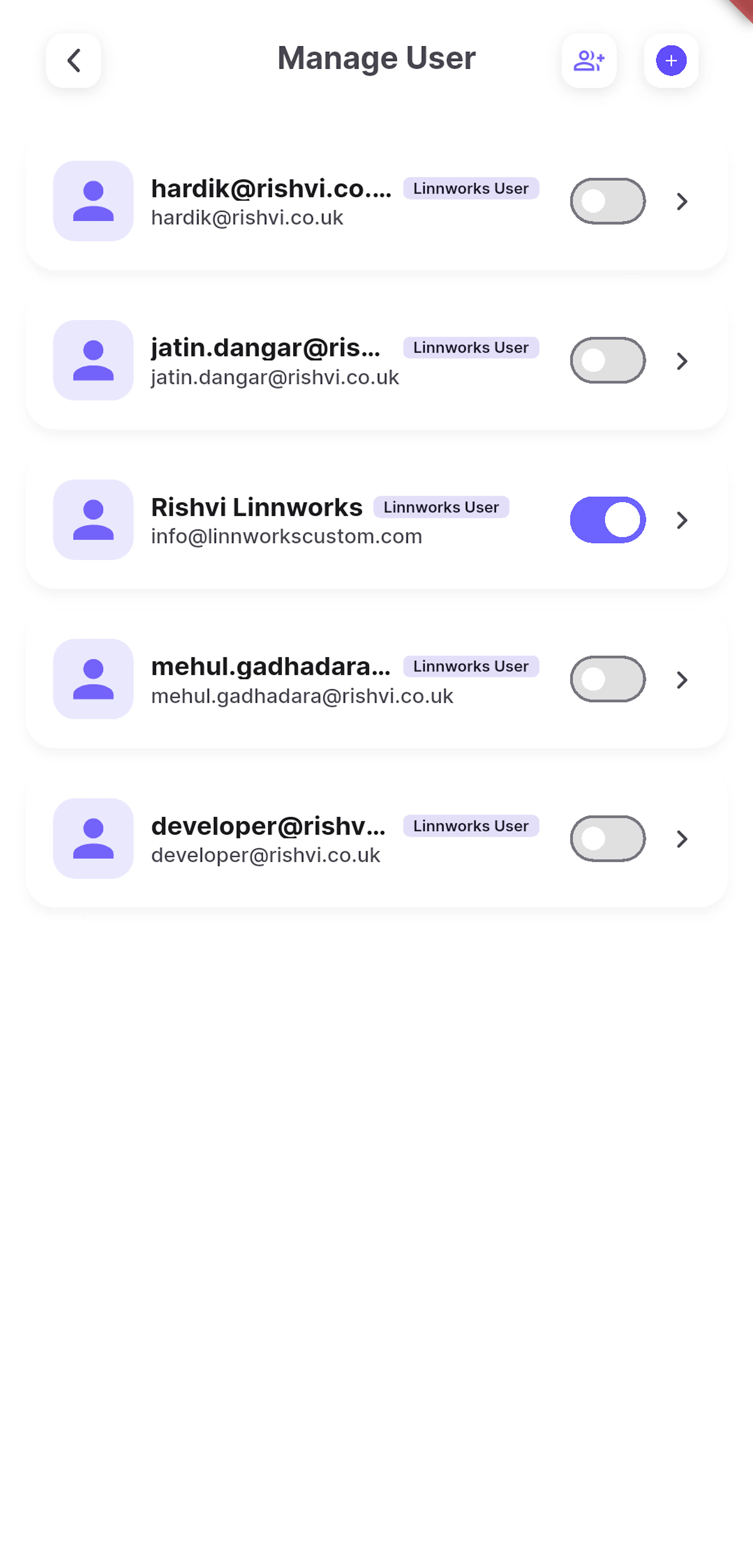
As the account owner, you can manage your team from My Profile > Manage User.
Step 1 - Add team members
Tap + to add one user with their first name, last name, and email, or tap the group icon to add several email addresses at once. Each user receives a welcome email with their password.
Step 2 - Grant features
Tap a user to open Permissions. Tick the modules they can use, such as Inventory, Stock Take, Dashboard, Search, Categories, or Suppliers. Use Expand All and Select All to work faster.
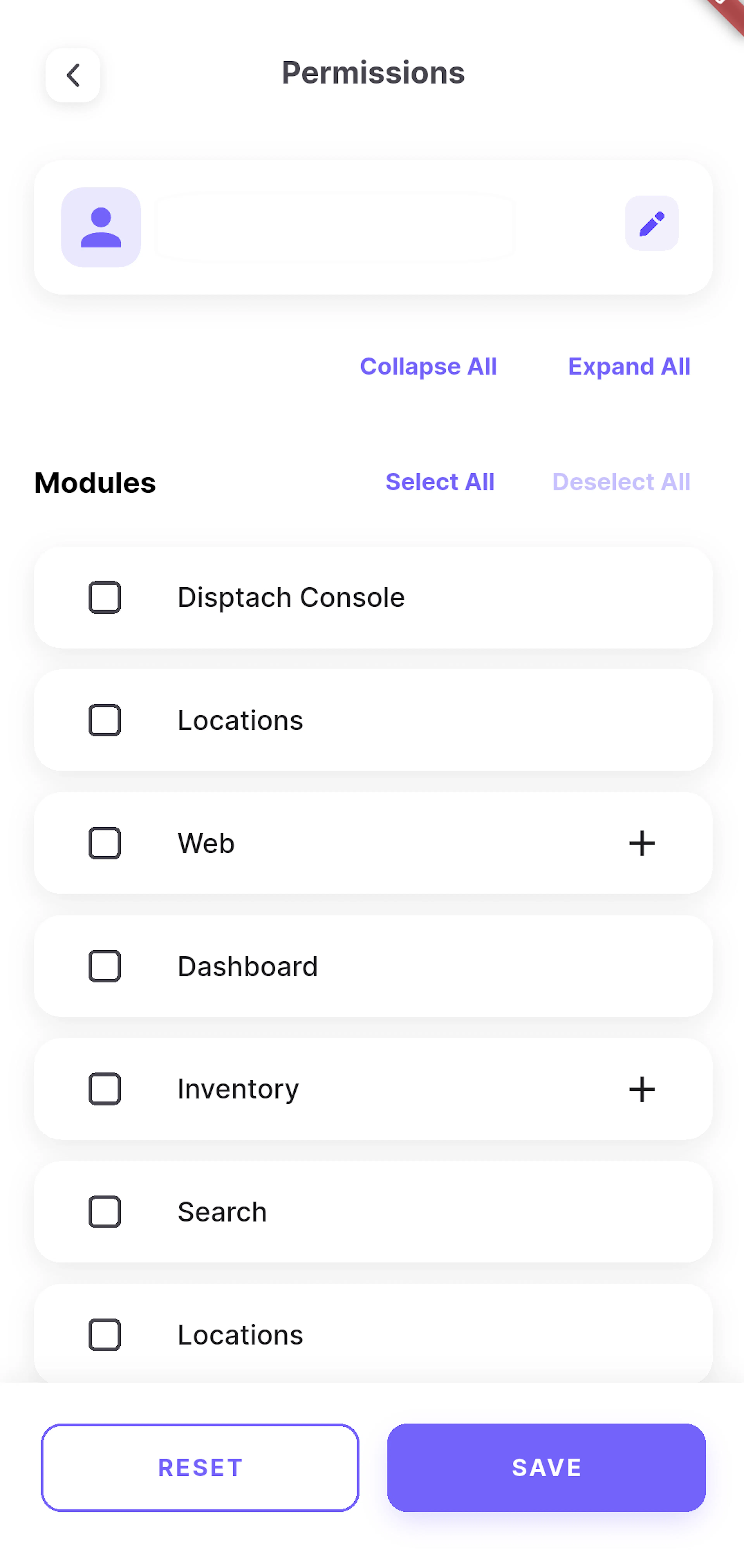
Step 3 - Grant stock locations
Under Stock Locations, tick the locations the user can work in, then tap SAVE.
Step 4 - Activate, deactivate, or edit
Use the switch on each user to activate or deactivate them. Tap the edit icon on the Permissions screen to change their name or email, or to delete them.
Seats: Each active user, including the account owner, uses one seat on your plan. If you would like to add more active users, you can increase the number of users on your subscription at any time.
Access Messages
| Message | Meaning |
|---|---|
| Subscription Needed | The account does not have an active plan yet. The account owner can tap Subscribe to choose one. |
| Upgrade Your Plan | This feature is not included in the current plan, but is available on a higher plan. |
| Feature Access Limited | The feature is available, with some limits on the current plan. |
| Access Not Available | This feature has not been granted to the user yet. Please contact your account owner to request access. |
| Account Deactivated | The account has been deactivated. Please contact your account owner or our support team for help. |
Plans and Pricing
| Plan | Price | SKUs | Includes |
|---|---|---|---|
| Free Forever | £0 | 50 | HyperLook dashboard, inventory list, stock and bin updates, scanning, and stock takes |
| Standard | £9.99/user/month or £107.89/user/year | Unlimited | Full inventory, product pages, audit log, and universal search |
| Premium (popular) | £15.99/user/month or £161.89/user/year | Unlimited | Everything in Standard, plus advanced reports, label printing, virtual printer, and warehouse transfers |
Please note: The prices shown in the app may differ from those listed above, as plan pricing can vary depending on company policy and current pricing. The Your Subscription screen always shows the latest prices available to your account.
Subscribe or Change Plan
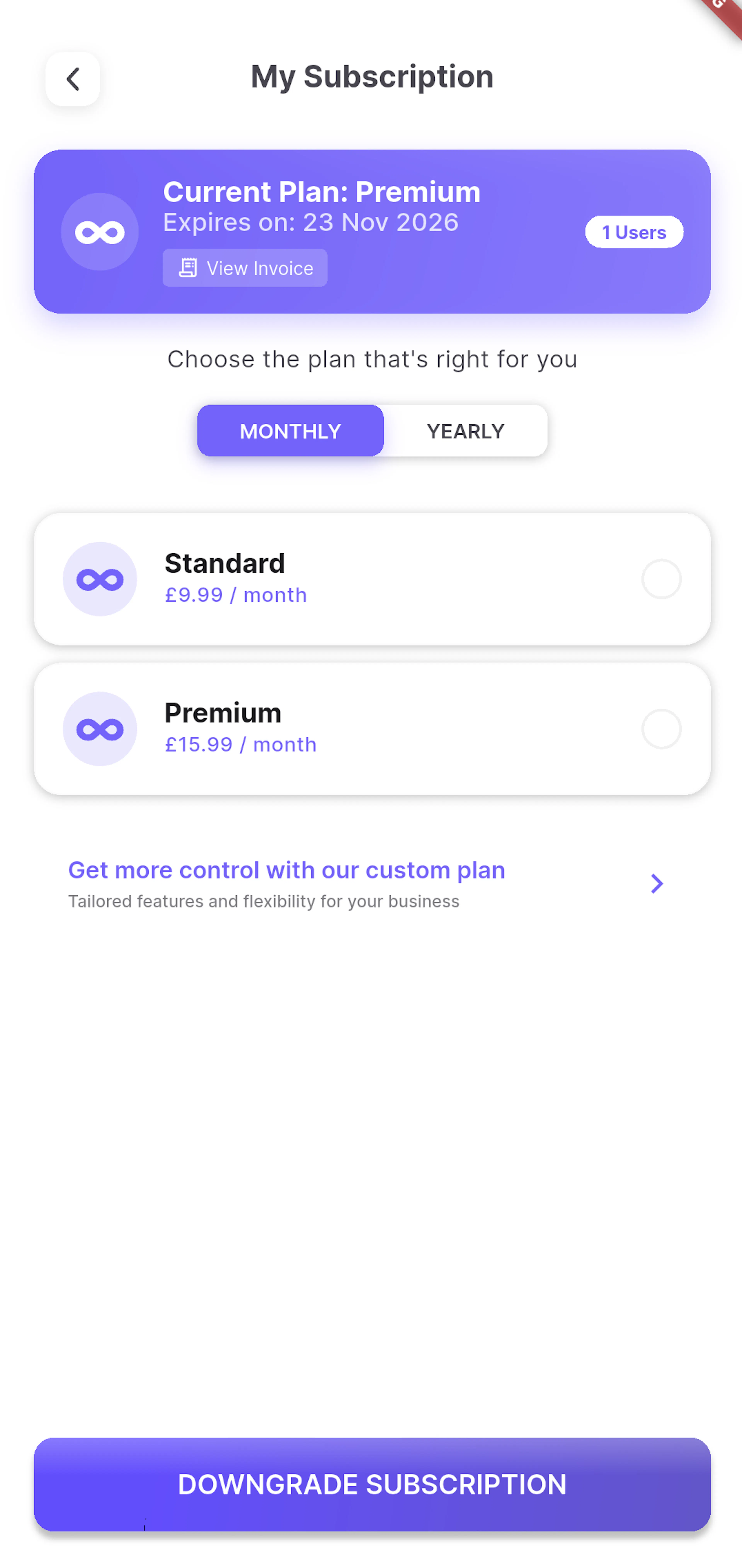
Step 1 - Open Your Subscription
Go to My Profile > Your Subscription to see your current plan, expiry date, and number of users.
Step 2 - Choose a plan
Switch between MONTHLY and YEARLY, select a plan, and review its features.
Step 3 - Confirm users and coupon
Tap SUBSCRIBE NOW, UPGRADE SUBSCRIPTION, or DOWNGRADE SUBSCRIPTION. Enter the Number of Users and an optional Coupon Code, then tap Confirm.
Step 4 - Pay securely
Complete payment in the secure Stripe checkout. HyperStock confirms the subscription when you return.
Upgrade at any time
Moving to a higher plan or adding user seats takes effect immediately.
Downgrade at renewal
Moving to a lower plan or fewer seats is scheduled for the end of the current billing period.
Cancel any time
Cancelling stops renewal. You keep access until the end of the period you have paid for.
Custom plans
Tap the custom plan banner to contact Rishvi about tailored features and pricing.
Subscriptions can be purchased or changed by the account owner. If you are a team member, please contact your account owner for any plan changes.
Profile and Settings
Tap your avatar to open My Profile.
| Option | What It Does |
|---|---|
| Edit Profile | Update your name, email, phone number, company, address, and photo. |
| Your Subscription | View and change your plan (account owner only). |
| Reset Password | Change your password. |
| Manage User | Add, edit, and remove users (account owner only). |
| Delete Account | Permanently delete your account (account owner only). |
| Enable Zebra Scanner | Use the hardware scanner on Zebra Android devices. |
| Theme | Choose Light, Dark, or System default. |
| Hyperstock Settings | Choose My Location, the default stock location for the app. |
| Contact Support | Contact the support team by phone, email, or chat. |
| LOGOUT | Sign out of HyperStock. |
Passwords: To keep your account secure, new passwords need to be 8 to 15 characters and include an upper-case letter, a lower-case letter, a number, and a symbol (@ $ ! % * ? &).
Key Benefits
Checking stock at a desktop, counting on paper, and chasing purchase orders can slow teams down and lead to missed sales. HyperStock aims to make this easier by bringing Linnworks inventory and purchasing onto the warehouse floor.
Keep stock accurate, act on low stock sooner, and manage Linnworks inventory from any device.
Accurate Stock Levels
Stock, bin rack, and minimum level updates are made in Linnworks at the shelf.
Faster Stock Takes
Scan by SKU, bin rack, or location, and update whole bin racks in bulk.
Purchasing on the Move
Raise, update, and deliver purchase orders without returning to a desktop.
Fewer Stock-Outs
Low-stock alerts and analytics highlight problems before they affect customers.
Sales Visibility
The dashboard shows orders and sales by channel and location wherever you are.
Controlled Team Access
Each team member sees only the features and locations they need.
Troubleshooting
If something does not work as expected, the guidance below should help. If you still need assistance, please do not hesitate to contact our support team.
Account already exists
Symptom: Account setup shows An account with this email already exists.
Likely cause: A HyperStock account is already registered with this email.
Resolution: Please tap GO TO LOGIN to sign in, or use Forgot Password? to receive a temporary password by email.
Setup token not found or expired
Symptom: Account setup asks you to reconnect your Linnworks account.
Likely cause: The Linnworks authorisation was interrupted or has expired.
Resolution: Please tap Connect With Linnworks and authorise the application again.
Already logged in on another device
Symptom: The Already Logged In window appears when signing in.
Likely cause: Each login can be active on one device at a time.
Resolution: If you would like to continue on this device, please tap Log Out From Other Device.
Update Required or Under Maintenance
Symptom: The app shows Update Required or Under Maintenance on start-up.
Likely cause: A newer app version is required, or scheduled maintenance is in progress.
Resolution: Please tap UPDATE NOW to install the latest version, or try again once maintenance is complete. Thank you for your patience.
When an optional update is available, New Version Available appears. You can tap UPDATE NOW or choose LATER.
No connection
Symptom: The app shows No Connection on start-up.
Likely cause: The device is not connected to the internet.
Resolution: Please check your Wi-Fi or mobile data and tap RETRY. The app also tries again automatically every few seconds.
Signed out unexpectedly
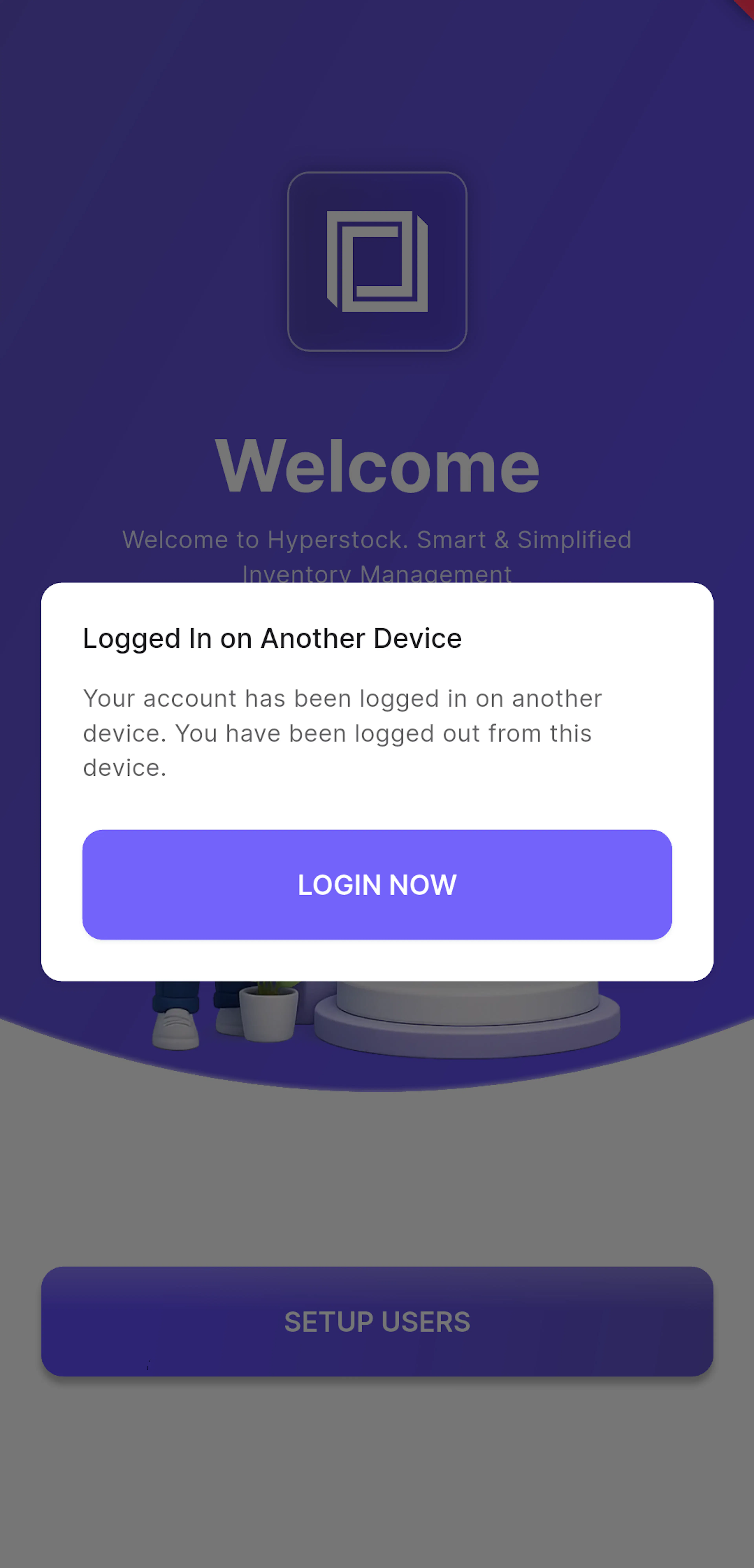
Symptom: Session Expired or Logged In on Another Device appears.
Likely cause: Your session has ended, or your account was signed in on another device.
Resolution: Please sign in again. If you did not sign in elsewhere, we recommend changing your password.
Camera does not scan
Symptom: Camera Permission Required appears, or barcodes are not read.
Likely cause: Camera access is blocked, or there is not enough light.
Resolution: Please tap Open Settings to allow camera access. In low light, turning on the flash may help.
Zebra scanner does nothing
Symptom: Pressing the hardware trigger does not scan into HyperStock.
Likely cause: Enable Zebra Scanner is switched off, or a dialog is open.
Resolution: Please switch on Enable Zebra Scanner in your profile and close any open dialogs, then try again.
Stock transfer fails
Symptom: A transfer is rejected for the destination location.
Likely cause: The destination is a warehouse-managed location.
Resolution: Please choose a different destination, or move the stock using your warehouse management process.
Cannot move a purchase order to Open
Symptom: Cannot move to open appears.
Likely cause: No item on the purchase order has a quantity above 0.
Resolution: Please add at least one item with a quantity above 0, then try again.
Feature shows an access message
Symptom: Upgrade Your Plan, Subscription Needed, or Access Not Available appears.
Likely cause: The feature is not included in your plan, or it has not been granted to your user.
Resolution: You can upgrade your plan, or kindly ask your account owner to grant access.
Cannot add or activate a team member
Symptom: Adding or activating a user fails with a plan limit message.
Likely cause: All seats on the current plan are in use.
Resolution: Please deactivate a user who no longer needs access, or increase the number of users on your subscription.
Best Practices
Accurate Linnworks data and well-managed permissions are key to getting the most from HyperStock.
Keep item data complete
Maintain barcodes, bin racks, weights, dimensions, suppliers, and images so scanning and reporting are accurate.
Set minimum levels
Set minimum levels on key items so the inventory list highlights low stock in amber and red.
Label your bin racks
Barcode-label bin racks so teams can scan them in stock takes and bulk bin rack updates.
Grant only what is needed
We recommend giving each team member only the features and locations they use, and deactivating users who leave as soon as possible.
Count stock regularly
Run rolling stock counts and review discrepancies to keep Linnworks accurate.
Keep purchase orders current
Move purchase orders to Open when ordered and to Delivered when received, so stock due stays accurate.
FAQ
Which devices does HyperStock support?
HyperStock runs on iOS and Android phones, and on Zebra Android handheld scanners.
Does HyperStock change my Linnworks data?
Yes. Item, stock level, bin rack, category, supplier, location, stock count, transfer, and purchase order changes made in HyperStock are saved to Linnworks.
Can I scan without a handheld scanner?
Yes. Every scan icon can use the device camera.
Can I update many bin racks at once?
Yes. Use Scan and update Bin Rack in Bulk to scan a bin rack and then scan many items into it in one go.
Can I edit orders in HyperStock?
Orders cannot be edited in HyperStock at the moment. Open orders, processed orders, and order details are available to view only.
Can I control what my team can access?
Yes. The account owner chooses which features and stock locations each team member can use.
Can I sign in on more than one device?
Each login can be active on one device at a time. Signing in on a new device signs out the previous session.
Can one login access more than one Linnworks account?
Yes. If your email has been added to more than one HyperStock account, you choose the account when you sign in.
What happens if my subscription ends?
If no other plan is active or scheduled, your account moves to the Free Forever plan, so you can continue to use HyperStock. Team members are deactivated, and you can reactivate them when you choose a new plan.
Legal Information
- Privacy Policy: https://rishvi.co.uk/privacy-policy/
- Terms and Conditions: https://rishvi.co.uk/terms-conditions/
We kindly ask you to review these pages to understand how your data is handled and the terms that apply to the use of this application.
Summary
HyperStock brings Linnworks inventory management onto phones and Zebra handhelds. Once connected, your team can manage items, take stock, update bin racks, run purchase orders, and track orders and sales from anywhere in the warehouse.
Mobile stock control
Items, stock levels, bin racks, and transfers are updated in Linnworks from the shelf.
Scan-first stock takes
Count stock by SKU, bin rack, category, or location with the camera or a Zebra scanner.
Purchase orders
Create, cost, and deliver purchase orders on the move.
Team access control
Features and locations are granted per user.
Thank you for choosing HyperStock. If you need any help with setup or troubleshooting, please feel free to contact The Rishvi Team at info@rishvi.co.uk or call +44 20 8050 3432 (Monday to Friday, 9am to 5pm UK time). We are always happy to help.