HyperShip AI - User Manual for Linnworks
All options and settings available in HyperShip AI for Linnworks: installation, macro configuration, carrier rules, cost parameters, packaging logic and usage.
In this document you can find all the options and settings available in HyperShip AI for Linnworks, with a short description of each.
HyperShip AI is a Linnworks macro application, powered by Rishvi AI, that picks the cheapest carrier-compliant way to pack and ship each order.
Table of contents:
- Overview
- Key Features
- Who Should Use HyperShip AI
- Installation
- Configuration
- Steps to Configure
- Account
- Carrier Rules
- Cost Parameters
- Packaging Logic
- Override Rules
- Input Parameters
- Running the Macro
- Rules Engine
- Schedules
- Required Linnworks Data
- Inventory
- Shipping
- Outcome
- Best Practices
- Troubleshooting
- FAQ
- Support and Legal Information
Overview
- Developer: Rishvi Ltd.
- Application type: Macro, run via the Linnworks Rules Engine or a macro schedule.
- Available from: Linnworks Application Store.
- What it does: reads the order's SKU dimensions and weights, simulates shipping costs across your configured carriers, splits the order into parcels where needed, assigns the best-fit carrier and writes the result back to the Linnworks order.
Key Features
- Packaging optimisation: analyses every item on the order using its stored dimensions (length, width, height) and weight to find the most efficient parcel configuration.
- Carrier constraints: applies each carrier's dimension limits, weight limits, volumetric weight formula, oversize thresholds and surcharge structure.
- Cost simulation: calculates the total shipping cost of each packaging scenario per carrier, including volumetric weight, fuel surcharges, oversize charges and multi-parcel pricing.
- Multi-parcel handling: splits an order into several parcels when one parcel would break a carrier limit or cost more.
- Carrier assignment: sets the shipping service on the Linnworks order to the cheapest compliant option, unless an override rule applies.
- Order updates: writes the carrier, packaging decision, any applied override and a note to the order in Linnworks.
Who Should Use HyperShip AI
- Warehouse and fulfilment teams: receive orders with the box split and carrier already decided.
- Logistics managers: enforce carrier rules and avoid overspend on multi-parcel orders.
- Integration administrators: set up carrier rules, cost parameters, packaging logic and schedules.
- Operations and finance teams: get consistent, rules-driven carrier selection with fewer surprise surcharges.
Installation
- Install: in Linnworks, go to Apps > Application Store, search for HyperShip AI and click Install.
- Authorise: allow the application to access your Linnworks account when prompted.
- Configure: go to Apps > Macro Configuration to set up the macro (see Configuration below).
NB! HyperShip AI uses the shipping services already set up in Shipping > Integrations. Install and configure your carrier integrations before configuring HyperShip AI.
Configuration
All HyperShip AI settings live in Apps > Macro Configuration. Setup is done once and can be changed at any time.
Steps to Configure
- Step 1 – Access Macro Configuration: go to Apps and open Macro Configuration to manage and create HyperShip AI configurations.
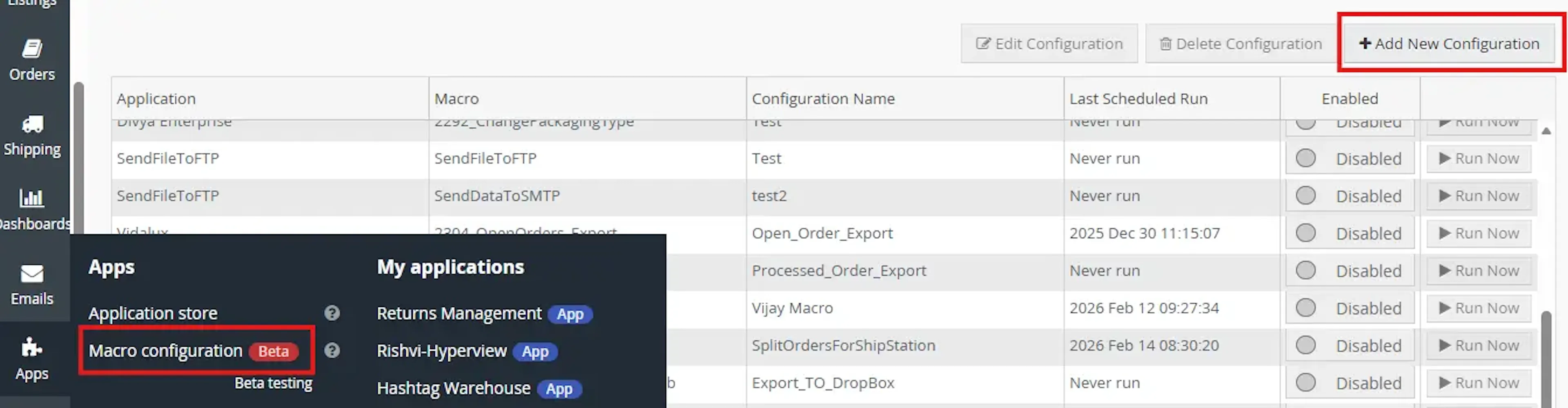
- Step 2 – Create New Configuration: click Add New Configuration and select HyperShip AI from the list of available applications.

- Step 3 – Configure Optimisation Settings: enter the Carrier Rules, Cost Parameters, Packaging Logic and Override Rules described below. All required fields must be filled before saving.
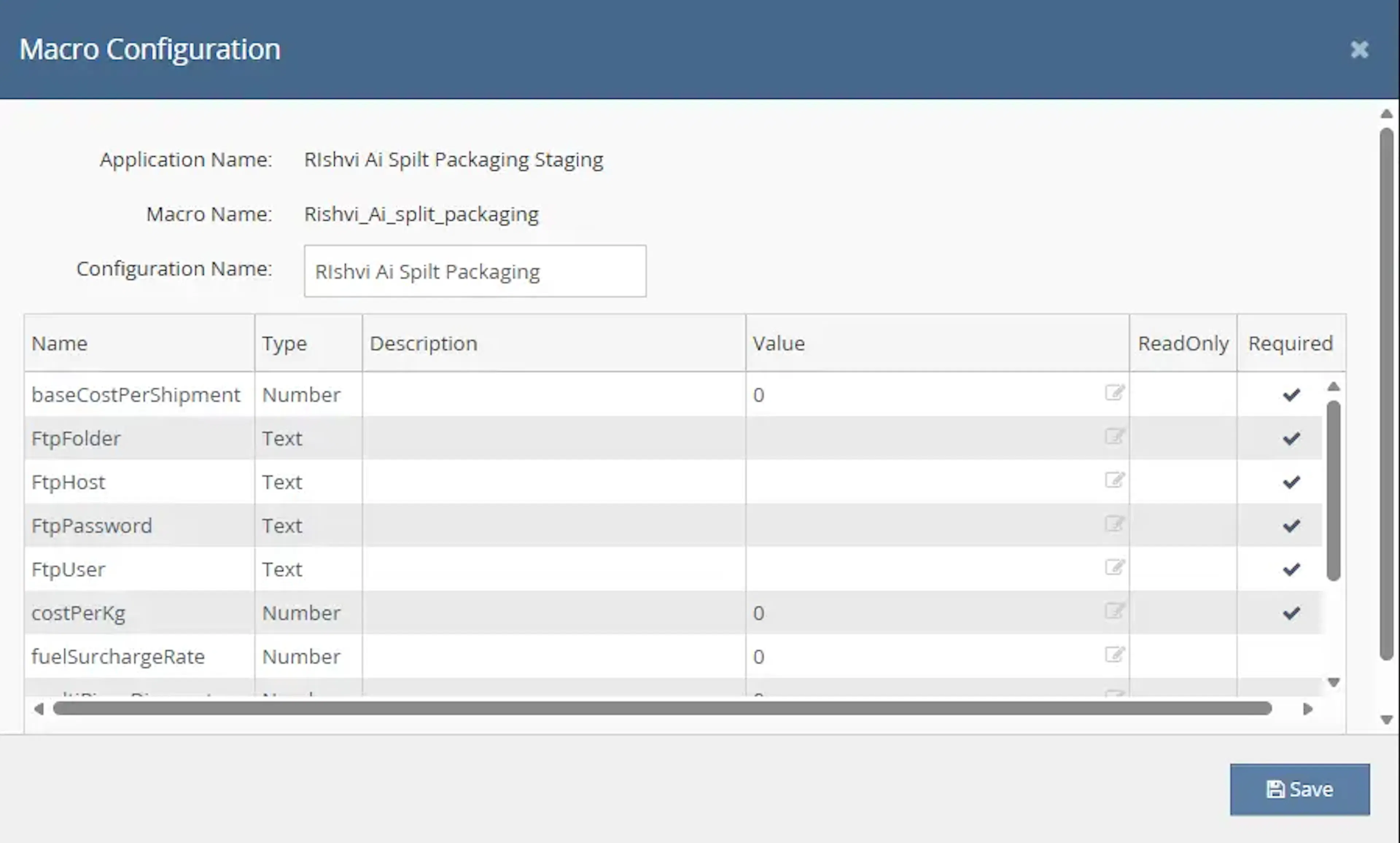
- Step 4 – Save and Enable: save the configuration and toggle it on so the schedule engine can run it automatically.

Account
- Enabled: tick to allow HyperShip AI to process orders. When unticked, the macro does not analyse or update any orders.
- Configuration name: a name to identify this configuration, for example when you run separate configurations per location or channel.
Carrier Rules (required)
Set one rule set for each carrier and service HyperShip AI may choose from.
- Shipping service: the Linnworks postal service the rule applies to.
- Maximum dimensions: the largest length, width and height a single parcel may have.
- Maximum weight: the heaviest a single parcel may be.
- Volumetric weight formula: how the carrier calculates volumetric weight (length × width × height ÷ divisor).
- Surcharge structure: the extra charges the carrier applies, such as oversize or heavy-parcel fees.
Cost Parameters (required)
- Volumetric weight divisor: the divisor used in the carrier's volumetric formula.
- Fuel surcharge (%): the current fuel surcharge added to the base price.
- Oversize threshold: the size above which the oversize charge applies.
- Multi-parcel pricing tiers: the price for the second and later parcels of one shipment.
NB! Update these whenever your carrier pricing changes. Out-of-date values give inaccurate cost simulations.
Packaging Logic (required)
- Item grouping: how items on one order are grouped into parcels.
- Split rules: when an order is split into more than one parcel, for example when a carrier limit would be exceeded.
Override Rules (optional)
- Preferred carrier or service: a carrier or service that takes priority over the cheapest result for matching orders.
NB! Override rules always take precedence over the cost-optimised result. Review them whenever carrier contracts change or new services are added.
Input Parameters
- OrderIds (required): the Linnworks order IDs to process, passed by the Rules Engine or schedule.
- Carrier Rules (required): dimension limits, weight limits, volumetric formulas and surcharges per carrier.
- Cost Parameters (required): volumetric divisors, fuel surcharge rates, oversize thresholds and multi-parcel pricing.
- Packaging Logic (required): how items are grouped into parcels and when splitting happens.
- Override Rules (optional): carrier or service preferences that take priority over the cost-optimised result.
Running the Macro
HyperShip AI runs automatically in one of two ways: from a Rules Engine rule, or on a schedule.
Rules Engine
- Run Macro action: in Settings > Rules Engine, create a rule whose action calls the HyperShip AI macro. Linnworks passes the matching
OrderIdsto the macro, so no manual input is needed. - Rule conditions: use conditions to limit which orders HyperShip AI processes, for example by channel, location or order value.
Schedules
- Schedules tab: in the macro configuration, open the Schedules tab to run HyperShip AI on a recurring basis.
- Frequency: daily or weekly at a set time, or at a recurring interval during the day.
NB! The configuration must be toggled on for the schedule engine to run it.
Required Linnworks Data
HyperShip AI can only optimise orders whose items have complete dimension and weight data in Linnworks.
Inventory
- Dimensions: length, width and height stored against every active stock item.
- Weight: the item weight stored against every active stock item.
NB! If an item has missing dimensions or weight, HyperShip AI cannot simulate packaging or cost for it, and the order may not be processed.
Shipping
- Shipping services: every carrier service you want HyperShip AI to consider must exist in Shipping > Integrations and have a matching carrier rule in the macro configuration.
NB! A carrier that is not in the configuration will never be selected, even if it would be the cheapest option.
Outcome
Each time it runs, HyperShip AI takes every order through the following points.
- Order analysis: reads each line item and its stored dimensions and weight.
- Carrier constraints: checks each configured carrier's dimension, weight, volumetric, oversize and surcharge rules against the order.
- Cost simulation: calculates the total shipping cost of each packaging scenario for each carrier.
- Packaging decision: picks the cheapest compliant configuration and splits the order into parcels if needed.
- Carrier assignment: assigns the best-fit carrier, unless an override rule applies.
- Order update: writes the carrier, packaging decision, any applied override and a note to the Linnworks order, ready for fulfilment.
Best Practices
- Keep SKU data complete: check that every active stock item has dimensions and weight.
- Configure all active carriers: include every carrier you use so the cost simulation can compare them.
- Keep cost parameters current: update fuel surcharges, volumetric divisors and oversize thresholds when carrier pricing changes.
- Review override rules: check them whenever contracts change or new services are added.
- Test before scaling: run the macro on a small sample of orders first and check the carrier assignments and parcel splits.
- Monitor the Rules Engine: check the Rules Engine logs regularly for errors.
Troubleshooting
- Order not processed: an item is missing dimensions or weight. Add the missing data to the stock item and run the macro again.
- Macro does not run: the configuration is toggled off, or the rule is not active. Toggle the configuration on and check the Rules Engine rule or schedule.
- Expected carrier never chosen: the carrier is missing from the configuration. Add a carrier rule for that service.
- Costs look wrong: the cost parameters are out of date. Update the fuel surcharge, divisors and thresholds.
- Cheapest carrier not chosen: an override rule applies. Review the override rules.
NB! For any orders that cannot be processed automatically, review the Rules Engine logs and check that the stock items have complete dimension and weight data.
FAQ
- How is HyperShip AI triggered? Through a Linnworks Rules Engine rule, which passes the matching
OrderIdsto the macro, or on a schedule set in the Schedules tab. - What data does it need? Dimensions and weight on every stock item, plus Carrier Rules, Cost Parameters and Packaging Logic in the macro configuration.
- Can it handle orders with several items? Yes. It analyses all items together and splits them across parcels when one parcel would break a carrier limit.
- What happens if an item has missing dimensions? HyperShip AI cannot simulate packaging or cost for that item. Keep dimension and weight data complete for all active stock items.
- Can I override the carrier it selects? Yes. Override Rules in the macro configuration take precedence over the cost-optimised result.
- Does it update Linnworks automatically? Yes. The carrier, packaging decision, any override and a note are written to the order with no manual data entry.
- Can I run it on a schedule? Yes. Use the Schedules tab to run it daily, weekly or at a recurring interval during the day.
- Which carriers does it support? It is carrier-agnostic: any carrier set up in Linnworks and in the macro configuration can be selected.
Support and Legal Information
For help with HyperShip AI, contact Rishvi Ltd, Monday to Friday, 9am to 5pm UK time. Emails are answered within 24 hours.
- Email: info@rishvi.co.uk
- Phone and WhatsApp: +44 20 8050 3432
- Website: rishvi.co.uk
- Privacy Policy: https://rishvi.co.uk/privacy-policy/
- Terms and Conditions: https://rishvi.co.uk/terms-conditions/