CRM Activities and Activity Plans
Discover how to manage CRM activities and activity plans in Odoo to improve follow-ups, automate processes, and maintain a well-structured sales pipeline.
In the CRM application, activities represent follow-up actions linked to leads and opportunities. These activities appear directly in the chatter, helping teams track communication and next steps efficiently.
Odoo provides several built-in activity types by default, but businesses can also define their own to better align with internal workflows. To view or manage these activity types, go to Configuration ‣ Activity Types within the CRM app. This section includes both standard and custom activity types.
Note
Activity types may vary depending on installed applications. To access the full list, open the Settings app, scroll to the Discuss section, and select Activity Types.
Default and custom activity types
The CRM module includes several ready-to-use activity types:
Email: Reminds users to send an email directly from the chatter.
Call: Allows scheduling a phone call via the calendar.
Meeting: Enables planning meetings using the calendar interface.
To Do: Adds a general-purpose task reminder.
Upload Document: Provides an option to attach external documents without requiring the Documents app.
Note
Installing additional apps like Sales or Accounting may introduce more activity types into the system.
Create a custom activity type
To define a new activity type:
-
Go to the Activity Types page
-
Click New
-
Enter a name for the activity
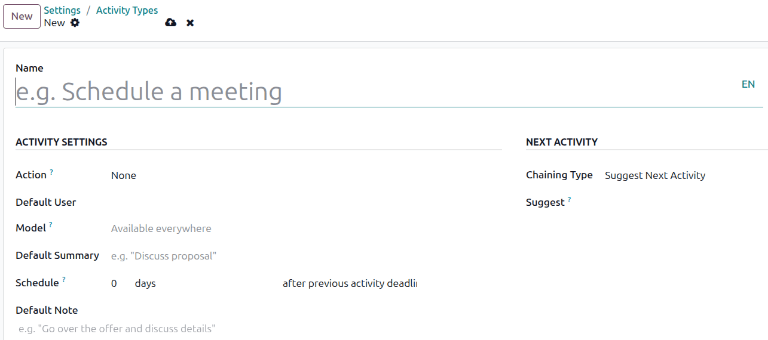
Activity settings
Action
The Action field determines what kind of task the activity represents and how users interact with it.
-
Upload Document: Adds a direct upload link in the chatter
-
Phonecall / Meeting: Opens the calendar to schedule the event
-
Request Signature: Provides a shortcut to send a document for signature
Note
Available actions depend on the modules installed in your database.
Default user
Assign a specific user to this activity type by default. If left empty, the activity is assigned to the person who creates it.
Default summary
This field defines the default title shown when the activity is added to a record. It is visible to end users, while the activity Name is mainly used in configuration.
Schedule
Set a default timeframe for the activity using days, weeks, or months.
You can define whether the deadline should be calculated:
-
After the previous activity’s deadline, or
-
After the previous activity’s completion
Note
Choosing after completion ensures the next task only starts once the previous one is finished.
Default note
Add predefined instructions or context that will automatically appear whenever this activity is scheduled.
Note
All default values can still be modified before saving the activity.
Next activity
To automate follow-ups, configure the Chaining Type.
Suggest the next activity
When set to Suggest Next Activity, users will see recommended follow-up actions when completing the current activity.

Select this option and define suggestions in the Suggest field.
Trigger the next activity
With Trigger Next Activity, the next task is automatically created as soon as the current one is marked Done.
Choose the follow-up activity from the Trigger field.
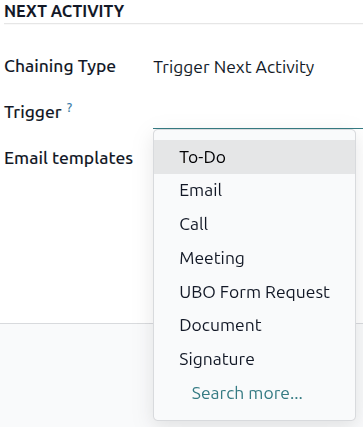
Email templates
You can attach an email template to an activity type. This allows users to quickly send pre-written messages directly from the chatter.
Activity tracking
Keeping activities updated is essential for maintaining an accurate pipeline.
Whenever progress is made on a lead or opportunity, mark the related activity as Done. This ensures:
-
The next activity can be scheduled
-
Overdue tasks don’t clutter the pipeline
-
The sales process remains clear and actionable
A well-maintained activity flow leads to better visibility and improved sales performance.
Activity plans
Activity plans are structured sequences of activities designed to standardize follow-up processes. When a plan is launched, all activities within it are scheduled automatically.
To create a plan:
-
Go to CRM app ‣ Configuration ‣ Activity Plans
-
Click New
-
Enter a Plan Name
-
Add activities under Activities To Create
For each activity:
-
Select an Activity Type
-
Define a Summary (optional)
-
Choose how it should be assigned
Assignment options include:
Ask at launch: Assign when the plan starts
Default user: Always assign to a specific user
If needed, select a user in the Assigned to field.
Tip
Plans can combine both assignment methods for flexibility.

Next, define when each activity should occur:
-
Use Interval and Units to set timing
-
Choose whether it happens before or after the plan date
Example
A plan designed for high-priority leads might include:
-
Email 2 days before
-
Meeting on the plan date
-
Quote creation 3 days after
-
Document upload 3 days after
-
Follow-up 5 days after
In this case, the meeting acts as the central milestone, with preparation and follow-up tasks scheduled around it.
Use an activity plan
To apply an activity plan:
-
Open an opportunity in the CRM app
-
Click Activity
-
Select a plan from the Plan field
A summary of all included activities will appear automatically.
Choose a Due Date, which adjusts all activity deadlines accordingly.
Assign a Responsible user for activities configured with Ask at launch.

Click Schedule to activate the plan.
All activities will then appear in the Planned Activities section of the chatter.
