Down payments
A down payment allows customers to pay a portion of the total order amount in advance, with the remaining balance settled later. Odoo Sales supports flexible down payment options to suit different business scenarios.
A down payment is an upfront amount paid by a customer at the time of confirming a sale. The remaining balance is paid later, based on agreed terms. This approach helps businesses secure commitment from customers before delivering products or services.
In the Sales app, down payments can be configured either as a percentage of the total order or as a fixed amount, depending on the agreement with the customer.
Create invoices
Once a quotation is confirmed and converted into a sales order, invoicing options become available through the Create Invoice button.
Clicking this button opens the Create invoice(s) pop-up window.

Note
Invoices are initially created in draft mode, allowing review and adjustments before final confirmation.
Within the Create invoice(s) window, you can choose from three options:
-
Regular invoice
-
Down payment (percentage)
-
Down payment (fixed amount)
Request a down payment
To request an advance payment:
-
Open the Create invoice(s) pop-up
-
Select either:
-
Down payment (percentage), or
-
Down payment (fixed amount)
-
-
Enter the desired amount in the Down Payment Amount field
-
Click Create Draft Invoice
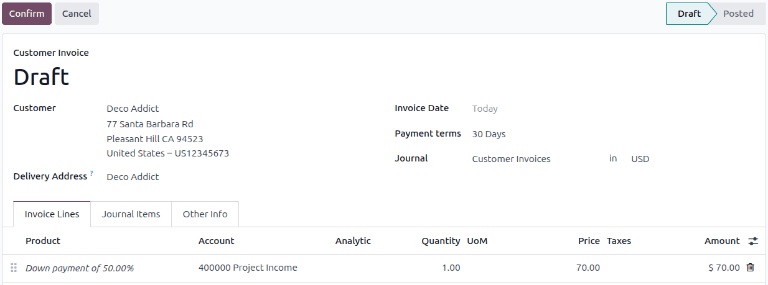
This generates a draft invoice displaying the down payment under a dedicated Down Payments section.
Important
If an Invalid Operation error appears, verify that the invoicing policy is correctly configured. Some policies require delivery confirmation before invoicing is allowed.
Example: 50% down payment
Note
This example assumes:
-
A 50% down payment
-
Product invoicing policy set to Ordered quantities

Step-by-step process
-
Go to Sales app ‣ New
-
Add a Customer
-
Add a product (e.g., Cabinet with Doors)
-
Click Confirm to create a sales order

-
Click Create Invoice
-
Select Down payment (percentage)
-
Enter
50in the Down Payment field
Note
The income account used for down payments can be modified. You can also define a default down payment account at the product category level.
- Click Create Draft Invoice
The system generates a draft invoice showing the down payment.
-
Click Confirm to post the invoice
-
Click Pay to register the payment

After payment, the invoice status updates to In Payment or Paid, depending on configuration.

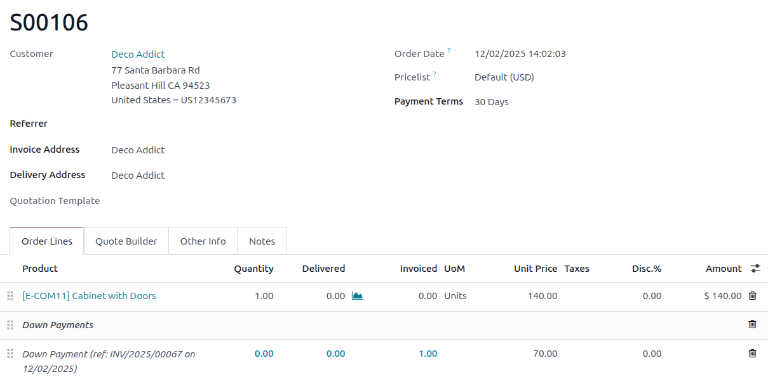
Back on the sales order, the down payment appears under the Order Lines tab.
Final invoice for remaining amount
To invoice the remaining balance:
-
Click Create Invoice again
-
Select Regular Invoice
The system automatically calculates the remaining amount after deducting the down payment.

-
Click Create Draft Invoice
-
Confirm and process payment

Once completed, the order reflects full payment across all invoices.

Important considerations
If a down payment is used with products invoiced based on Delivered quantities, certain limitations apply:
-
If the down payment exceeds the value of delivered goods, it cannot be deducted immediately
-
Odoo does not allow negative invoice totals
-
A Credit Note may be created to balance the transaction
To process such scenarios properly:
-
Install the Inventory app, or
-
Manually update delivered quantities on the sales order
Example: 100% down payment
A 100% down payment follows a similar process, but requires fewer steps.
Note
A 100% down payment is not the same as completing the full invoicing cycle. The system still expects a final invoice step.
Steps
-
Create a quotation and add a product (e.g., Solar Panel Installation)
-
Confirm the quotation
-
Click Create Invoice
-
Select Down payment (percentage)
-
Enter
100as the value

-
Click Create Draft Invoice
-
Confirm and register payment
Once completed, the down payment is fully processed.
Modify income account for down payments
Important
To adjust the income account, the Accounting app must be installed.
Steps
-
Go to Sales app ‣ Orders ‣ Orders
-
Open the relevant order
-
Click the Invoices smart button
-
Open the invoice
-
In the Account column, select a different account

You can either:
-
Select an existing account, or
-
Create a new one using the New button
This allows you to align down payment accounting with your financial structure.